Creating Videos
Creating Videos
The AI Video tool turns a prompt or an image into cinematic AI video with synchronized audio.
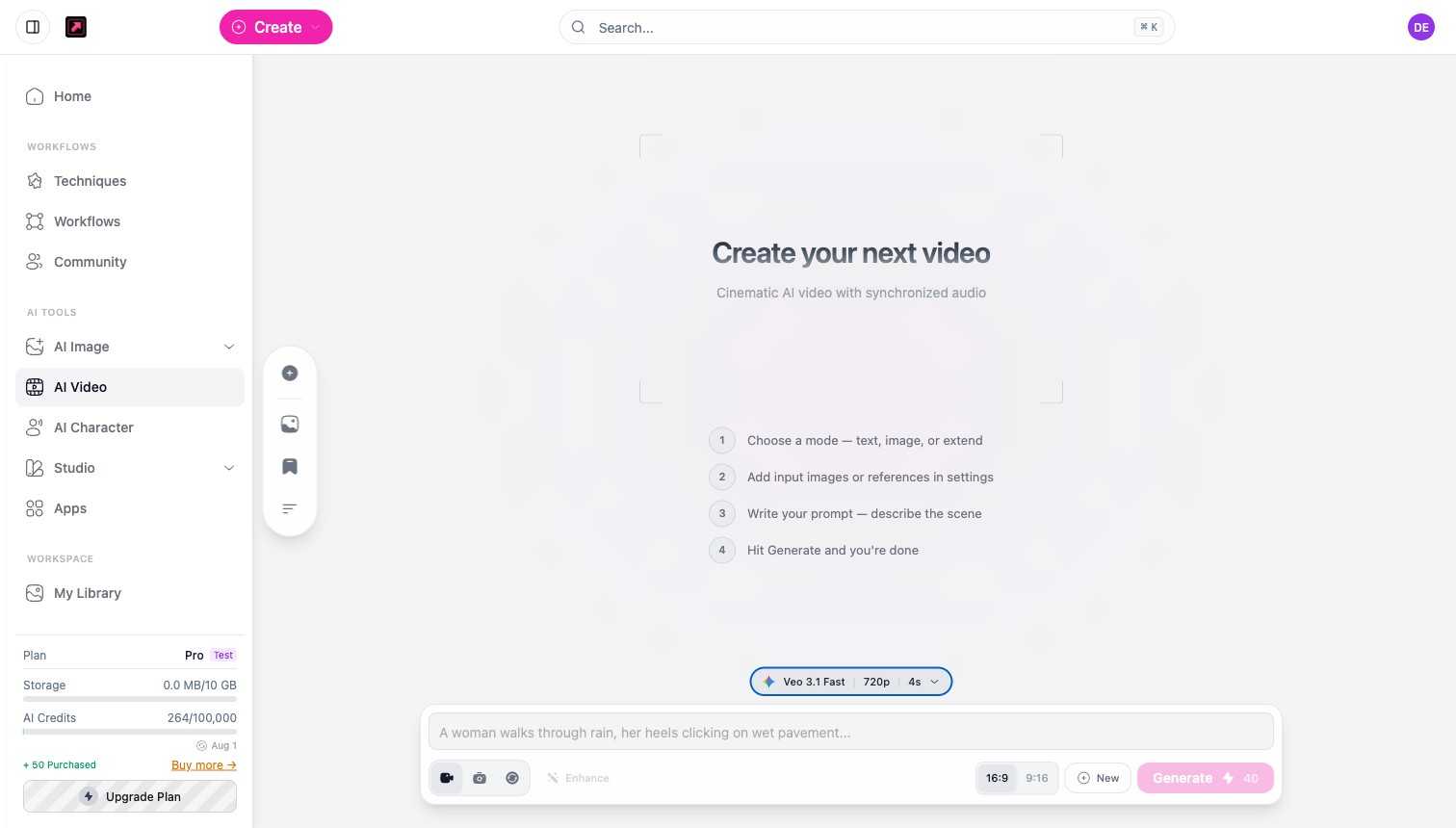
1. Choose a mode
Open AI Video and pick a mode: text, image, or extend. Text creates a video from a description, image animates a still you provide, and extend continues an existing clip.
2. Add inputs and settings
Open the model selector to choose your model, format, resolution, and duration, and to add input images or references.
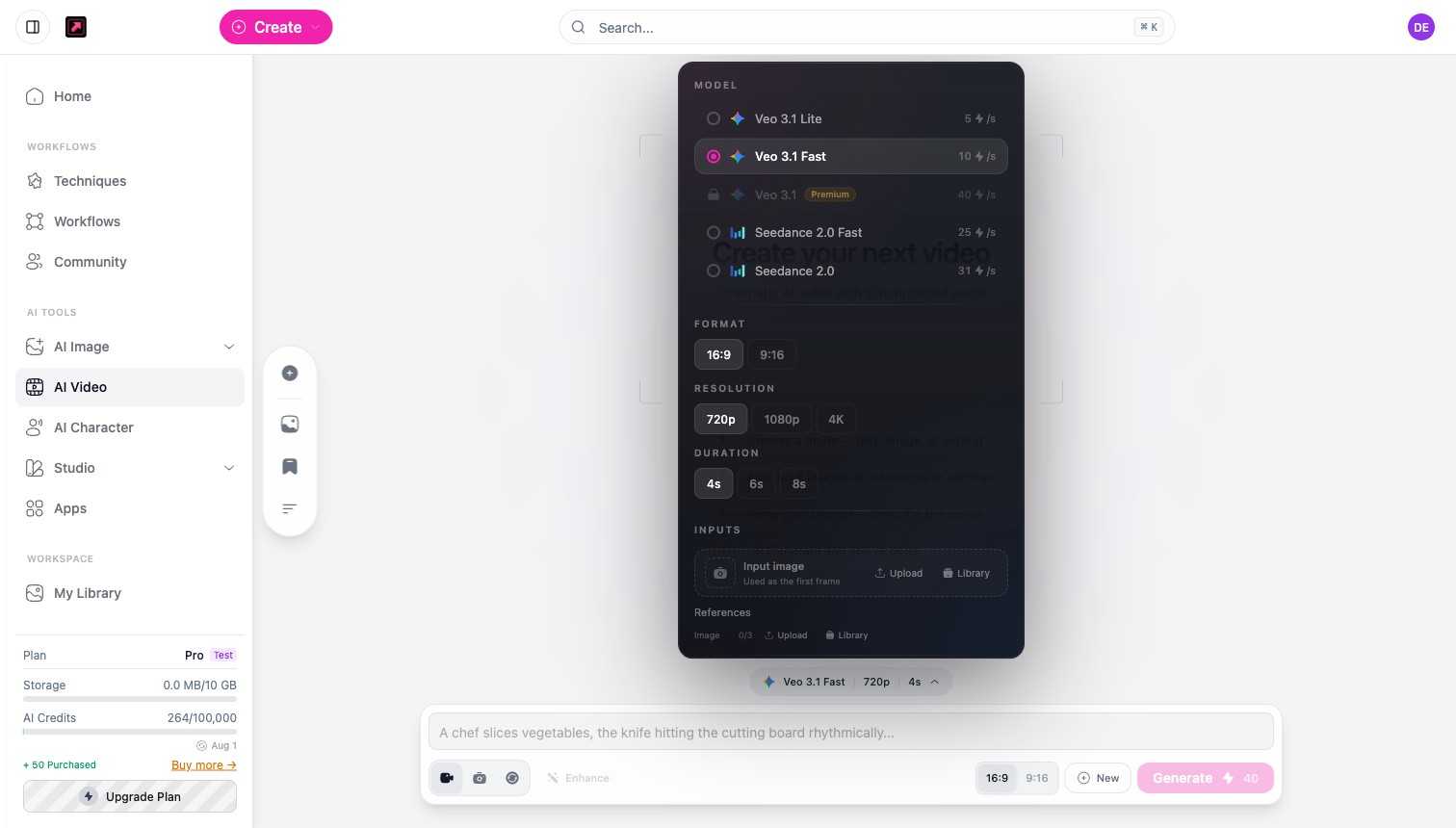
AI Video needs the Pro plan or higher. Video models are priced per second (for example Veo 3.1 Lite at 5 credits per second), and the top models need Premium. Choose a format (16:9 or 9:16), a resolution (720p up to 4K), and a duration (4 up to 20 seconds, depending on the model). For the full list, see AI Video.
3. Write your prompt
Describe the scene you want. The Enhance option expands a short prompt into a fuller one.
4. Generate
Select Generate. Video credits scale with the clip you request, so longer or higher-resolution videos cost more. The composer shows the cost before you run. Finished videos appear in My Library.
For details and credit ranges, see AI Video.