AI Video
AI Video
AI Video creates cinematic AI video with synchronized audio, from a prompt or from an image. This page walks through the tool and its options step by step.
Step 1: Choose a mode
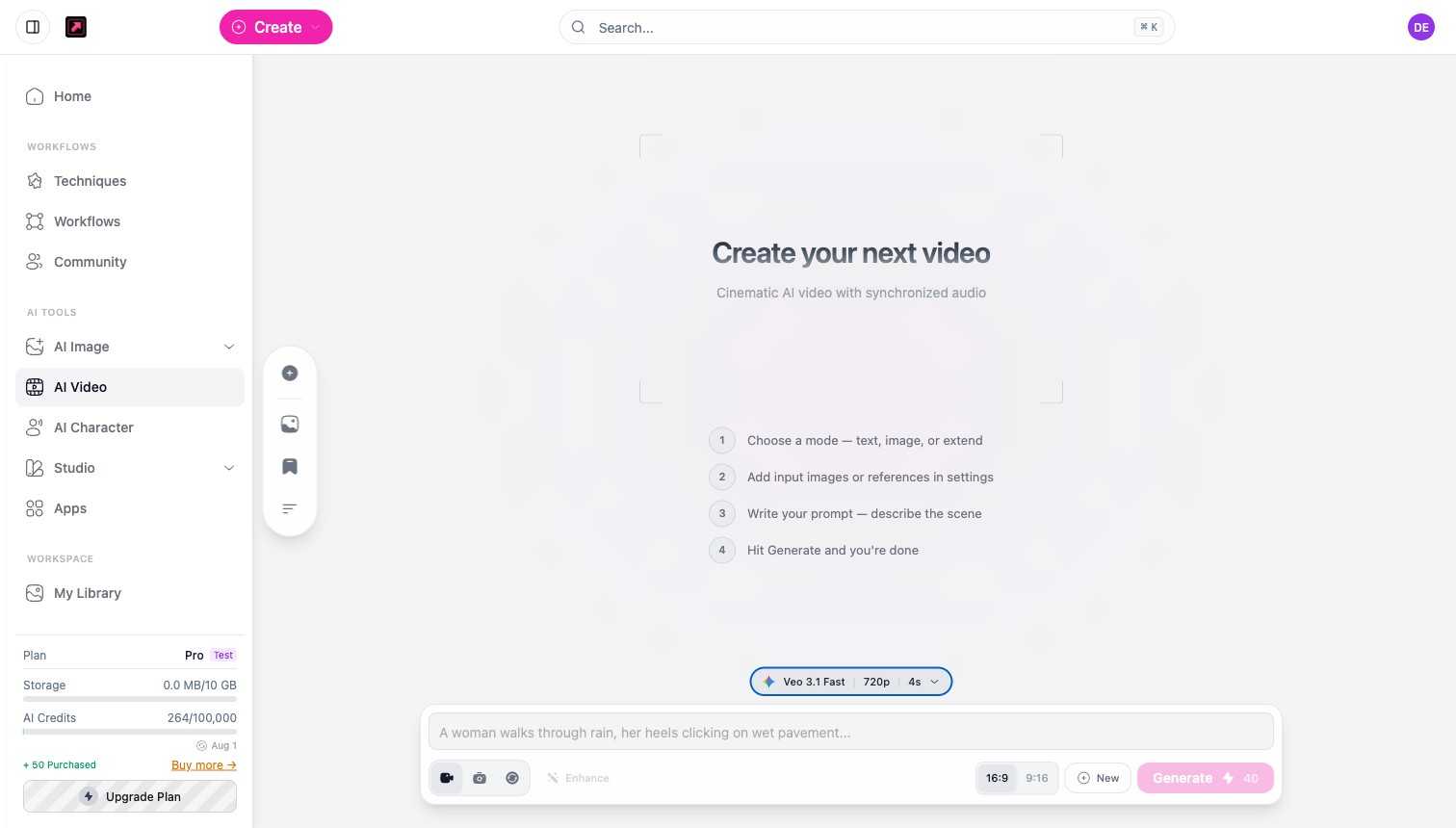
Open AI Video from the sidebar. Below the prompt, pick how the video starts:
- Text to Video - generate a video from a written description.
- Image to Video - animate a still image you provide.
- Extend Video - continue an existing clip.
Step 2: Pick a model
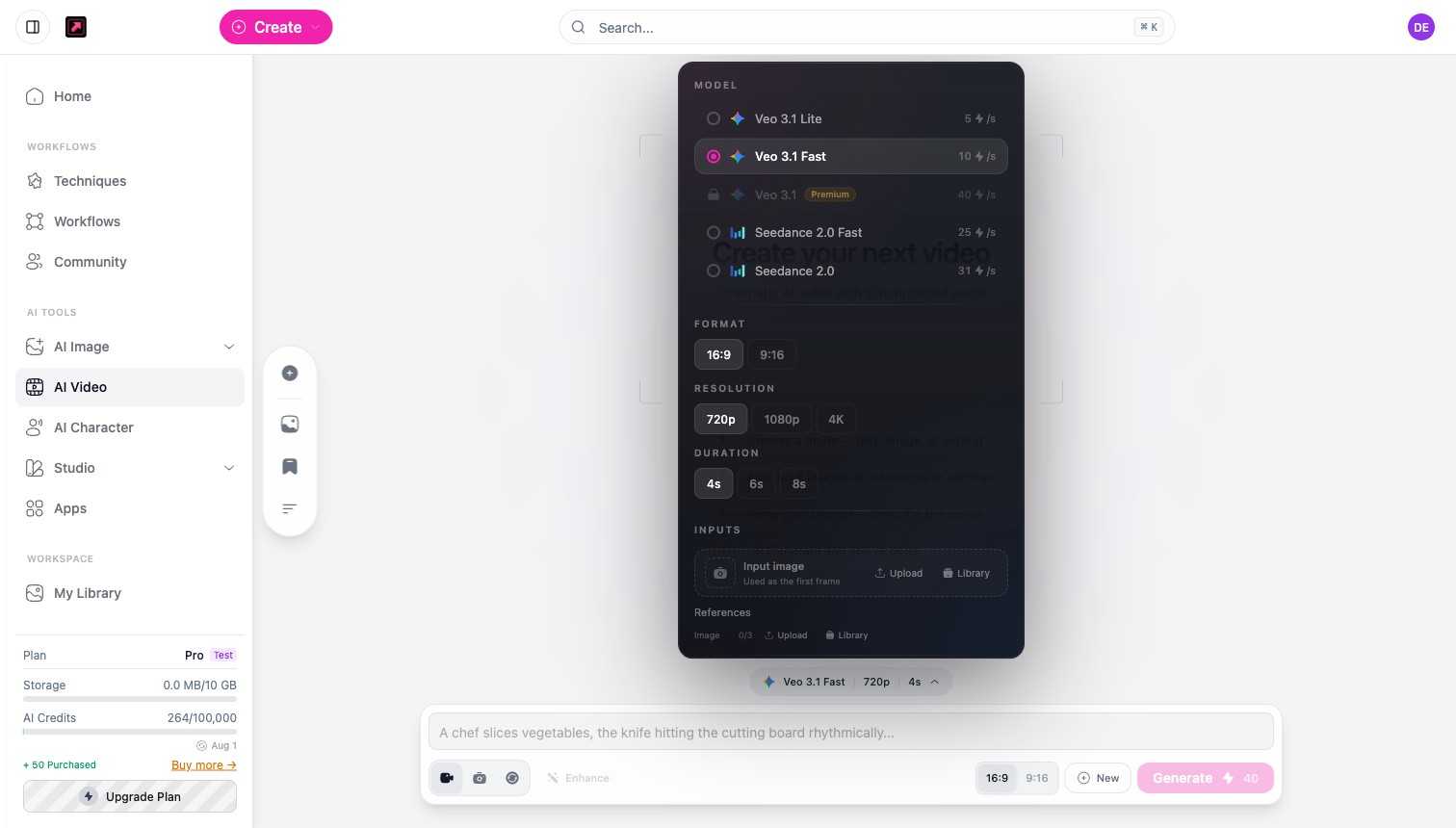
Open the model selector (it shows your current model, resolution, and duration). AI Video is available on the Pro plan and higher. Video models are priced per second of output, and the highest-quality models require the Premium plan:
| Model | Credits per second | Plan |
|---|---|---|
| Veo 3.1 Lite | 5 | Pro |
| LTX-2 Pro | 6 | Pro |
| Kling 2.5 Turbo Pro | 7 | Pro |
| Kling 2.6 Pro | 8 | Pro |
| Kling 2.1 Pro (1080p) | 8 | Pro |
| Veo 3.1 Fast | 10 | Pro |
| Kling v3 Standard | 10 | Pro |
| Seedance 2.0 Fast | 25 | Pro |
| Seedance 2.0 | 31 | Pro |
| Kling v3 Pro | 15 | Premium |
| Runway Gen-4.5 | 15 | Premium |
| Sora 2 Pro | 30 | Premium |
| Veo 3.1 | 40 | Premium |
Rates are for the default resolution; higher resolutions on the same model can cost more per second (for example 4K on Veo 3.1 Fast is 30).
Step 3: Set format, resolution, and duration
In the same panel choose:
- Format - 16:9 (wide) or 9:16 (vertical).
- Resolution - 720p up to 4K, depending on the model.
- Duration - varies by model: the Veo 3.1 family offers 4, 6, or 8 seconds, while others go up to 15 or 20 seconds. Higher resolutions can narrow the duration choices.
Step 4: Add inputs (optional)
For image or extend modes, add an input image (used as the first frame) and up to three reference images, either uploaded or chosen from your Library.
Step 5: Write your prompt and generate
Describe the scene, optionally use Enhance to expand it, then select Generate. Video credits are dynamic: the cost is the model's per-second rate multiplied by the duration, so an 8-second clip costs twice a 4-second clip at the same model. The exact cost is shown on the Generate button before you run, and finished videos appear in your My Videos tab and in My Library.
For how credits and plans work, see Plans, Credits, and Limits.