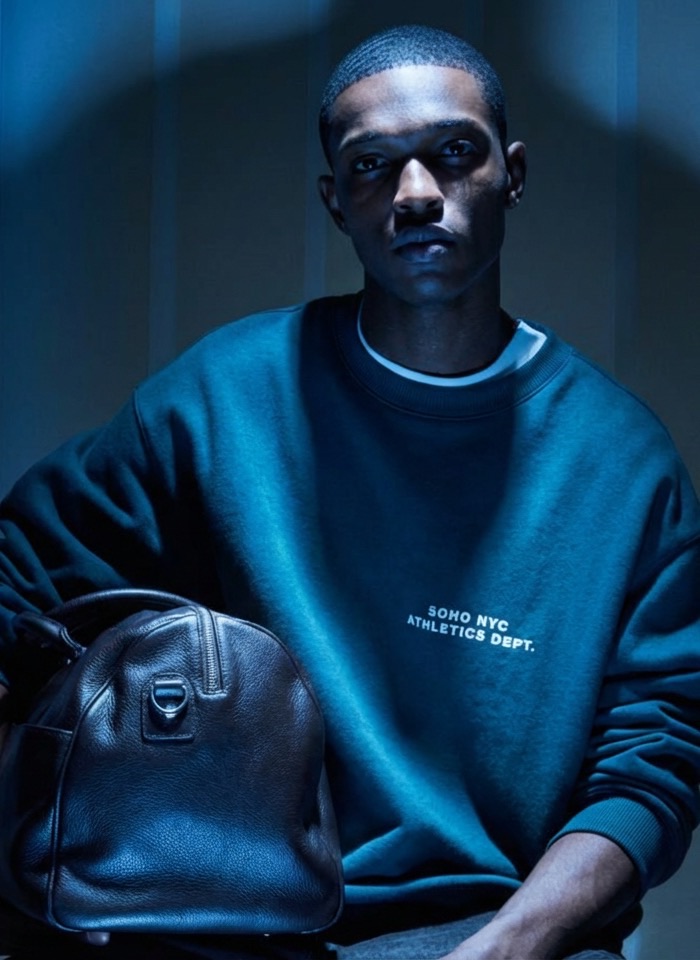
Campaign-ready skin retouching for on-model and product shots
Retouch the portraits behind your campaigns and product pages. AI evens skin, clears blemishes, brightens eyes, and whitens teeth while keeping texture true to the shoot. Six presets, ten controls, three intensity levels.
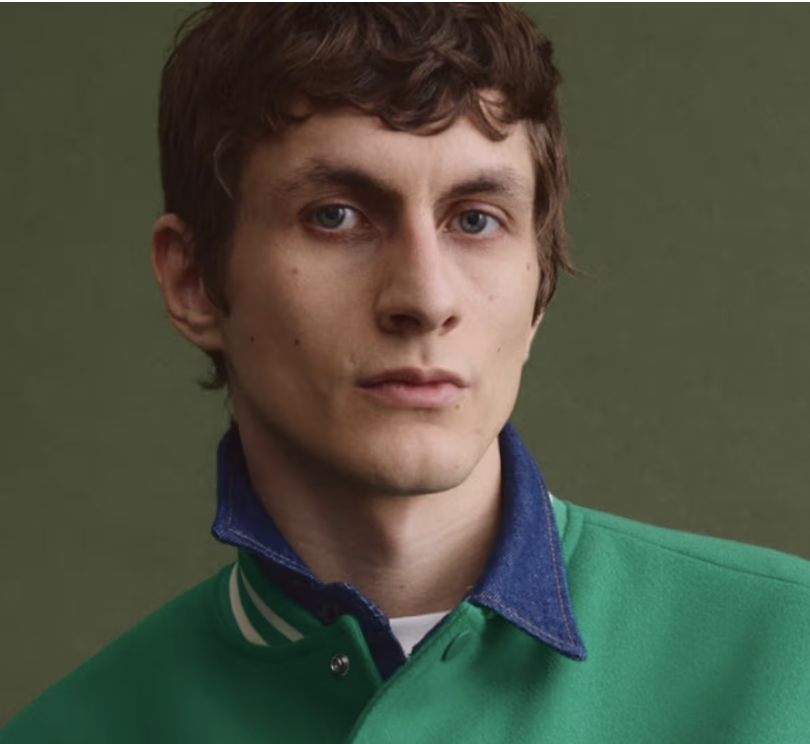 Before
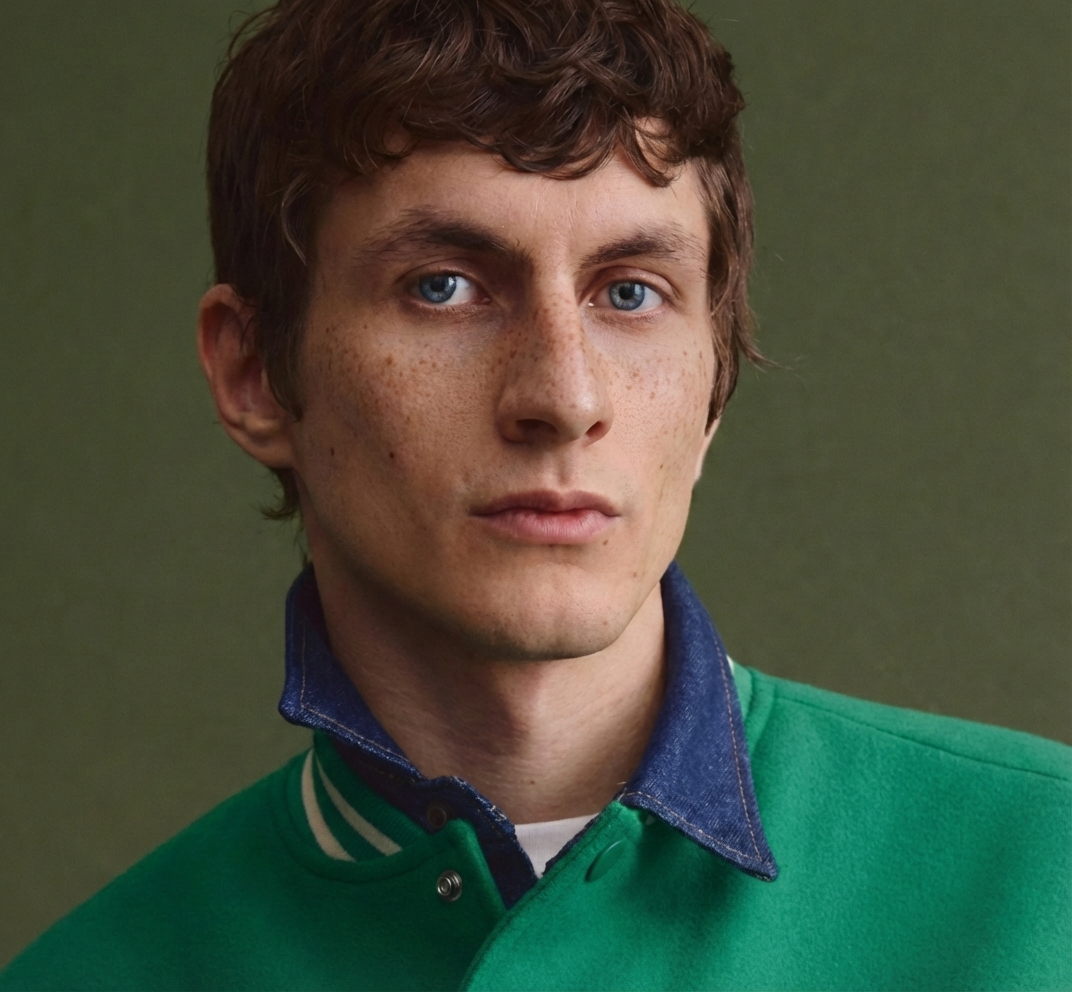 After
AfterWhat is AI skin retouching?
It cleans up a portrait without losing the person. You upload a shot, and the AI smooths and evens skin, clears blemishes, brightens eyes, and whitens teeth, keeping pores and texture true to the original, a finished retouch in seconds, with no manual masking.
One portrait in, clean skin out
Drop in a raw portrait and get back even skin, cleared blemishes, and brighter eyes, with the pores and texture left intact.
Every retouch control lives in one panel
Upload a portrait, pick a preset or fine-tune the controls, and compare before and after, without bouncing between separate editing tools.
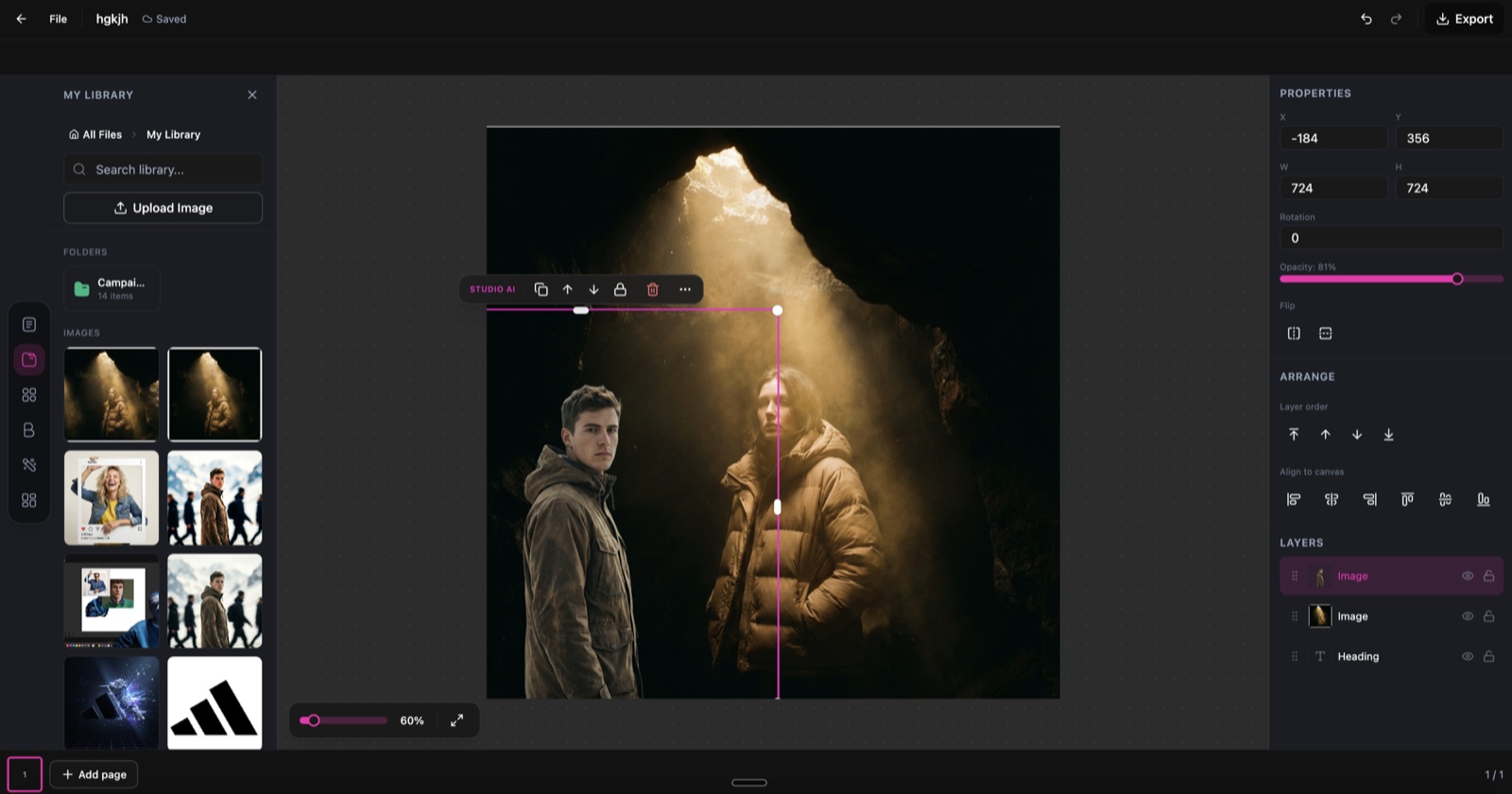
Skin Retouch, running inside the DesignerBox editor.
Ten controls for every part of the face
Toggle exactly what you want to fix, and leave the rest of the shot untouched.
Skin smoothing
Smooth skin texture while keeping natural pores and detail.
Blemish removal
Clear spots, acne, and skin imperfections automatically.
Eye brightening
Brighten and lift the eyes for a more awake, engaging look.
Teeth whitening
Whiten teeth subtly for a natural, confident smile.
Wrinkle reduction
Soften fine lines and wrinkles while keeping expression intact.
Complexion evening
Even out skin tone and reduce redness or discolouration.
From raw portrait to finished retouch in three steps
Upload your portrait
Add a portrait, headshot, or on-model shot. The AI detects facial features and prepares targeted enhancements, no manual masking needed.
Choose your enhancements
Pick a preset like Natural, Glowing, or Porcelain, or toggle the 10 controls and set intensity from Light to Heavy.
Generate and download
The AI applies retouching in seconds while keeping skin texture true. Compare before and after, then download the result.
Six presets for every look
One click for a finished style, or a starting point you fine-tune.
Soft Skin
Gentle smoothing with complexion evening for a soft, polished finish.
Natural
Subtle smoothing and blemish removal that keeps authentic skin texture.
Matte Finish
Smoothing with even tone and imperfection removal for a clean matte look.
Glowing
Full enhancement with bright eyes, white teeth, and radiant, even skin.
Porcelain
Heavy smoothing with wrinkle reduction for a flawless, editorial finish.
HD Skin
Blemish removal with enhanced texture for a realistic, high-definition look.
Skip the retouching queue
The old way
- Send every campaign shot to a retoucher and wait days for files
- Pay per image for manual skin work
- Redo the edit by hand for each crop and channel
- Risk an over-smoothed, plastic look that kills real texture
With Skin Retouch
- Retouch on-model and product shots in seconds, in the browser
- Even skin and clear blemishes while keeping pores and texture true
- Apply one preset across a whole set, or fine-tune 10 controls per shot
- Compare before and after on every result before you download
Skin Retouch specs
| Best for | On-model and product campaign imagery, headshots, and portraits |
|---|---|
| Credit cost | 5 credits per retouch |
| Style presets | 6 (Soft Skin, Natural, Matte Finish, Glowing, Porcelain, HD Skin) |
| Enhancement controls | 10 independent toggles |
| Intensity levels | 3 (Light, Medium, Heavy) |
| Texture | Pores and skin texture preserved |
| Comparison | Before and after on every result |
| Powered by | DesignerBox's latest AI image models |
Frequently asked questions
What types of photos work best with Skin Retouch?
Will the retouching look natural?
What do the style presets do?
Can I customise individual enhancements?
How many credits does Skin Retouch cost?
Can I compare the original and retouched photos?
Ready to retouch your portraits?
Upload a portrait and get studio-quality skin retouching in seconds.