
To get flat-lay, wrinkle-free and ghost clothing shots in DesignerBox, use three surfaces in one order. Run the Remove wrinkles from clothes app on each garment photo. Run the Clothes laid flat app to put the piece flat on white. Run the Clothes without a model template on a photo from a model shoot. Then save the order and run it over the new season in a batch.
A new season arrives as 80 samples, each one creased from its shipping bag. Every piece needs a flat shot and a shot with nobody in it before its product page opens. By hand, each of the 80 pieces needs steaming, pinning and its own shoot.
Key Takeaways
- Remove wrinkles first. Remove wrinkles from clothes returns the same photo with smooth fabric.
- Then the flat shot. Clothes laid flat returns one piece of clothing flat on white.
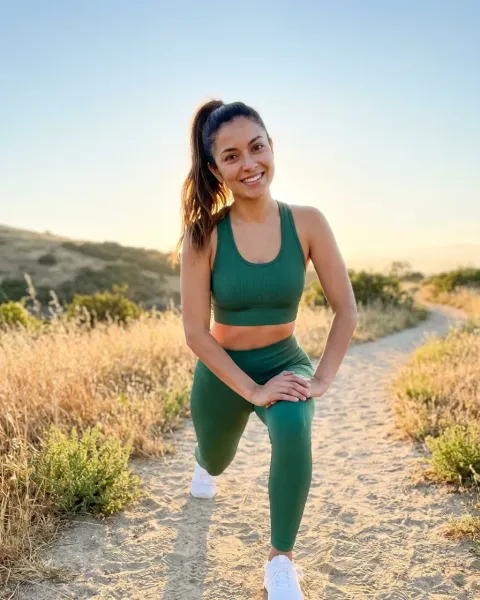
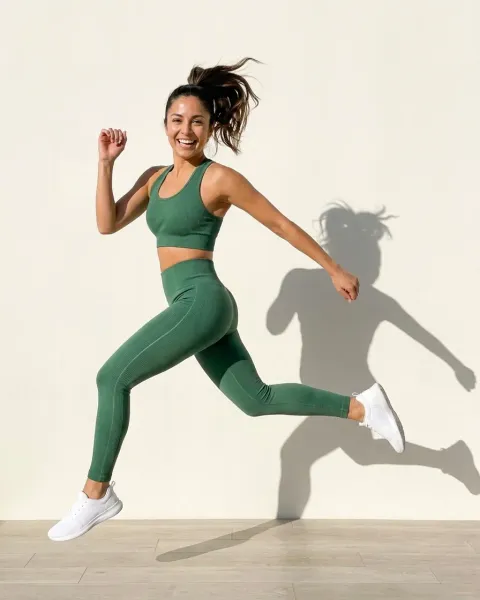
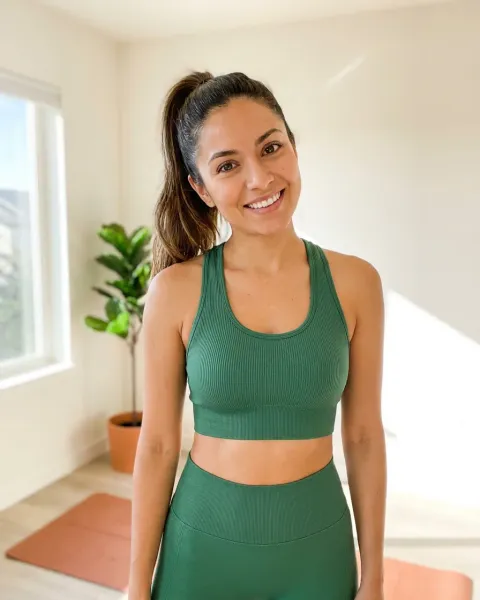
- Then the ghost shot. Clothes without a model turns a photo on a model into clothes with nobody in them.
- On-model shots last. Clothing catalog shows one garment on a model: front, three-quarter, back and fabric detail.
- One batch for the season. A sheet holds up to 200 rows, so 80 garments fit on one sheet.
- Your check against the real piece. Fabric, print and color must match the garment before it goes on sale.
The apparel product page job
This job belongs to an apparel brand with 20 to 500 products. Each new piece needs the same set of clean shots: flat, smooth and without a model. Every season, the whole set starts again.
Today the set comes from a steamer, pins, a mannequin and an image editor. A ghost shot means two photos and a composite. The work costs the same on the 80th piece as on the first. The page for fashion brands covers this buyer.
Marketplaces set rules for each shot. For adult clothing, Amazon’s main image must show the piece on a standing model. A visible mannequin, a hanger or a folded product is not allowed there (Amazon image guidelines for clothing, October 2026). Flat and ghost shots fill the alternate images, which show detail, fabric and cut.
Our guides to flat lay photography and ghost mannequin photography cover both shots by hand. They also show where each shot may run.
Four surfaces for clothing shots
Three surfaces make the flat and ghost set. A fourth adds the on-model set.
| Surface | What you add | What you get | Plan |
|---|---|---|---|
| Remove wrinkles from clothes (app) | A photo of clothes with wrinkles | The same photo with smooth fabric | Every plan |
| Clothes laid flat (app) | A photo of one piece of clothing | The piece flat on white | Every plan |
| Clothes without a model (template) | A photo of clothes on a model | The clothes with nobody in them | Every plan |
| Clothing catalog (template) | One garment | Front, three-quarter, back and fabric detail on a model | Your own photos from Pro; virtual try-on from Premium |
An app does one job behind a short form. Each app has “Try it with a sample”, so you see a result before you use your own photo. The price is on the app card and on the Run button. The Apps page explains how an app runs, and our guide to DesignerBox apps covers the form.
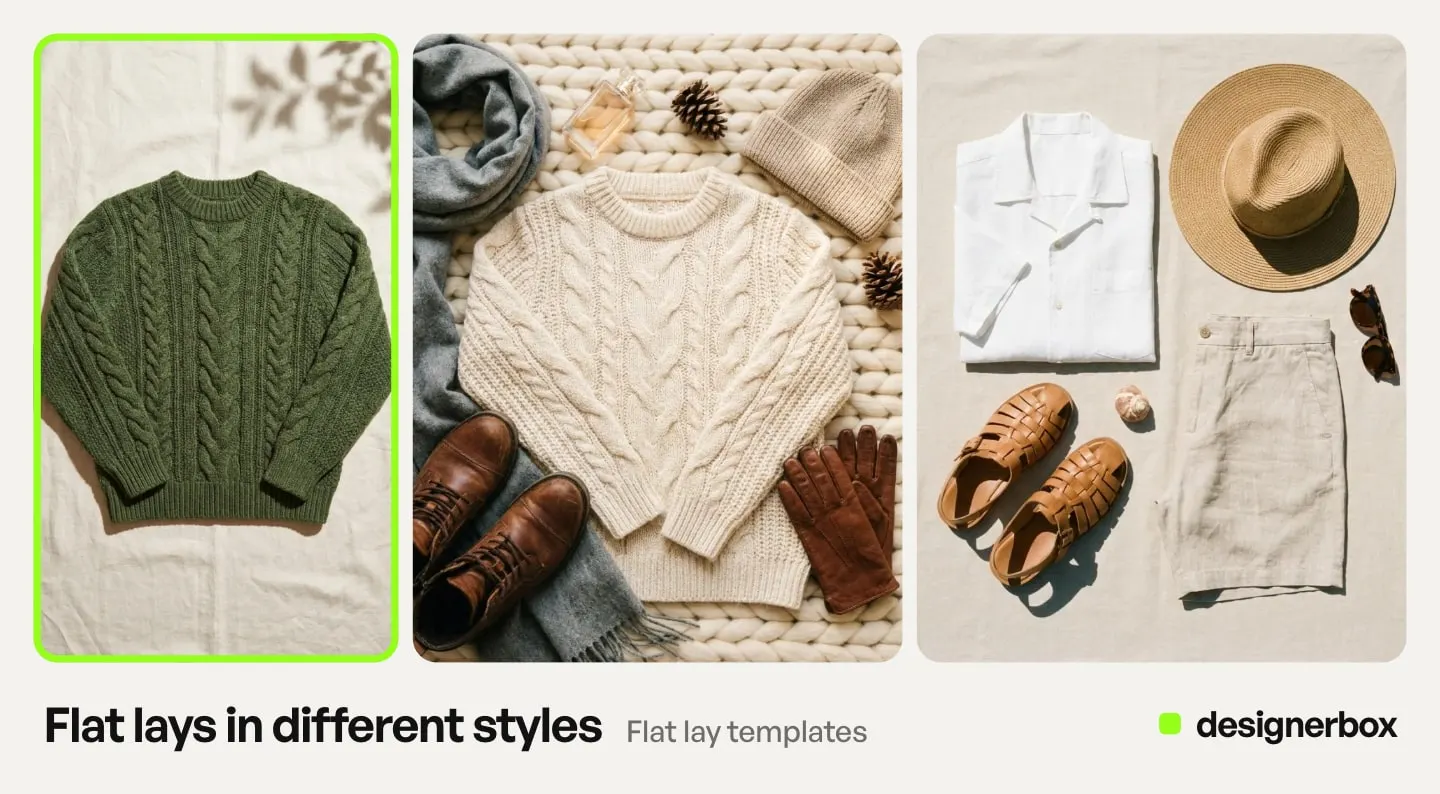
A template has several steps. It opens as your own copy, so you can change any step.
The order for one garment
The first two steps run in this order. The flat shot starts from the smooth photo. Test the order on one garment first.
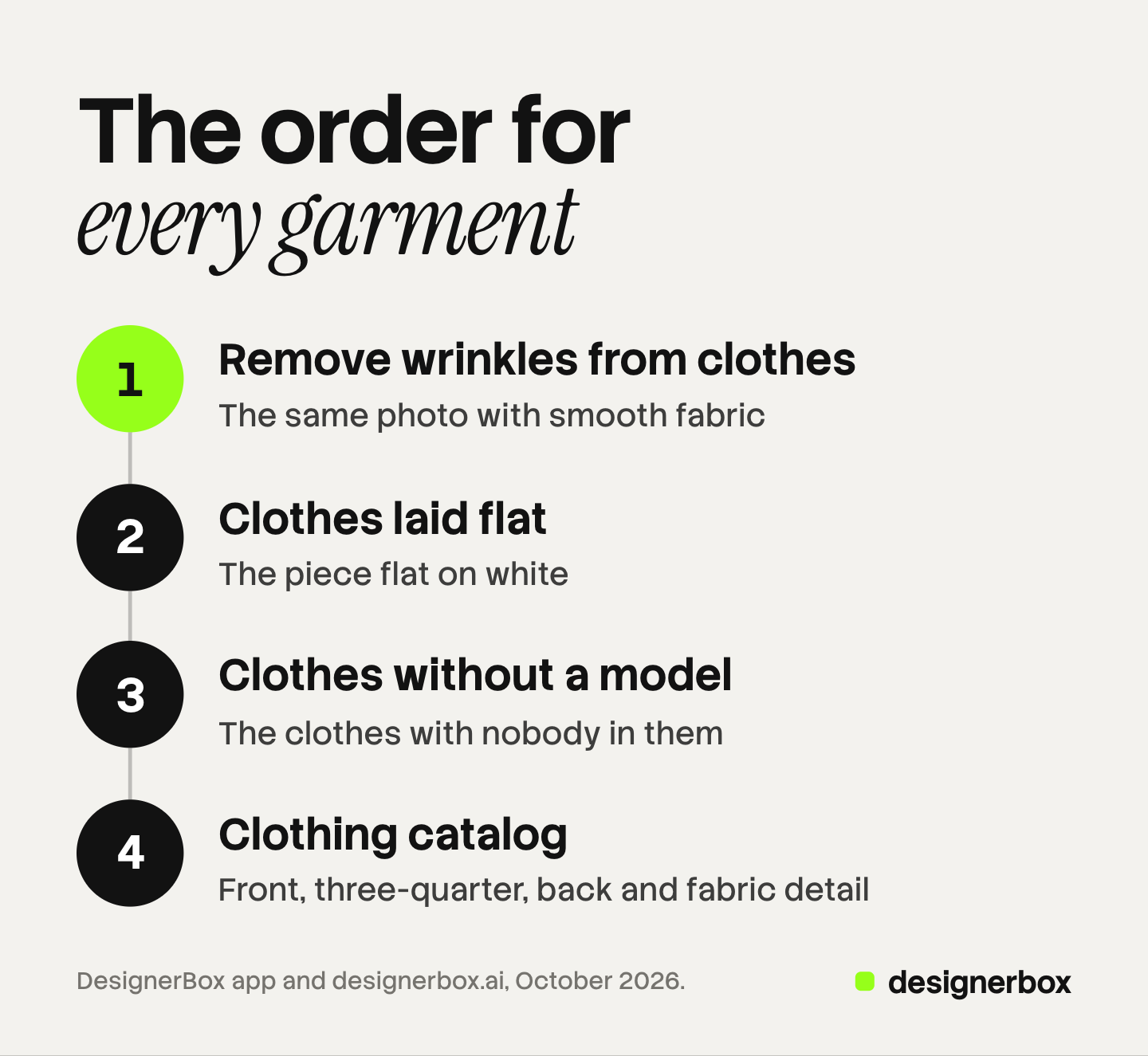
- Smooth the fabric. Open Remove wrinkles from clothes and add the photo of the creased piece. The result is the same photo with smooth fabric.
- Lay it flat. Open Clothes laid flat and add the smooth photo. The result is the piece flat on white. If a crease still shows, run Remove wrinkles again on that result.
- Remove the model. Open the Clothes without a model template and add a photo of the piece on a model. Smooth that photo first if the fabric is creased. The result shows the clothes with nobody in them.
- Add the on-model set. Open Clothing catalog and add a photo of the garment. It returns the front, the three-quarter view, the back and the fabric detail on a model.
- Keep the good results. Every result lands in Assets. Keep the good ones and discard the rest.
A clothing brand uses Clothes laid flat and Remove wrinkles before every product page opens.
A new season in one batch
The order works for one garment. A season needs it 80 times, and there are two ways to repeat it.
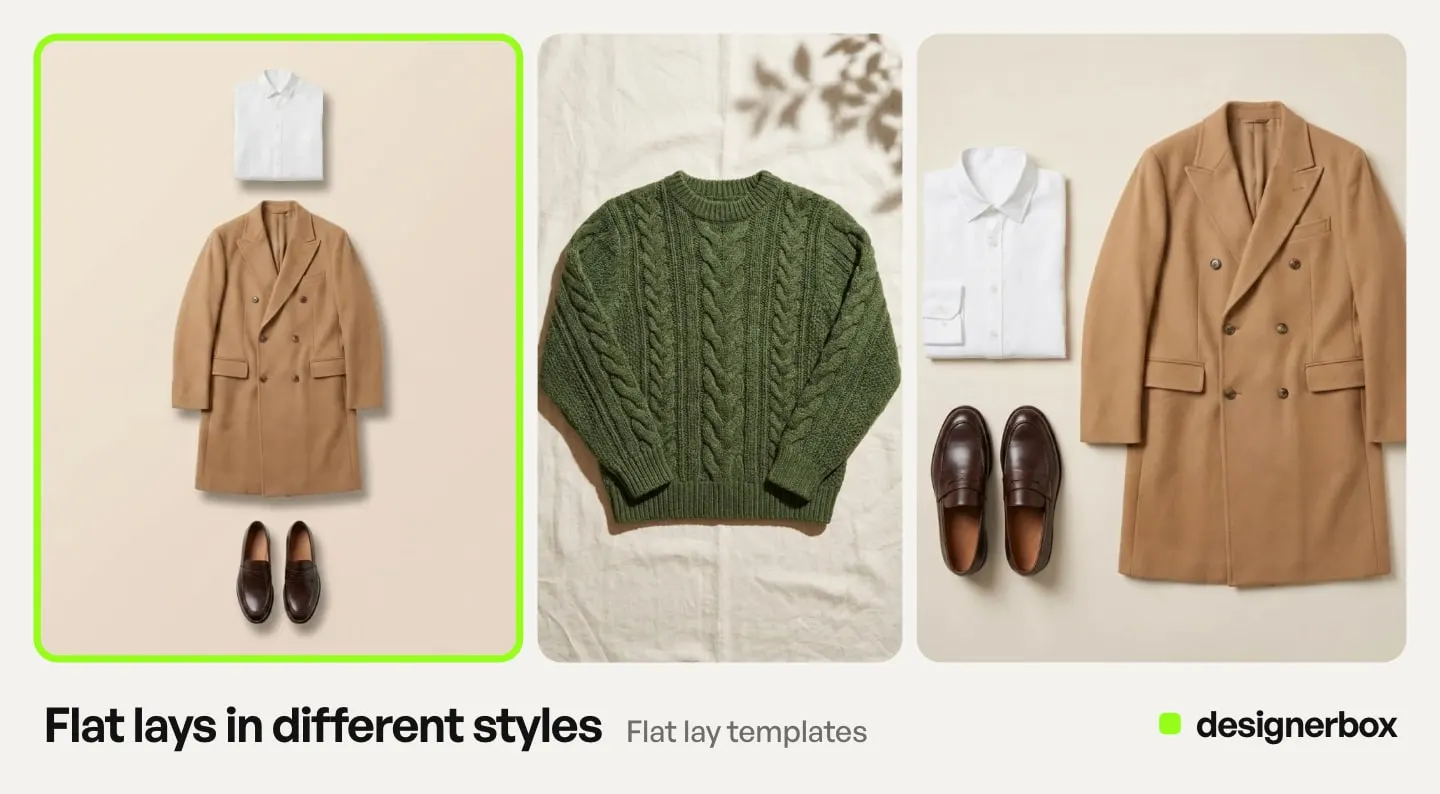
Run each app in a batch. A batch runs an image model, an app, or your own workflow published as an app. Add one row per uploaded picture, so a folder of creased photos becomes one sheet for Remove wrinkles. Then run a second sheet with Clothes laid flat, one row per smooth photo.
Build one workflow. Describe the order to the Workflow skill in Create, and it drafts a workflow from what you ask for. A workflow can also run another workflow inside it. Check the workflow on one garment, then publish it as an app for your workspace. A colleague then adds a photo to a short form and presses Run. The Workflows page covers how steps join.
The sheet shows the rows that are ready, the credits for the run and the credits left after it. You choose 1 to 4 runs per row, and over 20 runs DesignerBox asks you to confirm. One sheet holds up to 200 rows, so a season of 80 garments fits on one. Our guide to DesignerBox batch covers the sheet and the review.
A fashion brand also runs “same model, new garment” on every piece of the new season. The same model on every garment covers that on-model job.
Checks against the real garment
DesignerBox does not approve a result for you. You keep or discard each one, and in a batch you use the J and K keys. Hold each result next to the real piece, or a photo of it, and check these four things.
- Fabric texture. Knit, twill and linen must look like the real fabric. A smooth result can lose the texture a buyer pays for.
- Print and pattern. Stripes must meet at the seams, and a print must keep its scale and its repeat.
- Color. Amazon says the color in an image must match the product for sale. Compare it with the real piece in daylight.
- Details. Count the buttons, check the pockets, the labels and the inside of the neck on a ghost shot.
Your own workflow can add a check before you see the results. Critic steps (designer, photographer, emotion, ad director) score several results and keep the best. You still keep or discard what they keep.
On Amazon, an image of a photorealistic person made fully by AI needs a tag. Add the keyword contains-synthetic-performer to the XMP dc:subject field before you upload (Amazon product image guide, October 2026).
Limits of the flat and ghost job
As of October 2026:
- The result shows the garment as photographed. Fabric texture and print come from your photo, so check them against the real piece before it goes on sale.
- One piece per photo. Clothes laid flat takes a photo of one piece of clothing. Photograph each piece on its own.
- The ghost shot needs a model photo. Clothes without a model starts from a photo of clothes on a model.
- Amazon puts adult clothing on a model. Flat and ghost shots go in the alternate images. Children’s and baby undergarments, leotards and swimwear must be shown lying flat with no model.
- No upload to a store. You download the results, or send them with a webhook or an S3 step.
Clothing shots in DesignerBox
Anyone can make an AI picture. Making hundreds that still look like your brand is the hard part.
The smooth photo, the flat shot, the ghost shot and the batch run sit in one account. The workflow holds the steps, so every garment from the first to the 80th gets the same steps. Workflows also read your brand rules. The cost is shown before the run, on the Run button for an app and on the sheet for a batch.
Apps, templates, workflows and batch are on every plan. There is a free plan, and it runs on the sample products. Uploading your own photos and the commercial license start on the Pro plan. Virtual try-on starts on the Premium plan. Plans and credits are on the pricing page.
Try Clothes laid flat with a sample to see what a run returns. Get started free.
FAQ
How do I lay clothes flat on white with DesignerBox?
Open the Clothes laid flat app and add a photo of one piece of clothing. DesignerBox returns the piece flat on white. The price is on the Run button before you run it.
Can DesignerBox remove wrinkles from a clothes photo?
Yes. The Remove wrinkles from clothes app takes a photo of clothes with wrinkles and returns the same photo with smooth fabric. Run it first, so the flat shot starts from smooth fabric.
How do I make a ghost mannequin shot in DesignerBox?
Use the Clothes without a model template. Add a photo of the clothes on a model, and the result shows the clothes with nobody in them.
Can I use flat lay and ghost shots as the Amazon main image?
Not for adult clothing. Amazon wants a standing model in the main image. Use flat and ghost shots in the alternate images. Children’s and baby undergarments, leotards and swimwear are the exception: they must lie flat with no model.
How many garments can I run at once?
A batch sheet holds up to 200 rows, one garment per row. You choose 1 to 4 runs per row, and over 20 runs DesignerBox asks you to confirm.
Which plan do I need for on-model shots?
Virtual try-on starts on the Premium plan. Uploading your own garment photos starts on the Pro plan.
Sources
- Amazon Seller Central, image guidelines for clothing, read 22 October 2026: main and alternate images, color
- Amazon Seller Central, product image guide, read 22 October 2026: flat items with no model, the AI people tag
- DesignerBox Apps page (designerbox.ai/product/apps), October 2026: Clothes laid flat, Remove wrinkles from clothes
- DesignerBox Templates page (designerbox.ai/product/templates), October 2026: Clothes without a model, Clothing catalog
- DesignerBox Workflows page (designerbox.ai/product/workflows), October 2026: critic steps, Publish as app
- DesignerBox Batch page (designerbox.ai/product/batch), October 2026: rows, runs per row, the confirm step
- The DesignerBox app, read October 2026: Batch, Assets and Create
- DesignerBox pricing page (designerbox.ai/pricing), October 2026: plan gates
DesignerBox features verified in the app and on designerbox.ai as of October 2026. Results vary by product and model.