Image editor
Online image editor for product photos and posts
Add a headline, a price and your logo to any picture you made. Start in a ready social size, then export PNG, JPG or PDF. For most posts and ads, you do not need another design app.
- Claude
- ChatGPT
- Cursor
 Summer in a bottle.£48SizeInstagram postInstagram storyPinterest pinFacebook coverYouTube thumbnailA4 pageExport
You make the picture 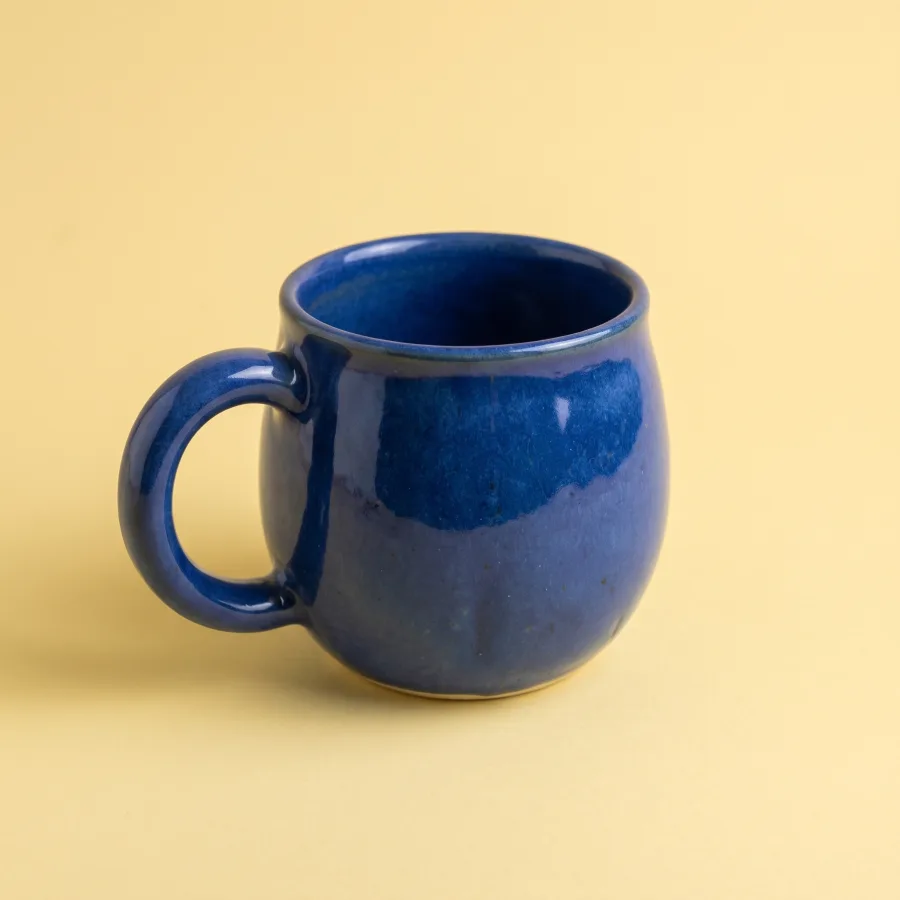 in one app and add the headline in another.Here you finish it where you made it.
What you can make
Posts, ads and print pages from your pictures
A headline, a price and your logo on any picture
Open a picture from your library. Add text, shapes and your logo as layers, then move, arrange and align them.
See the AI ad generator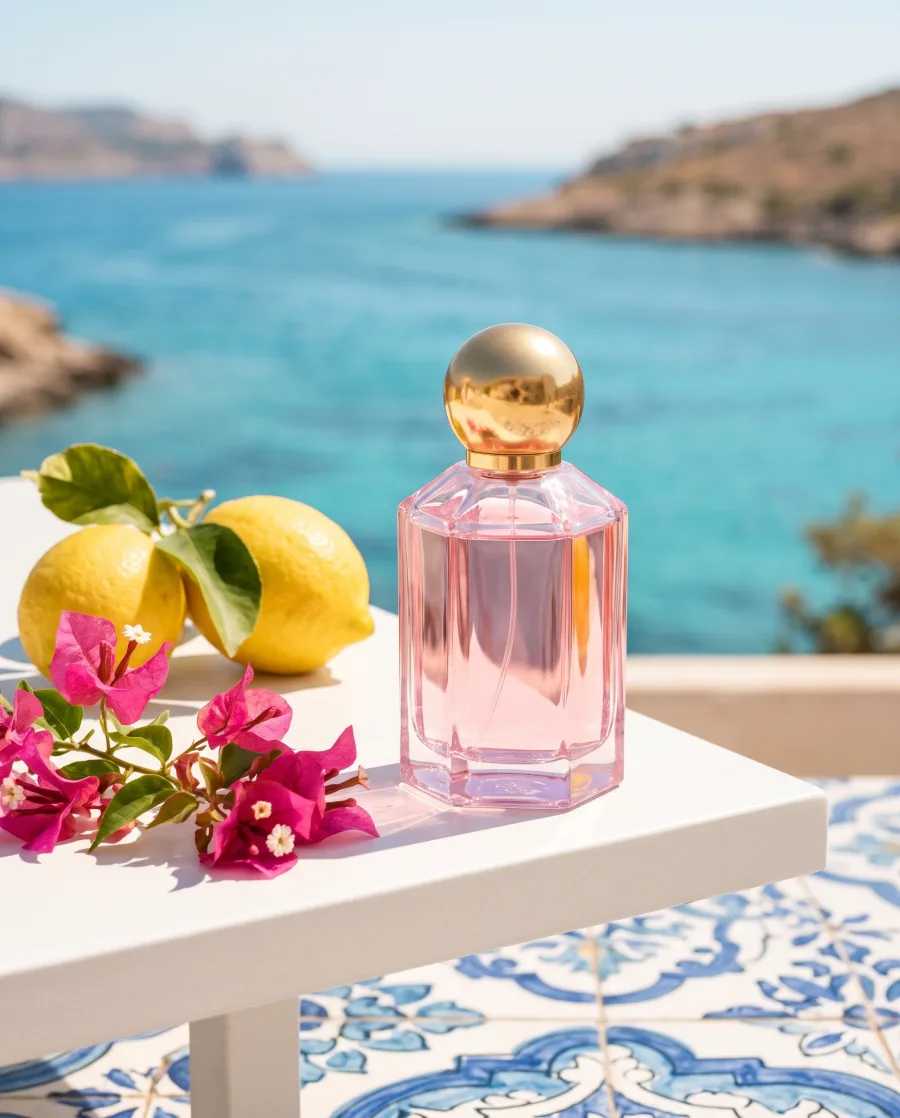 Your pictureNew in.£48Story with a priceSummer in a bottle.VERBENAPost with your logo£48Square with a price
Ready sizes for every social channel
Start each design in a ready size: Instagram post or story, Facebook post or cover, Pinterest pin, YouTube thumbnail, LinkedIn banner, X header, presentation or A4. Or type your own size.
See posts for social media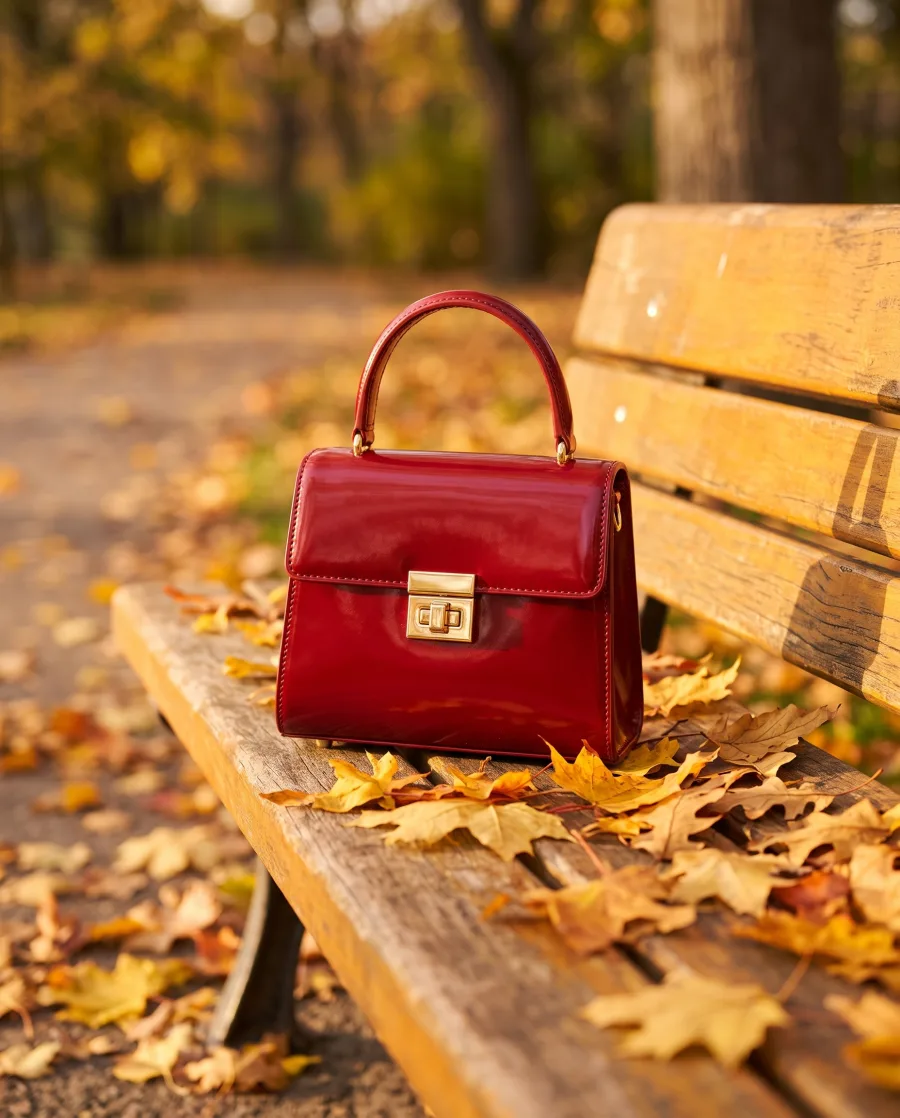 Your designThe autumn edit.Instagram postRed for autumn.Pinterest pinNew in.£120Instagram story
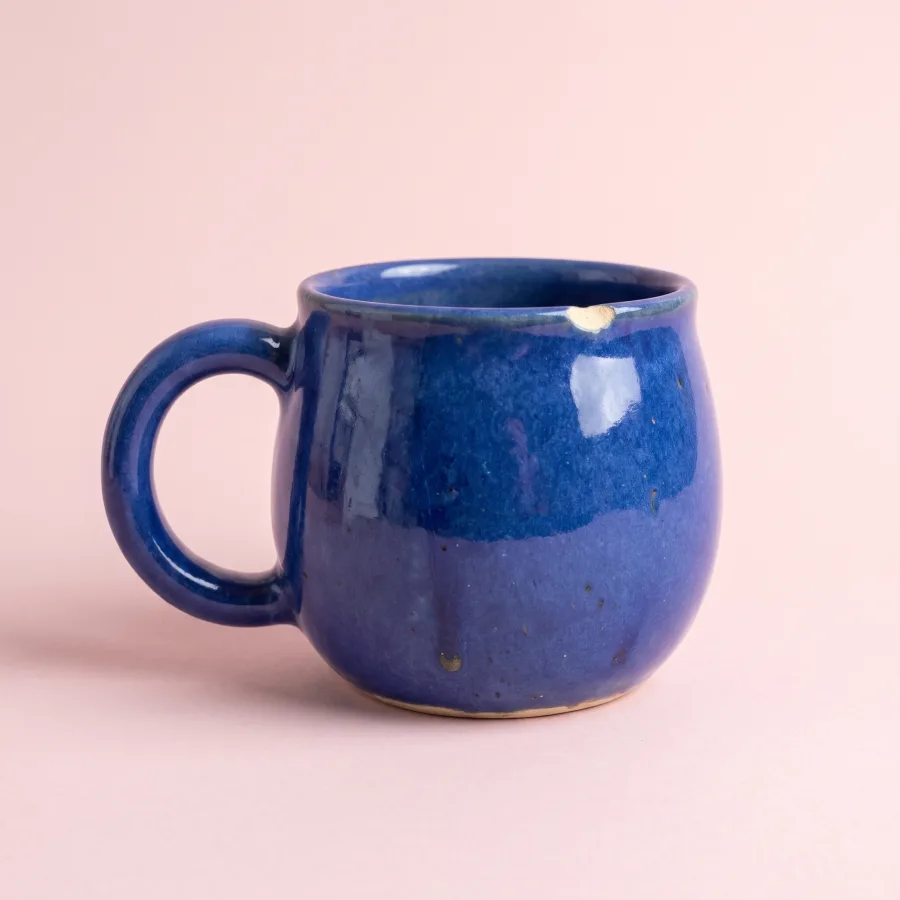
Your product on white or a clean colour
Open the apps panel and remove the background. Then place the product on white or on a colour for a marketplace or a catalogue.
See the apps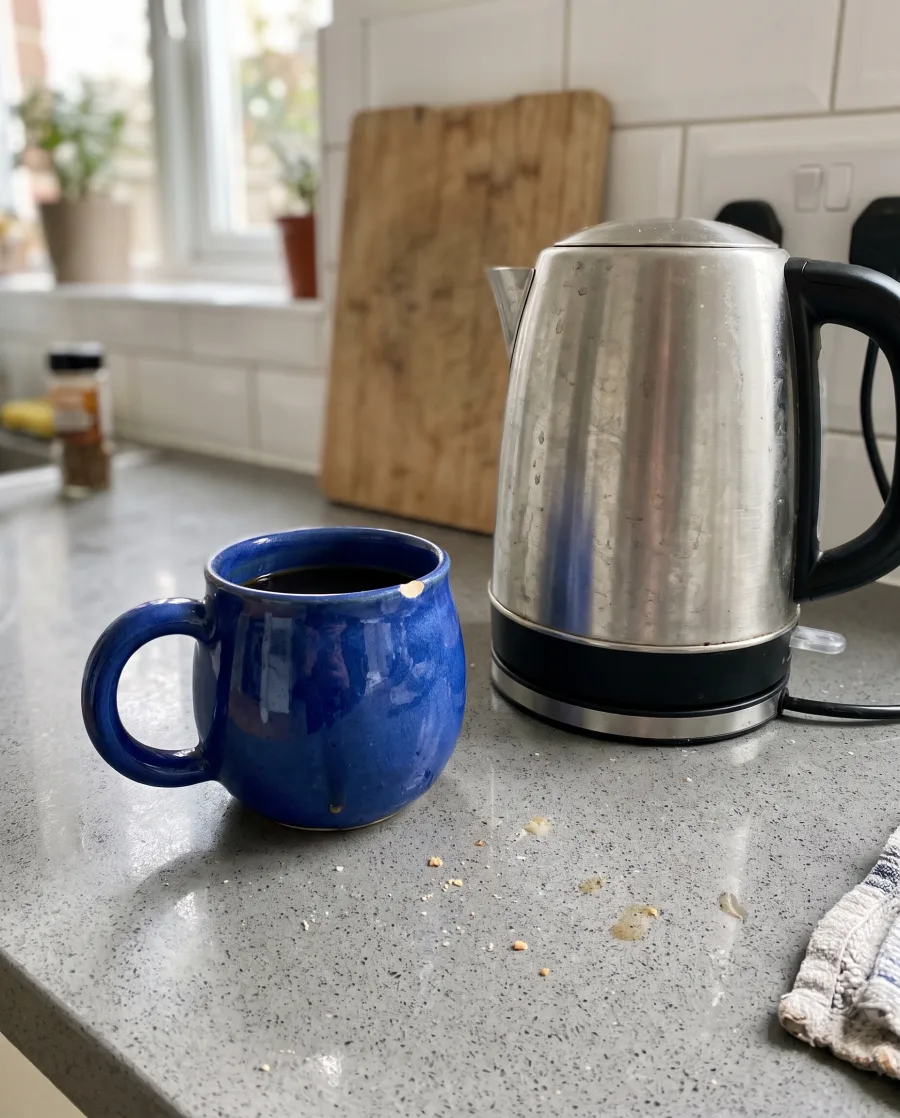 Your phone photo
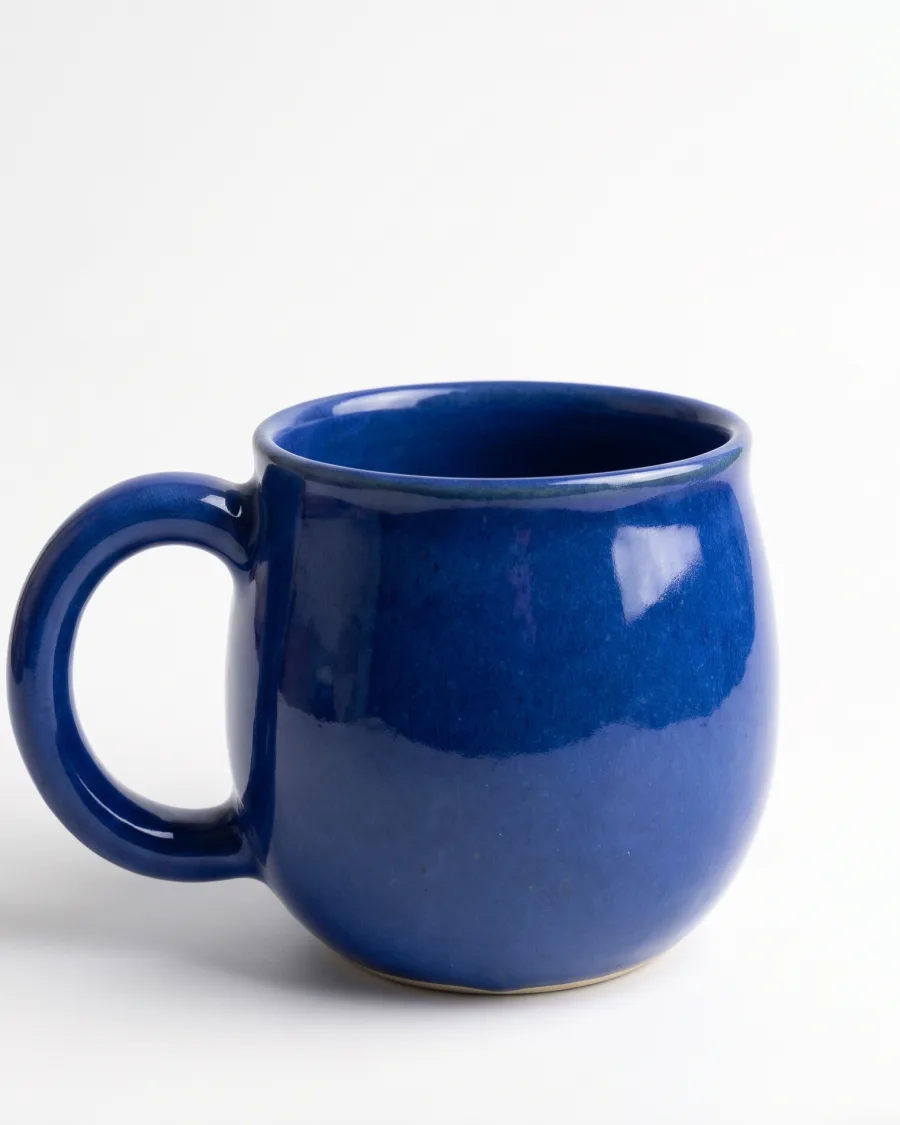 WhiteYellow
 Pink
PinkProduct sheets and flyers as print-ready PDF
Make a design with several pages, saved as you work. Export a PDF up to 300 DPI, or a PNG with a transparent background.
See it for online shops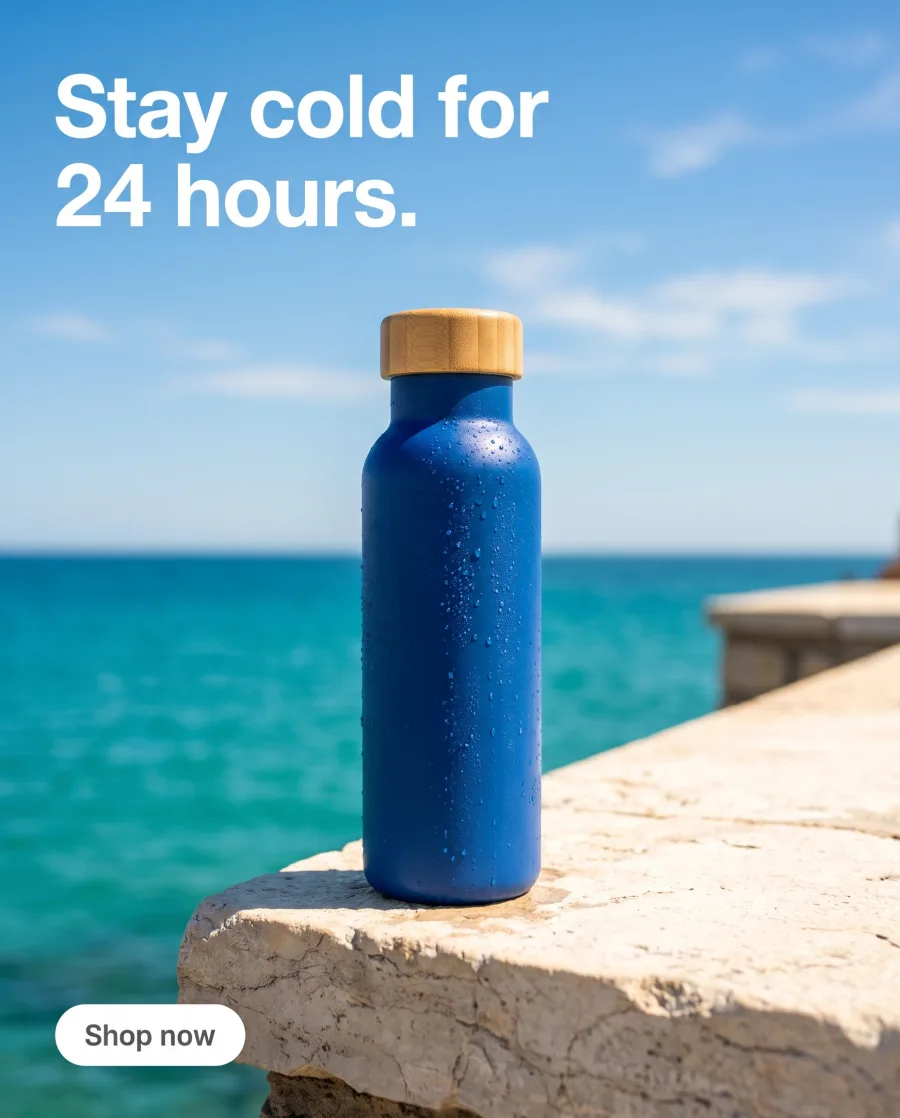 Your picturesStay cold for 24 hours.Page 1
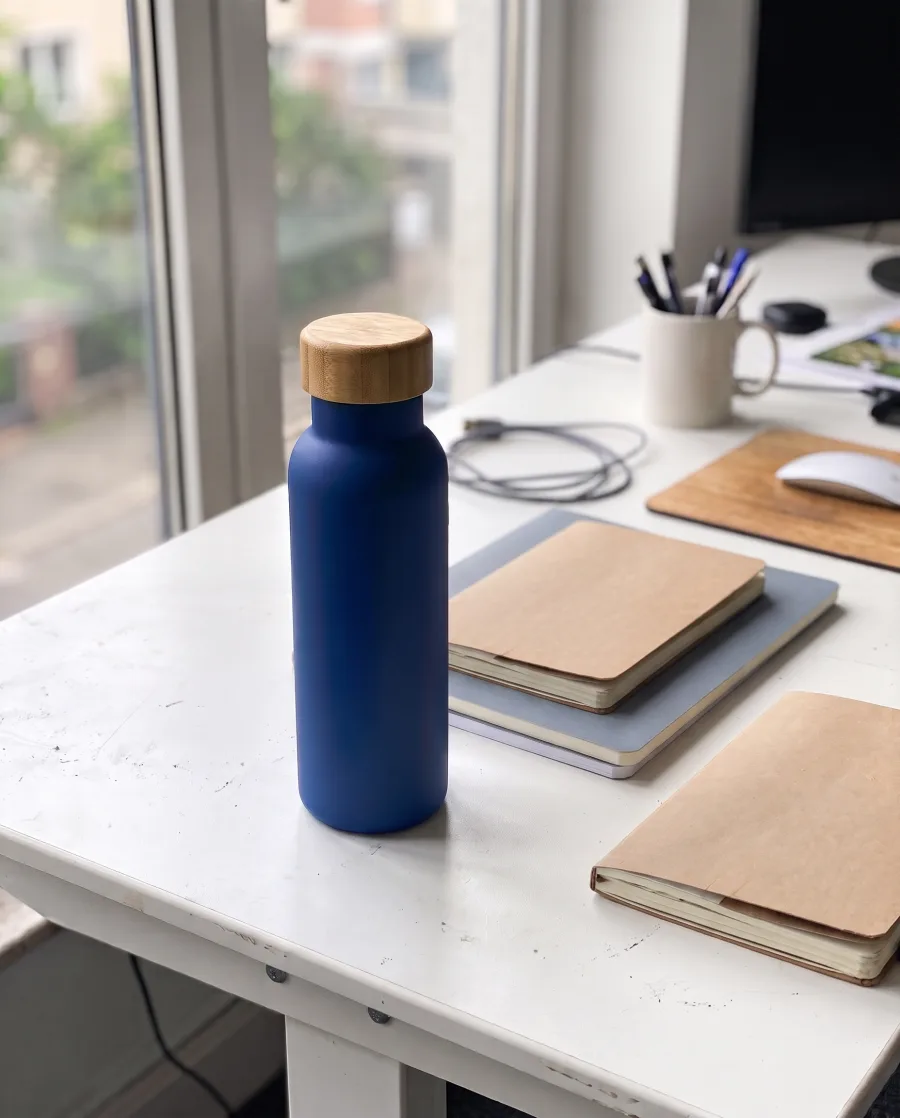 750 ml. Steel and bamboo.Page 2
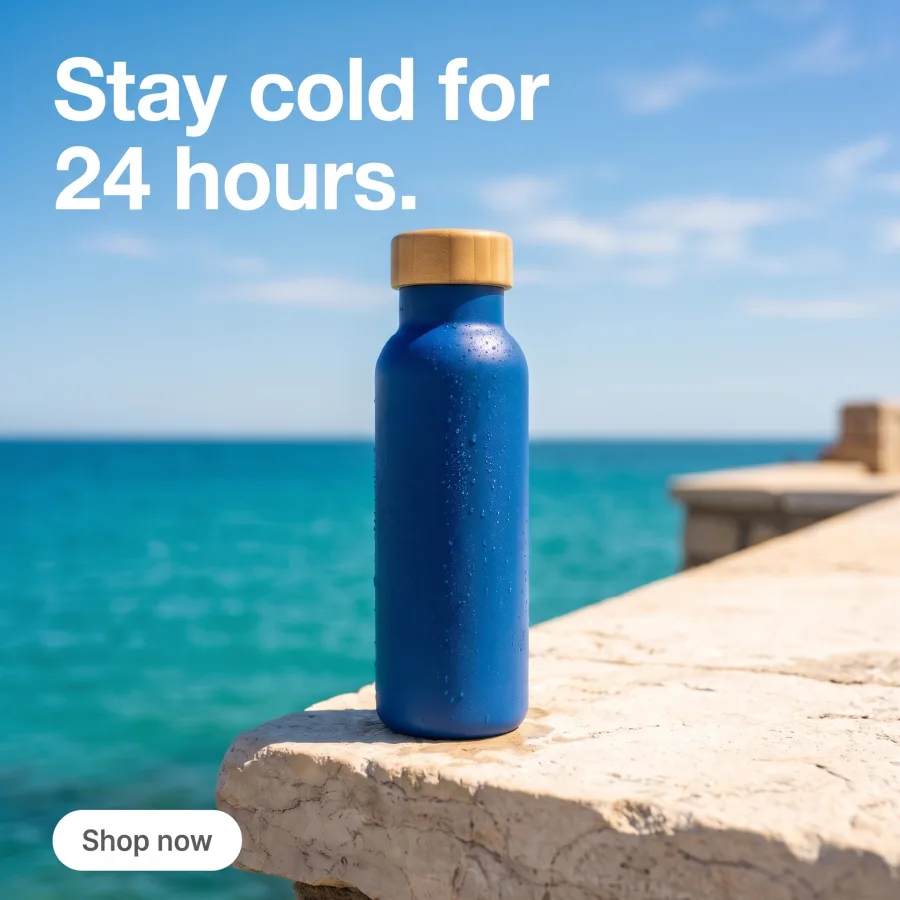 Order at yourshop.comPage 3
Start free. Pick the Premium plan when you need the editor.
The image editor and the video editor start on the Premium plan.
How it works
How to finish a picture in the image editor
Open Editors, then Image Studio. Start a new design and choose a ready size, or type your own.
Add pictures from My Library, where your results are saved, or upload your own.
Add a headline, a price or your logo as layers. Arrange them, align them and change the font and the colour.
Open the apps panel for quick fixes, like removing a background, without leaving the design.
Export up to 300 DPI. A PNG can have a transparent background, and a PDF can have several pages.
The autumn edit.SizeInstagram postInstagram storyPinterest pinLinkedIn bannerX headerPresentationExport UploadJPG, PNG or WebPStock photosSearch by wordSummer in a bottle.LayersHeadlinePrice tagLogoPhotoExportBeforeBackground removed
Use cases
Image editor use cases for shops and brands
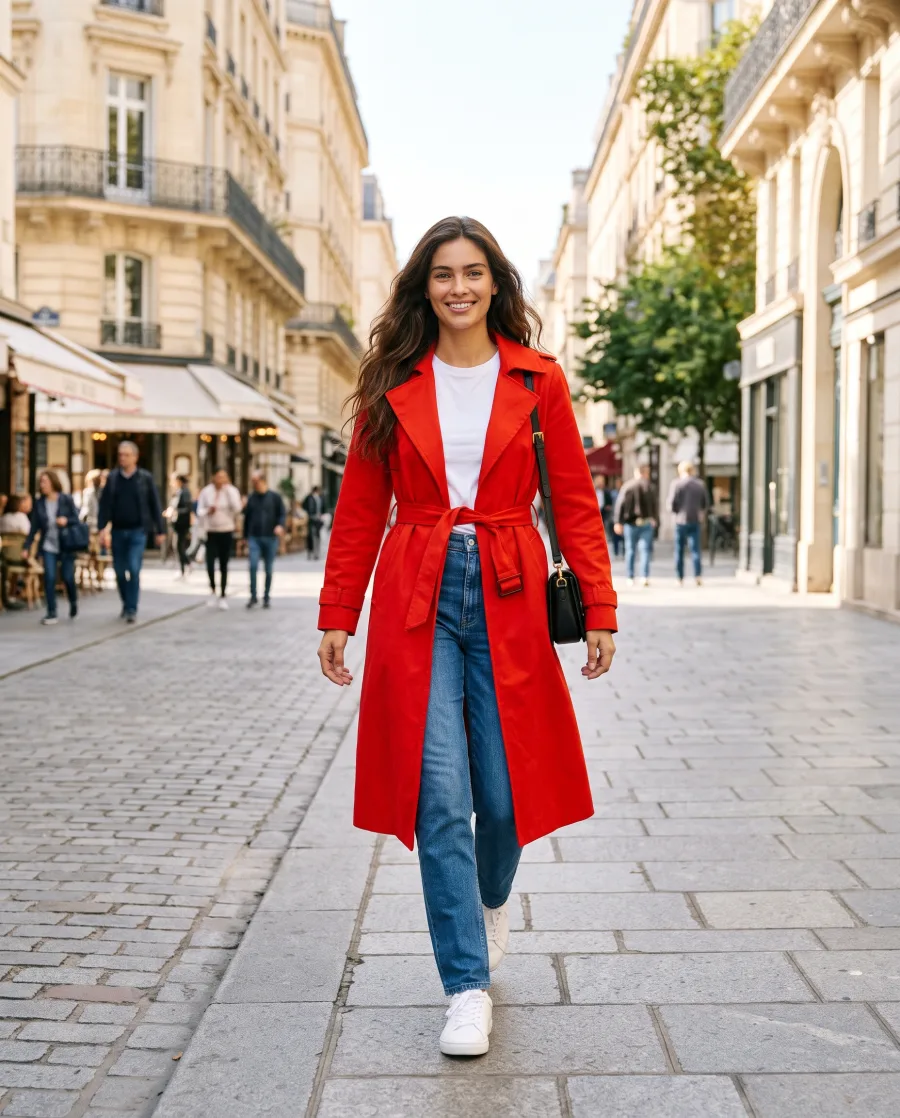 A clothing shopAdds "New in" and a price to a product picture for an Instagram story.
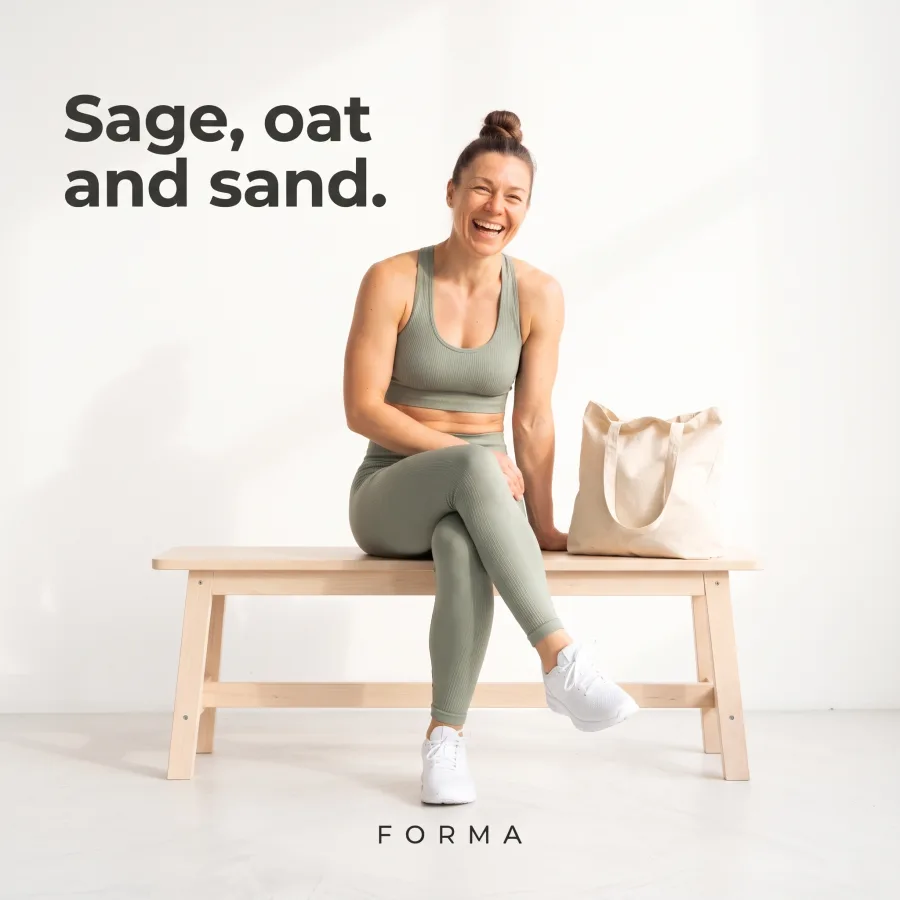 A brand teamMakes one sale banner, then exports it for Facebook, Pinterest and the website.
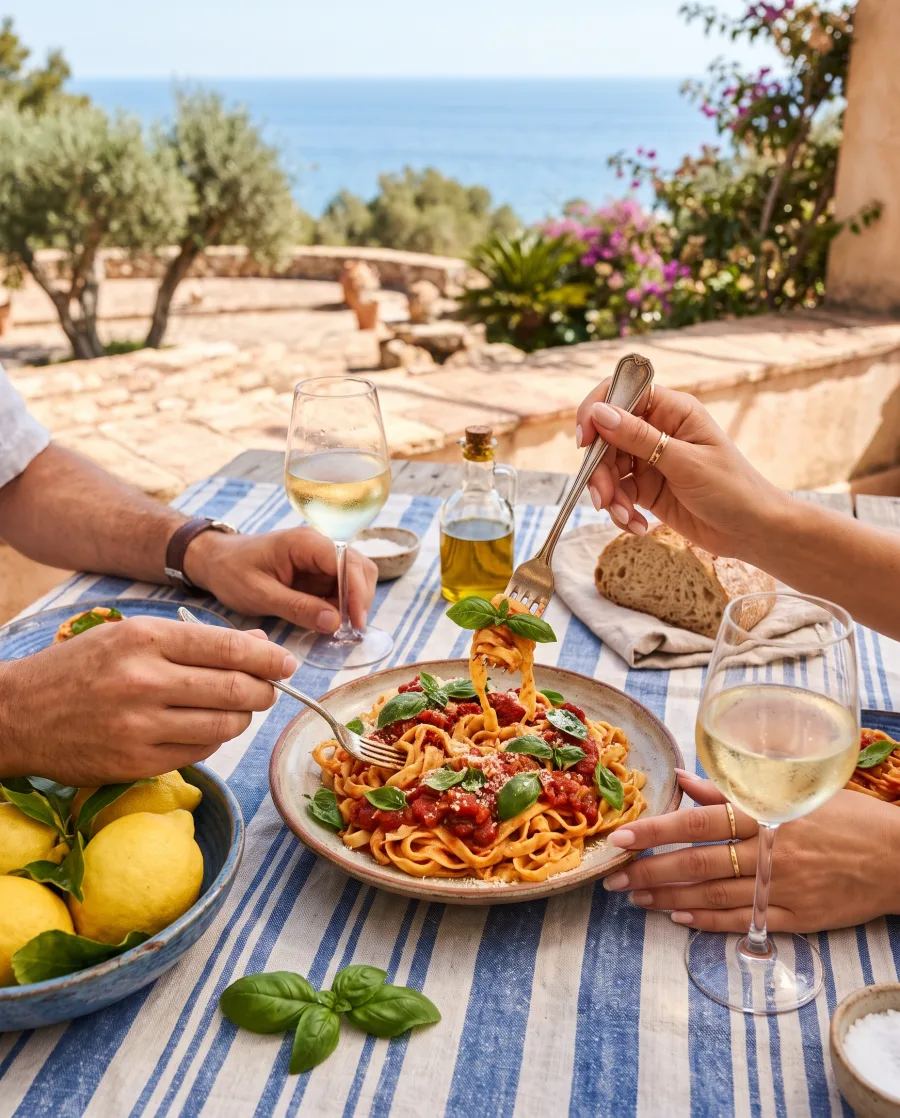 A restaurantPuts the weekly special on a menu-style post for the feed.
- A homeware sellerRemoves the background and places the product on a clean colour for a marketplace.
Inside DesignerBox
Everything else in one place
Each part has its own page. You do not need a separate app for each job.
 CreateAsk for a picture in your own words
 GeneratePick the picture or video model yourself
 InspirationMake a finished idea with your product
 AvatarsOne person in every picture and video
 Brand kitYour logo, colours, fonts and rules
 Video editorCaptions, a voice and music on your clips
 AssetsEvery picture and video, in folders
 ReviewsYour client picks pictures from a link
 TemplatesReady workflows with every step built
 AppsAdd a photo, fill a short form, press Run
 WorkflowsSave your steps and run them again
 BatchOne job on up to 200 products
What is the image editor in DesignerBox?
The image editor, called Image Studio in the app, is a design canvas inside DesignerBox. You add text, shapes, your logo and other pictures, then export the design in the size you need.
Which sizes can I make?
Instagram post and story, Facebook post and cover, Pinterest pin, YouTube thumbnail, LinkedIn banner, X header, presentation and A4. You can also type your own size.
Which files can I export?
The image editor exports PNG, JPG or PDF, up to 300 DPI. A PNG can have a transparent background, and a PDF can have several pages.
Can I edit a picture I made in DesignerBox?
Yes. Add it from My Library, where your results are saved. You can also upload your own pictures.
Do I still need Canva?
For most brand and campaign work, no. If you need a large library of ready layouts, keep a specialist design app.
Which plan do I need?
The image editor starts on the Premium plan. You can see every plan on the pricing page.
Finish your next post here.
Sign up free with Google or your email. The image editor starts on the Premium plan.
Get started free- Claude
- ChatGPT
- Cursor