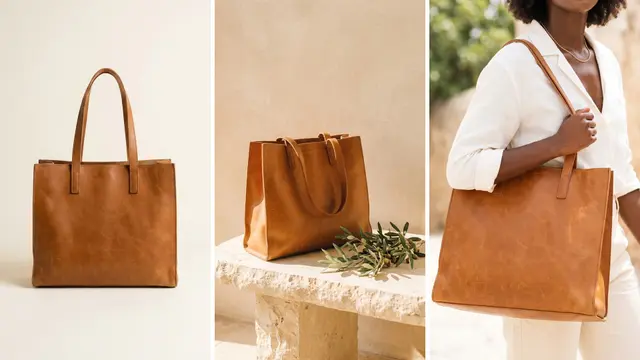




To get one approved ad in every size and every market with DesignerBox, run two apps in order. Ad in other sizes takes the ad and returns the same ad in four sizes. Ad in other languages takes each size and the languages you choose. It returns the same ad in each language. A native speaker reads every version, and then you download the set.
Picture a media buyer with one winning ad in English. The client now wants it in Germany, France, Spain and Italy, in the feed, in Stories and in Reels. Four sizes in four languages is 16 files from one ad. Rebuilt by hand, each file is a design job. The German headline also tends to run longer than the box it came from.
Key Takeaways
- Sizes first, then languages. Ad in other sizes returns four sizes. Ad in other languages then rebuilds each size in the languages you choose.
- Many ads at once. The Ads in sizes and languages template takes ads you already have and keeps the text in place. Batch runs the job over up to 200 rows.
- The client approves first. Resize and translate only the ad the client chose.
- A native speaker reads every language. DesignerBox makes the language versions. A person who speaks the language checks the words and the offer.
- You download the results. DesignerBox does not publish to an ad account.
One winning ad in every placement and market
This job belongs to a media buyer, or to a performance agency of 3 to 15 people. The trigger is a winner: an ad that already works in one market. Done means the same approved ad, ready to upload, in every placement and every language the media plan names.
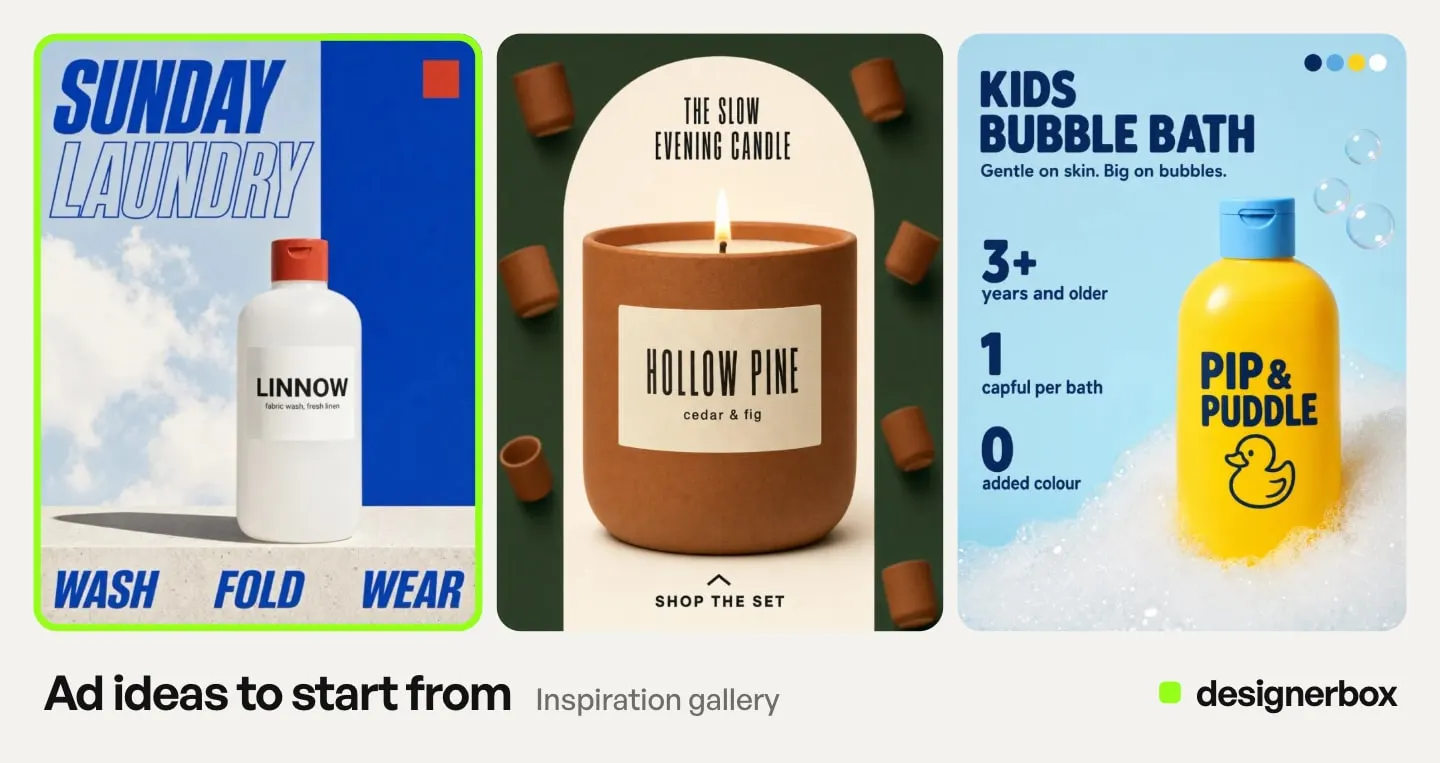
Placements do not share one shape. Meta recommends a 4:5 picture for the Facebook and Instagram feed. It recommends 9:16 for Stories and Reels (Meta Business Help Center, October 2026). Meta also accepts 1:1 in those placements, but it does not mark 1:1 as the recommended shape there.
Languages do not share one length. The W3C publishes IBM’s figures for English text translated into European languages. A source string of 21 to 30 characters grows to 160 to 180% of its English length (W3C, October 2026). Short strings grow the most, and ad headlines are short.
Most teams answer this with a designer and a folder of files. Our guide to image ad specs on five platforms lists the shapes each platform wants. The guide to ad localization without rebuilding the layout explains why translated text breaks a fixed layout.
DesignerBox surfaces for sizes and languages
Two apps do the work for one ad. A template and Batch repeat the job for many ads. The image editor is for a fix by hand on one size.
| Surface | What you add | What you get | Plan |
|---|---|---|---|
| Ad in other sizes (app) | An ad | The same ad in four sizes | Every plan |
| Ad in other languages (app) | An ad and the languages | The same ad in each language | Every plan |
| Ads in sizes and languages (template) | Ads you already have | Each ad in the sizes and languages you choose, text kept in place | Every plan |
| Batch | A sheet with one ad per row, up to 200 rows | 1 to 4 runs per row, kept or discarded one by one | Every plan |
| Image editor | One size that needs a change by hand | The same design with your text, layers and ready sizes, exported as PNG, JPG or PDF | Premium |
An app is a workflow behind a short form. Our guide to DesignerBox apps explains how an app runs. The Apps page lists the apps that run today.
The first run, step by step
This is the first run for one approved ad and four markets.
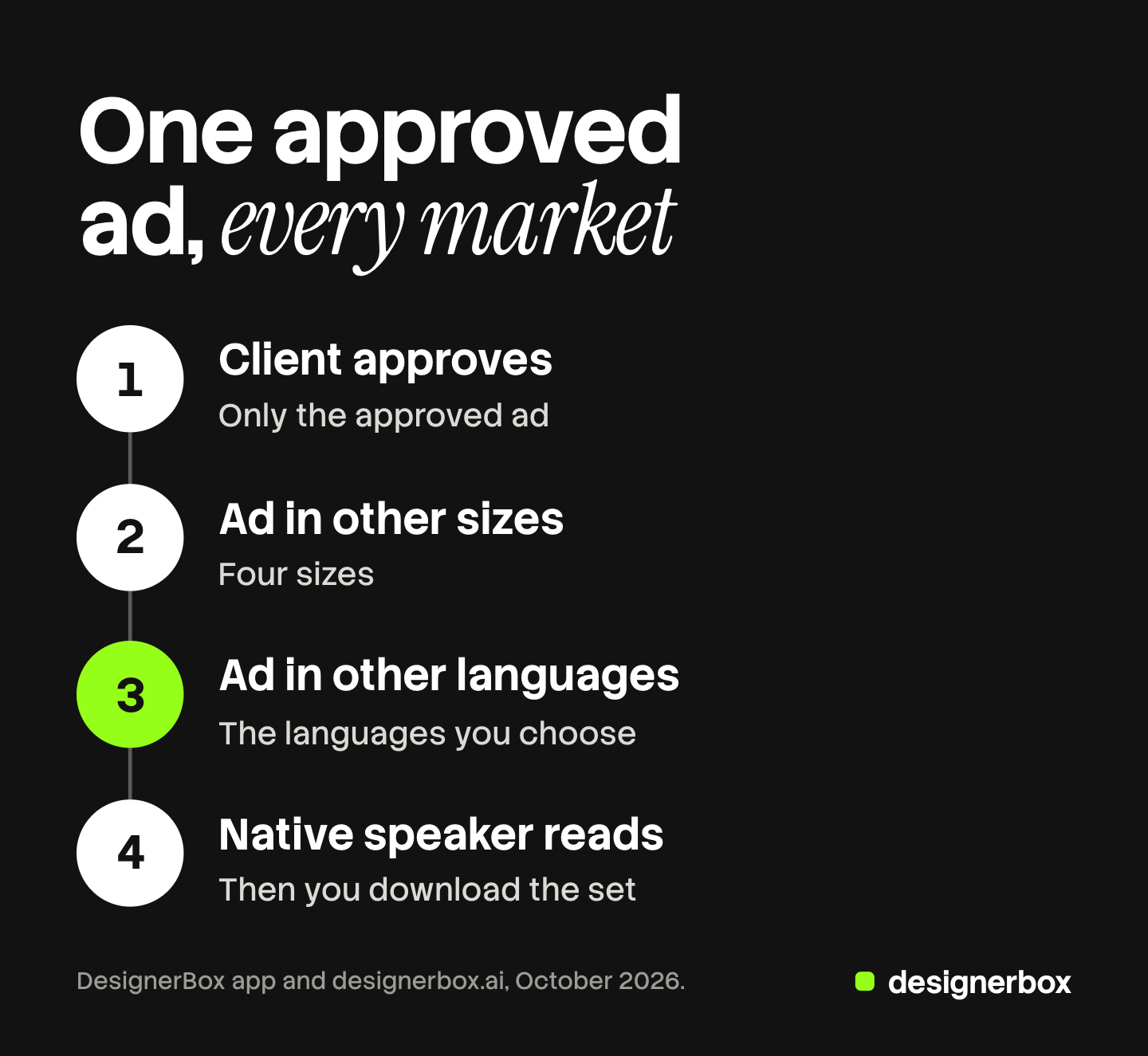
- Get the client’s choice first. Resize and translate only the ad the client approved. Our guide to letting the client pick the ads covers that step.
- Open Ad in other sizes. Go to Automation, then Apps, and filter by Ads. Press “Try it with a sample” if you want to see a result first.
- Add the approved ad and press Run. The price is on the Run button. The four sizes are saved in Assets.
- Check each size. Look at the product, the headline and the logo. Keep the sizes your placements need.
- Open Ad in other languages. Add one size and the languages you want, then press Run. Do the same for each size you keep.
- Send each language to a native speaker. They read the headline, the offer and any legal line. Fix one size by hand in the image editor, or run it again.
- Download the kept files. You then upload them to your ad account yourself.
Run the sizes before the languages. You check the layout once in English, where you can read it. Each language then starts from a layout you already approved.
The second ad and the twentieth
The second time, one template run can replace the two apps. The Ads in sizes and languages template takes ads you already have. It returns each ad in the sizes and languages you choose, and it keeps the text in place. You can open your own copy of the template and change any step. A template is “Priced as it runs”, so the cost adds up step by step. Our guide to DesignerBox templates covers how a copy becomes your own workflow.
When the job is yours, save it as a workflow. Workflows read your brand rules, which hold your fonts and colors. Publish the workflow as an app. A junior buyer then completes a short form and never opens the steps.
The twentieth time is a batch. Each row is one ad. One sheet holds up to 200 rows, and each row runs 1 to 4 times. The sheet shows the credits before you run, and over 20 runs DesignerBox asks you to confirm first. Our guide to DesignerBox batch covers rows and review.
Anyone can make an AI picture. Making hundreds that still look like your brand is the hard part. A saved workflow gives all 16 files the same steps.
The winner comes from a test. Our guide to headline testing with DesignerBox covers that step.
Checks before upload
Making the files is the short part. Checking them takes longer.
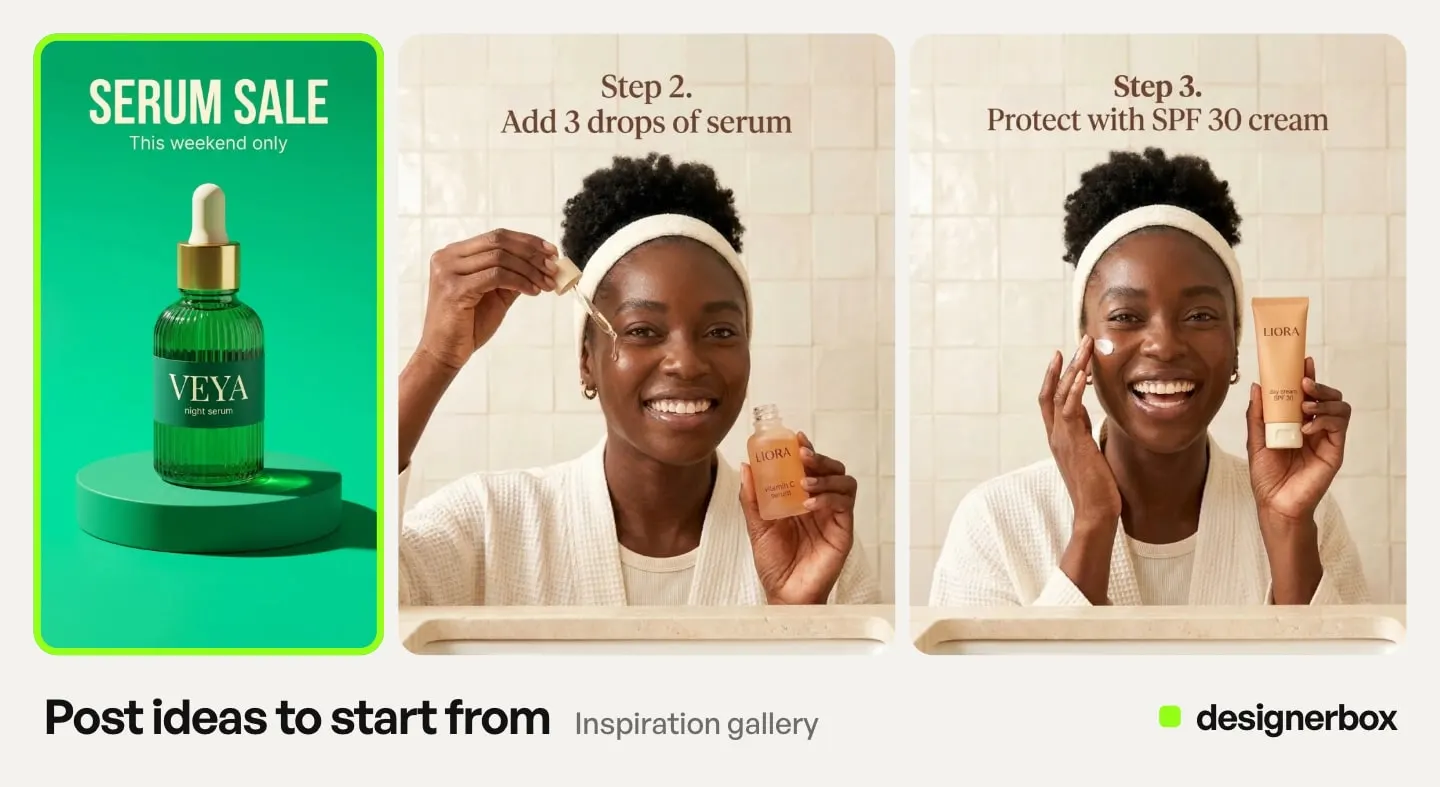
In a batch, you keep or discard each result with the J and K keys. Then you download the kept pictures, send them for review, or download the sheet as CSV.
Check every file for five things:
- The product. The label and the color are the same, and nothing is cut off at the edge.
- The headline. Every word fits, and no text sits on top of the product.
- The 9:16 size on a phone. The buttons in Stories and Reels do not cover the headline.
- The language. A native speaker reads every line.
- The offer. The price, the currency and the dates are right for that market.
In your own workflow, critic steps (designer, photographer, emotion, ad director) score several results and keep the best. You still read every language yourself.
Limits of sizes and languages
These are the limits as of October 2026.
- A native reader is still needed. DesignerBox rebuilds the ad in each language. It cannot tell you whether a line sounds right to a local buyer.
- Legal copy and offers differ by market. Ad in other languages returns the same ad in each language. A legal line, a price or a sale date that one market needs is yours to add and check.
- The app makes four sizes. If a placement needs another shape, make it in the image editor. It has ready sizes such as Instagram story and Pinterest pin, or a custom size.
- DesignerBox does not publish to an ad account. You download the results, or send them with a webhook or an S3 step.
Sizes and languages in one account
The resize, the translation, the batch run and the client review sit in one account. One approved ad stays the source, and every size and language comes from it. The page for performance marketers covers the rest of the ad work. The AI ad generator page covers how the first ad is made.
Apps, templates, workflows and batch are on every plan. Uploading your own photos and the commercial license start on the Pro plan, so your own ad needs Pro. The image editor starts on the Premium plan. There is a free plan, and it runs on the sample products. Plans and credits are on the pricing page.
An agency that runs one winning ad for many clients can see this job on a call. Book a demo.
FAQ
How do I resize one ad for feed, Stories and Reels in DesignerBox?
Open the Ad in other sizes app, add the ad and press Run. It returns the same ad in four sizes. Meta recommends 4:5 for the feed and 9:16 for Stories and Reels. Check that the sizes you keep cover the placements you buy.
Can DesignerBox translate the text on an ad?
Yes. The Ad in other languages app takes an ad and the languages you choose. It returns the same ad in each language. A native speaker should read each version before it runs.
Can I resize and translate many ads at once?
Yes. The Ads in sizes and languages template takes ads you already have. For a long list, Batch runs one row per ad, with up to 200 rows in one sheet.
Do I still need a translator?
You need a native reader. A translated headline can be correct and still sound wrong to a local buyer. Legal lines and offers also change by market.
Where do the finished ads go?
You download the results, or send them with a webhook or an S3 step. DesignerBox does not publish to an ad account, so you upload the files there yourself.
How do I know what a run costs?
Each app shows its price on the Run button. A template is priced as it runs. A batch sheet shows the credits for the whole sheet before you run it.
Sources
- DesignerBox Apps page (designerbox.ai/product/apps), October 2026
- DesignerBox Templates page (designerbox.ai/product/templates), October 2026
- DesignerBox Batch page (designerbox.ai/product/batch), October 2026
- The DesignerBox app, read October 2026: Ad in other sizes, Ad in other languages, the Ads in sizes and languages template, Batch and the image editor sizes
- DesignerBox pricing page (designerbox.ai/pricing), October 2026: the plan gates
- Meta Business Help Center, aspect ratios supported by placements in Meta Ads Manager: facebook.com/business/help/682655495435254, read October 2026
- W3C, Text size in translation, citing IBM’s guidelines: w3.org/International/articles/article-text-size, read October 2026
DesignerBox features verified in the app and on designerbox.ai as of October 2026. Results vary by product and model.