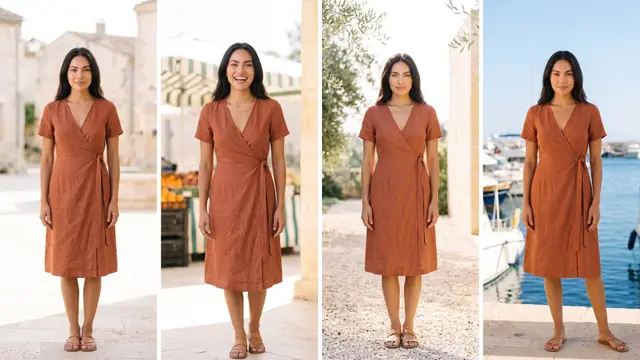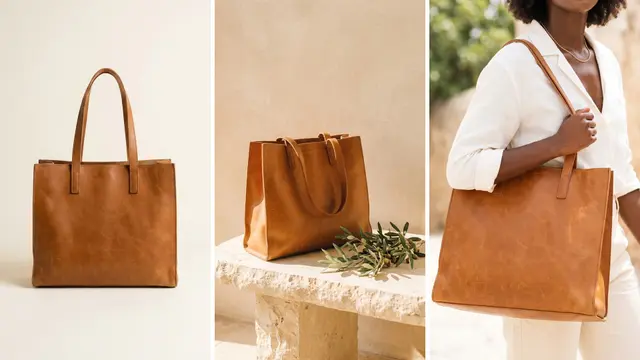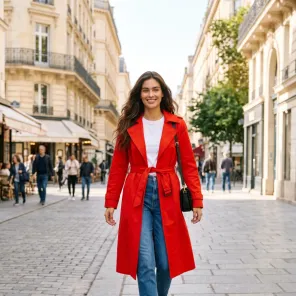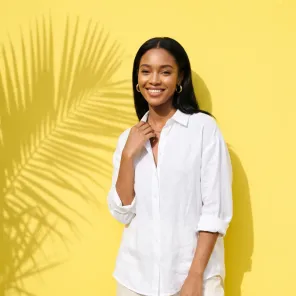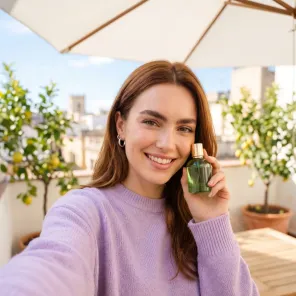

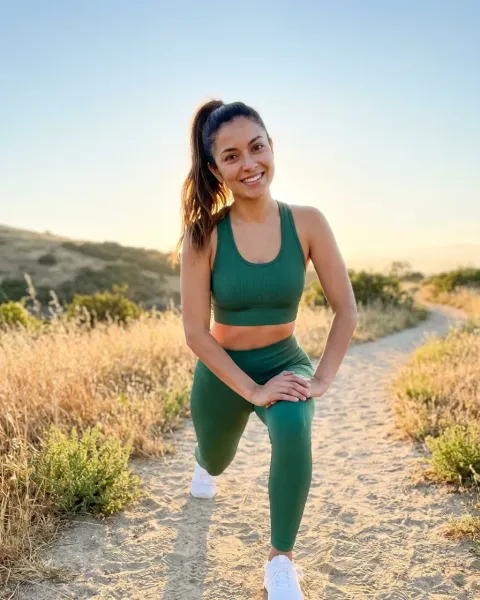
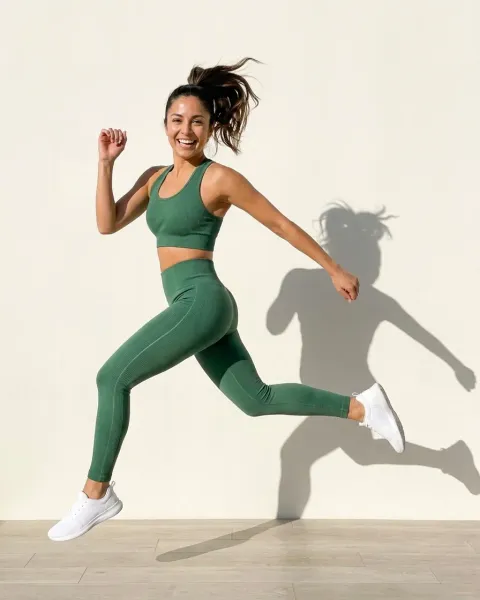
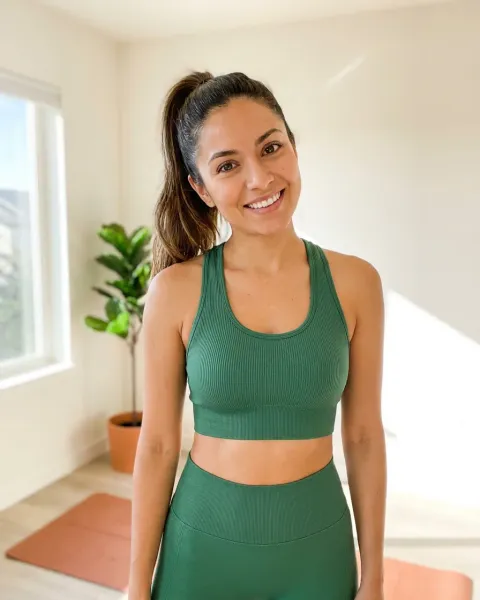
To show every new garment on the same model in DesignerBox, choose one avatar and keep it all season. Put each garment on that avatar with the Clothes on a model app. Save the job once as a workflow called “same model, new garment”. Publish it as an app and run it in Batch, one row per garment. A person checks every row.
A brand adds 40 new pieces in March. The team puts the first eight product pages in one grid. The face has changed three times, and the light has moved. The store no longer looks like one brand.
Key Takeaways
- One avatar is the house model. Every avatar is a nine-pose set of one person, saved under My avatars.
- Clothes on a model does the first garment. You add the garment photo and the avatar, choose a look, and press Run.
- The workflow is built once. “Same model, new garment” runs the same steps and reads your brand rules on every run.
- Batch runs the whole season. One row per garment photo, up to 200 rows a sheet.
- A person checks every row. Same face, same skin tone, same light, and a garment that matches the real piece.
- AI people can need a label. In the EU, a realistic AI person in an ad is likely in scope.
Brands that need one face all season
This job belongs to an apparel brand with 20 to 500 products, or to its agency. It starts with every new drop. The job is done when each new piece appears on the same person as the last drop.
Today that means one of two things. The brand books the same real model for every shoot, which needs dates, contracts and a studio each time. Or it writes a new prompt per garment, and the face changes with each run. Our guide to consistent on-model images explains the four things that drift between results.
DesignerBox surfaces for one model
Five surfaces do this job together. The names are the ones the app used on 22 October 2026.
| Surface | What you add | What you get | Plan |
|---|---|---|---|
| Avatars | One sentence, or one photo of a person who agreed | A nine-pose set of one person | Every plan |
| Clothes on a model (app) | Photos of clothes and a model, and a look | The model wearing them, in a clean product page, lifestyle, campaign or editorial look | Your own photos from Pro; virtual try-on from Premium |
| Clothing catalog (template) | One garment | Front, three-quarter, back and fabric detail on a model | Your own photos from Pro; virtual try-on from Premium |
| Workflows | Your steps, the avatar and a garment photo | ”Same model, new garment”, saved to run again | Every plan |
| Batch | One row per garment photo | The whole season in one sheet, up to 200 rows | Every plan |
The avatar holds the face, and Clothes on a model puts the garment on it. The workflow and the batch repeat the job for every piece.
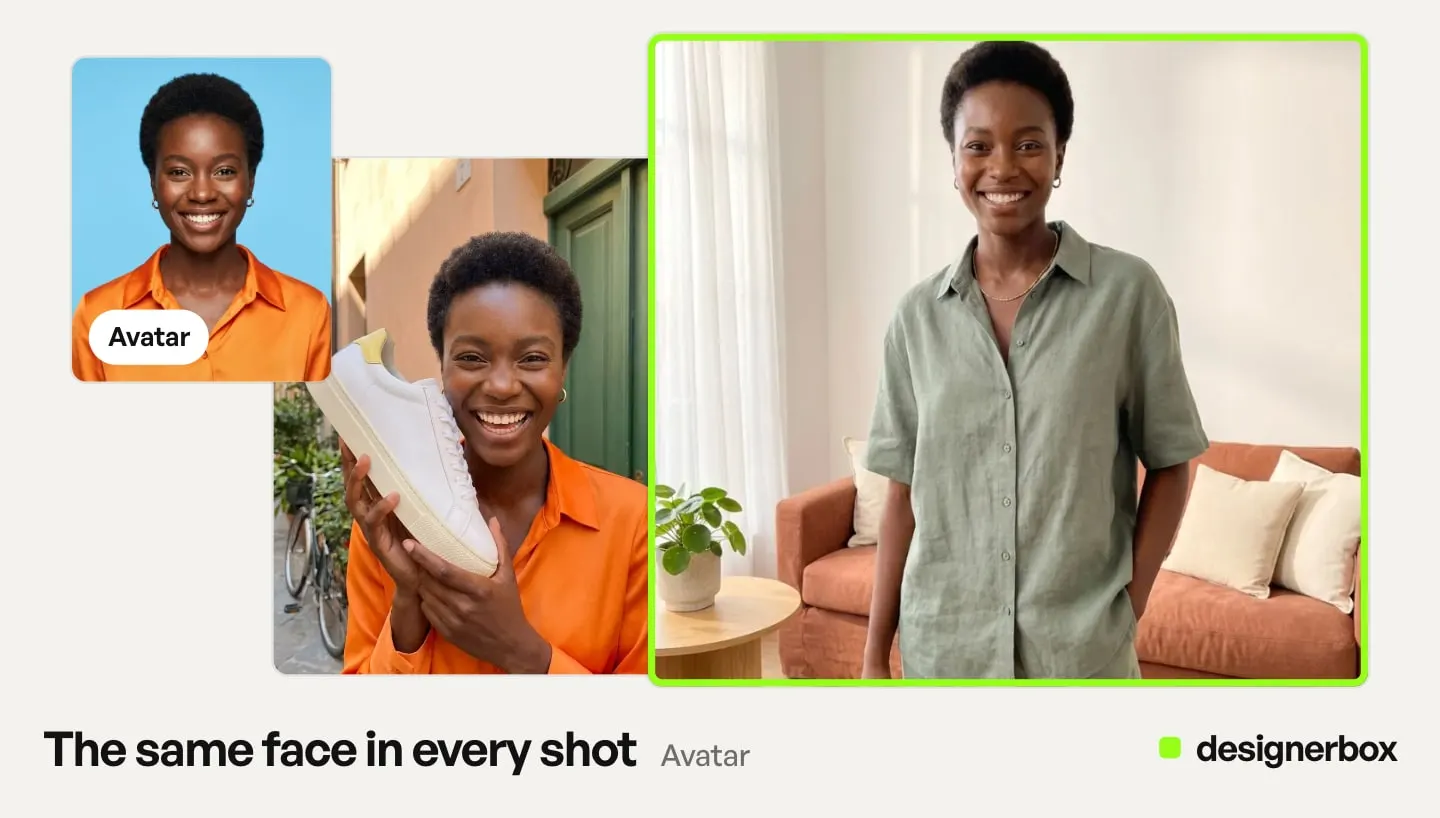
The house model
Open Workspace, then Avatars. Pick a ready avatar, or make your own from one sentence or one photo. DesignerBox then makes the nine-pose set: front, back, left, right, head shot, full body, walking, running and sitting. Our guide to DesignerBox Avatars covers the page.
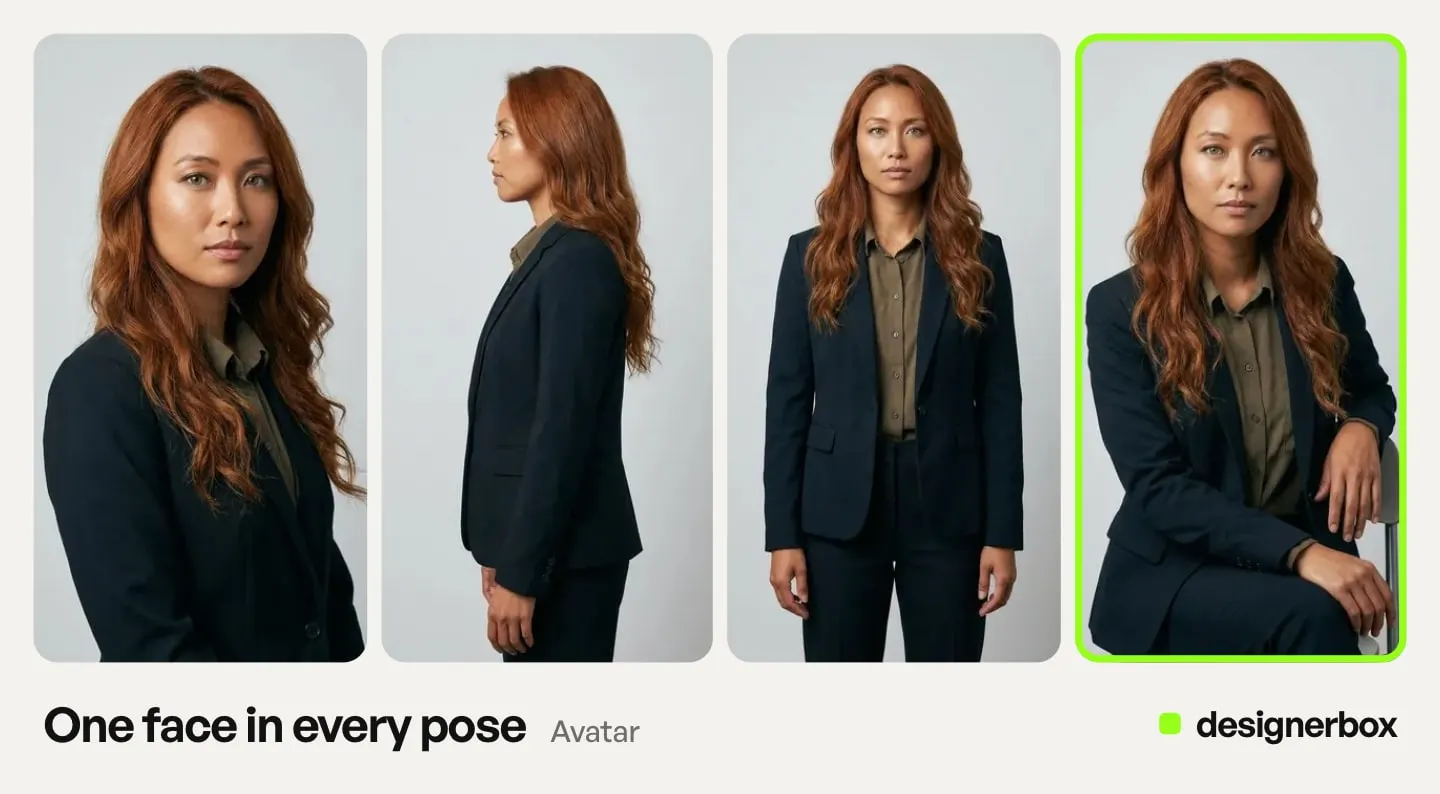
For this job, skip the outfit option. The avatar wears a different garment in every row, so a fixed outfit does not help. Our guide on how to create an AI fashion model covers the casting choices.
Make an avatar from a real person only with that person’s clear permission. Use only a photo you have the rights to use. Agree in writing where the face appears, for how long and in which markets.
An agency can let the client pick the model on one garment before the full run.
First garment, step by step
Get one garment right before you build anything that repeats.
- Check the nine poses. Look at the head shot, the front and the side views together. If one pose shows a different face, make the avatar again.
- Prepare the garment photo. Use one piece, in even light, with its true color. The Clothes laid flat app and the Remove wrinkles from clothes app give you a clean source photo.
- Run Clothes on a model. Open Automation, then Apps. Add the garment photo, pick your avatar in the picture picker, and choose the clean product page look. The price is on the Run button.
- Add the four views if you need them. Clothing catalog turns one garment into front, three-quarter, back and fabric detail on a model. Its model may differ from your avatar, so check the face before you mix the two.
- Compare and keep. Put the result next to the avatar’s head shot and the real garment. Keep it, or run it again.
Same model, new garment, every drop
The first garment teaches you the settings. Now save them, so the twentieth garment runs the same way.
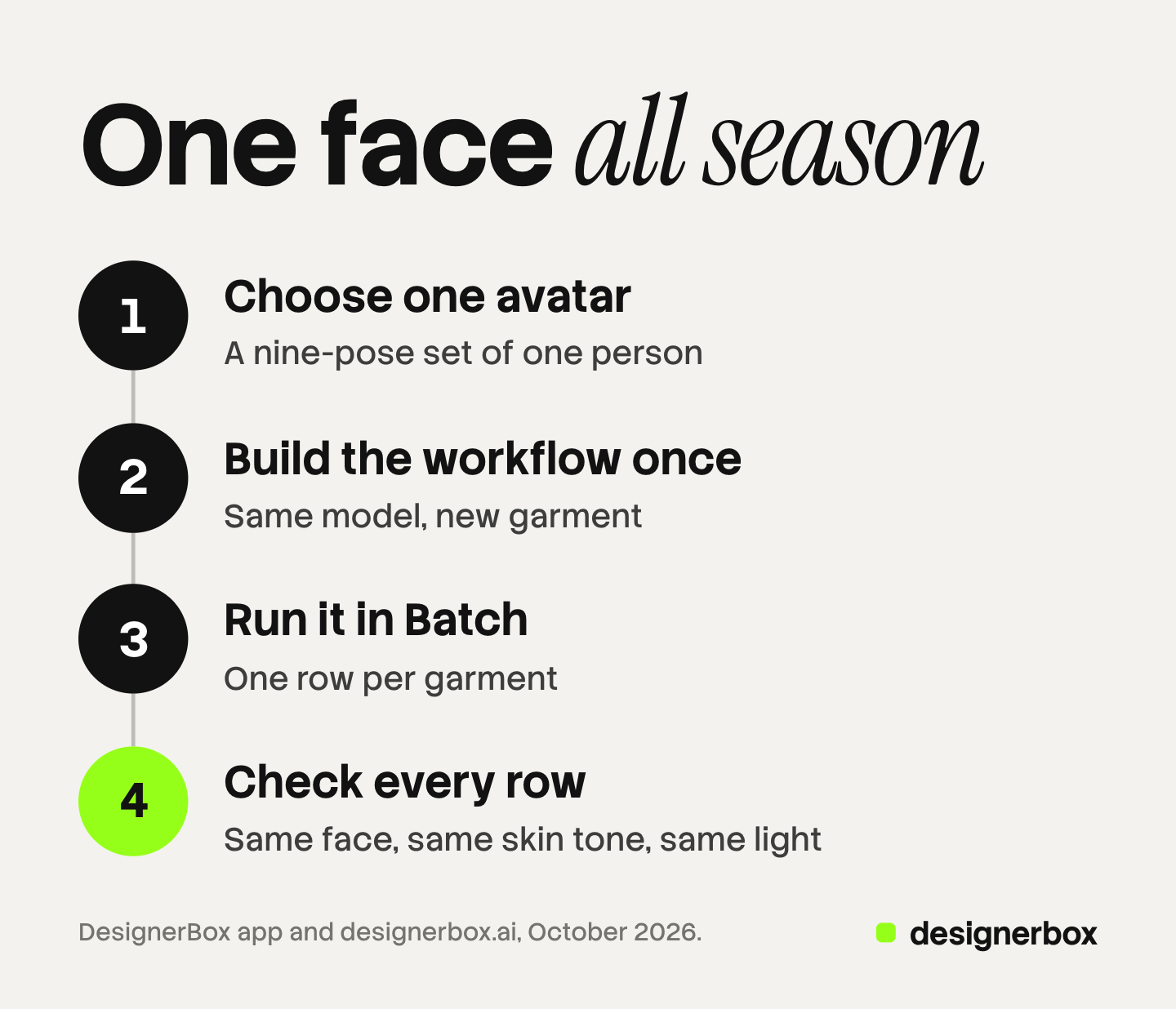
Build the workflow once. Ask the Workflow skill in Create to draft it. Or open your own copy of a template and change the steps. Add the avatar and one garment photo as the inputs. Add a Brand Kit step, so the workflow reads your rules.
Add critic steps (designer, photographer, emotion, ad director), which score several results and keep the best. End with a Save to Assets step. Our guide to DesignerBox workflows explains each kind of step, and the Workflows page shows the canvas.
Write the light into your brand rules. Workflows read your brand rules. Add rules such as “daylight only” and “plain warm gray backdrop”. Every run of the workflow then starts from those rules.
Publish it as an app. A colleague then completes a short form and presses Run. They never open the steps.
Run the season in Batch. Open Automation, then Batch, and choose your published app. Upload the season’s garment photos, and each picture becomes a row. Check that every row uses the same avatar.
The Batch page lists the limits. A sheet holds up to 200 rows, and each row can run 1 to 4 times. The sheet shows the credits before you run. Over 20 runs, DesignerBox asks you to confirm first.
The next drop needs no new build. Open the same app, keep the same avatar and add the new rows.
Checks from row to row
A reference set makes the same face likely, not certain. So a person looks at every row. In the batch, keep or discard each result with the J and K keys.
- Same face. Compare each result with the avatar’s head shot: the eyes, the nose, the hairline.
- Same skin tone. View the kept results side by side in Assets. A warmer or paler row is easy to see in a grid.
- Same light. The light comes from the same side, with the same warmth and the same backdrop.
- The real print. The print has the same scale and placement as on the real piece.
- The real color and cut. The color matches the garment in daylight. The length and the cut match: a cropped jacket stays cropped.
The last check is the label. Article 50 of the EU AI Act has applied since 2 August 2026. The European Commission says a deep fake can show someone who “can plausibly exist” (European Commission FAQ, October 2026). The same page says deployers must disclose such content “upon first exposure at the latest”. A deployer is the business that uses the AI tool.
A realistic AI model in front of EU shoppers is likely in scope. Our guide to labeling AI fashion images covers which assets need a label. This is general information, not legal advice.
Limits of one model all season
These limits are specific to this job, as of October 2026.
- The face can still drift. The nine-pose set makes the same face likely. A person still checks every row.
- The picture does not show real fit. It shows your garment on an AI person. Size and fit notes on the product page still come from your own measurements.
- One sheet holds up to 200 rows. A larger season needs more than one sheet.
- Delivery is a download or an outbound step. You download the kept pictures, or send them with a webhook or an S3 step. DesignerBox does not send finished work to a store.
- The avatar is not a customer. Use it to show the product. Never use it for a customer review.
Same model in DesignerBox
Anyone can make an AI picture. Making hundreds that still look like your brand is the hard part. For a clothing brand, the face is a large part of that look. The avatar, the “same model, new garment” workflow and the season’s batch sit in one account. The fashion brands page shows the other fashion jobs DesignerBox does.
Avatars, apps, templates, workflows and batch run on every plan. Uploading your own photos and the commercial license start on the Pro plan. Virtual try-on starts on the Premium plan. There is a free plan, and it runs on sample products. Plans are on the pricing page.
The free plan shows you how avatars and apps work. Get started free
FAQ
Can AI keep the same model across different clothes?
Yes, with a reference set and a check on every result. In DesignerBox, one avatar is a nine-pose set of one person. You use it as the model in Clothes on a model for every garment. A person checks each face against the head shot.
How do I make a consistent AI model in DesignerBox?
Open Workspace, then Avatars, and pick a ready avatar or make your own from one sentence or one photo. DesignerBox makes nine poses of that person. Then use the same avatar in every run.
Can I use a real model’s face as the avatar?
Yes, from one photo, with the person’s clear permission. Use only a photo you have the rights to use. Agree in writing where and how long the face appears.
Do I need to label an AI model on a product page?
In the EU, a realistic AI person is likely in scope of Article 50 of the AI Act. That rule has applied since 2 August 2026. Check the rule for each market and each ad platform. This is general information, not legal advice.
Which plan do I need for the same model on every garment?
Avatars, apps, workflows and batch run on every plan. Uploading your own garment photos starts on the Pro plan. Virtual try-on starts on the Premium plan.
Sources
- The DesignerBox app, read 22 October 2026: Avatars, the Create Workflow skill, Apps and Batch
- DesignerBox Apps page (designerbox.ai/product/apps), October 2026: the app names
- DesignerBox Templates page (designerbox.ai/product/templates), October 2026: Clothing catalog
- DesignerBox Workflows page (designerbox.ai/product/workflows), October 2026: the step kinds
- DesignerBox Batch page (designerbox.ai/product/batch), October 2026: the batch limits
- DesignerBox pricing page (designerbox.ai/pricing), October 2026: the plan gates
- European Commission, Transparency obligations under Article 50 of the AI Act (FAQ), last updated 24 July 2026, read October 2026
DesignerBox features verified in the app and on designerbox.ai as of October 2026. Results vary by product and model.