


DesignerBox Batch runs one workflow, app or image model over many rows. Each row is one product, and each row makes its own pictures or videos. You pick what to run, add your rows, read the cost of the whole sheet and press Run. Then you judge each result and keep the good ones. One sheet holds up to 200 rows.
Batch is the fourth way to run a workflow in DesignerBox, after a template, your own workflow and an app. It is one part of the app we rebuilt, and the new DesignerBox explains the other parts. This guide covers what a batch can run, how you add rows, how review works, and where the limits are.
Key Takeaways
- A batch runs one workflow, app or image model over a sheet of rows. One sheet holds up to 200 rows.
- You add rows in three ways: type them, paste a list, or drop a folder of photos. Each photo becomes a row.
- Every row reads the same brand rules, so row one and row two hundred have the same look.
- Batch does not send results to a store. You download them, or send them with a webhook or an S3 step.
What a batch is
The Batch page in the app describes it in two sentences: “A batch runs one workflow, app or image model over many rows. Each row makes its own pictures or videos.”
A batch is a table. Each row is one run of the same job, with that row’s product and its own settings. The Batch page on the site says each row holds its own photo and its own line of text. Every result lands in the last column of its row.
A batch is different from a prompt list. A prompt list sends many text prompts to one model. A batch can send many products through one saved job, with your brand attached. Our guide to the bulk image generator compares the two approaches in detail.
Three things a batch can run
The first card on the Batch page is titled “Pick what to run”. It names three choices: a workflow you published, one of the apps, or an image model on its own. The page has two buttons. One picks a workflow or an app. The other picks an image model on its own.
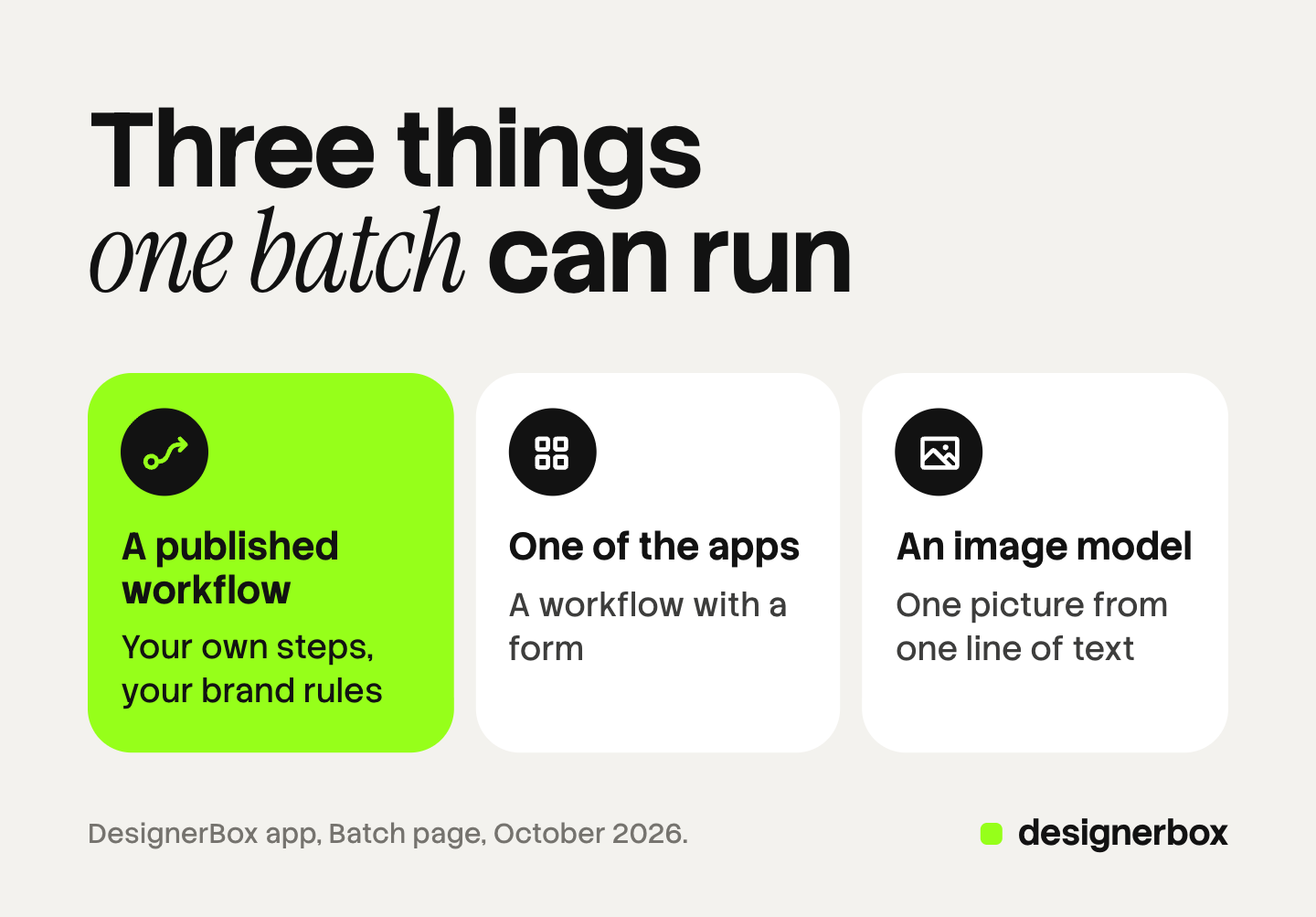
| What you run | What it is | Pick it when |
|---|---|---|
| A workflow you published | Your own set of steps, built once with your brand and your rules | The job has several steps, and you have already checked the result on one product |
| One of the apps | A workflow with a form, built by DesignerBox or by your team | An app already does the job, and you do not need to change its steps |
| An image model on its own | One model, with no saved steps around it | Each row needs one picture from one line of text, and no step before or after |
You build a workflow on the workflows page. Our guide to DesignerBox apps covers what an app is and how a colleague runs one.
The site gives one piece of advice. Run the job once on one product and check the result. Then fill the sheet.
Three ways to add rows
The second card reads: “Add your rows. Type them, paste a list, or drop a folder of photos. Each photo becomes a row.”
The site describes one product per row: the photo, the name and the colors. One sheet holds up to 200 rows. A catalog with more products than that needs more than one sheet.
The free plan runs on sample products, so a free batch shows you how the sheet works.
A batch run, step by step
- Pick what to run. Choose a workflow you published, one of the apps, or an image model on its own.
- Add your rows. Type them, paste a list, or drop a folder of photos. Each photo becomes a row.
- Read the cost. The sheet shows it in credits, for all rows together.
- Run them all. Press Run. Each row shows its state: draft, queued, generating, done or failed.
- Judge each picture. Keep the good results and discard the others. Re-run a row that failed or looks wrong.
- Deliver. Every kept result goes to Assets, beside its source photo. Download it from there, or send it with a webhook or an S3 step.
The app’s sidebar calls the library My Library, and the site calls it Assets. They are the same place.
Review of each row
The third card on the Batch page reads: “Keep the best pictures. Run them all, then judge each picture. Keep the good ones.”

Making the pictures is the short part. Finding the few wrong ones takes longer. Our guide to bulk product images covers where a catalog run breaks at this stage.
The sheet handles review in three ways, as the site describes them:
- Each row shows its state. A failed row is easy to find, because its state says so.
- You keep or discard each result as it lands. You decide every result yourself. Nothing is approved for you.
- You re-run one row on its own. The rest of the sheet does not move.
An agency often needs a second review, by the client. Reviews sends your client a page of pictures. The client opens the link with no account, chooses the pictures they want and sends the choice back to you. You can send the pictures of a finished run this way. Our guide to DesignerBox Reviews covers that step.
Brand rules across rows
Anyone can make an AI picture. Making hundreds that still look like your brand is the hard part.
A batch answers that with one rule: every row runs the same steps and reads the same brand. You set the brand once. It holds your products, your logo, colors and fonts, your voice and rules, and your reference pictures. The Brand page in the app says: “Workflows read the rules before every prompt.”
Row one and row two hundred have the same look, because nothing between them changed except the product.
An agency keeps one brand record per client. You pick the brand for a run, so a sheet for one client reads that client’s brand. Our guide to the Brand page covers what a brand holds and how a run uses it.
Cost before the run
The cost is shown before the run. For a batch, that number covers the whole sheet. Nothing is spent until you start the run.
This matters most to an agency or a reseller. You can price the job for your client first, then start the run.
Batch, templates, apps and brand rules are on every plan. Uploading your own photos and the commercial license start on the Pro plan. AI video, virtual try-on and upscaling start on the Premium plan. Plans and credits are on the pricing page.
A worked example with 40 products
This example is illustrative. A homeware brand adds 40 new products this month. Each product needs four shots: a hero, two angles and a lifestyle scene.
| Part of the job | Count |
|---|---|
| Products in the drop | 40 |
| Rows in the sheet | 40 |
| Pictures per row | 4 |
| Pictures to review | 160 |
| Sheets needed | 1 |
The brand lead builds a workflow that makes the four shots, and checks it on one product. Then she drops a folder of 40 source photos onto the sheet. Each photo becomes a row. She presses Run.
Review is 160 pictures in one pass. Say six rows have a wrong picture. She re-runs those six rows only. The other 34 rows do not move. The kept pictures go to Assets, and she downloads them for the store.
A catalog of 500 products follows the same pattern across three sheets: two of 200 rows and one of 100.
Who batch is for
Batch fits a team that repeats one job across many products.
- A brand with 20 to 500 products. Each drop needs the same set of shots. The ecommerce brands page covers this buyer.
- An agency with several clients. One brand record per client and one sheet per drop.
- A reseller who sells finished sets. The next customer’s set uses the same workflow.
The full workflow from the first product photo to the finished ad, in one subscription. Batch is the part of it that handles volume.

Limits of batch
These are the limits as of October 2026.
- One sheet holds up to 200 rows. A larger catalog needs more than one sheet.
- Batch does not publish to a store. You download the results, or send them with a webhook or an S3 step. Nothing lands in a listing on its own.
- Every plan below Ultra is one seat. A shared workspace and team seats are on the Ultra plan.
Start with one workflow and a short sheet, then add rows once the first results look right. Get started free.
FAQ
How many rows can one DesignerBox batch hold?
Up to 200, one product per row. Every row runs the same steps with the same brand rules. A catalog with more than 200 products needs more than one sheet.
What happens when one row goes wrong?
You re-run that row on its own, and the rest of the sheet does not move. Each row shows its state, so a failed row is easy to find. You keep or discard every result yourself.
Does a batch show its cost first?
Yes. The cost of the whole sheet shows in credits before you press Run, and nothing is spent until you start. An agency can use that number to quote a client.
Which plan includes batch?
Batch is on every plan. Uploading your own photos starts on the Pro plan, and the free plan runs on sample products. AI video starts on the Premium plan, so a batch that makes videos needs that plan.
Where do batch results go?
Every kept result goes to Assets, beside its source photo. From there you download it, or send it with a webhook or an S3 step. DesignerBox does not publish to a store.
Sources
- DesignerBox Batch page (designerbox.ai/product/batch), October 2026: the 200-row sheet, row states, keep, discard and re-run, Assets, the cost of the sheet, plan gates
- The DesignerBox app, Batch, Brand and Reviews pages, read October 2026
- DesignerBox pricing page (designerbox.ai/pricing), October 2026: plans and plan gates
Batch facts checked against designerbox.ai and the DesignerBox app in October 2026. The cost of a sheet depends on what each row runs. Plans and limits change, so read the cost shown before you run a large sheet. Individual results vary.