




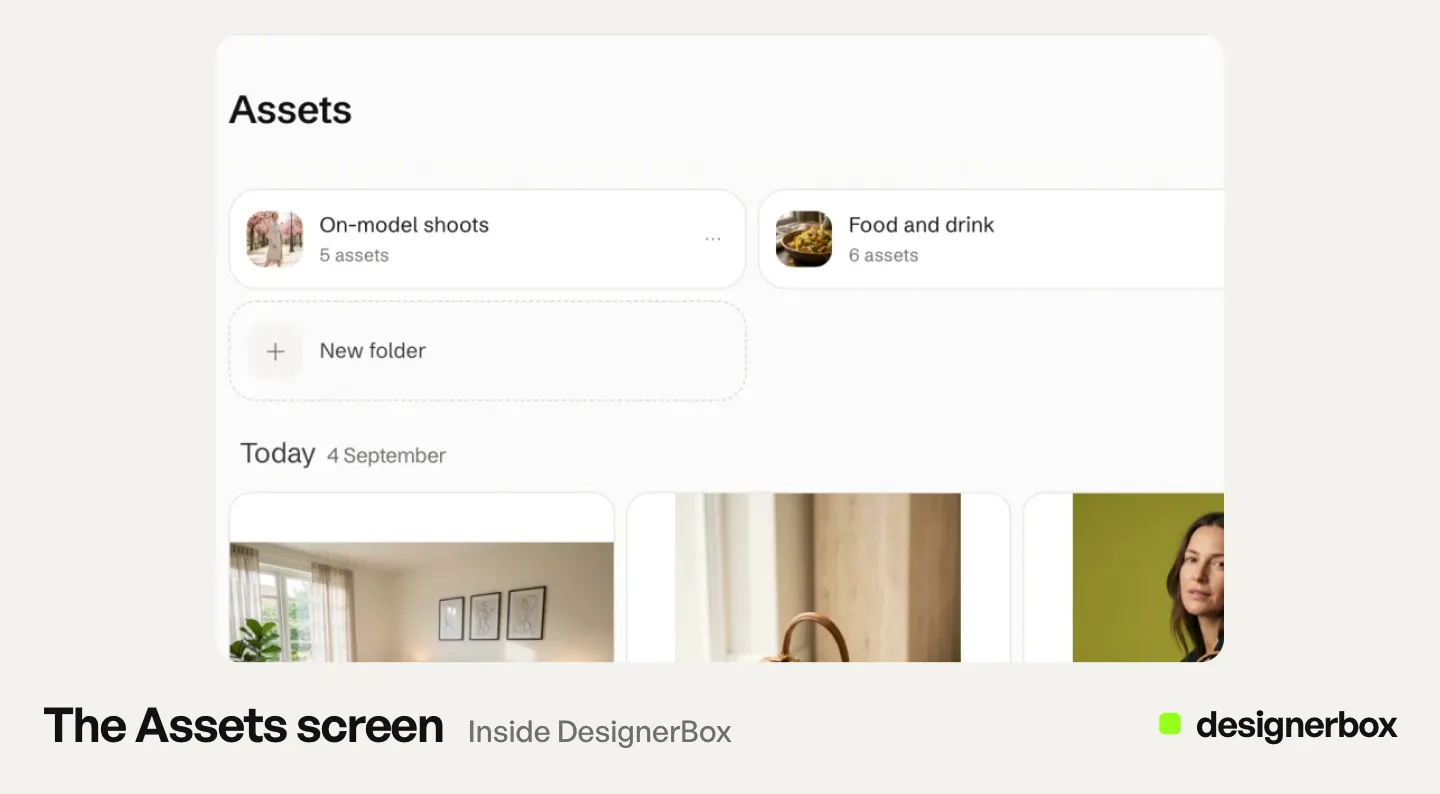
DesignerBox Assets is the library inside the DesignerBox app. Every picture and video you make or upload lands there. Assets groups the files by day, and you sort them into folders. You open a picture to see the prompt and the model that made it. From Assets you start the next job, send a set to a client for review, or move many files at once.
Your team made 300 pictures for four clients last month. Some sit in a downloads folder. Some sit in a chat thread. The approved hero shot for one client is in both places, under a file name nobody chose.
Assets keeps that work on one page. The team finds the approved picture there, uses it again and sends it to the client.
This guide covers the Assets page of the app, as read in October 2026. It explains what lands in Assets, the views, the folders, how a picture starts the next job, and the limits. Assets is one part of the app we rebuilt, and the new DesignerBox covers the other parts.
Key Takeaways
- Assets holds every picture and video you make or upload, in folders.
- Results from Create, Generate, apps and workflows land there, beside your uploads and stock photos.
- You open a picture to see the prompt and the model that made it.
- A picture in Assets can start the next job, or go to a client in a review.
- Assets is a working library for AI production. It does not track rights, approval states or versions.
What lands in Assets
Assets is its own page in the app. It holds every picture and video you make in DesignerBox, and every file you upload. Five sources fill it.
| Where it comes from | What lands in Assets |
|---|---|
| Create, the chat | The pictures and videos you make from a sentence |
| Generate | The pictures and videos you make with a model you choose |
| Apps and workflows | The results of each run |
| Your computer | Files you upload, many at once or by drag and drop |
| Stock sites | Photos from Unsplash, Pexels and Pixabay |
A workflow can end with a step that saves its results to Assets. In Generate, you can move a result to a folder after it appears. Our guide to DesignerBox Generate covers that page.
The DesignerBox MCP searches the same three stock sites from an AI chat such as Claude, ChatGPT or Cursor. Before you use a stock photo in a paid ad, read the license page of its site.
Views in Assets
Assets groups your files by the day you made them: Today, Yesterday and This week. A filter shows only pictures or only videos. You can show the files as a grid or as a list.
Each view answers one question a team asks every week:
- By day. What did we make this week?
- Pictures or videos. Where is the clip among all the stills?
- Grid or list. Use the grid when you choose a picture by eye.
The day groups help on a busy Monday. The folders help a month later, when nobody remembers the day.
Folders per client or campaign
A folder in Assets has a name, a color and a description. A folder can hold other folders, so you can build a short tree.

An agency can give each client one folder, with a folder for each campaign inside it. The Assets page on the site gives the same advice: one folder per client. A brand team can make one folder per season or per product drop.
| Level | Example name | What the description holds |
|---|---|---|
| Folder | Client A | The client’s markets and the usual delivery day |
| Folder inside it | Spring launch | The brief, in two lines |
| Folder inside that | Chosen | The pictures the client chose |
Give each client its own color. Then the folder is easy to find in a long list. Assets has no approval state of its own. A folder such as Chosen keeps the client’s choice beside the campaign.
Folders hold the files. The rules for each client live in Brand. A workspace holds several brands. Each brand holds products, a logo, colors, up to 6 fonts, voice and rules, and up to 12 reference pictures. Our guide to DesignerBox Brand explains each card. Anyone can make an AI picture. Making hundreds that still look like your brand is the hard part. One folder and one brand per client keep the two halves together.
Uploads, bookmarks and bulk actions
You can upload many files at once, or drag them from your computer onto the page. Put the client’s product photos in the client’s folder first. Then the team uses the same source photos for every run.
A bookmark marks a file you use again and again. Bookmarks are shared with the team. When one person bookmarks the approved hero picture, everyone sees the bookmark.
You can also select many files at once. Then you choose one of three actions:
- Move the files to a folder.
- Send for review to a client.
- Delete the files.
Prompt and model behind each picture
Open a picture in Assets to see the prompt and the model that made it.
This matters for three jobs. You can use the same prompt again when the client asks for “one more like this”. You can answer the question “how was this made?” without a search through old chats. You also keep a record, because an AI picture has no photographer and no shoot date.
The prompt and the model are part of that record, and not all of it. Our guide to creative assets lists six fields worth recording with each file, such as the product, the placement and the rights. Keep the fields Assets does not hold in the record your team uses today.
Four things to do with a picture
Most work in Assets is one of four actions on a picture.
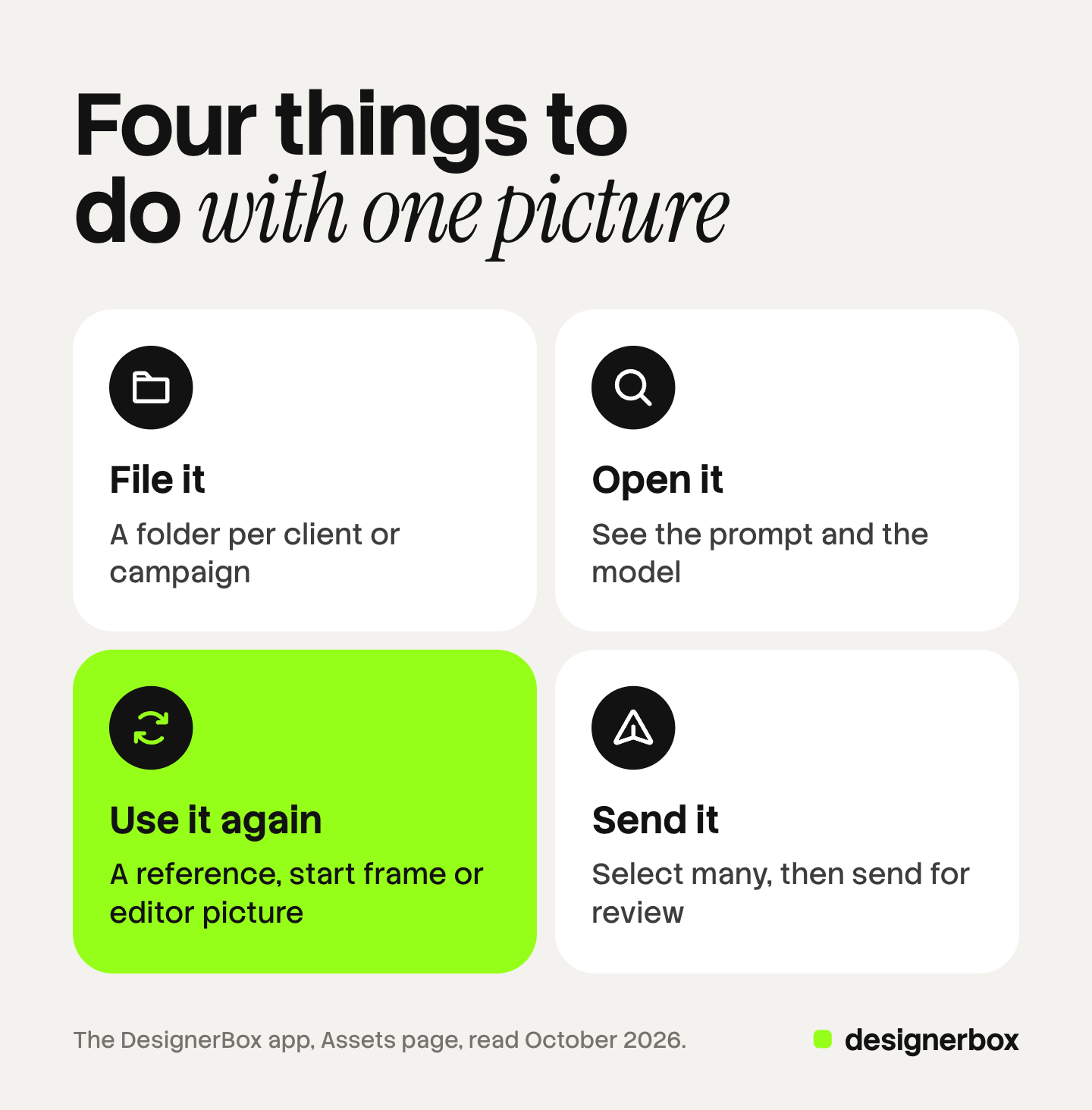
- File it. Move it into the client’s folder.
- Open it. See the prompt and the model.
- Use it again. Make it a reference, a start frame or a picture in an editor.
- Send it. Select it with others and press “Send for review”.
The next section explains the third action.
The next job from Assets
Every picture in Assets can start the next job. You do not download it and upload it again.
| Where you use it | What the picture becomes | Plan |
|---|---|---|
| Create, the chat | A reference picture for the request | Every plan |
| Generate, pictures | A reference picture for the new result | Every plan |
| Generate, video | The start frame of the clip | Premium |
| Image editor | A picture on the canvas | Premium |
| Video editor | A picture on the timeline | Premium |
In Generate, a reference or a start frame can come from “My Library”, which is everything in Assets. It can also come from your computer, Brand, Avatars or stock images.
A start frame makes a kept picture the first frame of a video. An 8-second clip costs 40 to 560 credits, depending on the model. The cost is shown before the run. Our guide to the image editor and the video editor covers what each editor does with the picture.
Sending a set for review
Select the pictures in Assets and press “Send for review”. Copy the link and send it to your client. The client opens it on a phone or a computer, with no account. They tick the pictures they want, add a note and send the choice.
The Reviews page shows each review, who answered and what they chose. You can close a review or open it again. A review costs no credits, and the link works for 30 days. Reviews covers still pictures.
Our guide to DesignerBox Reviews covers each step for you and the client. A batch has its own route. After you keep the good results of a batch, the batch menu sends the kept pictures for review. Our guide to DesignerBox Batch covers the sheet.
Storage and plans
Storage depends on the plan. The pricing page lists the storage for each plan. Check it before you plan a shared library for many clients.
Uploading your own photos and the commercial license start on the Pro plan. AI video, virtual try-on, upscaling, the image editor and the video editor start on the Premium plan. Plans and credits are on the pricing page.
Pictures, videos, edits and reviews all live in one DesignerBox account. Assets is the page where that work stays.
Limits of Assets
These are the limits as of October 2026. Plan the job around them.
- Assets is a working library for AI production. It holds the files your team makes and uses. It does not hold rights metadata, such as a license end date. It has no approval states and no version history. A digital asset management system covers those jobs. Our guide to brand asset management explains when a full DAM is the right buy.
- Designs from the image editor. You download a finished design from the image editor as a PNG, JPG or PDF file. We did not confirm that the design also appears in Assets. Keep the downloaded file with your finished work.
- Reviews covers still pictures. Plan no comment threads, no version history and no video notes around it.
- Every plan below Ultra is one seat. A team that works in one workspace needs the Ultra plan.
- Delivery is a separate step. DesignerBox does not send finished work to a store. You download the results, or a workflow sends them with a webhook or an S3 step.
Assets does one job. It keeps every picture and video in one place, with the prompt and the model beside it. There is a free plan, and it runs on sample products. Get started free.
FAQ
What is DesignerBox Assets?
Assets is the library inside the DesignerBox app. It holds every picture and video you make or upload. You sort the files into folders, open a picture to see its prompt and model, and start the next job from it.
Can I upload my own files to Assets?
Yes. You can upload many files at once, or drag them onto the page. Uploading your own photos starts on the Pro plan.
Can my team share Assets?
Bookmarks in Assets are shared with the team. Every plan below Ultra is one seat, so a team that works in one workspace needs the Ultra plan.
How much storage does Assets have?
Storage depends on the plan. Check the pricing page for the current figure on each plan.
Is Assets a digital asset management system?
No. Assets is a working library for AI production. It does not hold rights metadata, approval states or version history. A full digital asset management system covers those jobs.
How do I send pictures from Assets to a client?
Select the pictures and press “Send for review”. Copy the link and send it to the client. The client needs no account, the link works for 30 days, and the review costs no credits.
Can I see how a picture was made?
Yes. Open the picture in Assets to see the prompt and the model that made it.
Sources
- The DesignerBox app, Assets, Generate, Reviews, Batch, Brand and Workflows pages, read October 2026
- DesignerBox Assets page (designerbox.ai/product/assets), October 2026
- DesignerBox pricing page (designerbox.ai/pricing), October 2026
Assets checked against the DesignerBox app as of October 2026. Plans and storage change, so check the pricing page before you plan a shared library.