
DesignerBox templates are finished workflows. The Templates page in the app says it in one line: “A template is a workflow somebody already built. Open one, add your photo, run it.” The template already holds the steps and the models. You add a product photo, press Run and review the pictures. When a template fits your job, you make a copy, and the copy becomes your own workflow.
Many AI tools start at a blank prompt box. The second product can then look different from the first. A template starts from finished steps. Templates are one part of the app we rebuilt, and the new DesignerBox explains the other parts. This guide covers the use cases on the Templates page, the steps to run a template, what the brand adds, the plan gates and the limits.
Key Takeaways
- A template is a workflow somebody already built. You open one, add your photo and run it.
- The Templates page in the app lists five use cases: Photography, Social media, Animation, Branding and General.
- Make a copy of a template and it becomes your own workflow. That workflow can then become an app and a batch.
- The free plan runs on sample products. Uploading your own photos starts on the Pro plan.
What a DesignerBox template is
A DesignerBox template is a finished job. The DesignerBox templates page says a template “holds the steps, the models, the light and the framing”. The order of the steps is set and the models are chosen. The same page gives an example of the steps: cut out, relight, place in a scene, upscale.
So you never pick a model, write a prompt or arrange a canvas. The template supplies the steps. Your brand supplies the look.
Each template shows the source photo and the pictures it made. You see the kind of result before you spend a credit.
One example is Clothing catalog. Clothing catalog turns one garment into four shots: front, three-quarter, back and a fabric close-up.
A template is also a different thing from a saved look for one photo. Our guide to AI photo templates covers what a photo template locks, such as the aspect ratio and the image count.
The five use cases on the Templates page
The Templates page in the app lists five use cases. The table names each one and the kind of work its name describes. The examples are jobs that the DesignerBox templates page names.
| Use case in the app | The kind of work |
|---|---|
| Photography | Product pictures, for example packshots, on-model shots and scenes |
| Social media | Pictures for the feed, for example carousels and posts |
| Animation | Motion, for example a short video made from your product |
| Branding | Brand material, for example mockups and icons |
| General | Jobs that the other four names do not describe |
Open a use case and check each template before you choose one. Every template shows the source photo and the pictures it made.
Steps to run a template
The first run takes five steps.
- Open a template. Go to Templates in the sidebar and choose a use case. Check the source photo and the pictures the template shows, then open it.
- Add your photo. The site says a phone photo is enough. The template keeps your product and changes the scene, the model or the format around it.
- Read the cost. The cost is shown before the run. Read it before you spend any credits.
- Press Run. The template runs its steps in the set order. You do not choose a model and you do not write a prompt.
- Find the result in Assets. Review each result and keep or discard it. The app sidebar calls this place My Library, and the site calls it Assets. They are the same place.
The path from a template to a batch
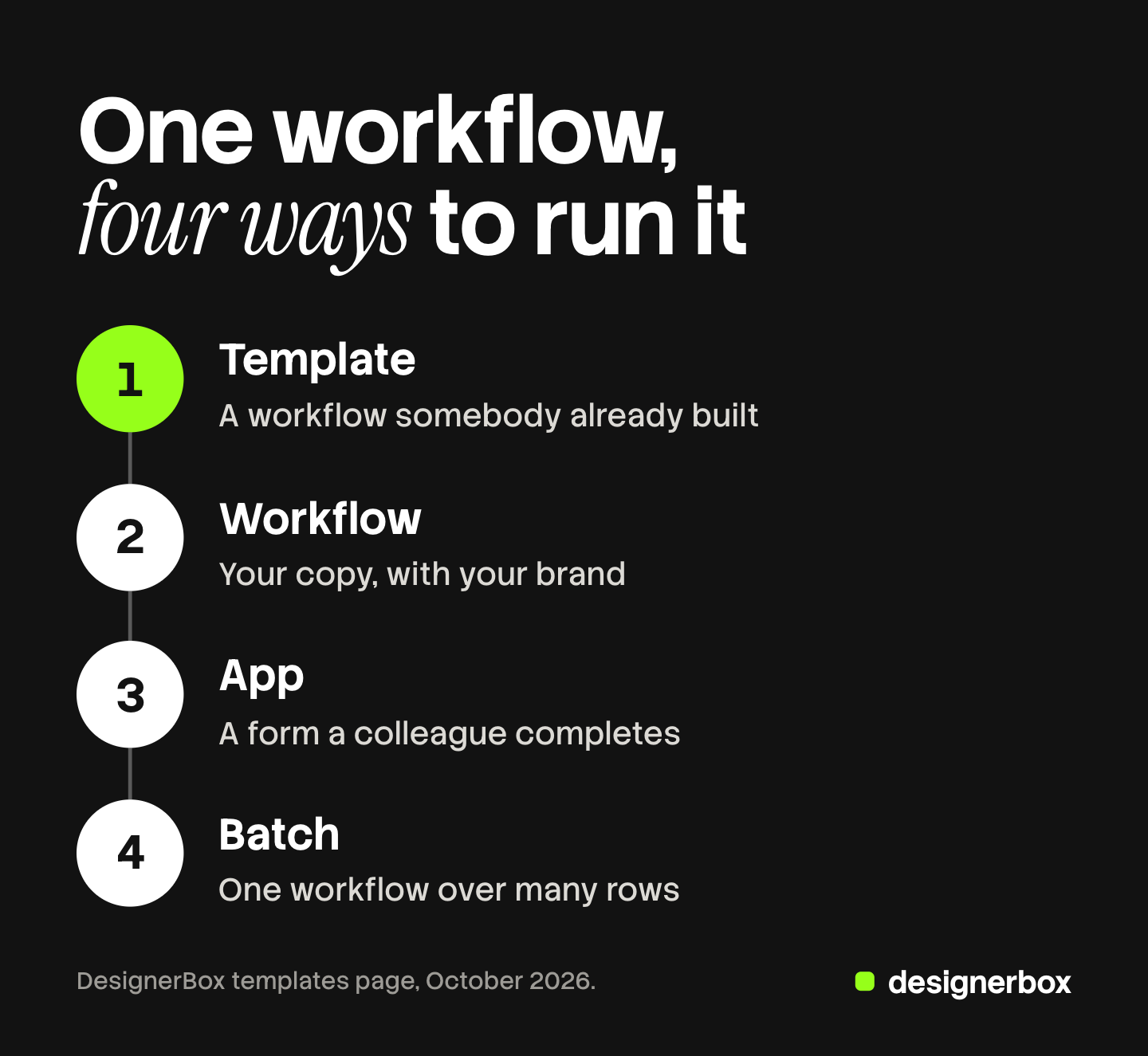
A template is the first of four ways to run one workflow. Nothing is rebuilt between the four. Each one widens who can run it.
| Stage | What it is | Who runs it |
|---|---|---|
| Template | A workflow somebody already built | Anyone, on the first day |
| Workflow | Your copy, with your brand and your rules | The person who sets the standard |
| App | The same workflow behind a form a colleague completes | A colleague who never opens the steps |
| Batch | One workflow over many rows | One person, once, for the whole drop |
The move from a template to a workflow is one action. You make a copy, and the copy is yours. You can change a step, add a product and save it. Our guide to DesignerBox workflows covers how to build and change the steps.
A workflow then becomes an app. An app is a workflow with a form, so a colleague completes the form and presses Run. Our guide to what an app is and how to run one explains that stage.
The last stage is the whole catalog. A batch runs one workflow over many rows, and each row makes its own pictures. Our guide to DesignerBox batch covers rows and review. The How it works page shows all four stages on one page.
Anyone can make an AI picture. Making hundreds that still look like your brand is the hard part. A copy of a template, with your brand in it, is where that standard starts.
Brand and products in a template
The brand gives a template run your look. The Brand page in the app says: “Add a product first. Every template then uses it.”

The brand holds more than the product. The templates page says the template reads your logo, colors, fonts and rules before it runs. So the result starts from your look.
You set this once. Our guide to the DesignerBox brand page covers products, identity, voice and rules, and reference pictures.
Community and Popular tags
Cards on the Templates page carry a Community tag. Some cards also carry a Popular tag.
A tag is a label. Judge a template by what it shows: the source photo and the pictures it made.
Cost and plan gates
A template run costs credits, and the amount depends on the models inside the template.
Templates are on every plan. The free plan runs on sample products. Uploading your own photos and the commercial license start on the Pro plan. AI video, virtual try-on, upscaling, the image editor and the video editor start on the Premium plan. Plans and credits are on the pricing page.
Check the steps of a template against your plan before you build a product drop around it. Writing your own prompts also starts on the Pro plan, and a template runs without one.
Template or your own workflow
Start from a template when the job is common and the deadline is close. Build a workflow when the job is specific to your brand.
| If you are | Start with | Why |
|---|---|---|
| A brand with a first drop to shoot | A template | The steps are built, and you see the result on the card first |
| A fashion brand with many garments | The Clothing catalog template | One garment becomes four shots |
| An agency with a new client | A template, then a copy for each client | The client’s first set arrives before you build anything of your own |
| A team with a fixed house look | Your own workflow | Your rules and your steps, saved once and run again |
The sign to move on is repetition. If you change the same thing after every template run, make a copy and change the step once.

Fashion teams can see the fashion jobs on the page for fashion brands.
Limits of templates
These are the limits as of October 2026.
- You do not choose the model in a template. To change a model or a step, make a copy and edit your workflow.
- The free plan runs on sample products. A run on your own product needs the Pro plan or above.
- A template is one run. For a whole catalog, run the workflow in a batch.
- Review stays with you. The site says you still review each result and keep only the ones that fit.
- Delivery is a download or an outbound step. You download the results, or send them with a webhook or an S3 step. Nothing lands in a store on its own.
- Every plan below Ultra is one seat. An agency with several people needs the Ultra plan.
First run
The full workflow from the first product photo to the finished ad, in one subscription. A template is the shortest way into it, because the first step is already built.
There is a free plan, and it runs on sample products. Open one template there and see what a run returns. Get started free.
FAQ
What is a DesignerBox template?
A template is a workflow somebody already built. It holds the steps, the models, the light and the framing. You open one, add your product photo and press Run.
Do I need to write a prompt to run a template?
No. The template holds the instructions, so it runs without a prompt. Writing your own prompts starts on the Pro plan, if you want to add a line of your own.
Which plan do I need to add my own photos?
The Pro plan. Uploading your own photos starts there, and so does the commercial license. The free plan runs on sample products.
What does a template run cost?
It depends on the models inside the template. The cost is shown before the run, so you read the number before you press Run.
How is a template different from a workflow?
A template is the starting point, and a workflow is yours. Make a copy of a template and it becomes a workflow. You can change it, save it and run it again.
Can I run one template on many products?
Yes. Run it once from the template, or run the same workflow as a batch, with one product in each row.
Sources
- DesignerBox templates page (designerbox.ai/product/templates), October 2026: what a template holds, the steps, the jobs and the four stages
- The DesignerBox app, read October 2026: the Templates page line, the five use cases, the Community and Popular tags, and the Brand page line
- DesignerBox How it works page (designerbox.ai/how-it-works), October 2026
- DesignerBox pricing page (designerbox.ai/pricing), October 2026: the plan gates
Template facts checked against the DesignerBox templates page and the DesignerBox app as of October 2026. Plans and gates change, so check the pricing page before you plan a large job. Individual results vary.