


To run one ad workflow per client in DesignerBox, save each client as its own brand in your workspace. Build one ad workflow for each client, with that client’s Brand Kit step inside. Publish it as an app, so a colleague completes a short form. Then run it in Batch on the client’s products and keep the good results. Send them to the client as one review link.
Say your agency has eight client brands. Each client sends new products every month, and each has its own colors, fonts and rules. Someone writes the prompts from a brand PDF, and on the fifth client a font is wrong. Then the client’s choice arrives in a long email thread.
Key Takeaways
- One brand per client. A workspace holds several brands. You switch the brand in Create before each job.
- One ad workflow per client. The client’s Brand Kit step sits inside the workflow, so the workflow reads that client’s rules.
- A form for the team. Publish the workflow as an app for your workspace. A colleague completes the form and never edits the steps.
- One batch per delivery. Run the client’s workflow on up to 200 rows, then keep or discard each result with the J and K keys.
- One link for the client. The client opens the review with no account and ticks the pictures they want. A review costs no credits.
- Honest limits. Every plan below Ultra is one seat, and DesignerBox does not post to a client’s ad account.
Agency work across many client brands
This job belongs to a performance or creative agency of 3 to 15 people. In an agency creative workflow, most of the work repeats. New products arrive from each client, and each one needs the same set of ads in that client’s look.
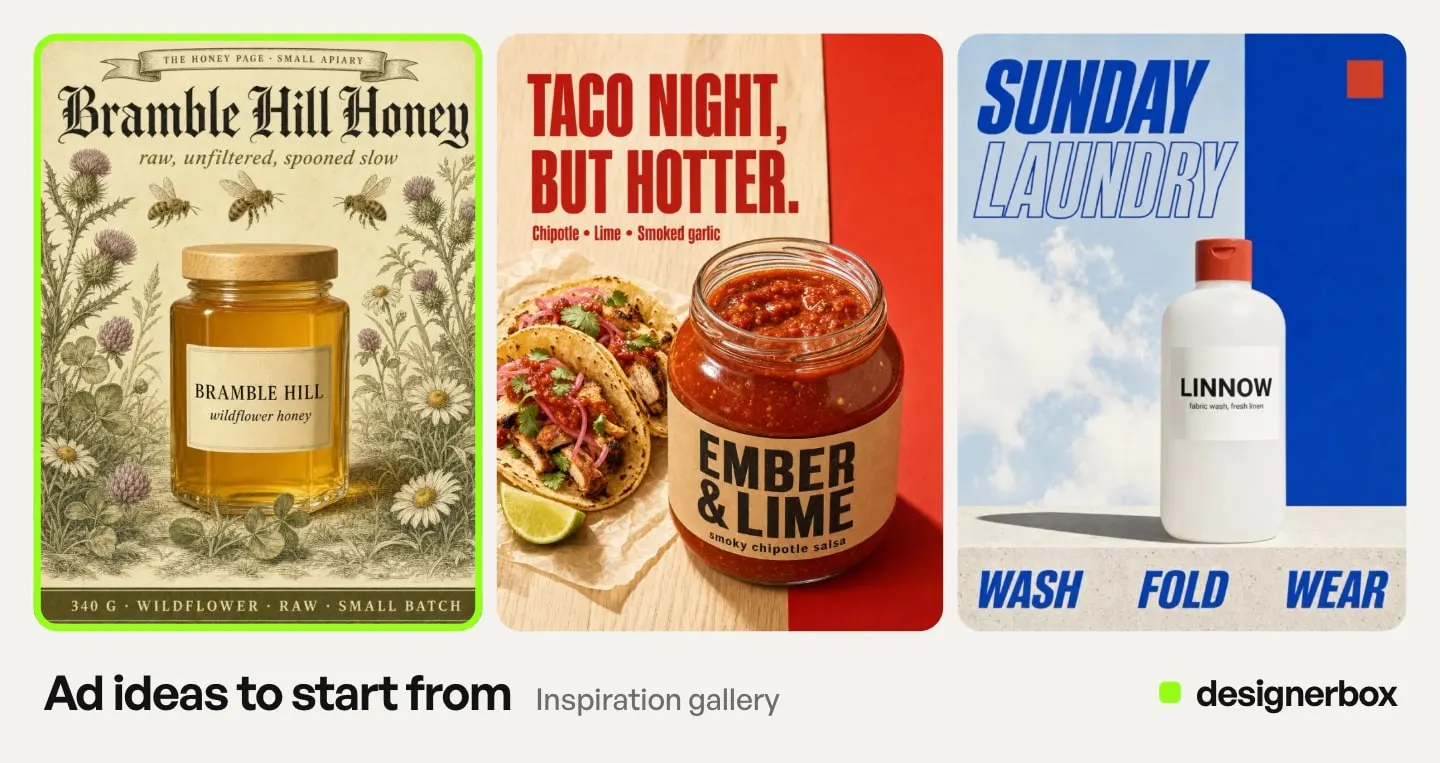
Anyone can make an AI picture. Making hundreds that still look like your brand is the hard part. In multi-brand creative production, that problem repeats once for each client.
A common setup is one folder per client and one person who remembers the rules. Our guide to the creative agency workflow shows where the hours go, stage by stage. The guide to managing creative for multiple clients covers what must stay separate for each client.
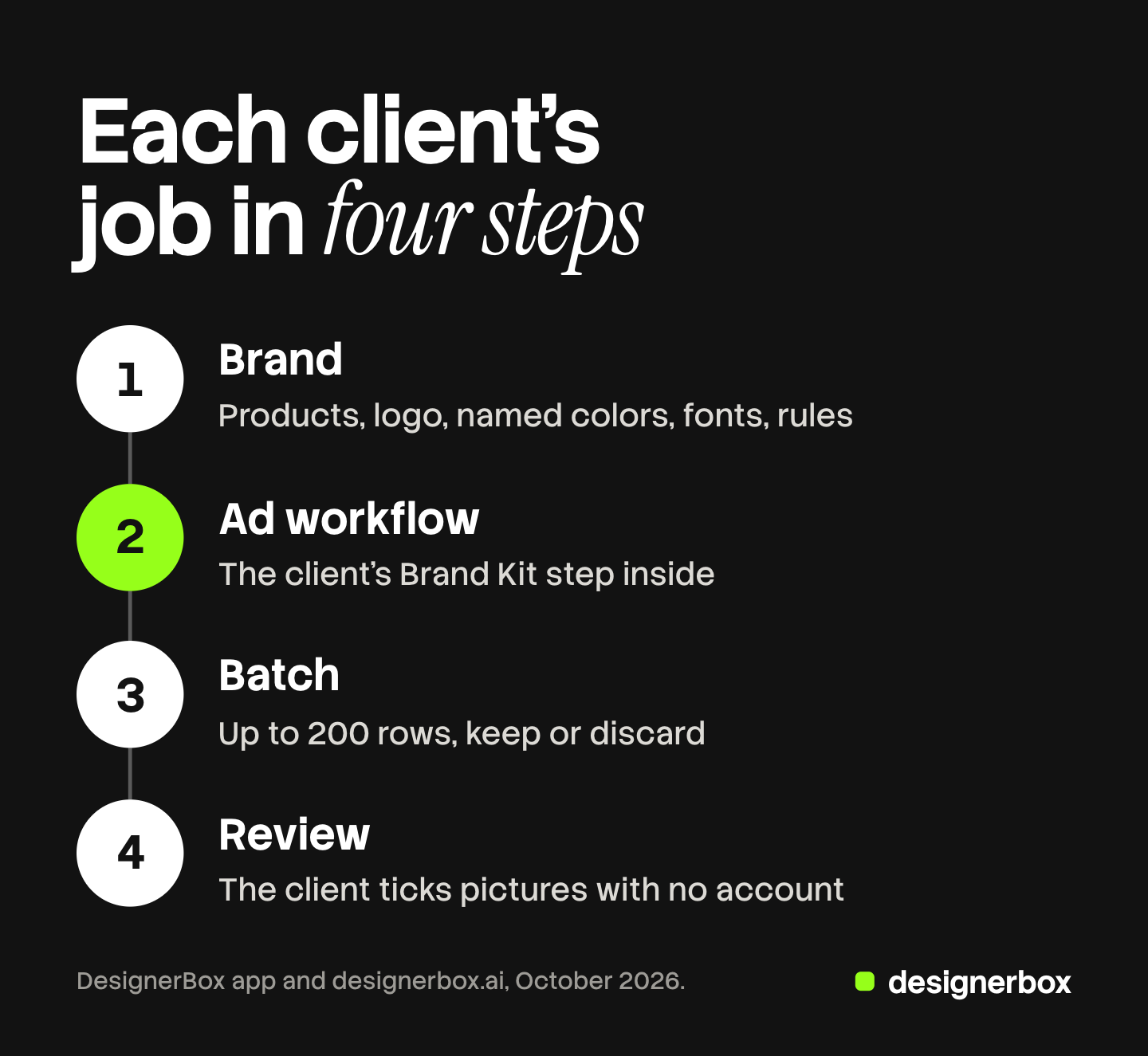
In DesignerBox, each client’s job runs in four steps: brand, workflow, batch and review. The DesignerBox page for agencies covers this buyer.
Surfaces that do the job
The job uses five parts of DesignerBox.
| Surface | What you add | What you get | Plan or cost |
|---|---|---|---|
| Brand | The client’s products, logo, named colors, up to 6 fonts, voice and rules, up to 12 reference pictures | One saved brand per client | Every plan |
| Workflows | The steps of the ad, with the client’s Brand Kit step inside | One ad workflow per client, saved in versions | Every plan |
| Publish as app | The fields a colleague completes | A short form for you or your workspace | Every plan |
| Batch | Up to 200 rows, one product per row | Each row runs the client’s workflow, and you keep or discard each result | Every plan |
| Reviews | The kept pictures | One link the client opens with no account | No credits |
The Brand page on the site lists what a brand holds. Our guide to DesignerBox Brand explains each card and its limits.
The first client, step by step
Start with one client and one product. Check the result before you add more.
- Add the client as a brand. Open Workspace, then Brand. Add the client’s brand name.
- Add the client’s products. Each product takes a name, a kind, one photo and a short note.
- Add the identity. Upload the logo as a PNG or an SVG, under 300 KB. Name each color the way the client names it. Add up to 6 fonts.
- Write the voice and the rules. Write one rule per line, such as “daylight only” or “no text on the picture”. Add up to 12 reference pictures, such as the client’s last campaign.
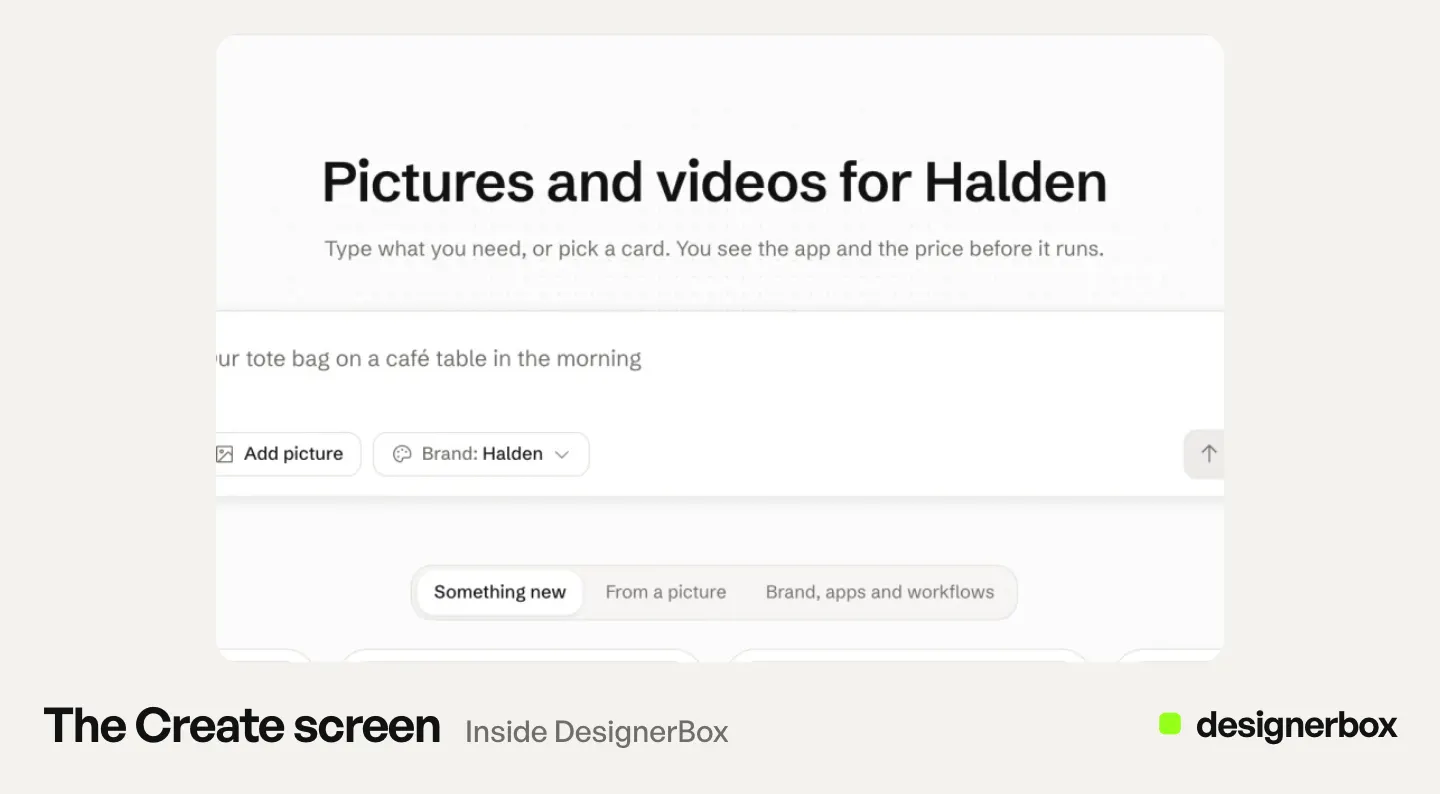
- Test the brand in Create. Pick the client’s brand in the Brand button and ask for one ad. Check the colors, the fonts and the product.
- Build the ad workflow. Open Automation, then Workflows. Start a new workflow, or open the Ads from a product photo template and open your own copy. Add the client’s Brand Kit step.
- Add the steps of the ad. For example, add the “place a product” step for the scene. Add the “text on the picture” step for the headline. End with a Save to Assets step.
- Run it on one product. Press Run all and check the result. Then save a version with the client’s name.
The Workflows page on the site lists every kind of step you can add.
The second and the twentieth job
After the first run, the job repeats with less work each time.
Save versions. When the client changes a rule, save a new named version of the workflow. You can return to an older version if the client asks for the old look again.
Keep a folder per client. Make one folder in Assets for each client, and move the client’s results into it.
Publish it as an app. Choose Publish as app, for you or for your workspace. A colleague sees a short form, such as a product photo and a headline, and presses Run. The Brand Kit step sits inside the workflow, so the app runs it as well.
Share it with an editor. Share invites a colleague who can edit the workflow. Our guide to DesignerBox workflows covers versions, sharing and publishing.
Run it in Batch. Open Automation, then Batch, and choose the client’s workflow that you published as an app. Upload 30 product photos, and each photo becomes a row. The sheet shows the rows ready, the credits, and what is left after. Choose 1 to 4 runs per row. Over 20 runs, DesignerBox asks you to confirm first, so a 30-row sheet asks you before it starts.
Switch the brand between jobs. In Create, pick the client in the Brand button before each chat job. For internal work, pick “No brand for this run”.
The sheet shows the credits before you run, so you can price the delivery for the client first. Our guide to agency creative pricing covers how to price output when production gets faster. The client’s brand, the ad workflow, the batch and the review link sit in one account.
Checking results before the client sees them
Keep or discard each result with the J and K keys. Nothing is approved for you. Check four things on every picture you keep.
- The product. It is the client’s real product, with the right label and logo. When a label is wrong, use the Fix the product app. You add the picture and your real product photo, and it returns the picture with your real label.
- The brand. The colors and the fonts match the client’s brand.
- The rules. No picture breaks a line in the client’s rules.
- The words. Every claim on the ad is true for this client’s product.
A critic step can help before this check. Critic steps (designer, photographer, emotion, ad director) score several results and keep the best. Our guide to critic steps in a workflow shows how a workflow makes versions and keeps one. You still make the final choice.
Then send the kept pictures to the client. Send the kept pictures for review from the batch and copy the link. The client opens it on a phone or a computer with no account. They tick the pictures they want, add a note and send it. In Reviews, you see who answered and what they chose.
When the client chooses between ad versions before you resize or translate them, see how the client picks the ads. A review costs no credits, and a link works for 30 days.
Limits for agencies
These are the limits as of October 2026.
- Every plan below Ultra is one seat. A colleague who runs your app from the workspace needs a seat of their own.
- One workspace holds your client brands. Keep each client apart with one brand, one workflow and one folder in Assets.
- DesignerBox does not publish to a client’s ad account or store. You download the results, or send them with a webhook or an S3 step.
- A batch holds up to 200 rows. A larger catalog needs more than one sheet.
- Reviews covers still pictures only. It has no comment thread, no version history and no video notes.
Plans for client work
Brand, workflows, apps and batch are on every plan. Uploading your own photos and the commercial license start on the Pro plan, so client work with real products starts there. Team features, shared brand kits and white label are on the Ultra plan. There is a free plan, and it runs on the sample products. Plans and credits are on the pricing page.
Start with one client, one product and one workflow. Then add the next client the same way. Book a demo.
FAQ
Can one DesignerBox workspace hold several client brands?
Yes. A workspace holds several brands, so an agency keeps one brand per client. Keep each client apart with its own brand, its own workflow and its own folder in Assets.
How does a junior run a client’s workflow without changing it?
Publish the workflow as an app for your workspace. The junior completes a short form and presses Run, and never edits the steps. Team seats are on the Ultra plan, so a junior with their own login needs that plan.
How many products can I run for one client at once?
Up to 200 rows in one batch, one product per row. Each row runs 1 to 4 times. Over 20 runs, DesignerBox asks you to confirm before it starts.
Does my client need an account to choose pictures?
No. The client opens the review link on a phone or a computer, ticks the pictures and adds a note. A review costs no credits, and the link works for 30 days.
Can DesignerBox post the ads to my client’s ad account?
No. DesignerBox does not publish to an ad account or a store. You download the results, or send them with a webhook or an S3 step.
How do I know what a client job costs before I run it?
The cost is shown before the run. In Batch, the sheet shows the credits for the whole sheet before you press Run.
Sources
- DesignerBox Brand page (designerbox.ai/product/brand), October 2026: several brands per workspace, what a brand holds, one brand per client
- DesignerBox Workflows page (designerbox.ai/product/workflows), October 2026: the Brand Kit step, versions, Publish as app, Share and Batch
- DesignerBox Batch page (designerbox.ai/product/batch), October 2026: 200 rows, 1 to 4 runs per row, the confirm step over 20 runs, the J and K keys
- DesignerBox pricing page (designerbox.ai/pricing), October 2026: the plan gates and seats
- The DesignerBox app, read October 2026: the Brand, Workflows, Batch and Reviews pages, the review link and the Fix the product app
DesignerBox features verified in the app and on designerbox.ai as of October 2026. Results vary by product and model.