
DesignerBox Brand is the page in the DesignerBox app where you save a brand once. It has four cards: Products, Identity, Voice and rules, and References. You add your products, your logo, colors and fonts, your rules and a few reference pictures. Every template, workflow, app and batch then reads that brand before it runs, so each run starts from the same rules.
Anyone can make an AI picture. Making hundreds that still look like your brand is the hard part.
The usual fix is a brand book that somebody has to remember. A person reads it, writes a prompt, and forgets one rule on picture forty. The Brand page moves the rules out of the document and into the run. This guide covers what a brand holds, the order to add things, how each part reaches a result, and what the page does not do. The Brand page is one part of the app we rebuilt, and the new DesignerBox explains the others.
Key Takeaways
- A brand in DesignerBox is one page with four cards: Products, Identity, Voice and rules, and References.
- The page opens with one instruction: “Add a product first. Every template then uses it.”
- Workflows read the rules before every prompt, so a rule you write once applies to every run.
- Every app run uses the brand unless you turn it off.
- Shared brands and team members are on the Ultra plan. Every plan below Ultra is one seat.
What a brand is in DesignerBox
A brand in DesignerBox is a saved record with its own page, its own name and its own handle. The record holds what a run needs to know about you: what you sell, how it looks, how you speak and what you never do.
The Brand page on the site describes it as a set of fields a workflow reads before it runs. You complete the fields once. Every template, app and batch then asks which brand to use.
This is different from a brand kit in the usual sense. A brand kit is a folder of files for people. A brand in DesignerBox is a record for the run. If you still need the folder, our guide to what goes in a brand kit lists the files to prepare.
It is also different from a tool that draws a new logo and palette from a prompt. The Brand page asks for the logo, the colors and the fonts you already use.
The four cards on the Brand page
Each card holds one kind of information, and the app says in one line what uses it. The lines below are the app’s own words.
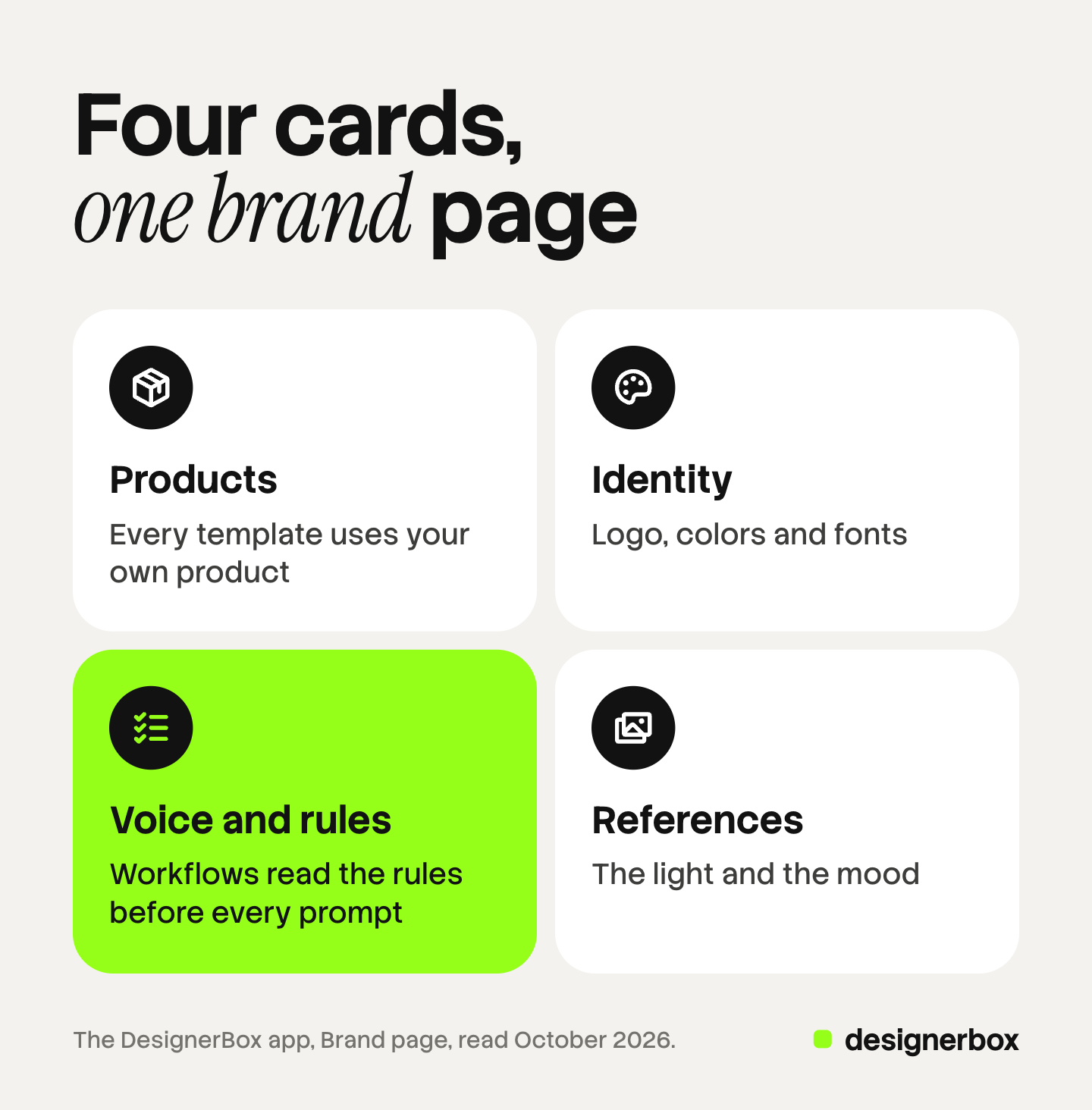
| Card | What you add | What uses it, in the app’s words |
|---|---|---|
| Products | Each product with its photo and its colors | ”Every template uses your own product.” |
| Identity | Logo, colors and fonts | ”Every run uses the colors and the fonts. The image editor offers the logo.” |
| Voice and rules | Rules, voice, themes, what it sells and who buys it | ”Workflows read the rules before every prompt.” |
| References | Pictures the brand already likes | ”Results follow the light and the mood of these pictures.” |
The page has one more line, Brand use: “Every app run uses this brand unless you turn it off.”
Set-up order for a new brand
The page tells you where to start: “Add a product first. Every template then uses it.” The rest follows the order of the cards.
- Add a product first. Add one product with its photo and its colors. A run then knows the real shape and the real color before it starts.
- Add the logo, the colors and the fonts. Upload the logo files you use. Pick the palette and the two fonts.
- Write the rules and the voice. Write what the brand never does and how it speaks. Add the themes, what the brand sells and who buys it.
- Add reference pictures. Add pictures the brand already likes, such as a past campaign. A template can follow up to four of them as its style.
- Check Brand use. Every app run uses this brand unless you turn it off. Keep that setting for normal work.
Then run one template on that first product and look at the result. If something is wrong, change the rule and run it again.
How each part reaches a result
A brand only matters if a run reads it. Here is where each card appears in the work.
Templates use the product. A template is a workflow somebody already built. With a product saved, the template starts from your product. Our guide to DesignerBox templates covers how to open and run one.
Every run uses the colors and the fonts. Text steps and design steps read your fonts and your palette. So the words on a picture match the brand. The image editor offers the logo when you need to place it by hand.
Workflows read the rules before every prompt. You do not paste the rules into each prompt. The workflows page explains how you save your own steps. Prompt help then writes the prompt in your brand voice.
Results follow the references. The light and the mood of your reference pictures guide the look of the result.
App runs use the brand. A colleague who completes a form does not choose colors or write rules. The brand is already attached, unless you turn it off.
Create has a brand picker. Create is a chat inside the app, and the brand picker sits under its text box. Our guide to DesignerBox Create shows the two modes.
Batch reads the same brand on every row. Row one and row two hundred read the same rules. Our guide to DesignerBox Batch covers how the rows work.
A critic step can also score each result against your rules and rank the set. You still make the final choice on every result. When a result breaks a rule, you discard it and run it again.
Rules a workflow can check
The rules card decides how much the brand helps. A vague rule gives the workflow nothing to follow. A checkable rule describes something you can see in the picture.

Use this test for each rule. Show a colleague a result and the rule. If they can answer yes or no in five seconds, the rule is checkable.
| Vague rule | Checkable rule |
|---|---|
| Clean look | Product on a plain light background |
| Natural light | Daylight only, no flash |
| Minimal | No text on the product |
| Show the product well | The whole product in the frame, nothing cut off |
| Stay on brand | Background in one of the brand colors |
Three habits help when you write the rules.
- One rule, one thing. “Daylight only” and “no text on the product” are two rules. Write them on two lines.
- Say what to do. “Product on a plain light background” is easier to follow than a list of banned backgrounds.
- Keep voice apart from rules. Voice is how the brand speaks. Rules are what a picture may show.
Our guide to brand consistency in AI creative covers the wider problem of keeping a team to one look.
One brand per client for an agency
An agency holds more than one brand book. Each client has its own colors, its own rules and its own products.
In DesignerBox, each brand has its own page, name and handle. You keep one brand per client. Every template, app and batch asks which brand to use, so the run reads the right one.
The agencies page covers how the parts fit an agency week.
One limit matters here. Shared brands and team members are on the Ultra plan. Every plan below Ultra is one seat.
Limits and plan gates
Plan around these limits before you add a whole catalog.
- The brand is a guide, and you still review. A rule guides the run. You still check each result and discard the ones that break a rule.
- Brand rules are on every plan. Uploading your own photos and the commercial license start on the Pro plan. The free plan runs on sample products.
- Shared brands need the Ultra plan. Every plan below Ultra is one seat, so a team that shares a brand needs Ultra.
- Delivery is a download or an outbound step. You download the results, or send them with a webhook or an S3 step.
The cost is shown before the run, so a test on one product is a known amount. Plans and credits are on the pricing page.
The Brand page is the first stop in a longer job. The full workflow from the first product photo to the finished ad, in one subscription. Add one product and five rules, then run one template. Get started free.
FAQ
What does a brand hold in DesignerBox?
Four cards. Products holds each product with its photo and colors. Identity holds the logo, the colors and the fonts. Voice and rules holds the rules, the voice, the themes, what the brand sells and who buys it. References holds pictures the brand already likes.
What should I add first?
A product. The Brand page says “Add a product first. Every template then uses it.” After that, add the logo, colors and fonts, then the rules and the voice, then the reference pictures.
Does the brand change the prompt?
Yes. Workflows read the rules before every prompt. Prompt help writes the prompt in your brand voice. Text steps and design steps read your fonts and your palette.
Can I keep more than one brand?
Yes. Each brand has its own page, name and handle, and a run asks which brand to use. An agency keeps one brand per client. Shared brands and team members are on the Ultra plan.
Can I run an app without the brand?
Yes. Every app run uses the brand unless you turn it off. Turn it off for a job that should not carry the brand, then turn it on again.
What happens when a result breaks a rule?
You discard it and run it again. A critic step can score each result against your rules and rank the set. You make the final choice on every result.
Sources
- DesignerBox Brand page (designerbox.ai/product/brand), October 2026: what a brand holds, the reference picture limit, the critic step and the Ultra plan gate
- The DesignerBox app, Brand page, read October 2026: the four cards and their lines, and the Brand use line
- DesignerBox pricing page (designerbox.ai/pricing), October 2026: the plan gates
Card names and lines checked against the DesignerBox app and designerbox.ai in October 2026. Plans and limits change, so check the pricing page before you plan a large job. Individual results vary.