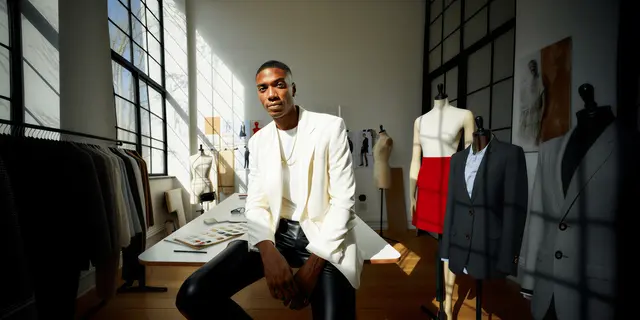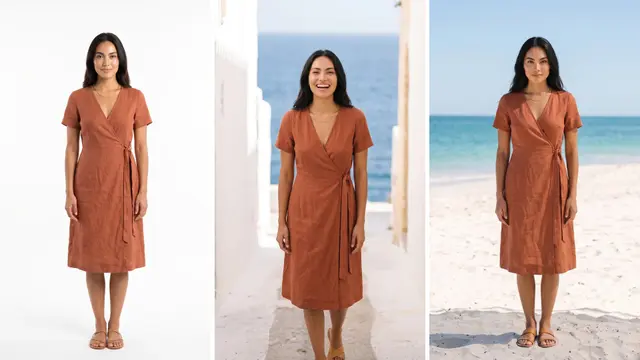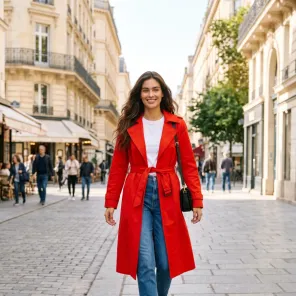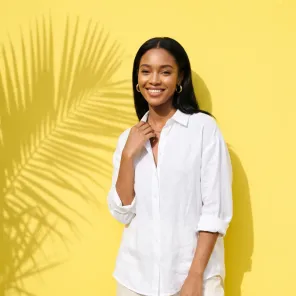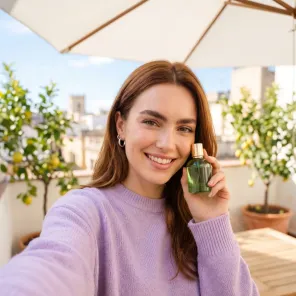


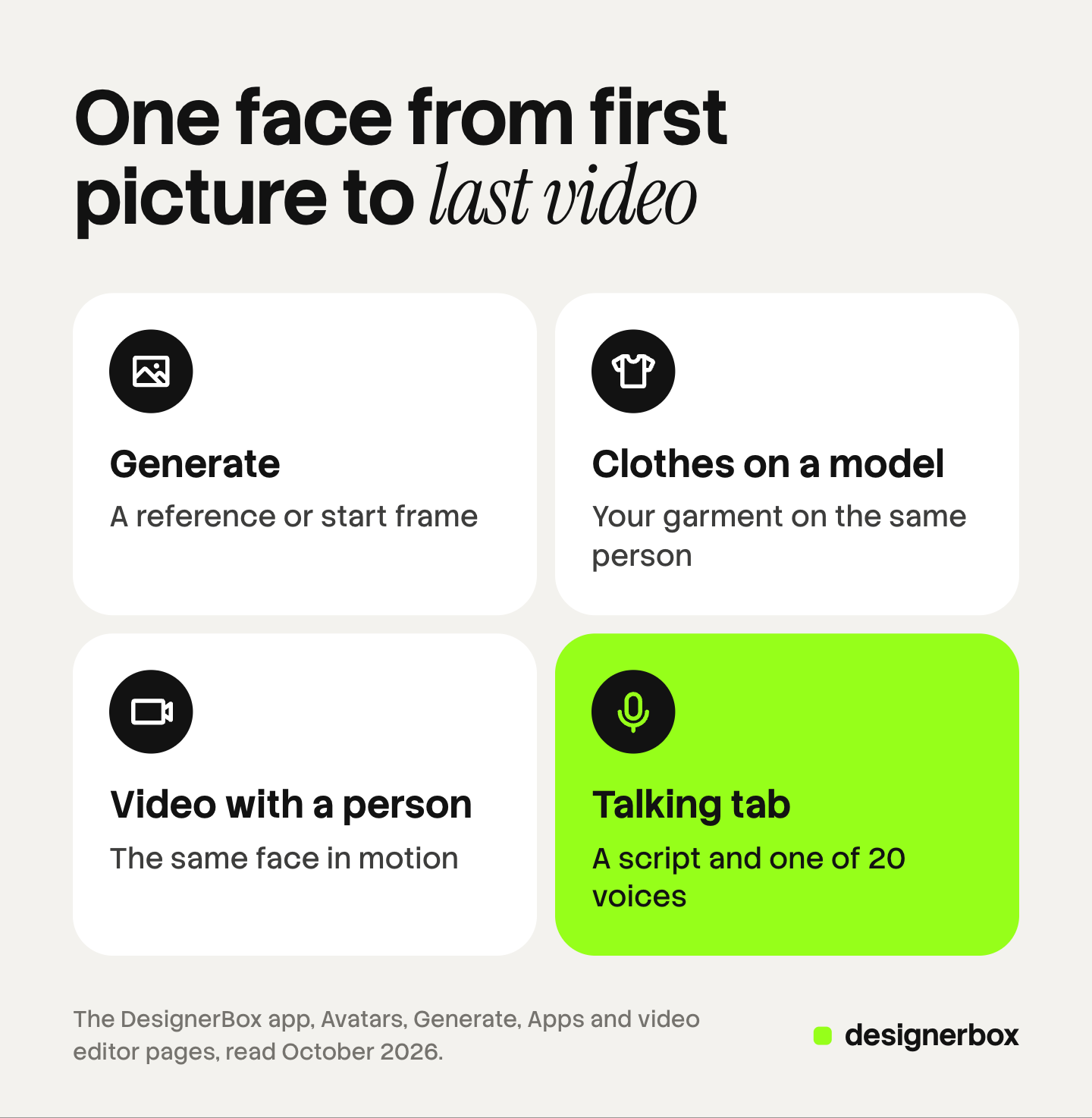
DesignerBox Avatars is the part of the DesignerBox app where you keep one person for all your work. You pick a ready avatar, or you make your own from one sentence or one photo. Every avatar is a set of nine poses, saved under “My avatars”. You then use the same person in product pictures, ads and video, so you do not cast a new model for each job.
A brand needs a face on the product page in March. The same face needs to appear in the April ad and the May video. With a real model, each job means a booking, a contract and a new shoot. With a plain AI prompt, each job means a new person, because a face described in words changes from one run to the next.
This guide covers the Avatars page of the app, as read on 22 October 2026. It explains the ready avatars, how to make your own, the nine poses, the four places an avatar goes, the permission rule for real people and the limits. Avatars is one part of the app we rebuilt, and the new DesignerBox covers the other parts.
Key Takeaways
- An avatar is one person you use again in pictures and video.
- Pick a ready avatar, or make your own from one sentence or one photo.
- Every avatar is a nine-pose set, saved under “My avatars”.
- You use it in Generate, Clothes on a model, Video with a person and the video editor’s Talking tab.
- Use a real person only with their clear permission and a photo you have the rights to.
What DesignerBox Avatars is
In the app, Avatars sits under Workspace. The page has two parts: ready avatars, and the avatars you make yourself.
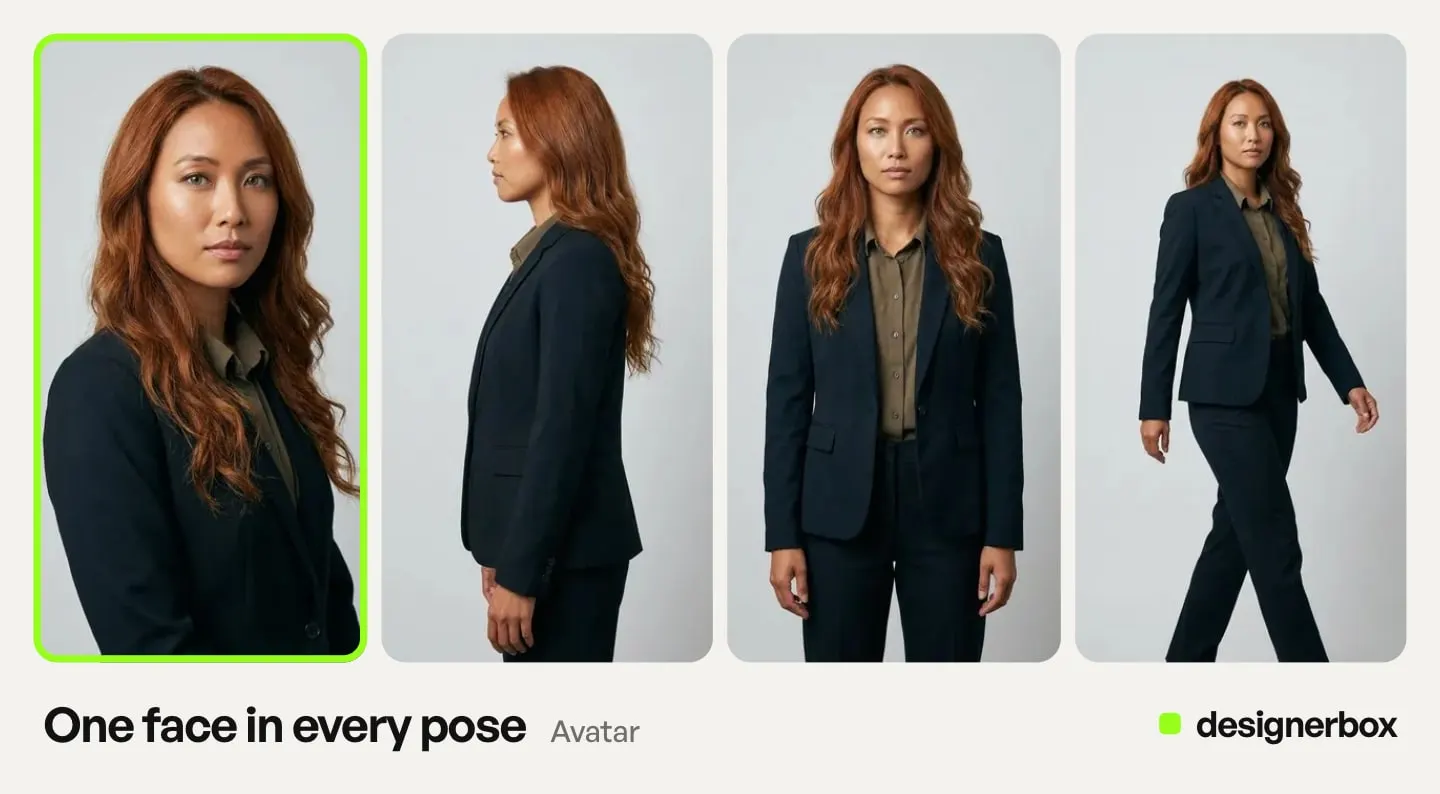
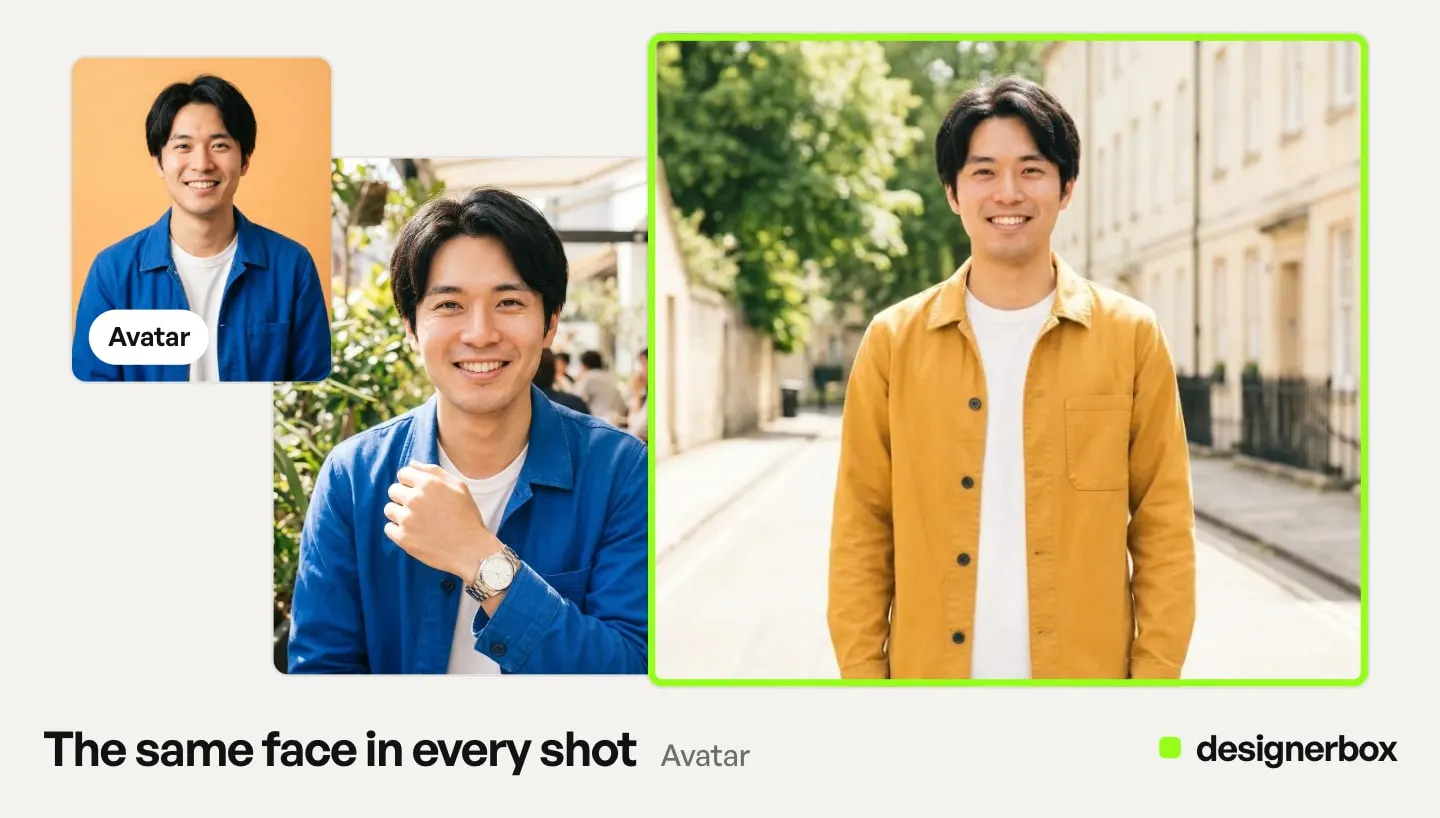
An avatar is a set of reference pictures of one person. An avatar run returns nine fixed poses of one person. The price shows before you start. Later runs use that set as their reference, so you do not describe the face in words again.
This is how a brand keeps a consistent AI model across product pages, ads and video. A reference set makes the same face likely in the next result. It does not make it certain, so a person still checks each result.
Three kinds of work need one face.
- Product pages. The same model on every product page makes the store look like one brand.
- Ads. A known face in the April ad links it to the March product page.
- Video. The person in the clip is the person from the pictures.
Anyone can make an AI picture. Making hundreds that still look like your brand is the hard part. A brand face is one part of that look. Our guide to AI avatars for brands explains why a reference set holds a face better than a prompt.
Ready avatars
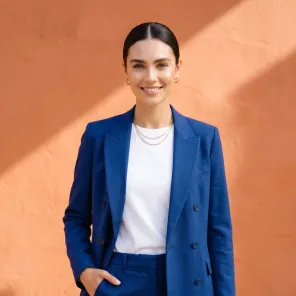
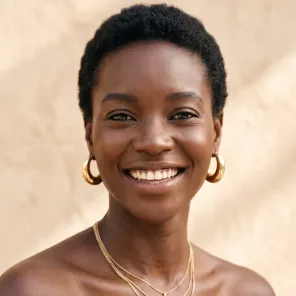
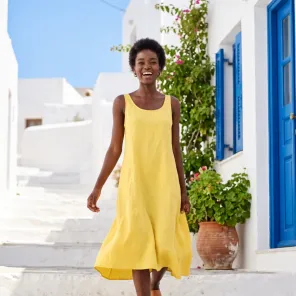
Ready avatars are people the app has already made. On 22 October 2026, the ready avatars included Maya, Liam, Amara, Diego, Sofia and Kenji.
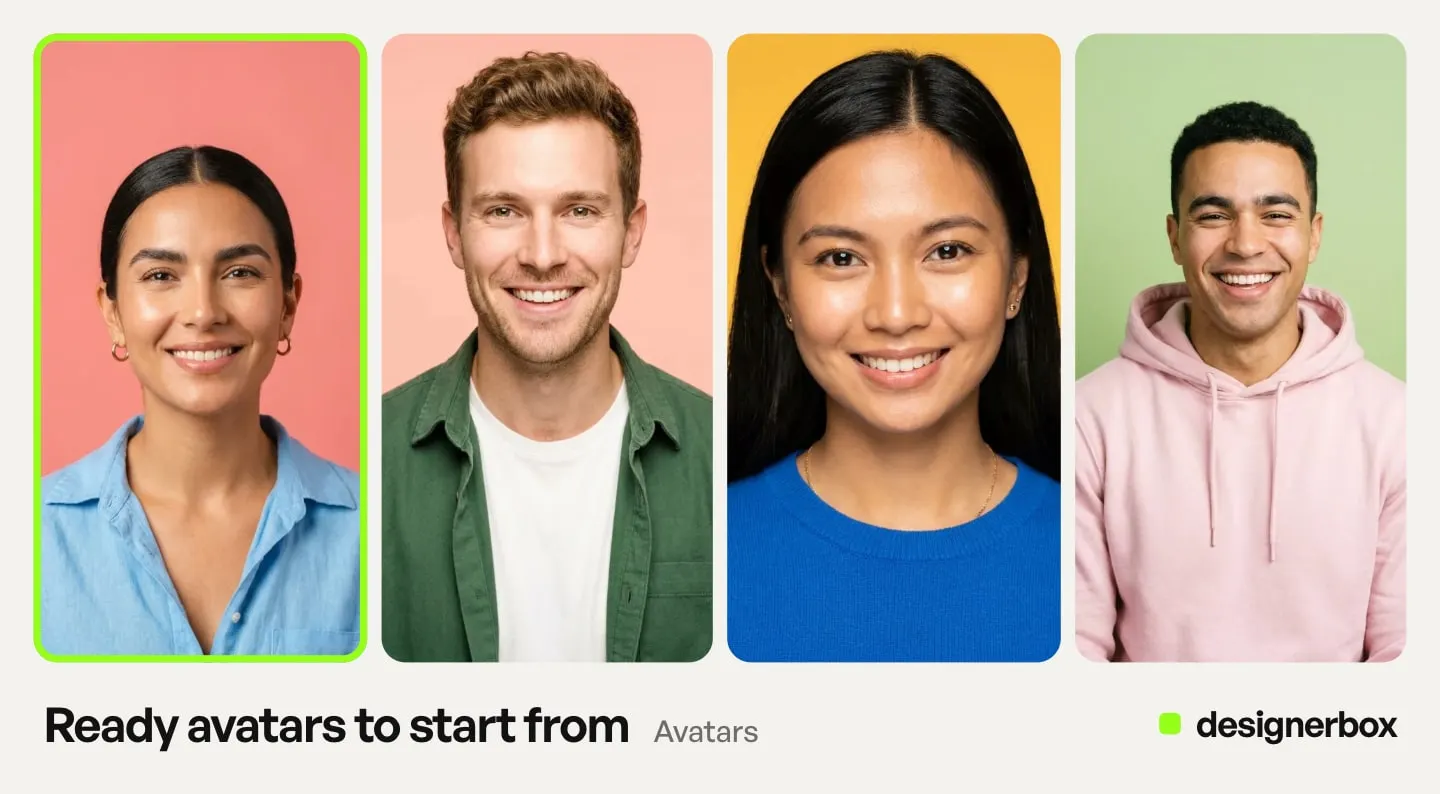
Each ready avatar already has its nine poses. You open it, look at the poses and use it.
A ready avatar fits a test, a first campaign or a team that needs a face today. Every account sees the same ready avatars. When the brand needs a face of its own, make your own avatar.
Make your own avatar
You can make your own avatar in two ways, from one sentence or from one photo.
| Start from | What you give | When it fits |
|---|---|---|
| One sentence | A short description of the person | The brand needs a new face that belongs to it |
| One photo | A photo of a real person | The person agreed, and you have the rights to the photo |
One sentence. Describe the person the way a casting brief does. Give an age range, the hair, the skin, the build and the feeling you want. For example: “A woman in her late twenties, short dark curly hair, warm brown skin, average height, calm and friendly.” Our guide on how to create an AI fashion model covers each casting choice in more detail.
One photo. Add a clear photo of the person’s face. The section on permission below explains when you may do this.
The outfit. You can also add an outfit. The avatar then wears the same clothes in all nine poses. Add one when the clothes are part of the brand, such as a uniform, a house look or the garment you sell. Skip it when the person will wear many different products later.
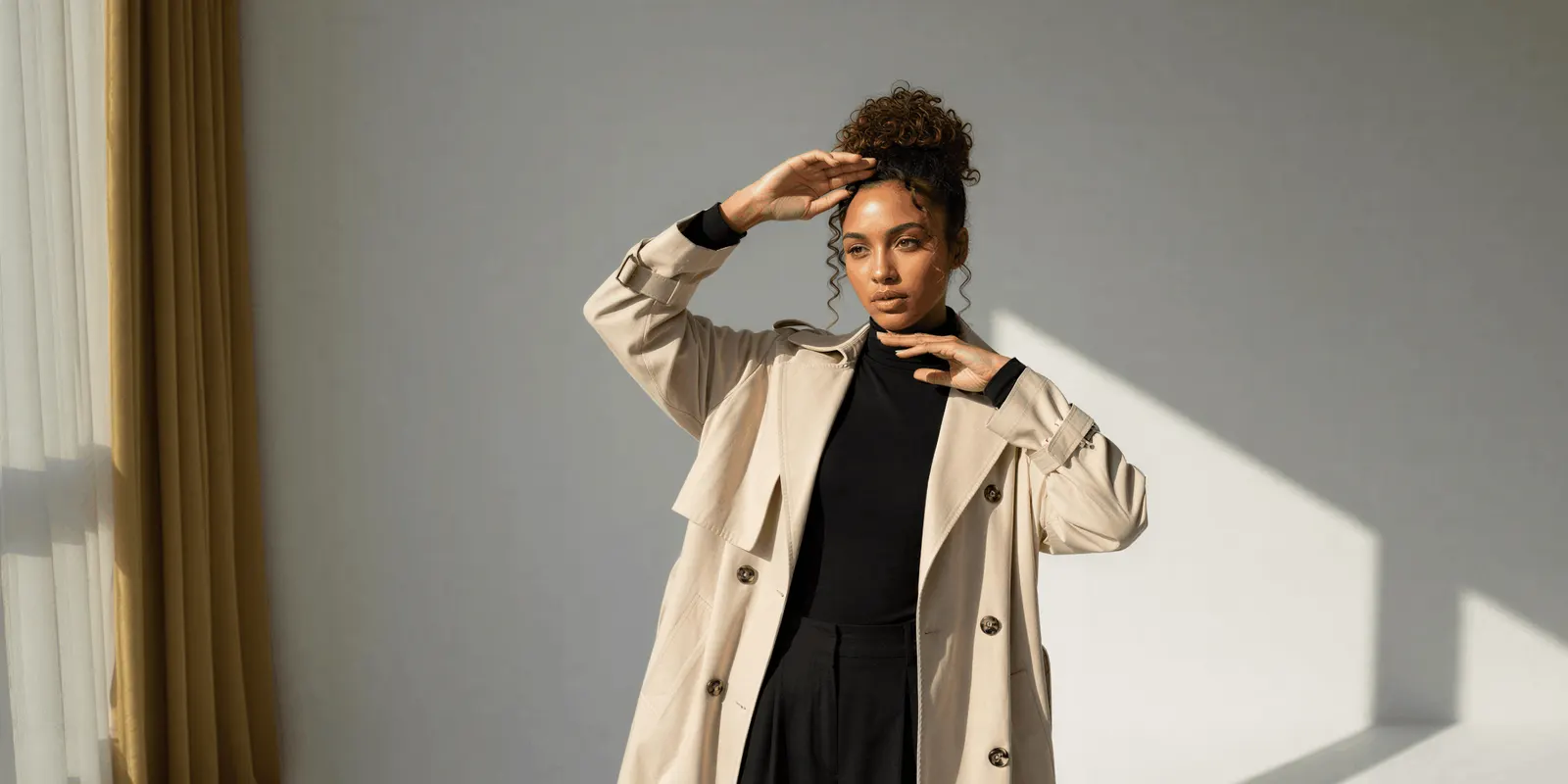
Name the avatar after the role it plays, such as “Spring lookbook model” or “Help center presenter”. A clear name helps a colleague pick the right person six months later.
The nine poses
Every avatar, ready or your own, is a set of nine poses. The list is the same for every avatar, so you always know which views you have.
- Four views: front, back, left and right.
- Two framings: a head shot and a full body.
- Three actions: walking, running and sitting.
The four views show the person from every side. The head shot gives a close face, and the full body gives the whole figure. The three actions show the person in motion and at rest.
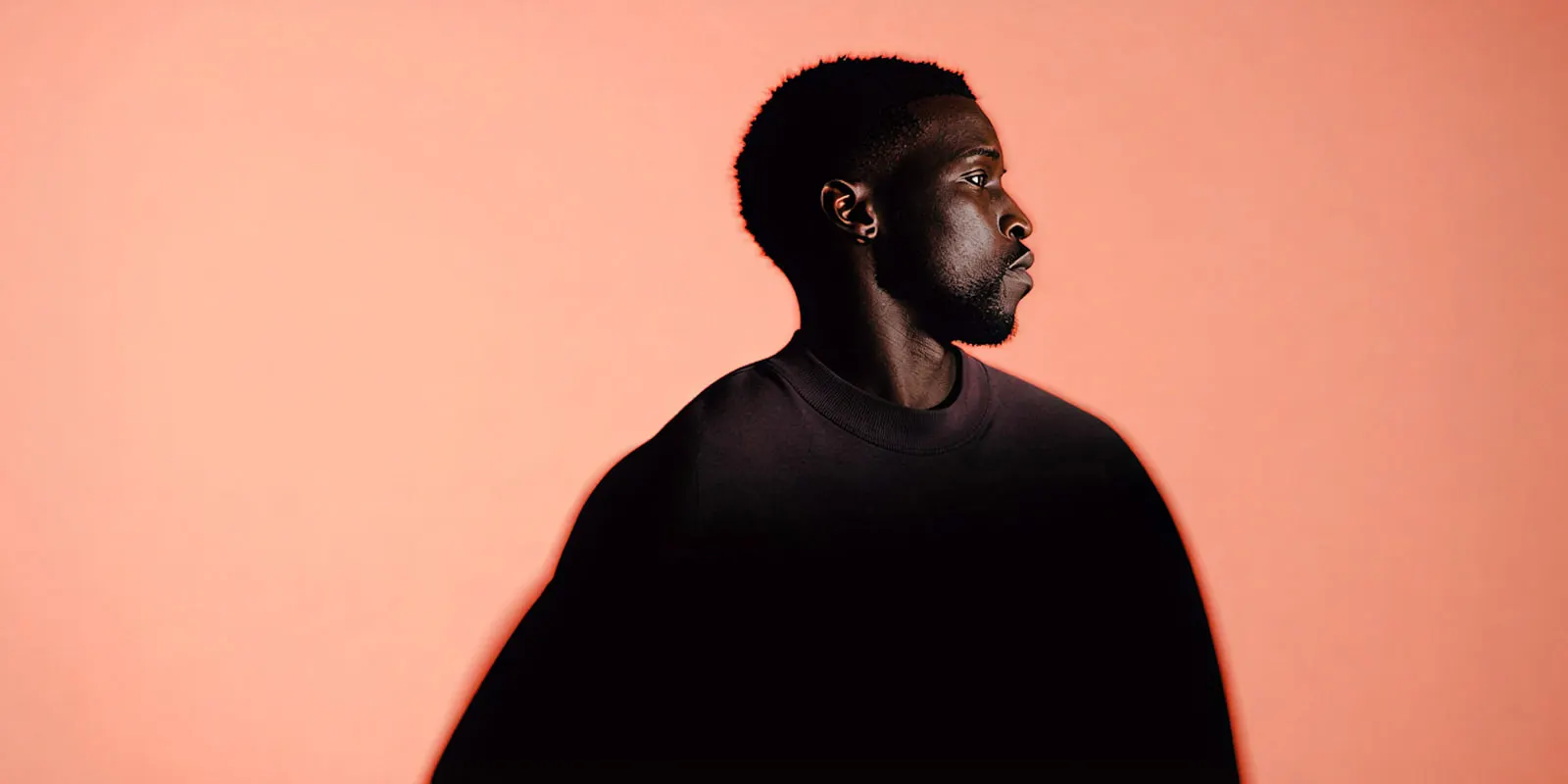
This mix is what the next run needs. A product page often wants the full body from the front. An ad may want the head shot. A video can start from walking or sitting. For a swim line, the poses each channel allows decide which of the nine goes where.
Your avatars are saved under “My avatars”. You open them there, and you pick them from other parts of the app.
Four places to use an avatar
After the set exists, you use the same person in four places in the app. Each place starts from the avatar, so you do not upload the face again.
Generate
Generate makes pictures or videos directly. You choose the model, the size and the number of pictures. A picture can take reference pictures, and Avatars is one of the places you pick them from. A video takes a start frame, and an avatar pose can be that frame.
After a picture is ready, you can make a video from it. The same person then moves in the clip. Our guide to DesignerBox Generate covers the page step by step.
Clothes on a model
Clothes on a model is an app. You add a photo of your garment and choose the avatar as the model. The result shows your garment on that person.
For a fashion brand, this is the main use. Each new product gets the same model, so each new product page shows the same person. Our guide to the same model for every garment turns this into a workflow for the whole season. The price is on the app card and on the Run button. The DesignerBox apps page explains how apps work.
Video with a person
Video with a person is an app too. You choose the avatar as the person in the video. The clip then shows the same face as your pictures. Our guide to a spokesperson video from a script walks through the whole job.
Video has its own cost range. An 8-second clip costs 40 to 560 credits, depending on the model.
The Talking tab in the video editor
The video editor has a Talking tab. It makes a talking presenter from one picture and a script. You choose one of 20 voices for the presenter.
Pick a pose from your avatar as the picture and type the script. Then place the clip on the timeline with captions, music and your product shots. Our guide to the image editor and the video editor covers the timeline. For a presenter who appears in many episodes, see our guide to the talking avatar.
One face for a whole launch
Here is one launch with one person, from the first picture to the last video.
- Make the avatar. Describe the person in one sentence. Add the season’s outfit if it is part of the look.
- Make the product pages. Run Clothes on a model with each garment and the same avatar.
- Make the ads. In Generate, add the avatar as a reference picture and choose the ad sizes.
- Make the video. Run Video with a person, or use the Talking tab for a presenter.
- Check every result. Look at the face, the hands and the garment before you send anything.
The pictures and videos from these runs go to Assets. From there you download the results, or send the pictures for review. Our guide to letting the client pick the model shows a casting round before the full run. The avatars, the videos and your brand rules sit in the same account.
If you prefer to describe a job in one sentence, the chat in DesignerBox Create is the other way to start. Use Avatars when the job needs the same person every time.
Permission for real people
You can make an avatar from a photo of a real person. Do it only with that person’s clear permission. Use only a photo you have the rights to use.
Permission is more than a yes for the first picture. Agree in writing where the face will appear, for how long and in which markets. Keep that agreement with the avatar’s name, so the next person on the team can find it.
A ready avatar or an avatar made from a sentence is not a real person. It still appears in your ads as a person. Use it to show or present a product. Do not use it to give a customer review, because it is not a customer.
Labels for realistic AI people in ads are a separate question. Our guide to AI avatars for brands covers who labels the result. The AI spokesperson guide covers consent and labels for each kind of presenter.
Limits of avatars
These are the limits as of October 2026. Plan the job around them.
- Every result is still an AI result. A person reviews each one. Check the face, the hands, the garment and any text before you publish.
- The nine poses are fixed. You choose the person and the outfit. The list of poses stays the same.
- Long scripted video is a different job. The Talking tab makes a presenter from one picture and a script. A long course or a training video with many scenes needs a tool built for long presenter video, or a real presenter.
- Delivery is a separate step. You download the results, or send them with a webhook or an S3 step. DesignerBox does not send finished work to a store.
Video with a person, the Talking tab and a video in Generate all make AI video. Uploading your own photos and the commercial license start on the Pro plan. AI video, virtual try-on, upscaling, the image editor and the video editor start on the Premium plan. Plans and credits are on the pricing page.
You make the person once. Then the same face appears on the product page, in the ad and in the video.
FAQ
What is a DesignerBox avatar?
It is one person you use again across your work. Every avatar is a set of nine poses. You pick a ready avatar or make your own, and it is saved under “My avatars”.
Which poses does a nine-pose avatar include?
Front, back, left, right, a head shot, a full body, walking, running and sitting. Every avatar has the same nine poses.
Can I make an avatar of a real person?
Yes, from one photo. Do it only with the person’s clear permission, and only from a photo you have the rights to use.
Can the avatar wear the same clothes in every pose?
Yes. Add an outfit when you make the avatar. The avatar then wears those clothes in all nine poses.
Where can I use an avatar?
In four places: Generate, as a reference picture or a video start frame; the Clothes on a model app; the Video with a person app; and the Talking tab in the video editor.
Can an avatar speak?
Yes. The Talking tab in the video editor makes a talking presenter from one picture and a script. You choose one of 20 voices.
Can I make an avatar from an AI chat?
Yes. An AI chat such as Claude, ChatGPT or Cursor can run DesignerBox. DesignerBox has 75 tools over MCP, and making an avatar is one of them.
How much does an avatar cost?
The price shows before you start, so you see it before you spend credits. Plans and credits are on the pricing page.
Sources
- The DesignerBox app, Avatars, Generate, Apps and video editor pages, read October 2026
- DesignerBox Apps page (designerbox.ai/product/apps), October 2026
- DesignerBox MCP page (designerbox.ai/mcp), October 2026
- DesignerBox pricing page (designerbox.ai/pricing), October 2026
Avatars checked against the DesignerBox app as of 22 October 2026. The ready avatars change over time, so check the Avatars page for the current names. Plans and limits change too, so check the pricing page before you plan a job.