


To make several versions and keep the best one in DesignerBox, add a critic step to your workflow. The workflow makes several results, for example four versions of one ad. The critic step scores them as a designer, a photographer, an emotion reader or an ad director. It keeps the best one. Then you check the kept result yourself before anyone uses it.
Say your team makes four versions of every ad for 40 new products. That is 160 pictures, and someone has to open each one to pick 40. A critic step makes the first pick inside the workflow. You still make the last one.
Key Takeaways
- One step that ranks. A critic step scores several results and keeps the best. It sits under the Judge kind of step in Workflows.
- Named critics. You add the critic that fits the job: designer, photographer, emotion or ad director.
- Every version costs credits. You pay for each version the workflow makes, including the ones the critic step does not keep.
- Batch gives you more to choose from. A batch runs 1 to 4 runs per row, and you keep or discard each result with the J and K keys.
- A person still checks. You check the product, the label and the claims before anything is used.
- Analyze ad for one finished ad. In Create, Analyze ad reviews an ad you attach on hook, hierarchy, brand, offer, craft and fit.
Picking the best version by hand
This job belongs to a team that makes many results. It can be an agency of 3 to 15 people, or an operator who sells finished sets. The team makes several versions of each picture, because the first try is not always the best. Then a person picks one version per product.
That pick takes time, and it repeats with every new product. Anyone can make an AI picture. Making hundreds that still look like your brand is the hard part. A critic step moves the first pick into the workflow, so the person checks one result per product.
Our guide to the AI creative workflow explains how steps chain into one run. For what makes an AI product picture right, see AI product photo accuracy.
What a critic step does
The Workflows page groups steps by kind. The Judge kind holds the critic steps. Critic steps (designer, photographer, emotion, ad director) score several results and keep the best.
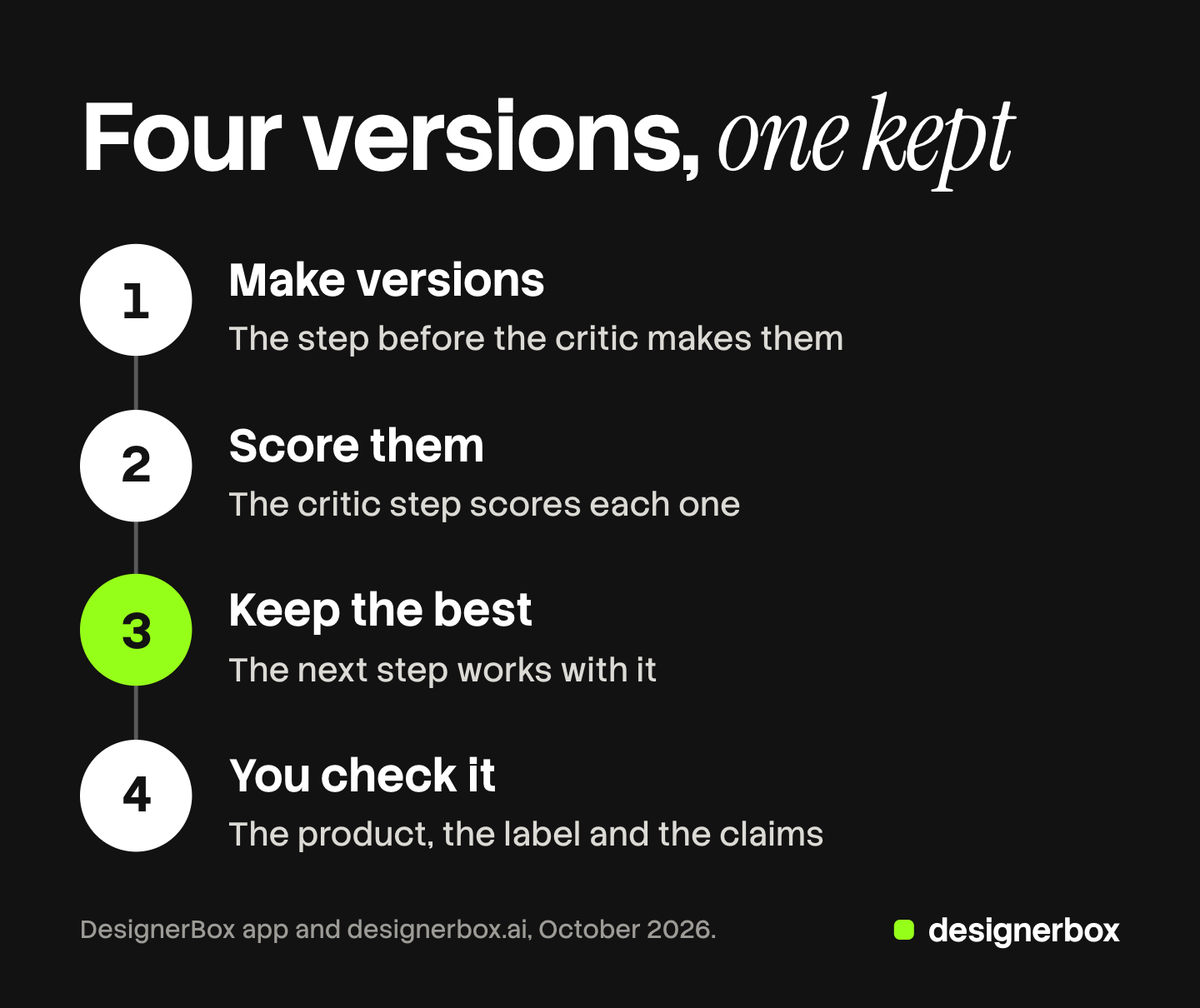
The pattern is short: four versions, one kept. The step before the critic makes the versions. The critic step scores each one and keeps the best. The next step works with the kept result.
Research calls this pattern best-of-N. A January 2025 paper by researchers from NYU, MIT and Google studied it on image models. In its simplest search, a scorer picks the best sample and rejects the rest. The paper calls this search “essentially a Best-of-N strategy” (Ma et al., arXiv, read October 2026). It reports that more compute at generation time led to substantial gains in image quality on its tests.
Surfaces for best-of-N review
Three parts of DesignerBox make and judge versions, and a fourth reviews one finished ad.
| Surface | What you add | What you get | Plan |
|---|---|---|---|
| Critic step (Judge, in Workflows) | The critic that fits the job, after the step that makes the picture | The best of several versions, kept | Part of a workflow |
| Workflows | The steps: make, judge, then save | One run that makes versions and keeps one | Every plan |
| Batch | Up to 200 rows, 1 to 4 runs per row | Several results per row, to keep or discard with J and K | Every plan |
| Analyze ad (Create) | One ad you attach | A review on hook, hierarchy, brand, offer, craft and fit, with fixes | Every plan |
The Workflows page on the site lists every kind of step. Our guide to DesignerBox workflows explains each kind.
A workflow that keeps the best of four
Start with one workflow you already run, and one product.

- Open the workflow. Open Automation, then Workflows. Open a workflow you run today, or open a template and open your own copy.
- Find the step that makes the picture. This can be the image generation step or the image to image step.
- Add a critic step after it. Pick it from the Judge kind of steps. For an ad, try the ad director critic. For a product photo, try the photographer critic.
- Aim for four versions. The Workflows page names this use case: a critic step that makes four versions and keeps the best one.
- End with an output step. Add Save to Assets, so the kept result lands in Assets.
- Read the cost, then run it. The cost is shown before the run, and it covers every version the workflow makes. Press Run all.
- Look at the canvas. Each step shows its result on the canvas, so you can see what each step made.
- Save a version. When the result is right, save a named version of the workflow.
The second and the twentieth run
Once the critic step works on one product, the job repeats.
Publish it as an app. Choose Publish as app, for you or for your workspace. A colleague completes a short form and presses Run. The critic step runs inside the app, and the colleague never edits it.
Run it in Batch. Open Automation, then Batch, and choose the workflow you published as an app. Add one row per product, up to 200 rows. Every row runs the same steps, the critic step included. The Batch page on the site lists the limits of a sheet.
Or let the sheet make the versions. Batch can also run an app or an image model with 1 to 4 runs per row. Then you pick by hand, and you keep or discard each result with the J and K keys. Over 20 runs, DesignerBox asks you to confirm first. Our guide to DesignerBox Batch covers the sheet.
| Where the versions are made | Who picks | Fits |
|---|---|---|
| A critic step in the workflow | The critic step, then you check the kept result | Many products, one result each |
| 1 to 4 runs per row in Batch | You, with the J and K keys | Fewer products, where you want to see every version |
An agency can add a critic step to each client’s ad workflow. Our guide to one ad workflow per client shows that setup. The versions, the critic step and the batch sit in one account.
Checking the kept result
A critic step ranks versions against each other. A version can rank first and still show the wrong label. So a person checks the kept result before anyone uses it. Check four things.
- The product. The shape, the color and the label match your real product. When a label is wrong, the Fix the product app returns the picture with your real label and logo.
- The text. The headline is spelled right and fits the picture.
- The claims. Every claim on the picture is true, such as a charging speed or a cable in the box.
- The brand. The colors, fonts and rules match your brand. Workflows read your brand rules, and a person still checks the result.
A scorer has its own taste. The same paper warns of “verifier hacking”, where a search overfits to the bias of its scorer. It also notes that an aesthetic scorer often favors highly stylized images that move away from the text prompt. That is one more reason to check the kept result against your brief.

For a second opinion on one finished ad, use Analyze ad in Create. Attach the ad, and it reviews the hook, hierarchy, brand, offer, craft and fit. It also suggests fixes. Our guide to DesignerBox Create covers the chat and its skills.
Sometimes you want buyers to choose, and no critic. Our guide to headline testing in DesignerBox makes the versions and lets your ad platform run the test.
Limits of critic steps
These are the limits as of October 2026.
- A critic step ranks versions. You still keep or discard the result, and nothing is approved for you.
- You pay for every version. Four versions of 40 products make 160 pictures, and you keep 40. The other 120 cost credits too.
- The best of four can still be wrong. If all four versions miss the brief, the kept one misses it too. Change the brief or the step, then run it again.
- Delivery is a download or an outbound step. DesignerBox does not publish to a store or an ad account. You download the results, or send them with a webhook or an S3 step.
Plans for critic steps
Workflows, apps, batch and Create are on every plan. Uploading your own photos and the commercial license start on the Pro plan. There is a free plan, and it runs on the sample products. Plans and credits are on the pricing page. The How it works page shows the four ways to run one workflow.
Start with one workflow and one product, then add the critic step. Get started free.
FAQ
What is a critic step in DesignerBox?
A critic step is a step in a workflow that scores several results and keeps the best. You find it under the Judge kind of steps. The critics are designer, photographer, emotion and ad director.
How many versions should a critic step compare?
The Workflows page uses four versions as its example. More versions give the critic step more to choose from, and each one costs credits. The cost is shown before the run.
Do I pay for the versions the critic step does not keep?
Yes. You pay for every version the workflow makes. Four versions of one ad mean four pictures made and one kept.
Does a critic step check that my product is right?
No. It ranks versions against each other. A person still checks the product, the label and the claims before the result is used.
What is the difference between a critic step and Analyze ad?
A critic step works inside a workflow and keeps one of several results. Analyze ad works in Create, on one ad you attach. It reviews the hook, hierarchy, brand, offer, craft and fit, and suggests fixes.
Can I use a critic step in Batch?
Yes. Publish the workflow as an app and run it in Batch. Every row runs the same steps, the critic step included. A sheet holds up to 200 rows.
Sources
- Ma et al., “Inference-Time Scaling for Diffusion Models beyond Scaling Denoising Steps” (arXiv 2501.09732), submitted January 2025, read October 2026: best-of-N selection by a verifier, and verifier hacking
- DesignerBox Workflows page (designerbox.ai/product/workflows), October 2026: the kinds of step, critic steps, the four-version example, Publish as app
- DesignerBox Batch page (designerbox.ai/product/batch), October 2026: 200 rows, 1 to 4 runs per row, the confirm step over 20 runs, the J and K keys
- DesignerBox pricing page (designerbox.ai/pricing), October 2026: the plan gates
- The DesignerBox app, read October 2026: the Judge steps, Analyze ad in Create and the Fix the product app
DesignerBox features verified in the app and on designerbox.ai as of October 2026. Results vary by product and model.