


DesignerBox workflows are saved sets of steps. You build the steps once, with your brand, your products and your rules. Then you run the same steps again on the next product. Each step takes what the step before it made, so one product photo can become a packshot, then a scene, then a short clip, in one run. The Workflows page in the app holds every workflow you have built.
Anyone can make an AI picture. Making hundreds that still look like your brand is the hard part. A workflow is how DesignerBox answers that problem. This guide covers the page, the steps a workflow can hold, how to build one, and what a workflow does not do. Workflows are one part of the app we rebuilt, and the new DesignerBox covers the other parts.
Key Takeaways
- A workflow is a set of steps you build once and run again on the next product.
- A workflow holds these kinds of step: generate, transform, video, delivery and utility.
- Your brand rules are read before every prompt, so you set the brand once.
- One workflow runs four ways: as a template, a workflow, an app and a batch.
- You download the results, or send them with a webhook or an S3 step.
What a DesignerBox workflow is
The app describes it in one line: “A workflow is a set of steps you build once in the studio and run again.” The Workflows page on the site says the same thing in other words. A workflow is the job you repeat every week, saved as steps.
The site gives a small example. A photo of a white sneaker goes in. Three steps follow: remove the background, compose, and image to image. Three pictures come back, and the workflow saves them to Assets.
The site calls a workflow a canvas of steps. The value is in the second run and the fortieth. Our guide to AI creative workflows explains the general idea and when it pays back.
The Workflows page
The page opens with the heading “Your workflows”.
| On the page | What it is |
|---|---|
| New workflow | The button that starts a new workflow |
| New folder | The button that makes a folder for your workflows |
| Remix a creative | A third button beside the two above |
| All workflows | The tab that lists every workflow you have |
| Starred | The tab that lists the workflows you starred |
| Step count | Each card shows how many steps the workflow has |
| List and grid views | Two ways to see the same workflows |
Folders help once you work for more than one brand. You can make one folder for each client.
Steps a workflow can hold
The site lists these kinds of step: generate, transform, video, delivery and utility. It groups what they do into four plain jobs.
| Job | What the steps do |
|---|---|
| Make a picture | Generate an image, change one you have, remove a background, relight it, place it in a scene, upscale it |
| Make a video | Turn a picture into a clip, add a voice, write the captions from the voice, cut the clips together |
| Write and judge | Write the line for an ad, translate it, then let a critic step rank several results |
| Send the result | Save to Assets, post to a webhook, put the file in your own S3 bucket |
Four parts of a workflow need more detail.
Model steps. An image step or a video step runs a model. The model is set once in the workflow, so every later run uses the same one.
Prompt help. You write a rough brief. Prompt help writes the full prompt from it when a step needs one. A template already sets the model, the light, the angle and the crop.
Critic steps and best-of-N. A critic step scores each result against your rules. With best-of-N, the workflow makes several tries and keeps the one that scores highest. You still keep or discard each result yourself.
Brand rules. The Brand page in the app says: “Workflows read the rules before every prompt.” Your logo, colors, fonts and rules live in one brand record. You type nothing twice.
Steps to build a workflow
The site shows the build in three stages. Split into single actions, it is five steps.
- Start from a template or a new workflow. A template is a workflow somebody already built. Open one and make it yours, or press New workflow on the Workflows page. Our guide to DesignerBox templates covers the first route.
- Add your brand and your products. Set the logo, the colors, the fonts and the rules once. Add a product, so every run uses your own product.
- Set the steps. Put the steps the job needs in order. Add a critic step where a result needs a check. Add a delivery step at the end.
- Read the cost, then run it. The cost in credits is shown on the button before the run. Press Run on one product first. Look at the result before you run more.
- Publish it as an app, or run it in a batch. Publish the workflow as an app for a colleague. Run it in a batch for many products at once.
This is also how you build an AI workflow for product images. You fix the steps on one product. Then the same steps run on the rest.

Four ways to run one workflow
Nothing is rebuilt between the four. Each one widens who can run the workflow. The How it works page shows all four side by side.
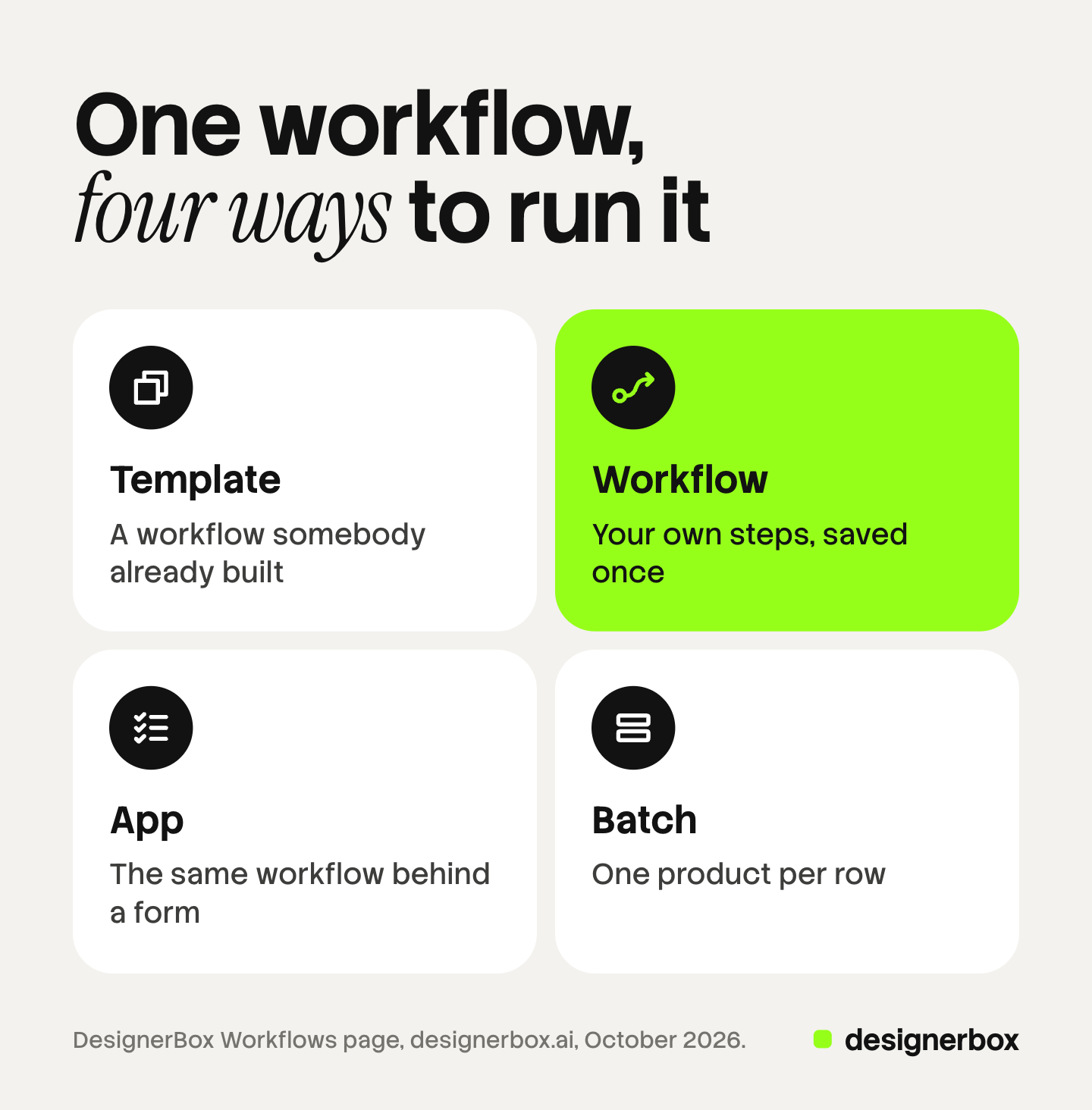
| Way to run | What it is | Who runs it |
|---|---|---|
| Template | A workflow somebody already built. Open one, add your photo, press Run | Anyone, on the first day |
| Workflow | Your own steps, saved once with your brand and your products | The person who sets the standard |
| App | The same workflow behind a short form | A colleague who never opens the steps |
| Batch | One workflow over a sheet, one product per row | One person, once, for the whole set of new products |
When you publish a workflow as an app, you choose which steps become fields. Your colleague sees a short form. Our guide to DesignerBox apps covers the form and the people who run it.
A batch sheet holds up to 200 rows. The same steps run on row one and row two hundred. The guide to DesignerBox batch covers the sheet and the review that follows a run.
Example workflows on the page
These workflows appear as cards on the Workflows page, read in October 2026. Each card shows its own step count.
| Workflow | What the name tells you |
|---|---|
| Product photography | Product pictures from a product photo |
| Clothing catalog | One garment as four shots: front, three-quarter, back and a fabric close-up |
| Garment sketch | A workflow that starts from a garment sketch |
| 360 product showcase | A product shown from all sides |
| Multi-angle generator | More angles of the same product |
Each one is a job that returns with every new product. That is the test for a workflow worth building. If you do a job once, do it by hand. If the job returns every week, save it as steps.
Builders and runners
Two different people use a workflow. One person builds it, and that person knows the brand and the job. The other people run it, and they need the result more than the method.

The builder decides what stays the same between runs, such as the model and the brand rules. The runner changes only the product.
Sharing is set per workflow. The site lists three choices: private, shared with your workspace, or open on a link.
For an agency, the split works per client. You keep one brand record and one set of workflows for each client. Each run then follows that client’s rules. Our guide to AI workflow builders covers the mistakes that break a long chain of steps.
Limits of workflows
These are the limits as of October 2026. Plan around them before you promise a delivery date.
- A workflow does not publish to a store or an ad account. You download the results, or send them with a webhook or an S3 step.
- A critic step does not replace your review. It ranks the tries. You still keep or discard each result.
- The free plan runs on sample products. Uploading your own photos and the commercial license start on the Pro plan.
- Some steps need a higher plan. AI video, virtual try-on, upscaling, the image editor and the video editor start on the Premium plan. Plans and credits are on the pricing page.
- Every plan below Ultra is one seat. A shared workspace and team seats are on the Ultra plan.
- A batch sheet stops at 200 rows. A larger catalog needs more than one sheet.
Workflows are one part of a larger set. The full workflow from the first product photo to the finished ad, in one subscription. Templates, apps, batch, both editors and your brand record are in the same app.
If you run creative work for several clients, see how one workflow per client fits an agency on the DesignerBox page for agencies.
FAQ
What is a DesignerBox workflow?
A workflow is a set of steps you build once and run again. A template is a workflow somebody already built. An app is a workflow behind a short form. A batch runs one workflow over many products.
Do I need to write a prompt for every step?
No. A template sets the model, the light, the angle and the crop. Prompt help writes the prompt from your brief when a step needs one. From the Pro plan you can also write your own brief.
How do I know what a workflow run costs?
The cost in credits is shown on the button before you press Run. You see it for one product and for the whole set. Nothing is charged until you press the button.
Can a colleague run my workflow?
Yes. Publish it as an app and choose which steps become fields. Your colleague completes the form and presses Run. The same steps and the same brand rules run behind the form.
Where do the results go?
A delivery step sends them. It can save the results to Assets, post them to a webhook, or put the files in your own S3 bucket. You can also download them. DesignerBox does not publish to a store or an ad account.
Sources
- DesignerBox Workflows page (designerbox.ai/product/workflows), October 2026: the steps, the build stages, sharing, the 200-row sheet and the questions
- The DesignerBox app, Workflows page and Brand page, read October 2026: the page labels, the example workflows and the quoted lines
- DesignerBox How it works page (designerbox.ai/how-it-works), October 2026
- DesignerBox pricing page (designerbox.ai/pricing), October 2026: the plan gates
Page labels and step kinds checked against designerbox.ai and the DesignerBox app in October 2026. The cost of a run depends on the models in the workflow. Plans and limits change, so read the figure on the button before a large run. Individual results vary.