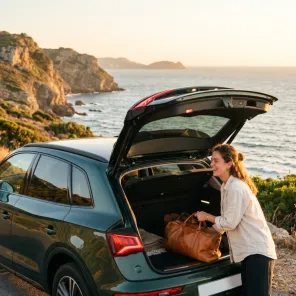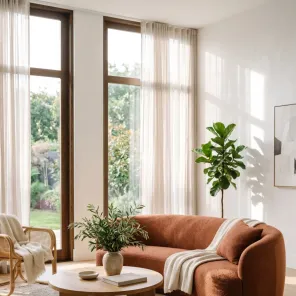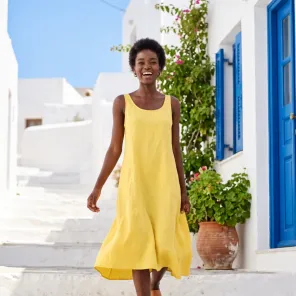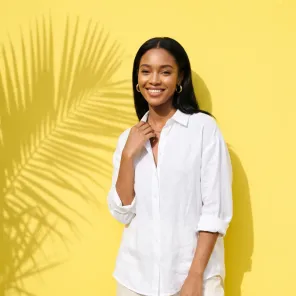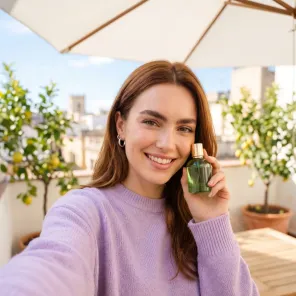
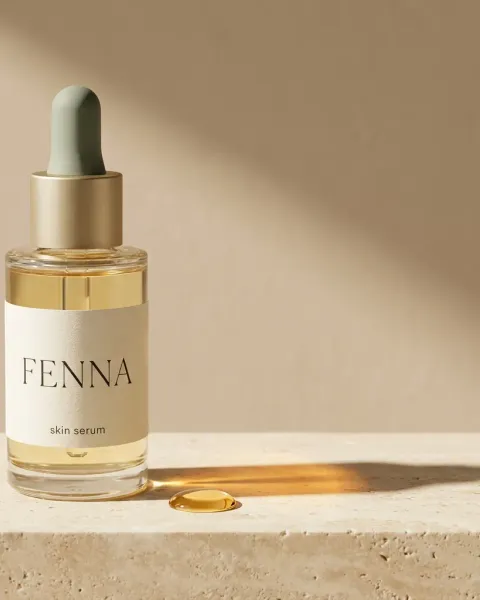
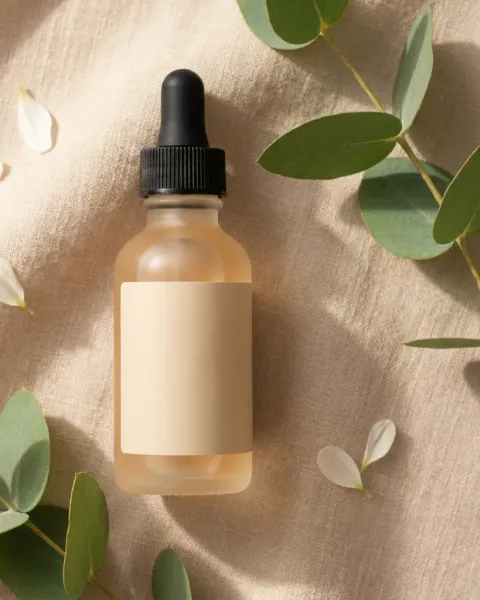
The DesignerBox plugin is now live in ChatGPT. You install it from the ChatGPT plugin directory and sign in to your DesignerBox account. Then you add a product photo in the chat and ask for a picture. You can apply a template, describe the shot, remove the background, relight the photo or show a new angle. Every picture is saved to your DesignerBox library.
Your team already plans the work in ChatGPT. The product copy, the campaign idea and the shot list start there. Then somebody opens another tab, uploads the product photo again and types the brief a second time.
This note covers what the plugin does, how to install it, what it costs, and where the web app still does the job better. It is written for brands and agencies whose people already use ChatGPT every day. Before the plugin, the only route was a custom server in developer mode, which our ChatGPT MCP guide explains.
Key Takeaways
- The plugin is live. Find DesignerBox in ChatGPT under Plugins, by DesignerBox, with the line “AI product photos and ads”.
- Four steps to start. Open Plugins, find DesignerBox, press Install plugin, and sign in to your DesignerBox account.
- Five jobs in the chat. Upload product photos, apply templates, make new pictures from a description, edit a product photo, and browse your designs, assets and brand profiles.
- Every picture lands in your library. You keep working on it in the DesignerBox web app.
- Each result says how many credits it used. The plugin uses the AI credits in your DesignerBox account.
- Uploading your own photos starts on the Pro plan. There is a free plan, and it runs on sample products.
What the DesignerBox ChatGPT plugin does
The plugin connects ChatGPT to your DesignerBox account. The listing describes it in one line: DesignerBox turns product photos into studio-style images for ads, online stores and social posts, inside ChatGPT (DesignerBox listing in the ChatGPT plugin directory, October 2026).
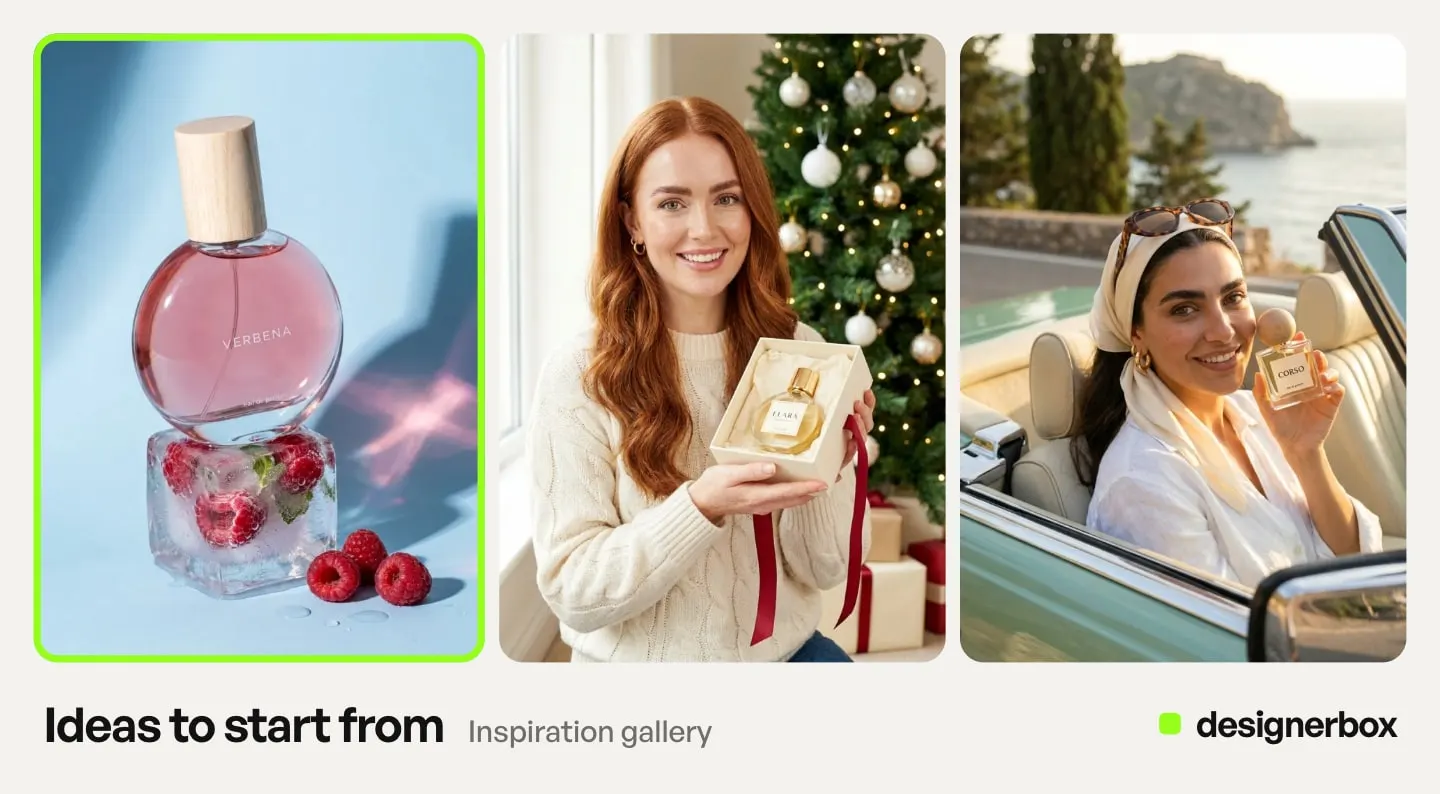
You ask in plain words. ChatGPT picks the DesignerBox step that fits and shows the result in the chat.
| What you ask for | What happens |
|---|---|
| Upload a product photo | An upload panel opens in the chat. A photo you attach to your message works too |
| A template | You browse the templates and apply one to your photo |
| A new picture | You describe the shot, and DesignerBox makes it |
| An edit | You remove the background, relight the shot or show the product from a new angle |
| Your work | You browse your designs, your assets and your brand profiles |
The listing shows three example requests. “Upload a product photo so I can turn it into an ad image.” “Show me image templates for perfume product shots.” “Generate a flat-lay photo of a coffee cup and a croissant on white marble.”
How to install the plugin
You install DesignerBox from inside ChatGPT. You need a DesignerBox account.
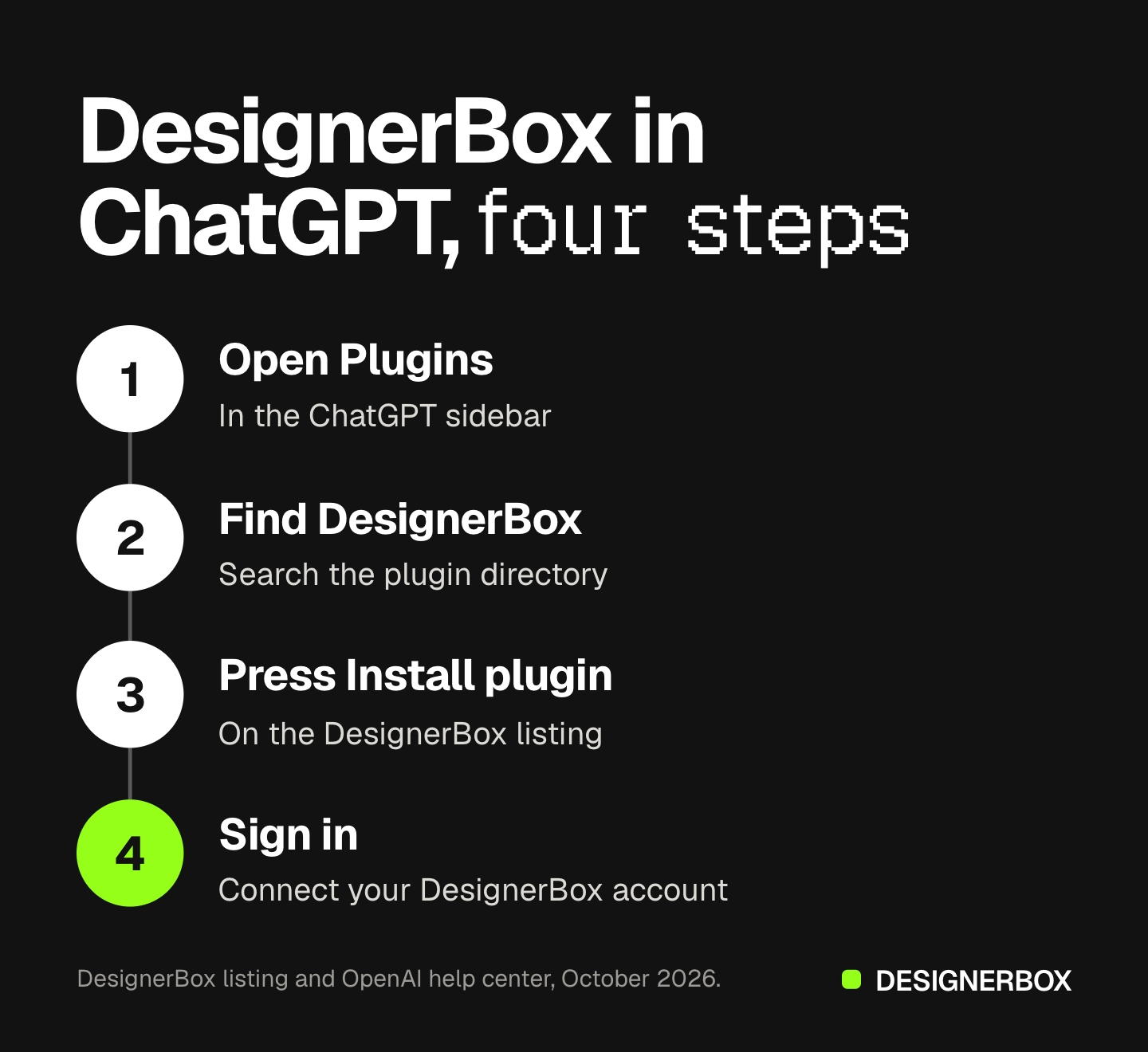
- Open Plugins. Select Plugins in the ChatGPT sidebar. OpenAI’s help center says the sidebar entry is on ChatGPT web, desktop and mobile (help.openai.com, October 2026).
- Find DesignerBox. Search the directory for DesignerBox. The listing shows the “db” icon and the line “AI product photos and ads”.
- Press Install plugin. ChatGPT may then ask you to connect an account.
- Sign in to DesignerBox. Select Connect if ChatGPT asks, and sign in to the DesignerBox account you want to use.
Then start a chat and ask for a picture. If ChatGPT does not use DesignerBox, name it at the start of your message, the way the example requests do.
On a company workspace, an admin may decide first. OpenAI’s help center says installing a plugin does not bypass provider or workspace permissions. It also says a Connect button can be greyed out by region, workspace settings or plan type (help.openai.com, October 2026). If you see “Disabled by admin”, ask your workspace admin to allow the app.
What changed from the custom MCP server
DesignerBox has run inside ChatGPT since July, through MCP. Until today, you added it as a custom MCP server. On ChatGPT that route sits behind developer mode, and OpenAI’s help center limits full access to some plans (help.openai.com, October 2026).
The plugin removes those steps. You do not paste a server address, and you do not turn on developer mode. You find DesignerBox in the directory, install it and sign in.
| The plugin | The custom MCP server | |
|---|---|---|
| Where you start | The ChatGPT plugin directory | Developer mode, then Add custom MCP server |
| What you paste | Nothing | The server address |
| What it covers | Product photos, templates, edits, your library | The full set of 75 MCP tools |
| Who it fits | Anyone on the team who uses ChatGPT | People who need video, workflows or batch from the chat |
The full MCP server still works in Claude, ChatGPT, Cursor and other AI chats. The DesignerBox MCP launch note lists every client and the 75 tools. In Claude Code and claude.ai, the DesignerBox skills add the same product photo jobs as a plugin.
Your brand and your library
A picture made in ChatGPT is a DesignerBox picture. It goes to your library, so the next step happens in the web app. You open it in Assets, edit it in the image editor, or send it to a client for review.
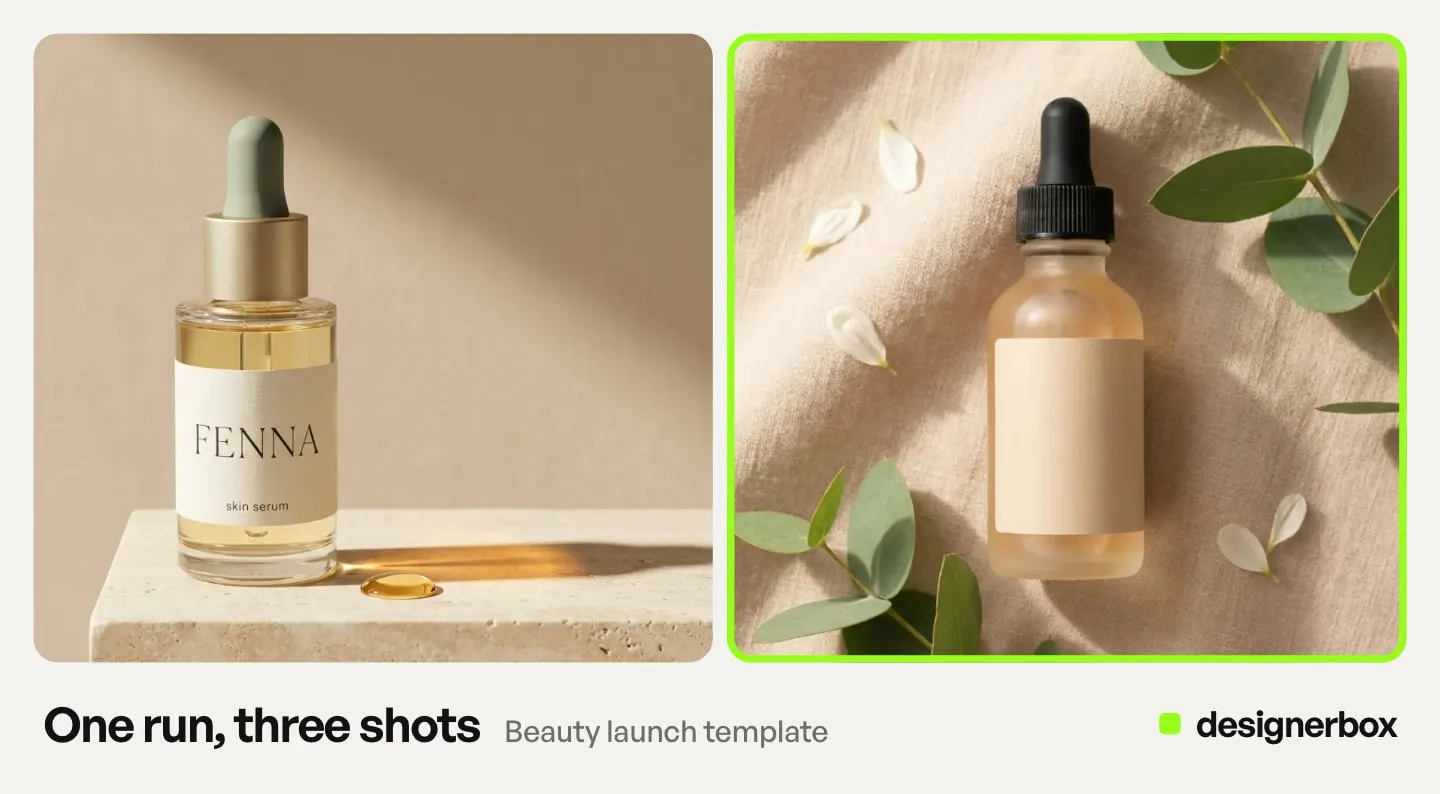
That matters for a team. One person asks for a shot in ChatGPT. A colleague finds the same picture in Assets an hour later, without a file sent between them. The photos, the brand, the templates and the editors sit in one account.
The plugin can also read your brand profiles. A brand in DesignerBox holds your products, logo, colors, fonts, rules and reference pictures. Our guide to the Brand page explains each part. Anyone can make an AI picture. Making hundreds that still look like your brand is the hard part.
Cost and plans
The plugin uses the AI credits in your DesignerBox account. Each result says how many credits it used, so you see the cost of every picture in the chat.
Uploading your own photos and the commercial license start on the Pro plan. There is a free plan, and it runs on sample products. Plans and credits are on the pricing page.
What the plugin does not do
These are the limits as of October 2026. Plan around them.
- It covers pictures. The plugin lists no video step. For video, use the video editor in the web app or the full MCP server.
- It runs one picture at a time. To run one job over a sheet of products, use Batch in the web app.
- It needs a DesignerBox account. You sign in when you connect.
- It does not publish anywhere. You download the results from the web app, or send them with a webhook or an S3 step.
- Your workspace rules apply. On a company ChatGPT workspace, an admin may need to allow DesignerBox first.
Check the product in every picture before you use it: the logo, the print, the color and the shape.
A free plan for your first run
Start from a template, add your brand and your products, and see the cost before you run it.
FAQ
Is there a DesignerBox plugin for ChatGPT?
Yes. The DesignerBox plugin is live in the ChatGPT plugin directory. It is listed by DesignerBox with the line “AI product photos and ads”. You install it and sign in to your DesignerBox account.
How do I install DesignerBox in ChatGPT?
Select Plugins in the ChatGPT sidebar and search for DesignerBox. Press Install plugin. If ChatGPT asks, select Connect and sign in to your DesignerBox account. Then ask for a picture in any chat.
Do I need a DesignerBox account to use the plugin?
Yes. You sign in to DesignerBox when you connect the plugin. Every picture you make is saved to that account’s library.
Does the ChatGPT plugin cost credits?
Yes. Making and editing pictures uses the AI credits in your DesignerBox account. Each result says how many credits it used.
Can I upload my own product photo?
Yes. An upload panel opens in the chat, or you attach the photo to your message. Uploading your own photos starts on the Pro plan.
Can the plugin make video?
No. The plugin covers pictures. For video, use the DesignerBox web app or connect the full MCP server.
What is the difference between the plugin and DesignerBox MCP?
The plugin installs from the ChatGPT directory with no server address. It covers product photos, templates, edits and your library. The full MCP server has 75 tools and works in Claude, ChatGPT, Cursor and other AI chats.
Where do the pictures go?
Every picture is saved to your DesignerBox library. You open it in Assets in the web app to edit it, download it or send it for review.
Sources
- DesignerBox listing in the ChatGPT plugin directory, read October 2026
- Plugins in ChatGPT: help.openai.com, read October 2026
- Connecting and managing app accounts in ChatGPT: help.openai.com, read October 2026
- Developer mode and MCP apps in ChatGPT: help.openai.com, read October 2026
- DesignerBox pricing, October 2026
- DesignerBox MCP, October 2026
Plugin features verified from the DesignerBox listing in ChatGPT and OpenAI’s help center as of October 2026.