
ChatGPT MCP means connecting ChatGPT to a remote Model Context Protocol server, so the chat can call that server’s tools. You turn on Developer mode, add the server’s URL as an app, and sign in. By default, ChatGPT asks you before any tool that changes data. That question matters most when the server spends money for you.
Your team already writes the brief in ChatGPT. The campaign angle, the product copy and the shot list all start there. Then someone copies the brief into another tab, uploads the product photo again, and pastes the brand rules for the fortieth time this month. An MCP server removes that step. ChatGPT calls the tool where the photos, the brand rules and the saved steps already live.
This guide covers which ChatGPT plans can connect a server, the five setup steps with the menu names OpenAI uses in September 2026, what ChatGPT asks before a tool runs, and the risks OpenAI names. It then shows what changes when the server is a creative production tool, with DesignerBox MCP as the worked example. It is written for agencies and brand teams whose people already work in ChatGPT.
Key Takeaways
- Developer mode comes first. You turn it on in Settings, then add the server’s URL as an app under Plugins. Old versions of the phone apps may show Apps instead of Plugins.
- OpenAI’s pages disagree on plans. The developer guide lists Pro, Plus, Business, Enterprise and Education on the web. The help center calls full MCP, with write actions, a beta for Business, Enterprise and Edu.
- Write actions ask first. ChatGPT treats any tool without a read-only mark as a write action, and it asks you to confirm each one by default.
- Pick Allow read actions for a paid server. Reads run without a prompt, and every call that changes data or spends credits still asks.
- ChatGPT needs a remote server. It connects to a URL. A server on your own computer needs a tunnel first.
- ChatGPT already makes images. A production server adds your own product photos, your brand record and your saved workflows to the chat.
- DesignerBox has 68 MCP tools at one URL. Reading your workspace charges no credits, and every finished run reports what it charged.
What is ChatGPT MCP?
ChatGPT MCP is ChatGPT working as a Model Context Protocol client. You register a remote MCP server as an app in Developer mode. ChatGPT then reads the server’s list of tools and calls one when your message asks for it. The server does the work, such as reading a file, changing a record or making a picture, and sends the result back into the conversation.
MCP is “an open-source standard for connecting AI applications to external systems” (modelcontextprotocol.io, October 2026). Anthropic released it in November 2024 (anthropic.com, September 2026). OpenAI added remote MCP servers to its Responses API on 21 May 2025 (openai.com, September 2026). The current version of the protocol is dated 2026-07-28 (protocol versioning page, October 2026).
One remote server can serve more than one client. The DesignerBox server, for example, also connects to Claude, Cursor and Claude Code. If you are choosing between a written skill and a server, what MCP adds that a skill does not covers the split. Store platforms publish servers too: PrestaShop AI and its MCP Server shows one that reads and changes store data. Ad platforms publish them as well, and Meta’s ads MCP server is the main example.
Which ChatGPT plans can use MCP servers?
Two OpenAI pages answer this differently in September 2026. Check your own settings before you plan a rollout.
| OpenAI page | What it says | Last updated |
|---|---|---|
| Developer mode guide | Developer mode is available to Pro, Plus, Business, Enterprise and Education accounts on the web | No date shown, read October 2026 |
| Developer mode help article | Full MCP, including write actions, is a beta for Business, Enterprise and Edu. Pro users can connect servers with read and fetch permissions | August 2026 |
On a Business workspace, only admins and owners can turn on developer mode. An admin cannot turn it on for single members. Enterprise and Edu admins can give developer mode to named people through role-based access. The help article also answers “No - web only” to the question of mobile.
So if Developer mode is missing from your settings, your plan or your workspace admin is the reason. On a team account, an admin usually acts first.
How to add an MCP server to ChatGPT
You need the server’s URL before you start. ChatGPT connects to remote servers over SSE or streaming HTTP. It signs in with OAuth, with no authentication, or with a mix of the two (developer mode guide above). A server that runs only on your own computer cannot connect directly. OpenAI’s help article points to its Secure MCP Tunnel for that case.
- Turn on Developer mode. OpenAI’s developer guide puts the switch under Settings, then Security and login. Its older help article still says Settings, then Apps, then Advanced settings. On a Business workspace, an admin turns it on first, in Workspace settings under Permissions and roles, then Connected data.
- Create the app. Open Plugins and press the plus button. Name the app, paste the server URL and pick the sign-in type. The plus button creates developer-mode apps only after Developer mode is on. Old versions of the iOS and Android apps may show Apps where the web shows Plugins (help.openai.com, September 2026).
- Sign in. For an OAuth server, ChatGPT opens the server’s sign-in page. You approve access once. ChatGPT then holds a token, and it never sees your password.
- Set the permission level. Choose how often ChatGPT asks before it calls a tool. The next section explains the four levels.
- Use it in a chat. Choose Developer mode from the plus menu in the message box, then select the app. If ChatGPT picks the wrong tool, name the app and the tool in your message. OpenAI’s guide suggests the same.
When the server adds new tools, refresh the app. ChatGPT then reads the new list.

What does ChatGPT ask before a tool changes something?
By default, ChatGPT asks you to confirm every write action. It treats a tool as read-only only when the server marks it with the “readOnlyHint” annotation. Every other tool counts as a write. You can tell ChatGPT to remember approve or deny for one tool, for the rest of one conversation.
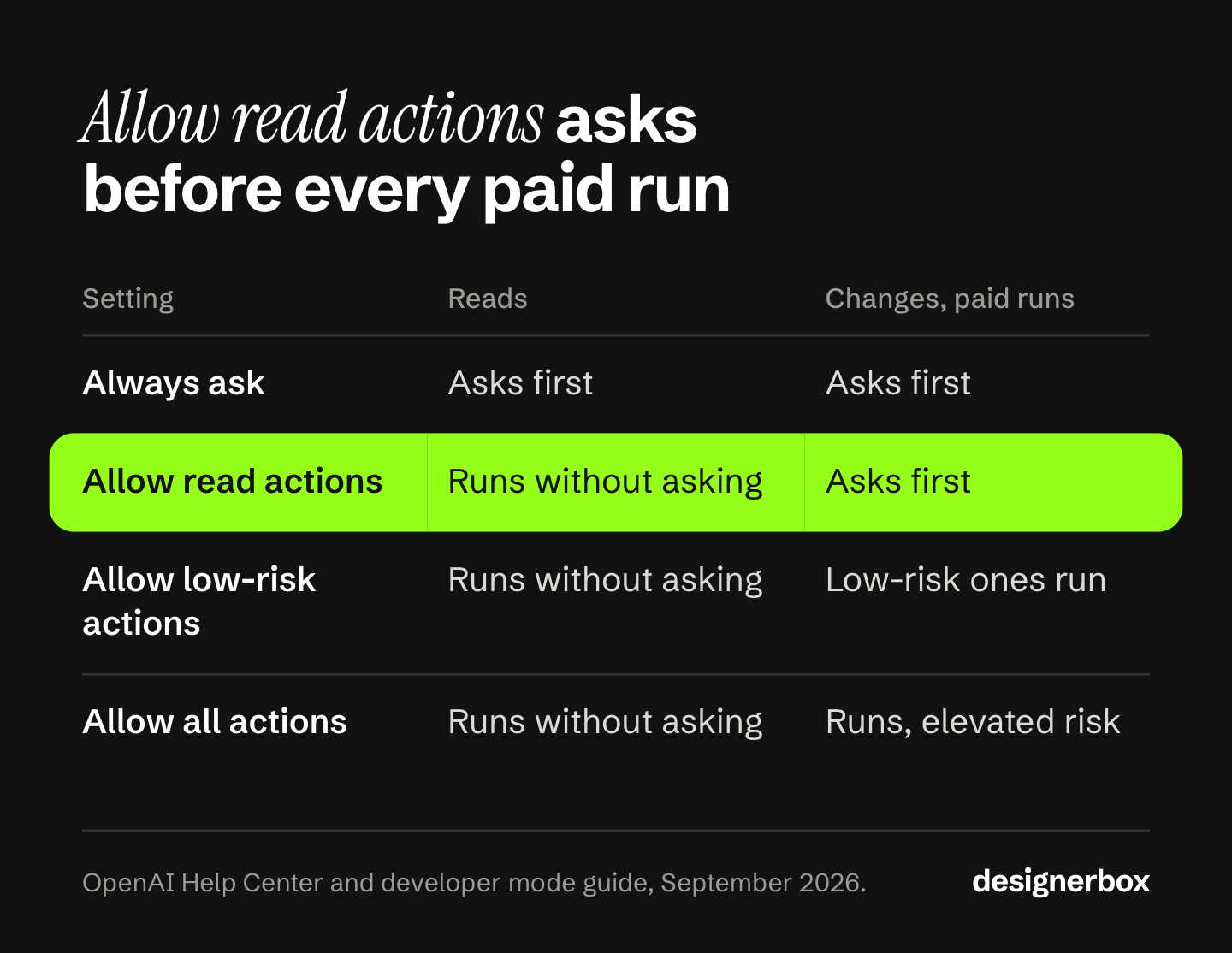
OpenAI’s help center lists four permission levels for an app (help.openai.com, September 2026):
| Setting | Reads | Changes and paid runs |
|---|---|---|
| Always ask | Asks first | Asks first |
| Allow read actions | Runs without asking | Asks first |
| Allow low-risk actions | Runs without asking | Low-risk ones run, higher-risk ones may ask or be denied |
| Allow all actions | Runs without asking | Runs without asking. OpenAI labels this elevated risk |
For a server that spends money, choose Allow read actions. Reading your workspace stays fast, and every paid call still stops for your approval. Open the tool call before you approve it. ChatGPT shows the full input, so you can check the prompt, the model and the settings the call will send.
What risks does OpenAI name?
OpenAI calls developer mode “powerful but dangerous.” Its guide names three risks: prompt injections, model mistakes on write actions that could destroy data, and malicious servers that try to steal information. Its MCP documentation adds that injected instructions can lead a model to send private data to an outside destination (developers.openai.com, October 2026).
Four habits lower the risk:
- Connect servers you already trust with the data. A server sees what its tools read.
- Prefer OAuth. You approve access in a browser, and you can cancel the access later.
- Read the input of every write before you approve it. A wrong call can change or delete work.
- Keep one job per chat. A web page or a file the chat reads can carry hidden instructions.
Why connect an image tool when ChatGPT already makes images?
ChatGPT makes images on every plan. “ChatGPT Images is available on all tiers” (help.openai.com, September 2026), and ChatGPT Images 2.5 launched on 8 September 2026 (openai.com, September 2026). For one picture, the chat is enough.

The work changes when the picture has to repeat. Forty new products need the same hero shot, the same light and the same crop. Each result has to show the real product, with the real label and the real stitching. That job needs the product photos, the brand rules and the approved steps in one place, where the chat can call them.
| The job needs | ChatGPT on its own | ChatGPT with a production server |
|---|---|---|
| Your real product photo | You upload it to the chat | Every asset in your workspace is readable by name |
| Your brand rules | You write them into the chat or its instructions | A brand record the workflow reads before every run |
| The same steps on product 41 | You repeat the prompt | A saved workflow runs the same way on the next product |
| A record of what each run spent | Not part of the chat | Every finished run reports the credits it charged |
The model can be the same in both columns. GPT Image 2 is one of the image models a DesignerBox workflow can pick. For a side-by-side of the chat tools themselves, see how ChatGPT and Gemini image generation compare.
DesignerBox in ChatGPT
Anyone can make an AI picture. Making hundreds that still look like your brand is the hard part.
DesignerBox is AI creative production for brands and agencies. Scale your images, ads and video with AI and keep your brand on every piece: build the workflow once with your brand rules, run it on every product, see the cost before each run, and keep everything from the first product photo to the finished ad in one place.
The DesignerBox server has 68 MCP tools behind one URL:
https://mcp.designerbox.ai/apiUse the five steps above. Paste the URL when you create the app, pick OAuth, and approve the DesignerBox sign-in. Your client then holds a scoped token for 30 days, and you can cancel it in your account (DesignerBox MCP page, September 2026). The connect page shows the same flow for Claude, Cursor and MCP Inspector.
Your chat can run four kinds of job. One job is one picture, one edit or one clip. A workflow holds your brand, your products and your steps in order, and each step returns its own result. An app is a workflow behind a short form: your chat fills the fields, presses Run and follows the run until the results arrive. A list of products runs row by row, and the chat tells you what each row cost. DesignerBox apps explains what an app is and how a colleague runs one.
| You write | The tool ChatGPT calls | What comes back |
|---|---|---|
| ”Using DesignerBox, remove the background from this product photo and give me a transparent PNG.” | remove_background | A PNG with no background |
| ”Using DesignerBox, make a three-quarter view of this product from this photo. Hold the light and the framing.” | photo_angles | The same product from a new angle, in the same light |
| ”Using DesignerBox, make a product ad from this photo for paid social, portrait, with room for a headline.” | product_ad | An ad picture you can run |
| ”Using DesignerBox, list my workflows, then run my product set workflow on this photo and show me each step.” | list_pipelines, then run_pipeline | The result of every step |
| ”Using DesignerBox, create an avatar of a woman in an ivory linen shirt, daylight, looking at the camera.” | create_avatar | Nine poses of one person for 25 credits |
Your active brand profile is readable from the chat, with your logos, fonts and palette in Assets. The workflow reads your brand rules before every run, so nobody has to describe the brand again. The full workflow from the first product photo to the finished ad, in one subscription. The tool reference lists every tool with its arguments, and the DesignerBox MCP launch post groups them by job.
Cost before the run
A chat that runs paid tools needs clear spending rules. DesignerBox’s MCP page lists what a connected chat can and cannot spend (DesignerBox MCP page, September 2026):
- Reading is free. Reading your designs, brand profiles, models and plan charges no credits.
- The price comes first. Your chat can read what each model costs and how many credits you have left before it starts.
- Every run reports its charge. The finished run states the credits it used, in the same answer as the result.
- One charge per retry. A repeated call within five minutes returns the first result instead of charging twice.
- Cancel and refund. Stop an avatar or a video job while it runs, and the credits are refunded.
- The template stays on the server. A template runs by name, and its prompt never goes to the chat.
An 8-second clip costs 40 to 560 credits, depending on the model. Set the DesignerBox app to Allow read actions in ChatGPT, and every paid run waits for you to approve it.
ChatGPT signs in with OAuth, so it needs no API key. A key is for Claude Code, a script or a build server, and how to make your AI agent creative covers that route. Reading your workspace works on every plan, including the free plan.
Uploading your own photos and the commercial license start on the Pro plan. AI video, virtual try-on, upscaling, the image editor and the video editor start on the Premium plan. Team features, shared brand kits and white label are on the Ultra plan, and every plan below Ultra is one seat. Plans and credits are on the pricing page.
Where a chat run stops
- A chat works one row at a time. For a spreadsheet of products, batch runs one workflow over every row inside DesignerBox and shows the results in one view.
- Video is asynchronous. A picture comes back in the same call, and the time depends on the model. For video, your chat submits the job, checks it, then gives you the file. A video timeline takes one to five minutes.
- Results stay in your workspace. They land in Assets, and you download them from there. Nothing goes to a store or a channel on its own.
- MCP apps in ChatGPT are web only. The phone apps do not run them.
- An agency runs many brands. For several clients, one workflow for each client keeps each brand’s rules apart.
The same server works in Claude, and the Claude setup for image work walks through that client. The DesignerBox MCP server page has the URL and the full tool list.
There is a free plan, and it runs on sample products. Start from a template and run the first job from your chat. Get started free.
FAQ
How do I add an MCP server to ChatGPT?
Turn on Developer mode in Settings, under Security and login. Open Plugins, press the plus button, paste the server URL and choose the sign-in type. Approve the sign-in. In a chat, choose Developer mode from the plus menu and select the app.
Which ChatGPT plans support MCP servers?
OpenAI’s developer guide lists Pro, Plus, Business, Enterprise and Education accounts on the web. Its help center calls full MCP, including write actions, a beta for Business, Enterprise and Edu, and says Pro users can connect servers with read and fetch permissions. On a Business workspace, an admin turns on developer mode first.
Can ChatGPT connect to a local MCP server?
Not directly. ChatGPT connects to remote servers by URL, over SSE or streaming HTTP. For a server on a private network or a developer’s computer, OpenAI’s help center points to its Secure MCP Tunnel.
Does ChatGPT ask before an MCP tool changes something?
Yes, by default. ChatGPT treats every tool without a read-only mark as a write action and asks you to confirm it. You can change this per app, from Always ask to Allow all actions. OpenAI labels the last setting elevated risk.
Is it safe to connect an MCP server to ChatGPT?
It carries real risk, and OpenAI says so. Its developer guide names prompt injections, model mistakes on write actions and malicious servers that try to steal information. Connect servers you trust, prefer OAuth, and read the tool input before you approve a write.
Can ChatGPT run DesignerBox workflows?
Yes. Once DesignerBox is connected, ChatGPT can list your workflows and run the one you name, and each step returns its own result. It can also run an app by filling the form fields. A whole spreadsheet of products runs as a batch inside DesignerBox.
Does reading my DesignerBox workspace from ChatGPT cost credits?
No. Reading your designs, brand profiles, models and plan charges no credits. A run charges credits, the cost is shown before the run, and the finished run reports what it charged.
Sources
- ChatGPT developer mode: plans, menu path, transports, sign-in types, write confirmations, the “readOnlyHint” rule and the risk warning: developers.openai.com, read October 2026
- Full MCP beta for Business, Enterprise and Edu, admin enablement, Pro read and fetch access, web only, local servers: help.openai.com, updated August 2026
- Plugins as the current menu name, and Apps on old phone apps: help.openai.com, updated September 2026
- The four app permission levels: help.openai.com, updated September 2026
- MCP risks and data sent to an outside destination: developers.openai.com, read October 2026
- ChatGPT Images on all tiers: help.openai.com, updated September 2026. ChatGPT Images 2.5 launch on 8 September 2026: openai.com
- Remote MCP in the Responses API, 21 May 2025: openai.com
- MCP definition: modelcontextprotocol.io, read October 2026. The 2026-07-28 protocol version: modelcontextprotocol.io, read October 2026. MCP release in November 2024: anthropic.com
- DesignerBox MCP server, tool count, cost and control rules, and client setup: DesignerBox MCP page and tool reference, September 2026. Plan gates: DesignerBox pricing, September 2026
ChatGPT menu names, plan access and permission levels verified against OpenAI’s developer guide and help center as of September 2026. OpenAI’s developer mode guide and MCP risk page, and the two Model Context Protocol pages, were re-checked on 2 October 2026. OpenAI changes these menus often, so check your own settings. DesignerBox tool and cost facts verified against the DesignerBox MCP page as of September 2026.