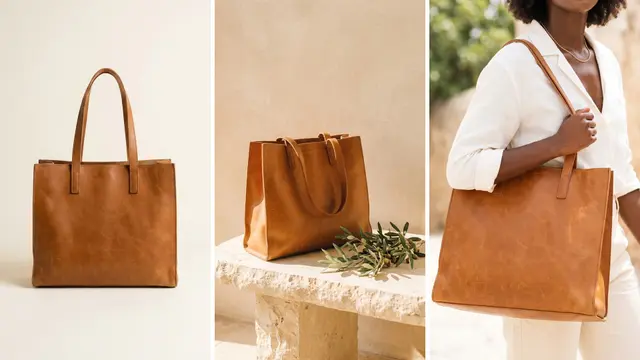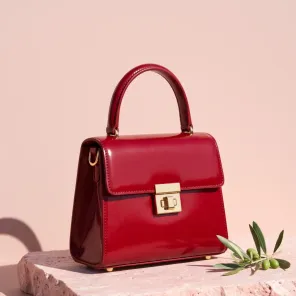

To show one product in every color you sell with DesignerBox, open Automation, then Apps, and run Product in other colors. You add one product photo and type the colors. The app returns one picture for each color and saves them to Assets. You hold each picture beside a real sample and keep the ones that match. Then you run the rest of the range in Batch.
A ceramics shop makes one mug in six glazes. Photographing every glaze means six setups and six chances for the light to change. So the shop photographs one mug well and uses Product in other colors for the other five glazes. Each picture then has to match the glaze a buyer receives.
Key Takeaways
- One picture for each color. Product in other colors takes a product photo and the colors, and it returns one picture for each color.
- The range runs as one sheet. Batch runs the app on up to 200 rows, one product per row, and you keep or discard each result.
- Only colors you stock. A picture of a color you do not stock misleads a buyer.
- A real sample is the test. Hold every picture beside a real sample or swatch in the same light, because screens and glazes differ.
- Marketplaces judge the color. Amazon says the color in a clothing image must match the product for sale. Etsy lists changing a product’s actual color as a prohibited edit.
- Your brand record holds your colors. Brand stores your logo, named colors and up to 6 fonts next to your products.
Product colors and who needs them
The job is one picture for every color of one design, each one true to the real product. Brands that sell one design in several colors have it: ceramics, bags, apparel and homeware. A brand with 20 to 500 products feels this most, because one new color touches many listings at once.
The trigger is a new color, a new season, or a sample that arrives in one color only. When the job is done, every color has its own picture in the same light and framing. Without it, a team shoots every color, or shows one color with a row of small swatches.
Marketplaces ask for a picture of each color too. Amazon’s clothing guide says “You must supply a child main image for every color that you sell” (Amazon clothing image guide, October 2026). On pages with several versions, Amazon also shows a swatch image, which is usually a color sample (Amazon product image guide, October 2026).
The surfaces for product colors
Three parts of DesignerBox do this job. Brand keeps the names in one place.
| Surface | What you add | What you get | Plan |
|---|---|---|---|
| Product in other colors (app) | A product photo and the colors | One picture for each color | Every plan |
| Batch | A sheet of up to 200 rows | The app run on every product | Every plan |
| Brand | Logo, named colors, up to 6 fonts and your products | Your colors and products saved once | Every plan |
Product in other colors runs in the app now. An app is a ready workflow behind a short form, so you see the form and never the steps. The apps page lists it with the other apps. Our guide to DesignerBox apps explains how apps work.
In Brand, you can add each product with a name, one photo and a short note. Use the note for the colors you stock, so the whole team works from one list. The Brand page shows what a brand holds.
A first run, step by step
Start with one product and one new color you can hold in your hand.
- Photograph the product once. Use even light and sharp focus. Where you can, shoot a mid-tone color, because a very dark or very light color shows less texture.
- Photograph each sample. Take a photo of each other color’s sample or swatch in the same light. That photo is your target.
- Open the app. Open Automation, then Apps, and open Product in other colors. Press “Try it with a sample” to see a result before you use your own photo.
- Add the photo and the colors. Type each color the way your store names it. If the name is unusual, add a plain word for the shade, such as “oxblood, a dark red”.
- Read the price, then run. The price is on the Run button. Press Run.
- Compare. The results are saved to Assets, one picture for each color. Open each one beside its sample photo.
In the ceramics example, the shop runs this once on its best mug. It types the five glazes it stocks and gets five pictures. Then it holds each picture beside a fired sample of that glaze.
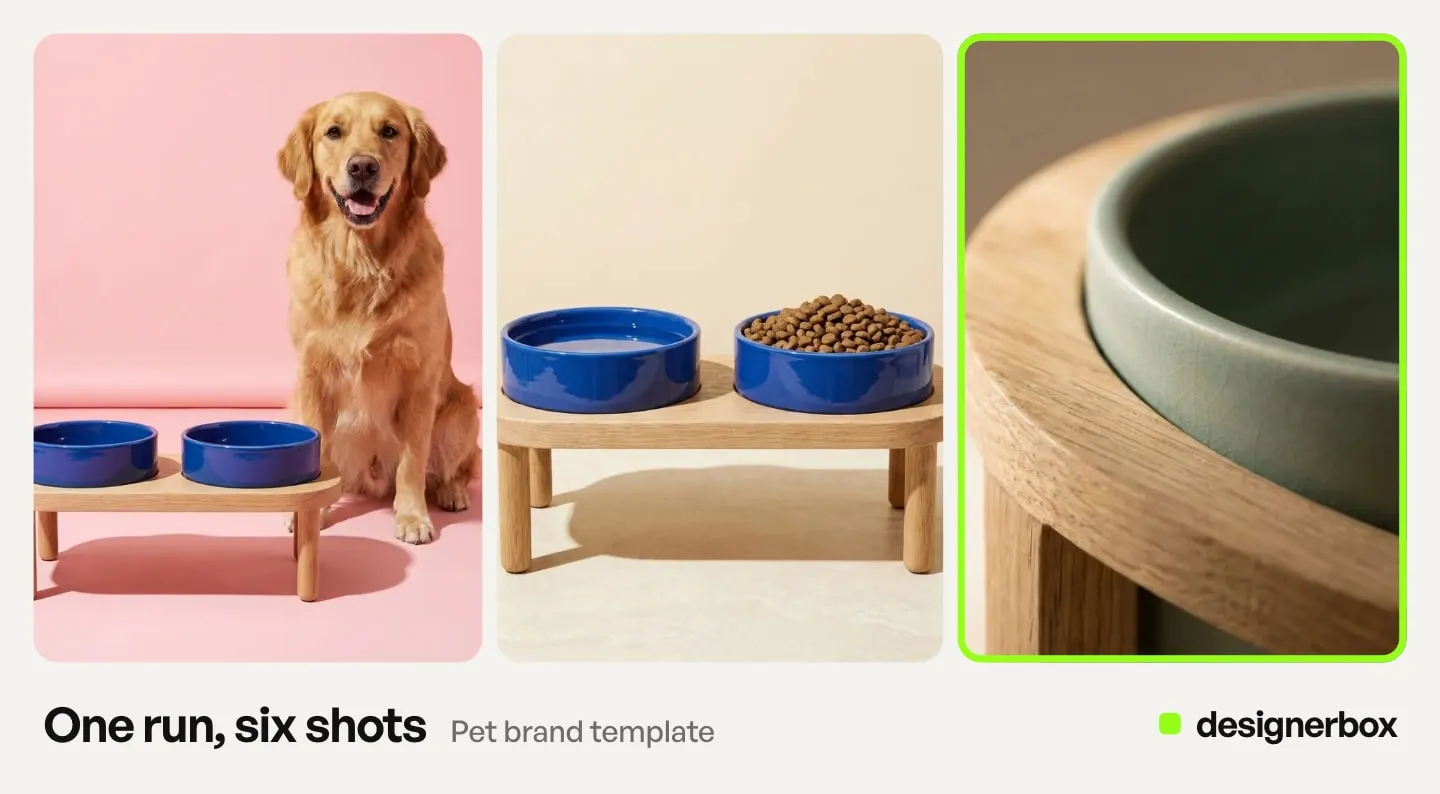
The second product and the whole range
The second product is the same form with a new photo and the same color names. Keep the names the same across products, so a buyer sees one “sage” across the shop.
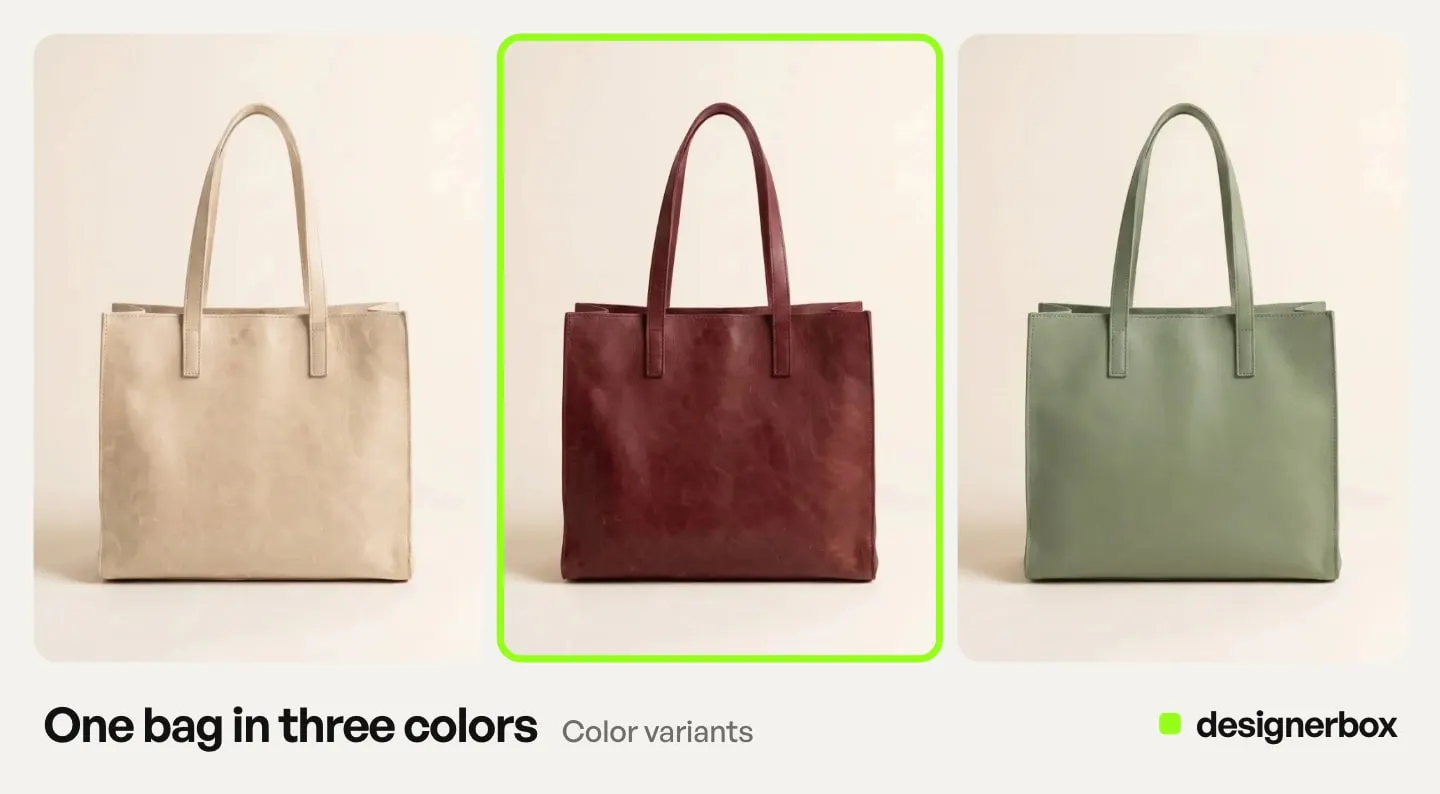
For a whole range, use Batch. Open Automation, then Batch, and choose Product in other colors as the app to run. Upload the product photos, and each picture becomes its own row. Each row holds its own instructions, such as the colors. One batch holds up to 200 rows.
Before you run, the sheet shows the rows that are ready and the credits for the run. You choose 1 to 4 runs per row. Over 20 runs, DesignerBox asks you to confirm first. Our guide to DesignerBox Batch covers the sheet in detail.
In the ceramics example, 12 mugs in five glazes make 12 rows and 60 pictures to check. That count is illustrative.
When the job needs more steps, such as a remove background step, build it as a workflow. Workflows read your brand rules. Publish the workflow as an app, and a colleague runs it from a short form. Once each color has a true picture, listing pictures for every product covers the rest of the gallery.
Checking each color against the real product
A color that looks right on your screen can look wrong in the box. Screens show color in different ways, and a glaze, a dye or a leather finish changes with the light. Our guide to color theory in photography explains why one color reads differently from screen to screen.
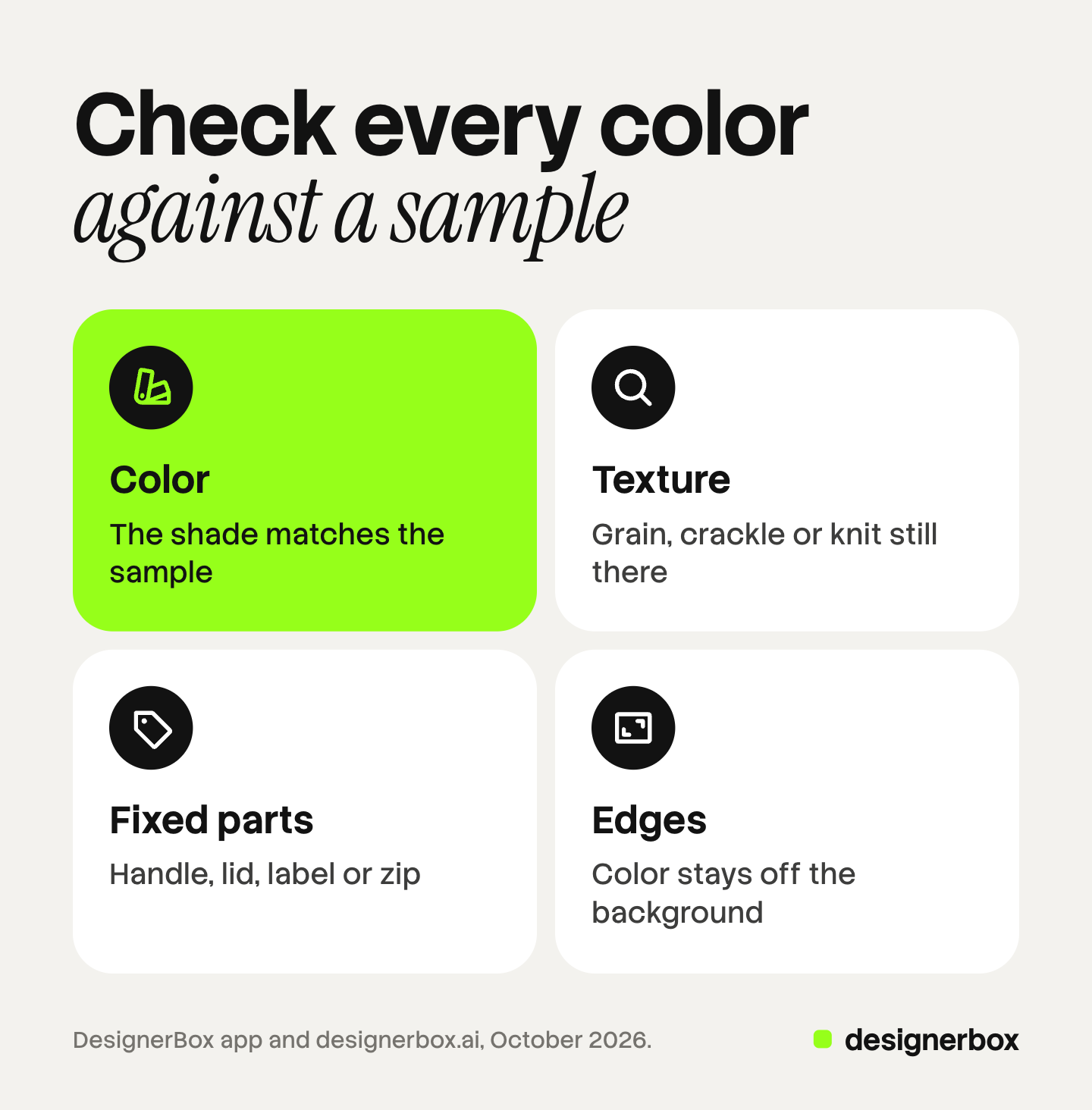
Check every picture against the real sample, in the same light as your product photo, at full zoom. Look at four things.
- Color. The shade matches the sample, not a near shade.
- Texture. The grain, crackle or knit is still there.
- Fixed parts. The handle, lid, label or zip keeps its own color.
- Edges. The new color stays off the background and the next object.
Look at the shadows too, because they can keep a trace of the old color. Keep a picture only when all four checks pass. Discard the rest, then run that color again or photograph it.
In Batch, you keep or discard each result with the J and K keys. Sometimes a label or logo changes in the run. The Fix the product app puts your real label back from your real product photo. For clothing, our guide to AI clothes color changers shows how to measure the gap between a picture and a fabric swatch.
Your production lead may know the colors best. Send the kept pictures for review, and they tick the ones that match from a phone. A review costs no credits, and the link works for 30 days.
Limits of product color pictures
These are the limits as of October 2026.
- Only colors you stock. A picture of a color you do not stock misleads a buyer. Keep planned colors out of your listings until the product exists.
- The app has never seen your glaze. It makes the color you describe. Your real sample is the check.
- Etsy limits color edits. Etsy updated its listing image policy on 22 October 2026. It lists “Changing the product’s actual color, texture, or condition” as a prohibited edit (Etsy Listing Image Requirements, October 2026). For most products, it also asks for one unedited photo of the actual item. Read the policy before you add a recolored picture to an Etsy listing.
- Amazon clothing wants photos. Amazon’s clothing guide says “The color in the image must match the product for sale.” For the main image, it says “Only photos are allowed.” Read the guide before you add an edited picture there.
- One color for each main image. Amazon’s clothing guide does not allow several colorways in one main image, unless they sell together as a multipack. Each color gets its own picture.
- No upload to a store. DesignerBox does not upload to a marketplace or a store. You download the pictures you keep.
This is general information, not legal advice.
Product colors in DesignerBox
Anyone can make an AI picture. Making hundreds that still look like your brand is the hard part. Product in other colors makes one picture for each color, and Batch does the same for the whole range. The color pictures, your brand record and the batch run sit in one account.
Apps, Batch and Brand run on every plan. There is a free plan, and it runs on the sample products. Uploading your own photos and the commercial license start on the Pro plan. Plans are on the pricing page.
The page for ecommerce brands shows how a whole store uses DesignerBox. Start with one product and one sample you can hold. Get started free.
FAQ
Can DesignerBox show my product in other colors?
Yes. The Product in other colors app takes one product photo and the colors you type. It returns one picture for each color, and the pictures are saved to Assets.
Will the new colors match my real product?
Not always. The app makes the color you describe, and it has never seen your real glaze or dye. Check each picture beside a real sample in the same light, and keep only the ones that match.
Can I make color pictures for many products at once?
Yes. Run Product in other colors in Batch, with one product on each row. One batch holds up to 200 rows, and you keep or discard each result with the J and K keys.
Can I use recolored product pictures on Etsy?
Read Etsy’s policy first. Its listing image policy, updated on 22 October 2026, lists changing a product’s actual color as a prohibited edit. For most products, it also asks for one unedited photo of the actual item.
Should I show a color I do not stock yet?
No. A picture of a color you do not stock misleads a buyer. Keep it for planning until the product exists.
What does a color run cost?
The cost is shown before the run. For one product, the price is on the Run button. For a batch, the sheet shows the credits before you run.
Sources
- Amazon Seller Central, Image guidelines for clothing: a child main image for every color, the color must match the product for sale, only photos in the main image, no several colorways in one main image, accessed October 2026
- Amazon Seller Central, Product image guide: swatch images and the rule that images represent the real color of the product, accessed October 2026
- Etsy, Listing Image Requirements: the unedited photo rule and the prohibited edit on a product’s actual color, last updated 22 October 2026, accessed October 2026
- DesignerBox Apps page (designerbox.ai/product/apps), October 2026: Product in other colors, “Try it with a sample” and the price on the Run button
- DesignerBox Brand page (designerbox.ai/product/brand), October 2026: products, named colors and up to 6 fonts
- DesignerBox Batch page (designerbox.ai/product/batch), October 2026: up to 200 rows, 1 to 4 runs per row, the confirm step and the J and K keys
- DesignerBox pricing page (designerbox.ai/pricing), October 2026: plan gates
- The DesignerBox app, read October 2026: the Apps, Brand, Batch and Reviews pages
DesignerBox features verified in the app and on designerbox.ai as of October 2026. Results vary by product and model.