When an AI picture gets your label or logo wrong, run the Fix the product app in DesignerBox. You add the picture and your real product photo. The app returns the same picture with your real label and logo. Then compare the result with your real product photo at full size. Read it letter by letter before you use it.
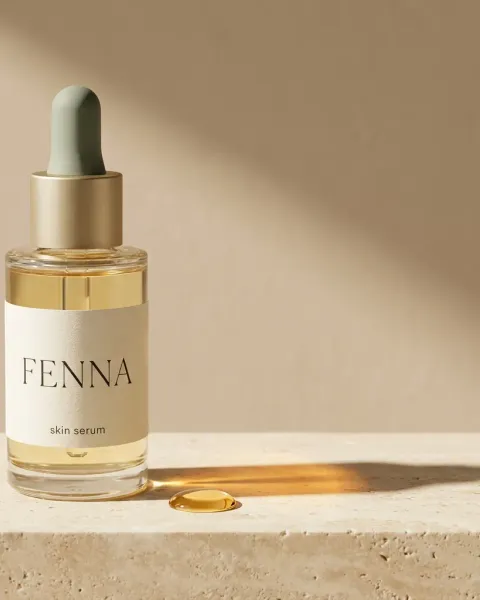
Say you made eight scene pictures for a new night serum. At thumbnail size, the bottle looks right. At full size, the label reads “Hyaluronlc” and the logo has lost a letter. The cap is gold, and yours is black. A shopper who looks closer sees a product you do not sell.
Key Takeaways
- One app repairs the pack. Fix the product takes a picture and your real product photo. It returns the picture with your real label and logo.
- You save the real product once. Brand products hold the name, kind, one photo and a short note. When you pick the brand in Create, the chat puts your real product in the picture.
- Small fixes have two more routes. The Edit a picture skill in Create changes a picture you attach. The image editor changes one part with a sentence or a brush.
- Critic steps pick, and you check. In a workflow, critic steps score several results and keep the best. You still compare the result with the real product photo.
- No result is checked for you. DesignerBox gives no pass rate. Check every result yourself before it goes into a listing or an ad.
The label job and who has it
This job belongs to any brand with packaged or branded products: beauty, food and drink, supplements or homeware. The words on the pack are part of the product. The name, the flavor, the size and the logo tell the shopper what arrives.
The job is simple: the picture is good, but the label is wrong, and you want your real label back without starting again. Today the choice is a retoucher, a new run that may break something else, or no picture at all.
It happens because an image model redraws the product. It does not copy your pack letter by letter, so small text and logos drift first. Our guide to AI product photo accuracy explains why text breaks and how to test a model on your hardest product.
Marketplaces judge the result, whatever made it. Amazon asks that every product image “accurately represent the product that you’re selling” (Amazon product image guide, October 2026). Walmart says “Images generated by artificial intelligence must be truthful, accurate and not misleading” (Walmart Marketplace Learn, October 2026).
Four ways an AI picture gets the product wrong
Name the fault before you fix it. Each one needs a different check.
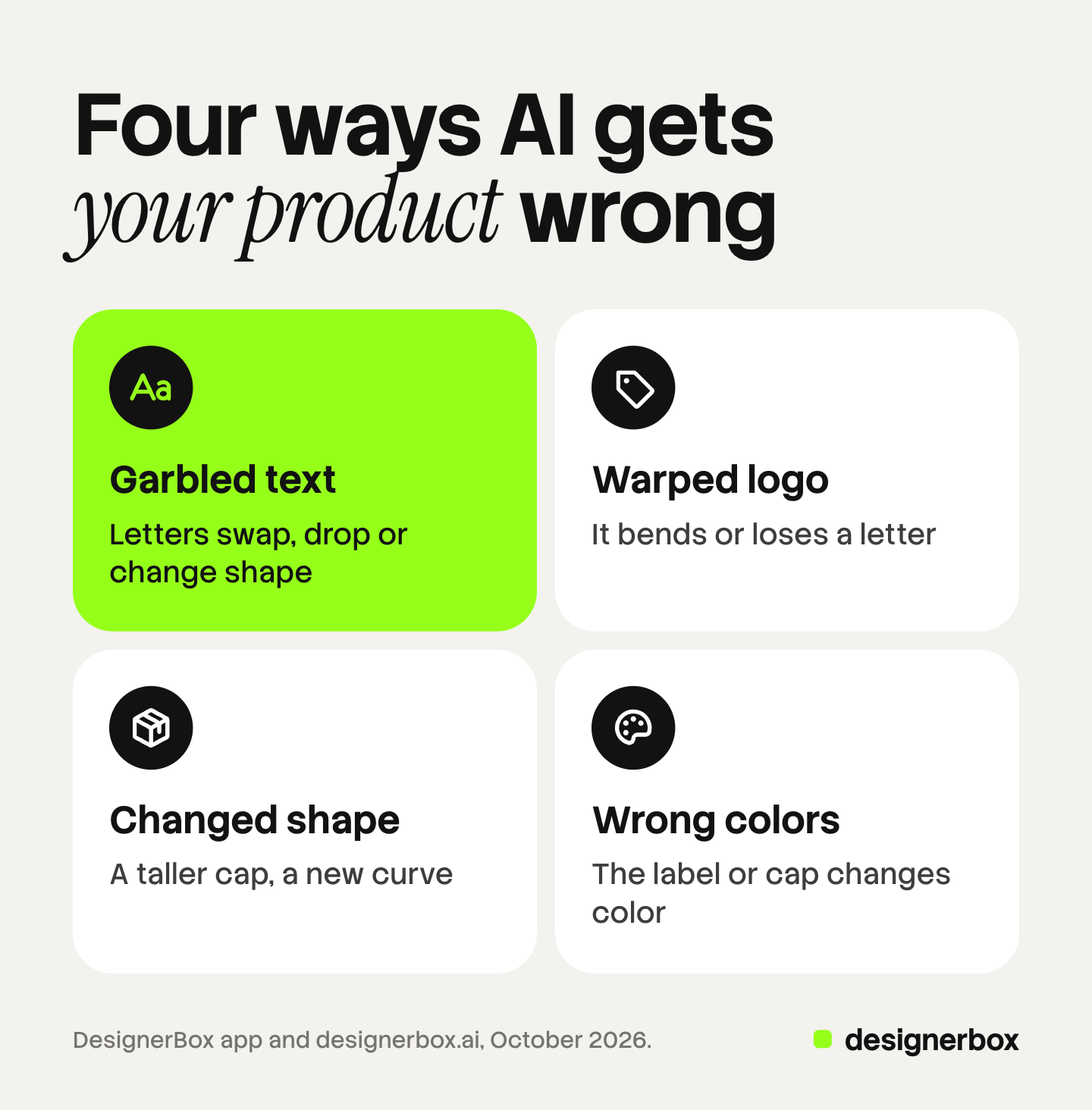
- Garbled text. Letters swap, drop or change shape. “Hyaluronic” becomes “Hyaluronlc”. Small print, such as an ingredient list, is the worst case.
- Warped logo. It bends or loses a letter, or a similar mark replaces it. A logo that wraps around a round jar is the hardest.
- Changed shape. You get a taller cap, a new curve on the bottle, or a dropper where your pack has a pump.
- Wrong colors. The label or cap changes color. Warm scene light can make a white label look cream.
At thumbnail size, all four can pass. At full size, a shopper can see each one.
Surfaces that fix the product
Five parts of DesignerBox handle this job. You find apps under Automation, then Apps.
| Surface | What you add | What you get | Plan |
|---|---|---|---|
| Fix the product app | A picture and your real product photo | The picture with your real label and logo | Every plan; your own photo from Pro |
| Brand products | Name, kind, one photo, a short note | Your real product, saved once | Every plan |
| Edit a picture skill in Create | A picture you attach and the change in a sentence | The picture with that change | Every plan; your own picture from Pro |
| Image editor | A picture, then a sentence, a brush or your logo | One part changed, the rest kept | Premium |
| Critic steps in a workflow | Several results from one run | The best one, kept | Every plan |
Use Fix the product when the scene is right and only the pack is wrong. Use Edit a picture when the fix fits in one sentence, such as “make the cap black”. Use the image editor for a manual touch: mark the part with a brush, or place your logo by hand. The image editor offers your brand logo.
Every app card says what you add, what you get and what it costs. Our guide to DesignerBox apps explains how an app works, and the Apps page lists them all.
First run on one wrong picture
Start with the picture that has the worst label.
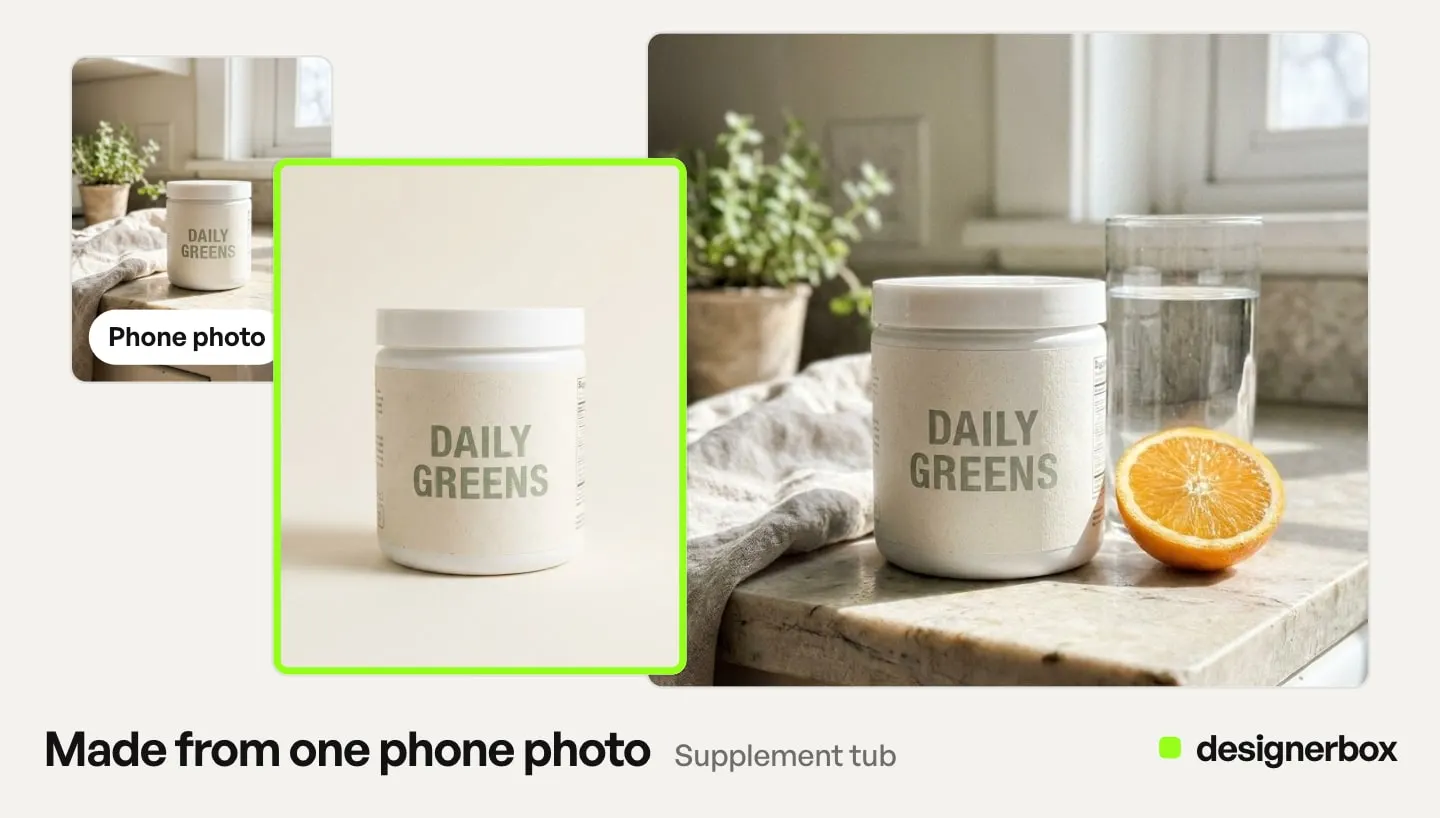
- Find your real product photo. Use a sharp, straight-on photo of the pack where every letter reads. A letter you cannot read in your photo is a letter you cannot check in the result.
- Save it in Brand. Open Workspace, then Brand, and add the product with its name, its kind, the photo and a short note.
- Open the app. Go to Automation, then Apps, and open Fix the product. Press “Try it with a sample” first if you want to see what it does.
- Add both pictures. Add the AI picture with the wrong label, then your real product photo.
- Read the price and press Run. The price is on the Run button. The result is saved in Assets.
- Compare at full size. Put the result next to your real product photo and check all four faults.
- Fix what is left. If one small part is still wrong, change it with Edit a picture in Create. Or fix it by hand in the image editor.
The second and the twentieth picture
Prevention starts in Brand. Save each product once on the Brand page. When you pick the brand in Create, the chat puts your real product in the picture. Generate can also take a saved product from Brand as a reference picture.
For a job you repeat, build it as a workflow. Workflows read your brand rules, so write a rule such as “The label must match the product photo.” Add critic steps (designer, photographer, emotion, ad director). They score several results and keep the best. Keep your own label check after them. Our guide to DesignerBox critic steps shows where they sit in a workflow.
Publish the workflow as an app, and a colleague runs it from a short form. When a whole set needs the same fix, Batch runs an app over many rows. Each row holds its own pictures, and one batch holds up to 200 rows. You keep or discard each result with the J and K keys.
Anyone can make an AI picture. Making hundreds that still look like your brand is the hard part. Your saved products, the scene pictures, the label fix and the image editor sit in one account.
Checks before a fixed picture is used
Compare every result with your real product photo before it goes into a listing or an ad. Open both at full size, side by side.
- Read the label. Read every word, letter by letter, small print included.
- Check the logo. Look at its shape, its letters and its place on the pack.
- Check the outline. Compare the cap height, the curve of the bottle and the pump or dropper.
- Check the colors. Compare the label and the cap with the photo, never with your memory.
If a result fails any check, discard it. Then run the app again, or fix the one part by hand. To let a client choose among the fixed pictures, send them for review, as our guide to DesignerBox Reviews explains.
Limits of a label fix
These are the limits as of October 2026.
- No pass rate. DesignerBox does not promise that every fixed label is right. Some results need a second run or a fix by hand.
- A sharp photo matters. Use the sharpest pack photo you have, so you can read every letter when you check.
- Regulated text needs a real photo. For a supplement facts panel, an ingredient list or a dosage panel, use your real photo of that side. Do not rely on a redrawn panel.
- The app works on pictures. It takes a picture and returns a picture.
- Nothing goes to your store on its own. You download the results, or send them with a webhook or an S3 step.
Our guide to product photo retouching covers the cleanup around a fix, such as dust, glare and color. To change the words on a picture on purpose, see our guide to editing text in an image.
Label fixes in DesignerBox
Apps, workflows, batch and brand are on every plan. There is a free plan, and it runs on the sample products. Fix the product needs your real product photo, and uploading your own photos starts on the Pro plan. The commercial license starts there too. The image editor starts on the Premium plan. Plans and credits are on the pricing page.
Press “Try it with a sample” on Fix the product first, and see what the app returns. Get started free
FAQ
Why does AI get the text on my label wrong?
An image model redraws the product. It does not copy your pack letter by letter, so small text and logos drift first. Check every result against your real product photo.
How do I fix a logo in an AI image?
In DesignerBox, run the Fix the product app with the picture and your real product photo. For one small part, use Edit a picture in Create or the image editor. Then compare the result with your real photo.
Does Fix the product work on the free plan?
The free plan runs on the sample products, so you can see what the app does. To fix a picture of your own product, you add your real product photo. Uploading your own photos starts on the Pro plan.
Does DesignerBox check the label for me?
No. Critic steps in a workflow score several results and keep the best, but DesignerBox gives no pass rate. You compare every result with your real product photo before you use it.
What does the app cost to run?
The price is on the app card and on the Run button. The cost is shown before the run.
Can I stop AI from changing my label?
Save the product in Brand with its name, kind, one photo and a short note. When you pick the brand in Create, the chat puts your real product in the picture. You still check each result.
Can I use a fixed picture on Amazon or Walmart?
Both ask for pictures that show the product truthfully. Amazon asks that every image accurately represent the product. Walmart says AI images must be truthful, accurate and not misleading. Check the result against the real pack first.
Sources
- DesignerBox Apps page (designerbox.ai/product/apps), October 2026: Fix the product, “Try it with a sample” and the price on the Run button
- DesignerBox Brand page (designerbox.ai/product/brand), October 2026: products with a name, kind, one photo and a short note
- DesignerBox image editor page (designerbox.ai/product/image-editor), October 2026
- DesignerBox Workflows page (designerbox.ai/product/workflows), October 2026: critic steps and Publish as app
- DesignerBox Batch page (designerbox.ai/product/batch), October 2026: up to 200 rows, keep or discard
- The DesignerBox app, read October 2026: the Edit a picture skill in Create, Generate, Assets and Reviews
- DesignerBox pricing page (designerbox.ai/pricing), October 2026: plan gates
- Amazon Seller Central, Product image guide, read October 2026: requirements for all product images
- Walmart Marketplace Learn, Product detail page image guidelines and requirements, read October 2026
DesignerBox features verified in the app and on designerbox.ai as of October 2026. Results vary by product and model.