An AI clothes color changer finds a garment in a photo and gives it a new color, while the folds, shadows and fabric texture stay. Tools take the new color in one of four ways: a manual color range, a swatch or HEX code, a text prompt, or a reference image. For a product listing, the new color has to match the real fabric you ship.
Here is the case this guide is for. A jacket comes in six colors, and the sample at the shoot was black. Amazon’s clothing guide says you must supply a main image for every color you sell, and that the color in the image must match the product. That is six main images from one sample, before a single alternate view.
This guide is for apparel brands and for the agencies that make their listing images. It compares eight recolor tools by how they take the new color. It sets out what Amazon, Google, Etsy and Walmart ask of a colorway image. It also gives you a check against the physical fabric, to run before a file goes live. For the wider view of AI imagery in apparel, see product photography for fashion brands.
Key Takeaways
- Every color needs its own image. Amazon asks for a main image for every color you sell. Google recommends a unique image for each color variant.
- The method sets your control. Photoshop uses a manual color range. Fotor and Pixelcut use a swatch or HEX code. Claid, Photoroom, Canva and Pincel use a text prompt. Evoto adds a reference image and batch.
- Match the real fabric. Photograph a swatch of each colorway in the same light as the product photo, and match the recolor to that photo.
- Measure the gap. CIEDE2000 is a CIE standard formula for color difference. Instrument makers put the first noticeable difference at a Delta E of about 1.
- Decide what keeps its color. Before you recolor, list the zips, trims, stitching, prints and logos that stay in their original color.
- Recolor only colors you produce. Until a colorway exists, its recolor is a preview.
- Save the setup. In DesignerBox a recolor is one instruction in the image editor. A saved workflow runs the same way on the next product, and the cost is shown before the run.
What an AI clothes color changer does
An AI clothes color changer is a targeted image edit. You mark the garment, or the tool finds it for you. You give the new color. The tool repaints that area and leaves the rest of the photo alone. The folds, shadows and highlights should stay where they were, so the garment reads as the same fabric in a different dye.
Two kinds of edit sit under the same name. The first shifts the color of the pixels that are already there. The texture survives because nothing is redrawn, but there is little to shift in black or very dark fabric. The second is a generative repaint: a model redraws the garment area in the new color. It can move from dark to light, and it can also redraw a knit, a seam or a print in a slightly different way.
A recolor keeps the garment and changes its color. If the garment itself has to change, for example a jacket over a different base layer, that is a different edit. It is covered in changing clothes in a photo with AI.
AI clothes color changer tools compared
The table covers eight tools, plus DesignerBox in the last row. They differ most in where the new color comes from, and that decides how close the first result gets to a real dye. Every cell comes from the vendor’s own page, read on 16 September 2026. DesignerBox is ours, so read its row with that in mind.
| Tool | How you pick the area | Where the new color comes from | What the vendor says it keeps | Batch or API |
|---|---|---|---|---|
| Adobe Photoshop | Color Range with the Eyedropper, or any selection | A Hue/Saturation layer, Replace Color, or a Generative Fill prompt | Not stated | Not stated |
| Fotor | A listed item such as a dress, or a prompt | A palette or a HEX code | Folds, shadows and textures | Not stated |
| Pixelcut | Automatic mask, several items at once | A color you select | Not stated | Not stated |
| Claid.ai | A text prompt | A text prompt | Folds, shadows and lighting | API |
| Photoroom Recolor | A prompt that names the parts to change | A chosen color and a prompt | Fabric texture, stitching and shadows | Batch |
| Canva Magic Edit | Brush, click or the whole image | A text prompt | Not stated | Not stated |
| Pincel Reimagine | Brush | A text prompt | Outlines, in Keep Outlines mode | Not stated |
| Evoto | Auto-detect, select or describe | A target color or a reference product image | A keep, recolor or remove choice for prints and logos | Batch |
| DesignerBox (ours) | An instruction in the image editor | A text instruction | The outline, when an instruction asks for one change | A saved workflow; batch is coming |
“Not stated” means the vendor’s page did not say it when we checked. It does not mean the tool cannot do it.
Manual color range: Adobe Photoshop
Photoshop is the manual route. Select > Color Range picks a hue with the Eyedropper, and the Fuzziness slider sets how wide the selection is. A Hue/Saturation layer or Replace Color then changes that color. Generative Fill is the second route: you select an area and describe the change, or upload an example image (adobe.com, September 2026). The result depends on the person making the selection.
Swatch or HEX code: Fotor and Pixelcut
Fotor lets you pick an item, such as a dress or a shirt, or describe an area in a prompt. You choose a color from a palette or type a HEX code, and Fotor says the edit keeps folds, shadows and textures. It works online and on iOS and Android (fotor.com, September 2026).
Pixelcut masks the garment for you and finds several items at once, such as a shirt and shorts. You select the new color. It runs online and on iPhone and Android. Its recolor page does not mention HEX codes or texture (pixelcut.ai, September 2026).
Text prompt: Claid, Photoroom, Canva and Pincel
Claid is built around colorways. Its page says you shoot once, generate the other colors, and preview them on real product photos before production. You name the garment and the color in a prompt, and several items change in one prompt. Claid suggests instructions such as “keep knit texture”, and it recommends making 2 to 3 options and picking the closest match. It runs on the web and through an API (claid.ai, September 2026).
Photoroom’s Recolor takes a chosen color and a conversational prompt, and Photoroom says it keeps fabric texture, stitching and shadows (photoroom.com, September 2026). Its help center says Recolor is designed for single color products for now, and may also work with white, gray or black trims. Recolor also runs in Photoroom’s Batch tool (help.photoroom.com, September 2026). Canva’s Magic Edit changes an area you brush or click, from a prompt such as “change jacket to blue”. Canva notes that results sometimes have a light direction, color or style that does not match. It also says the brushed or selected part is more pixelated than the rest of the photo (canva.com, September 2026). Pincel’s Reimagine tool uses a brush and a prompt, and its default Keep Outlines mode keeps the outlines of products and clothing. Pincel says it does not take reference photos in place of prompts (pincel.app, September 2026).
A prompt names a color in words, so “emerald” is the model’s idea of emerald. Check it against the real fabric.
Reference image and batch: Evoto
Evoto detects the garment, or you select or describe it. You pick a target color, or upload a reference product image for color matching. You choose whether patterns, stripes, prints and logos are kept, recolored or removed, and you apply the same settings to many photos at once (evoto.ai, September 2026). A reference photo carries its own light, so shoot it in the same setup as the product photo.
What Amazon and Google ask of a colorway image
Amazon asks for a main image for every color you sell, and the color in it must match the product. Google recommends a unique image for each color variant, with the correct color, pattern and material. The rules create the need for colorway images, and the same rules set the test. The image has to show the color the customer receives.
| Platform | What it says | Rule or advice |
|---|---|---|
| Amazon product image guide | The main image should “accurately represent the real scale, quantity, and color of the product” | Rule |
| Amazon clothing image guide | ”You must supply a child main image for every color that you sell.” “The color in the image must match the product for sale.” | Rule |
| Google Merchant Center | Submit a unique image for each variant. “The green couch should not use an image of the blue couch.” | Best practice |
| Google Merchant Center | Images created with generative AI must keep their AI metadata | Minimum requirement |
| Etsy | Original photos of the actual product buyers receive, not renderings or stock photos, with listed exceptions | Rule |
| Walmart | Images generated by AI “must be truthful, accurate and not misleading” | Rule |
| TikTok Shop | Placeholders and digital renderings of a product are not allowed | Rule |
Every row was read on the platform’s own page in September 2026.
Two more details matter for recolors. Amazon’s clothing guide allows only photos, and it does not say how a photo edited with AI is treated. An Amazon staff member wrote on the seller forums that simple AI retouching, such as color correction, is generally treated like traditional photo editing (Amazon seller forums, accessed September 2026). That is a forum reply, not a policy page. A new colorway is also a bigger change than a color correction.
In the EU, Article 50 of the AI Act has applied since 2 August 2026. The Commission’s guidelines, which are not binding, say color correction usually has only a minor effect. They also say an AI product image can be a deep fake if it can mislead people about how the real product looks (European Commission, accessed September 2026). If you publish a deep fake, Article 50 requires you to say it is AI-generated or AI-edited (Commission FAQ, accessed September 2026). For the rules channel by channel, see what each marketplace allows for AI product photos. This is general information, not legal advice.
Recolor or reshoot
Recolor when the colorway exists, you have its fabric to compare, and the texture, prints and trims survive the edit. Reshoot when the color is not produced yet, when the change is from very dark to light and the texture does not hold, or when the garment’s sheen looks painted at full zoom. The table below sorts the common cases.
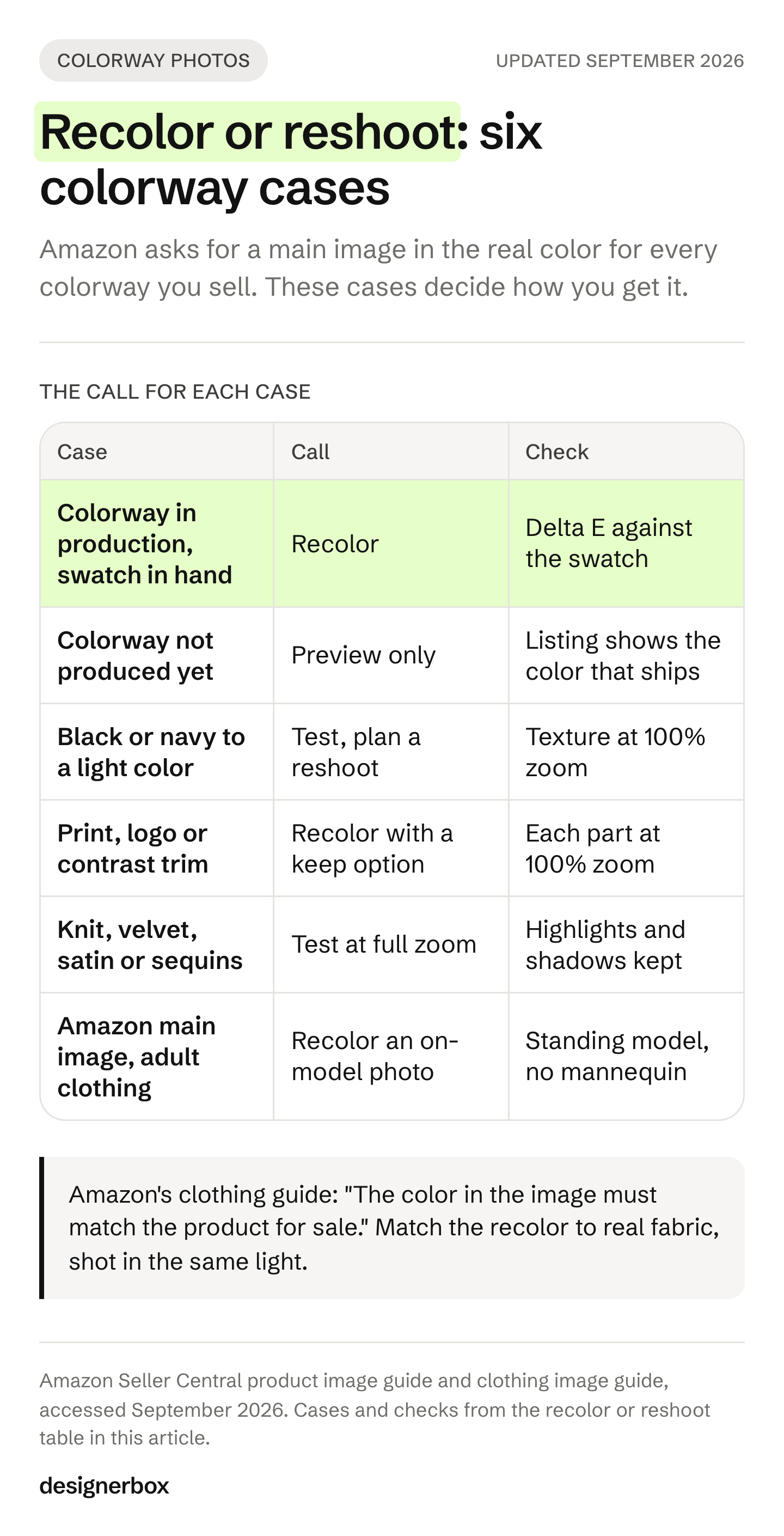
| Case | Recolor or reshoot | Why |
|---|---|---|
| The colorway is in production and you have a swatch | Recolor | You can check the result against the real dye |
| The colorway is not produced yet | Preview only | The listing has to show the color that ships |
| Black or navy changing to a light color | Test, then plan a reshoot | A pixel shift has little to work with; a repaint redraws the texture |
| A print, logo or contrast trim keeps its color | Recolor with a keep option | Check each part at 100% zoom |
| Knit, velvet, satin or sequins | Test at full zoom | Texture made of light and shadow shows a flat edit first |
| Amazon main image for adult clothing | Recolor an on-model photo | Amazon’s main image for adult sizes is on a standing model |
The last row catches flat lays. Amazon’s product image guide asks for a standing model for adult clothing in the main image, and no part of a mannequin may show. So a recolored flat lay or ghost mannequin shot belongs in the alternate slots, not the main one.
Matching the new color to the real fabric
Match the recolor to a photo of the real fabric, shot in the same light as the product photo. A HEX code from a brand deck describes a color on a screen, and a dyed fabric can read differently under studio light. Then measure the gap between the two images with a Delta E value, and do not judge it by eye.

Start with the swatch. Photograph a piece of each colorway’s fabric with the same lights, white balance and backdrop as the hero shot. That photo is your target.
The same light matters because of metamerism. Two samples can match under one light and not under another (Konica Minolta, accessed September 2026). The CIE lists metamerism as a defined term in its lighting vocabulary (CIE, accessed September 2026). A recolor that matches the swatch in daylight can miss it under studio lights.
If your supplier gives you a Pantone reference, use the physical card. Pantone recommends its TCX cotton products for fabric, and says its swatch card is produced within a 0.5 Delta E tolerance (Pantone, accessed September 2026).
Delta E is the number for the gap. CIEDE2000 is a CIE standard formula for color difference. Its current edition is ISO/CIE 11664-6:2022 (CIE, accessed September 2026). Instrument makers publish rules of thumb for how large a visible gap is. Datacolor puts the just noticeable difference at about 1 (Datacolor, accessed September 2026). Konica Minolta calls 3 or more a clearly visible difference (Konica Minolta, accessed September 2026). Sample the same patch of fabric in both images, and set your tolerance before you run the recolor. That habit is the core of AI product photo accuracy.
Color also shows up in returns. In a 2023 Coresight Research survey of 100 US apparel brands and retailers, 16% named color as a reason for online apparel returns, behind size and fit at 53%. The survey asked retailers, and 3DLOOK, a company that measures the human body from phone photos, sponsored it (Coresight Research, April 2023). In a December 2025 KPMG and EHI Retail Institute online survey of 500 consumers in Germany, 60.4% named an inaccurate description or a difference from the product images as a return reason. It covered all online purchases (KPMG, December 2025).
Where recolors go wrong
Recolors fail in five places. The texture turns flat. A print or logo changes color by mistake. A trim that should stay changes with the body. The new color spills onto skin, hair or the next garment. And the shadows keep a trace of the old color. Check all five at 100% zoom before a file goes to a listing.
Texture is the first thing to check. Knit, velvet and satin get their look from small highlights and shadows. If the recolor flattens those, the garment reads as painted even when the color is right. Compare the surface with the original photo, not only with the swatch.
Prints, logos and trims need a decision before the edit. List the parts that keep their color across colorways: zips, buttons, drawcords, contrast stitching, labels, prints. Then use a keep option or a precise mask for each one.
Edges are where spill happens. OpenAI says masking with GPT Image is entirely prompt-based, and the model may not follow the mask’s exact shape with complete precision (OpenAI, accessed September 2026). Look at the neckline, the cuffs and anywhere the garment touches skin or another piece.
Fine detail is the last check. Google DeepMind says Nano Banana Pro can still struggle with small faces, accurate spelling and fine details (Google DeepMind, accessed September 2026). A woven label or a small logo is a fine detail. If it matters, check that it survived.
How to recolor a colorway range
Recolor a range the same way each time. The steps below turn one sample and a set of swatches into one image per color.
- Shoot the sample once, in even light, at full resolution. Where you have a choice, shoot a mid-tone colorway rather than black or white, so the edit has texture to keep.
- Photograph a swatch of every other colorway in the same light.
- List the parts that keep their color: zips, trims, stitching, prints and logos.
- Recolor one colorway. Compare it with its swatch at 100% zoom and note the Delta E.
- Fix the light and the shadows, then check every edge.
- Save the setup as a workflow, and run it on the next colorway.
- Keep any AI metadata the tool writes. Upload one image per color variant, and use the same color name in your product data as on your product page.
The recolor covers the color. The rest of the listing set, from angles to detail shots, is in the clothing photography shot list.
Colorway variants in DesignerBox
In DesignerBox a recolor is an instruction in the image editor. You open the product photo. You write one instruction that names the new color and finish. The editor changes the surface. It keeps the outline when an instruction asks for one change. So keep each instruction to one surface.
The image editor makes one edit after another. The picture keeps its detail and resolution. So recolor first, then fix the highlights and shadows in a second edit.
DesignerBox’s own guide ends with the same check as this article: hold the result beside the physical product. The check against the real fabric stays your step, whichever tool you use. That includes colorway variants from one product photo in DesignerBox.
When one colorway looks right, save the steps as a workflow. A saved workflow runs the same way on the next product. You set the brand once, and the workflow reads it on every run. You store your products and their colorways with your brand, next to your brand rules. Batch, which will run one workflow over a sheet of products, is coming.
The cost is shown before the run. The commercial license starts on Pro, at $35 a month billed monthly. Every plan below Ultra is one seat.
The first job, built once
Start from a template, add your brand and your products, and run it. The cost is shown before the run.
FAQ
How do I change the color of clothes in a photo with AI?
Open the photo in a recolor tool and mark the garment, or let the tool find it. Give the new color as a swatch, a HEX code, a prompt or a reference image, and run the edit. For a listing, compare the result at 100% zoom with a photo of the real fabric in the same light.
Is there a free AI clothes color changer?
Several tools have a free way in. Fotor gives new users free credits, Pixelcut says its recolor tool is free to use, Claid lets you try a few variants, and Evoto is free to try (vendor pages, September 2026). The DesignerBox free plan has 112 credits a month, and the free plan takes no card. The commercial license starts on Pro.
Can AI change clothing color without losing fabric texture?
Fotor, Photoroom and Claid all say their tools keep folds, shadows and texture (vendor pages, September 2026). Check it on your own fabric at 100% zoom. Start with knit, velvet and satin, because their texture is made of small highlights and shadows.
Can I use a recolored photo as my Amazon main image?
Amazon’s clothing guide says the color in the image must match the product for sale, and every color you sell needs its own main image. It allows only photos for clothing and does not say how a photo edited with AI is treated. This is general information, not legal advice.
What is the difference between recoloring clothes and changing clothes with AI?
A recolor keeps the garment and changes only its color. Changing clothes replaces the garment with a different one, while the person, pose and background stay. Pick a recolor when the product is the same style in another color.
How do I match an exact Pantone or brand color?
Use a HEX field or a reference image if the tool has one. Fotor accepts HEX codes, and Evoto accepts a reference product image (vendor pages, September 2026). Then compare the result with the physical swatch in the same light, and measure the Delta E.
Can I recolor a garment that has a print or a logo?
Yes, if you can tell the tool to leave those parts alone. Evoto lets you keep, recolor or remove patterns, stripes, prints and logos, and Claid suggests prompt instructions that say what to keep (vendor pages, September 2026). Check zips, trims and contrast stitching too.
Sources
All accessed 16 September 2026 unless a date is shown.
- Amazon product image guide, accurate scale, quantity and color, standing model for adult clothing: sellercentral.amazon.com
- Amazon clothing image guide, a main image for every color, color must match, photos only: sellercentral.amazon.com
- Amazon staff reply on AI retouching and color correction (forum reply, not policy): sellercentral.amazon.com
- Google Merchant Center image link best practices and AI metadata requirement: support.google.com
- Google Merchant Center color attribute: support.google.com
- Etsy listing image requirements: etsy.com
- Walmart image guidelines and requirements: marketplacelearn.walmart.com
- TikTok Shop product image rules: seller-us.tiktok.com
- European Commission guidelines on Article 50 transparency obligations: digital-strategy.ec.europa.eu
- European Commission FAQ on Article 50, deep fake disclosure: digital-strategy.ec.europa.eu
- CIEDE2000 colour-difference formula, ISO/CIE 11664-6:2022: cie.co.at
- CIE definition of metamerism: cie.co.at
- Konica Minolta on metamerism: sensing.konicaminolta.us
- Konica Minolta on Delta E ranges, 4 May 2026: sensing.konicaminolta.eu
- Datacolor on the just noticeable difference, 25 May 2022: techkon.datacolor.com
- Pantone color systems for textiles: pantone.com
- Coresight Research, “The True Cost of Apparel Returns”, 4 April 2023, sponsored by 3DLOOK: coresight.com
- KPMG and EHI Retail Institute returns survey, 11 December 2025: kpmg.com
- OpenAI image generation guide, masking: developers.openai.com
- Google DeepMind, Nano Banana Pro limits: deepmind.google
- Adobe Photoshop color change and Generative Fill pages: adobe.com/products/photoshop/change-color.html and adobe.com/products/photoshop/generative-fill.html, September 2026
- Fotor AI clothes color changer: fotor.com/features/ai-clothes-color-changer, September 2026
- Pixelcut recolor: pixelcut.ai/recolor, September 2026
- Claid.ai clothes color changer: claid.ai/ai-clothes-color-changer, September 2026
- Photoroom Recolor: photoroom.com/tools/recolor, September 2026
- Photoroom help center, Recolor scope and Batch: help.photoroom.com/en/articles/13158032-recolor-an-object-in-a-photo-web-app and help.photoroom.com/en/articles/14836388-how-to-use-recolor, September 2026
- Canva Magic Edit help: canva.com/help/using-magic-edit, September 2026
- Pincel Reimagine: pincel.app/tools/reimagine, September 2026
- Evoto clothes color changer: evoto.ai/features/clothes-color-changer, September 2026
- DesignerBox material and colorway edits, image editor and plans: DesignerBox material swap page and pricing page (designerbox.ai), September 2026
Tool features, marketplace rules and color standards verified from the vendor, platform and standards pages listed above as of September 2026. Tool pages and platform rules change often, so check the current page before you plan a colorway run. This is general information, not legal advice. Individual results vary.