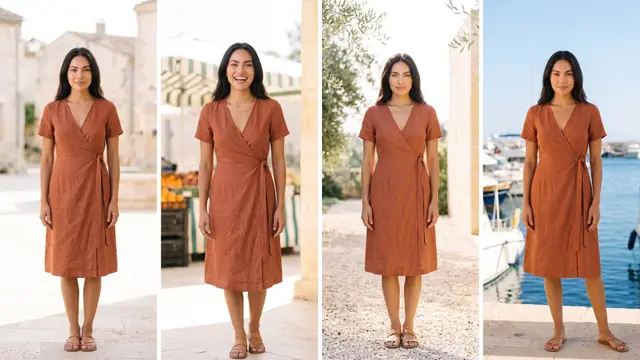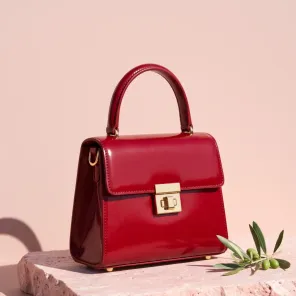

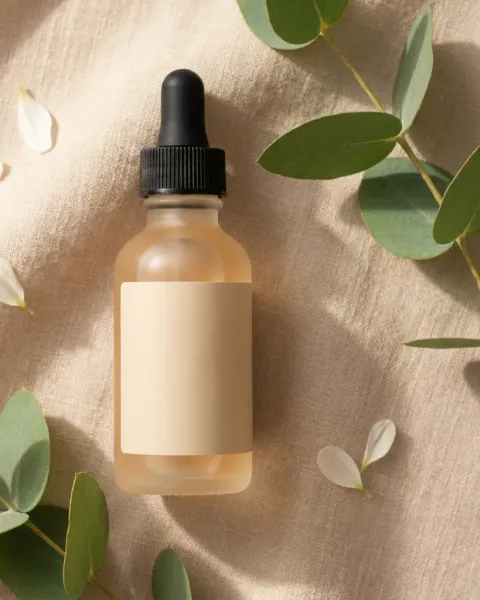
To make DesignerBox listing pictures for every product, open Automation, then Apps, and run Pictures for a listing. You add one product photo and the product name. The price is on the Run button. You press Run, and six pictures for a marketplace listing are saved to Assets. For the whole catalog, you run the same app in Batch, with one product on each row.
Take a seller with 120 products and six weeks until peak season. The supplier sent one photo for each product. Every listing still needs a main image on white, more angles, a close detail and a scene.
Key Takeaways
- One photo in, six pictures out. Pictures for a listing takes a product photo and its name and returns six pictures for a marketplace listing.
- Facts become pictures. The Listing pictures with text template makes one listing picture for each product fact you add.
- The catalog runs as one sheet. Batch runs the app on up to 200 rows, and you keep or discard each result.
- Amazon recommends seven images. Amazon requires one compliant main image and recommends at least six more, plus one video.
- Text stays off the main image. Amazon can hide a listing from search when the main image has text, a logo or a graphic.
- You upload the files yourself. DesignerBox does not upload to a marketplace, so you download the pictures you keep.
Listing pictures and who needs them
The job is one full set of pictures for every product, made the same way each time. A brand with 20 to 500 products on Amazon, Etsy or Shopify has it. So does an operator who sells listing sets to those brands. The trigger is a new delivery or a new season, when every product needs its full set at once.
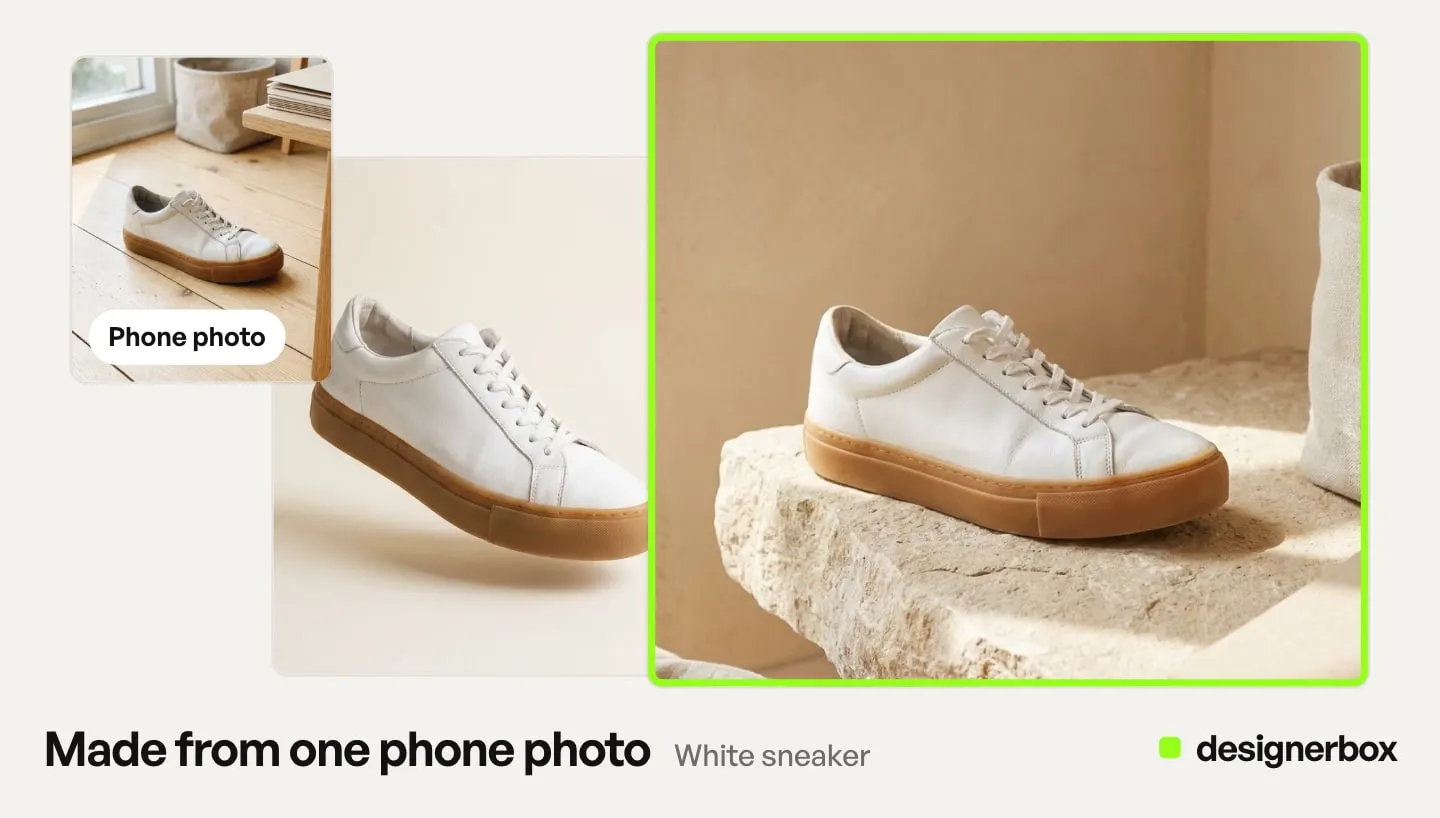
Each marketplace sets its own number. Amazon requires one compliant main image and recommends at least six more images and one video (Amazon product image guide, October 2026). Etsy allows up to 20 photos and 2 videos for each listing (Etsy Help, October 2026). eBay allows up to 24 pictures (eBay Help, October 2026).
So six pictures cover most of an Amazon set, and one more picture completes it. Our guide to what each marketplace listing gallery shows covers which shot goes in which slot.
The surfaces for listing pictures
Three parts of DesignerBox make listing pictures, and Batch repeats them. All of them sit under Automation in the app.
| Surface | What you add | What you get | Plan |
|---|---|---|---|
| Pictures for a listing (app) | A product photo and its name | Six pictures for a marketplace listing | Every plan |
| Listing pictures with text (template) | A product photo and your product facts | One listing picture for each fact | Every plan |
| White background photos (template) | Up to ten product photos | Each product on white in studio light | Every plan |
| Batch | A sheet of up to 200 rows | The app run on every row | Every plan |
The app is the fast route. An app is a ready workflow behind a short form, so you never see its steps. The apps page lists it with the other apps. Our guide to DesignerBox apps explains how an app differs from a template.
A template shows every step, and it is priced as it runs. Use Listing pictures with text for the benefit pictures. One picture names the material, and the next shows what comes in the box.
A first run, step by step
Run the app on one product before you run it on the catalog. Pick a hard product first. A dark, shiny or detailed product shows problems early.
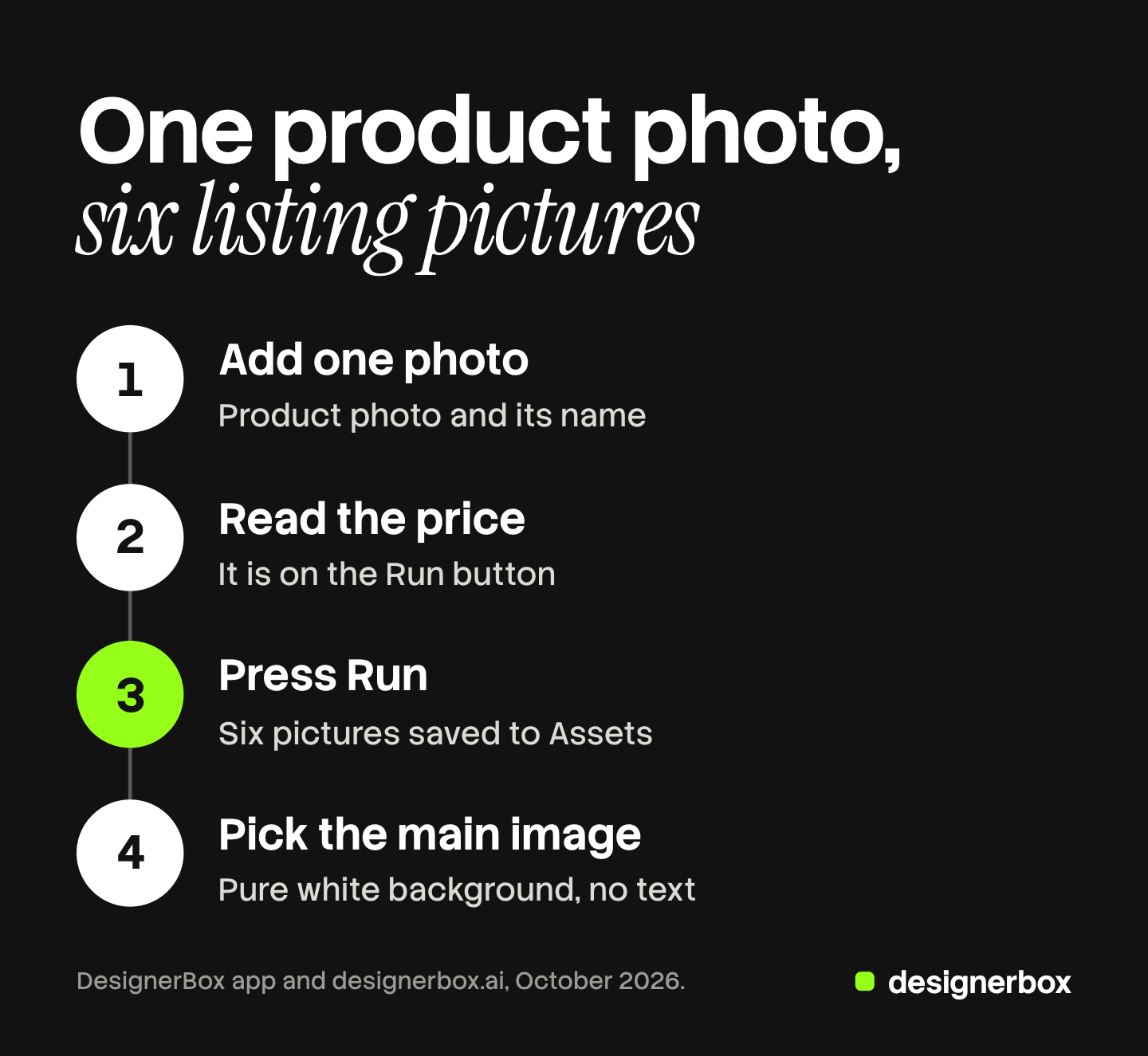
- Open the app. Open Automation, then Apps, and open Pictures for a listing.
- Try the sample. Press “Try it with a sample” to see the six pictures before you use your own photo.
- Add your photo and name. Use a sharp photo with the whole product in the frame. Type the product name as it appears in your listing.
- Read the price. The price is on the Run button. Press Run.
- Open the results. The six pictures are saved to Assets.
- Pick the main image. Find the picture that can lead the listing. On Amazon, it needs a pure white background, the product at 85% of the image, and no text.
- Add the fact pictures. Open Templates, then Listing pictures with text. Open your own copy, add the photo and your product facts, and press Run all.
Sometimes none of the six works as an Amazon main image. In that case, run the White background photos template on the same photo. Amazon’s full main image rules are in Amazon image requirements.
The second product and the whole catalog
The second product is the same form with a new photo, so the second set looks like the first. When the job needs more steps, such as a remove background step or an upscale step, build it as a workflow. Workflows read your brand rules. Publish the workflow as an app, and a colleague runs it from a short form.
The catalog runs in Batch. Open Automation, then Batch, and choose the Pictures for a listing app. Upload the product photos, and each picture becomes its own row. One batch holds up to 200 rows.
Then read the sheet line. It shows the rows that are ready, the credits for the run and what is left after. You choose 1 to 4 runs per row. Over 20 runs, DesignerBox asks you to confirm before it starts.
This example is illustrative, with one run per row.
| Part of the job | Count |
|---|---|
| Products in the catalog | 120 |
| Rows in the sheet | 120 |
| Pictures per row | 6 |
| Pictures to review | 720 |
| Sheets needed | 1 |
A catalog with more than 200 products needs a second sheet. Our guide to DesignerBox Batch covers the four ways to add rows.
Checks before upload
Making 720 pictures is the short part. Finding the wrong ones takes longer, so plan the review before you run. In Batch, you keep or discard each result with the J and K keys.
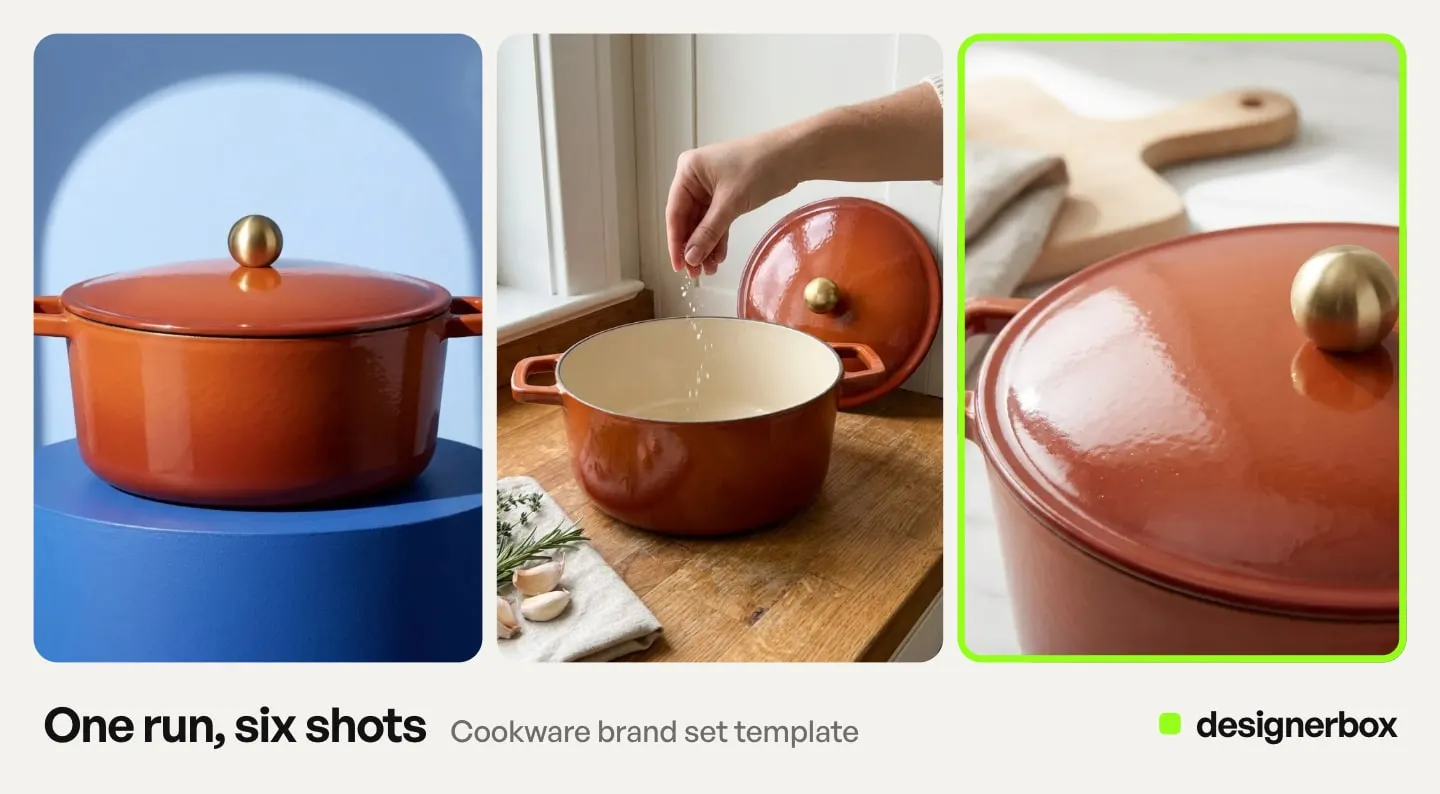
Look at the same five things on every picture.
- The label. The words and logos on the product are spelled right and sit in the right place.
- The color. The product color matches the real product, not a near shade.
- The whole product. Nothing is cut off at the edge of the frame.
- The main image. It has a pure white background, no text and no props that do not ship.
- People. Amazon asks you to tag a picture that shows a photorealistic person made fully by AI. The tag is the keyword contains-synthetic-performer in the image metadata.
When a picture gets the label wrong, the Fix the product app puts your real label and logo back. You add the picture and your real product photo.
In a workflow, critic steps (designer, photographer, emotion, ad director) score several results and keep the best. That narrows the choice. You still look at every picture you keep.
An agency or an operator often needs a yes from the client first. Send the kept pictures for review. The client opens the link without an account and chooses the ones they want. Our guide to DesignerBox Reviews covers that step.
Limits of listing pictures
These are the limits as of October 2026.
- DesignerBox does not upload to a marketplace. You download the kept pictures, or the sheet as CSV, and upload them yourself. A workflow can also send the results with a webhook or an S3 step.
- Text pictures do not go first on Amazon. Amazon may hide a listing from search when its main image has text, a logo, a graphic or a watermark (Amazon image suppression, October 2026). Put the Listing pictures with text results in the other image slots.
- Etsy asks for one real photo. Etsy’s listing image policy was last updated on 22 October 2026. For most products, it asks for at least one unedited photo of the actual item against a real background (Etsy Listing Image Requirements, October 2026). AI tools may not alter that photo. Other images may be edited if they still show the product accurately.
- A+ content is not an app yet. The modules under an Amazon product description need a workflow you build.
- No rule check. DesignerBox does not test a file against a marketplace’s rules. You check the main image yourself.
Listing pictures in DesignerBox
Anyone can make an AI picture. Making hundreds that still look like your brand is the hard part. Pictures for a listing gives each product the same six pictures, and Batch gives the whole catalog the same set. The listing set, the white main image and the batch run sit in one account.
Templates, apps and Batch run on every plan. There is a free plan, and it runs on the sample products. Uploading your own photos and the commercial license start on the Pro plan. Upscaling starts on the Premium plan. Plans are on the pricing page.
The page for Amazon FBA sellers shows this job for that channel, and the Batch page shows the sheet. Run one product first, then add the rest of the catalog. Get started free.
FAQ
How many pictures does Pictures for a listing make?
Six pictures for a marketplace listing, from one product photo and the product name. The pictures are saved to Assets.
Does Amazon require six images?
No. Amazon requires one compliant main image and recommends at least six more images and one video. Six pictures from the app and one fact picture make the seven images Amazon recommends.
Can a listing picture have text on it?
Yes, in the other image slots. Amazon’s main image must have no text, logo or graphic, or Amazon may hide the listing from search. The Listing pictures with text template makes pictures for the other slots.
Can I make listing pictures for my whole catalog at once?
Yes. Run Pictures for a listing in Batch, with one product on each row. One batch holds up to 200 rows, and you keep or discard each result with the J and K keys.
Do the pictures go to Amazon or Etsy on their own?
No. DesignerBox does not upload to a marketplace. You download the pictures you keep, or the sheet as CSV, and upload them yourself.
Can I use AI listing pictures on Etsy?
Etsy allows edited and AI-made images in the other listing slots if they show the product accurately. For most products, Etsy also asks for one unedited photo of the actual item, and no AI tool may alter it. This is general information, not legal advice.
What does a set of listing pictures cost?
The cost is shown before the run. For one product, the price is on the Run button. For a batch, the sheet shows the credits before you run.
Sources
- Amazon Seller Central, Product image guide: one compliant main image, at least six more images and one video recommended, main image rules and the AI people tag, accessed October 2026
- Amazon Seller Central, Image suppression: text, logos, graphics or watermarks on a main image as a reason to hide a listing, accessed October 2026
- Etsy Help, How to Create a Listing: up to 20 photos and 2 videos for each listing, accessed October 2026
- Etsy, Listing Image Requirements: the unedited photo rule and the rules for edited images, last updated 22 October 2026, accessed October 2026
- eBay Help, Adding pictures to your listings: up to 24 pictures, accessed October 2026
- DesignerBox Apps page (designerbox.ai/product/apps), October 2026: Pictures for a listing, “Try it with a sample” and the price on the Run button
- DesignerBox Templates page (designerbox.ai/product/templates), October 2026: Listing pictures with text, White background photos and “Priced as it runs”
- DesignerBox Batch page (designerbox.ai/product/batch), October 2026: up to 200 rows, 1 to 4 runs per row, the confirm step, the J and K keys and the CSV download
- DesignerBox pricing page (designerbox.ai/pricing), October 2026: plan gates
- The DesignerBox app, read October 2026: the Apps, Templates, Workflows, Batch and Reviews pages
DesignerBox features verified in the app and on designerbox.ai as of October 2026. Results vary by product and model.