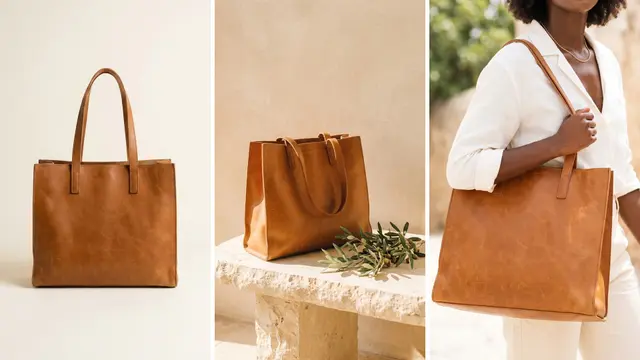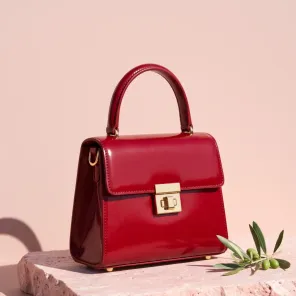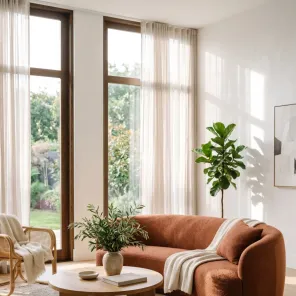

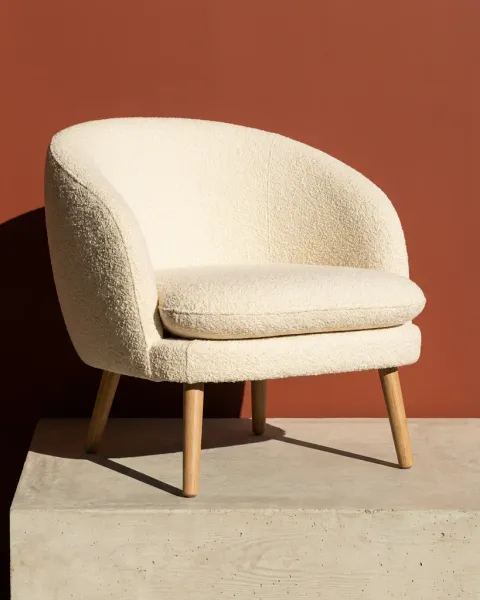
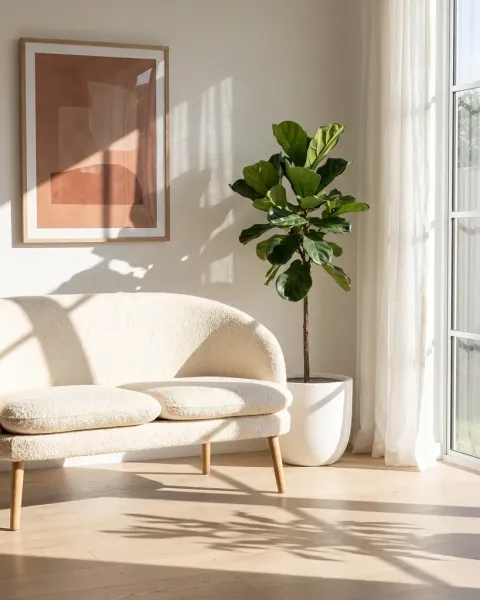
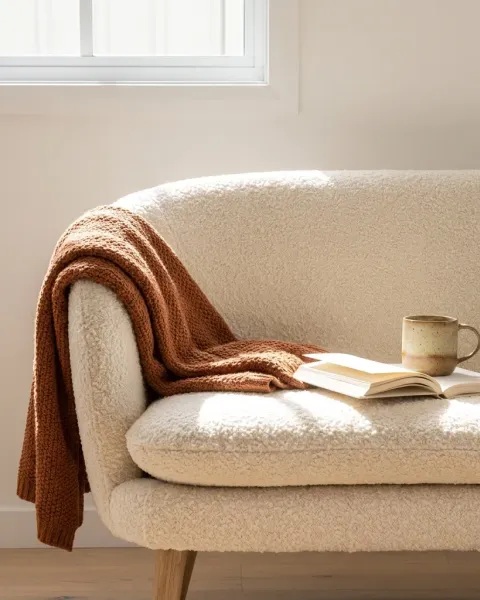
To show each furniture packshot in styled rooms with DesignerBox, run the Furniture in a room template. You add one furniture photo, and you get the piece in styled rooms. Use the Product in several places template when you want to set the look yourself. Save the steps as a workflow. Then run the whole collection in Batch, up to 200 pieces in one sheet.
Say you add 30 new pieces this season, and each one has three fabrics. A room shoot needs a location, a stylist and a crew to carry the sofa. So you shoot a few hero rooms, and the rest of the range sells on a white packshot. The shopper who wants fabric two never sees it in a room.
Key Takeaways
- One photo in, styled rooms out. The Furniture in a room template takes one furniture photo and returns the piece in styled rooms.
- You set the look once. Product in several places takes a product photo and the look. Brand references hold up to 12 pictures, such as a mood board or a past campaign.
- New sides come from the same packshot. The Photo angles app shows the piece from the side you choose.
- The collection runs as one sheet. Publish your copy of the workflow as an app, then run it in Batch on up to 200 rows.
- The room may change. The piece may not. Check scale, fabric, wood grain, and legs and joins on every result before you use it.
The room scene job and who has it
This job belongs to a furniture or homeware brand with 20 to 500 products. Each piece has a clean packshot on a plain background. The product page, the marketplace listing and the ads all need the same piece in a room.
In the brand’s own words, the job is: “Show every piece in a room that looks like our brand, without a shoot for each one.” Today that means a room shoot per collection, a 3D render, or the white packshot alone. Our guide to furniture product photography covers the five shots a listing needs. It also shows why room scenes cost the most.
A room picture shows your real piece in a made-up room. The room can change in any way. The piece is what the buyer receives, so it must not change.
Templates and apps for furniture rooms
Four parts of DesignerBox do this job, and Batch repeats it. You find templates under Automation, then Templates, and apps under Automation, then Apps.
| Surface | What you add | What you get | Plan |
|---|---|---|---|
| Furniture in a room template | One furniture photo | The piece in styled rooms | Every plan |
| Product in several places template | A product photo and the look | Several pictures, each in another place | Every plan |
| Photo angles app | A product photo and a side | The product from that side | Every plan |
| Brand references | Up to 12 pictures: mood board, past campaign, style reference | Results that follow the light and mood of these pictures | Every plan |
| Batch | A sheet with one row per piece, up to 200 rows | 1 to 4 runs per row, and you keep or discard each result | Every plan |
Start with Furniture in a room when you want rooms fast. Use Product in several places when the rooms must match a look you already have. Give it a room from your last campaign as the look. Run Photo angles first when your packshot shows only the front.
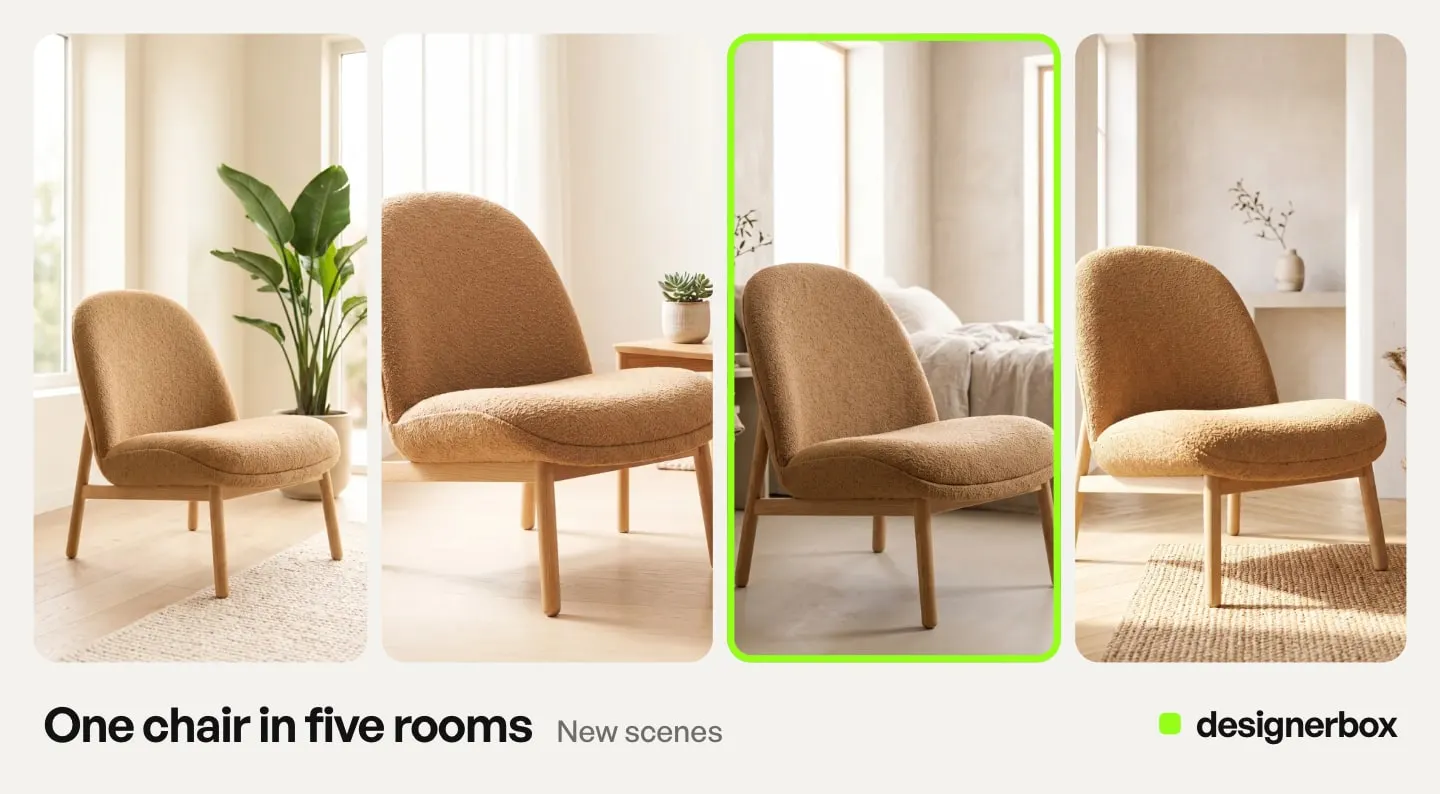
Templates are “priced as it runs”: the cost adds up as each step runs. Our guide to DesignerBox templates explains how a template works, and the Templates page shows the full set.
The Brand page says results follow the light and mood of your reference pictures. Save your mood board and your best past room shoot there once. When you pick the brand in Create, Create uses it. In your own workflow, the Brand Kit step brings the brand in.
First run on one packshot
Test one piece first, before you spend credits on the collection.
- Pick your hardest piece. Choose one with a visible weave, a strong wood grain or thin legs. It shows the problems first.
- Use a clean packshot. Show the whole piece in the frame, sharp, with even light and true color. Every room starts from this photo.
- Save the look in Brand. Open Workspace, then Brand, and add your references. You can add up to 12 pictures.
- Open the template. Go to Automation, then Templates, and open Furniture in a room. Read what you add, what you get and the steps it uses. Then open your own copy.
- Add the packshot and press Run all. The price builds as each step runs. Every result is saved in Assets.
- Compare each room with the packshot. Use the four checks below before a picture goes into a listing or an ad.
The next piece and the whole collection
Your copy of the template is a normal workflow. You can change a step, add a step and save a version. Change the room once, and every later run uses the change. Add a Save to Assets step at the end, so every result lands in Assets.
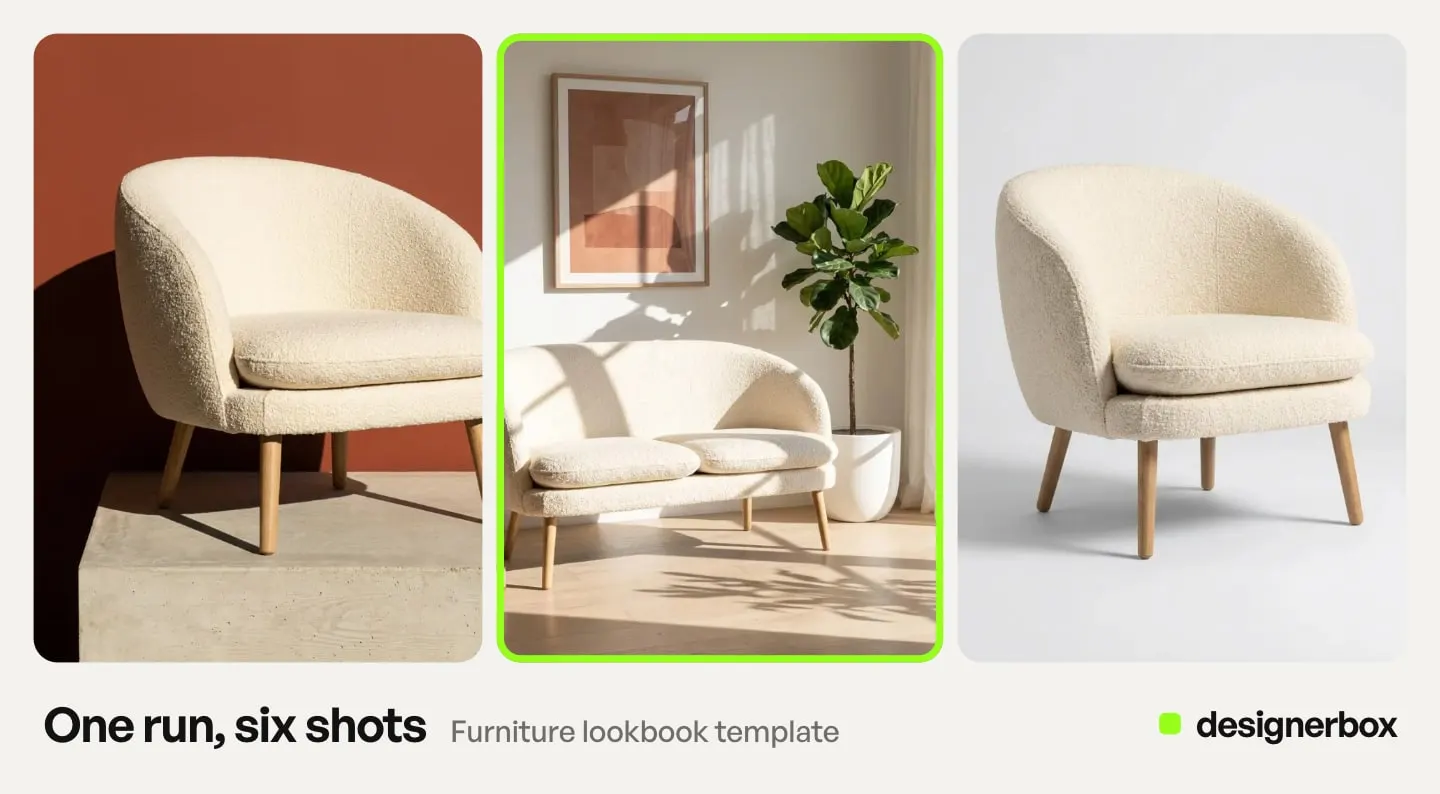
The second time, you open the workflow, add the next packshot and press Run all. Then you publish it as an app. A colleague adds a packshot to a short form and presses Run, and never sees the steps.
The twentieth time is a batch. Here is how a whole collection runs:
- Open Automation, then Batch, and pick the workflow you published as an app.
- Upload the packshots. Each picture becomes one row, and one sheet holds up to 200 rows.
- Choose 1 to 4 runs per row. The sheet shows the credits before you run.
- Over 20 runs, DesignerBox asks you to confirm first. Then press Run.
Our guide to DesignerBox Batch covers the sheet in detail. When one sofa has several fabric colors, the Product in other colors app makes one picture for each color.
Anyone can make an AI picture. Making hundreds that still look like your brand is the hard part. One saved workflow gives every piece the same steps.
Four checks on every room picture
Check each result at full size, next to the packshot. The room can be anything you like. The piece must be the piece you sell.
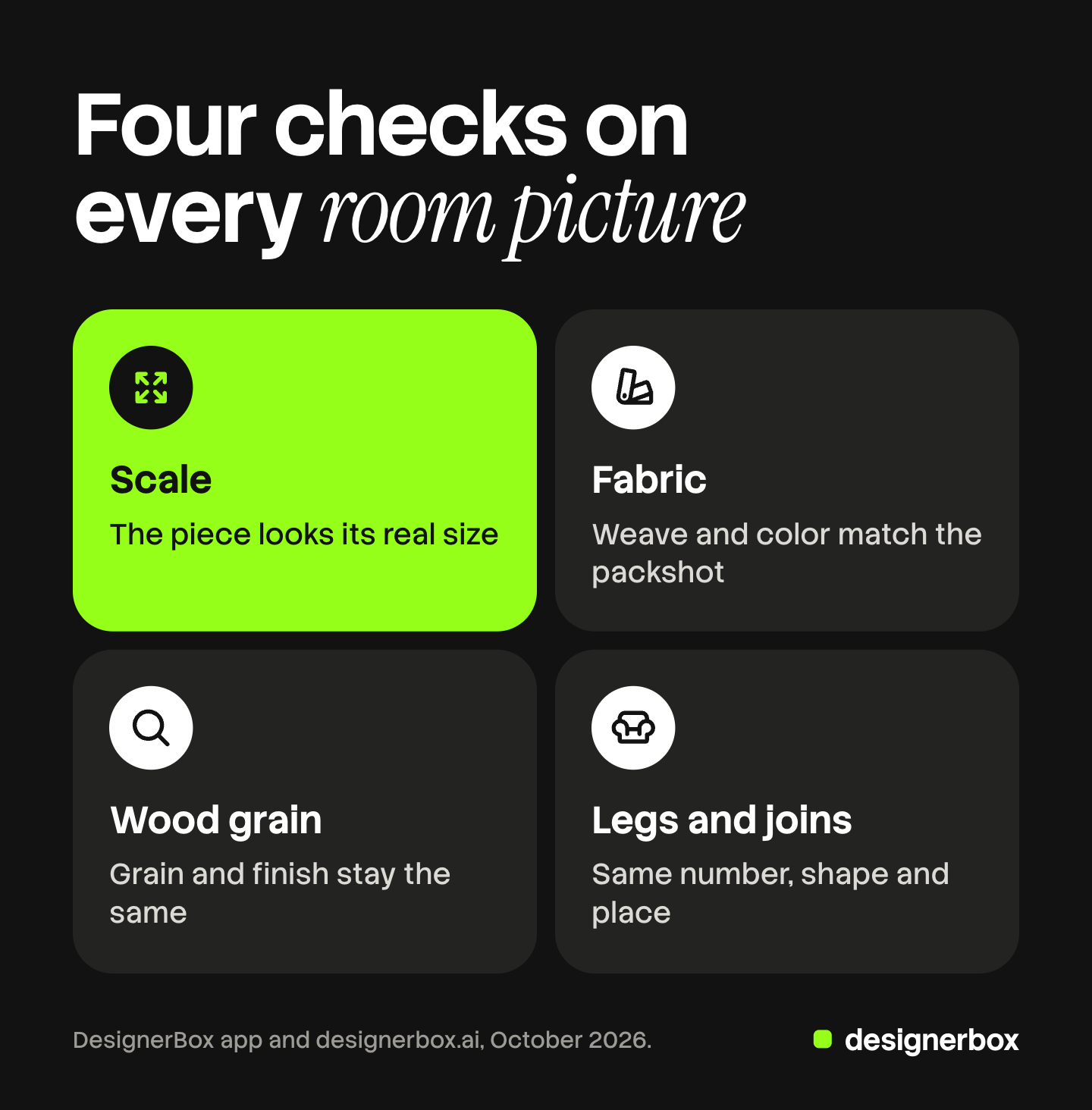
- Scale. The piece looks its real size. Compare it with a door, a window or a side table in the same frame. A room built around a piece can make the piece too big or too small.
- Fabric. The weave and color match the packshot. Warm room light can turn a gray fabric beige. Compare the color with the packshot, never with your memory.
- Wood grain. The grain and finish stay the same. Oak stays oak, and a matte leg stays matte.
- Legs and joins. The legs have the same number, shape and place. Count the legs, slats and buttons, and check where each leg meets the frame.
Marketplaces judge the same thing. Amazon has a rule for the main image. It asks for a picture that shows “the real scale, quantity, and color of the product” (Amazon product image guide, October 2026). Room pictures usually sit in the other image slots. There, Amazon asks that every image “accurately represent the product that you’re selling”.
In Batch, you keep or discard each result with the J and K keys. Discard any room that changed the piece. In a workflow, critic steps (designer, photographer, emotion, ad director) score several results and keep the best. They choose the strongest picture. You still compare the kept picture with the real piece.
To let a client or a colleague choose, send the kept pictures for review. The link works for 30 days and costs no credits, as our guide to DesignerBox Reviews explains. For any AI-staged scene, our guide to product staging lists six more checks.
Limits of furniture room scenes
These are the limits as of October 2026.
- A room picture is no proof of size. Put the real measurements on a separate dimension picture, drawn from your spec sheet.
- A new angle is a new view. Photo angles makes a side the camera did not take. Check its shape against the real piece, or photograph that side.
- Some rooms will fail a check. DesignerBox gives no pass rate. Plan to discard some results and run again.
- Nothing goes to your store on its own. You download the results, or send them with a webhook or an S3 step.
Tools differ in how much they change the piece. Our comparison of AI furniture product photography tools looks at eight tools on that question.
Furniture rooms in DesignerBox
The packshot, the room pictures, the angles and the batch run sit in one account. For the other jobs a furniture brand runs, see DesignerBox for furniture and homeware brands. For product photos in general, see AI product photography in DesignerBox.
Templates, apps, workflows, batch and brand are on every plan. There is a free plan, and it runs on the sample products. Uploading your own furniture photos and the commercial license start on the Pro plan. Plans and credits are on the pricing page.
Run Furniture in a room on a sample product first, and see the rooms it makes. Get started free
FAQ
How do I put my furniture in a room with AI?
In DesignerBox, open the Furniture in a room template, add one furniture photo and press Run all. You get the piece in styled rooms. Compare each room with your packshot before you use it.
Will DesignerBox change my sofa?
It can. A model that builds a room can change the size, the fabric, the wood or the legs. Check those four things on every result, and discard any picture where the piece changed.
Can the rooms follow my brand’s style?
Yes. Product in several places takes a product photo and the look you want. You can also save up to 12 reference pictures in Brand, such as a mood board or a past campaign.
How many pieces can I run at once?
One batch holds up to 200 rows, one piece per row. You choose 1 to 4 runs per row. Over 20 runs, DesignerBox asks you to confirm first.
What does a furniture room picture cost?
A template is priced as it runs, so the cost adds up step by step. In Batch, the sheet shows the credits for the whole sheet before you run.
Can I use a room picture as my Amazon main image?
Usually not. Amazon’s main image needs a pure white background. Only a limited number of product types may use a lifestyle image as the main image. Room pictures fit the other image slots, where every image must accurately represent the product.
Do I need my own furniture photos?
To run the job on your own pieces, yes. Uploading your own photos starts on the Pro plan. The free plan runs on the sample products.
Sources
- DesignerBox Templates page (designerbox.ai/product/templates), October 2026: Furniture in a room, Product in several places and “Priced as it runs”
- DesignerBox Apps page (designerbox.ai/product/apps), October 2026: Photo angles
- DesignerBox Brand page (designerbox.ai/product/brand), October 2026: up to 12 reference pictures
- DesignerBox Batch page (designerbox.ai/product/batch), October 2026: up to 200 rows, 1 to 4 runs per row, the confirm step over 20 runs, keep or discard
- The DesignerBox app, read October 2026: your own copy of a template, the Brand Kit step, Save to Assets, Publish as app, critic steps and Reviews
- DesignerBox pricing page (designerbox.ai/pricing), October 2026: plan gates
- Amazon Seller Central, Product image guide, read October 2026: main image and all-image requirements
DesignerBox features verified in the app and on designerbox.ai as of October 2026. Results vary by product and model.