
DesignerBox Reviews is a feature of the DesignerBox app. It is a page of pictures you send to your client. The client opens the link with no account, chooses the pictures they want and sends the choice back to you. You start a review from My Library, or from a finished run with the Send for review button. Reviews covers pictures.
You made 60 pictures for a client’s new products. The client wants 20 of them. Somebody has to say which 20.
Many teams solve this with a shared folder and a long message thread. Then the answer arrives as file names typed by hand. Reviews replaces that step with one page and one answer.
This guide covers the Reviews page of the app, as read in October 2026. It explains the two ways to start a review, each step for you and for the client, and the limits. It does not cover what customers say about DesignerBox. Reviews is one part of the app we rebuilt, and the new DesignerBox covers the other parts.
Key Takeaways
- Reviews is a page of pictures you send to your client.
- The client opens the link with no account, chooses pictures and sends the choice back.
- You start a review from My Library, or from a finished run.
- Reviews covers pictures. Plan no comments, no version history and no video notes around it.
What DesignerBox Reviews is
Reviews is one of the places in the app’s sidebar, next to Batch, My Library and Brand. The page describes itself in two sentences: “A page of pictures you send to your client. They open the link with no account, choose the ones they want and send the choice back to you.”
Three things in those sentences matter.
The page holds pictures you picked. You select them, so you decide what the client sees.
The client needs no account. The client opens a link. There is no sign-up step between your message and their answer.
The answer comes back to you. The client chooses the pictures they want and sends that choice. You do not copy file names from a message.
Two ways to start a review
The Reviews page names two starting points. Both end at the same button, Send for review.
| Start from | What you do | When it fits |
|---|---|---|
| My Library | Select pictures in My Library and press Send for review | The pictures come from several runs, or from last week |
| A finished run | Open the run and press Send for review under the pictures | The client reviews one run, right after it ends |
A note on the name. The app’s sidebar says My Library, and the DesignerBox site calls the same place Assets. Every run saves its results there, beside the photo that went in. The assets page describes folders, tags, bookmarks and search, and it suggests one folder per client. A folder per client makes the first route quicker, because the pictures for one client already sit together.
Steps for the sender and the client
A review has six steps. You do the first three, and the client does the last three.
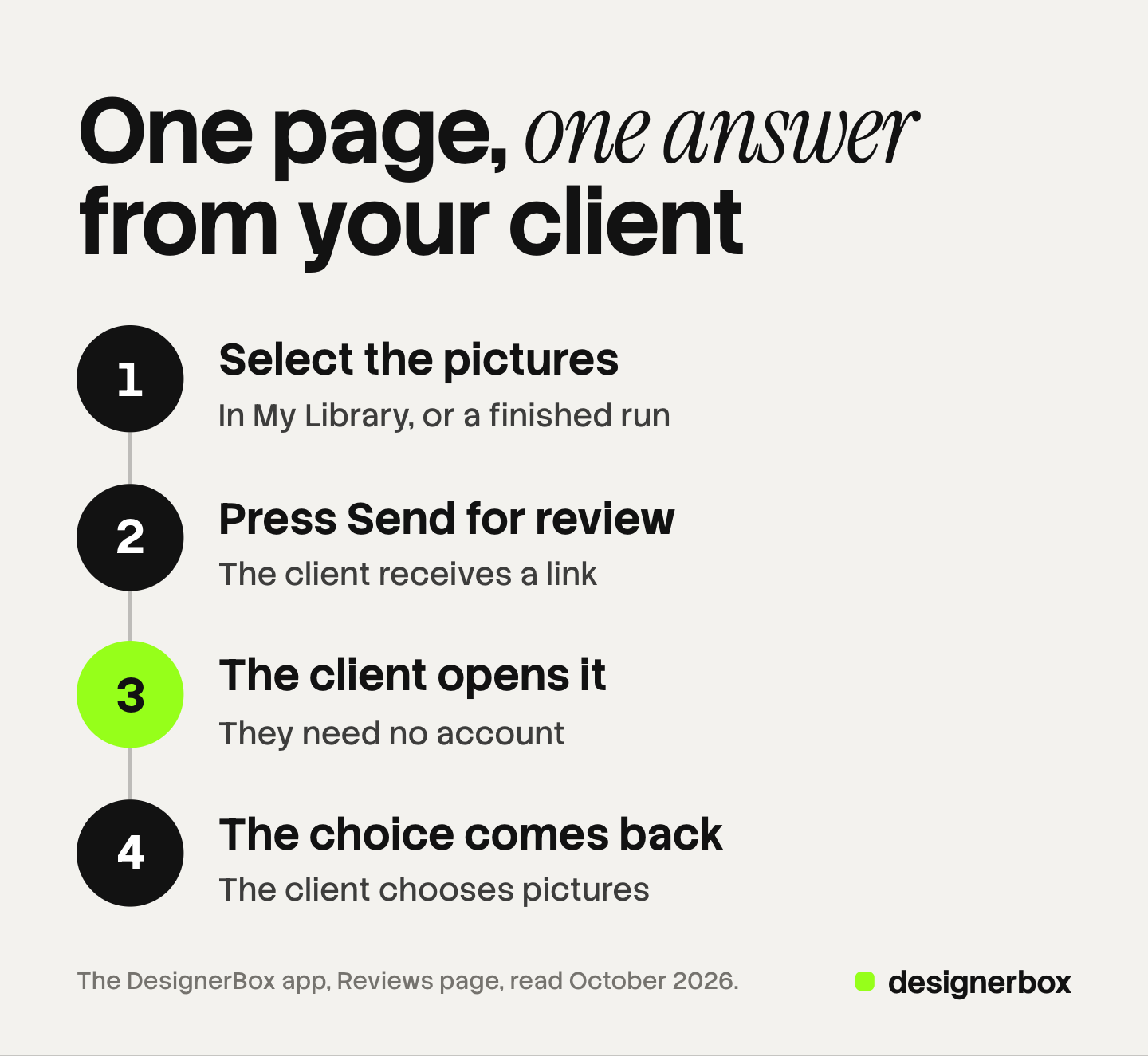
- Select the pictures. Select them in My Library, or open a finished run.
- Press Send for review. In My Library the button acts on the pictures you selected. In a finished run it is under the pictures.
- Send the page to your client. The page opens from a link.
- The client opens the link. They need no account.
- The client chooses pictures. They choose the ones they want.
- The client sends the choice back. The choice comes to you.
That is the whole process as the app states it.
A practical habit helps before step one. Remove the pictures you would not deliver, then send the rest. A client who sees 20 good pictures has an easier choice than one who sees 60 mixed ones.
What the client sees
The client sees a page of pictures, and they need no DesignerBox account to open it.

This matters for the people who approve creative work. A founder, a brand manager or a buyer often has ten minutes between meetings. A sign-up form is a reason to answer later. A link that opens to pictures is a reason to answer now.
The client’s task has one verb: choose. They choose the pictures they want and send the choice back. Tell the client how many pictures the job includes before you send the link. Then the choice fits the quote.
Reviews after a batch
DesignerBox has four ways to run a job: a template, a workflow, an app and a batch. The How it works page explains all four. Reviews comes after any of them, and it fits a batch best.
A batch runs one workflow, app or image model over many rows, and a sheet holds up to 200 rows. The cost is shown before the run. After the run you judge each picture and keep the good ones. The batch page says that what you keep goes to Assets. Our guide to DesignerBox Batch covers the rows and the sheet.
So the order for a client job is short:
- Run the batch with the client’s brand.
- Keep the good pictures and discard the rest.
- Select the kept pictures and press Send for review.
Your own check comes first, and the client’s choice comes second.
The brand step happens before both. A brand in DesignerBox holds products, logo, colors, fonts, rules and reference pictures, and every run reads it. Our guide to the Brand page explains each card. Anyone can make an AI picture. Making hundreds that still look like your brand is the hard part. A client who opens a review page should see one brand on every picture.
Proofing in plain words
Photographers have a word for this step: proofing. Pixieset, a gallery platform for photographers, describes photo proofing as showing the work to the client and choosing favorite images together, which are then retouched and delivered (blog.pixieset.com, September 2026). The same article says photographers often share smaller images or add a watermark at this stage.
The word has a second meaning. In print, soft proofing and hard proofing check how colors look on paper. Reviews does not cover that meaning.
Reviews covers the first meaning: the client looks at a set of pictures and chooses. If you came here looking for a full proofing gallery for a photography business, this is a different kind of product. Reviews is the choice step inside an app that also makes the pictures.
Teams that use Reviews
Reviews fits any team where one person makes pictures and another person approves them.
| Team | Who chooses | What goes on the page |
|---|---|---|
| An agency with client brands | The client’s marketing lead | The kept pictures from one client’s batch |
| A reseller who sells finished sets | The customer who ordered the set | The pictures of one order |
| A brand team | A founder or a category manager | The pictures for one launch or one season |
For an agency, the page replaces the folder link and the thread under it. Our guide to managing creative for multiple clients covers how to keep each client’s work apart before it reaches a review.

For a reseller, the customer chooses the pictures in the set, and you deliver those. Our guide to white label content explains how small teams sell finished sets.
For a brand team, the client is a colleague. A stakeholder with no account can still choose the pictures for a launch. The full workflow from the first product photo to the finished ad, in one subscription. Reviews adds the approval step to that workflow.
Limits of Reviews
These are the limits as of October 2026. Plan the job around them.
- Reviews covers pictures. The app describes a page of pictures. Do not plan video notes around it.
- The client chooses. The app describes choosing pictures and sending the choice back. Keep written comments and version history in the process you use today.
- Delivery is a separate step. After the choice, you download the results, or send them with a webhook or an S3 step. DesignerBox does not put pictures into a store or an ad account.
- Every plan below Ultra is one seat. The client needs no account, and your own colleagues still need seats. Team features are on the Ultra plan.
- Client work needs the right plan. Uploading your own photos and the commercial license start on the Pro plan. Plans and credits are on the pricing page.
Check the product details yourself before the client sees them: the logo, the print, the color and the shape. The client chooses what they like. You check what is correct.
Reviews does one job. It answers one question, which pictures the client wants, and it removes the sign-up step from that answer. If you run creative work for several brands, see DesignerBox for agencies.
FAQ
Is DesignerBox Reviews a feature or a page of customer opinions?
It is a feature. Reviews is a place in the DesignerBox app where you send your client a page of pictures. The client chooses the pictures they want and sends the choice back to you.
Does my client need a DesignerBox account?
No. The client opens the link with no account. They choose the pictures they want and send the choice back.
How do I start a review?
There are two ways. Select pictures in My Library and press Send for review. Or open a finished run and press Send for review under the pictures.
Can a client review video in Reviews?
The app describes Reviews as a page of pictures. Plan for pictures, and review video in the process you use today.
Can the client leave comments on a picture?
The app describes one action for the client: choosing pictures and sending the choice back. Keep written feedback in your usual channel.
Is Reviews the same as photo proofing?
It covers the same moment, when a client chooses pictures. A proofing gallery for photographers is a wider product. Reviews is the choice step inside an app that also makes the pictures.
What happens after the client sends the choice?
You deliver the chosen pictures. You download them, or you send them with a webhook or an S3 step.
Sources
- The DesignerBox app, Reviews page, read October 2026
- DesignerBox Assets page (designerbox.ai/product/assets), October 2026
- DesignerBox Batch page (designerbox.ai/product/batch), October 2026
- DesignerBox How it works page (designerbox.ai/how-it-works), October 2026
- DesignerBox for agencies page (designerbox.ai/for/agencies), October 2026
- DesignerBox pricing page (designerbox.ai/pricing), October 2026
- Pixieset blog, How to get started with online photo proofing (blog.pixieset.com, September 2026), read October 2026
Reviews checked against the DesignerBox app as of October 2026. This guide describes only what the Reviews page states. Plans and limits change, so check the pricing page before you plan a client job.