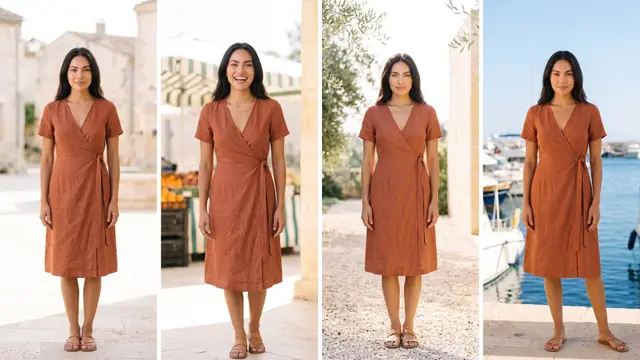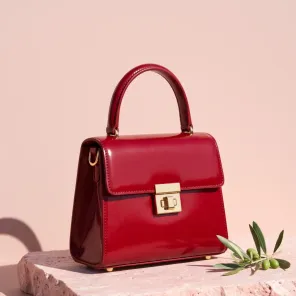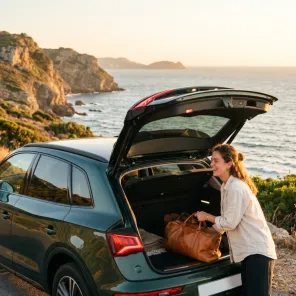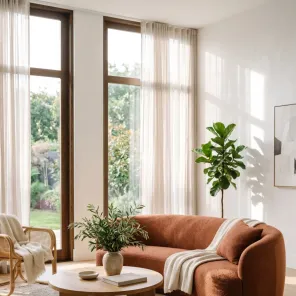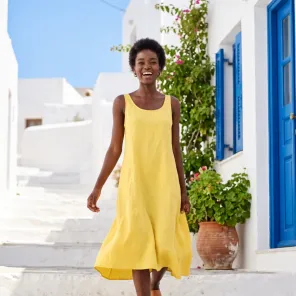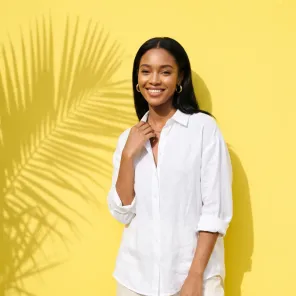
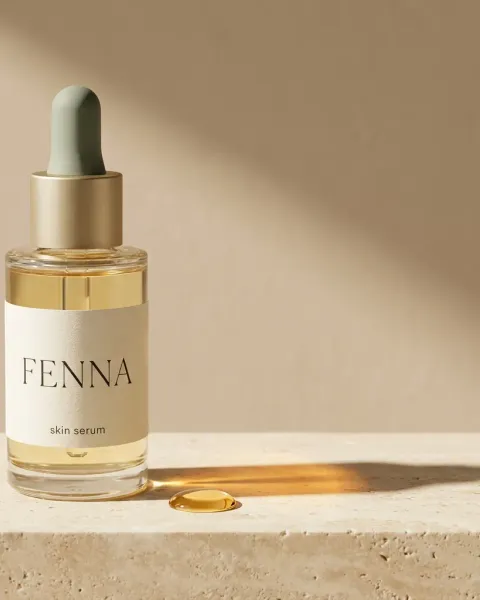

DesignerBox Generate is the page in the DesignerBox app where you make pictures and videos directly. You switch between Picture and Video and describe the result. You add up to 5 reference pictures, or a start frame for a video. You choose the model, the aspect ratio and the number of pictures, or the video length and size. The cost appears next to the button before you start.
You already know the product, the light and the frame you want. You may also want to see how two models handle the same brief. Generate is the page for that job.
This guide covers the Generate page, as read in the app on 22 October 2026. Generate is one part of the app we rebuilt, and the new DesignerBox covers the other parts.
Key Takeaways
- Generate makes pictures and videos directly, with the model you choose.
- A picture takes up to 5 reference pictures. A video takes a start frame.
- You add references from your computer, My Library, Brand, Avatars or stock images.
- Pictures are on every plan. Video starts on the Premium plan.
- For a job you repeat, an app, a template or a batch fits better.
What DesignerBox Generate is
Generate is its own page in the app. It is an AI image and video generator, and you choose the model. There is no chat in between. You make each choice yourself.
That is the difference from the chat on the Create page. In Create, you type one sentence. The chat asks one to three short questions. Then it shows a plan with the model, the size, the number of results and the price. Our guide to DesignerBox Create covers the chat.
Generate fits a designer with a clear brief. They know the product, the light, the frame and how many options the client wants.
Picture or video
The page has a Picture/Video switch. Each side asks for different things.
| Side | What you give | What you choose |
|---|---|---|
| Picture | A prompt, and up to 5 reference pictures | The model, the aspect ratio and the number of pictures |
| Video | A prompt for the motion, and a start frame | The model, the video length and the size |
Pictures are on every plan. Video starts on the Premium plan.
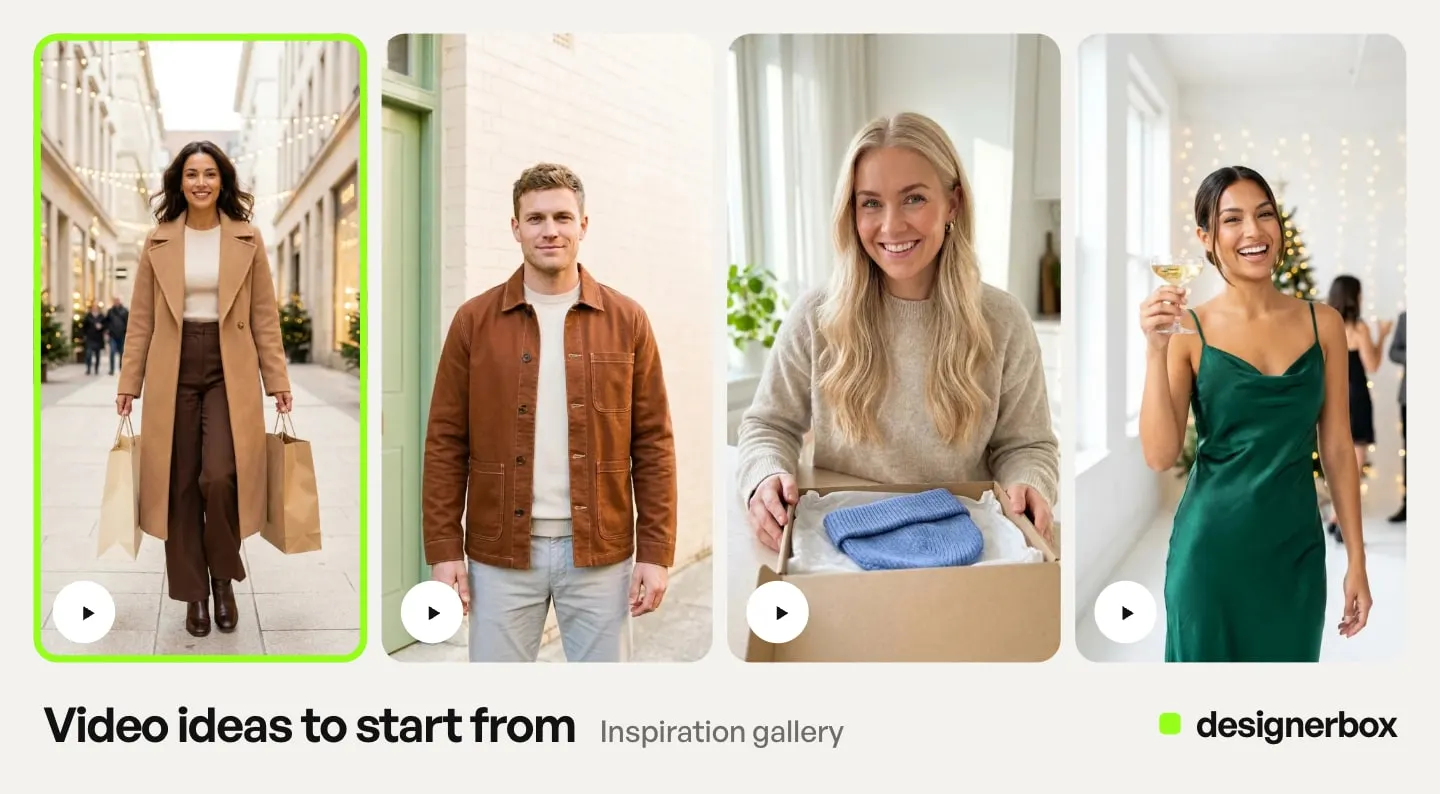
Prompts for a picture and for a clip
For a picture, describe what the camera sees. Name the product, the place, the light and the framing. Write one idea per sentence. For example: “A cream drink can on a stone windowsill. Soft morning light from the left. The can sits in the middle of the frame.”
For a video, describe the motion. The start frame already shows the scene. So the prompt says what changes over time. For example: “The camera moves slowly closer to the can. A soft shadow moves across the label.”
Name one main movement for each clip. A prompt with five movements is hard to check against the result. Our guide to AI image to video for ecommerce covers product clips made from one photo.
Reference pictures and the start frame
A reference is a picture the model uses together with your prompt. A picture shows details that words miss, such as the exact product, the label, a person or a color. A picture on Generate takes up to 5 references.
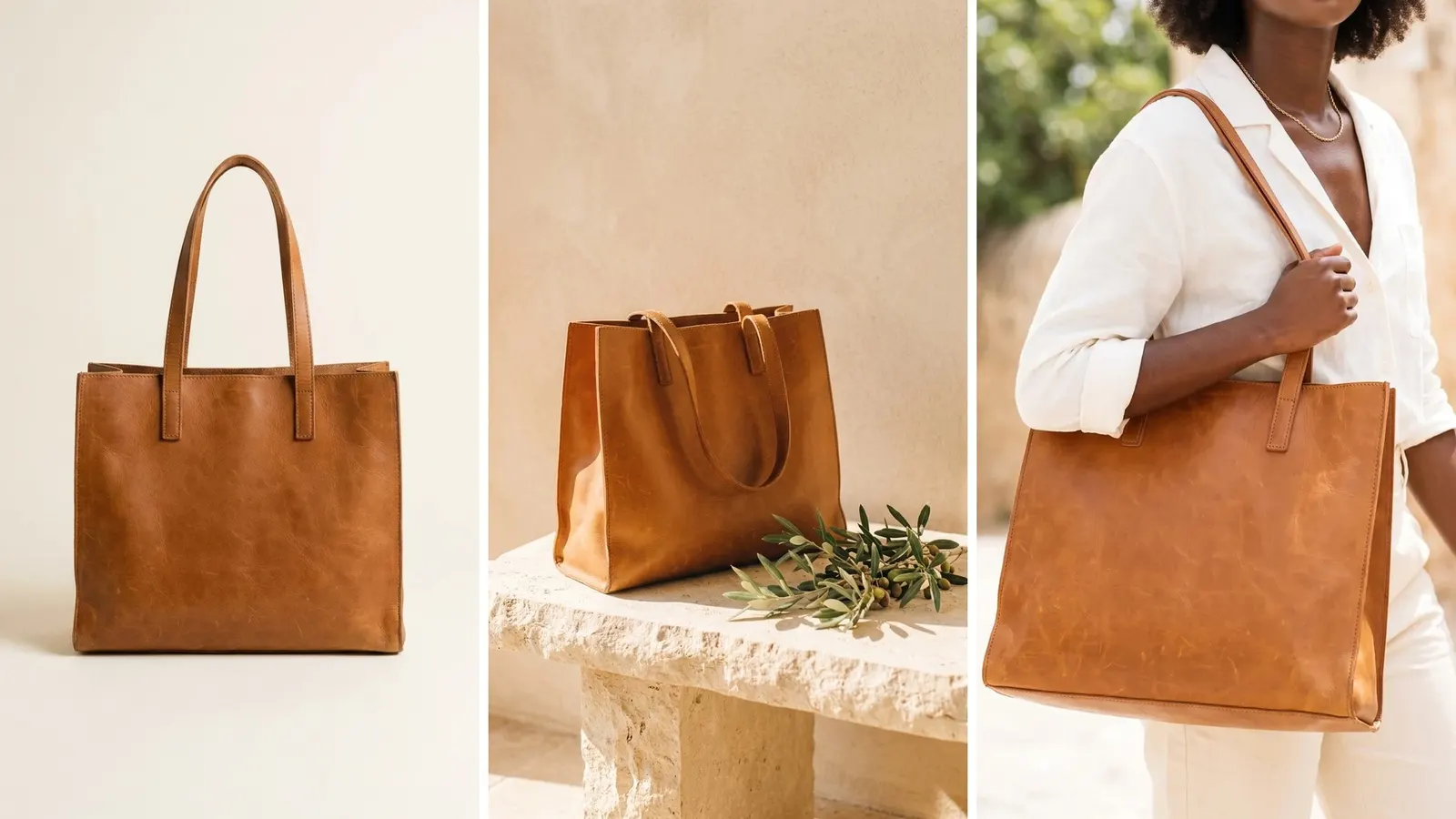
Give each reference a job. One reference shows the product. Another shows the person, the light or the setting. Five copies of the same photo add nothing new.
For a video, the start frame is the first picture of the clip. The model starts from it and adds the motion. So the start frame sets the product, the place and the light at the start of the clip.
A common route has two steps. First, make a picture and check the product details. Then make a video from that picture with one of its actions. The picture becomes the start frame.
Five reference sources
Generate takes a reference or a start frame from five places.
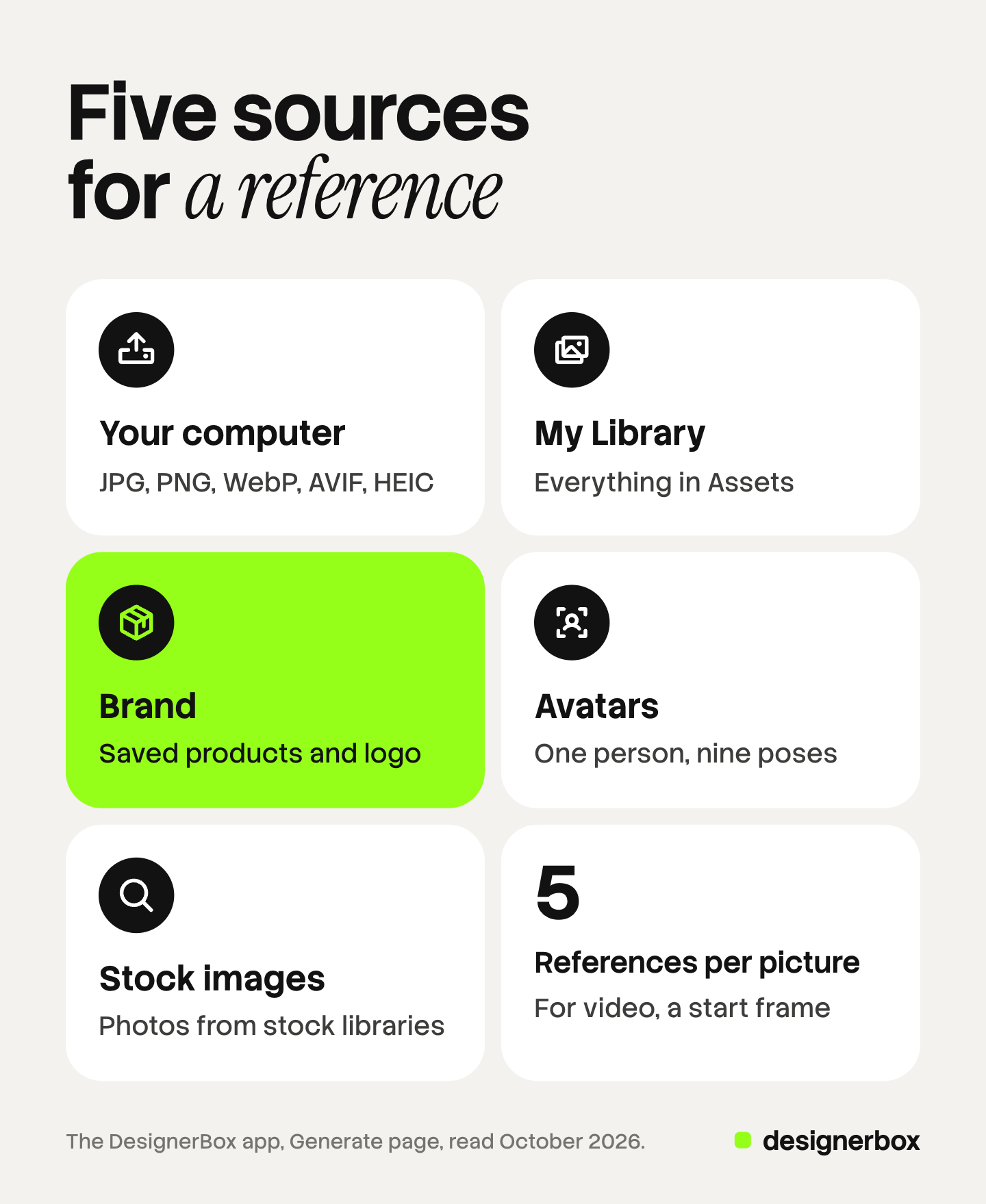
| Source | What it holds |
|---|---|
| Your computer | A file in JPG, PNG, WebP, AVIF or HEIC |
| My Library | Everything in Assets: your uploads and your results |
| Brand | Your saved products and your logo |
| Avatars | Ready avatars and the avatars you made |
| Stock images | Stock photos to use as a reference |
My Library shows everything in Assets. Every picture in Assets can start the next job: a reference in Create, a start frame in Generate, or a picture in the editors. So last week’s best result can be the reference for this week’s picture. Our guide to DesignerBox Assets covers folders and filters.
Brand holds your logo and the products you saved, each with one photo. When you take the product from Brand, every picture uses the same product photo. Our guide to the Brand page explains each part.
Your computer is the route for a new photo. Uploading your own photos starts on the Pro plan. The free plan runs on sample products.
Avatars in Generate
Avatars gives you one person to use again. You pick a ready avatar, or you make your own from one sentence or one photo. An avatar run returns nine fixed poses of one person. The poses include front, back, walking, running and sitting.
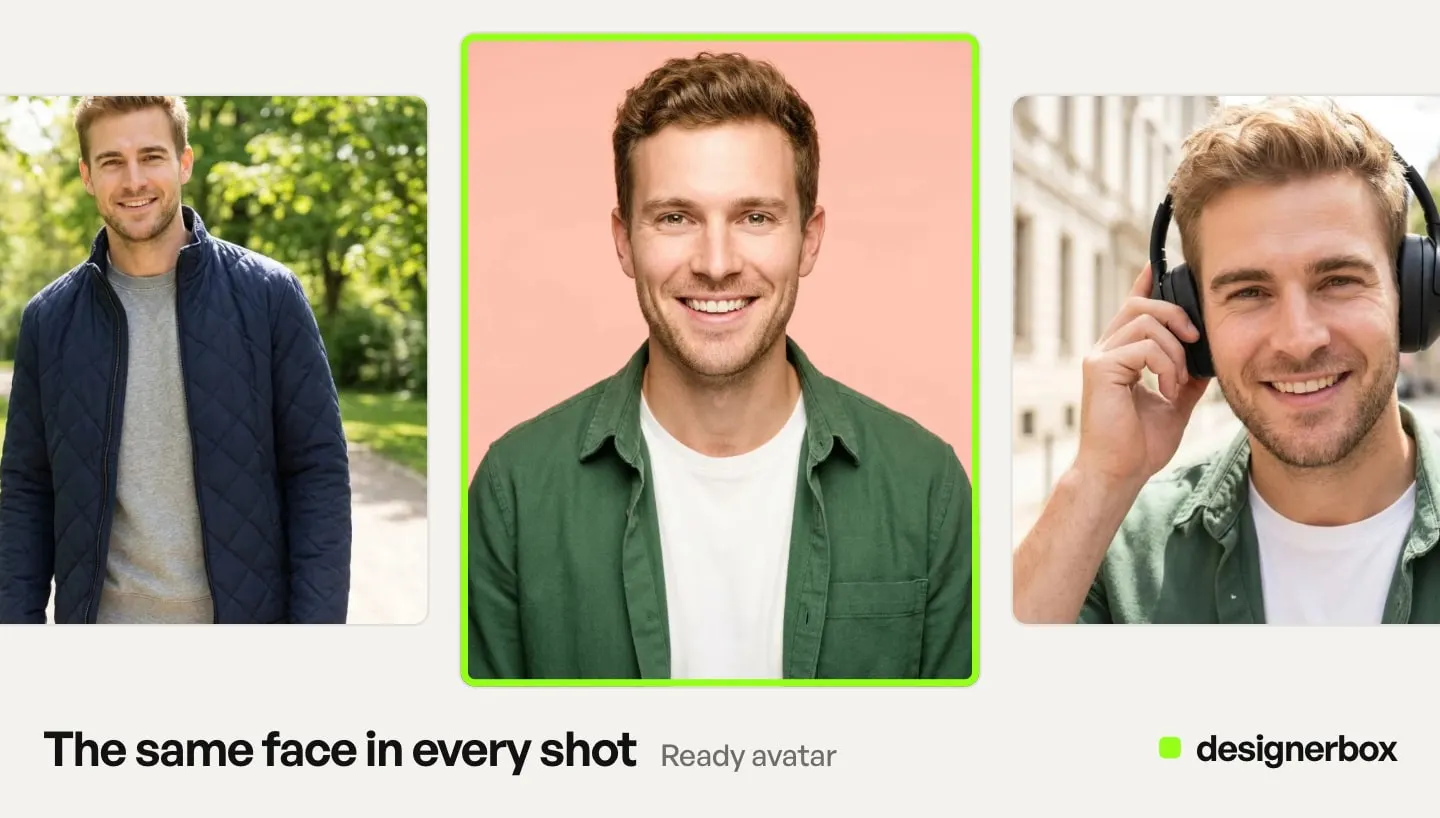
In Generate, the avatar can be the start frame of a video. The same person then moves in the clip. Make an avatar of a real person only with their clear permission. Use a photo you have the rights to. Our guide to DesignerBox Avatars covers the poses and the permission rule.
Model choice and cost
The DesignerBox models page lists these names by maker, read on 22 October 2026:
- Image models: Nano Banana Pro and Nano Banana 2 (Google), GPT Image 2 (OpenAI), Seedream 5 (ByteDance), and FLUX 2 Flex and FLUX Pro 1.1 (Black Forest Labs).
- Video models: Veo 3.1 and Veo 3.1 Fast (Google), Seedance 2.0 (ByteDance) and Kling 2.6 Pro (Kuaishou).
The page also lists Kontext Multi and Runway Gen-4.5 for workflow steps. The menu in Generate is the list that counts for your run. It can differ from that page. Read the menu before a large job.
Google released Nano Banana 2.1 on 6 October 2026. Its deprecations page names Nano Banana 2.1 as the replacement for Nano Banana 2. It lists no shutdown date for Nano Banana 2 (Gemini API deprecations, read 22 October 2026). Our comparison of Nano Banana 2 and Nano Banana Pro covers when each fits a product photo.
The video menu in the app still shows Sora 2 Pro. OpenAI removed Sora 2 and Sora 2 Pro from its API on 24 September 2026 (OpenAI API deprecations, accessed October 2026). Do not choose Sora 2 Pro for new work.
The cost depends on the model and on the number of pictures. For video, the models page says that the model and the length of a clip set its cost. An 8-second clip costs 40 to 560 credits, depending on the model. Our guide to AI video generation cost compares what the model makers charge for their own APIs.
Model comparison on one prompt
The model is one step. The job is the picture your brand needs. So test the model on your own product before you choose it.
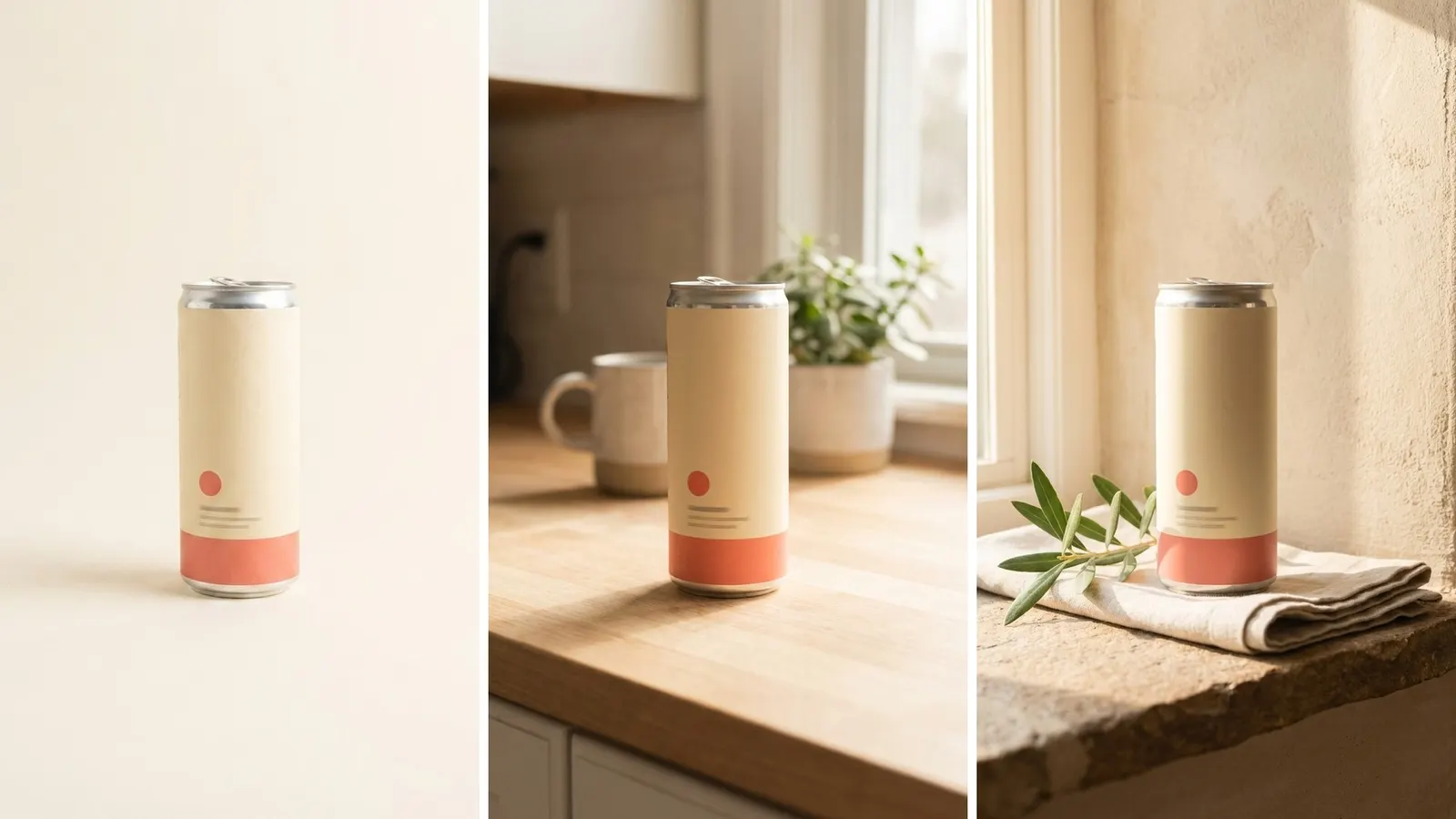
A fair test changes one thing at a time. Keep the prompt, the references and the aspect ratio the same. Change only the model.
- Write the prompt and add the references. Use your real product photo, not a demo picture.
- Run the first model. Ask for a few pictures, because one picture is a small sample.
- Reuse the prompt. Choose that action on the result. Change only the model and run again.
- Move the results to one folder. A folder in Assets has a name, a color and a description. Write the brief in the description.
- Open each picture in Assets. Assets shows the prompt and the model that made each picture.
- Check the product details. Compare the logo, the label text, the color and the shape against your real product.
Choose the model that keeps your product correct. A picture that looks good and changes the label is a picture you cannot use. Our AI image generator comparison explains a complete test on your own product.
When the test ends, note the model, the prompt and the references that worked. Your next run starts from that note.
Actions on a result
Each result has these actions.
| Action | When it fits |
|---|---|
| Upscale | The picture is right, and you need more pixels for a large screen or for print |
| Modify | You want to change the result and keep working from it |
| Reuse the prompt | You want the same brief on another model, or with other references |
| Make a video | The picture is the start frame you want |
| Download | The picture is final |
| Move to a folder | You want the results for one client or one test in one place |
Upscaling starts on the Premium plan. For text, layers, ready sizes and pages, use the picture in the image editor. Our guide to the DesignerBox editors covers the image editor and the video editor.
The Assets page says that every run saves its results in Assets, beside the photo that went in.
Advanced image and video pages
Generate has advanced pages for images and for video. They add more control for a person who needs it.
- Looks and styles. Choose a visual style for the result.
- Negative prompts. Write what you do not want in the result. Not every model reads it. Our guide to the negative prompt explains which models use one.
- Seeds. A seed is the number a model starts from. Note the seed of a result you like, so you can repeat the setup.
- First and last frames. Give a video a picture to start on and a picture to end on.
- Video extend. Make a clip longer.
The main page covers most jobs. Open an advanced page when one of these choices matters for the shot.
Generate, the chat, an app or a template
Generate is one of several ways to start a run, and every way ends in the same account. The table matches the job to the page.
| The job | Start here | Why |
|---|---|---|
| One exact picture or clip, and you know the model | Generate | You make each choice yourself |
| Compare models on one brief | Generate | You keep the prompt and change only the model |
| One result, and you do not know how to make it | The chat on the Create page | It asks short questions and shows a plan with the price |
| One known job, such as removing a background | An app | One job behind a short form, with the price on the Run button |
| A finished job with many steps | A template | A ready workflow that you open and run |
| The same job for a whole list of products | A batch | A sheet of up to 200 rows, one job in each row |
Our guides to DesignerBox apps, templates and batch cover each route.
Generate suits the first time you make a picture. When you make the same picture a second time, save the steps as a workflow. Anyone can make an AI picture. Making hundreds that still look like your brand is the hard part. A workflow keeps the model, the references and the brand the same on every product.
Limits of Generate
- The free plan runs on sample products. A test on your own product needs your own photo.
- Generate makes one brief at a time. For a list of products, a batch runs up to 200 rows in one sheet.
- A result ends in Assets or as a download. DesignerBox does not send finished work to a store.
Uploading your own photos and the commercial license start on the Pro plan. AI video, virtual try-on, upscaling, the image editor and the video editor start on the Premium plan. Plans and credits are on the pricing page.
Start with one picture on two models, and keep the prompt that works. Get started free
FAQ
What is DesignerBox Generate?
DesignerBox Generate is a page in the DesignerBox app that makes pictures and videos directly. You choose the model, the aspect ratio and the number of pictures, or the video length and size. The cost appears next to the button before you start.
How many reference pictures can I add?
A picture takes up to 5 reference pictures. A video takes a start frame, which is the first picture of the clip.
Which file types can I upload as a reference?
From your computer, Generate takes JPG, PNG, WebP, AVIF or HEIC files. Uploading your own photos starts on the Pro plan.
Can I make a video from a picture?
Yes. One of the actions on a picture makes a video from it. The picture becomes the start frame. Video starts on the Premium plan.
Is Sora 2 Pro available in Generate?
The video menu in the app still shows Sora 2 Pro. OpenAI removed Sora 2 and Sora 2 Pro from its API on 24 September 2026. Do not choose it for new work.
Sources
- The DesignerBox app, Generate, Avatars and Assets pages, read October 2026
- DesignerBox models page (designerbox.ai/models), read 22 October 2026: the model names by maker, and the model and length set a clip’s cost
- DesignerBox Assets page (designerbox.ai/product/assets), read 22 October 2026: every run saves its results in Assets
- DesignerBox pricing page (designerbox.ai/pricing), October 2026: the plan gates
- Gemini API deprecations, Nano Banana models (ai.google.dev, read 22 October 2026)
- OpenAI API deprecations, Sora 2 and Sora 2 Pro (developers.openai.com, accessed October 2026)
The Generate page was read in the DesignerBox app in October 2026. Models, labels and plan gates change, so check the menu and the cost on the page before a large job. Individual results vary.