
The new DesignerBox is a rebuilt app for brands and agencies. You set your brand once, then make images, ads and video that all look like that brand. You save the steps and run them again for the next campaign, client or product. The rebuild adds Create, Batch, Reviews and a fuller Brand page. Templates, workflows, apps and both editors are still here, in one sidebar.
We rebuilt DesignerBox because the first picture was never the problem. The hundredth was. Every campaign needs images, ads and video in several sizes, and every piece has to look like the same brand.
So the new app is built around the repeat. You set the brand once. You save the steps once. Then the same job runs on the next brief, and on a whole sheet of them. This article explains each part of the new DesignerBox, what it does, and where to find it.
Key Takeaways
- One sidebar, ten places. Home, Create, Apps, Templates, Workflows, Batch, Studio, My Library, Reviews and Brand.
- Four ways to run one workflow. A template, your own workflow, an app with a form, and a batch over many rows.
- Create is new. You type what you need, and nothing runs until you press Run.
- Batch is live. One workflow, app or image model runs over many rows, and you keep the good pictures.
- Reviews is new. Your client opens a link with no account, chooses pictures and sends the choice back.
- Brand holds more. Products, logo, colors, fonts, voice, rules and reference pictures, read on every run.
- It runs in your AI chat. DesignerBox has 68 tools over MCP, for Claude, ChatGPT and Cursor.
What changed in the new DesignerBox
Anyone can make an AI picture. Making hundreds that still look like your brand is the hard part. The old app was good at the first half of that. The rebuild is for the second half.
Three things changed. The app now starts from your brand, so every run reads the same rules. The work you repeat is saved as steps, so the second time costs you a press of Run. And the parts that used to live in other software, the edit, the video cut, the client sign-off, now live in the same workspace. The full workflow from the first product photo to the finished ad, in one subscription.
Home shows your recent work in one list. You can filter it by workflows, edits, app runs and batches, so you return to the job you left.
Four ways to run one workflow
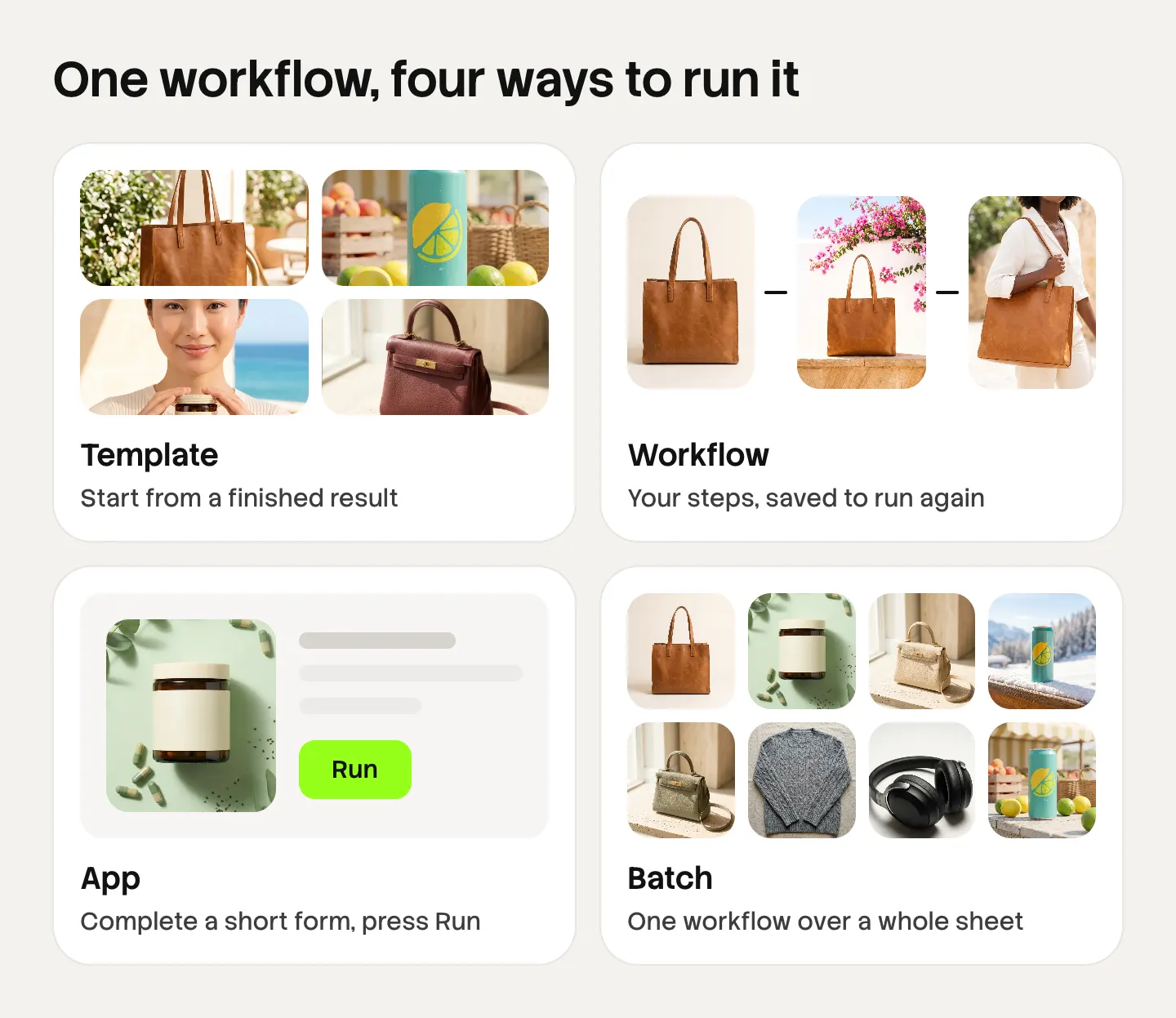
A workflow is a set of steps. A step can make a picture, change a background, put a product on a model or cut a clip. DesignerBox gives you four ways to run the same steps. Nothing is rebuilt between the four. Each one widens who can run it.
Templates
A template is a workflow somebody already built. You open one, add your photo and run it. Templates are grouped by job: photography, social media, animation and branding. Start here when you want a finished result before you learn anything else. The templates page shows what each one makes.
Workflows
A workflow is your own set of steps. You build it once and run it again. When a template gives you a result you like, you save your version, with your brand and your rules. You can sort workflows into folders and star the ones you use each week. The workflows page explains how the steps connect.
Apps
An app is a workflow with a form. You complete the form, press Run and get the result. A colleague who never opens the workflow can run the job the same way you do. Apps are grouped by job too: photo jobs, fashion, styled ads and cinematic shots. Our guide to what a DesignerBox app is covers them in detail, and the app library lists them.
Batch
A batch runs one workflow over many rows. Each row is one input, a line of text or a photo. Batch has its own section below, because it is the part that changes the size of the job.
Create
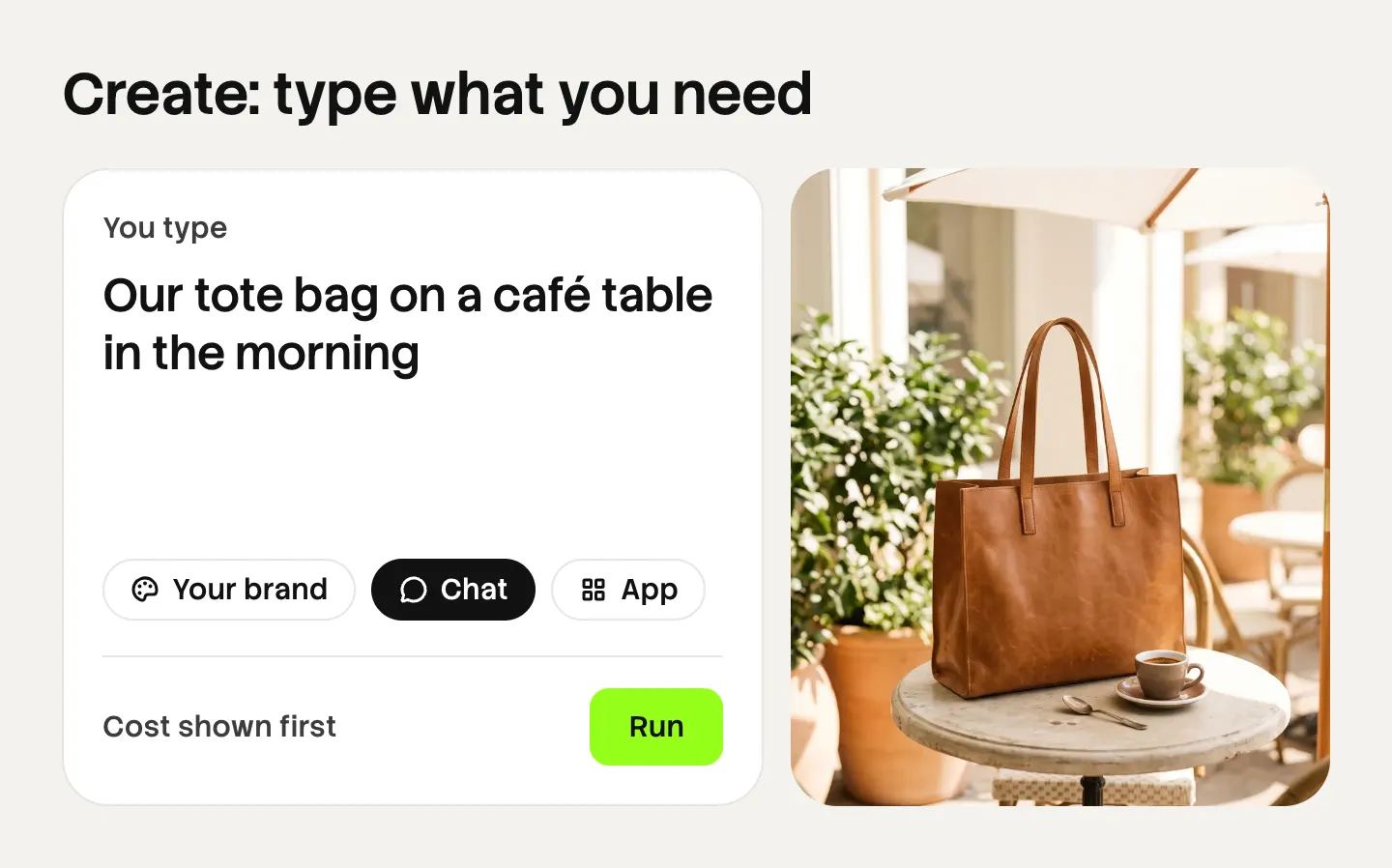
Create is the fastest way into the new app. It is a chat. You type what you need, for example “Our tote bag on a café table in the morning”, or you pick a card.
Create then finds the app that fits the request. You see the app and the price before it runs. Nothing runs until you press Run.
Two details matter here:
- The brand picker. You choose a brand before you type. The run then uses that brand’s products, colors and rules.
- Two modes. Chat mode takes a sentence. App mode takes you to a form.
Create is the right start when you know the result you want and do not know which template makes it. Our guide to how the Create chat works walks through each part of the page.
Batch
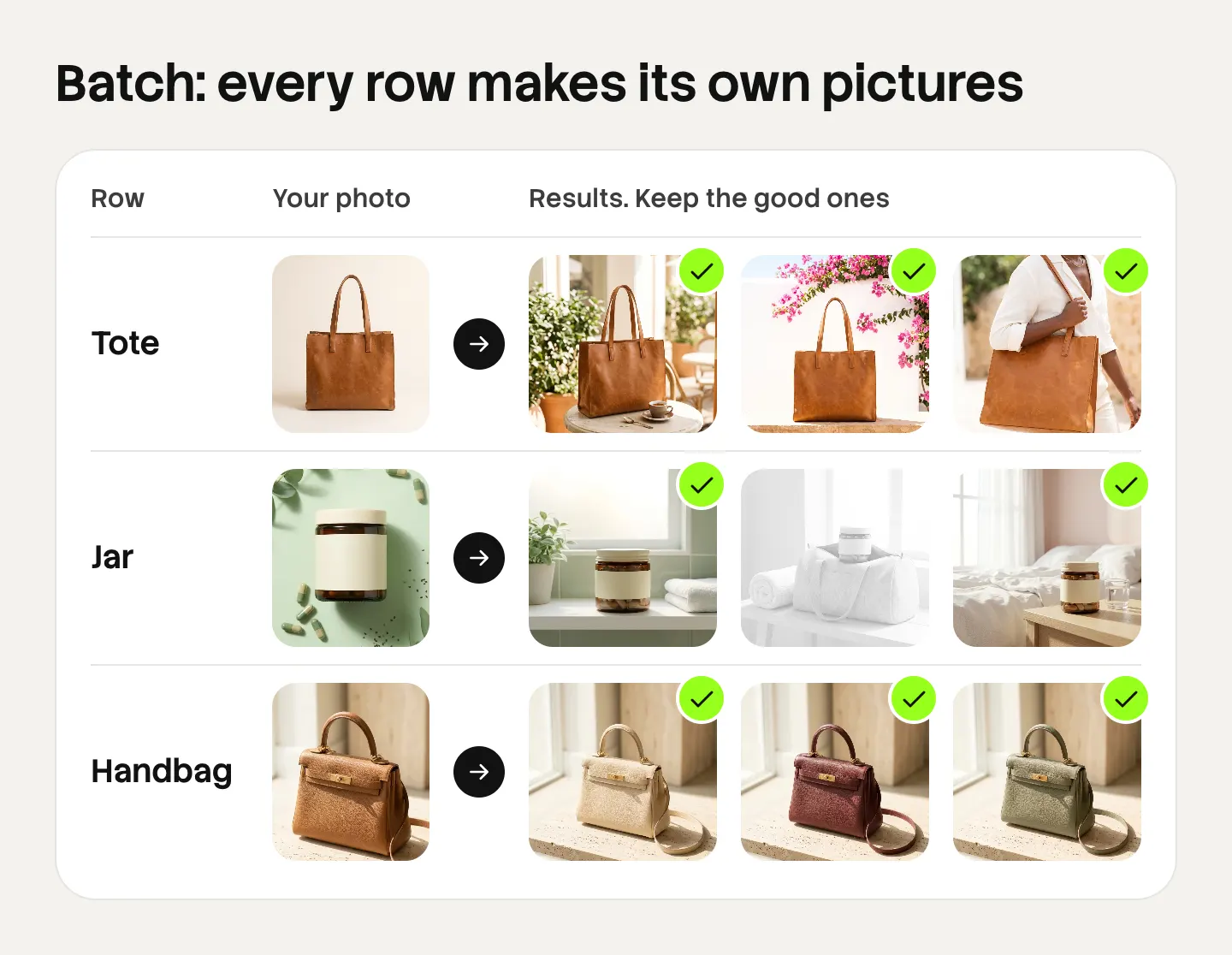
A batch runs one workflow, app or image model over many rows. Each row makes its own pictures or videos. It works in three steps.
- Pick what to run. A workflow you published, one of the apps, or one image model.
- Add your rows. Type them, paste a list, or drop a folder of photos. Each photo becomes a row.
- Keep the best pictures. Run them all, then judge each picture. You keep the good ones and re-run a row that missed.
This is where the brand rules earn their place. Row one and row two hundred read the same brand, the same light and the same framing. You review the results in one pass. You do not open 200 files one by one.
Batch is on every plan. The batch page shows a full sheet, and our guide to batch editing photos explains which edits are safe to run in bulk.
The image editor and the video editor
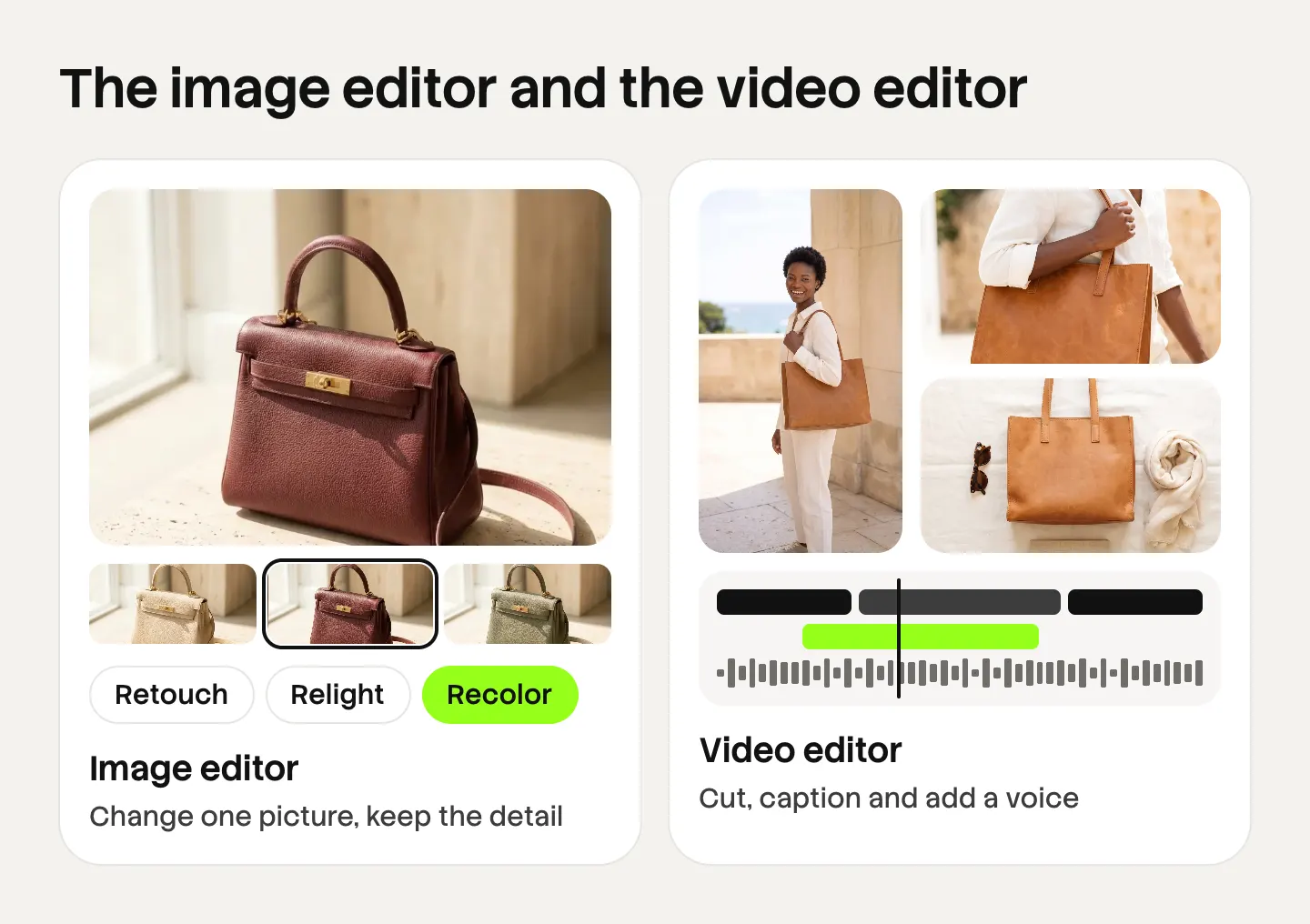
The Studio section of the sidebar holds the two editors. You use them when one result needs a change by hand. Our guide to the image editor and the video editor covers both.
The image editor makes one edit after another. The picture keeps its detail and resolution. You retouch, relight, change a color or swap a background, and the product still looks like your product. You can also design on a canvas with pictures from your library, text, shapes and layers. See the image editor.
The video editor is a real timeline, with several tracks, transitions, animated text and audio. You put clips, footage, captions and sound on the timeline and export one video. See the video editor.
Both editors open results from your library, so a picture from a batch can go to an ad without a download in between.
AI Image, AI Video and AI Character
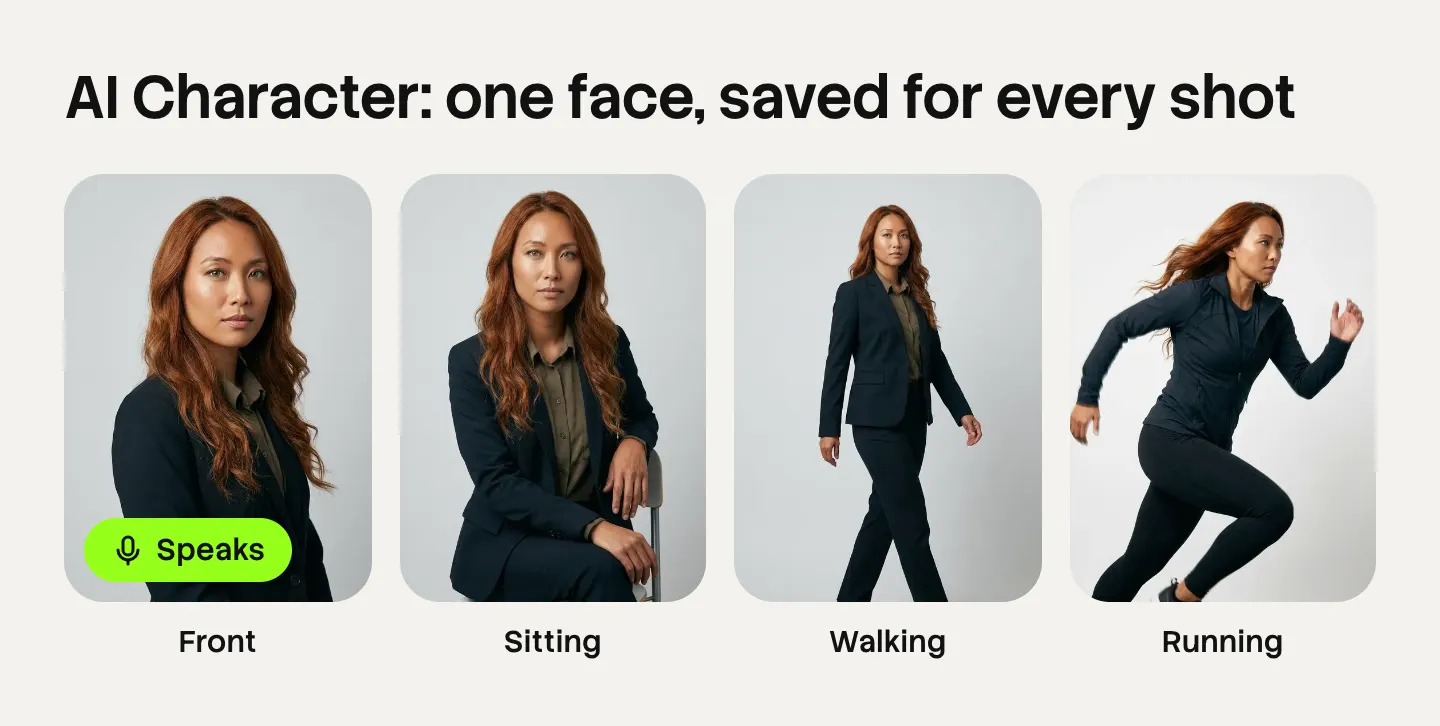
Studio also holds three direct routes. Each one starts from a sentence or a picture and skips the workflow.
| Route | What you give | What you get |
|---|---|---|
| AI Image | A sentence, or a picture to start from | New versions of the picture |
| AI Video | A sentence or a still | A short video clip |
| AI Character | A description of a person, then a script | A saved character that speaks your script |
AI Video uses the video models DesignerBox runs. An 8-second clip costs 40 to 560 credits, depending on the model.
AI Character is the route for a brand face. You create the character once, save it by name and use it again in later shots. An avatar run returns nine fixed poses for 25 credits. The character can also speak your script with lip sync. Our guide to AI avatars for brands covers when a saved character is the right choice.
These routes are for one-off work. When you make the same thing a second time, save it as a workflow.
Brand
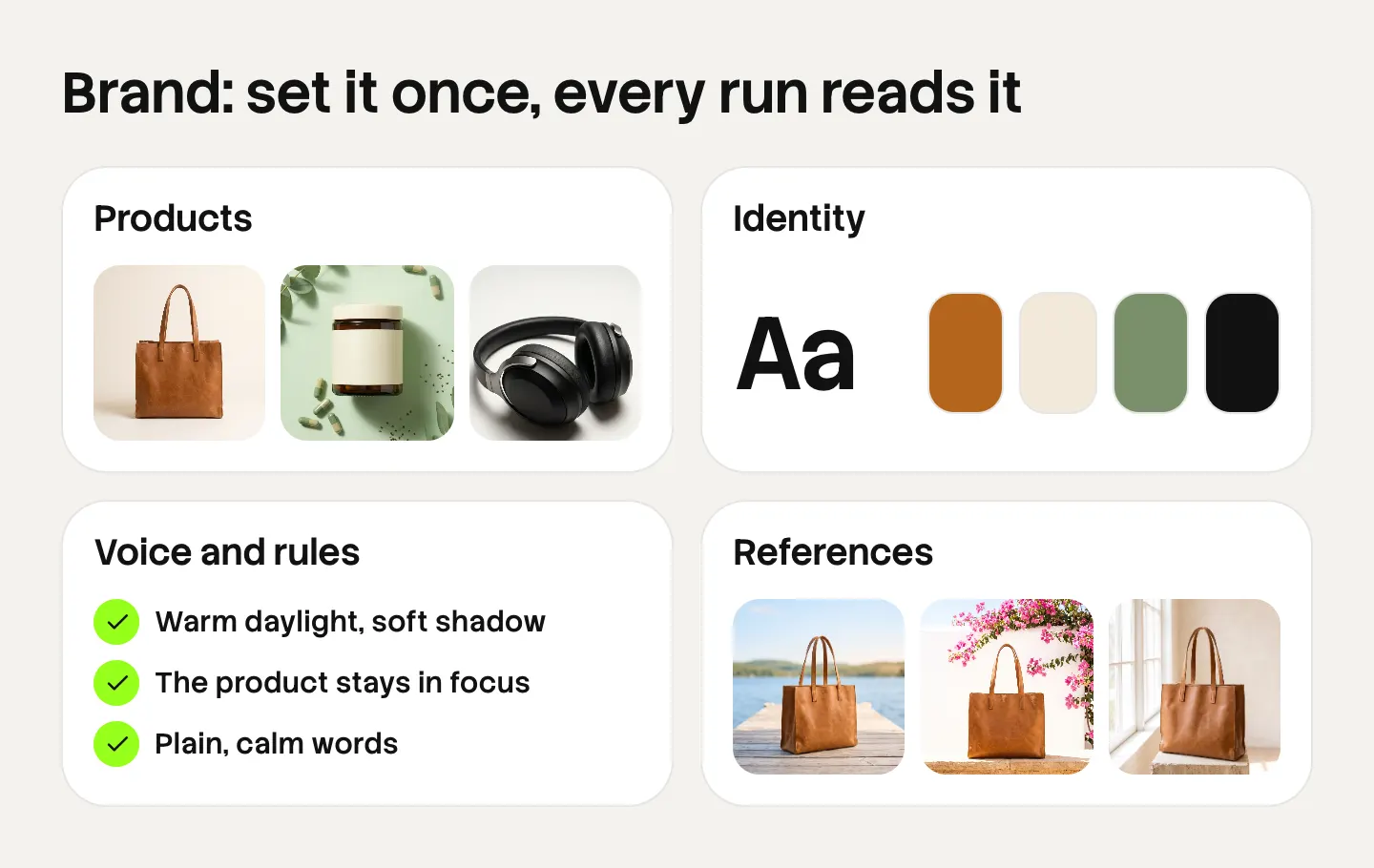
The Brand page is where you set the rules once. It has four parts.
- Products. Your own product photos. Every template then uses your product.
- Identity. Logo, colors and fonts. Every run uses the colors and the fonts, and the image editor offers the logo.
- Voice and rules. Your rules, your voice words, your themes, what the brand sells and who buys it. Workflows read the rules before every prompt.
- References. Pictures you like. Results follow the light and the mood of these pictures.
Every app run uses the brand unless you turn it off. An agency can hold one brand per client and switch between them in the brand picker. The brand page has the full list, and our guide to what goes in a brand kit helps you prepare one.
Assets
Every result goes to one place. The sidebar calls it My Library, and the page is called Assets. You sort results into folders, filter them, and bookmark the ones you use often. You can add your own files too.
From here a picture goes three ways: into an editor, into a review, or to a download. The assets page shows how the library is organized.
Reviews
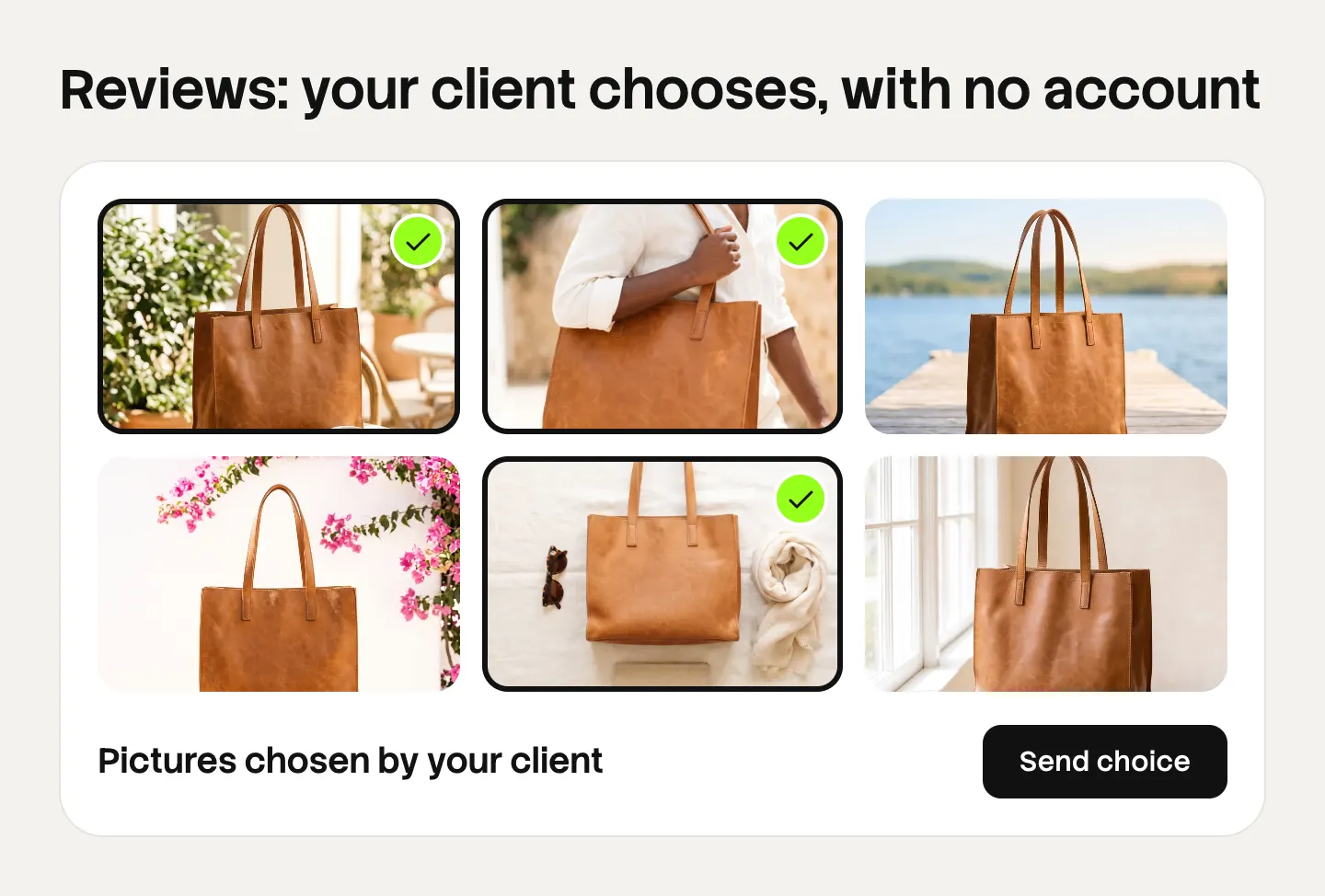
Reviews is new, and agencies asked for it. Reviews sends your client a page of pictures. The client opens the link with no account, chooses the pictures they want and sends the choice back to you. Our guide to DesignerBox Reviews lists the steps for you and for the client.
You start a review in two ways. Select pictures in My Library and press Send for review. Or open a finished run and press Send for review under the pictures.
Reviews covers the choice of pictures. It does not hold comment threads or version history, so keep those in the process you use today.
DesignerBox in your AI chat
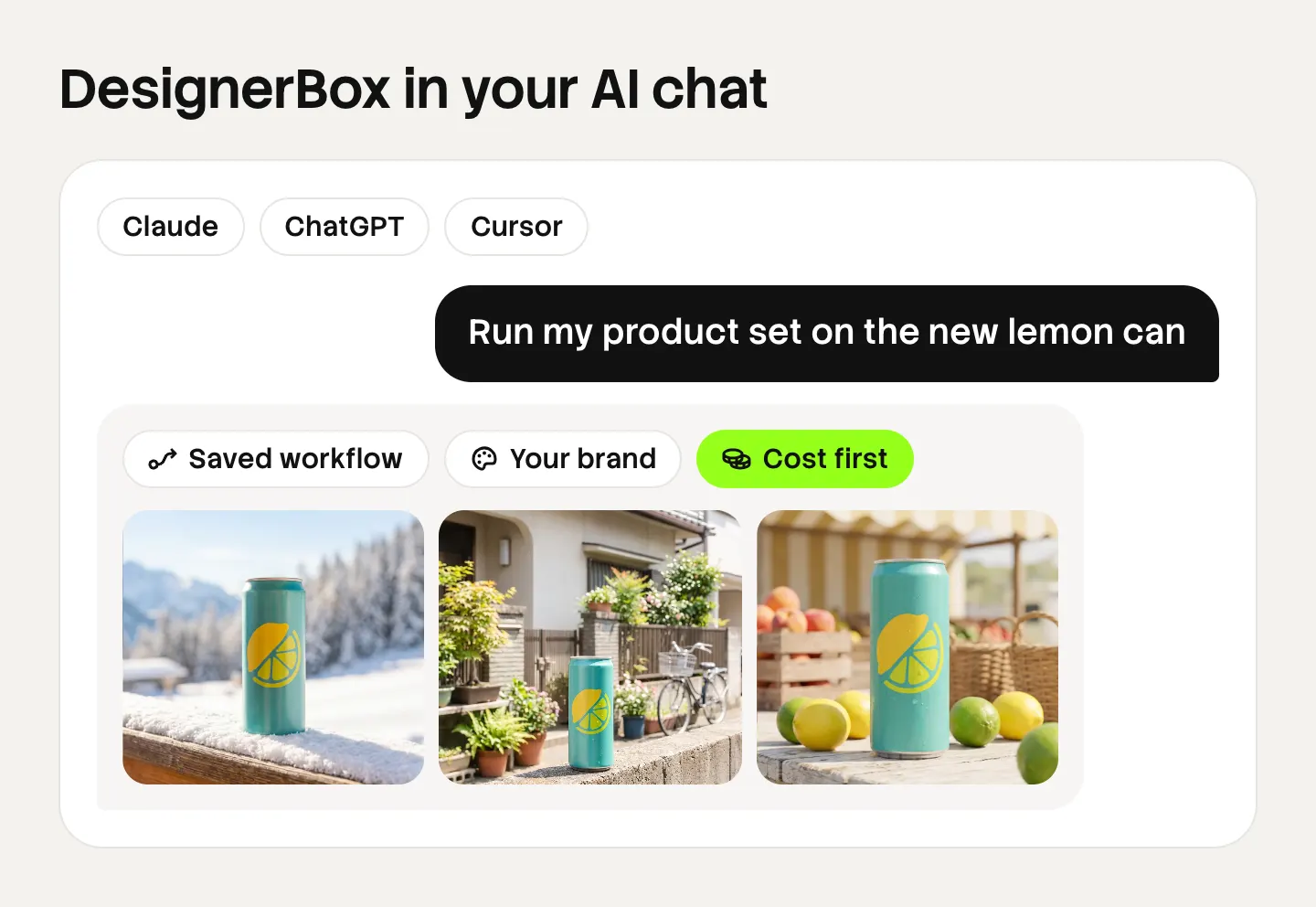
DesignerBox has 68 tools over MCP. You connect your account once, and an AI chat such as Claude, ChatGPT or Cursor can run your saved workflows and apps. The chat reads your brand first, and it can read the price before it runs anything.
In the app, the connection sits in settings under “AI chat (MCP)”. You see each connected client there and you can revoke one at any time. The MCP page has the setup steps, and our DesignerBox MCP guide explains what each group of tools does.
DesignerBox does not have a public API. MCP is the way to run it from outside the app.
Plans and limits
The cost is shown before the run, on every route in the app. Here is what each plan allows.
- Batch, templates, apps and brand rules are on every plan.
- There is a free plan, and it runs on sample products. Uploading your own photos starts on the Pro plan.
- The commercial license starts on the Pro plan.
- AI video, virtual try-on, upscaling, the image editor and the video editor start on the Premium plan.
- Team features and shared brand kits are on the Ultra plan. Every plan below Ultra is one seat.
Plans and credits are on the pricing page, and DesignerBox pricing explained walks through how credits work.
Two honest limits. DesignerBox does not publish results to a store or an ad account. You download the results, or send them with a webhook or an S3 step. And the review step helps you choose. You still look at the pictures before they go live.
A first run, step by step
The shortest path through the new app has four steps. Each one uses a part described above.
- Pick a template. Choose the one closest to the result you want.
- Add your brand. Products, colors, fonts and rules, on the Brand page.
- Run a batch. One row for each input, with the same workflow.
- Send for review. Your client chooses the pictures, and you download the chosen set.
After the first run, the job is saved. Next month’s work takes steps three and four only.
A free plan for your first run
Start from a template and see the cost before you run it. The free plan runs on sample products, so you see the full set before you add your own.
FAQ
What is new in DesignerBox?
The rebuilt app adds Create, a chat where you type what you need. It adds Batch, which runs one workflow over many rows. It adds Reviews, which sends a client a page of pictures to choose from. The Brand page now holds products and reference pictures as well as logo, colors, fonts, voice and rules.
Who is the new DesignerBox for?
It is for brands and agencies that make the same creative work every week. A brand team uses it to keep every image, ad and video in the same look. An agency uses it to run that work for each client, with one brand record per client.
What is the difference between a template, a workflow and an app?
A template is a workflow somebody already built. A workflow is your own set of steps, saved to run again. An app is a workflow with a form, so a colleague completes the form and presses Run. All three run the same kind of steps.
What can a batch run?
A batch runs a workflow you published, one of the apps, or one image model. You add rows by typing them, pasting a list or dropping a folder of photos. Each row makes its own pictures or videos, and you keep the good ones.
Can a client review pictures without a DesignerBox account?
Yes. Reviews sends your client a page of pictures. The client opens the link with no account, chooses the pictures they want and sends the choice back to you.
Which AI chats work with DesignerBox?
DesignerBox has 68 tools over MCP, and it works with Claude, ChatGPT and Cursor. DesignerBox does not have a public API.
What does a run cost in DesignerBox?
The cost depends on the steps and the models in the run, and you see it before you press Run. Plans and credits are on the pricing page.
Sources
- DesignerBox product pages: templates, workflows, apps, batch, image editor, video editor, brand and assets, read October 2026
- DesignerBox MCP, read October 2026
- DesignerBox pricing, read October 2026
- The DesignerBox app, read 4 October 2026
DesignerBox features verified from the DesignerBox app and designerbox.ai as of October 2026. The pictures in this article are illustrations made from DesignerBox results.