
DesignerBox Create is a chat inside the DesignerBox app. You choose a brand, then type what you need or pick a card. Create proposes an app for the request and shows the price. Nothing runs until you press Run. The page has two modes, Chat and App, and five starting tabs. The results land in Assets, with the rest of your work.
A brief often arrives as one sentence. The person who gets it knows the result they want, and not always which app makes it. Create is the page for that moment. It is new in the rebuilt app, and the new DesignerBox covers every other part. This guide explains what is on the Create page, the five steps from a request to a run, the two modes, and the jobs where another page fits better.
Key Takeaways
- Create is a chat inside the app. You type what you need, or you pick a card.
- Create proposes an app and shows the price. Nothing runs until you press Run.
- The page has two modes, Chat and App, and five starting tabs.
- For a job you repeat, an app, a workflow or a batch fits better than a new request.
What DesignerBox Create is
Create is the second item in the app sidebar, under Home. Its heading reads “Pictures and videos for” and then the name of your brand. Under the heading is one text box.
The page describes itself in two lines: “Type what you need, or pick a card. You see the app and the price before it runs.” And: “Nothing runs until you press Run.”
You describe a result in plain words. You then see an app, which is a workflow with a form, and its price. Create is one page of the DesignerBox product, next to templates, workflows, apps and batch.
Parts of the Create page
The table lists every element on the page, as the app showed it in October 2026.

| Element | Label on the page | What it does |
|---|---|---|
| Heading | ”Pictures and videos for” plus your brand name | Shows which brand the page is working for |
| Text box | Example: “Our tote bag on a cafe table in the morning” | Takes your request in plain words |
| Plus button | A plus sign under the text box | Adds a file to the request |
| Brand picker | Brand | Chooses the brand the run uses |
| Mode switch | Chat and App | Switches between describing a request and picking an app |
| Microphone | A microphone icon | A button beside the send arrow |
| Send arrow | An arrow | Sends the request |
| Tabs | Recents, Start here, Something new, From a picture, “Brand, apps and workflows” | Five starting points under the text box |
| Example grid | A grid of example pictures | Cards you can pick in place of typing |
Steps from a request to a run
A request becomes a run in five steps.
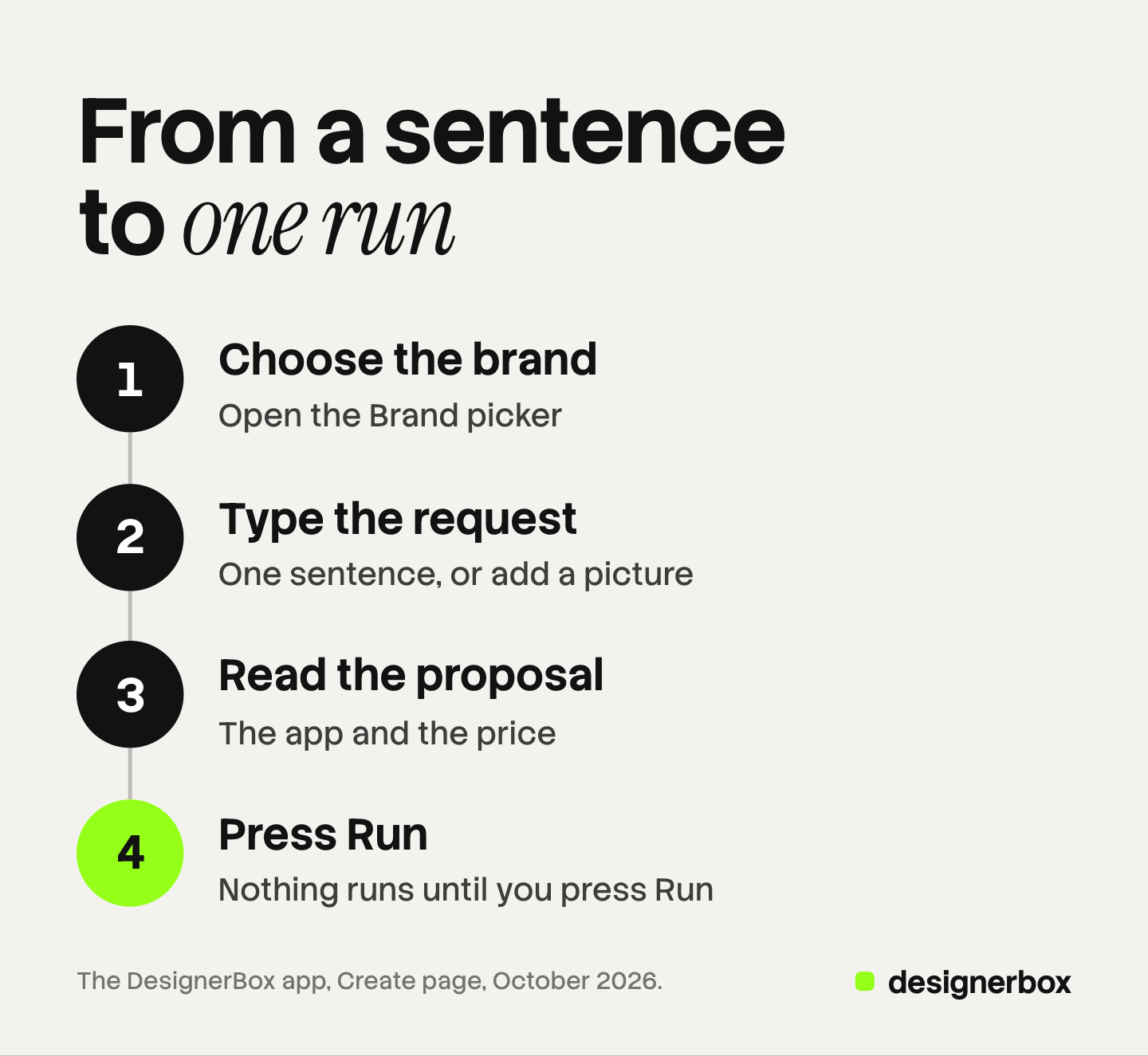
- Choose the brand. Open the Brand picker under the text box and select a brand. The heading names the brand the page works for.
- Type the request, or add a picture. Write the result you want in one sentence. The plus button adds a file, for example a product photo. You can also pick a card from the grid.
- Read the app and the price. Create proposes an app for the request. You see the app and the price before it runs.
- Press Run. Nothing runs until you press Run. If the app or the price is wrong for the job, change the request first.
- Find the result in Assets. The results of a run land in Assets. The app sidebar calls the same place My Library.
Read step 3 with care. The app name tells you which job is about to run.
Chat mode and App mode
The mode switch has two labels, Chat and App. Chat mode is for describing what you need in a sentence. App mode is for picking an app, and it takes you to a form.
Use Chat when you know the result and not the app. Use App when you already know which app you want.
In both modes, nothing runs until you press Run. Our guide to DesignerBox apps explains what an app is and what a run costs.
The five starting tabs
Five tabs sit under the text box. The table lists the five labels.
| Tab | What the label names |
|---|---|
| Recents | Your recent items |
| Start here | A place to start |
| Something new | Something new to make |
| From a picture | A start from a picture |
| Brand, apps and workflows | Your brand, the apps and the workflows |
The last tab names other parts of the app. A template is a workflow somebody already built, and DesignerBox templates covers how to start from one.
Brand use in Create
Anyone can make an AI picture. Making hundreds that still look like your brand is the hard part. Create handles that with the Brand picker.
You choose the brand before you send the request. The Brand page says what happens next: “Every app run uses this brand unless you turn it off.” So a run that starts in Create uses the brand you picked.
A brand holds four things in the app: products, identity, voice and rules, and reference pictures. Identity means the logo, the colors and the fonts. The Brand page on the site lists what a brand record holds.
Fill in the brand first. A request such as “our tote bag” only makes sense when the app knows which tote bag is yours. Our guide to the DesignerBox Brand page walks through each of the four parts.
An agency keeps one brand per client. In Create, the Brand picker is then the first decision of every request. Check the name in the heading before you type.
Cost before the run
The cost is shown before the run. In Create, the price appears with the app that Create proposes, and you read both before you press Run.
The price depends on the app and on the models inside its workflow, so read the number on the page.
Three plan facts matter for Create. Templates, apps and brand rules are on every plan. Uploading your own photos and the commercial license start on the Pro plan. AI video, virtual try-on, upscaling, the image editor and the video editor start on the Premium plan. Plans and credits are on the pricing page.
The free plan runs on sample products. A request about your own product needs your own photo, and that starts on the Pro plan.
Create, apps, workflows and batch by job
Create is one of several ways to start a run. The full workflow from the first product photo to the finished ad, in one subscription. The table matches the job to the page.
| The job | Start here | Why |
|---|---|---|
| One result, and you do not know which app makes it | Create, Chat mode | You describe the result, and Create proposes the app |
| One result, and you know the app | Create in App mode, or the Apps page | You go to the form directly |
| The same job every week, run by a colleague | An app | The colleague completes a form and presses Run |
| Your own steps, with your own rules | A workflow | You build the steps once and run them again |
| A job somebody already built | A template | You open it, add your photo and run it |
| The same job for a whole list of products | A batch | One workflow, app or image model runs over many rows |
Create suits the first time you make something. The second time, you know the app, so you can open it directly.

When the list has 40 products, typing 40 requests is the wrong route. A batch holds up to 200 rows a sheet, and each row makes its own pictures or videos. Our guide to DesignerBox Batch covers the three steps.
Limits of Create
These are the limits as of October 2026.
- Create runs inside the app. If your team works in an AI chat such as Claude, ChatGPT or Cursor, the route is the DesignerBox MCP server, which is a separate connection. Our article on the DesignerBox MCP launch explains it.
- Delivery is a download or an outbound step. DesignerBox does not send results to an ad account or a store. You download the results, or send them with a webhook or an S3 step.
- Every plan below Ultra is one seat. A team that shares brands and results needs the Ultra plan.
Start with one request, read the app and the price, and press Run when both are right. Get started free
FAQ
What is DesignerBox Create?
DesignerBox Create is a chat inside the DesignerBox app. You choose a brand, then type what you need or pick a card. Create proposes an app for the request and shows the price. Nothing runs until you press Run.
What is the difference between Chat mode and App mode?
Chat mode is for describing what you need in a sentence. App mode is for picking an app, and it takes you to a form. In both modes, nothing runs until you press Run.
Can I use Create as a chat to create product images of my own product?
Yes, with your own photo. You add the photo with the plus button and describe the picture you want. Uploading your own photos starts on the Pro plan. The free plan runs on sample products.
How much does a run from Create cost?
It depends on the app that Create proposes and on the models inside it. The cost is shown before the run. Plans and credits are on the DesignerBox pricing page.
Is Create the same as running DesignerBox from Claude or ChatGPT?
No. Create is a page inside the DesignerBox app. Running DesignerBox from an AI chat such as Claude, ChatGPT or Cursor uses the MCP server, which is a separate connection.
Sources
- The DesignerBox app, Create page and Brand page, read October 2026
- DesignerBox product page (designerbox.ai/product), October 2026
- DesignerBox Brand page (designerbox.ai/product/brand), October 2026
- DesignerBox Apps page (designerbox.ai/product/apps), October 2026: results land in Assets
- DesignerBox MCP page (designerbox.ai/mcp), October 2026
- DesignerBox pricing page (designerbox.ai/pricing), October 2026: the plan gates
The Create page was read in the DesignerBox app in October 2026. Labels, tabs and plan gates change, so check the app and the price shown on the page before you run a large job. Individual results vary.