To make seasonal product photos in DesignerBox, pick one look for each season and test it on one product. Then run the same job in Batch, with one hero picture in each row of the sheet. One sheet holds up to 200 rows. You keep or discard each result with the J and K keys, and the kept pictures go to Assets.
Your 50 best-selling products each have one hero picture. In October they need an autumn scene. In late November they need Christmas, and in January a sale look. Three reshoots a year cost too much. Editing 50 pictures by hand for each season is 150 edits.
Key Takeaways
- One look per season. Pick one seasonal picture you like for each season. Inspiration has filters for Halloween, Black Friday, Christmas and Cold weather.
- Test on one product first. Run the look on one hero picture before you fill the sheet.
- One row per picture. Upload 50 hero pictures and you get 50 rows. A sheet holds up to 200.
- You choose every result. Keep or discard each one with the J and K keys. Nothing is approved for you.
- The product must not change. Seasonal props go around the product. The shape, the color and the label stay the same.
- No price on the picture. Write the brand rule “never show prices on the picture” if your offers change.
The seasonal job and who has it
A hero picture leads the product page, the first ad and the email header. A brand with 20 to 500 products, or its agency, refreshes those pictures before each season. The product stays the same. The scene, the light and the props change. The ecommerce brands page shows how this buyer uses DesignerBox.
The dates are fixed. Thanksgiving falls on Thursday 26 November 2026, and Christmas Day on Friday 25 December 2026 (U.S. Office of Personnel Management, October 2026). So Black Friday is on Friday 27 November 2026. Our guide to Black Friday product photography covers the two image sets a sale needs and when to lock them.
Not every image slot may carry a seasonal scene, because a marketplace main image follows its own rules. Our guide to holiday product photography covers which slots can carry one.
The surfaces for seasonal product photos
Inspiration gives you the look. A template applies it. Batch runs it on every product.
| Surface | What you add | What you get | Plan |
|---|---|---|---|
| Inspiration | A seasonal filter and your product | A finished seasonal idea, made with your product | Every plan |
| One look for your photos template | Your photos and one picture you like | Each photo in that picture’s look | Every plan |
| Product in several places template | A product photo and the look | Several pictures, each in another place | Every plan |
| Batch | One row per hero picture, up to 200 rows | The same job on every row | Every plan |
| Brand | Rules such as “never show prices on the picture” | Rules your workflows read | Every plan |
Inspiration. Inspiration is the gallery on the Create screen. Each card is a finished ad or product photo with its brief already written, and the cards change with the season. On 22 October 2026 they included a Black Friday serum ad, a perfume gift by the tree and a sweater by the fire. Our guide to DesignerBox Inspiration covers the gallery.
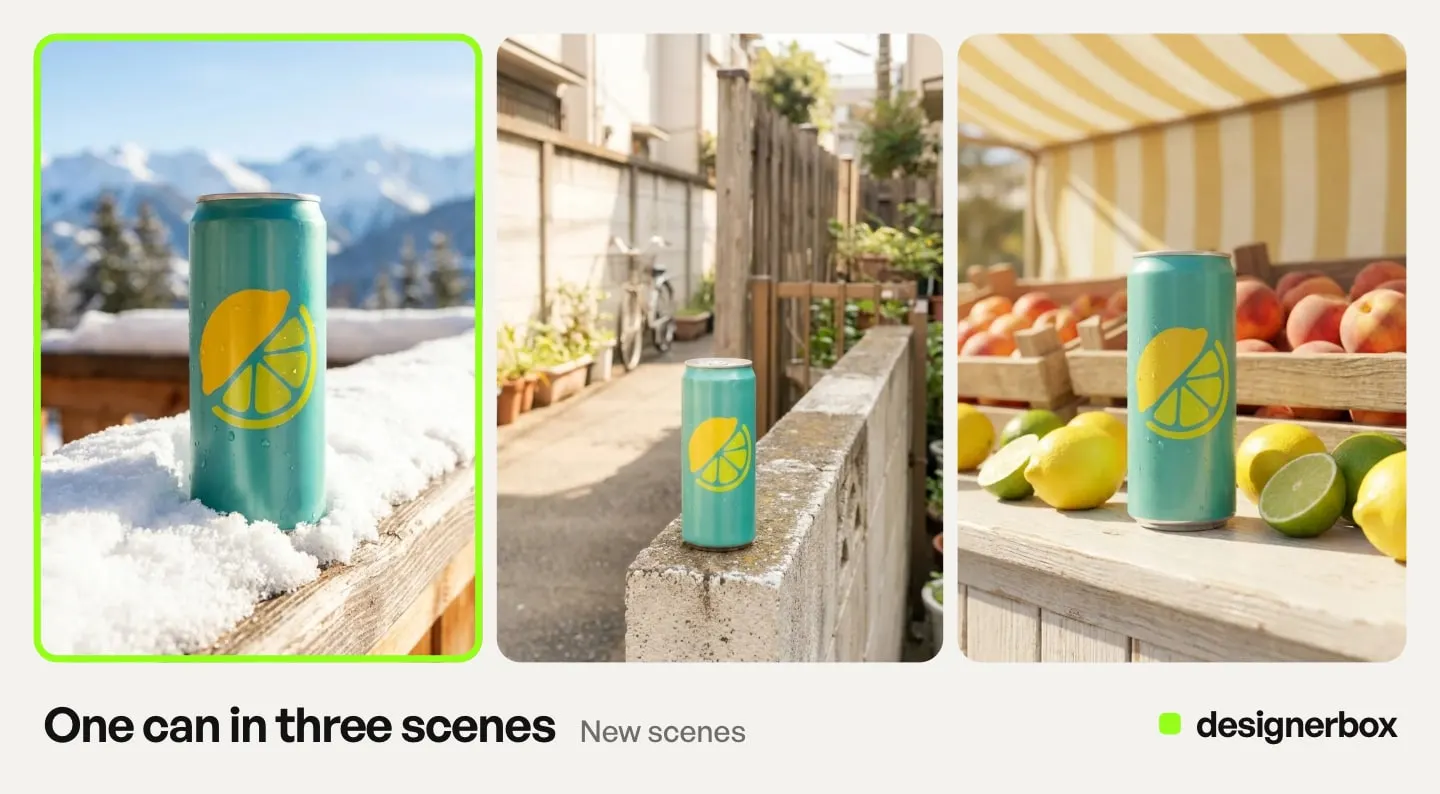
The templates. One look for your photos puts each of your photos into the look of one picture you like. Product in several places shows one product in several places, so you can compare scenes first. The templates page lists both.
Batch. A batch runs one job over a sheet of rows. The Batch page covers the sheet, and our guide to DesignerBox Batch covers each control.

Steps for the first seasonal run
Do the seven steps once for each season.
- Write the brand rules. Open Workspace, then Brand. Add rules one sentence per line, such as “No text on the picture” and “Never show prices on the picture.”
- Pick the look. Open Create and scroll to Inspiration. Choose a filter such as Christmas, press a card, press “Use this picture” and add one product. Keep the result you like as the season’s look picture.
- Test on one product. Open the One look for your photos template and open your own copy. Add one hero picture and the look picture. Add a Brand Kit step, so the workflow reads your rules. Then press Run all. Check the result.
- Publish your copy as an app. Batch runs an image model, an app or your own workflow published as an app. Publish your copy so the sheet can run it.
- Fill the sheet. Open Automation, then Batch, and pick your published workflow. Upload the 50 hero pictures, and each picture becomes one row. Check that every row has what the form asks for, such as the look picture.
- Set the runs and read the sheet line. Choose 1 to 4 runs per row. The sheet shows the rows that are ready, the credits and what is left after. Over 20 runs, DesignerBox asks you to confirm first.
- Keep or discard. Use the J and K keys on each result. Then download the kept pictures, send them for review, or download the sheet as CSV.
A worked example with 50 hero pictures
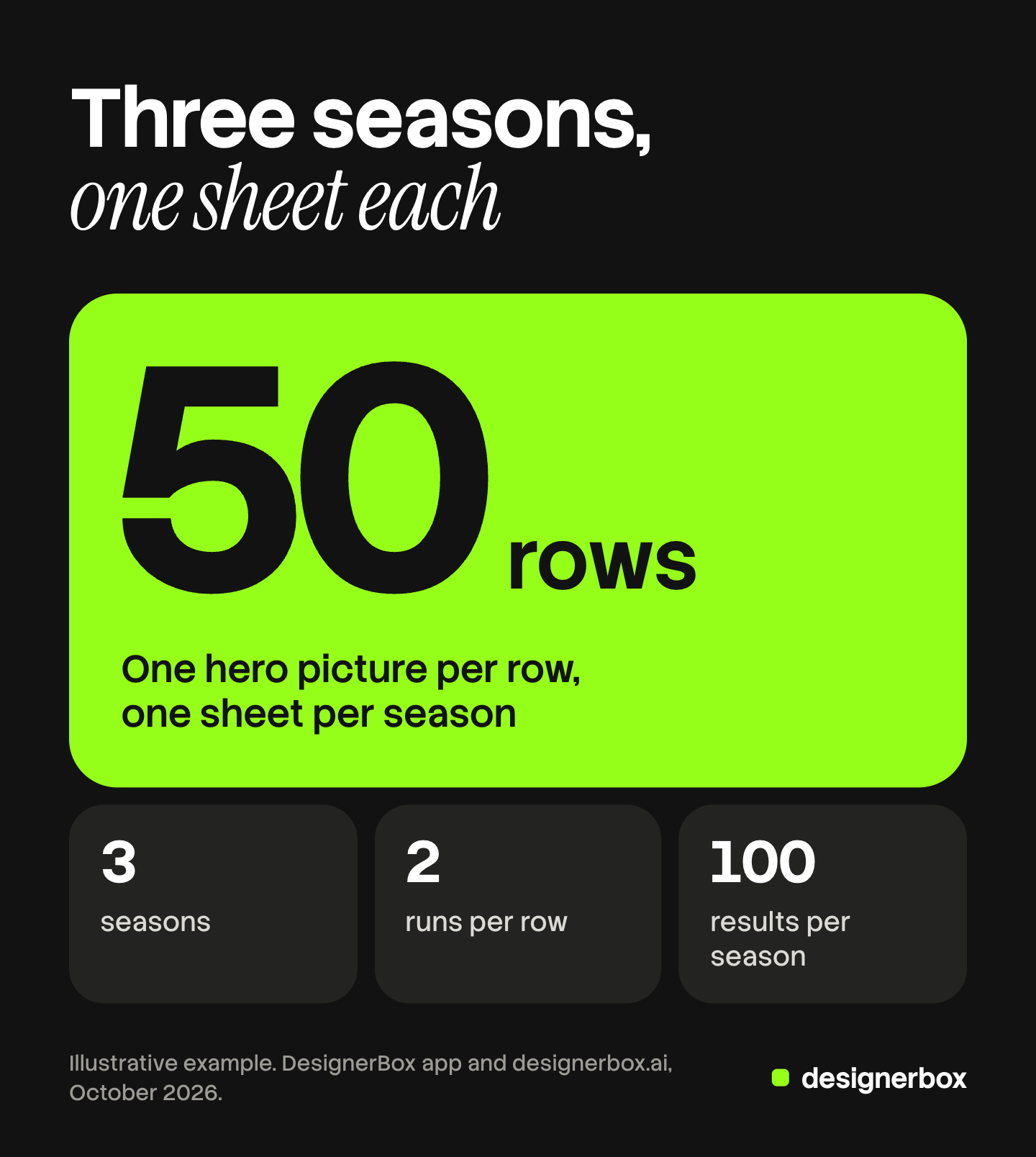
This example is illustrative. A homeware brand has 50 hero pictures and three seasons: autumn, Christmas and the January sale.
| Part of the job | Number |
|---|---|
| Hero pictures | 50 |
| Seasons | 3 |
| Sheets | 3, one per season |
| Rows per sheet | 50 |
| Runs per row | 2 |
| Results per season | 100 |
| Pictures kept per season | 50, one per row |
All 150 rows would fit in one sheet of 200. A sheet per season is easier, because each season goes live on its own date. Two runs per row give 100 runs per sheet, so DesignerBox asks you to confirm before it starts.
Each season has its own risk:
- Autumn. Warm light can turn a white product cream. Compare the color with the original photo.
- Christmas. Ribbons, branches and gift boxes must not cover the label or sit on the product.
- January sale. A sale needs an offer more than a scene. Keep the picture clean and put the offer in the ad text or the email.
For the sale ads, the Ad in other sizes app returns four sizes from one ad. Our guide to ad sizes and languages covers that job.
The second season and the twentieth
The workflow stays the same from season to season. Only the look picture changes.
- Save a named version per season. For example, “Christmas 2026” and “January sale 2027”.
- Change the look, keep the steps. Pick a new look in Inspiration and use it in the same workflow.
Anyone can make an AI picture. Making hundreds that still look like your brand is the hard part. A workflow with a Brand Kit step reads your brand rules before each prompt, so the price rule and the text rule go into every row’s run. The rules guide the run and do not check the picture, so you still check each result. Our guide to DesignerBox Brand covers how to write rules a person can check.
Checking seasonal pictures before they go live
A seasonal picture goes live on a date, and a wrong one stays up for weeks. Check each result before you keep it.
- The same product. The shape, the color and the label match the original, and so does the size against the props.
- Props around the product. Nothing covers the label, and nothing new sits on the product.
- Nothing extra. The picture has no text, price or logo that you did not ask for.
You can add critic steps to the workflow. Critic steps (designer, photographer, emotion, ad director) score several results and keep the best. You still keep or discard each row’s result yourself.
To get a yes from a client, send the kept pictures for review from the batch. Our guide to DesignerBox Reviews covers the client’s side.
Limits of seasonal versions
These are the limits as of October 2026.
- Seasonal props must not change the product. Discard any result where the product looks different from the original.
- No promotion price on the picture, unless your rules allow it. Prices change during a sale, and a picture with a price must be made again when the offer changes.
- The gallery changes with the season. The cards named here may be gone when you read this.
- Delivery is a download. DesignerBox does not swap the pictures in your store. You download the results, or send them with a webhook or an S3 step.
Cost and plans for seasonal versions
The cost is shown before the run. For a batch, the sheet shows the credits for the whole sheet and what is left after, before you press Run.
Templates, apps, workflows, batch and brand are on every plan. Uploading your own photos and the commercial license start on the Pro plan. There is a free plan. It runs on the sample products and cannot make video. Plans and credits are on the pricing page.
The seasonal looks, the batch sheet and the review link sit in one account. Start with one look and one product. Get started free.
FAQ
How do I make Christmas versions of my product photos in DesignerBox?
Pick a Christmas look in Inspiration and test it on one product with the One look for your photos template. Publish your copy as an app. Then run it in Batch, with one hero picture in each row.
How many products can I run in one seasonal batch?
One sheet holds up to 200 rows, one hero picture per row. Each row takes 1 to 4 runs. Over 20 runs, DesignerBox asks you to confirm first.
Will the seasonal scene change my product?
It can, so check every result. Compare the shape, the color and the label with the original photo, and discard any result where the product changed.
Can I put the Black Friday price on the picture?
Only if your brand rules allow it. A brand can write the rule “never show prices on the picture”, because prices change during a sale. Put the offer in the ad text or the email instead.
How much does a seasonal batch cost?
The sheet shows the credits for the whole sheet before you run. The total depends on what each row runs and the runs per row.
Can DesignerBox update the pictures in my store?
No. You download the kept pictures, or send them with a webhook or an S3 step.
Sources
- DesignerBox Batch page (designerbox.ai/product/batch), October 2026: up to 200 rows, runs per row, the confirm step and keep or discard
- DesignerBox Templates page (designerbox.ai/product/templates), October 2026: One look for your photos and Product in several places
- DesignerBox Brand page (designerbox.ai/product/brand), October 2026: rules such as “never show prices on the picture”
- The DesignerBox app, read 22 October 2026: the Inspiration filters and cards, the Batch sheet, the J and K keys and the batch menu
- DesignerBox pricing page (designerbox.ai/pricing), October 2026: plan gates
- U.S. Office of Personnel Management, Federal holidays, 2026 holiday schedule, read October 2026: Thanksgiving Day on Thursday 26 November 2026 and Christmas Day on Friday 25 December 2026
DesignerBox features verified in the app and on designerbox.ai as of October 2026. Results vary by product and model.