
Holiday product photography is a seasonal set of images for the products you promote in November and December. You rarely need a new shoot. Keep the product photo you already have and change the scene around it. Plan the set in three steps: check which image slots allow a seasonal scene, count the images from the campaign, and have the store ready before November.
The usual plan fails in the same way every year. Someone writes “holiday images for the catalog” on a list in October. With 200 products and five images each, that is 1,000 files. Nobody can make them in time, and most of them would have no place to go.
This guide is for a brand with 20 to 500 products, and for the agency that runs the season for it. It covers the rules of each image slot, the count, six scenes that work, a calendar with dates for 2026, the checks before an image goes live, and the day the images come down again.
Key Takeaways
- The main image stays plain. Amazon’s main image is pure white with no props. Google’s main feed image takes no promotional text, overlay or border. The holiday scene goes in the other slots.
- Count from the campaign. Multiply the products you promote by the slots that take a scene. In the worked example below, a 200-product store needs 86 images.
- Keep the product, change the scene. An accurate product photo is the input. The background, the props and the light change. The product does not.
- Be live before November. In the National Retail Federation’s 2025 survey, 42% of shoppers planned to start before November.
- Send ads a week early. Meta says most ads are reviewed within 24 hours, although some take longer.
- Plan the day the images come down. A wrapped gift in the gallery on January 5 makes the listing look old. Keep the plain set and swap it back.
What is holiday product photography?
Holiday product photography shows a product in a seasonal setting: wrapped as a gift, on a winter table, in a gift set, or in a sale layout. It supports the weeks from early November to late December. The product in the picture is the same one you sell all year. Only the scene, the props and the text around it change.
The season is large enough to plan for. In the United States, shoppers spent 257.8 billion dollars online from November 1 to December 31, 2025, which is 6.8% more than the year before. The five days from Thanksgiving to Cyber Monday brought in 44.2 billion dollars of that (Adobe, January 2026).
More than half of those orders came from a phone: 56.4% of online transactions, in the same Adobe data. So a holiday image is first seen small. One clear product and one clear scene read better on a phone than a full table of props.
Which image slots can carry a holiday scene?
Not every slot can. The main image on a marketplace or a shopping feed follows strict rules, and a festive version of it can take the product out of search. The holiday scene belongs in the extra images, in your own store, in email and in ads.
| Slot | Holiday scene | Text on the image | Rule |
|---|---|---|---|
| Amazon main image | No | No | Pure white background, no props |
| Amazon other images | Yes | Limited | Must show the product accurately. No shipping claims, no review stars |
| Google main feed image | Keep it plain | No | No promotional text, overlays or borders |
| Google lifestyle image | Yes | No | Product in a natural setting, no promotional text |
| Your store gallery and banners | Yes | Yes | Your own rules |
| Meta ads | Yes | Yes | Every ad goes through ad review |
Amazon’s product image guide asks for a pure white main image, RGB 255, 255, 255, with no props. Its rules for all images ban claims such as free shipping and five-star imagery (Amazon Seller Central, product image guide, October 2026). The full list is in our guide to Amazon image requirements.
Google’s image specification says not to use an image that contains promotional elements or overlays, and not to use an image with a border (Google Merchant Center Help, image link, October 2026). A “Black Friday” banner on the main feed image breaks that rule.
Google has a separate attribute for scenes. A lifestyle image shows the product in a natural setting, and a product can carry up to five of them. The same page says the lifestyle image takes no promotional elements or other text (Google Merchant Center Help, lifestyle image link, October 2026).
The practical rule is short. Leave every main image alone. Put the holiday scene in slot two or later, and keep sale text for your own store, your email and your ads. The sale weekend has its own image set, and our guide to Black Friday product photography covers it. Our guide to ecommerce product photography specs has the sizes for each channel.
How many holiday images do you need?
Fewer than the catalog suggests. Count from the campaign: list the places where a holiday image will appear, then list the products that appear in each place. The total is products multiplied by slots, added up per place.

Here is an example for a store with 200 products. The numbers are an illustration, and your own split will differ.
| Place | Products | Images each | Total |
|---|---|---|---|
| Gift collection: gallery scene and feed lifestyle image | 24 | 2 | 48 |
| Paid ads: square, vertical and story sizes | 10 | 3 | 30 |
| Gift guide email and collection page | 6 | 1 | 6 |
| Homepage banner, desktop and mobile | 1 | 2 | 2 |
| Total | 86 |
Eighty-six images is a job one person can review in a day. One thousand is not. The ads and the email use products from the same 24. The other 176 products keep the images they have, and that is a decision you make on purpose.
Three questions decide whether a product is on the list:
- Is it in a paid ad or an email this season? If yes, it needs the ad sizes.
- Is it in the gift collection? If yes, it needs one scene for the gallery.
- Is its plain listing set complete? If not, finish that first. A new product with no main image earns nothing from a holiday scene.
A shot list template is a good place to hold this count, with one row per image.
Six holiday scenes that work for most products
Pick one or two scenes for the whole set. A store with six different holiday looks reads as six stores. Each scene below keeps the product as it is and changes only what surrounds it.
- The wrapped gift. The product sits beside its box, tissue paper and ribbon. It answers the question “can I give this?” in one look.
- The gift set. Two or three products that are sold together appear in one frame. Show only what the buyer receives.
- The winter table. The product is in use in a seasonal room: a mug beside a window with frost, a candle on a set table.
- The seasonal flat lay. The product is shot from above with a few props such as pine, dried orange or paper stars. Keep the props smaller than the product.
- The color background. A plain backdrop in one seasonal color, with no props. This is the fastest scene to repeat across many products.
- The sale layout. The product on a clean ground with space for a price or an offer. Use it for ads and banners only.
Christmas product photography often fills the frame with red, green and props. A quieter set usually ages better. If the scene carries no dated symbols, the same images work from early November to the end of December, and some work again next year.
For ad layouts, our list of static ad examples shows formats that take a seasonal offer.
A holiday image calendar for 2026
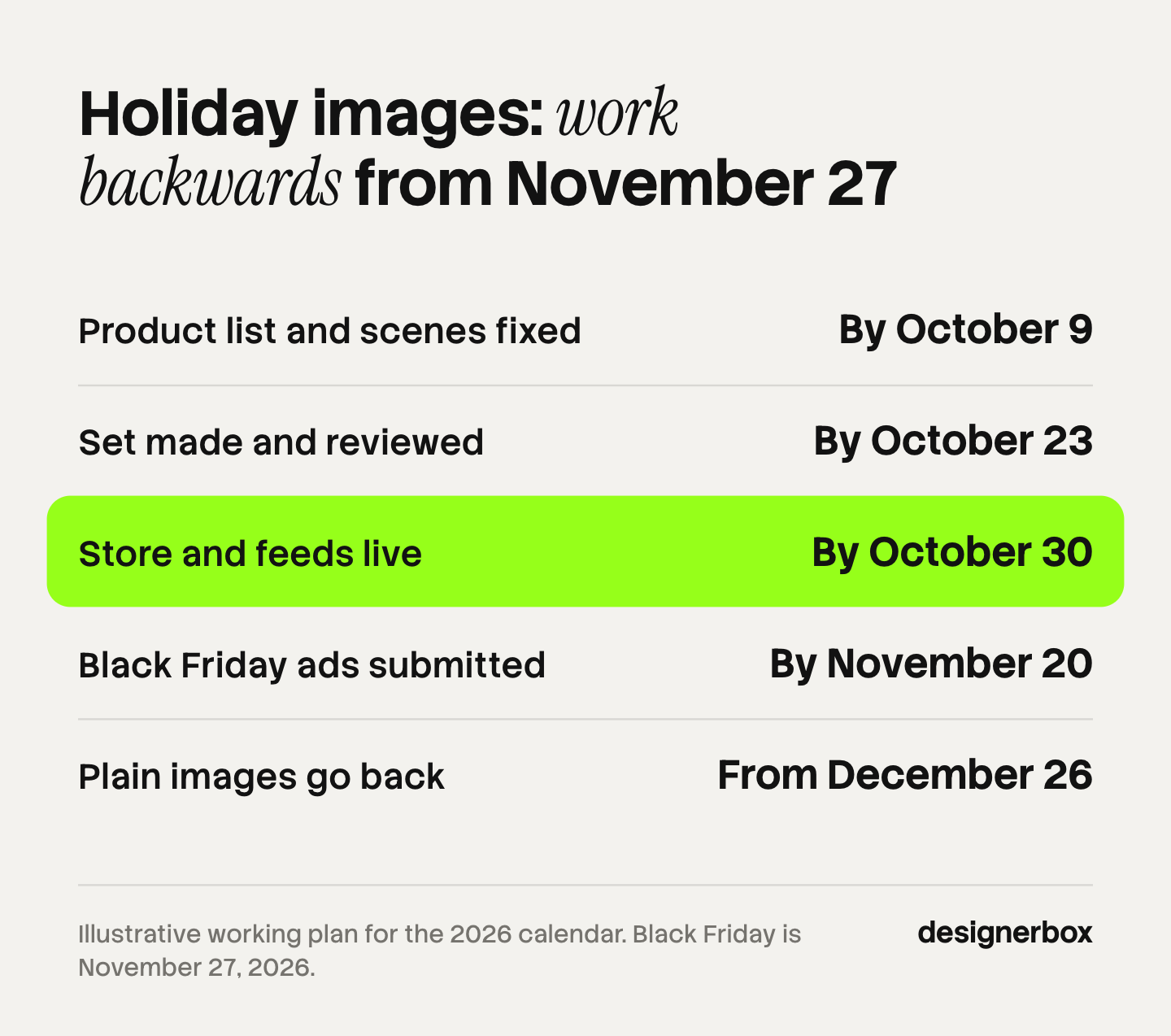
In 2026, Thanksgiving is November 26, Black Friday is November 27 and Cyber Monday is November 30. Work backwards from those dates. The calendar below is a working plan with a margin for review. It is a suggestion, and no platform sets these dates.
| When | What is done |
|---|---|
| By October 9 | The product list, the two scenes and the sizes are fixed |
| By October 23 | The set is made and reviewed |
| By October 30 | The store, the feeds and the gift collection are live |
| By November 20 | The Black Friday ad files are submitted |
| From December 26 | The plain images go back |
Two facts set the two middle dates. In the National Retail Federation’s 2025 holiday survey, 42% of shoppers planned to start browsing and buying before November (NRF, October 2025). A store that changes its images on Black Friday morning has missed them.
Meta says most ads are reviewed within 24 hours, although in some cases it may take longer, and that an ad may be reviewed again after it is live (Meta Business Help Center, About ads in review, October 2026). One week of margin covers a slow review and one round of fixes. This calendar covers the seasonal scenes. The dates for sale creative and the freeze before the weekend are in the Black Friday guide linked above. The ad side of that week is in our guide to Black Friday Facebook ads.
Marketplace images take time too. Amazon’s guide says a new image can take up to 24 hours to appear. Upload the extra images days before the sale starts.
How to make holiday images without a reshoot
Treat the product photo as the fixed part. A clear photo of the real product, on a plain background, is the input. Everything seasonal is added around it. There are three common routes, and most stores mix them.

Reshoot only the hero products. A real set with real props still gives the best result for the five or six products that lead the campaign. Book it early.
Composite the product into a scene. Cut the product out and place it on a photographed or designed background. The product stays exact because its pixels do not change. The work is in the shadow and the light direction, which must match the scene.
Generate the scene around the product. An AI image model takes the product photo and builds the room, the props and the light. This is the fastest route for 20 to 80 products. The model redraws the product too, so it needs the checks in the next section. Our comparison of AI lifestyle photo generators explains how each kind of tool builds the scene.
Whichever route you use, decide the scene once. Write down the background, the props, the light direction, the crop and the sizes before the first image is made. Then every product goes through the same decisions. This is the difference between a set and a folder of pictures.
What to check before a holiday image goes live
A generated or edited image can change the product. Check each image against the original photo before it goes live. The buyer must receive what the picture shows.
- Color. Warm holiday light can turn a white product cream. Compare with the original.
- Text and logos. Read every word on the label. Models can garble small text.
- Prints and texture. Look for a warped pattern, a missing seam or lost collar ribbing.
- Scale. A prop that is too small or too large makes the product look the wrong size.
- What is included. If the ribbon, the box or the second item is not in the order, the picture must not suggest it is.
- Dated symbols. A scene with a date or a holiday name must come down on time.
You do not need to study every image for the same length of time. If one scene runs on 24 products and 21 are right, spend the time on the three that are not. Fix them or leave those products on their plain images.
When to take the holiday images down
Set the date before the season starts. A holiday scene that stays in the gallery through January tells the buyer nobody is looking after the listing. A sale banner that stays after the sale ends states an offer that no longer exists.
- Keep the plain set. Do not overwrite the year-round images. Store the holiday set beside them, with the product code in each file name.
- Swap in two steps. Sale layouts and Black Friday text come down when the sale ends. Winter scenes with no dated symbols can stay until the end of December.
- Keep what you can reuse. A color background or a winter table with no date on it is ready for next year. So is the written scene.
The second season is where the planning pays back. Next October you change the product list and run the same scenes again.
One holiday workflow for the catalog
Anyone can make an AI picture. Making hundreds that still look like your brand is the hard part. A holiday set is a small version of that problem: 86 images that must look like one store.
In DesignerBox you build the scene once as a workflow, with your brand rules, your background and your framing. A saved workflow runs the same way on the next product. Batch runs it over a sheet of products, one product per row, and the standard on row one is the standard on row two hundred. You keep or discard each result, and you re-run one row on its own. The cost is shown before the run.
Brand holds your logos, fonts, colors and rules, and the workflow reads them on every run. Three critic steps score the results and best-of-N keeps the best one. That narrows what a person has to check. It does not replace the check. The holiday backgrounds page shows the seasonal scenes a product can sit in, and the page for ecommerce brands shows the full listing set.
The full workflow from the first product photo to the finished ad, in one subscription. The same product photo becomes the gallery scene, the ad sizes and a short clip, and next season you run the saved workflow again.
The limits matter for planning. DesignerBox does not publish to a store or a channel. You download the results, or send them with a webhook or an S3 step. Batch, templates, apps and brand rules are on every plan. The free plan runs on sample products. Uploading your own photos and the commercial license start on the Pro plan. AI video, virtual try-on, upscaling, the image editor and the video editor start on the Premium plan. Every plan below Ultra is one seat. Plans and credits are on the pricing page.
For the wider campaign, our guide to AI tools for seasonal campaigns covers ads and video, and where a bulk product image run breaks covers review at volume.
Scale content without limits.
Generate content for your products or services with AI, starting today, and keep your brand on every piece. Build the holiday scene once as a workflow, then run it on every product in the campaign.
FAQ
When should holiday product photos be ready?
Before November. In the National Retail Federation’s 2025 survey, 42% of shoppers planned to start before November. A working plan is to fix the list in early October, finish the set by late October, and have the store and feeds live by October 30. Ad files go in one week before Black Friday.
Can I use a holiday image as my Amazon main image?
No. Amazon asks for a pure white background and no props on the main image. A holiday scene belongs in the other image slots, where backgrounds are allowed. Those images must still show the product accurately, and they carry no shipping claims or review stars (sellercentral.amazon.com, October 2026).
Can I add Black Friday text to my Google Shopping image?
No. Google Merchant Center says not to use an image that contains promotional elements, overlays or a border. Put the sale in the price and promotion fields of the feed. A holiday scene with no text can go in the lifestyle image attribute.
Do I need a new photoshoot for holiday product photography?
Usually not. If you have an accurate product photo, you can place it in a new scene or generate the scene around it. Keep a real shoot for the few products that lead the campaign. Check every edited image against the original for color, label text and scale.
How many products need holiday images?
Only the ones you promote. Count the products in your gift collection, your ads and your emails, and multiply by the slots each one fills. In this guide’s example, a store with 200 products needs 86 holiday images. The rest of the catalog keeps its current set.
What does a holiday image set cost to make with AI?
It depends on the tool and the number of images. Each tool bills in its own unit, such as images or credits, so multiply by your count and add re-runs. In DesignerBox the cost is shown before the run, for the whole sheet. Plans are on the pricing page.
What is the difference between holiday and Christmas product photography?
Christmas product photography uses symbols of one holiday, such as a tree or a stocking. Holiday product photography is wider and can be a winter scene with no dated symbols. The wider set has a longer life, from early November to the end of December.
Sources
- Adobe, 2025 holiday shopping season release: 2025 season total, year-over-year growth, Cyber Week total and mobile share, published January 2026, accessed October 2026
- National Retail Federation, holiday survey press release: share of shoppers who planned to start before November, published October 2025, accessed October 2026
- Amazon Seller Central, Product image guide: main image requirements, rules for all images and the 24-hour display time, accessed October 2026
- Google Merchant Center Help, Image link: promotional elements, overlays and borders, accessed October 2026
- Google Merchant Center Help, Lifestyle image link: purpose, five images per product and the text rule, accessed October 2026
- Meta Business Help Center, About ads in review: review time and review after an ad is live, accessed October 2026
- DesignerBox batch, brand and plan gates: DesignerBox batch page (designerbox.ai/product/batch) and DesignerBox pricing page (designerbox.ai/pricing), October 2026
Platform rules verified on each platform’s own help pages, October 2026. Sales figures are for the United States. The 200-product count and the calendar are illustrations. Individual results vary.