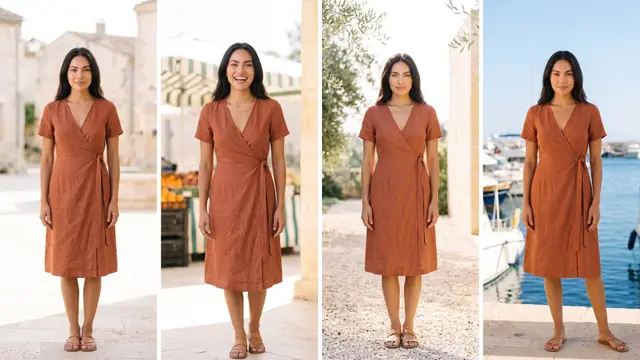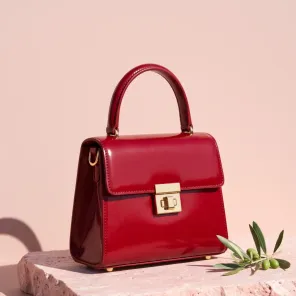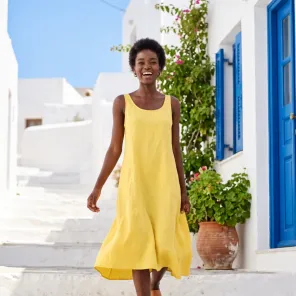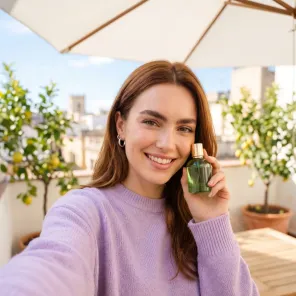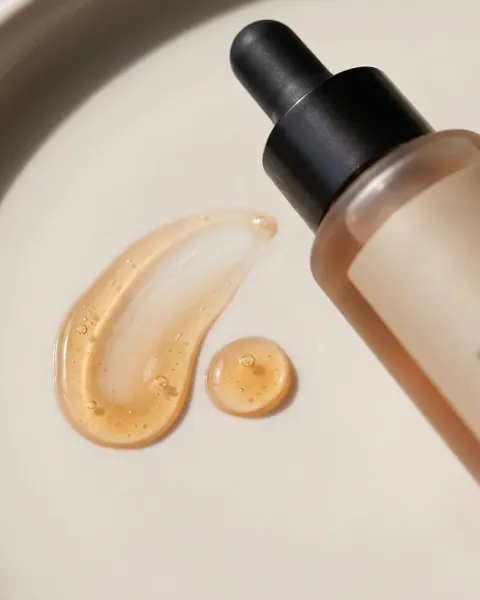
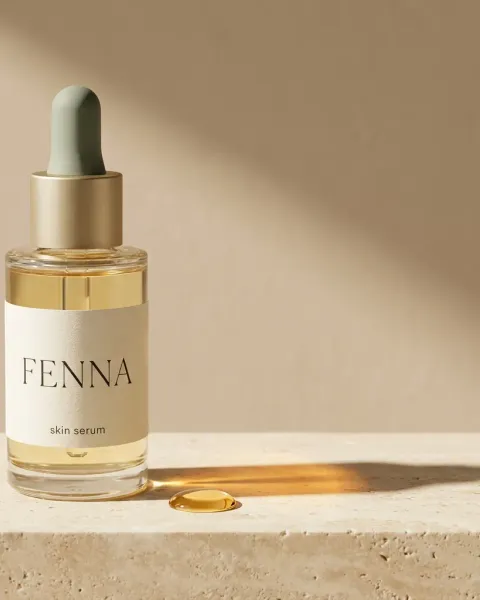
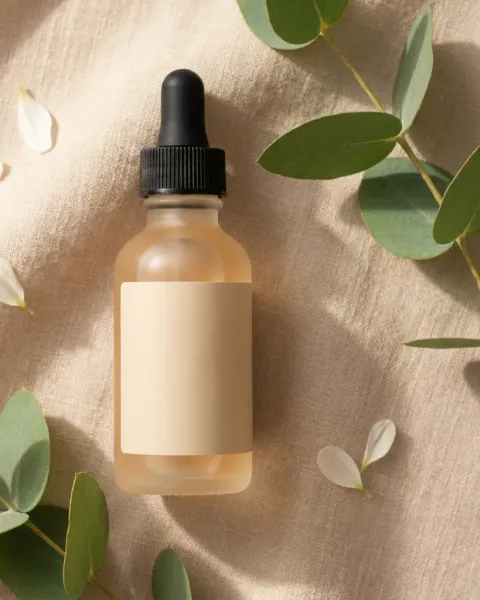
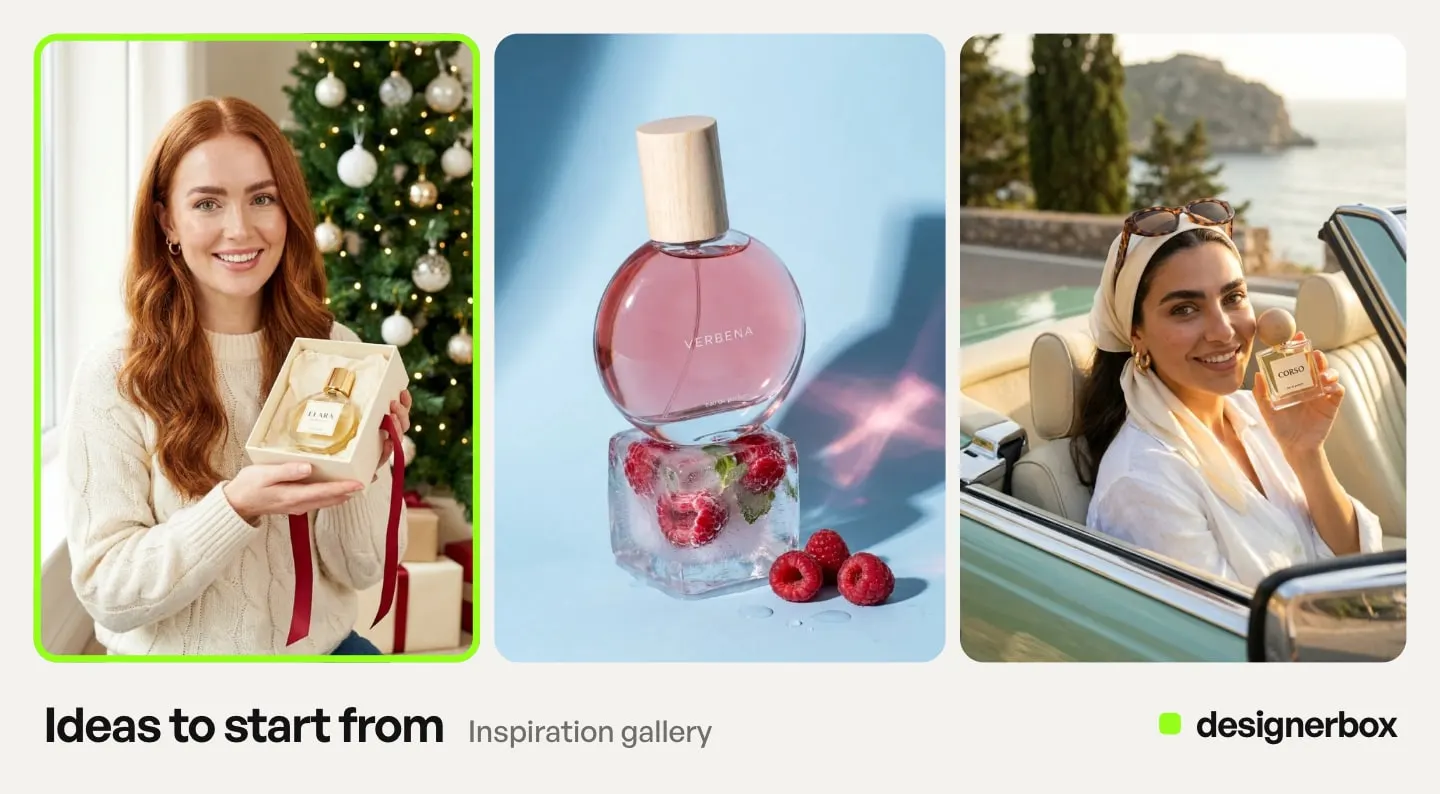
DesignerBox Inspiration is a gallery of finished ads and product photos on the Create screen of the DesignerBox app. Each picture comes with its brief already written. You press a picture, press “Use this picture” and add your product. The chat opens with the brief. You read the plan and the price, change the brief if you want, and then start the run.
It is late October. You know you need a Halloween post, a Black Friday ad and something for Christmas. You do not know what the pictures should show. An empty text box does not help with that question.
Inspiration gives you a finished idea to start from. It is one part of DesignerBox Create, the chat where you describe a picture in words.
Key Takeaways
- Inspiration is a gallery of finished ads and product photos on the Create screen. Each one has its brief written.
- “Use this picture” opens the chat with the brief. Your product and your brand replace the example product.
- You can change the brief, then read the plan and the price before anything runs.
- The gallery changes with the season. Filters sort it by occasion and by product kind.
DesignerBox Inspiration on the Create screen
Inspiration is the gallery on the Create screen. Create is the first screen of the app. It is a chat: you type or say what you need, and the result appears on a board next to the chat.
Each picture in the gallery is a ready idea. Behind it is a brief, the text that describes the picture. The brief names what the picture needs, such as the place, the light, the layout and, on an ad, the words. You do not write that brief. You start from it, and you can edit it in plain words.
Steps from an idea to your picture
An idea becomes your own picture in seven steps.
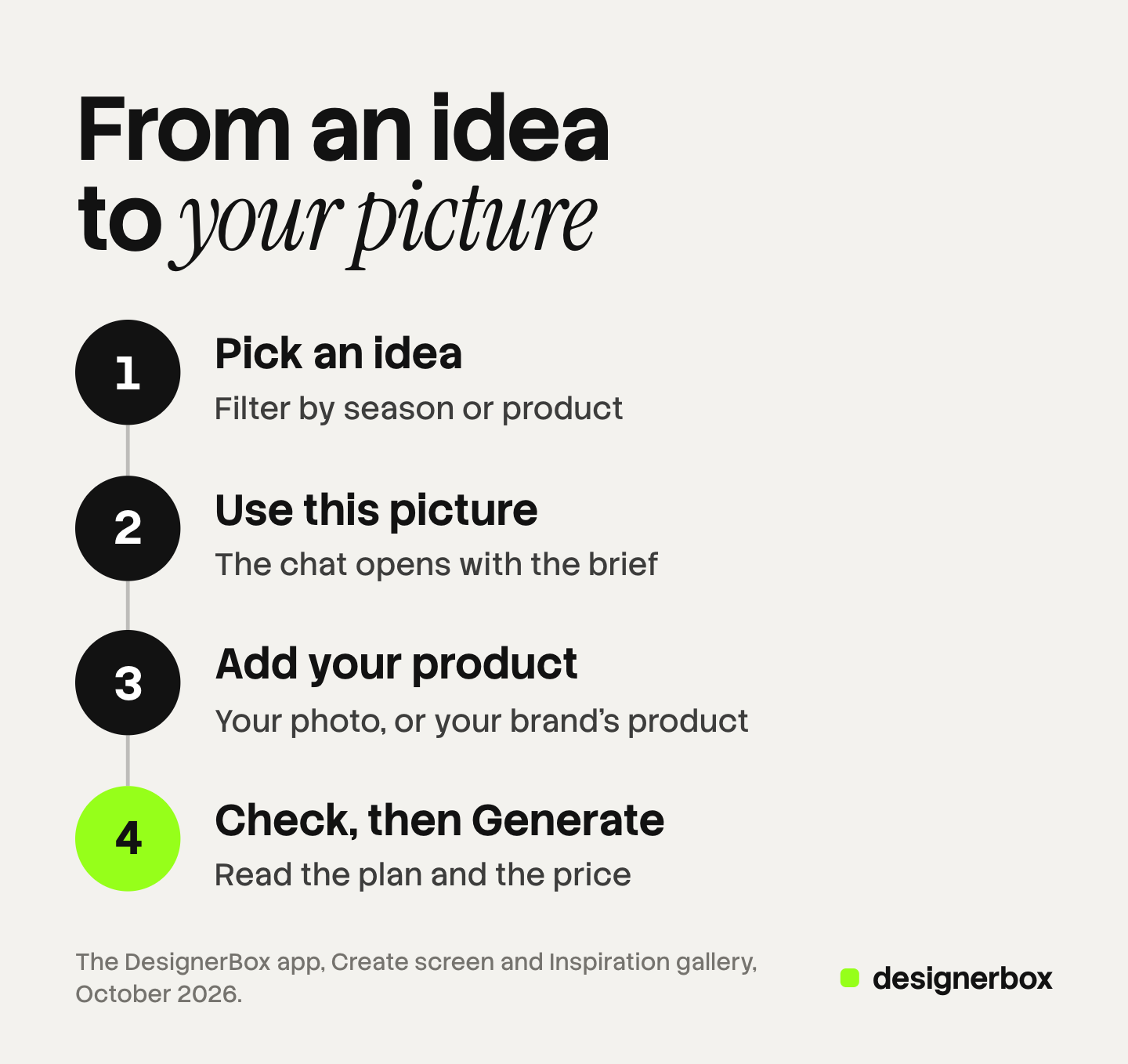
- Open Create. It is the first screen of the app. Check that you chose the right brand.
- Scroll to Inspiration. The gallery is on the same screen as the chat.
- Choose a filter. Choose an occasion, such as Christmas, or a product kind, such as Beauty.
- Press a picture, then press “Use this picture”. The chat opens with the brief for that idea.
- Add your product. Add a photo of it, or pick the product you saved in your brand.
- Read the plan and the price. The plan names the model, the size, the number of pictures, the look and the price. Change the brief now if the idea needs it.
- Start the run with Generate. The result appears on a board next to the chat.
Create has two ways to run. Ask first shows you the plan and the price, and nothing is spent until you choose Generate. Make now makes the result at once. Use Ask first with an idea from the gallery, so you see the plan before anything runs.
After the first result, ask for changes in the same chat, for example “make the light warmer”.
Filters in the gallery
The filters sort the gallery in two ways: by occasion and by product kind.
| Kind of filter | Filters |
|---|---|
| Season and occasion | Halloween, Black Friday, Christmas, Cold weather |
| Product kind | Clothing, Accessories, Jewelry, Beauty, Perfume, Health, Home, Food and drink, Sport, Electronics, Pets |
Look at two filters: the one for what you sell, and the one for the next date in your calendar.
Example ideas on 22 October 2026
The gallery changes with the season. These are examples from 22 October 2026, so treat them as a sample. We grouped them by the occasion or the product they suit.
| Occasion or product | Ideas in the gallery on 22 October 2026 |
|---|---|
| Halloween | A Halloween palette, a candle with pumpkins |
| Black Friday | A Black Friday serum ad |
| Christmas and parties | A perfume gift by the tree, satin and sequin party dresses |
| Cold weather | A winter cream by the snow, a sweater by the fire |
| Jewelry | A gold necklace close-up |
| Electronics | A charging pad ad |
| Food and drink | A pear soda ad |
| Pets | Dog treats on the sofa |
| Beauty | A serum selfie review |
Look at the layout of each idea, and not only at its product. A pear soda ad is a layout for any drink. A sweater by the fire also works as a scene for a blanket or a mug.
Four brief cards for any product
Four cards in the gallery have no season and no product kind. They work for any product.
| Brief card | When to use it |
|---|---|
| ”Put it in a real place” | The product needs a scene, such as a table, a shelf or a room |
| ”Show it on a person” | A person wears or holds the product |
| ”Clean catalogue shot” | You need a plain product photo for a listing |
| ”Reshoot your product” | You have a weak photo of the product and want a new one |
Start with these four when no seasonal idea fits. Our guide to product photography ideas sorts 20 shots by the place where each one appears.
Your product in place of the example
From the example, you keep the idea. The example product does not appear in your picture.
| Part of the new picture | Where it comes from |
|---|---|
| The idea and its brief | The example you chose |
| The product | Your photo, or a product saved in your brand |
| The brand | The brand you chose in Create |
| The words on an ad | The brief, until you change them |
A brand in DesignerBox holds your products, your logo, colors and fonts, your voice and rules, and reference pictures. Our guide to the Brand page explains each part. Check the brand before you start, because the new picture uses it. For a test with no brand, choose “No brand for this run”.
Anyone can make an AI picture. Making hundreds that still look like your brand is the hard part. The gallery gives you the idea. Your saved brand is the part that stays the same from one picture to the next.
Changes to the brief before the run
The chat opens with the brief, and the brief is plain text. You can change it before anything runs.
- The place. Move the scene to a kitchen table, a shop shelf or a window.
- The words. Write your offer, your product name or your sale dates.
- The light. Ask for warmer light, or for daylight.
- The size. Ask for the size your feed, story or ad needs.
Make one change at a time, and read the plan again after every change.
No product photo yet
Your new picture needs a photo of your product. The chat cannot know what your product looks like without one.
Take one plain photo. Put the product on a plain surface in daylight. Show the whole product, with nothing in front of it. Then start from a brief card such as “Reshoot your product” or “Clean catalogue shot”.
Save the photo in your brand. A product in a brand has a name, a kind, one photo and a short note. You add it once, and then you pick it for every idea.
Try the idea on a sample product. The free plan runs on sample products. You can see how an idea works before you take a photo.
Seasonal jobs from Halloween to winter
The seasonal filters fit four jobs at the end of the year. For many products at once, our guide to seasonal versions in one batch plans the sheet. Your result depends on your product photo and your brief, so check every picture before you post it.

Halloween
The job. A post or an ad for the last week of October. Halloween is on Saturday 31 October 2026. Ideas on 22 October included a candle with pumpkins and a Halloween palette.
Black Friday
The job. A sale ad with your offer. Black Friday is on Friday 27 November 2026. The gallery held a Black Friday serum ad on 22 October. Write your own offer into the brief. Our guide to Black Friday product photography explains which images can carry the sale.
Christmas
The job. A gift post or a party picture for December. Christmas Day is on Friday 25 December 2026. Ideas included a perfume gift by the tree and satin and sequin party dresses. Our list of holiday marketing ideas sorts 15 ideas by the asset each one needs.
Cold weather
The job. A winter scene with no single date. Ideas included a winter cream by the snow and a sweater by the fire. One winter picture can run from November to February, so it is a good first job.
Inspiration, apps, templates and the chat
The table matches the job to the place in the app.
| You want | Start here | Why |
|---|---|---|
| An idea, because you do not know what to make | Inspiration | The idea and the brief are ready |
| A picture you can describe yourself | The chat in Create | You type it in your own words |
| The same job again next week | An app | One job behind a short form, with the price on the card |
| A job with many steps, such as a new product campaign | A template | A ready workflow with many steps |
| Your own choice of model and size | The Generate page | You choose the model, the aspect ratio and the number of pictures |
| The same job for many products | A batch | A sheet of up to 200 rows, one job per row |
If you already know the job, switch the Create field from Chat to App, type the job, and DesignerBox opens the ready app for it.
Inspiration fits the first time you make something. When an idea works and you want it every week, look at DesignerBox apps and DesignerBox templates. The templates page shows the ready workflows. To choose the model yourself, read our guide to the Generate page.
The idea, the result and your brand rules stay in one account, from the first product photo to the finished ad.
Cost and plans
The cost is shown before the run. For an idea from the gallery, the price is in the plan you read in step 6.
The gallery is on every plan. Uploading your own photos and the commercial license start on the Pro plan. AI video, virtual try-on, upscaling, the image editor and the video editor start on the Premium plan. Plans and credits are on the pricing page.
Limits of Inspiration
These are the limits as of October 2026.
- The gallery changes with the season. The ideas in this guide may not be in the gallery when you read it.
- You check the details. Your result depends on your product photo and your brief. Look at the shape, the color, the label and the logo on every result before you post it.
- Delivery is a download. DesignerBox does not send finished work to a store or a social account. Every picture you make is saved in Assets. To use a picture somewhere else, you download it.
Choose one idea for the next date in your calendar, add your product, and read the plan before you start the run.
FAQ
What is DesignerBox Inspiration?
It is a gallery of finished ads and product photos on the Create screen. Each picture has its brief already written. You press “Use this picture”, add your product, and the chat opens with the brief.
Does Inspiration copy the example product?
No. The example product is not copied. Your new picture uses your product and your brand, with the idea from the example.
Can I change the idea before it runs?
Yes. The chat opens with the brief, and you can change it before you start the run.
What if I do not have a product photo?
Take one plain photo of the product in daylight, and save it in your brand. To try an idea before that, use the free plan, which runs on sample products.
Sources
- The DesignerBox app, Create screen and Inspiration gallery, read October 2026
- The DesignerBox app, Brand page and Assets page, read October 2026
- DesignerBox templates page (designerbox.ai/product/templates), October 2026
- DesignerBox pricing page (designerbox.ai/pricing), October 2026: the plan gates
The Inspiration gallery was read in the DesignerBox app in October 2026. The ideas change with the season, and labels and plan gates change too, so check the app before you plan a campaign. Individual results vary.