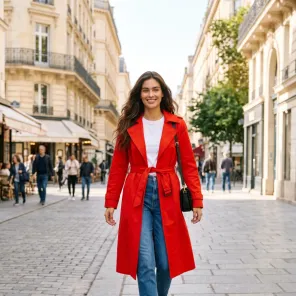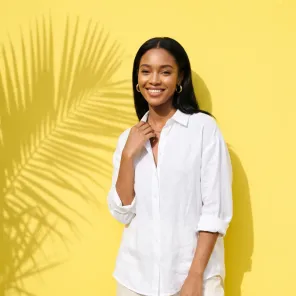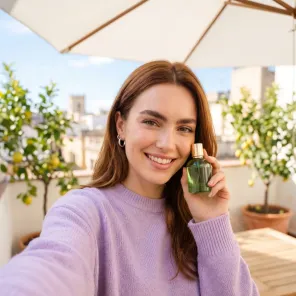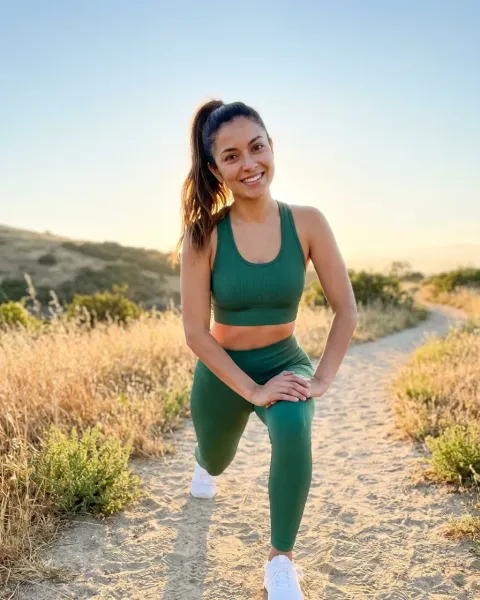
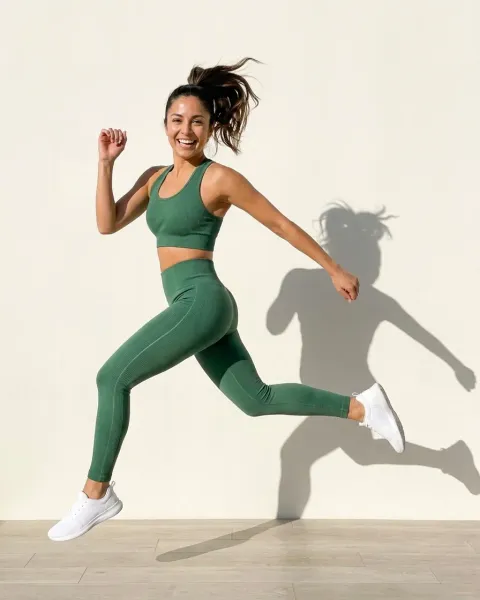
To turn a fashion sketch into a photo in DesignerBox, open Automation, then Templates, and choose Photo from a fashion sketch. Open your own copy, add the sketch and press Run all. The result is a photo of the clothes on a model. Your team uses it to choose styles and brief the sample room before anyone sews a sample.
Say your design team has 30 sketches for the spring line and room in the budget for 12 samples. The line review is on Friday. A flat sketch shows the seams, but it does not show the color and the shape on a person. So the team guesses, samples too many styles and drops some after the first fitting.
Key Takeaways
- One template does the first step. Photo from a fashion sketch takes a fashion sketch and returns a photo of the clothes on a model.
- Two more surfaces add a look. Clothes on a model shows the clothes on the model you choose. Fashion campaign photos places them in a scene.
- The picture is for choosing. It shows an idea, so it does not show real fit, drape or fabric weight.
- A person checks every result. Compare the shape, the details and the color with the sketch.
- A whole line runs as one batch. Save your copy as a workflow, publish it as an app, then run one row per sketch.
- Your own sketch starts on Pro. Templates run on every plan. Uploading your own pictures starts on the Pro plan.
Design teams that choose before the sample
This job belongs to the design and merchandising team of an apparel brand. It starts when a drop has more sketches than sample slots. The job is done when the team has a short list of styles to sample, each with a clear brief.
Today the team works from flat sketches and mood boards. The flat sketch is the right file for the factory. Our guide to fashion design software for beginners covers how to make it. A founder or a buyer finds it harder to judge a whole line from line drawings.
A picture of each sketch on a model gives the room one shared image to discuss. The drawing still comes first, and the guide to clothing design apps lists the apps that make it.
DesignerBox surfaces for sketch to photo
Three surfaces make the pictures. The names below are the ones the app used on 22 October 2026.
| Surface | What you add | What you get | Plan |
|---|---|---|---|
| Photo from a fashion sketch (template) | A fashion sketch | A photo of the clothes on a model | Every plan; your own sketch from Pro |
| Clothes on a model (app) | Photos of clothes and a model, and a look | The model wearing them, in a clean product page, lifestyle, campaign or editorial look | Your own photos from Pro; virtual try-on from Premium |
| Fashion campaign photos (template) | Photos of clothes and a place | A model wearing them in that place | Every plan; your own photos from Pro |
Photo from a fashion sketch does the main work.
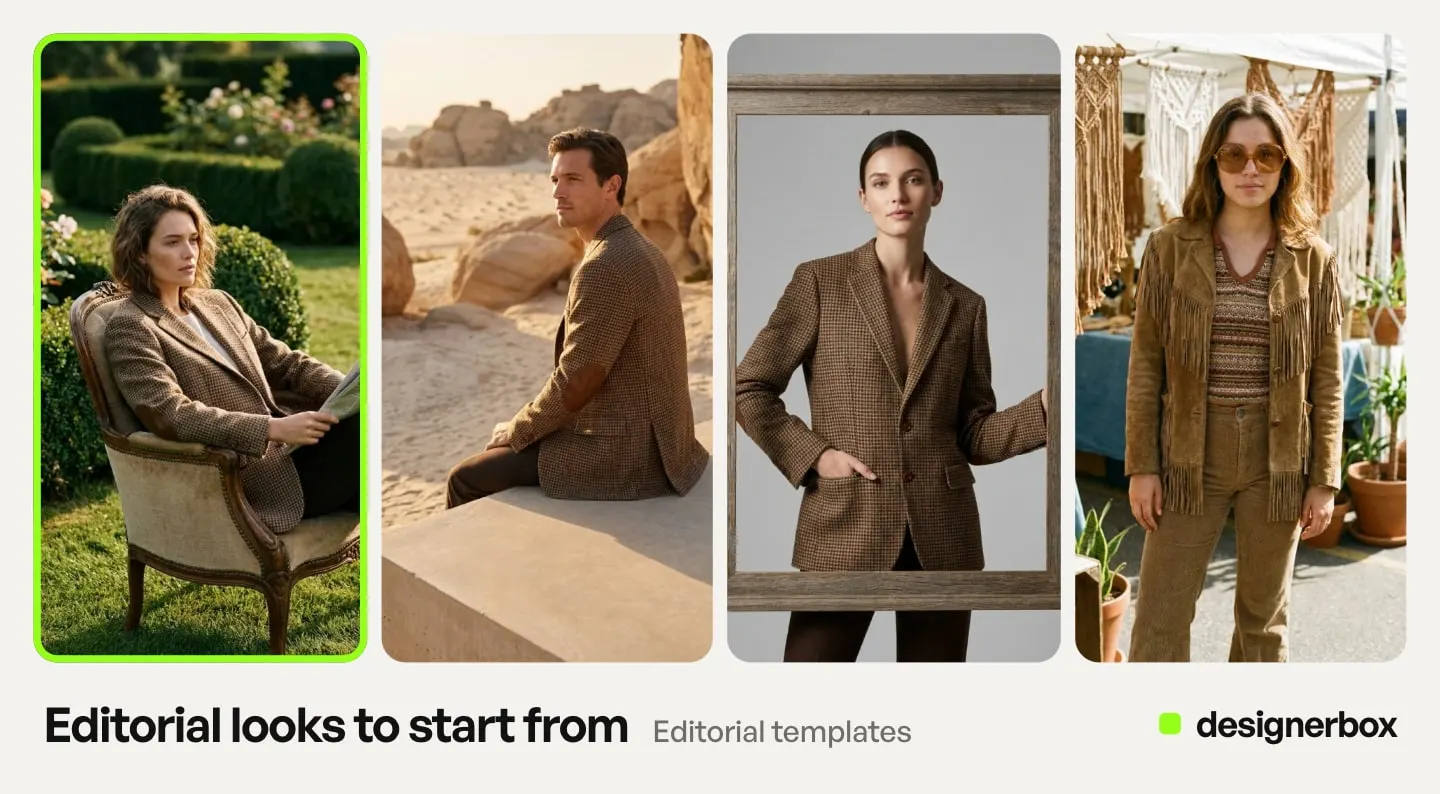
Clothes on a model is the app for one house model across the line. You choose the model, for example a ready avatar or your own, and you choose the look. Fashion campaign photos is a mood test, because it shows the design in the place where the campaign could happen.
The Templates page lists both templates, and the Apps page lists Clothes on a model. Our guide to DesignerBox templates explains how a template works and how your own copy differs from the original.
First run, step by step
Run one sketch first. Check the result before you add the other 29.
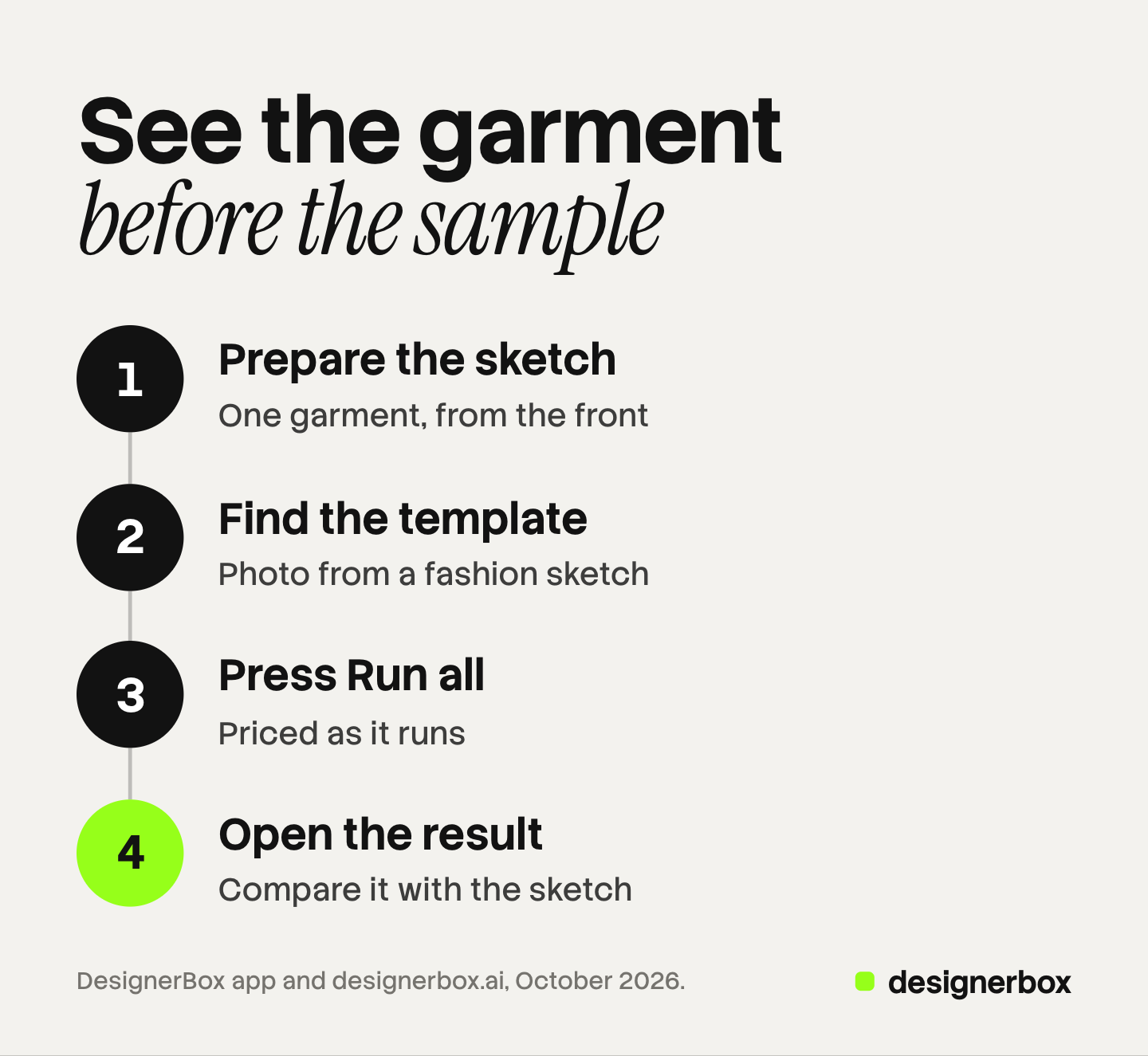
- Prepare the sketch. Draw one garment per page, from the front. Scan it, or photograph it flat in even light with no shadow.
- Find the template. Open Automation, then Templates. Choose Photo from a fashion sketch, and read what it takes and what it returns.
- Open your own copy. The button on the template opens a copy that belongs to you. Add the sketch to it.
- Press Run all. The template runs its steps in order. It is priced as it runs, so the cost adds up step by step.
- Open the result in Assets. Compare it with the sketch, detail by detail. Keep it, or run it again.
- Add a look if you need one. Run Clothes on a model with the result to see it on your house model, in the look you choose. Or run Fashion campaign photos to see it in a place.
The second and the twentieth sketch
The first run shows you what to change. Your copy of the template is a normal workflow, so you can change any step and save it. Add a Save to Assets step at the end, and every result is saved in Assets.
For the next drop, the job repeats in three stages.
- Save it as a workflow. Give it the name of the job, for example “Sketch to photo, spring”. Save a version before each change, so you can go back.
- Publish it as an app. A merchandiser then completes a short form and presses Run. They never see the steps.
- Run it in batch. Open Automation, then Batch, and choose your published app. Upload the folder of sketches, and each picture becomes a row.
A batch holds up to 200 rows, and each row can run 1 to 4 times. Two runs per row suit sketches, because a sketch leaves room for guesses.
The sheet shows the credits before you run. Over 20 runs, DesignerBox asks you to confirm first. Our guide to DesignerBox batch covers the sheet.
If every style should appear on one face, use the same avatar in Clothes on a model for every row. Our guide to one model for every garment shows that job.
Checks before the line review
Every result needs a person to check it against the sketch. Look for five things.
- Shape. The neckline, the sleeve length, the hem and the width of the leg match the sketch.
- Details. Every pocket, button, seam and pleat on the sketch appears. Nothing appears that the sketch does not show.
- Color. The color is the one you planned. Judge the final color on a fabric swatch, because a screen and a fabric can differ.
- Back and sides. If the sketch shows only the front, the back in the picture is a guess.
- Model and pose. The model and the pose suit your customer, and the hands and face look natural.
In a workflow, critic steps (designer, photographer, emotion, ad director) score several results and keep the best. You still keep or discard each result yourself. In a batch, you use the J and K keys.
Send the kept pictures in a review link, and a buyer chooses the styles to sample with no account.
Limits of a sketch picture
These limits are specific to this job, as of October 2026.
- It is a picture of an idea. The model fills every gap the sketch leaves. The result can look finished while some details are guesses.
- It does not show fit. Real fit, drape and fabric weight come from the pattern, the fabric and the sample. A pattern maker and a fitting still decide them.
- It is not a product photo to sell from. Never use it on a product page, a listing or an ad as the product. Photograph the real sample, or put photos of the real sample on a model. Our guide on putting clothes on a model with AI covers that step.
- Prints and small text can change. A logo, a print repeat or a label on the sketch can come out wrong. Check them closely.
- Each run can differ. The same sketch can return another face or pose the next time. Use the same avatar in Clothes on a model when the face must stay the same.
Sketch to photo in DesignerBox
Anyone can make an AI picture. Making hundreds that still look like your brand is the hard part. For a design team, that means one house model and one look across the line review. Workflows read your brand rules, so a saved sketch workflow starts every run from the same rules.
The sketch pictures, the on-model photos of the real sample and the review link sit in one account. The fashion brands page shows the other fashion jobs DesignerBox does.
Templates, apps, workflows and batch run on every plan. Uploading your own pictures, your sketches included, and the commercial license start on the Pro plan. Virtual try-on starts on the Premium plan. There is a free plan, and it runs on sample products. Plans are on the pricing page.
The free plan shows you how a template run works. Get started free
FAQ
Can AI turn a fashion sketch into a photo?
Yes, as a picture of the idea. In DesignerBox, the Photo from a fashion sketch template returns a photo of the clothes on a model. The garment does not exist yet, so the picture shows the design idea.
Does the sketch photo show how the garment fits?
No. Fit, drape and fabric weight come from the pattern, the fabric and a real sample. The picture shows the shape and the color you drew, with the gaps filled in by the model.
Can I use the sketch picture on my product page?
No. It shows an idea, and shoppers expect a product page to show the real product. Photograph the sample, or run Clothes on a model with photos of the real garment.
How much does a sketch to photo run cost?
The template is priced as it runs, so the cost adds up step by step in the app. In a batch, the sheet shows the credits for every row before you press Run. Plans and credits are on the pricing page.
Which plan do I need for sketch to photo?
Templates run on every plan. Uploading your own sketch starts on the Pro plan, and so does the commercial license. The free plan runs on sample products.
Can I run a whole collection of sketches at once?
Yes. Save your copy of the template as a workflow, publish it as an app, then open Batch. Upload the sketches, and each one becomes a row. One sheet holds up to 200 rows.
Sources
- DesignerBox Templates page (designerbox.ai/product/templates), October 2026: Photo from a fashion sketch, Fashion campaign photos, your own copy, Run all and “Priced as it runs”
- DesignerBox Apps page (designerbox.ai/product/apps), October 2026: Clothes on a model
- DesignerBox Workflows page (designerbox.ai/product/workflows), October 2026: Save to Assets, critic steps, versions and publish as app
- DesignerBox Batch page (designerbox.ai/product/batch), October 2026: 200 rows, runs per row, the confirm step and the J and K keys
- The DesignerBox app, read 22 October 2026: the Templates, Avatars and Reviews pages
- DesignerBox pricing page (designerbox.ai/pricing), October 2026: the plan gates
DesignerBox features verified in the app and on designerbox.ai as of October 2026. Results vary by product and model.