

To make a spokesperson video in DesignerBox, open the Video with a person app. Add your words and a product photo, read the price on the Run button and press Run. You get a video of a person saying your words. For a video with several scenes, run the Video ad with a person template. Then add captions and music in the video editor.
A founder has a new serum, a 30-second script and no presenter. A real presenter means a casting, a contract and a shoot day. Next month the script changes, and the work starts again. For the choice between kinds of presenter in general, read our guide to the three kinds of AI spokesperson.
Key Takeaways
- One app does the core job. Video with a person turns your words and a product photo into a video of a person saying your words.
- A template makes several scenes. Video ad with a person takes your product photo and a script.
- The person can stay the same. Pick a ready avatar or make your own nine-pose set. Use a real person only with their clear permission.
- The video editor finishes the cut. It adds captions from speech, music and a voice from 20 voices.
- Label the AI person. TikTok asks advertisers to label AI-generated ad content, and New York law asks for a disclosure.
- AI video starts on the Premium plan. The free plan cannot make video.
The job and who has it
Two kinds of team have this job every month. A brand founder or marketing lead needs one person to explain one product, in the brand’s words. An agency makes UGC-style ads for several clients, and each client wants new scripts every week.
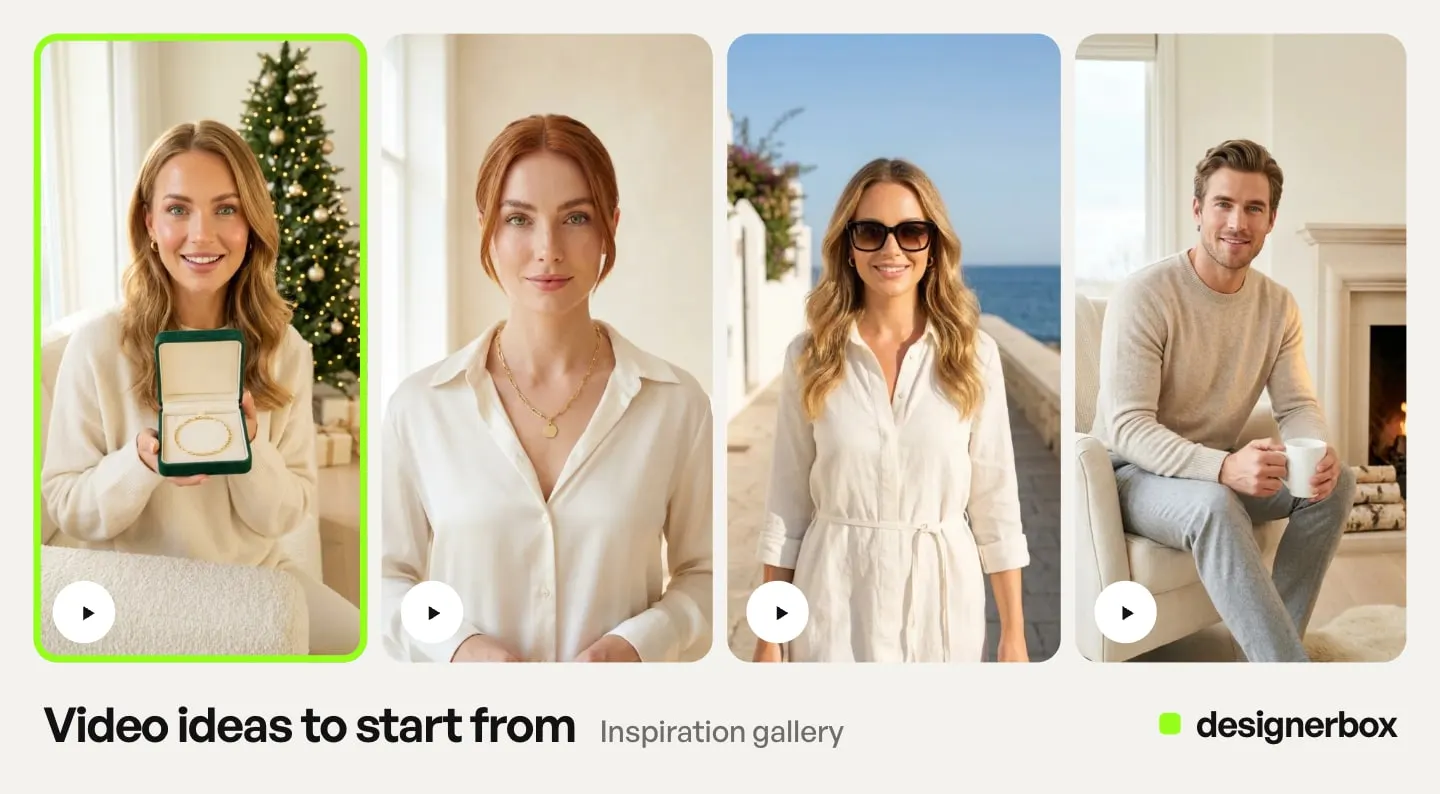
The finished result is the same for both: a vertical clip of one person who says the script and shows the product, with captions, ready to upload. The AI UGC page shows this kind of clip.
One rule sits under the whole job. The person in the video is made with AI. Present them as your presenter, and never as a customer who used the product.
The surfaces that make a spokesperson video
Five parts of the app do this job. You can use one of them, or several in order.
| Surface | What you add | What you get | Plan |
|---|---|---|---|
| Video with a person (app) | Your words and a product photo | A video of a person saying your words | Premium |
| Video ad with a person (template) | Your product photo and a script | A video of a person in several scenes | Premium |
| Avatars | A ready avatar, or one sentence or one photo | A nine-pose set of one person | Every plan |
| Video editor, Talking tab | One picture, a script and one of 20 voices | A talking presenter | Premium |
| Video editor, Generate with AI | A brief | A full video with storyboard, shots, voiceover, music and captions, or one clip | Premium |
Pick the app for one person and one message. Pick the template when the ad needs several scenes. Pick the video editor to cut the video by hand. Our guide to the image editor and the video editor covers the timeline in full.
The first spokesperson video, step by step
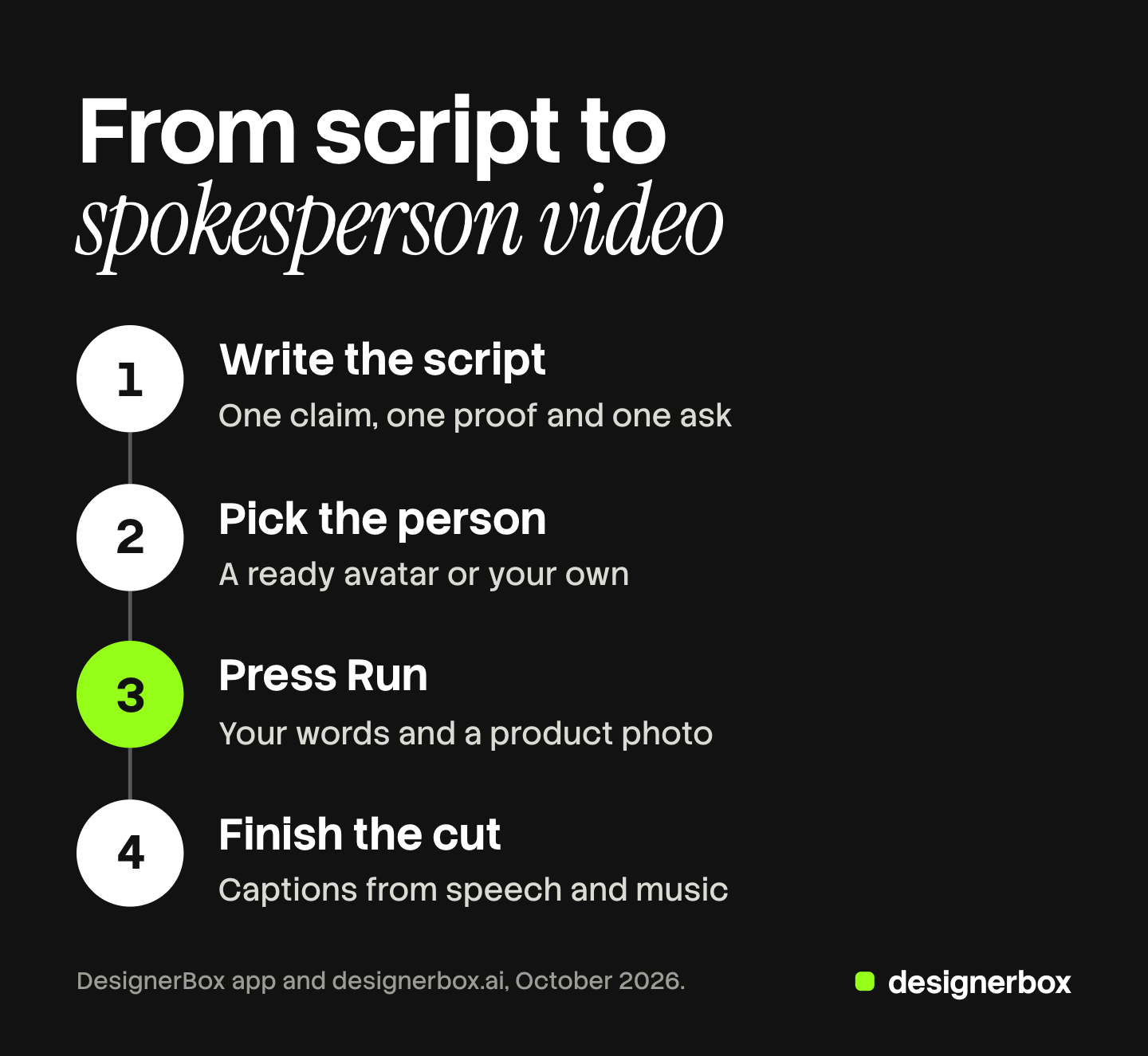
- Write the script. Keep one claim, one proof and one ask. Read it aloud and time it.
- Pick the person. Open Workspace, then Avatars. Choose a ready avatar, or press “Make your own” and describe the person in one sentence. Use a photo of a real person only with their clear permission, and only a photo you have the rights to.
- Open the app. Open Automation, then Apps, and filter by Video. Open Video with a person. Press “Try it with a sample” to see what it makes.
- Add your words and the product. Type or paste the script. Add a clear photo of the real product. To use your avatar, pick Avatars in the picture picker.
- Read the price and press Run. The price is on the Run button. An 8-second clip costs 40 to 560 credits, depending on the model. The result is saved in Assets.
- Finish the cut. Add the clip to the video editor. Add captions from speech and music. Export MP4 at 720p or 1080p, in 9:16 for a feed or 16:9 for a web page.
The script has to fit the length of the clip, so time it before you run. Our guide to the talking avatar series covers how to write a script for each clip.
Several scenes with the template
Open Automation, then Templates, and open Video ad with a person. Choose to open your own copy. Add your product photo and the script, then press Run all. The template is priced as it runs, so the cost grows with each step. The results go to Assets.
Your copy is a normal workflow, so you can add, remove or change a step.
The same person in every video
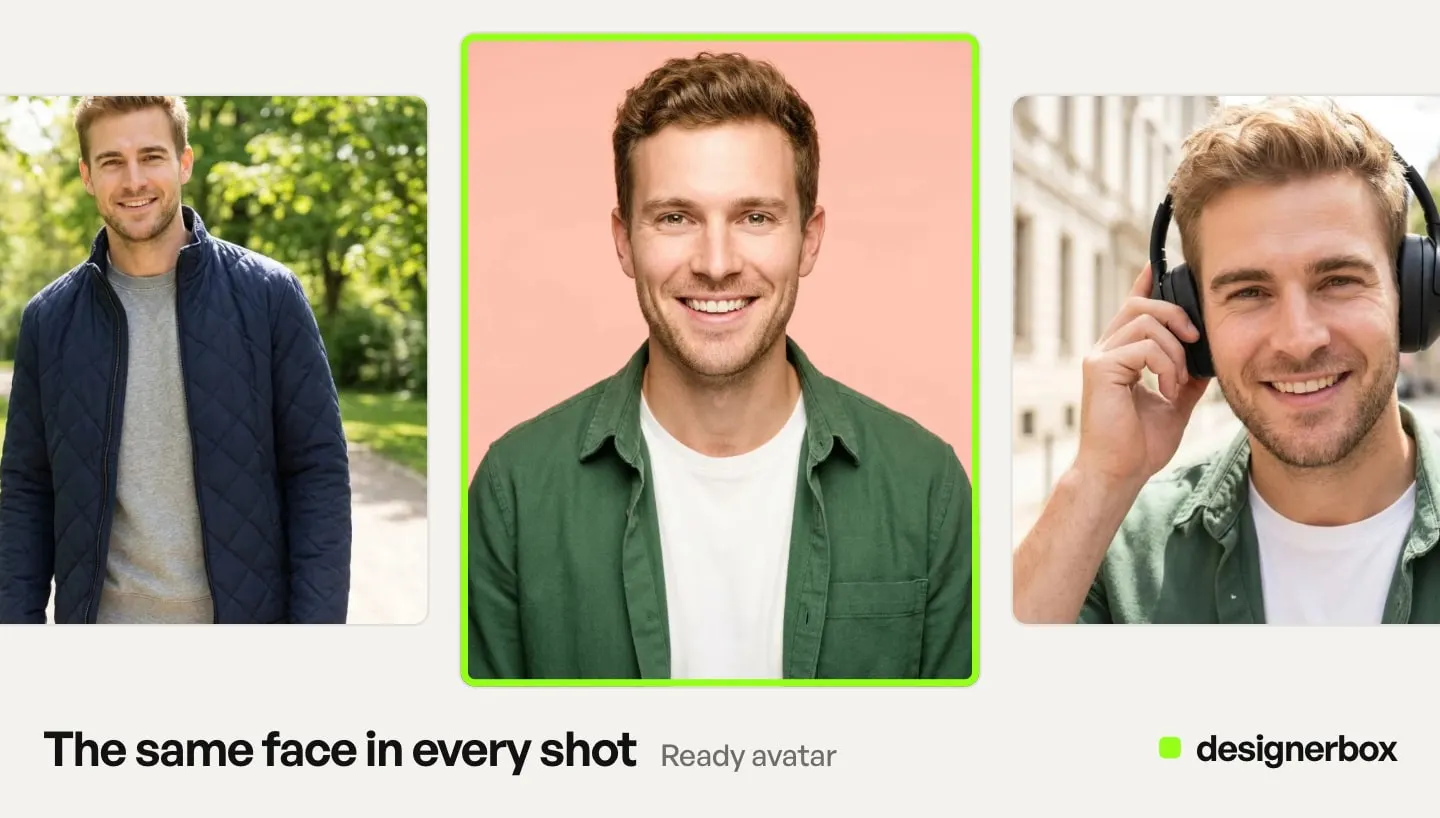
The second video uses the same avatar and a new script. The nine-pose set shows DesignerBox one face from every side: front, back, left, right, head shot, full body, walking, running and sitting. That helps the next video keep the same face, but check each result. Our guide to DesignerBox avatars covers the ready avatars and the permission rule.
The tenth time, give the job to a colleague. Keep your copy of the template as a workflow, and publish it as an app for your workspace. Your colleague types the new script and presses Run, and never opens the steps. Our guide to DesignerBox apps covers how a colleague runs one.
The twentieth time, run a batch. Batch runs an app, or your workflow published as an app, over a sheet of up to 200 rows. Each row holds its own words and pictures, so one row is one script. You choose 1 to 4 runs per row. The sheet shows the credits before you run, and over 20 runs DesignerBox asks you to confirm first.
An agency makes one avatar per client campaign, so the face stays the same across that client’s ads. Our guide to agency client workflows covers the work for each client.
Checking each video before you upload it
Watch every video from start to end before anyone else sees it. Check five things.
- The face. It matches the avatar in the first second and in the last.
- The mouth. It moves with the words.
- The hands and the product. The label, the logo, the color and the shape match your real product.
- The words. The captions match the script and are spelled right.
- The claim. Every claim in the script is true for the product.
Keep the good results and discard the rest. In a batch, keep or discard each result with the J and K keys. If you build your own workflow, critic steps (designer, photographer, emotion, ad director) score several results and keep the best. You still watch each video yourself.
Labels and permission for an AI presenter
A realistic AI person in an ad needs a label in some places.
TikTok allows AI-generated ad content if you “apply the AIGC label” or add your own clear disclaimer, caption, watermark or sticker. Its list covers content that is completely AI-generated, and a person made to say words they did not say with AI voice cloning. If TikTok finds AI content that is not disclosed, the ad is “rejected or restricted” (ads.tiktok.com, October 2026).
New York law asks the person who makes an ad to “conspicuously disclose” a synthetic performer in it, where that person knows it is there. A first violation carries a $1,000 civil penalty, and each later one carries $5,000 (nysenate.gov, October 2026).
This is general information, not legal advice. Our guide to AI labels covers Meta, YouTube, Google and the EU.
Make an avatar from a real person’s photo only with their clear permission, and agree in writing where the face will appear. Never use a public figure: the same TikTok policy does not allow a public figure’s likeness without their permission.
Limits of spokesperson videos
These are the limits as of October 2026.
- AI video starts on the Premium plan. The free plan cannot make video, so a free account cannot try this job.
- Every result is an AI result. A person watches each video before it is used.
- Long videos are a different job. A long course with many scenes needs a real presenter or a tool built for long presenter video.
- Reviews takes still pictures. The finished video goes to the client as a download.
- Delivery is your step. You download the results, or send them with a webhook or an S3 step. DesignerBox does not post to an ad account.
Spokesperson videos in one account
Anyone can make an AI picture. Making hundreds that still look like your brand is the hard part. The same face in every ad is part of that look. The avatar, the script, the product photo and the finished cut sit in one account. The AI video ads page shows the other video formats.
Templates, apps, workflows, batch and brand are on every plan. Uploading your own photos and the commercial license start on the Pro plan. AI video and the video editor start on the Premium plan. The free plan runs on the sample products and cannot make video. Every plan below Ultra is one seat, and team features, shared brand kits and white label are on the Ultra plan. Plans and credits are on the pricing page.
An agency that makes spokesperson ads for several clients can see the setup for each client in a short call. Book a demo.
FAQ
How do I make an AI spokesperson video in DesignerBox?
Open the Video with a person app, add your words and a product photo, and press Run. You get a video of a person saying your words. Then add captions and music in the video editor.
Can I use a real person as the spokesperson?
Yes, with their clear permission and a photo you have the rights to. Make their avatar in Avatars from one photo, and agree in writing where the face will appear.
Which plan do I need for Video with a person?
AI video and the video editor start on the Premium plan. Uploading your own product photo starts on the Pro plan. The free plan cannot make video.
How much does a spokesperson video cost?
An 8-second clip costs 40 to 560 credits, depending on the model. The cost is shown before the run, on the Run button.
Do I have to label an AI spokesperson video?
In some places, yes. TikTok asks advertisers to label AI-generated ad content, and New York law asks for a disclosure of a synthetic performer. Check the rules in each market where the ad runs.
Sources
- DesignerBox Apps page (designerbox.ai/product/apps), October 2026: Video with a person, “Try it with a sample” and the price on the Run button
- DesignerBox Templates page (designerbox.ai/product/templates), October 2026: Video ad with a person and “Priced as it runs”
- DesignerBox video editor page (designerbox.ai/product/video-editor), October 2026
- DesignerBox Batch page (designerbox.ai/product/batch), October 2026: up to 200 rows, runs per row and the confirm step
- DesignerBox pricing page (designerbox.ai/pricing), October 2026: plan gates
- The DesignerBox app, read October 2026: Avatars, the Talking tab, Generate with AI and Reviews
- TikTok, ads policy on misleading and false content: ads.tiktok.com, read 22 October 2026
- New York General Business Law section 396-b, synthetic performers in advertisements: nysenate.gov, read 22 October 2026
DesignerBox features verified in the app and on designerbox.ai as of October 2026. Results vary by product and model.