
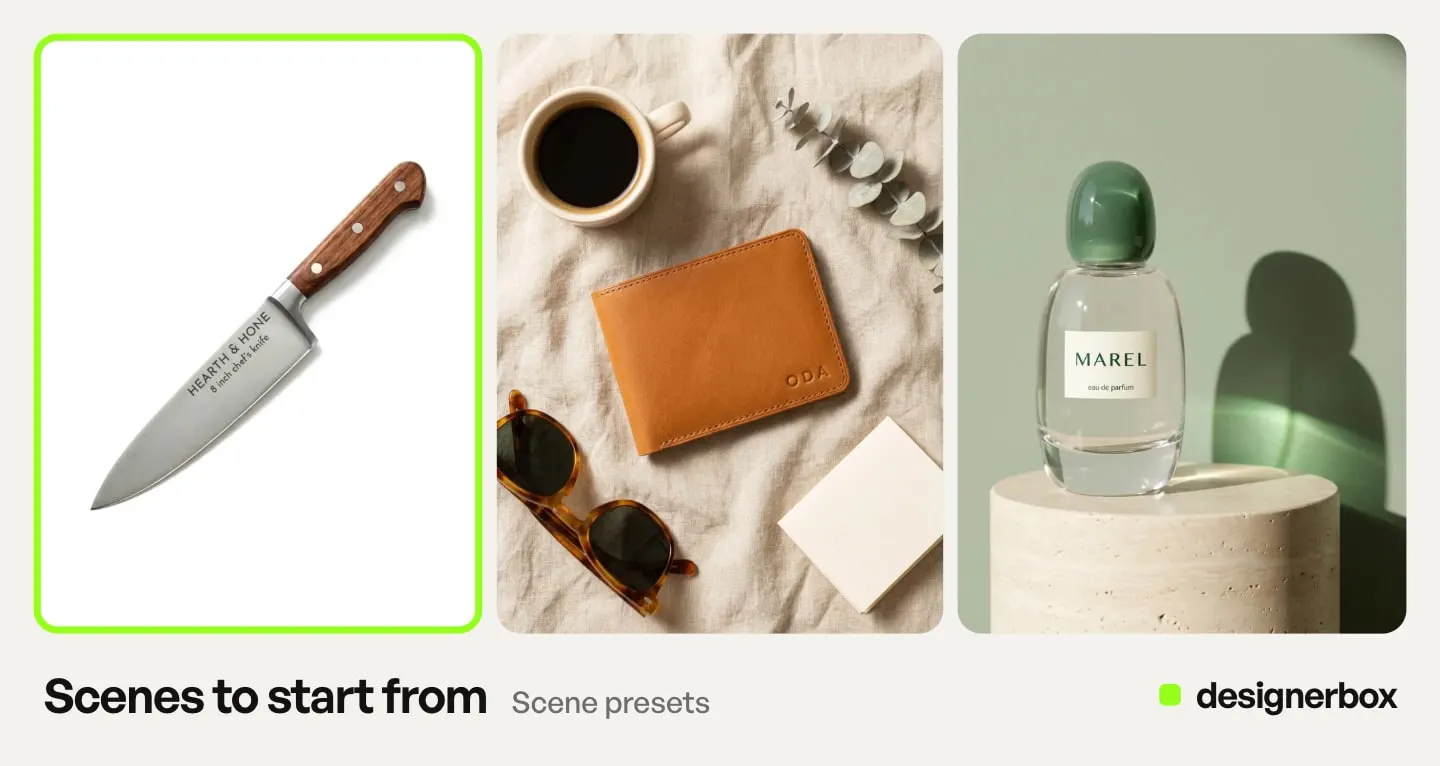
To get the same white background photo on every product, use the White background photos template in DesignerBox. Add up to ten supplier photos. DesignerBox returns each product on white in studio light. When the results look right, save the steps as your own workflow. Then run that workflow in a batch of up to 200 rows for each new delivery.
A supplier sends 40 new products and 40 photos. One sits on a gray floor, one on a kitchen table, and one has a yellow cast from a desk lamp. On a collection page, those photos look like 40 different shops. This guide shows how to make them match, once and then for every delivery.
Key Takeaways
- A template for the first run. White background photos takes up to ten product photos and returns each product on white in studio light.
- An app for a plain cutout. Remove a background returns the product alone, with no background, for a layout or a later step.
- A workflow for every delivery. You build “cut out, white background, studio light, upscale” once and run it on each new product.
- A batch for the whole delivery. One sheet holds up to 200 rows, one product per row. It shows the credits before you run it.
- Your check before the upload. You keep or discard each result, then check the white, the edges and the label.
The white background job
This job belongs to a Shopify or marketplace brand with 20 to 500 products. New products arrive in groups from suppliers. Each group brings photos with new light, a new background and a new angle. Every product needs one clean photo on white before it goes on sale.
Today it comes from a retoucher, an image editor or a reshoot. Each costs the same effort on the 40th product as on the first. The page for Shopify stores covers this buyer.
Marketplaces add a rule. Amazon’s main image needs a pure white background, RGB 255, 255, 255. The product should fill 85% of the image (Amazon product image guide, October 2026). On your own store, white is a choice that keeps the collection grid even.
The job repeats with every delivery. The first ten photos teach you the settings. The next 200 should need no new decisions.
Four surfaces for white background photos
Four places in DesignerBox do this job. They differ in how many photos go in at once.
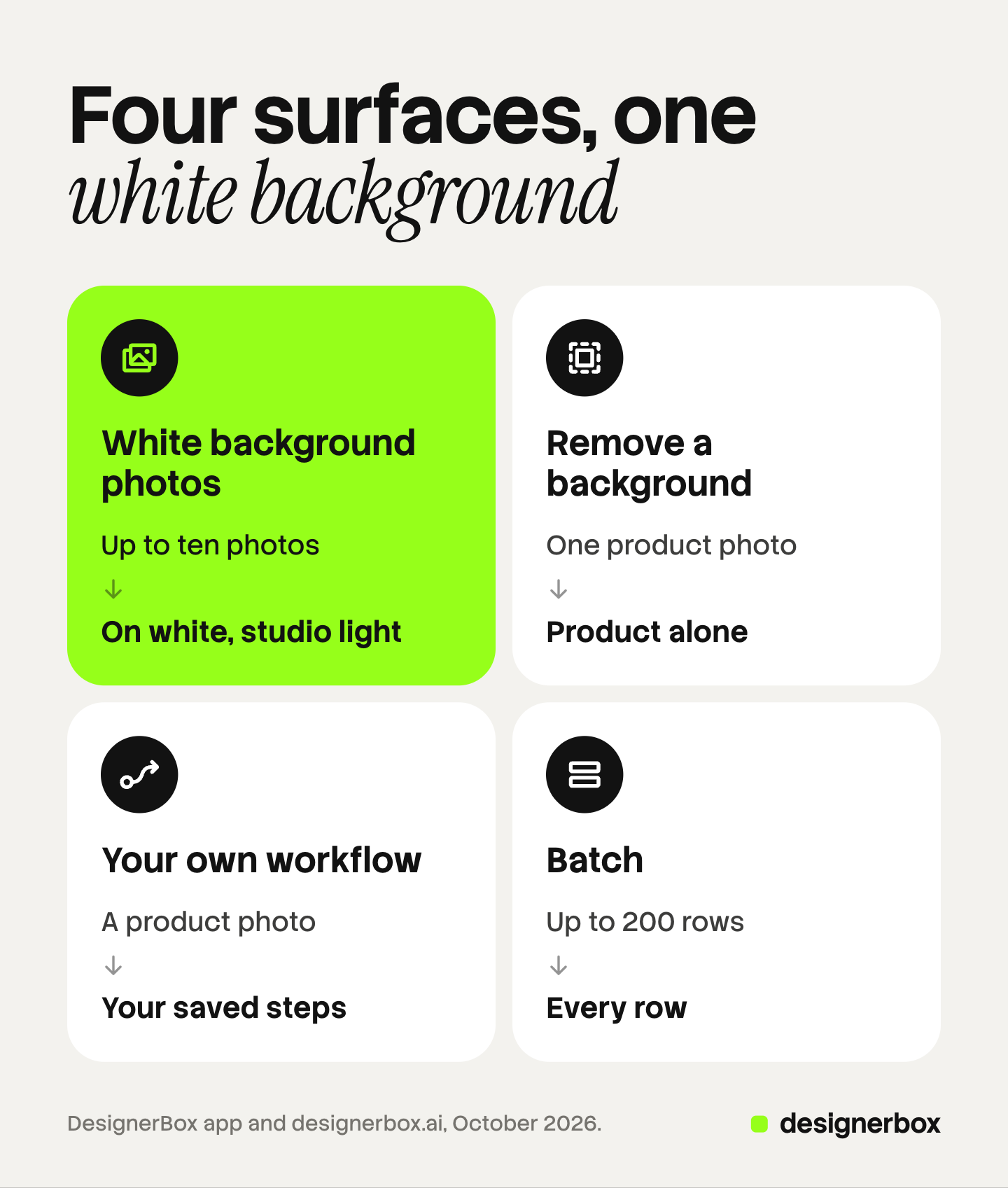
| Surface | What you add | What you get | Plan |
|---|---|---|---|
| White background photos (template) | Up to ten product photos | Each product on white in studio light | Every plan |
| Remove a background (app) | One product photo | The product alone, with no background | Every plan |
| Your own workflow | A product photo | Your saved steps, for example cut out, white background, studio light, upscale | Every plan; the upscale step needs Premium |
| Batch | A sheet of up to 200 rows | The same job on every row | Every plan |
Start with the template. The Templates page describes a template as a ready workflow with many steps. You see every step before you run it. Our guide to DesignerBox templates explains a template run.
The app does a smaller job. A designer uses Remove a background to make cutouts for a catalog layout. Our guide to AI background removal covers four kinds of photo that break a cutout. They are fine hair and fur, glass and chrome, low contrast at the edge, and motion blur.
For a single product, the Product photo skill in Create also works. You type one sentence, add the photo and approve the plan.
First run on ten supplier photos
Pick ten photos from one delivery, and include the hard ones on purpose.
- Open the template. Go to Automation, then Templates, and open White background photos. Read what you add, what you get and the steps it uses.
- Open your own copy. The template opens as your own copy, ready for your photos.
- Add up to ten photos. Include a white product, a glass or shiny product and a product with fine edges. They show the weak spots early.
- Press Run all. The template page says “Priced as it runs”, so the cost grows as each step runs. Every step shows its result.
- Open the results in Assets. Every result is saved there. Keep the good ones and discard the rest.
Look at the ten results side by side. Check for the same light, the same shadow and the same space around each product. If one setting is wrong on every photo, change that step once in your copy.
The second delivery and the twentieth
Your copy of the template is a normal workflow. You can add, remove or change any step. A brand builds “cut out, white background, studio light, upscale” once and runs it on every new product.
The job then grows in three moves.
- Save a version. Name it, for example “White background, studio light”. You can return to it after any change.
- Publish it as an app. Publish it for your workspace. A colleague adds a photo to a short form and presses Run.
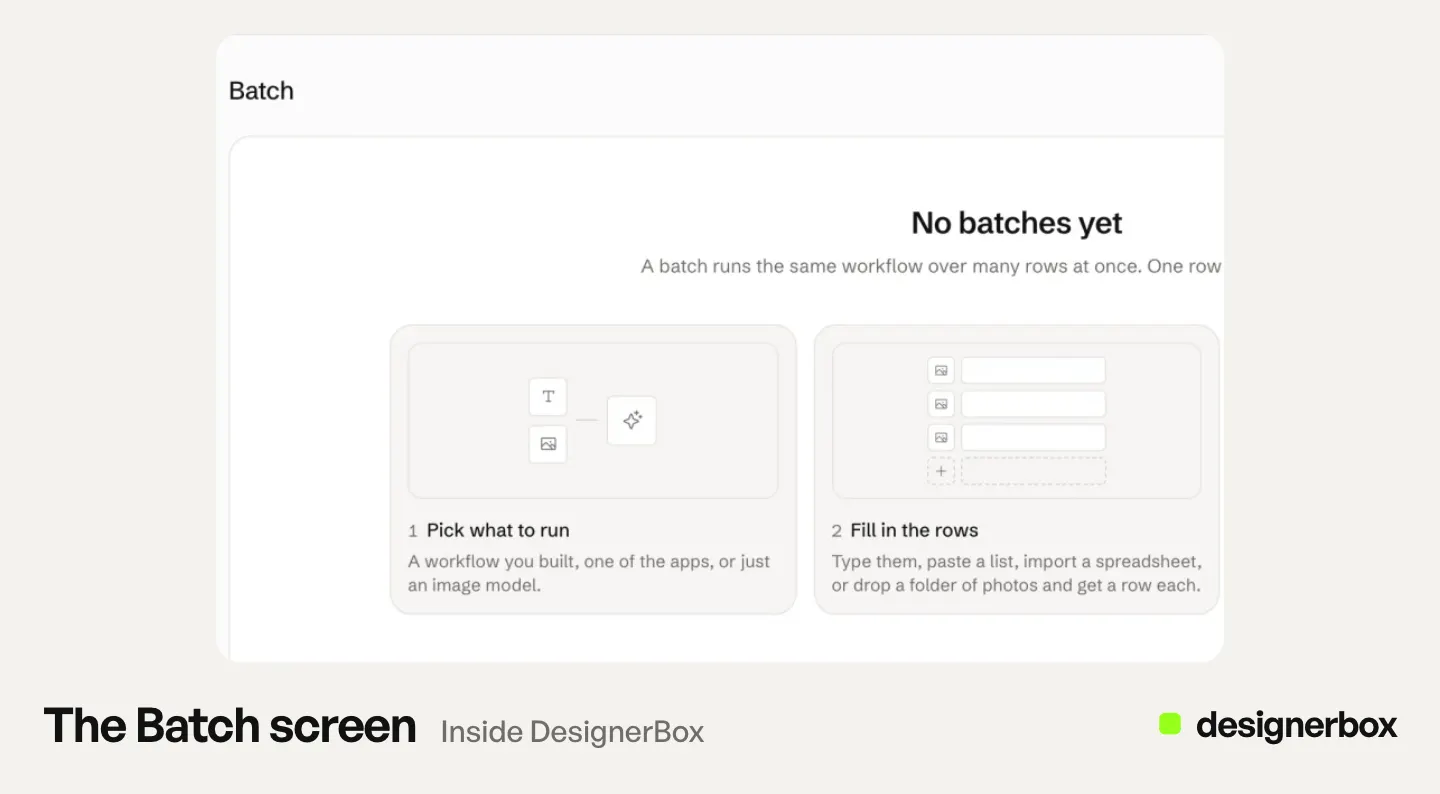
- Run it in a batch. A batch runs an image model, an app, or your own workflow published as an app. Add one row per uploaded picture, so a folder of supplier photos becomes a sheet.
The sheet shows the rows that are ready, the credits for the run and the credits left after it. You choose 1 to 4 runs per row. Over 20 runs, DesignerBox asks you to confirm first. Take 40 new products from one delivery at one run per row. That is 40 runs, so you confirm first.
The twentieth delivery uses the same workflow on a new sheet. The workflow runs the same steps on row one and on row two hundred. Our guide to DesignerBox batch covers the sheet in full, and the Batch page shows the limits.
After the white photo, Pictures for a listing makes six marketplace pictures from one product photo.
Checks before the upload
DesignerBox does not approve a result for you. You keep or discard each one, and in a batch you use the J and K keys. Check four things.
- The white itself. A background at 243 looks white on its own and fails a pure-white rule. Our guide on how to check that a white is pure shows three checks. It also shows how to correct a white that reads gray.
- The edges. Look at hair, fringe, glass and a white product on white at 100% zoom. A thin gray halo shows on white even when it hides on gray.
- The product. Compare the label, the logo and the color with the real product. When an AI picture gets the label wrong, Fix the product uses your real product photo to restore the label and logo.
- The frame. Amazon wants the whole product in the frame, at 85% of the image. Check the crop.
Your own workflow can add a check before you see the results. Critic steps (designer, photographer, emotion, ad director) score several results and keep the best. You still keep or discard what they keep.
If a buyer or a client approves the photos, send the kept pictures for review. The link works for 30 days, and a review costs no credits.
Limits of the white background job
As of October 2026:
- The result shows only what the photo shows. If a supplier photo crops part of the product, the missing part in the result is not your real product. Ask for a new photo.
- Pure white is your check. Read the value before a marketplace with an RGB rule sees the file.
- 200 rows per sheet. A catalog of 500 products needs three sheets.
- No upload to a store. You download the results, or send them with a webhook or an S3 step. Nothing lands in a listing on its own.
White background photos in DesignerBox
Anyone can make an AI picture. Making hundreds that still look like your brand is the hard part.
The cutout, the white background and the batch run sit in one account. The workflow holds the steps, so every run uses the same ones. Workflows also read your brand rules. The cost is shown before the run, on the Run button for an app and on the sheet for a batch.
Templates, apps, workflows and batch are on every plan. There is a free plan, and it runs on the sample products. Uploading your own photos and the commercial license start on the Pro plan. Upscaling starts on the Premium plan. Plans and credits are on the pricing page.
Open the Remove a background app and press “Try it with a sample” to see what a run returns. Get started free.
FAQ
How do I make white background product photos in DesignerBox?
Open the White background photos template, add up to ten product photos and press Run all. DesignerBox returns each product on white in studio light. For every later delivery, save the steps as a workflow and run it in a batch.
How many photos can I put on white at once?
Up to ten in one template run. A batch sheet holds up to 200 rows, one product per row.
Is the white background pure white for Amazon?
Check it before you upload. Amazon asks for RGB 255, 255, 255 and a product that fills 85% of the image. Read the background value with a color picker, and correct a white that reads gray.
What is the difference between Remove a background and White background photos?
Remove a background is an app. It returns the product alone, with no background, for a layout or a later step. White background photos is a template with several steps. It returns each product on white in studio light.
What does a white background run cost?
It depends on the steps and the models. A template is priced as it runs. An app shows its price on the Run button. A batch sheet shows the credits for the whole run.
Does DesignerBox upload the photos to my Shopify store?
No. You download the kept pictures, or send them with a webhook or an S3 step. Then you add them to your store.
Sources
- Amazon Seller Central, product image guide, read 22 October 2026: main image background, fill and frame
- DesignerBox Templates page (designerbox.ai/product/templates), October 2026: White background photos
- DesignerBox Apps page (designerbox.ai/product/apps), October 2026: Remove a background
- DesignerBox Workflows page (designerbox.ai/product/workflows), October 2026: steps, critic steps, Publish as app
- DesignerBox Batch page (designerbox.ai/product/batch), October 2026: rows, runs per row, the confirm step
- The DesignerBox app, read October 2026: the Batch sheet, Assets, Reviews and Create
- DesignerBox pricing page (designerbox.ai/pricing), October 2026: plan gates
DesignerBox features verified in the app and on designerbox.ai as of October 2026. Results vary by product and model.