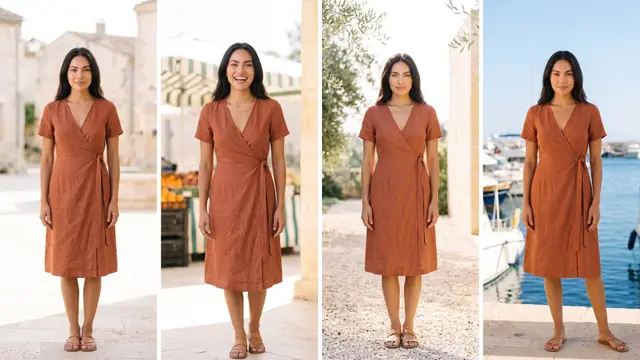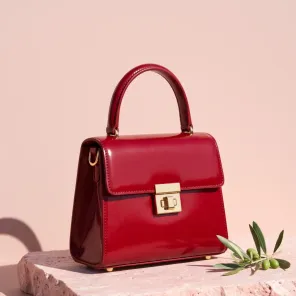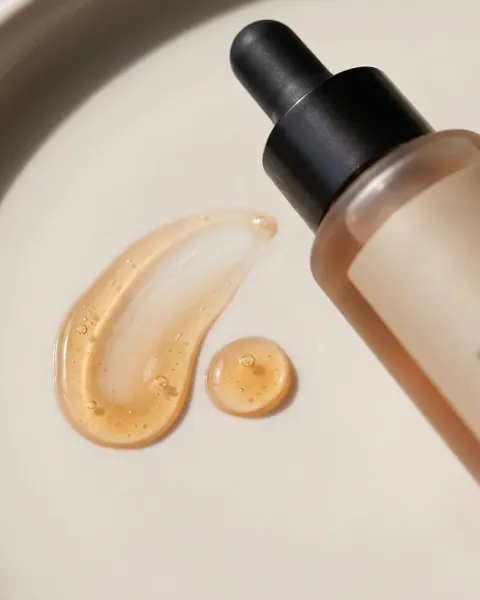
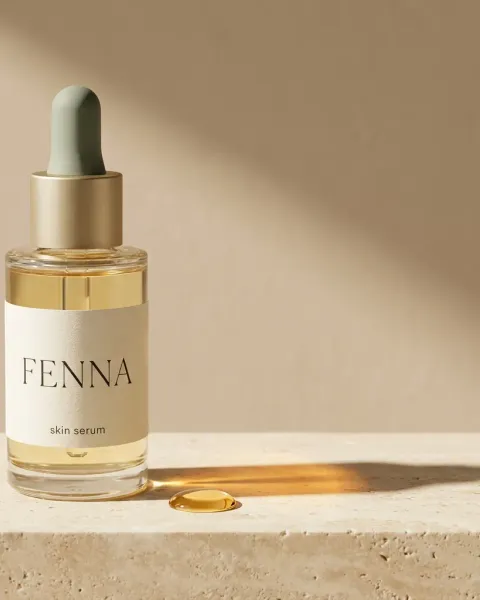
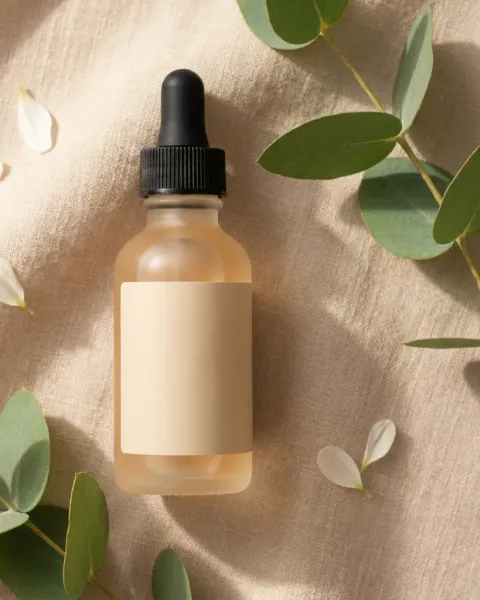
To make a new product campaign in DesignerBox, open Automation, then Templates, and choose New product campaign. Open your own copy of the template. Add one product photo and one headline, then press Run all. The run returns launch pictures, ads and one video. You keep the good results, run again where you need more, and cut the final video in the video editor.
Launch day is fixed, and the product sample arrived last week. You have one phone photo and one headline. The product page, the paid social ads and a short video all need to be ready on the same morning. Making the pictures is the short part. The review rounds take longer.
Key Takeaways
- One template, one photo. New product campaign takes a product photo and a headline. It returns pictures, ads and one video.
- Agree the direction first. The Brand storyboard app turns a product photo and a line about the campaign into four scenes.
- A first set to choose from. One run gives you options. You keep the good results and run again where you need more.
- The video needs Premium. AI video and the video editor start on the Premium plan.
- The next launch repeats the job. Your copy of the template is a workflow. Publish it as an app, then run it in a batch for several products.
- Plan the calendar around review. The run is the short part. The client’s choice and your second run take longer.
The launch job and who has it
One new product needs a full set on launch day: pictures for the product page, ads for paid social and a short video. The New product campaign template is built for this job. It makes pictures, ads and a video from one photo and one headline.
Two kinds of team have this job:
- A brand launching a product. A founder or a marketing lead has a launch date and no budget for a shoot.
- An agency launching it for a client. The agency shows the client a direction, gets a yes, then delivers the set.
The plan for the launch itself is a separate question. Our guide to product launch ads covers the five stages of a launch and how many files one launch needs.
The surfaces for a new product campaign
Five parts of DesignerBox do the work. The template makes the set. The other four come before it or after it.
| Surface | What you add | What you get | Plan |
|---|---|---|---|
| Brand | Your products, logo, colors, up to 6 fonts, rules and up to 12 reference pictures | A saved record of your brand | Every plan |
| Brand storyboard app | A product photo and a line about the campaign | Four scenes, to agree the direction | Every plan |
| New product campaign template | A product photo and a headline | Pictures, ads and one video | Every plan; the video part needs Premium |
| Video editor | The video and any other clips | The final cut, with captions, voice and music | Premium |
| Reviews | The results you kept | A link your client opens with no account | Every plan |
The template. A template is a ready workflow with many steps. The templates page shows what each one takes and returns. Our guide to DesignerBox templates covers how a template runs.
The brand. The brand holds what stays the same across the launch. Add the new product with one clear photo, then your logo, colors and fonts. Write your rules, for example “Daylight only”. The Brand page lists each field, and our guide to DesignerBox Brand covers the setup order.
The storyboard. The Brand storyboard app runs before the template. It gives you four scenes from one photo, so you agree the direction before anything runs at volume. Our guide to DesignerBox apps describes it with the other apps.
Steps for the first launch run
Do the seven steps in this order, so the direction is agreed before you spend credits on the full set.
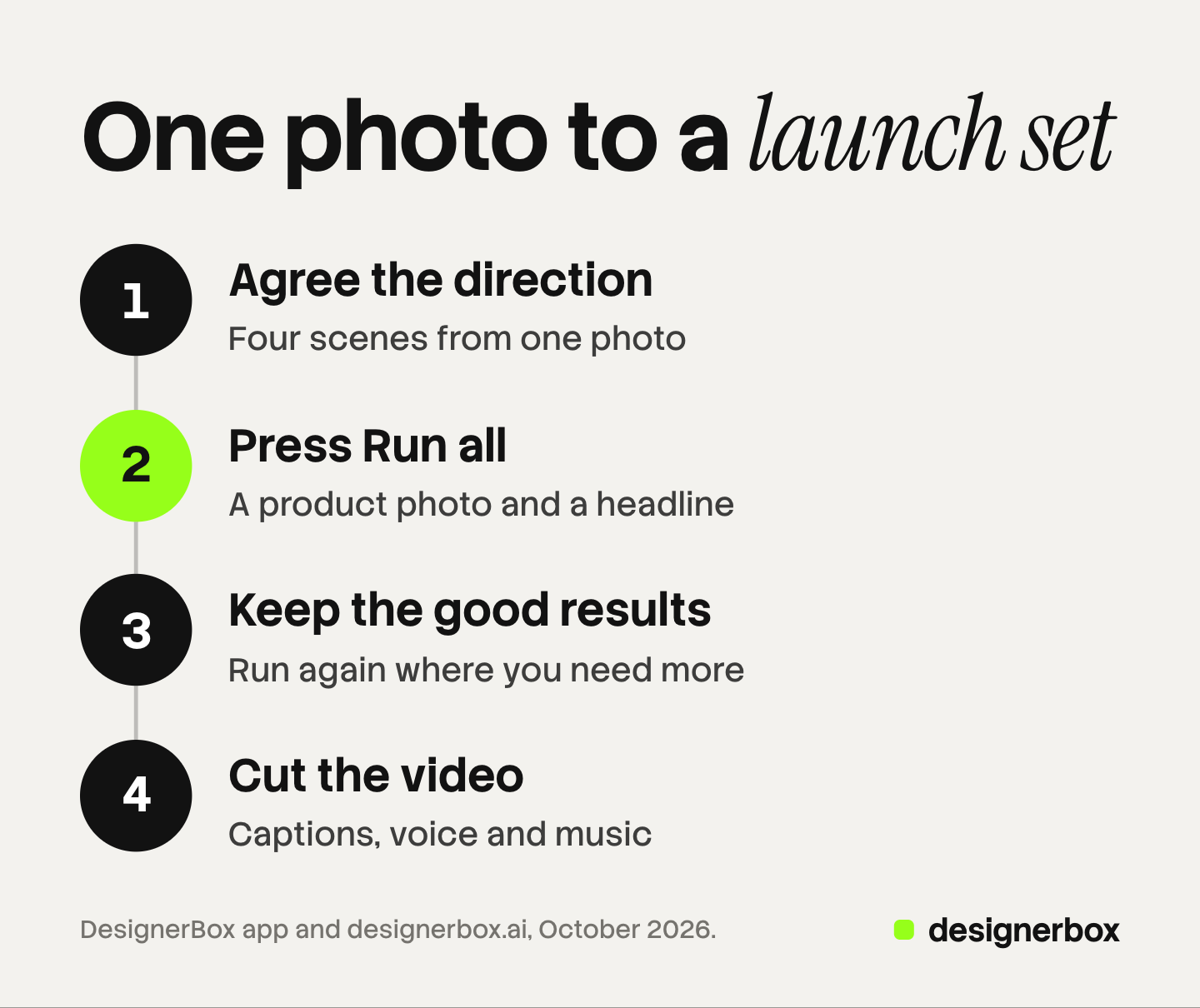
- Set up the brand. Open Workspace, then Brand. Add the new product with its name, one clear photo and a short note. Add your logo, colors and fonts, and write your rules.
- Agree the direction. Run the Brand storyboard app with the product photo and one line about the campaign. Show the four scenes to the founder or the client, and pick one.
- Open the template. Open Automation, then Templates, and choose New product campaign. Read what you add, what you get and the steps it uses.
- Make your own copy. Open your own copy of the template. It opens ready for your photo.
- Add the photo and the headline, then press Run all. The template says “Priced as it runs”, so the price builds as each step runs.
- Keep the good results. Every result is saved in Assets. Pick the pictures and ads that show the product correctly, and run again where you need more.
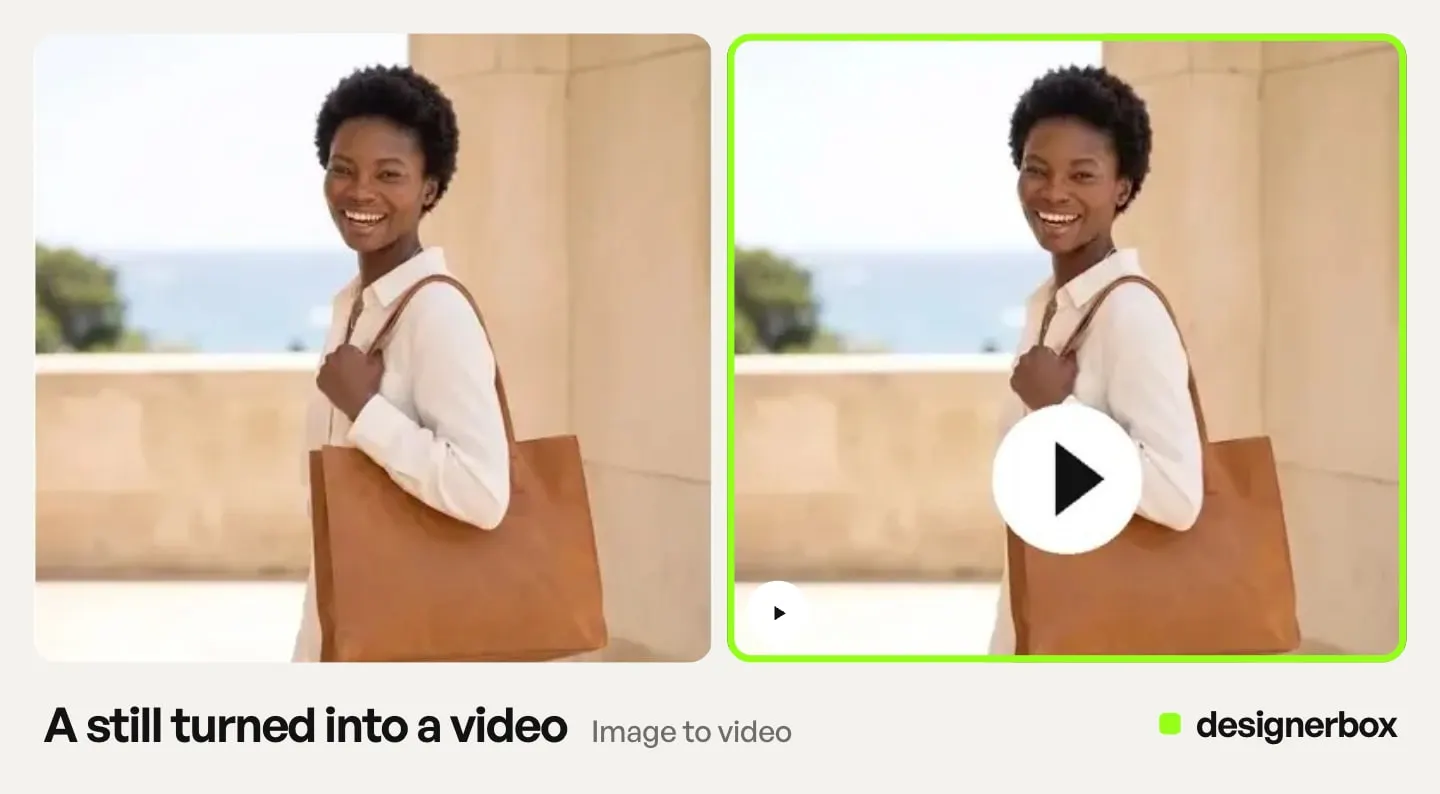
- Cut the video. Add the video to the video editor’s timeline. Add captions, a voice from 20 voices and music, then export MP4 at 720p or 1080p.
The AI video ads page covers video ads in DesignerBox. If a launch ad needs more sizes, the Ad in other sizes app returns four sizes from one ad. Our guide to ad sizes and languages covers that job.
The second launch and the twentieth
After the first launch, the job repeats.
- Save it. Your copy is a normal workflow. Save a named version of the setup that worked.
- Change a step once. If you fix the same thing after every run, change that step in the workflow.
- Publish it as an app. A colleague then adds a product photo and a headline in a short form and presses Run. The price is on the Run button.
- Run a drop in a batch. When several products launch in the same week, pick the workflow you published as an app. Each row is one product, with up to 200 rows a sheet. Over 20 runs, DesignerBox asks you to confirm first.
Anyone can make an AI picture. Making hundreds that still look like your brand is the hard part. Add your Brand Kit step to the workflow, because workflows read your brand rules. A workspace can hold several brands, so an agency can save one brand for each client.
Plan the launch calendar around review time. Leave room for the client’s choice, a second run on the weak results and the video cut. Our guide to why launch dates slip breaks a campaign timeline into four blocks: the brief, the assets, the approvals and the packaging.
Checking the launch set before it goes out
A launch set goes to the store, the ads and the video at once. One wrong picture is copied into all three. Check each result before you keep it.
- The product. The shape, the color, the label and the logo match your real product.
- The headline. Every word on an ad is spelled the way you wrote it. Every claim on it is one you can prove.
- The same product everywhere. The product looks the same in the pictures, the ads and the video.
- Nothing extra. The picture has no text, price or logo that you did not ask for.
When a picture gets the label wrong, the Fix the product app takes the picture and your real product photo. It returns the picture with your real label and logo.
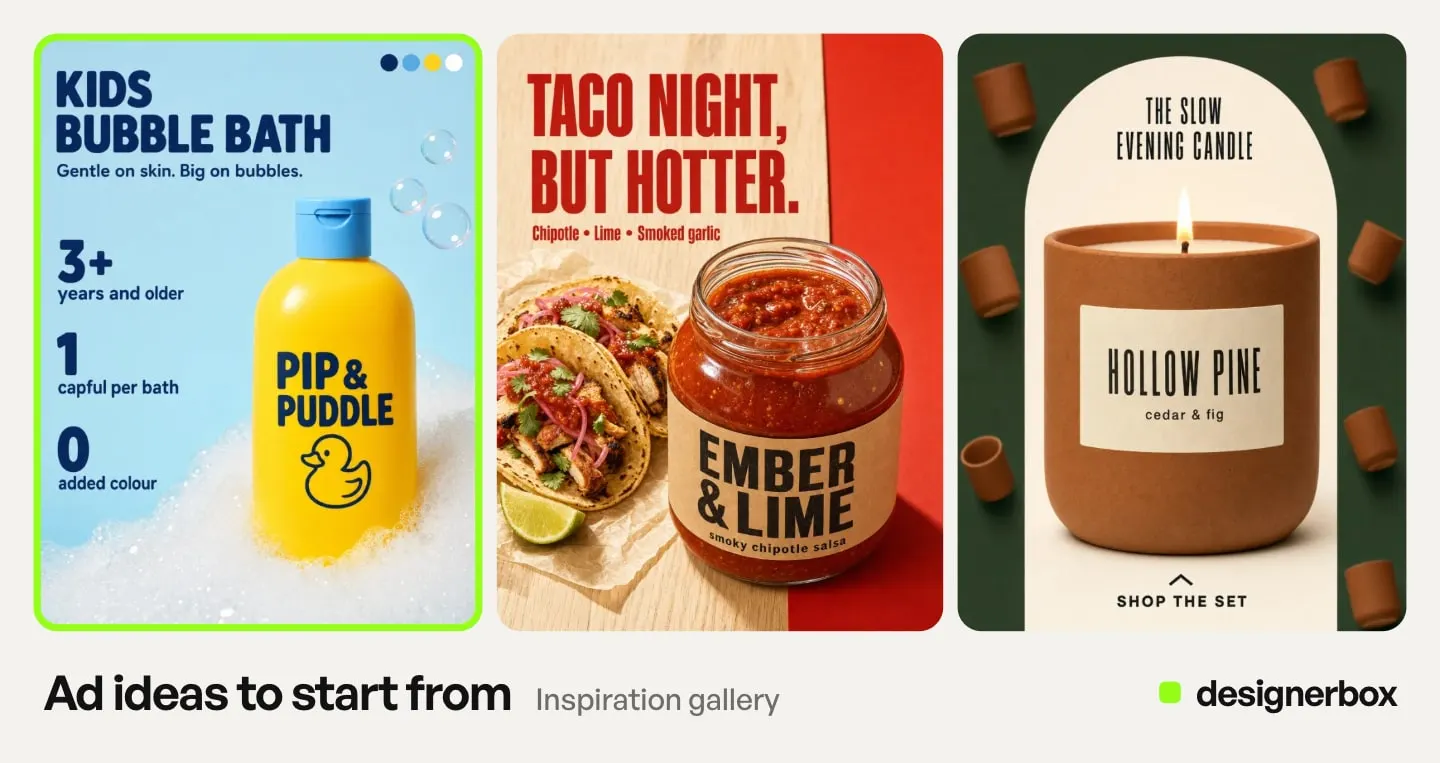
Inside your workflow, critic steps (designer, photographer, emotion, ad director) score several results and keep the best. You still make the final choice. For the client’s yes, send the kept results for review from Assets, as our guide to DesignerBox Reviews shows.
Limits of a launch run
These are the limits as of October 2026.
- One run is a first set. The template gives you options to choose from. Plan for a second run on the results you discard.
- The video part needs Premium. The free plan cannot make video.
- The photo sets the starting point. A dark or blurred photo gives weak results. Start from one sharp photo in daylight.
- Delivery is a download. DesignerBox does not post ads to an ad account or a store. You download the results, or send them with a webhook or an S3 step.
Cost and plans for a launch
The template shows “Priced as it runs”. The cost adds up step by step, so watch the price as the run goes. For the video part, an 8-second clip costs 40 to 560 credits, depending on the model.
Templates, apps, workflows, batch and brand are on every plan. Uploading your own photos and the commercial license start on the Pro plan. AI video and the video editor start on the Premium plan. There is a free plan. It runs on the sample products and cannot make video. Plans and credits are on the pricing page.
The storyboard, the launch pictures, the ads and the video cut sit in one account. Open the template on a sample product first and look at its steps. Get started free.
FAQ
Can I make a whole launch campaign from one product photo in DesignerBox?
Yes, as a first set. The New product campaign template takes one product photo and one headline. It returns pictures, ads and one video, and you keep the good results.
Does the New product campaign template make video?
Yes. The video part needs the Premium plan, because AI video starts there. You then cut the final video in the video editor, which also starts on Premium.
How much does a launch campaign cost to run?
The template shows “Priced as it runs”, so the cost adds up step by step. An 8-second clip costs 40 to 560 credits, depending on the model. For the same job on many products, a batch sheet shows the credits before you run.
Can my client approve the launch pictures without an account?
Yes. Send the kept results for review from Assets. The client opens the link with no account, chooses the pictures and sends the choice back. A review costs no credits, and the link works for 30 days.
Can I use the same setup for the next product?
Yes. Your copy of the template is a workflow. Save it and publish it as an app, so a colleague runs it from a short form. For several products at once, run the app in a batch.
Can DesignerBox post the launch ads to Meta or my store?
No. You download the results, or send them with a webhook or an S3 step.
Sources
- DesignerBox Templates page (designerbox.ai/product/templates), October 2026: the New product campaign template, “Priced as it runs” and Run all
- DesignerBox Brand page (designerbox.ai/product/brand), October 2026: products, identity, voice and rules, references
- DesignerBox apps page (designerbox.ai/apps), October 2026: the Brand storyboard app
- DesignerBox video editor page (designerbox.ai/product/video-editor), October 2026: captions, voices, music and export
- The DesignerBox app, read October 2026: Workflows (versions, Publish as app, critic steps), Batch, Assets, Reviews and the Fix the product app
- DesignerBox pricing page (designerbox.ai/pricing), October 2026: plan gates
DesignerBox features verified in the app and on designerbox.ai as of October 2026. Results vary by product and model.