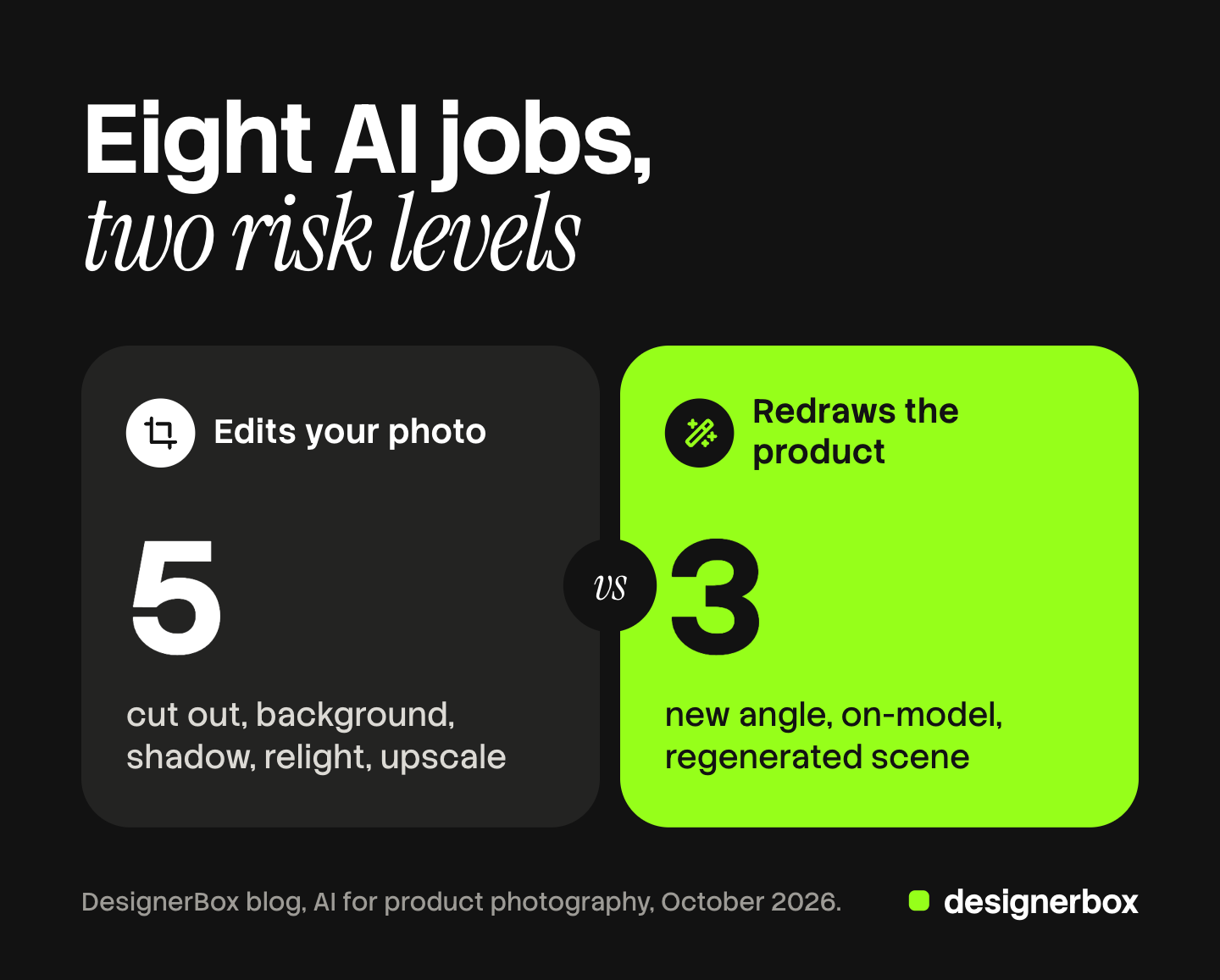
AI for product photography is software that edits a real product photo or draws new images from it. It does eight common jobs. Five of them edit your own photo: cut out, background swap, shadow, relight and upscale. Three of them redraw the product: a new angle, an on-model shot and a regenerated scene. The second group carries more risk, because the software can change the product itself.
This guide is for a brand or a small team that has never used AI on a product photo. It explains the two groups, the source photo, a first run and the channel rules.
Key Takeaways
- Eight jobs, two groups. Five jobs edit the photo you took. Three jobs redraw the product from that photo.
- The group decides the risk. An edit can damage an edge or a color. A redraw can change a logo, a seam or a shape.
- The source photo sets the ceiling. A sharp, evenly lit photo with true color gives every later job a correct start.
- Start with one product and one edit job. Check the result against the real product before you run a second product.
- Free tools limit four things. Check the watermark, the resolution, the commercial license and whether you can upload your own photo.
- The channels judge the image. Amazon asks for a realistic image on pure white. Google asks for metadata on images made with generative AI.
What does AI for product photography do?
AI for product photography takes one photo of a real product and returns new images. Some jobs change the area around the product. Others draw the whole product again in a new position or on a person. Both kinds often appear in the same menu.
A beginner needs one question for every button: did the software keep my product, or did it draw a new one? The answer tells you how carefully to check the result. Our guide to AI product photography examples grades seven shot types with that same question.
AI does not replace the first photo. Every job in this guide starts from a real picture of the real product. If you have no usable photo yet, start with how to take product photos with a phone and window light.
The two groups of AI jobs
The first group edits your photo. The product in the result comes from the pixels your camera recorded. The second group redraws the product. The software studies your photo and then draws the product again, pixel by pixel.
| Job | Group | What the software changes | What to check |
|---|---|---|---|
| Cut out | Edits your photo | Removes the background | Edges, handles, straps, gaps |
| Background swap | Edits your photo | Adds a new background behind the cut-out | Edge color, scale against the scene |
| Shadow | Edits your photo | Adds a shadow under the product | Direction, softness, contact with the surface |
| Relight | Edits your photo | Changes brightness and tone on the product | Color against the real product |
| Upscale | Edits your photo | Adds pixels to make the image larger | Small text, fabric texture |
| New angle | Redraws the product | Draws the side or back the camera did not record | Every part you cannot see in the source |
| On-model | Redraws the product | Draws the product on a person | Fit, print, logo, length |
| Regenerated scene | Redraws the product | Draws the product and the scene together | Shape, label text, proportions |
Relight and upscale start from your pixels, but they do change them. A relight can shift a color, and an upscale can invent detail. Give both a color check and a text check.
The split matters because the failures differ. An edit fails in ways you see quickly: a rough edge, a floating shadow, a wrong crop. A redraw can look correct and still be wrong. The image is sharp, and the logo has one wrong letter. Our guide to whether AI product photography works sorts products by material, because glass and chrome fail more often than matte surfaces.
A standards body draws a similar line. The IPTC lists separate source types for media “created using Generative AI” and media “edited using Generative AI” (IPTC digital source type vocabulary, October 2026). The three stages of AI in photography cover the full list, from capture to generation.
What a good source photo needs
Every AI job copies what is in the source photo, including its faults. Five properties make a source photo safe to build on.
- Sharp focus on the whole product. The front, the label and the edges are all in focus.
- Even, soft light. A window with a white card on the other side gives light without hard shadows.
- True color. Compare the photo with the product in daylight. Fix the white balance before any AI job.
- A plain background. White or light gray gives the cut-out a clean edge.
- The whole product in the frame. Leave space on every side. A cropped handle cannot be recovered.
Shoot at the largest size your camera offers. Amazon accepts images from 500 pixels on the longest side, and 1,000 pixels or more turns on zoom (Amazon Seller Central, October 2026). The same page tells sellers not to artificially enlarge small images.
A real photo of the back is the best input for any image that shows the back. Our guide to the source product photo covers the angles and the file settings.
How to use AI for product photography: a first run
A first run should be small. One product, one job from the first group, one check. These six steps work in most tools.
- Pick one simple product. Choose a matte product with a clear shape, such as a mug or a box. Leave glass and jewelry for later.
- Upload the source photo. Use the largest file you have. Check that the tool accepts your own photos on your plan.
- Cut out the product. Zoom in to 100% and follow the edge all the way around. Look at gaps, such as the inside of a handle.
- Add a background and a shadow. Start with white or a plain surface. Add one soft shadow under the product.
- Compare with the real product. Put the product beside the screen. Check the color, the label text and the shape.
- Export and check the file. Confirm the pixel size and the file type your channel asks for.
Run a redraw job only after the edit jobs pass. Write down what worked: the background, the shadow setting, the crop. Those notes become your standard for the second product. Our guide to an AI photoshoot continues from here and covers a whole listing set, step by step.
AI product photography tips for a first catalog
Each of these five tips is a check you can do with your eyes.

Match the light direction. Look at where the light falls on your product. If the bright side is on the left, the scene needs its light on the left too.
Check scale and the contact shadow. The product must be a believable size beside the objects in the scene. It also needs a small dark shadow where it touches the surface, or it appears to float.
Protect label text and logos. Read every word on the product in the result, letter by letter. A redraw job can change small text. If a tool has a setting that keeps the product unchanged, turn it on.
Use one background family per catalog. Pick two or three surfaces and tones, and use them for every product.
Check edges and color against the real product. View the cut-out on a white and a dark background to find halos. Then hold the product beside the screen in daylight. Amazon requires the main image to accurately represent the real scale, quantity and color of the product (Amazon Seller Central, October 2026).
What free AI product photo tools usually limit
Many AI photo tools have a free tier, and it is useful for learning the two groups of jobs. Before you use a free result on a live listing, check four limits. Each tool sets them differently.
| Limit | What to check on the tool’s own plan page |
|---|---|
| Watermark | Whether exported images carry the tool’s mark |
| Resolution | The largest export size, and whether it reaches 1,000 pixels or more |
| Commercial license | Whether the terms allow use in listings and paid ads |
| Own-photo upload | Whether you can upload your product, or only use sample images |
A watermark also breaks channel rules. Google Merchant Center does not accept product images with overlays or watermarks (Google Merchant Center Help, October 2026).
What the sales channels require of an AI-edited image
The main channels publish rules about what an image shows. Three rules matter for a first run.
Amazon judges the main image. The main image must be a realistic, professional-quality image of the product. It needs a pure white background, at RGB 255, 255, 255, with the product filling 85% of the image (Amazon Seller Central, October 2026). A cut-out on white from a real photo fits that rule.
Amazon asks for a tag on AI-generated people. If an image shows a photorealistic person made fully by AI, sellers must tag the file. The keyword is contains-synthetic-performer, in the image metadata. The same page says the tag is not needed when no photorealistic person appears.
Google asks for AI metadata. Google Merchant Center states that all images created using generative AI must contain metadata that says so. Its example is the IPTC DigitalSourceType tag. Google also tells merchants not to remove that tag (Google Merchant Center Help, October 2026). Check that the tag is still on the file after you resize or convert it.
Disclosure rules are specific. In the European Union, Article 50 of the AI Act has applied since 2 August 2026, and deployers must disclose deep fake content (European Commission, October 2026). Whether a product image falls under that term depends on the image. This section is general information, not legal advice. Our guide to AI product photos and marketplace rules covers each marketplace and each region in full.
AI product photography for beginners: three mistakes to avoid
Starting with the hardest product. Glass, polished metal and sheer fabric reflect and pass light. Learn on a matte product first.
Using a redraw where an edit is enough. A white-background listing image needs a cut-out and a shadow. It does not need a regenerated product.
Skipping the comparison. A result can look professional and still be wrong. The real product on your desk is the only reference that counts.
Images, ads and video from one workflow
DesignerBox is AI creative production for brands and agencies. It makes images, ads and video, and a product photo is one of the inputs. Anyone can make an AI picture. Making hundreds that still look like your brand is the hard part.
A brand with 20 to 500 products meets that problem after the first run. The tips above become rules, and in DesignerBox you save them once. You start from a template, or you build your own workflow with your brand and your products. A batch then runs that workflow over a sheet, one product per row, with up to 200 rows a sheet. The cost is shown before the run. You keep or discard each result yourself.
The full workflow from the first product photo to the finished ad, in one subscription. The product side of this job is described on the AI product photography page.
The limits are plain. The source photo and the final check stay with you. DesignerBox does not send finished work to a store or a marketplace. You download the results, or send them with a webhook or an S3 step. Virtual try-on works on garments only. Every plan below Ultra is one seat. There is a free plan, and it runs on sample products.
Uploading your own photos and the commercial license start on the Pro plan. AI video, virtual try-on, upscaling, the image editor and the video editor start on the Premium plan. Plans and credits are on the pricing page.
FAQ
Can I use AI for product photography?
Yes. AI can cut out a product, change the background, add a shadow, relight and upscale a real photo. It can also redraw the product at a new angle or on a person. The first group is safer for a beginner.
How do I make product photos with AI?
Take one sharp, evenly lit photo of the product on a plain background. Upload it, cut out the product, and add a background and a soft shadow. Compare the result with the real product for color, text and shape. Then export it at the size your sales channel asks for.
What is the difference between editing and generating a product photo?
An edit keeps the product from your photo and changes the area around it, or adjusts light and size. A generated image redraws the product itself. A redraw can change a logo, a seam or a proportion, so it needs a closer check than an edit.
Are AI product photos allowed on Amazon?
Amazon’s image rules describe what the image shows. The main image must be a realistic, professional-quality image on a pure white background, with the product filling 85% of the image. Amazon also asks sellers to tag images that show a photorealistic person made fully by AI (Amazon Seller Central, October 2026).
Are free AI product photo tools good enough for a store?
They are good for learning. Before you use a free result on a listing, check four limits: a watermark, the export resolution, the commercial license, and whether you can upload your own product. Each tool sets these limits on its own plan page.
What does DesignerBox do for product photos?
DesignerBox saves your brand rules in a workflow and runs it on each product, or on a sheet of up to 200 rows. You see the cost before you press Run, and you keep or discard each result. Uploading your own photos starts on the Pro plan.
Sources
- Amazon product image requirements: pixel limits and zoom, the instruction not to enlarge small images, the main image rules, pure white background, 85% fill, accurate scale, quantity and color, and the contains-synthetic-performer tag: Amazon Seller Central, product image requirements, accessed October 2026
- Google Merchant Center image rules: overlays and watermarks, the AI image metadata requirement and the instruction not to remove the IPTC DigitalSourceType tag: Google Merchant Center Help, image link, accessed October 2026
- IPTC digital source types for media created using generative AI and media edited using generative AI: IPTC NewsCodes, digital source type, accessed October 2026
- EU AI Act Article 50: application from 2 August 2026 and the disclosure duty for deep fake content: European Commission, transparency obligations under Article 50, accessed October 2026
- DesignerBox batch: one product per row, up to 200 rows a sheet, and the cost shown before the run: DesignerBox batch page (designerbox.ai/product/batch), October 2026
- DesignerBox plan gates and the free plan: DesignerBox pricing page (designerbox.ai/pricing), October 2026
Amazon, Google, IPTC and European Commission facts verified on each publisher’s own page, October 2026. DesignerBox features verified on designerbox.ai, October 2026. The legal section is general information, not legal advice. Individual results vary.