
An AI image generator comparison helps you most when it uses your own product. Pick three products that are hard to draw, and write three instructions. Hold the size and the aspect ratio fixed. Run every instruction on every model, and score each picture on the same five lines. Then count the passes. The model with the most passes on your products is your model for that shot.
Most published comparisons test prompts you will never run. A portrait or a fantasy scene says little about your bottle label. This guide gives you the test method, the scorecard and a sourced table of the image models. It names no winner. DesignerBox publishes this article and runs these models, so read the last section with that in mind.
Key Takeaways
- Pick three hard products: one with text on a label, one with a reflective surface, one with a fabric pattern.
- Hold everything else fixed: the same product photo, the same words, the same size and the same aspect ratio for every model.
- Score five lines: shape and proportions, label text and logo, material and color, light and shadow, and anything invented.
- Count passes. A picture passes only when all five lines pass. One model gets 18 pictures in this test.
Why do published AI image generator comparisons miss your product?
We read the first page of Google for this query on 7 October 2026. It holds roundups of image apps, one public leaderboard and a few video tests. These pages are a good way to build a short list. Best AI product photography tools is our own roundup of apps for product photos.
A brand with 200 products asks a different question: does the model keep my product the same? A general prompt does not test that. Your label, your glass and your print do.
Lists also age fast. On 7 October 2026, Google’s guide lists Nano Banana 2.1 as “an update to Nano Banana 2” and recommends it for new projects (Gemini API image generation guide, October 2026). OpenAI’s guide says: “For new integrations, use one of the GPT Image 2.5 models” (OpenAI image generation guide, October 2026). A roundup written in summer names neither. So use a published comparison for the short list, and your own test for the decision.
Which image models belong on the short list?
No vendor page can name the best AI image model for your product. Each vendor does say what its model is built for. The table holds one fact per model.
| Model | Vendor | What the vendor says | Source |
|---|---|---|---|
| Nano Banana Pro | ”optimized for professional asset production”. Takes up to 6 object images with high fidelity | Gemini API image guide, October 2026 | |
| Nano Banana 2 | ”optimized for speed and high-volume use-cases”. Takes up to 10 object images with high fidelity | Gemini API image guide, October 2026 | |
| GPT Image 2 | OpenAI | Accepts flexible sizes, up to 8,294,400 pixels in total. Sizes above 2560x1440 are experimental | OpenAI image generation guide, October 2026 |
| Seedream 5 | ByteDance | The Seedream 5.0 Pro page leads with “High-Density Infographics”: pictures with a lot of text | Seedream 5.0 Pro page, October 2026 |
| FLUX 2 Flex | Black Forest Labs | ”Specialized for typography. Best for text rendering and preserving small details.” | FLUX.2 overview, October 2026 |
| FLUX Pro 1.1 | Black Forest Labs | Released in October 2024. Outputs up to 1440 x 1440. Listed with the previous generation | FLUX1.1 pro page, September 2026 |
| Kontext Multi | Black Forest Labs | FLUX.1 Kontext “excels at character consistency, even after multiple edits”. The vendor now calls it a “previous-generation model” | Kontext editing guide, October 2026 |
Each row is a claim to test. Our guides to Nano Banana 2 and Nano Banana Pro and to Seedream 5 on a product catalog cover those models in more depth.
GPT Image 2 vs Nano Banana Pro: what each vendor states
Both vendors publish limits as well as strengths.
OpenAI writes that its GPT Image models “can still struggle with precise text placement and clarity”. It adds that a model “may occasionally struggle to maintain visual consistency for recurring characters or brand elements across multiple generations” (OpenAI image generation guide, October 2026).
Google DeepMind writes that Nano Banana Pro “can still struggle with small faces, accurate spelling, and fine details in images” (Google DeepMind, Nano Banana Pro, September 2026).
Both vendors name text as a limit. So neither page settles GPT Image 2 vs Nano Banana Pro for your label. Your test does. For API sizes and vendor rates, see our guide to the GPT Image 2 API.
Which products should you test?
Pick three products that are hard to draw. An easy product passes on every model and tells you nothing.
- A product with text on a label. A bottle, a jar or a box with a name and small print.
- A product with a reflective surface. Glass, metal or a glossy finish.
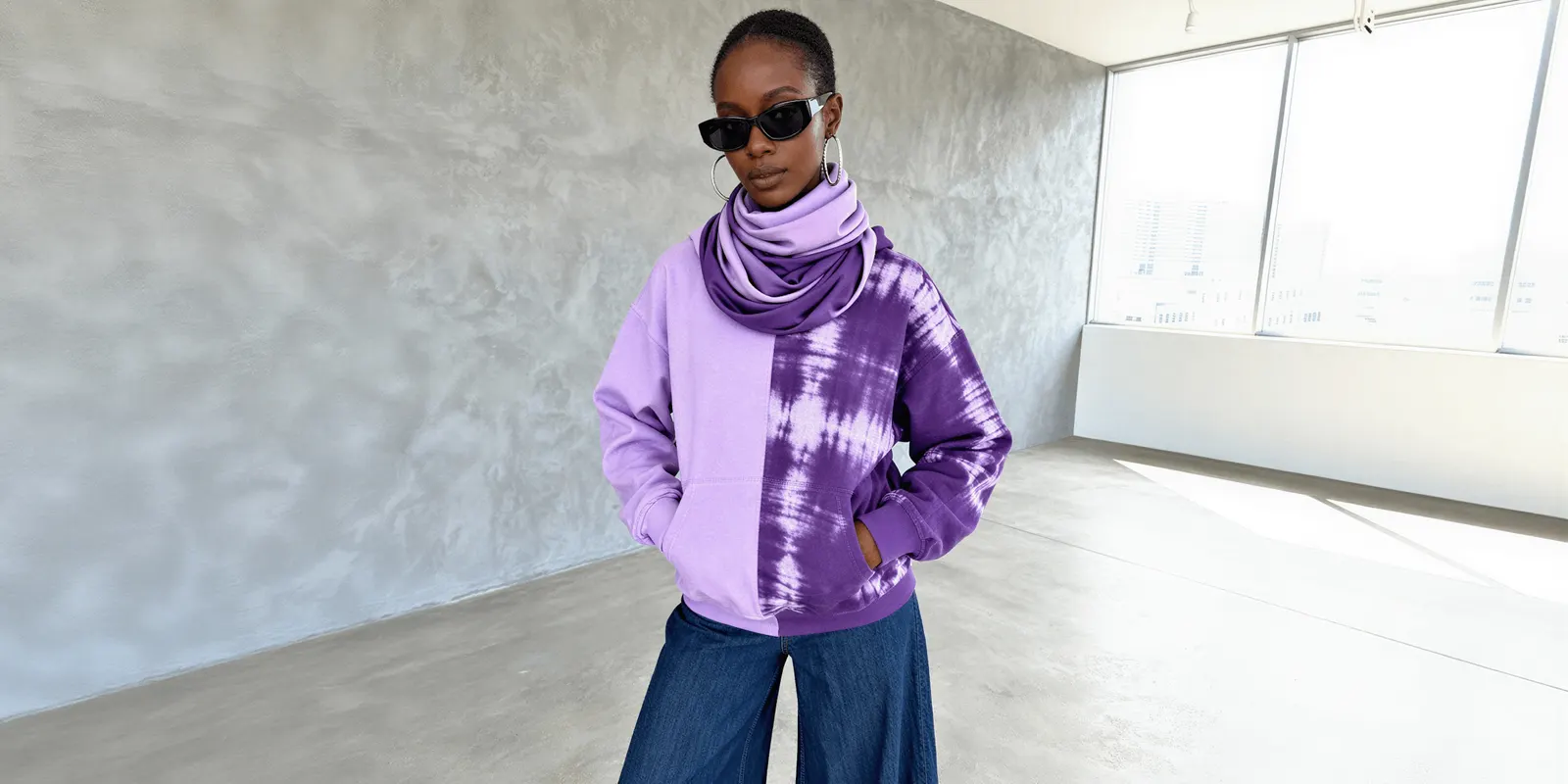
- A product with a fabric pattern. A print, a stripe or a weave that must stay the same.
Use the same real product photo for every model. If a product failed before, add it.
How do you write a fair instruction?
Write three instructions, one for each kind of shot you need most.
- A clean shot on white. The product alone, on a plain white background.
- A scene. The product in a real place, such as a kitchen shelf or a cafe table.
- A close detail. The label, the texture or the stitching, at close range.
Then hold everything else fixed.
- Give every model the same words. Do not tune the wording for one model in the first round.
- Set the same size and the same aspect ratio on every row.
- Write what must stay the same as the last sentence: “Keep the label text and the logo exactly as in the photo.”
How many pictures make a fair test?
One picture proves nothing, because every model gives a different result each time. Run each combination twice at least.
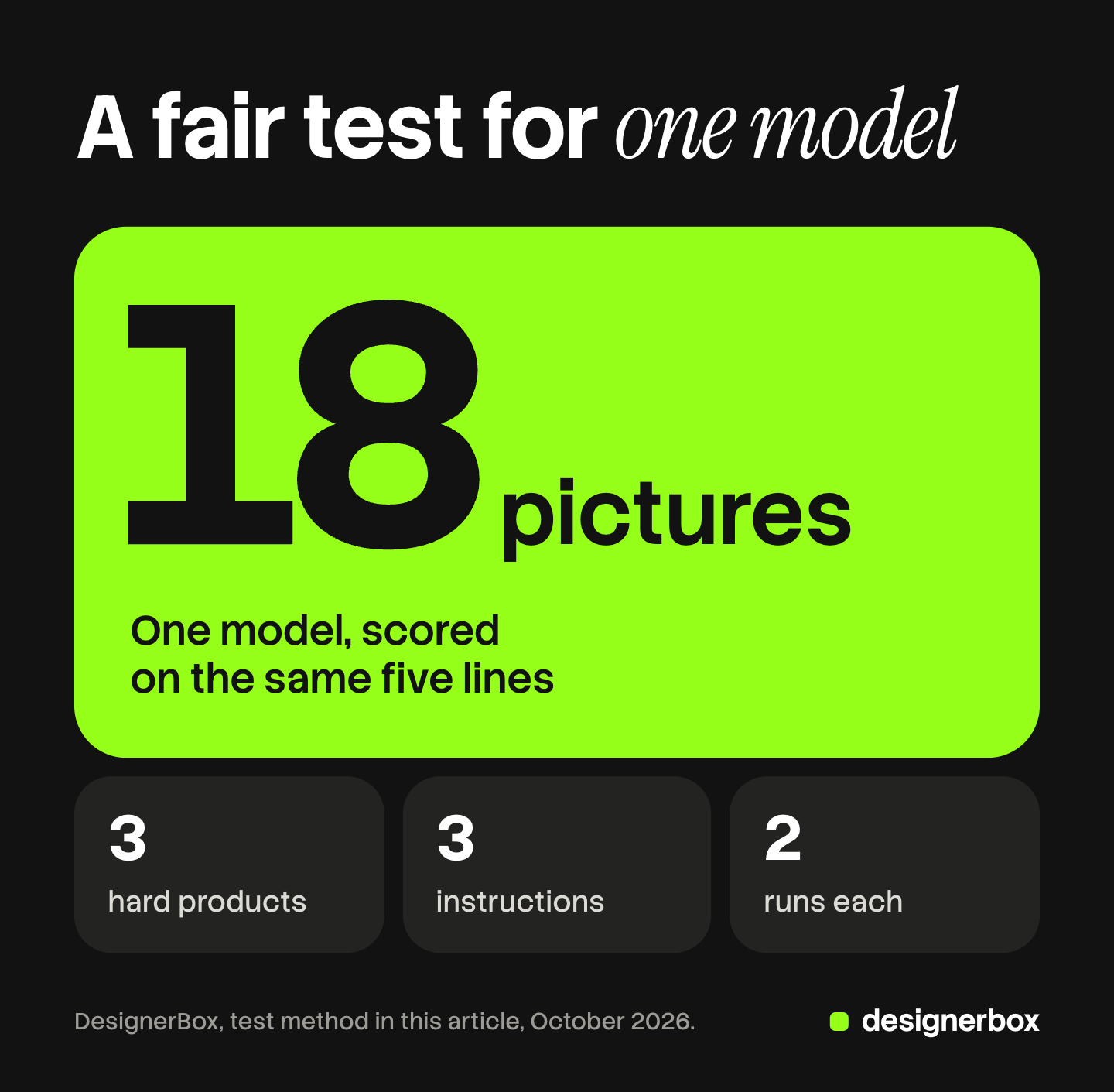
The count for one model is small. Three products times three instructions is nine combinations. Two runs each makes 18 pictures.
Every extra model adds 18 pictures.
A five-line scorecard for product pictures
Score every picture on the same five lines. Each line is a yes or a no. Compare each picture with your product photo, side by side.
| Line | What you check | It fails when |
|---|---|---|
| Shape and proportions | Outline, height against width, the number of parts | The bottle is taller, the handle moved, a button is gone |
| Label text and logo | Every word, letter by letter, and the logo | A letter changed, the small print is noise, the logo is redrawn |
| Material and color | Finish, texture, pattern and the brand color | Matte became glossy, the print changed, the color shifted |
| Light and shadow | One light direction, a shadow that matches it | The product floats, or the shadow falls the wrong way |
| Anything invented | Parts, text or props you did not ask for | A second cap, extra words, a hand, a new badge |
A picture passes only when all five lines pass. Write the reason next to each fail.
How do you read the results?
Count the passes for each model, then split the count by shot.
- One model can lead on one shot and trail on another. Use a different model for each shot if the counts say so.
- Look at where each model fails. A model that fails only on small print may be fine for products with no label.
- Run the test again when a vendor ships a new model.
Three products are a small sample. Check the first real run on a few more products.
The comparison grid in DesignerBox Batch
DesignerBox is AI creative production for brands and agencies. Batch runs one job over many rows, and the job can be an image model alone. The app describes that choice: “No workflow behind it. Write one instruction on every row, pick the model, and run them all.”
That makes a batch a comparison grid. Each row is one instruction on one model.
- Open Batch and pick the Image model tab. The picker lists Nano Banana Pro, Nano Banana 2, GPT Image 2, FLUX Pro 1.1, Seedream 5, FLUX 2 Flex and Kontext Multi. It also lists an upscaler, which belongs in a different test.
- Press “Add in bulk”. Type one value per line. The app explains the result: “Every combination of what you write becomes its own row: three instructions against two models is six rows.”
- Fix the Size and the Aspect ratio. Both are columns on the sheet. Give every row the same values.
- Add the product photo. The Pictures column takes it. Picture columns are outside “Add in bulk”, and the app points you to Upload under the column.
- Set “Runs per row”. Raise it to two, so each combination makes two pictures.
- Press “Run batch”. The cost is shown before the run.
- Judge each picture. Use the five-line scorecard, and keep the good ones.
After the run, you can download the kept pictures, send them for review, or download the sheet as a CSV. Our guide to DesignerBox Batch covers the sheet in full, and bulk image generators explains how a batch differs from a prompt list.
The test picks a model. Anyone can make an AI picture. Making hundreds that still look like your brand is the hard part. So the winning model becomes one step in a saved workflow, with your brand rules read on every run. The full workflow from the first product photo to the finished ad, in one subscription.
Three limits apply. Nothing in Batch scores a picture for you: a person judges each one. One sheet holds 200 rows. Batch does not send pictures to a store, so you download the results, or send them with a webhook or an S3 step.
Batch is on every plan. Uploading your own photos and the commercial license start on the Pro plan. The free plan runs on sample products, so it shows how the grid works before you test your own. Plans and credits are on the pricing page.
FAQ
How can I compare AI image generators?
Use your own product. Give every model the same photo, the same words, the same size and the same aspect ratio. Run each combination twice. Score every picture on five lines, and count the pictures that pass all five.
What is the best AI image model for product photos?
Vendor pages do not name one. The best AI image model for your catalog is the one with the most passes on your own products, for the shot you need.
Is GPT Image 2 better than Nano Banana Pro?
Neither vendor page settles it. OpenAI and Google both list text as a limit of their models. Test both on a product with a label. Count the pictures where every letter is correct.
How many pictures do I need for a fair test?
Eighteen pictures for each model is a workable minimum. That is three products, three instructions and two runs of each combination.
Can I compare AI image models in one place?
Yes. In DesignerBox Batch you pick an image model for each row, so one sheet holds several models. You judge each picture yourself and keep the good ones. If a label fails on every model, you can edit the text in the image afterwards.
Sources
- Nano Banana 2.1, the Nano Banana model descriptions and the object image limits: Gemini API image generation guide (read 7 October 2026)
- GPT Image 2 sizes, the stated limits on text and consistency, and the pointer to GPT Image 2.5: OpenAI image generation guide (read 7 October 2026)
- Stated limits of Nano Banana Pro: Google DeepMind, Nano Banana Pro (read September 2026)
- “High-Density Infographics”: Seedream 5.0 Pro page (read 7 October 2026)
- FLUX.2 [flex] description: Black Forest Labs, FLUX.2 overview (read 7 October 2026)
- FLUX1.1 [pro] release date and size: Black Forest Labs, FLUX1.1 pro page (read September 2026)
- FLUX.1 Kontext consistency and status: Black Forest Labs, Kontext image editing (read 7 October 2026)
- The first page of Google results for “ai image generator comparison”, United States, read 7 October 2026
- Batch labels, the image model picker, “Add in bulk”, “Runs per row” and the batch menu: the DesignerBox app, read October 2026, and the DesignerBox Batch page (designerbox.ai/product/batch), October 2026
- Plan gates: DesignerBox pricing page (designerbox.ai/pricing), October 2026
Model facts come from each vendor’s own pages on the dates shown. Vendors change models often, so check the source before you plan a catalog on one.