
A bulk image generator makes many images from one input list, instead of one prompt at a time. There are three kinds. A prompt-list tool reads a spreadsheet with one prompt per row. An API batch sends thousands of requests as one job. A workflow over a sheet runs the same saved steps on every product, so the whole set keeps one look.
Suppose 40 new products arrive this month. Each one needs the same hero shot: the same background, the same light, the same framing. You can write 40 prompts and get 40 images. You will also get 40 slightly different backgrounds, and the set will not look like one brand.
This guide compares the three kinds of bulk image generator and shows which one fits which job. It covers how to prepare the sheet, how to review hundreds of results, and what to check before you press Run. It ends with how a batch in DesignerBox runs one workflow over a whole sheet of products.
Key Takeaways
- Three kinds of bulk generator. A prompt list in a web app, an API batch, and one workflow over a sheet of products. They differ in what one row is.
- A prompt list makes different images. Every row is a new description, so the model decides the light, angle and background again for each row.
- A catalog needs the same image many times. The unit of the run should be the product, with the steps fixed once and read on every row.
- Keep the sheet small. Put only what changes between products in the sheet: the photo, the name, the color, one line of text. Everything that must match belongs in the workflow.
- Review is the slow part. Generating 200 images is fast. Checking them, keeping the good ones and re-running the bad ones is where the time goes.
- Price the whole sheet first. Know the total cost before the run starts, and leave room for re-runs.
What is a bulk image generator?
A bulk image generator is a tool that produces many images in one run from a list. The list can be prompts, API requests or products. You prepare the list once, start one job, and collect all the results together.
The alternative is typing one prompt, waiting, saving the image, and repeating that 200 times. Bulk generation removes the repeat typing. It does not remove the need to check every result. If the images already exist and only need a resize, a cutout or a new format, that is bulk image editing.
The word “bulk” hides a real choice. Two tools can both say “hundreds of images at once” and still do different jobs. One makes 500 different pictures. The other makes the same picture 500 times, with a different product in it.
Three kinds of bulk image generator
The quickest way to compare them is to ask one question: what is a single row?
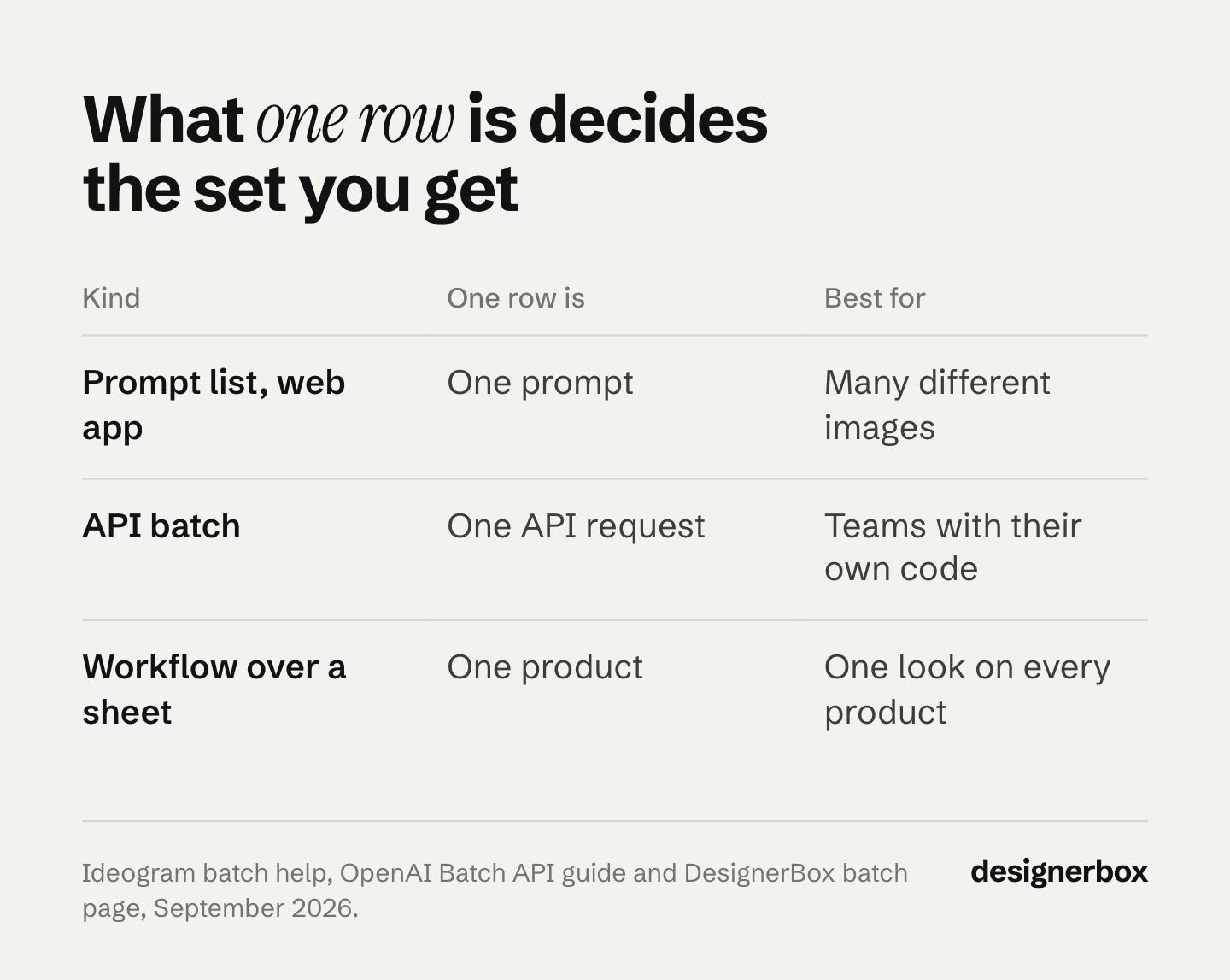
| Kind | What you upload | One row is | What you get back | Best for |
|---|---|---|---|---|
| Prompt list in a web app | A spreadsheet of prompts and settings | One prompt | A ZIP of images | Many different images: concepts, posters, social variety |
| API batch | A file of API requests | One request | A results file, within 24 hours | Teams with their own code and their own review step |
| Workflow over a sheet | A sheet of products: photo, name, color | One product | One result per row, reviewed in the sheet | A catalog that must keep one look on every product |
Prompt list in a web app. Ideogram’s batch generation is a clear example, and it gives each row a lot of control. You upload a .csv, .xls, .xlsx or .ods spreadsheet of up to 1 MB. It holds up to 500 prompt rows plus one header row.
Each row sets its own model and aspect ratio, and its own style, seed and color palette where the model supports them. The finished batch downloads as a ZIP file (docs.ideogram.ai, September 2026). Ideogram says the feature is typically on its Pro and Team plans.
API batch. OpenAI’s Batch API is the developer version of the same idea. You send a .jsonl file with one request per line, up to 50,000 requests in one batch. It supports both image generation and image edits.
Batches finish within 24 hours at a 50% discount compared to the synchronous API (OpenAI Batch API guide, September 2026). You write the code, and you build your own review. What one image costs through that API is in our guide to GPT Image 2 API pricing.
Workflow over a sheet. Here each row is a product, and the steps are fixed before the run. A batch in DesignerBox runs one workflow over a sheet of products, one product per row. One sheet holds up to 200 rows (DesignerBox batch page, September 2026). Every row reads the same brand rules.
Why a prompt list drifts on a catalog
A prompt describes a picture. The model then draws its own version of that description. Ask for “a ceramic mug on a gray stone surface, soft window light” 40 times, and you get 40 stones, 40 light angles and 40 crops. Each image can look good. The set still looks like the work of 40 different photographers.
The product has the same problem. A text prompt describes your mug. It does not show your mug. The model draws a mug that matches the words, and the handle, the glaze and the logo may not match the real one.
A workflow solves both problems in another way. The product photo is the input, so the model starts from your real product. The steps are saved once: remove the background, place the product in one scene, relight it the same way, crop it to the same size.
The row only changes the product. This is why the same shot for every product is a workflow job, and why a longer prompt does not solve it. Our guide to the AI creative workflow covers the steps in more detail.
How to prepare a sheet for a bulk run
Check the first row before you add the others. These steps work in any tool that runs one set of steps over many products.
- Run one product first. Check the result by hand. Change the steps until one product looks right, then add row two.
- Add one row per product. Each row holds the product photo, the product name, the color and one line of text. Add a column only when the value changes between products.
- Keep the fixed things out of the sheet. Background, light, framing, logo and fonts belong in the workflow and the brand record. If they sit in the sheet, someone will type them differently on row 60.
- Use the SKU as the row name. Then every result maps to one product without guessing.
- Check the cost of the whole sheet. Do this before you press Run, and compare it with what the set is worth to you or your client.
- Review per row. Keep, discard or re-run each result. Do not re-run the whole sheet for one bad row.
A plain phone photo on a table is enough as the input for most product jobs. What matters more is that every product photo is shot the same way, from the same height and with the same light. A consistent input makes a consistent set easier. Before a first large run on a new tool, an AI proof of concept on about 100 of your own products sets the pass line in writing.
Reviewing hundreds of results
Generation is the fast part of a bulk run. Review is where the hours go. A prompt-list tool gives you a ZIP of hundreds of files, and a person checks each one. An API batch gives you a results file, and your team builds the review itself.

A sheet keeps the review next to the input. In a DesignerBox batch, each row shows its state: draft, queued, generating, done or failed. You re-run a failed row on its own, and the rest of the sheet does not move. You keep or discard each result as it arrives, and every kept result goes to Assets beside its source photo (DesignerBox batch page, September 2026).
Inside a workflow, three critic steps score the results and best-of-N keeps the best one. That narrows what a person has to check. It does not replace the check. For the places a catalog run breaks after generation, read where a bulk product image run breaks.
Four ways to run one workflow
Anyone can make an AI picture. Making hundreds that still look like your brand is the hard part.
DesignerBox splits the job into four ways to work, and all four run the same engine. Nothing is rebuilt between them. Each one widens who can run the job.
| Way | What it is | Who runs it | Its place in a bulk job |
|---|---|---|---|
| Template | A workflow somebody already built. Open one, add your photo, press Run | Anyone, on the first day | Find a finished result that is close to your shot |
| Workflow | Your own steps, saved once with your brand and your products, run again | The person who sets the standard | Fix the background, light and framing once |
| App | The same workflow behind a short form. Complete the fields, press Run | A colleague who never opens the steps | Let a colleague run single products between drops |
| Batch | One workflow over a spreadsheet, one product per row, reviewed in one pass | One person, once, for the whole drop | Run the whole sheet and review it in place |
Step one is one photo. Step four is the whole catalog. You start from a template, save your changes as a workflow, and publish it as an app when a colleague needs to run it.
Our article on DesignerBox apps shows what an app form looks like. The how it works page explains all four.
Other parts of DesignerBox finish the job. The image editor changes one picture and keeps the detail, even after one edit after another. The video editor cuts, captions and adds a voice to a clip. Brand holds your logos, fonts, colors and rules, and the workflow reads them on every run. Assets keeps every result in one place.
The full workflow from the first product photo to the finished ad, in one subscription.
DesignerBox is AI creative production for brands and agencies. Scale your images, ads and video with AI and keep your brand on every piece: build the workflow once with your brand rules, run it on every product, see the cost before each run, and keep everything from the first product photo to the finished ad in one place.
Cost before a bulk run
A bulk run multiplies every price by the row count, so check the total first. Each tool bills in its own unit, such as images, credits or API requests. An API batch bills at the vendor’s API rate, less the batch discount where one exists. In a DesignerBox batch, the cost of the whole sheet shows in credits before you press Run, so you can quote a client before the work starts.
Images, templates, apps, batch and brand rules run on every plan, including the free plan (DesignerBox batch page, September 2026). The free plan runs on sample products. Uploading your own photos and the commercial license start on the Pro plan. AI video, virtual try-on, upscaling and both editors start on the Premium plan. Plans and credits are on the pricing page.
For agencies, keep one brand record per client, so each client’s sheet reads its own rules. Team features, shared brand kits and white label are on the Ultra plan, and every plan below Ultra is one seat. The agency page and our guide to creative for multiple clients cover that setup.
When another kind of bulk generator fits better
A workflow over a sheet is built for one job: the same shot on many products. Other jobs fit other tools.
- You want many different images. Concepts, poster ideas or social variety. A prompt list is faster, because variety is the goal.
- You have your own code and review. An API batch gives you the vendor’s batch discount and full control, and you build the review.
- You need results sent to a store automatically. DesignerBox does not publish to a store or a channel. You download the results, or send them with a webhook or an S3 step.
Scale content without limits.
Generate content for your products or services with AI, starting today, and keep your brand on every piece. Start with one product, then run the batch over the whole sheet.
FAQ
What is the best bulk image generator?
Pick by what one row should be. For many different images, use a prompt-list tool, where each row is a new prompt. For a developer pipeline, use an API batch. For a catalog that must keep one look, use a workflow over a sheet, where each row is a product and the steps stay fixed.
Can I generate images from a CSV file?
Yes. Ideogram’s batch generation reads a .csv, .xls, .xlsx or .ods spreadsheet of prompts and settings (docs.ideogram.ai, September 2026). OpenAI’s Batch API reads a .jsonl file with one request per line. In a DesignerBox batch, you add one row per product or paste the rows in (DesignerBox batch page, September 2026).
How many images can I generate at once?
It varies by tool. Ideogram takes up to 500 prompt rows per batch, and each row can make more than one image. OpenAI’s Batch API takes up to 50,000 requests per batch and finishes within 24 hours. A DesignerBox batch holds up to 200 product rows in one sheet.
How do I keep the same style across hundreds of AI images?
Take the style out of the prompt. Use the real product photo as the input, and save the background, light, framing and crop as fixed steps. Put your logos, fonts and colors in a brand record that the workflow reads on every run. The sheet then changes only the product.
What does a bulk image run cost?
Multiply the price of one image by the number of rows, then add the re-runs. In DesignerBox, the cost is shown before the run, for the whole sheet. Plans and credits are on the pricing page.
Can I use bulk AI images for client work?
In DesignerBox, the commercial license starts on the Pro plan. For other tools, read the license terms on each vendor’s own site before you deliver client work.
Can I run a bulk job from Claude?
Yes. DesignerBox has 68 tools over MCP. From Claude, ChatGPT, Cursor or Codex, your AI chat runs your templates, workflows and apps. It repeats one job for every row you paste and reports what each row cost. For a whole sheet of products, a batch inside DesignerBox runs one workflow over every row (DesignerBox MCP page and product page, September 2026).
Sources
- Ideogram batch generation: row limit, file formats, per-row settings, images per row, ZIP download and plan note: docs.ideogram.ai/using-ideogram/features-and-tools/batch-generation, accessed September 2026
- OpenAI Batch API: .jsonl input, 50,000 requests per batch, image generation and edit endpoints, 24-hour window and 50% discount: OpenAI Batch API guide, accessed September 2026
- DesignerBox batch: one product per row, up to 200 rows, row states, re-running one row, Assets and plan coverage: DesignerBox batch page (designerbox.ai/product/batch), September 2026
- DesignerBox templates, workflows, apps and batch, the editors, brand, Assets and the MCP server: DesignerBox product page (designerbox.ai/product), September 2026
- DesignerBox MCP: 68 tools, the AI chats it works with, and one job repeated over pasted rows: DesignerBox MCP page (designerbox.ai/mcp), September 2026
- DesignerBox plan gates: DesignerBox pricing page (designerbox.ai/pricing), September 2026
Ideogram and OpenAI batch features verified on each vendor’s own documentation, September 2026. DesignerBox features verified on designerbox.ai, September 2026. Individual results vary.