
A Shopify product description is one rich text field on the product details page. Every variant of the product shares it, and a product can hold up to 2,048 variants. Shopify shows the text on the product page, and it uses the same text as the SEO description when you leave that field blank. You can draft it with Sidekick and change many descriptions at once with a product CSV.
This guide covers the mechanics of that field for a brand with 20 to 500 products, or for the agency that runs its store. Every Shopify statement here was read on help.shopify.com or shopify.dev in October 2026.
Key Takeaways
One product has one description. Shopify’s variant object has no description field, so a color or a size cannot have its own text.
A product can hold 2,048 variants. Facts that change by variant belong in options, metafields and variant images.
The description is also the default SEO description. If the SEO description is blank, Shopify uses the product description. That field holds up to 320 characters.
Sidekick drafts the text. Shopify asks for a product title and at least 2 features or keywords before you request a draft.
The product CSV changes descriptions in bulk. The file can be 15 MB at most, and a blank cell replaces your text with nothing.
The images have to say the same thing. A description that names a part the photos do not show creates doubt.
What is a Shopify product description?
A Shopify product description is the text in the Description field of a product. Shopify’s help page defines it in five words: “The description for your product.” The field uses the rich text editor, so you can add headings, lists and bold text (help.shopify.com, October 2026).
Shopify’s developer documentation lists two versions of the field. One is “the description of the product, with HTML tags”. The other has the HTML tags removed (shopify.dev, October 2026). Themes and apps read one of those two.
Shopify’s help page also tells resellers not to use a manufacturer’s exact description. The craft of the text itself is in our guide on how to write a product description. Worked product description examples by product type are in a separate guide.
Where Shopify shows the description
The same text appears in four places.
| Place | What appears there | Source |
|---|---|---|
| Product page | The full description, with its formatting | Shopify theme documentation |
| Search engine listing preview | ”Part of the product description”, next to the title and the URL | Shopify Help Center |
| SEO description | The product description, when the SEO description is blank | Shopify Help Center |
| Google Merchant Center | Product information that the Google & YouTube channel syncs | Shopify Help Center |
Product page. A theme prints the description through the product object (shopify.dev, October 2026). Where the text sits on the page depends on your theme.
Search listing. Each product has a search engine listing section. The SEO description there can hold up to 320 characters. Shopify adds: “If you leave this column blank, then the product Description is used” (help.shopify.com, October 2026).

So the first lines of your description matter twice. Shopify’s SEO page recommends 160 characters for a meta description, and asks for one that “uses plain, direct language” (help.shopify.com, October 2026).
Google. Shopify says the Google & YouTube channel syncs “product information for the products that are available to your online store” to Google Merchant Center (help.shopify.com, October 2026). The pages we read do not list which Shopify field becomes Google’s description, so read what arrived in Merchant Center.
Google’s own limit for that attribute is 1 to 5,000 characters (support.google.com, October 2026).
What Shopify Magic drafts, and what it needs from you
Many merchants know this feature as Shopify Magic, and the help page still has that name in its address. In October 2026 the text on the page names Sidekick: “You can use Sidekick to write product descriptions” (help.shopify.com, October 2026). The button sits in the toolbar of the description box.
Shopify states the minimum: “At a minimum, provide a product title and at least 2 product features or keyword items before generating a description.”
The page also suggests adding variant options, such as size and color, as keywords. You can state a tone or writing style in the prompt, and the draft matches the language of the prompt.
Three limits apply. First, it works on a desktop computer only. Shopify says text generation “isn’t supported on iPhone or Android”.
Second, the draft can contain claims you did not make. Shopify warns that the text can include “product benefits even when you didn’t list any explicitly, and facts based on other published content related to similar products”. A sentence about a material or a size may come from another product.
Third, the responsibility is yours. Shopify says you are responsible for the accuracy of your store’s content, “even when you use automatic text generation to create it”.
Shopify says many of its AI features come at no additional cost, and that availability can vary by plan, device and language (help.shopify.com, October 2026). Shopify’s image features are covered in our guide to free platform AI tools.
Variants share one description
Shopify allows up to 2,048 variants for a product, built from up to three options (help.shopify.com, October 2026). All of them show the same description.
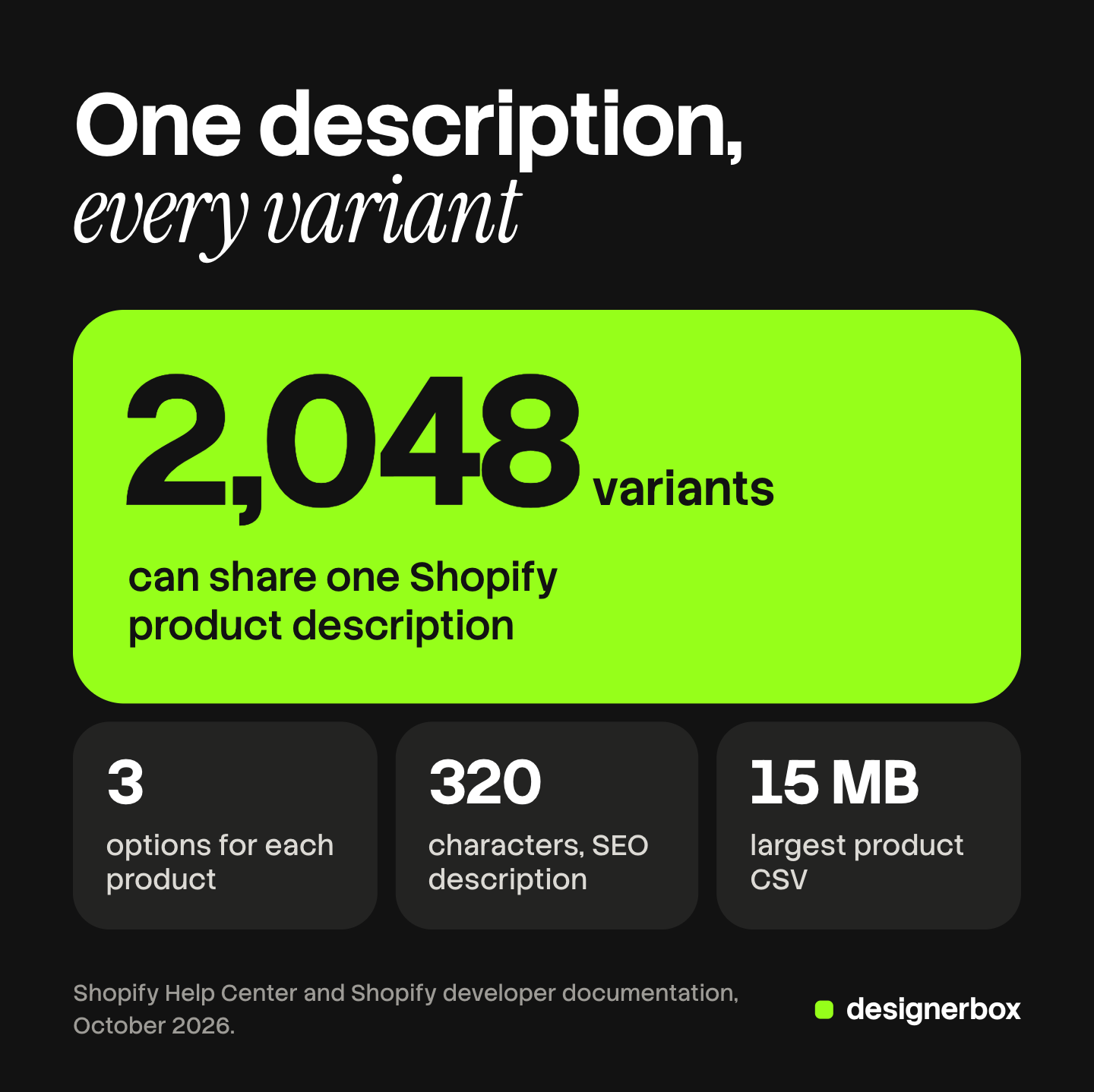
The developer documentation confirms it. The variant object has a title, its selected options, media and metafields, and no description (shopify.dev, October 2026). On the CSV rows for extra variants, Shopify tells you to skip the Description column.
So a sentence about a deep green shade is wrong for the shopper who selected cream. Write the description for the whole product, and put each variant fact in a field that changes with the variant.
| The fact | Where it belongs |
|---|---|
| True for every variant: material, care, what is in the box | The description |
| The color, size or style name | The option values |
| The look of one color or style | The variant image |
| A measurement or weight that changes by size | A variant metafield |
| A standard attribute, such as neckline or sleeve length | A category metafield |
Shopify says a variant can have its own price, SKU, barcode and product image. For anything else, it points to metafields on the variant details page.
Metafields are fields you define. Shopify’s examples include care instructions, furniture measurements and size charts (help.shopify.com, October 2026). A theme that supports dynamic sources can show them on the product page.
Category metafields come with the product category. The fields behind them are mapped in the reference on product attributes. For a shirt they include clothing size, neckline, sleeve length type and color. You can connect them to your variant options (help.shopify.com, October 2026). The other fields on the listing are covered in our guide to Shopify product page optimization.
How to edit Shopify product descriptions in bulk
Shopify documents two bulk routes: the product CSV and the bulk editor. The CSV is the one it documents for descriptions.
The product CSV
The column you need is named Description. Shopify notes that an older CSV template may use different column names, and you may see the label Body (HTML) in older files and apps. Shopify’s legacy REST API names the field “body_html” and says it “supports HTML formatting” (shopify.dev, October 2026).
The steps, from Shopify’s export and import pages:
- Export. Go to Products and click Export. Choose the products: the current page, all products, your selection, or the products that match a filter.
- Keep a copy. Shopify says to have a backup of your product data before an import. The untouched export is that backup.
- Remove the columns you will not change. Keep the required columns and the Description column.
- Edit the Description cells. Do not sort the file. Shopify warns that sorting “can cause product variants or image URLs to become disassociated”.
- Save the file as UTF-8. The file “can’t exceed 15 MB” (help.shopify.com, October 2026).
- Import. Select “Overwrite products with matching handles”, review the details, and import.
Step 3 protects your data. If a column is in the file and a cell is blank, “the matching value is overwritten as blank”. If a column is not in the file, “the value remains the same”.
The bulk editor
Select products in the admin and click Bulk edit. Each column in the table is a product property, and you add more through the Columns button (help.shopify.com, October 2026). The page does not list every property, so check what your store offers.
The bulk editor is the documented route for metafields. Open Columns and choose the metafields to edit. That is how you add a variant fact to many products without touching the description.
Images follow a different route, covered in the guide to Shopify bulk upload images.
Shopify product description length
Shopify publishes no character limit for the description on the pages we read. The limits come from the places that reuse the text.
- SEO description: up to 320 characters in the field. Shopify recommends 160.
- SEO title: up to 70 characters. If it is blank, Shopify uses the product title.
- Google’s description attribute: 1 to 5,000 characters.
The practical rule follows from the fallback. Write the first one or two sentences as a plain statement of what the product is. For your main products, write the SEO description yourself.
A check that the description and the images agree
A shopper looks at the gallery, then reads. Run this check on each product before it goes live.
- Count. Does the description state a number of parts or pieces? The first image should show that number.
- Color names. Does each color name in the options match what the variant image shows?
- Material. Does one close image show the material that the description names?
- Size. Does one image show scale, if the description gives measurements?
- Features. Does a photo show every part the description names: a pocket, a lid, a strap?
- Drafted text. Did you compare every sentence from Sidekick with the real product?
Run the check again after a bulk edit. The text changes on 200 products, and the galleries stay as they were. The reverse also happens: new images arrive, and the old description names a detail the new set does not show.

Shopify reuses the first image across the store, and our guide to Shopify product images covers each place. For images from an AI model, add the steps in the guide to AI product photo accuracy.
Image sets that match the description
DesignerBox does not write product descriptions, and it does not send finished work to Shopify. It makes the images that the description has to agree with. Anyone can make an AI picture. Making hundreds that still look like your brand is the hard part.
You build the image set once as a workflow, with the shots you choose. Your brand rules sit in a brand profile, and the workflow reads them on every run. Each product then gets the same list of shots, so the check above works the same way every time.
Batch runs one workflow over a sheet of up to 200 products. Row one and row two hundred get the same set. You keep or discard each row, and you still compare each result with the source photo. The cost is shown before the run.
You download the results, or send them with a webhook or an S3 step. Then you upload them to Shopify and assign the variant images in the admin. The same product photo also feeds the ad: the full workflow from the first product photo to the finished ad, in one subscription.
Uploading your own photos and the commercial license start on the Pro plan. AI video, virtual try-on, upscaling, the image editor and the video editor start on the Premium plan. Plans and credits are on the pricing page.
There is a free plan, and it runs on sample products. Get started free.
FAQ
Can each Shopify variant have its own description?
No. A Shopify product has one description, and all of its variants share it. Shopify’s variant object has options, an image, a price, a SKU and metafields, and no description field. Put a fact that changes by variant in a variant metafield, and show it on the page through your theme.
Is there a character limit for a Shopify product description?
Shopify’s help and developer pages state no character limit for the description field. The fields around it have limits. The SEO description holds up to 320 characters, and Shopify recommends 160. Google’s description attribute accepts 1 to 5,000 characters.
What does Shopify use as the meta description of a product?
Shopify uses the SEO description from the search engine listing section of the product. If you leave it blank, Shopify uses the product description. The preview in the admin shows the title, the URL and part of the description.
Is Shopify Magic the same as Sidekick for product descriptions?
Shopify’s help page now names Sidekick as the feature that drafts product descriptions, and the page address still says “shopify-magic” (October 2026). Many merchants know the same feature as Shopify Magic. The button is in the toolbar of the description box, and it works on a desktop computer only.
How do I bulk edit product descriptions in Shopify?
Export your products as a CSV file, edit the Description column, and import the file with “Overwrite products with matching handles” selected. Remove the columns you do not want to change first. A blank cell in a column that is in the file replaces the existing value with nothing.
Does DesignerBox write Shopify product descriptions?
No. DesignerBox makes images, ads and video, and it does not write descriptions or connect to Shopify. You see the cost of a run before you start it. You download the image set and upload it to Shopify yourself.
Sources
- Shopify Help Center, Product details page: the description field, the search engine listing preview and metafields, read October 2026.
- Shopify Help Center, Automatically generating product descriptions and AI-powered tools: Sidekick, the minimum prompt, device support and responsibility for accuracy, read October 2026.
- Shopify Help Center, Using CSV files to import and export products and Importing products: column names, the SEO description default, the 15 MB limit and the overwrite rules, read October 2026.
- Shopify Help Center, Bulk editing and Editing metafields in bulk, read October 2026.
- Shopify Help Center, Adding variants, Metafields and Shopify’s Standard Product Taxonomy: 2,048 variants, three options, variant metafields and category metafields, read October 2026.
- Shopify Help Center, Adding keywords for SEO and Google & YouTube channel requirements, read October 2026.
- Shopify developer documentation, the Product object, the ProductVariant object, the Liquid product object and the REST product resource, read October 2026.
- Google Merchant Center Help, Description attribute, read October 2026.
- DesignerBox pricing, October 2026.
Shopify rules verified from the Shopify Help Center and Shopify developer documentation as of October 2026, and the Google limit from Google Merchant Center Help. Platform rules change often. Individual results vary.