Shopify product photography is more than one good photo. A listing needs about six images: the main image, extra angles, a detail, a scale image, an in-use scene and one image per color. You can get each one by three routes. Shoot it, edit it in the Shopify admin, or make it with AI from one true source photo.
Shopify’s own help page teaches the window, the tripod and the white background. It has no section on which of the six images to shoot and which to make another way.
This guide is for a brand or a one-person shop with 20 to 500 products on Shopify. It gives one route for each image, and it names the input each route needs. Every Shopify fact was read on Shopify’s help pages on October 7, 2026.
Key Takeaways
- Six images, three routes. Shoot the images that carry facts about the product. Make the images that only change the setting.
- Shoot the main image, the angles and the detail. AI cannot show a back, an inside or a stitch that no photo shows.
- Shopify’s admin edits one image at a time. It crops, resizes and changes a background from a prompt.
- AI fits the in-use scene. One clean source photo and a short scene description are the whole input.
- Check four things on every AI image. Shape, color, logo and label text must match the product you ship.
- Google has one AI rule. Merchant Center says every image made with generative AI must keep its AI metadata.
What does Shopify product photography include?
Shopify product photography covers every image on a product page, and the main photo is only the first. Shoppers start with the images. In Baymard Institute’s 2017 product page testing, 56% of participants explored the product images first, before the title or the description (baymard.com, read October 2026).
Each image in the set answers one question a shopper has:
- Main image. What is this product?
- Extra angles. What does the back, the side or the inside look like?
- Detail close-up. What is it made of?
- Scale image. How big is it?
- In-use scene. Where and how do people use it?
- Variant images. What does my color look like?
The same Baymard study found that 42% of users try to judge a product’s size from its images. So the scale image is not optional for most products.
Shopify lets a product hold a maximum of 250 images, 3D models or videos (Shopify Help Center, October 2026). Six images per product is far below that limit. Our guide to where Shopify product images appear covers the order of the gallery.
Three routes to every Shopify product image
There are three ways to get an image onto a listing. Each one needs a different input.
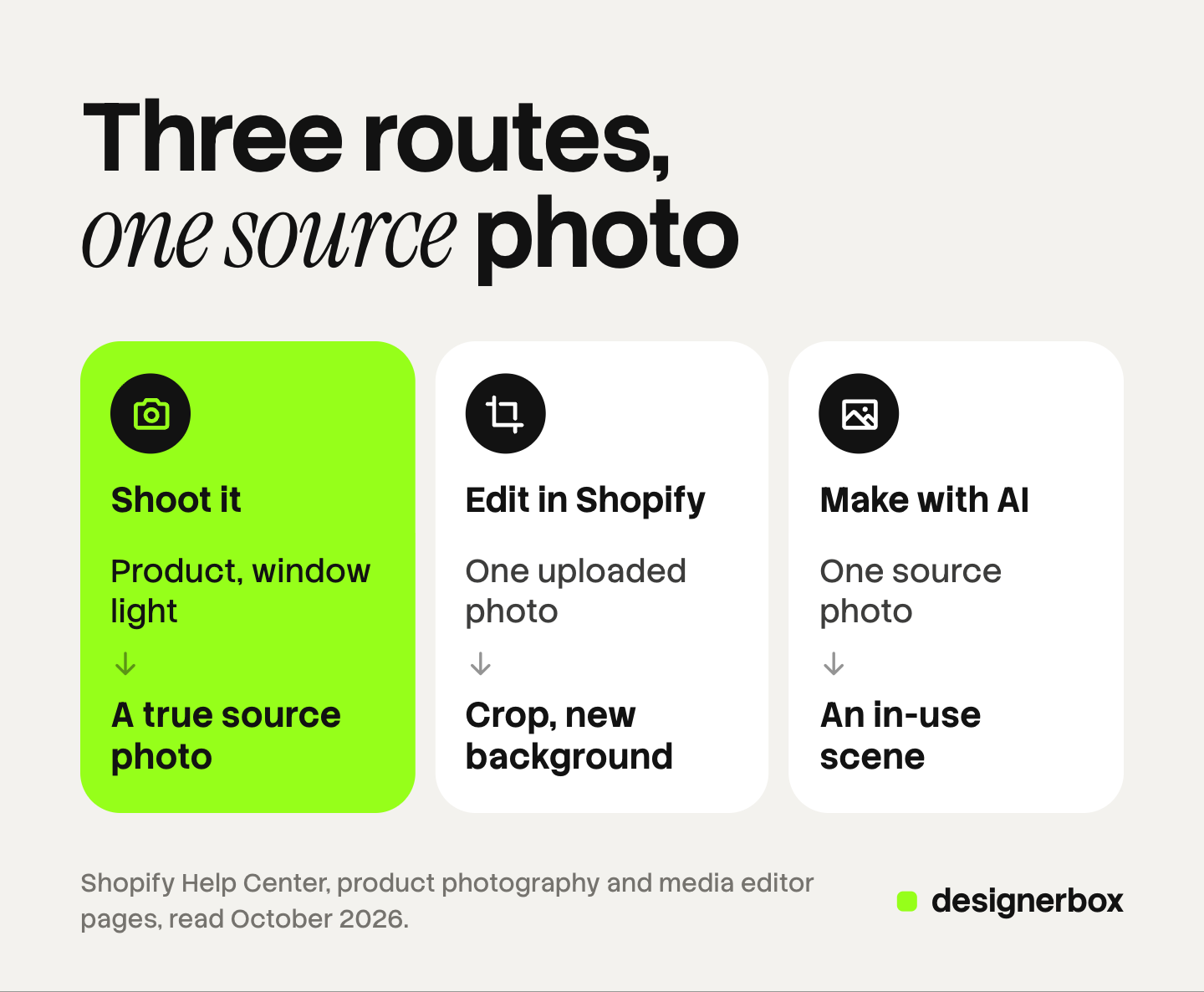
Route 1: shoot it. You need the product, a room with a window, a camera or a phone, and a plain background. The result is a true record of the product.
Route 2: edit it in the Shopify admin. You need one photo that is already uploaded. The admin can crop it, resize it and change its background.
Route 3: make it with AI. You need one clean source photo of the real product. An AI image tool builds a new setting around it.
Route 1 is the only one that adds new facts about the product. Routes 2 and 3 change how existing facts are shown.
Which route fits each image in the set?
The table gives a route for each of the six images. It also names the input the route needs.
| Image | Shopper question | Best route | Input the route needs |
|---|---|---|---|
| Main image | What is it? | Shoot, then clean the background | The product, window light, a plain background |
| Extra angles | What is the back like? | Shoot | The product turned, the camera in the same position |
| Detail close-up | What is it made of? | Shoot | The product close to the lens, in sharp focus |
| Scale image | How big is it? | Shoot, or AI with the real size | A hand or a known object, or the source photo and the dimensions |
| In-use scene | Where do people use it? | AI | One clean source photo and a short scene description |
| Variant images | What does my color look like? | Shoot each color, or recolor and check | One photo per color, or a physical sample to check against |
Three rows say shoot, because those images carry a fact about the product. The in-use scene is where AI saves the most work. The product does not change there. Only the room around it changes.
Variants are the difficult row. Shopify gives each variant one media item from the product’s list. Our guide to AI product images for Shopify works through that count for a catalog.
What should you shoot yourself?
Shoot the main image, the angles and the detail. These three images are the record of what you ship.

Shopify’s help page on product photographs lists the equipment for a home setup. It names a room with a window, a camera, a tripod, a table, a white background, tape and white reflector cards (Shopify Help Center, October 2026). It also says a smartphone is enough.
Two points from that page matter most for the rest of the set:
- Use the window. Shopify says indoor bulbs and a built-in flash can cause harsh contrast, reflections and color shifts.
- Keep the camera still. Shopify’s tip is to keep the camera and the tripod in the same position for the whole shoot. Your images then match each other.
For the full method, see how to take product photos without a studio. It gives eight steps for a phone.
One of these photos becomes the source for routes 2 and 3. It has to be sharp, evenly lit and true in color, and it has to show the whole product. Our guide to the source product photo names the four things that one frame has to get right.
What does Shopify’s built-in editor cover?
Shopify’s admin has a media editor. It crops, resizes, rotates and draws on an image, and it can suggest alt text (Shopify Help Center, October 2026). A second tool, media generation, replaces the background with a solid color. It can also change the background or the lighting from a short text prompt, and it can extend the frame. Shopify says generated images default to 1 megapixel, and the tool creates one scene at a time (Shopify Help Center, October 2026). Shopify also adds an invisible watermark to every generated image.
For a few products, this route covers a white background and a first scene. Every image is still one manual edit. Our guide to the Shopify image editor covers each tool.
What can AI make from one source photo?
AI can make a new setting for a product that a photo already shows. It cannot add product facts that are in no photo.
From one clean source photo, an AI image tool can usually make:
- an in-use scene, such as a lamp on a bedside table
- a plain background in your brand color
- a different crop or format for another channel
It cannot reliably make these from the same photo:
- the back or the inside of the product
- a close-up of stitching that the photo does not show
- a variant with a different shape, such as a longer strap
For those, take another photo. If the shopper needs a new fact, shoot it. If the shopper needs a new setting, make it.
Two inputs make the scene believable. Shopify’s own prompt advice is a good guide for any tool. First, give the real size. Shopify’s example is an 8oz jar candle. The tool then scales the room to the product. Second, say how the product sits in the scene, such as a bottle sitting on a table. That stops the product from floating.
A recolor needs extra care. It is wrong if the screen color does not match the stock. Shoot each color where you can.
How do you check an AI image before it goes on a listing?
Compare each AI image with the real product, or with the source photo, before you upload it. Check four things:
- Shape. The outline and the proportions match. Handles, straps and lids are the same count and length.
- Color. The color matches a physical sample in daylight. Check each variant against its own sample.
- Logo. The logo is the same size, in the same place, with the same letters.
- Label text. Every word on the label reads correctly. AI tools can change small text.
A failed check means the image stays out of the listing. Our guide to AI product photo accuracy covers how to fix each kind of error.
One platform rule applies to many Shopify stores. If you send products to Google Merchant Center, Google says all images created using generative AI must contain metadata that says so. Its example is the IPTC DigitalSourceType value TrainedAlgorithmicMedia. Google also says not to remove that metadata (Google Merchant Center Help, October 2026). So do not strip metadata when you export or compress an AI image.
Google’s page also asks for the correct variant in each image, with the exact color, pattern, finish and material. That is the color check above, written as a channel rule. For Shopify’s own position, and the rules from Meta and the EU, see can I use AI photos on Shopify. This is general information, not legal advice.
What changes as the catalog grows?
The routes stay the same at every size. The share of work on each route changes. The numbers below are example arithmetic at six images per product.
| Catalog | Images to make | What usually works |
|---|---|---|
| 20 products | 120 | Shoot everything in one or two sessions. Use Shopify’s editor for backgrounds |
| 100 products | 600 | Shoot the three fact images. Make the scenes with AI from the source photos |
| 500 products | 3,000 | Shoot the source photos to one written standard. Run the rest as a repeatable job |
At 20 products, one person can edit each image by hand. At 500, the hard part is keeping the light, the crop and the background the same on 3,000 images.
So write the source photo standard once: the angle, the light and the background. Shoot every new product to that standard, and every later step has the same input.
One workflow for the whole set
Anyone can make an AI picture. Making hundreds that still look like your brand is the hard part.
DesignerBox is AI creative production for brands and agencies. It makes images, ads and video, and a product photo is one of its inputs. You build the image set once as a workflow: the clean main image, the in-use scene, the brand-color background. The workflow reads your brand rules on every run, so the light and the framing stay the same. The AI product photography page shows the kinds of images this covers.
You can start from a template and change it to your brand. Batch then runs the workflow over a sheet with one product per row. Row one and row two hundred get the same treatment. The cost is shown before the run.
The same source photo can then feed a static ad or a short video. The full workflow from the first product photo to the finished ad, in one subscription.
Three limits are worth knowing. DesignerBox does not publish to a store. You download the results, or send them with a webhook or an S3 step, and then upload them in the admin. The angles and the detail still come from your camera. And every plan below Ultra is one seat. The page for Shopify stores shows the image set per product.
Uploading your own photos and the commercial license start on the Pro plan. AI video, virtual try-on, upscaling, the image editor and the video editor start on the Premium plan. Plans and credits are on the pricing page.
There is a free plan, and it runs on sample products. Run one template there and look at the set it returns.
FAQ
How do I take product photos for my Shopify store?
Set a table next to a window and turn the other lights off. Put the product on a plain white background and keep the camera in one position. Shoot the main image, the angles and a detail in one session. Shopify’s help page says a smartphone is enough.
How many photos does a Shopify product need?
Most products need about six: a main image, extra angles, a detail, a scale image, an in-use scene and one image per color. Shopify allows a maximum of 250 media items per product, so the limit is the work and not the platform.
Can AI make all my Shopify product photos from one photo?
No. AI can make new settings for the product, such as an in-use scene or a new background. It cannot reliably show a back, an inside or a detail that the source photo does not show. Shoot those images.
Which Shopify product images should I always shoot myself?
Shoot the main image, the extra angles and the detail close-up. These carry the facts about the product. Check any recolored image against a physical sample.
Does Google accept AI-made product images from a Shopify store?
Yes, with a condition. Google Merchant Center says images created using generative AI must contain metadata that says so, and you must not remove it. The image must also show the correct variant.
What does the DesignerBox free plan run on?
The free plan runs on sample products. Uploading your own photos starts on the Pro plan. In DesignerBox you see the cost before each run.
Sources
- Shopify Help Center, taking product photographs: the home equipment list, smartphone use, window light, the camera position tip (help.shopify.com, read October 7, 2026)
- Shopify Help Center, using the media editor: crop, resize, rotate, draw, suggested alt text (help.shopify.com, read October 7, 2026)
- Shopify Help Center, media generation in the file editor: color background, generate from a prompt, extend, the 1 megapixel default, one scene at a time, the invisible watermark, the prompt tips on size and placement (help.shopify.com, read October 7, 2026)
- Shopify Help Center, adding product media: a maximum of 250 images, 3D models or videos per product (help.shopify.com, read October 7, 2026)
- Google Merchant Center Help, image link attribute: AI metadata on images made with generative AI, the correct variant in each image (support.google.com, read October 7, 2026)
- Baymard Institute, in-scale product images, published May 30, 2017: 56% of test participants explored the product images first, and 42% of users try to judge size from the images (baymard.com, read October 7, 2026)
- DesignerBox plans and what each plan covers: DesignerBox pricing page (designerbox.ai/pricing), October 2026
Shopify and Google facts were read on their own help pages on October 7, 2026. The Baymard figures come from usability testing published in 2017. The catalog table is example arithmetic at six images per product, not a measurement. Platform rules change, so check each page before a large upload. This is general information, not legal advice. Individual results vary.