
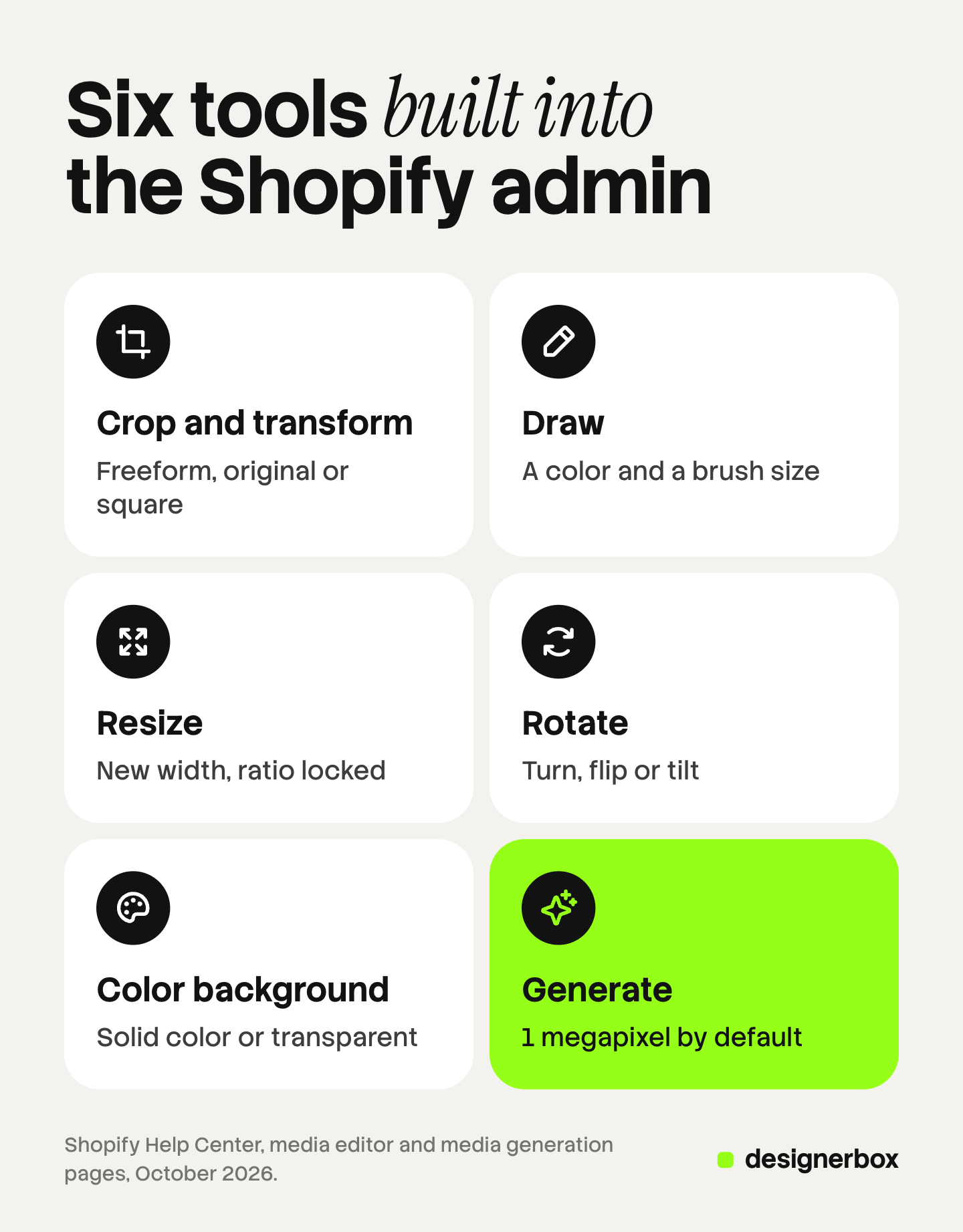
The Shopify image editor is the media editor built into the Shopify admin. It opens when you click an image’s thumbnail. It has six tools: crop and transform, draw, resize, rotate, color background and generate. The first four change the file you uploaded. The last two use AI, and Shopify sets the default size of a generated image at 1 megapixel.
A store with 20 products can do every image fix in that editor. A store with 300 products and six images each has 1,800 files, and the editor opens one.
This guide is for a brand with 20 to 500 products on Shopify, or its agency. It covers each tool, the limits Shopify states, and the six edits a growing catalog needs. Every Shopify fact was read on Shopify’s own pages on October 7, 2026.
Key Takeaways
- Six tools, one file at a time. Crop and transform, draw, resize, rotate, color background and generate. Each of Shopify’s instructions starts from one media file.
- Generated images default to 1 megapixel. Shopify scales a larger image down for the AI tools. Its own best size for a square product image is 2048 x 2048 px.
- Save as new keeps the original. Shopify calls a background change a destructive edit. The Save as new option writes a second file.
- The editor makes one scene at a time. Shopify’s pages describe no way to apply one edit to many products.
- Six edits, three places. A one-image fix belongs in the admin. The same edit on 300 products belongs in a batch.
What does the Shopify image editor do?
Shopify calls it the media editor. It edits images, 3D models and videos, and it opens wherever the edit icon appears on your media. Shopify lists four places: product media, the online store editor, Shopify Messaging emails and the Files page under Content (Shopify Help Center, October 2026).
One place is outside it. Shopify says you can’t use the media editor on images in the rich text editor.
For an image, the editor has six tools:
| Tool | What it does | What Shopify notes |
|---|---|---|
| Crop and transform | Removes part of the image. Three modes: Freeform, Original and Square | On mobile, a saved crop creates a new copy of the image |
| Draw | Adds a line or a highlight with a color and a brush size | The eraser removes the drawing and nothing from the original image |
| Resize | Changes the pixel size from a new width | Lock aspect ratio is on by default. With it off, the image can distort |
| Rotate | Rotates clockwise, flips vertically or horizontally, and tilts | A rotation rearranges the pixels and does not depend on metadata |
| Color background | Replaces the background with a solid color, or makes it transparent | Detects the subject for you. You can correct the selection |
| Generate | Changes the background, the light or other parts from a text prompt | Default result of 1 megapixel |
The editor also holds the alt text field. For a video it replaces the thumbnail, and for a 3D model it sets the background and the camera position. Those two work on desktop only.
The Shopify app does less. Shopify says the mobile version of the media editor edits image files only.
Crop, resize and rotate: the fixed edits
These three tools do the same math on every file. Nothing is redrawn.
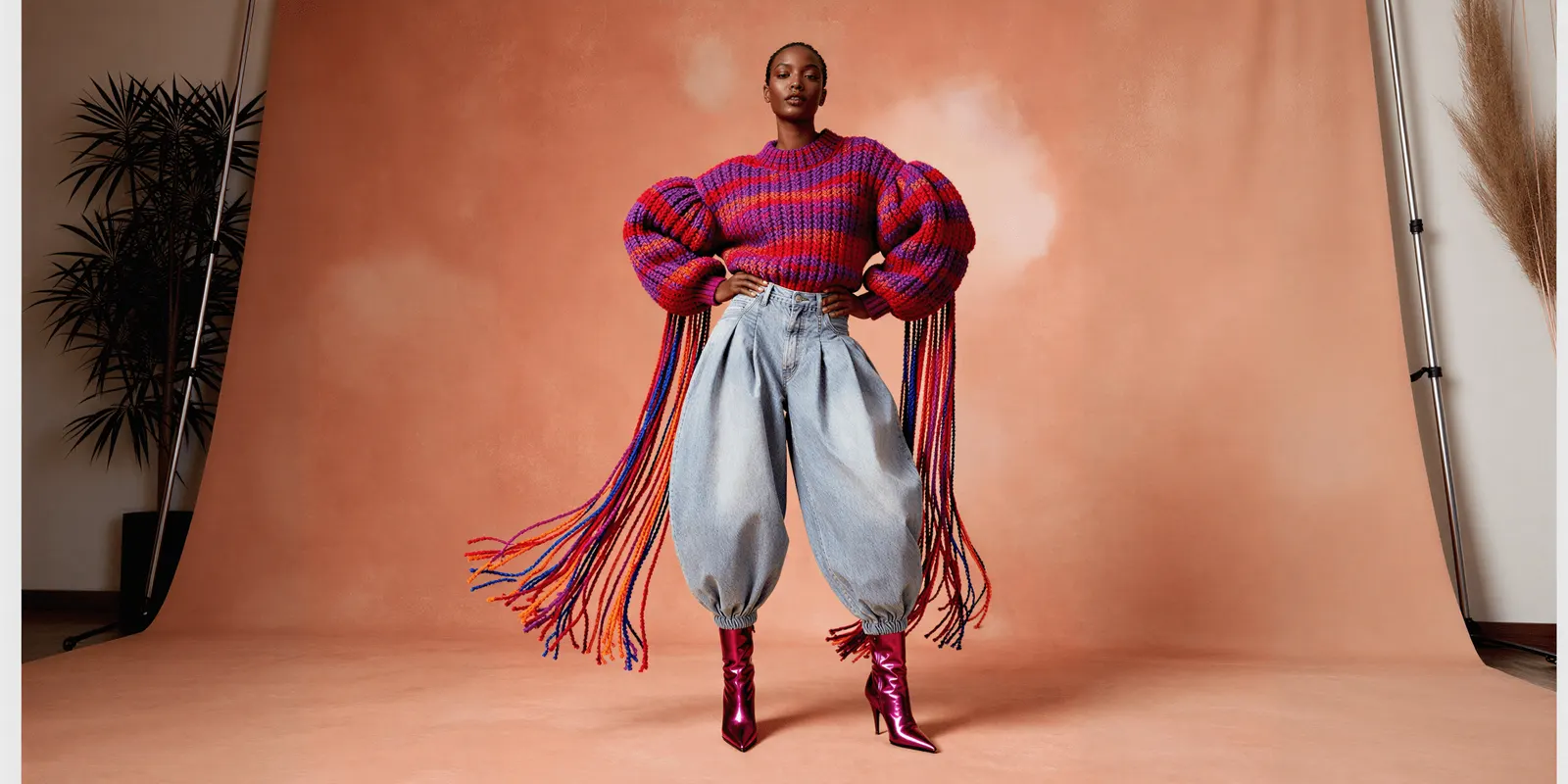
Crop to change the shape. Shopify says a consistent aspect ratio across images of one type makes them display better side by side. Use the crop tool to change a shape. Shopify warns that a resize with the lock off can distort the image. Our guide to Shopify product images shows where one upload appears and what crops it.
Resize to change the pixel count. You enter a new width, and the height follows. Shopify says 2048 x 2048 px usually displays best for a square product image (Shopify Help Center, October 2026). Our guide to Shopify product image size explains what Shopify serves from that file. A second guide covers resizing a photo and keeping it sharp.
Rotate to fix a sideways photo. Shopify says the usual cause is EXIF metadata, which applications read in different ways. A rotation in the editor rearranges the pixels, so the fix holds everywhere.
Is there a Shopify image resizer for many files?
Yes, outside the admin. Shopify runs a free image resizer in the browser. It takes up to 10 images at a time on desktop and one at a time on mobile. You pick up to 8 export sizes and download the results (Shopify free tools, October 2026).
That tool does not write to your store. For hundreds of files, a desktop editor or a script is faster, and our guide to bulk image editing lists which edits are safe to run that way.
Color background and generate: the AI edits
Shopify groups its AI image tools under the name media generation. The help page describes three actions (Shopify Help Center, October 2026).
Color background. This is the Shopify background remover. The tool finds the subject, and you can correct the selection with Choose subject. Then you pick a preset color, enter a color code, or make the background transparent. Shopify says to save a transparent image as a new PNG file, because other formats can’t hold a transparent background.
Generate. You describe the change in plain words. Shopify’s examples include “in a sunny park with grass and trees” and “kitchen setting with warm lighting”. The page says prompts should be at least 3 to 7 words. It gives two tips. Add the size of the product, such as “8oz jar candle”, so the scene matches its scale. Say how the product rests, such as “drink bottle sitting on table”, so it does not float.
Extend. On desktop, the crop and transform tool can add space around the subject. Shopify calls this outpainting. It is not available in the mobile app.
Which plans include the AI tools?
Shopify’s page makes two statements. A plan note says media generation with Sidekick is available on the Basic, Grow, Advanced and Shopify Plus plans. The pricing section says that, for a limited time, media generation in the file editor is available on all Shopify plans at no additional cost. Check the page before you plan around either one.
Where does the Shopify image editor stop?
Shopify writes five limits into its own help pages. Each one marks the edge of what the editor is built for.
- 1 megapixel by default. Shopify says the default resolution for generated images is 1 megapixel, based on the image’s aspect ratio. Larger images are scaled down, and smaller ones are scaled up. A 2048 x 2048 px square is about 4.2 megapixels, so the result holds about a quarter of those pixels.
- One scene at a time. The page says the AI image editor creates 1 generated scene at a time. Scenes you do not save are deleted when you close the editor.
- One file per session. Every instruction starts with “go to the media file that you want to edit”. The help pages describe no way to apply one edit to many products.
- An invisible watermark on every generated image. Shopify applies an invisible watermark to all generated images. It says the watermark does not restrict commercial use.
- Edits can overwrite. Shopify calls a background change a destructive edit. To keep the first file, choose Save as new from the Save menu (Shopify Help Center, October 2026).
Two more things are outside the pages. Shopify lists camera angle as a prompt keyword, with examples such as “front shot” and “from above”. It describes no tool that makes a new angle of the same product. It also describes no tool that changes the color of the product itself.
Shopify says it does not claim ownership of images you create with media generation. The rules that do apply to AI images come from other places, and our guide to AI photos on Shopify covers them.
Which edits does a growing catalog need?
A catalog needs six kinds of edit. Each one has a natural home.
| The edit | Shopify image editor | Desktop editor | AI workflow |
|---|---|---|---|
| One-image fix: crop, rotate, resize | Yes, in the admin | Yes | More than the job needs |
| Solid or transparent background on one image | Yes, with color background | Yes, by hand | Yes |
| The same edit on many products | One file at a time | Yes, for fixed edits, with a recorded action | Yes, as a batch |
| A new scene behind the product | Yes, at 1 megapixel by default | By hand, with compositing skill | Yes |
| A new angle of the product | Not described in Shopify’s help pages | No. It needs a new photo | Yes, with a review of each result |
| A variant in another color | Not described in Shopify’s help pages | Yes, by hand, per image | Yes, with a color check against the real product |
The first two rows belong in the admin, because the image is already there. The last three rows change what the picture shows, so a person has to look at each result. Our guide to ecommerce image editing marks the point where an edit starts to change the product.
When does editing image by image stop paying?
Here is example arithmetic, not a measurement. A drop of 150 products with six images each is 900 files. Suppose one edit takes two minutes in the admin: open, change the background, check, save as new. That is 1,800 minutes, or 30 hours, for one change.

Three signs show that the point has passed:
- The edit is the same on every product. A new background color for a whole collection is one decision. It should be one run.
- The edit returns each season. A look that changes four times a year is four catalog-wide edits.
- The result has to match. Hand edits by two people rarely give 900 images the same light and framing.
After that point the upload becomes its own step. Our guide to a Shopify bulk upload of images covers the four routes back into the store.
Apps are one answer. The Shopify App Store’s image editor category listed 392 apps on October 7, 2026 (apps.shopify.com, October 2026). Check whether an app keeps your original files.
The same edit on every product
DesignerBox is AI creative production for brands and agencies. It makes images, ads and video, and a product photo is one of the inputs.
Anyone can make an AI picture. Making hundreds that still look like your brand is the hard part.
For one picture that needs several changes, the image editor makes one edit after another. You retouch, relight, change the angle or swap the background, and the picture keeps its detail and resolution (DesignerBox image editor page, October 2026).
For the same edit on many products, you build the edit once as a workflow. A batch then runs it over a sheet with one product per row, up to 200 rows a sheet. Every row reads the same brand rules, so row one and row two hundred get the same light and framing. You keep or discard each result. The cost is shown before the run.
The same product photo also feeds the ad and the video. The full workflow from the first product photo to the finished ad, in one subscription. The page for Shopify stores shows the image set per product.
Uploading your own photos and the commercial license start on the Pro plan. AI video, virtual try-on, upscaling, the image editor and the video editor start on the Premium plan. Plans and credits are on the pricing page.
When another tool fits better
- You need a quick fix on a live listing. The Shopify image editor is already open in your admin. A crop, a rotation or a solid background on one image takes a minute there.
- You want edits written to Shopify for you. DesignerBox does not publish to a store. You download the results, or send them with a webhook or an S3 step, and then upload them. An app from the Shopify App Store fits that need.
- Your team needs several seats. Every DesignerBox plan below Ultra is one seat.
A free plan for your first run
There is a free plan, and it runs on sample products. Start from a template and look at the set it returns before you plan a sheet of your own.
FAQ
Does Shopify have an image editor?
Yes. Shopify calls it the media editor. It opens when you click an image’s thumbnail in the admin. It has six image tools: crop and transform, draw, resize, rotate, color background and generate.
Can you remove a background in Shopify?
Yes. The color background tool detects the subject and replaces the background with a solid color, or makes it transparent. Shopify says to save a transparent result as a new PNG file. The tool works on desktop and in the Shopify app.
What resolution does Shopify’s AI image editor return?
Shopify says the default resolution for generated images is 1 megapixel, based on the aspect ratio of your image. Larger images are scaled down and smaller ones are scaled up. A 2048 x 2048 px square is about 4.2 megapixels.
Can the Shopify image editor edit many images at once?
Shopify’s help pages describe no way to edit many images at once in the media editor. Each instruction starts from one media file, and the AI tool creates one scene at a time. For the same edit on many products, use a desktop editor, an app or a batch in an AI tool. In DesignerBox you see the cost before each run.
Is the Shopify image editor free?
The media editor is part of the Shopify admin. For the AI tools, Shopify’s page says that, for a limited time, media generation in the file editor is available on all Shopify plans at no additional cost.
Sources
- Shopify Help Center, using the media editor: where the editor opens, the rich text editor exception, crop modes, draw, resize and Lock aspect ratio, rotate and EXIF, mobile limits, 3D models and video thumbnails (help.shopify.com, read October 7, 2026)
- Shopify Help Center, media generation in the file editor: color background, generate, extend, the 1 megapixel default, one scene at a time, the invisible watermark, prompt tips, plan note and pricing statement, ownership (help.shopify.com, read October 7, 2026)
- Shopify Help Center, the Files page: destructive edits and Save as new (help.shopify.com, read October 7, 2026)
- Shopify Help Center, product media types: 5000 x 5000 px, 25 megapixels and the 2048 x 2048 px square (help.shopify.com, read October 7, 2026)
- Shopify free tools, image resizer: 10 images on desktop, one on mobile, 8 export sizes, free to use (shopify.com, read October 7, 2026)
- Shopify App Store, image editor category: 392 apps listed (apps.shopify.com, read October 7, 2026)
- DesignerBox image editor and batch: one edit after another, one product per row, up to 200 rows, review per row, cost shown before the run: DesignerBox image editor and batch pages (designerbox.ai), October 2026
Shopify features verified on Shopify’s own help pages on October 7, 2026. The 150-product, 900-file and 30-hour figures are example arithmetic, not a measurement. Shopify changes its admin and its AI tools often, so check each page before you plan around it. Individual results vary.