The best AI footwear product photography tool is the one that fits the listing slot you need to fill. For the main image, pick a tool that keeps your photographed shoe and changes only the background. Claid’s Precise mode and Pixelcut both say they work that way. For on-foot shots, Photta, The New Black, Rawshot.ai, Flair.ai and Claid’s Creative mode put the shoe on a generated person.
Your spring drop has 40 styles in three colorways each. Every colorway needs a main image, a side, a back, a top, a sole and an on-foot shot. That is 720 images. In every one, the lace count, the tread and the logo have to match the shoe in the box.
Footwear is the category where the marketplace sets the angle for you. Amazon asks for one shoe, facing left, at 45 degrees. Zalando asks for the left shoe on a tall 1:1.44 frame. Google can build a 360 spin, but only from five photos of the same shoe. This guide sorts 14 tools by the slot each can fill, from each vendor’s own pages on 24 September 2026. We sell DesignerBox, which is one of the 14, so read its lines as our own case.
Key Takeaways
- Pick the tool by the slot. The main image, the alternate views, the on-foot shot and the video follow different rules. No tool on this list says it covers every slot on every marketplace.
- Amazon’s main image is one shoe, facing left, at 45 degrees. The shoe fills 85% of the frame on pure white, with no mannequin.
- Zalando wants the left shoe, toe left, on a 1:1.44 frame. Sole and detail views are allowed, but they do not count toward the required images.
- Zalando can reject AI images that break believability. Its image guidelines, updated 31 August 2026, name “heels merging into furniture” as an example.
- Keep the AI metadata. Google disapproves a product whose AI-generated image lacks it. Amazon wants a separate tag when a photorealistic AI person appears.
- Never flip a right shoe to fake a left one. A horizontal flip reverses every letter on the shoe.
- Test on your five hardest styles. Patent leather, suede, knit mesh, a white sneaker and metal hardware show problems first.
What does an AI footwear product photography tool do?
An AI footwear product photography tool turns a photo of your shoe into listing images. It cuts the shoe out for a white background, places it in a styled scene, or shows it worn on a generated foot and leg. Some tools say they keep your original pixels and change only the scene. Others draw the shoe again, which can change the tread, the lace count or the logo.
That difference decides which slot a tool can fill. A tool that keeps your pixels can make a main image. A tool that draws the shoe again belongs in lifestyle and campaign slots, and every result needs a check against the real pair.
Two nearby jobs use the same words and are different purchases. AR try-on shows a shopper the shoe on their own foot through a phone camera, and virtual try-on for shoes covers that route. Shoe design tools make a shoe that does not exist yet. This guide covers the photo you already have. If you still need that photo, how to photograph shoes to sell covers the angles, the lighting and the left-shoe rule.
Where can AI shoe photos go on Amazon, Zalando and Google?
Each marketplace sets its footwear rules by slot. Those rules decide the kind of tool you need before image quality does.
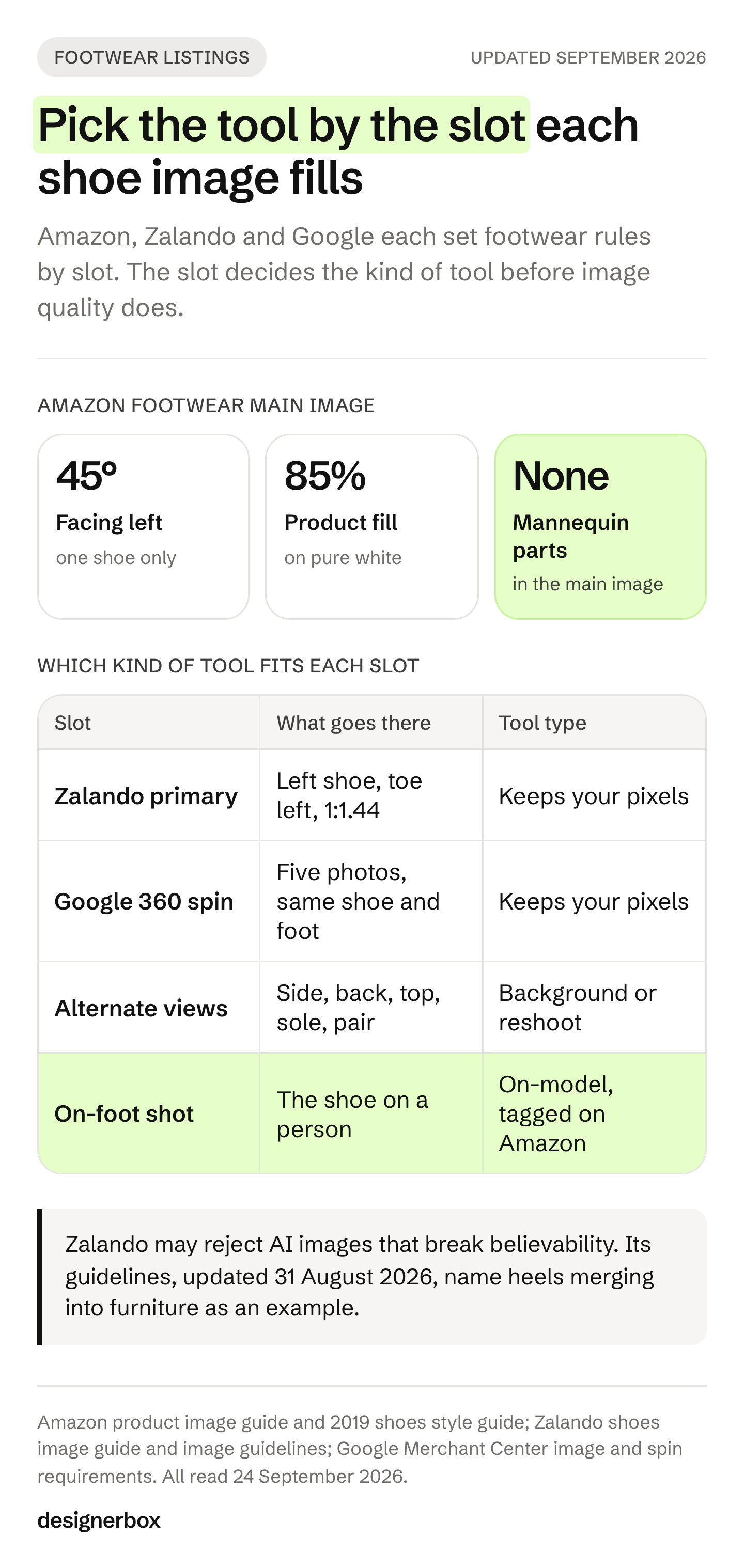
Amazon. The product image guide says: “Show a single shoe, facing left, at a 45-degree angle (applies to all footwear).” The product fills 85% of the image, on pure white (RGB 255, 255, 255). The guide also says: “Don’t show any part of a mannequin, regardless of the mannequin’s appearance.” Images of 1,000 pixels or more on the longest side turn on zoom (Amazon product image guide, accessed September 2026).
Amazon’s older shoes style guide says “approximately 40 degrees” and names the left shoe. It bans models, extra props and shoe boxes from the main image. It lists alternate views by code: front, back, top, right, bottom and pair (Amazon shoes style guide, 2019, retrieved September 2026). Where the two disagree on the angle, follow the current guide.
Zalando. The shoes image guide says: “Always show the left shoe pointing to the left.” The aspect ratio is 1:1.44, width by height, with 1801 x 2600 pixels as best practice. A listing needs one compliant primary packshot and two further compliant images. The guide adds that sole and detail views “do not count towards the required number of images” (Zalando shoes image guide, updated July 2025, accessed September 2026).
Zalando’s general image guidelines added an AI section on 31 August 2026. Zalando may reject AI-generated assets that “break believability, feature irregularities or fail to represent the product accurately”. Visible AI labels on the image are not allowed. An invisible mark in the file’s metadata or code is required by December 2026 (Zalando image guidelines, accessed September 2026).
Google. Merchant Center says every image created with generative AI must carry metadata that says so, such as the IPTC DigitalSourceType TrainedAlgorithmicMedia tag. A product whose image breaks the rule is disapproved. Google also recommends shoes alone in the main image and on a model in the additional images (Google Merchant Center image requirements, accessed September 2026).
Google can build a 180 or 360 spin from at least five photos: front, back, left, right and top. For shoes, every photo must show a single shoe “of the same color, foot, and size”. The feature is available to merchants in the US (Google Merchant Center spins, accessed September 2026). A set that mixes a left and a right shoe cannot feed it.
Etsy and eBay. Etsy requires “original photos of the actual product buyers will receive, not renderings or stock photos” (Etsy listing image requirements, accessed September 2026). eBay bans photos that do not show the item accurately, and stock photos for used items (eBay picture policy, accessed September 2026). On both, keep generation to the scene around a real photo of the real pair.
| Slot | What goes there | The kind of tool |
|---|---|---|
| Amazon main image | One shoe, facing left, 45 degrees, 85% fill, white | Keeps your pixels and removes the background |
| Zalando primary packshot | The left shoe, toe left, 1:1.44 frame | Keeps your pixels, exports a tall crop |
| Google 360 spin | Five photos of one shoe: same color, foot and size | Keeps your pixels on every view |
| Alternate views | Side, back, top, sole, pair and detail | Background tools, or a reshoot from your photos |
| On-foot and lifestyle | The shoe on a person or in a scene | On-model tools, tagged on Amazon when the person is AI |
| Video | The shoe turning, flexing or walking | Image-to-video tools |
AI footwear product photography tools compared
The table records what each vendor’s own pages state on 24 September 2026. It does not score image quality, which changes with every model update and every source photo. “Not listed” means the page did not state the feature that day. No price appears in this guide: each vendor lists its plans on its own pricing page.
| Tool | How it treats your shoe | White main image | On foot or on model | Video | Bulk, API or Shopify |
|---|---|---|---|---|---|
| Photoroom | Background tools and scenes around your photo | Yes | Virtual model tool | Shoe video templates | Batch, API, Shopify app |
| Pixelcut | ”The sneaker you photographed is the exact sneaker shoppers see” | Yes | On Model format | Not listed | Bulk and API |
| Claid.ai | Precise mode locks position and angle. Creative mode can change them | Yes, Precise mode | Creative mode | Image-to-video API | API |
| Flair.ai | Generates the shoe in new settings | Not listed | Yes | Product videos | Bulk and API |
| Photta | Four shoe workflows from a flat photo | Studio shot | On-foot, five model types | Not listed on its shoe pages | API, not shoe-specific |
| The New Black | Builds a model wearing the shoe, or swaps a shoe into a photo | Not listed | Yes | 5 or 10 seconds | Bulk, API, Shopify app |
| Rawshot.ai | Frames the shoe on AI fashion models | Studio cutout direction | Feet, ankle, lower or full body | Up to three five-second scenes | Not listed |
| Rendery3D | Backgrounds and scenes around your photo | Yes | On-foot scenes | Not listed | Free tools |
| Blend | Background, scenes and on-model in one app | Yes | Yes | Slow rotation from stills | Batch editing |
| CreatorKit | AI backgrounds in a drag and drop editor | Background removal | Not listed | Not listed | Shopify app |
| Fotor | Studio and lifestyle scenes | Yes | Pose tool names shoes | Video try-on | Bulk and API |
| Adobe Photoshop | Generative Fill edits the photo you open | Manual | Not listed | Not listed | Not listed |
| Canva | Background remover | Yes | Not listed | Not listed | Not listed |
| DesignerBox | Runs your photo through saved workflow steps | Yes | Not listed for shoes | A turning 360 video | Batch, API on Ultra |
DesignerBox’s own pages compare it with one tool at a time, including Photoroom, Claid.ai and Flair.ai.
The tools, one by one
The tools are grouped by how they treat the shoe, not ranked. Tools that say they keep your photographed shoe come first. On-foot tools come next, then editors.
Photoroom
Photoroom’s product tools cover background removal, AI backgrounds, Product Staging scenes, a Virtual Model tool, ghost mannequin and flat lay. Its footwear page is a video one: it makes footwear product videos “from existing photos using ready-made AI motion templates”. You upload up to four images of the same shoe, such as a side profile, the sole, the heel and the toe (photoroom.com/tools/video-generator/templates/shoes, September 2026).
Batch runs “thousands of images in one job” from the web app or the API. Photoroom also lists a Shopify app, PIM and DAM connectors, and a connector for Claude over MCP. It offers a free trial.
Best for: brands that need clean main images across a large shoe catalog, plus a short video from the same photos. Photoroom alternatives compares it with the tools nearest to it.
Pixelcut
Pixelcut has no shoe page, but its product photography page names sneakers directly: “That means the sneaker you photographed is the exact sneaker shoppers see.” Product Studio makes studio and lifestyle scenes, plus an On Model format, at up to 4K (pixelcut.ai/ai-product-photography, September 2026).
Its bulk tools process up to 10,000 images in one batch for background removal, resizing, shadows, background changes and upscaling. The API covers background removal, upscaling, generated backgrounds and try-on. Paid plans include a commercial license, and there is a free plan.
Best for: sellers with many colorways who need white main images and resized crops in one pass.
Claid.ai
Claid.ai puts the fidelity choice in a switch. In its AI Photoshoot, Precise mode lets you “lock the position and angle of your shoe exactly as it is in the original photo”, which Claid suggests for catalog shots and marketplace listings. Creative mode can “show the shoes on a model, in motion, or styled in real-world scenes” (Claid footwear guide, dated October 2025, read September 2026).
The same guide gives a warning that applies to every tool here. If some angles are unclear in the upload, “AI can imagine unnecessary details.” It asks for a photo where unusual laces or decorative gems are clearly visible. Claid lists APIs for background removal, AI fashion models and image-to-video, and a free trial.
Best for: teams that want a strict mode for the Amazon main image and a freer mode for campaign shots.
Flair.ai
Flair.ai’s footwear page lists four shot types: product detail, lifestyle setting, on model and collection display. It says it can “Generate photorealistic images of shoes, boots, and accessories in various settings or on diverse models.” It also says its AI renders leather, suede and canvas textures (flair.ai/product-category-features/footwear, September 2026). That is the vendor’s claim, so check it on your own suede.
Flair lists bulk generation, an API, virtual try-on, product videos and a free option.
Best for: brands that want art-directed scenes and collection shots for campaigns and social posts. Flair.ai alternatives sets it against the other scene tools.
Photta
Photta’s AI Shoe Photography Studio has four workflows: studio shot, on-foot, flat lay and lifestyle. On-foot models come as woman, man, boy, girl and baby, in an urban street, a clean studio or an indoor setting. The on-foot tool page says it returns “two realistic on-foot model photos in 30 seconds” (photta.app, September 2026).
Its shoe tutorial has practical prep advice: stuff the toe box with tissue paper and tie the laces neatly before the photo. Photta also lists upscaling, a model maker and a free start.
Best for: brands whose main gap is the on-foot shot, across adult and kids’ ranges.
The New Black
The New Black has three footwear pages, all updated in September 2026. One puts your shoes on an AI model and builds the outfit above the shoe. One swaps a selected pair into an existing photo “while keeping proportions and lighting realistic”. One makes a 5 or 10 second video where the shoe turns, flexes at the sole or walks (thenewblack.ai, September 2026).
Its pages state their own limits, which is rare. Extreme angles, such as a foot pointing straight at the camera, are “where the swap loses the silhouette”. Tall boots interact with the trousers above them. And “a hidden second shoe is invented, and invented shoes rarely match.” It also says: “It is not a fitting: nothing measures a foot.”
It lists bulk generation, an API, an MCP server for Claude and a Shopify app with direct publishing. It says everything you generate is yours to sell, print and publish.
Best for: brands that want on-model shots, shoe swaps and short videos from one tool, with a Shopify app.
Rawshot.ai
Rawshot.ai is an AI fashion image generator with synthetic models. Its footwear page has an image frame control with four settings: both feet, ankle, lower body and full body. Camera views are front, front three-quarter, side and back (rawshot.ai/photography/footwear, September 2026). It also turns images into up to three five-second video scenes.
Rawshot says every output is C2PA-signed, and every plan includes commercial usage rights. It also says the cost is shown before you generate. One limit it states itself: “Configurations cannot yet be saved for a later shoot.” It offers a 7-day free trial.
Best for: brands that want tight control over how much of the leg appears in an on-foot frame.
Rendery3D
Rendery3D publishes a footwear playbook rather than a feature list (rendery3d.com/industry/footwear, published July 2026). It covers white main images, lifestyle scenes, colorway variants, channel crops and on-foot scenes, and links free tools such as an Amazon image checker and a background remover.
The playbook states the footwear rules most clearly of any page on this list. “Do not alter color, logo, laces, outsole, or proportions.” “Never invent tread patterns.” And “Floating footwear or impossible foot angles weaken trust.” Rendery3D offers a free trial.
Best for: small teams that want scenes and a quick check of the Amazon image rules in one place.
Blend
Blend’s shoe guide, written by its CTO, says it “covers background removal, styled scenes, on-model shots, and product videos in one platform” (blendnow.com, June 2026). Its workflow covers on-foot shots, batch editing across colorways and a slow rotation video from stills. It lists ghost mannequin and AI model tools, and a free start.
Its material checks are specific. Patent leather “may need an extra check for reflection accuracy”. For suede, “check that the AI has not smoothed out the natural nap.”
Best for: small brands that want every shoe asset in one app, with batch edits for colorways.
CreatorKit
CreatorKit makes AI backgrounds for shoes in a drag and drop editor, with named shoe scenes such as a tennis court and a poolside (creatorkit.com/ai-product-photos/shoes, September 2026). Its Shopify app generates photos from inside the Shopify admin. It has a free option.
Best for: Shopify stores that want styled shoe backgrounds without leaving the admin.
Fotor
Fotor’s AI product image generator makes studio and lifestyle scenes, with bulk processing and an AI video try-on. Its pose tool says it can “adjust model poses for clothing, shoes, or accessories”. Fotor says exported images can be used for commercial purposes, and it has a free plan (fotor.com, September 2026). Fotor also has a shoe design tool, which is a different job from product photography.
Best for: sellers who want a free start and a general editor for occasional shoe listings.
Adobe Photoshop and Canva
Both are editors, not footwear tools. Photoshop’s Generative Fill adds and removes content from an image “using simple text prompts”, and Generative Expand extends the canvas (Adobe Photoshop Generative Fill, accessed September 2026). A retoucher can clean a scuff or extend a background around a real shoe. Canva’s background remover exports a high-resolution PNG (canva.com, September 2026). Neither page mentions footwear.
Best for: fixing one image by hand, and finishing shoe photos into ads and social posts.
DesignerBox
DesignerBox starts from a photo of your shoe and runs it through steps you save as a workflow. Its templates include a clean white background, a reshoot from the front, side and back, relighting, a styled scene and “every picture one marketplace listing asks for, in one run”. A 360 template makes “every side of your product in one turning video, from a few photos”. Batch runs one workflow over a whole sheet of styles. The limits are in the last section below.
Best for: brands and agencies that need the same listing set, in the same light, on every new style.
Also on footwear tool lists
WearView shows heels worn on AI models on its footwear catalog page. Its FAQ says footwear is not yet supported and is on its roadmap (wearview.co, September 2026). Botika’s FAQ says it focuses on clothing only, not footwear (botika.com, September 2026). Pebblely’s category pages do not include footwear, though its backgrounds work on any product photo (pebblely.com, September 2026).
For the same kinds of tools judged on ecommerce work in general, see the AI product photography tools comparison or the DesignerBox list of the best AI product photography tools.
Which tools put shoes on an AI model?
Photta, The New Black, Rawshot.ai, Flair.ai, Blend, Photoroom and Claid’s Creative mode all list shoes worn on a generated person. An on-foot shot answers what a packshot cannot: how high the shaft sits, how the heel reads against a leg, and what the shoe looks like with trousers over it.
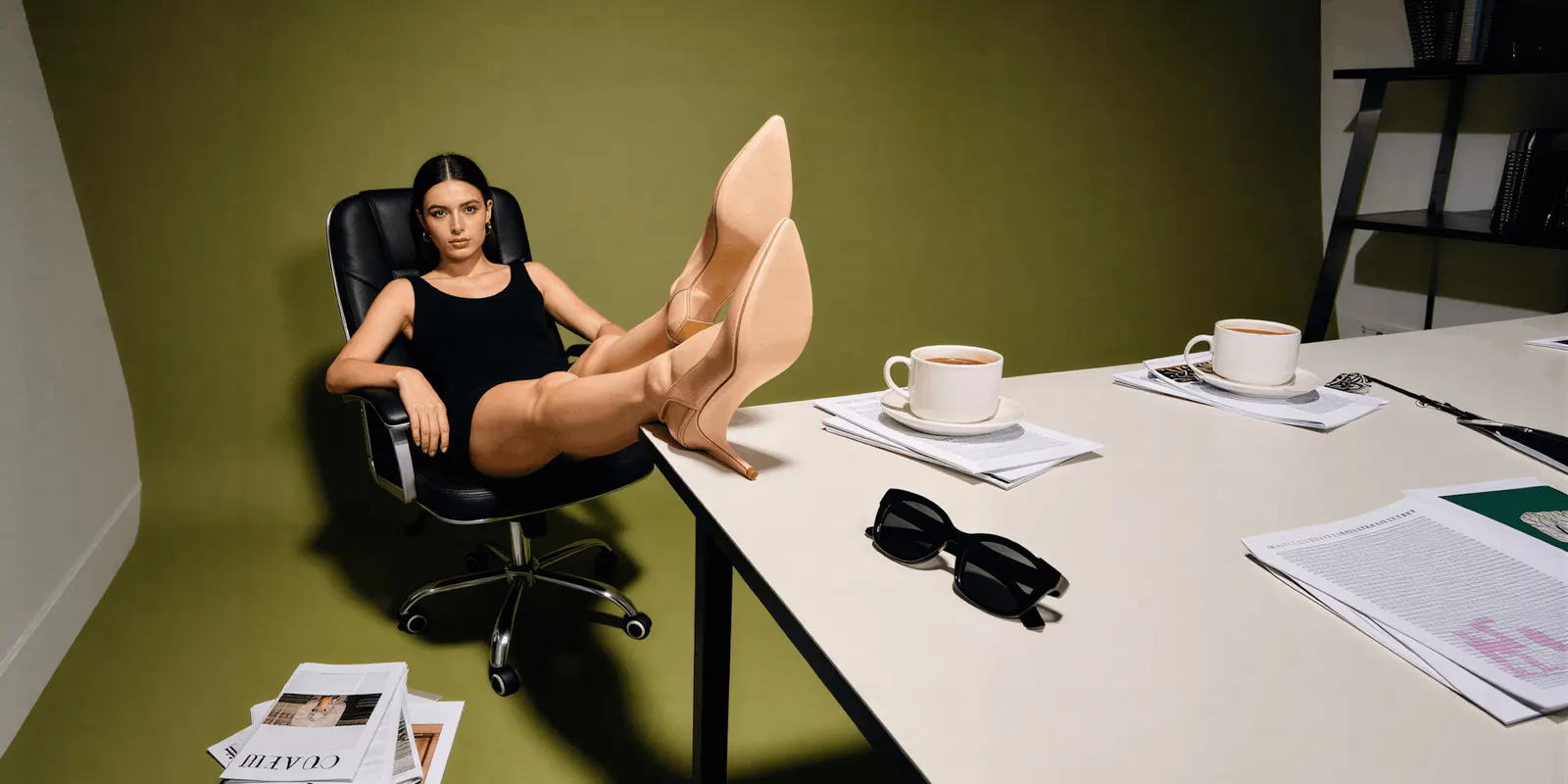
On Amazon, a model is banned from the main image, so on-foot shots belong in the alternate slots. A photorealistic AI person there also needs the contains-synthetic-performer keyword in the image’s XMP dc:subject field. Amazon says not to add it when the image shows only real people, even if AI tools edited them (Amazon product image guide, accessed September 2026). Google points the same way: the shoe alone first, on a model in the extra images.
Check the parts a model has to invent. That means the heel counter, the collar where the ankle enters, the second shoe, the hem of the trousers and the point where the sole meets the ground. The New Black says an invented second shoe rarely matches. Rendery3D warns against floating footwear. How to label AI-generated fashion images covers disclosure wording, and the four levels of person a product shot can use helps you decide how much of the leg the frame needs. This is general information, not legal advice.
Where AI shoe photos go wrong
Shoes break in more ways than most products, because every pair has two mirrored halves and a lot of small, countable detail. The same eight checks apply to every tool on this list. Run them at full size, next to the real pair.
- The foot. Image models do not reliably keep left and right, and a set can drift between feet halfway through a catalog. Check the foot on every frame.
- Lace and eyelet count. Count the eyelets on each side and follow the lace path. A redrawn shoe can gain or lose one.
- The outsole. Rendery3D says “Never invent tread patterns.” Compare the sole shot with the real sole, lug by lug.
- The logo. Check the spelling, the direction and the side it sits on.
- Heel height and toe shape. A slightly lower heel or a rounder toe is a different shoe to a buyer.
- Material. Suede keeps its nap, patent keeps sharp reflections, knit mesh keeps its open weave.
- The pair. In a pair shot, both shoes match in color, size and detail.
- Ground contact. The sole sits on the ground, with a shadow where it touches.
One trap is specific to footwear. If you photographed the right shoe, a horizontal flip does not give you a true left shoe. A flip reverses every letter on the shoe, including the logo and the tongue label. Photograph the left shoe for the main image, as Amazon’s style guide and Zalando both ask.
Zalando has made this a listing rule. Its guidelines list “heels merging into furniture” among the irregularities it can reject. How to check a generated product photo for accuracy gives a wider checklist that works with any tool here.
How to test a tool on your own shoes
Test on your hardest styles, not your easiest. A matte white sneaker on a plain floor looks good in every demo. Run the same styles through every tool on your shortlist, then count how many results you would publish without a fix. That count tells you more than the best single image.
- Pick five hard styles. A patent shoe, a suede boot, a knit mesh runner, a white sneaker and a style with metal buckles or eyelets.
- Start from sharp source photos. Shoot the left shoe, toe left, with the toe box stuffed and the laces tied. Add the right side, the back, the top and the sole.
- Make the listing set. A white main image, a Zalando crop at 1:1.44, the alternate views and one on-foot shot for each style.
- Run the eight checks. The foot, lace count, outsole, logo, heel and toe, material, pair match and ground contact.
- Check the angle. On Amazon the main image is one shoe, facing left, at 45 degrees.
- Check the file. Keep the AI metadata for Google and Zalando. Add the contains-synthetic-performer tag on Amazon when a photorealistic AI person appears.
- Read the license for the plan you will pay for. Commercial terms differ between free and paid plans.
If one style fails on every tool, look at the source photo before you blame the tool. How to fix product photo lighting covers glare on patent and flat light on suede. For Amazon slots in general, which tool fits which Amazon image slot goes further, and the angles a product listing needs covers the view set.

One setup for every style
DesignerBox is AI creative production for brands and agencies. Scale your images, ads and video with AI and keep your brand on every product: build the workflow once with your brand rules, run it on every style, and keep everything from the first product photo to the finished ad in one place.
A footwear brand with 20 to 500 styles needs the same listing set for every new colorway. An agency needs that set for each client.
You build the footwear job once as a workflow, with your brand, your products and your rules. The workflow reads the brand on every run. A typical set is the white main image, the front, side and back views, a relit hero and a styled scene. Batch runs one workflow over a whole sheet of styles. You keep or discard per row, and re-run one row alone. For Amazon sellers, the Amazon listing images page shows the set.
Three parts matter for shoes. Critic steps score the results of a run, and best-of-N keeps the best one. The image editor makes one edit after another, and the picture keeps its detail and resolution. The cost of a run is shown before you press Run. Relighting changes how patent leather catches the light, so check every relit shoe against the pair.
The limits, stated plainly (DesignerBox pricing, September 2026):
- It starts from your photos. It does not measure a foot or run AR try-on on a shopper’s phone. Its virtual try-on is for garments, not shoes.
- It lists no on-foot step for shoes. Photta, The New Black and Rawshot.ai list one.
- Delivery is a download. You can also send results with a webhook or an S3 step. Nothing lands in your store on its own, unlike tools that publish to Shopify.
- The commercial license starts on the Pro plan. AI video and virtual try-on start on the Premium plan. Team features, shared brand kits, white label and the API are on the Ultra plan, and every plan below Ultra is one seat.
- The free plan cannot make video.
Plans and credits are on the pricing page.
Anyone can make an AI picture. Making hundreds that still look like your brand is the hard part. The templates, the workflows, batch, the editors, the brand profiles and the Assets library sit together. The full workflow from the first product photo to the finished ad, in one subscription. Start from a template, add your brand and your shoes, and see the cost before you run it. Get started free.
FAQ
What is the best AI footwear product photography tool in 2026?
It depends on the slot. For the Amazon main image, use a tool that keeps your photographed shoe, such as Claid’s Precise mode or Pixelcut. For on-foot shots, Photta, The New Black and Rawshot.ai are built for it. For the same set on every new style, a saved workflow such as DesignerBox runs the same steps each time.
Can AI put my shoes on a model?
Yes. Photta, The New Black, Rawshot.ai, Flair.ai, Blend, Photoroom and Claid’s Creative mode all list on-foot or on-model shots. Check the second shoe, the heel counter and the ground contact, because the model has to invent them. On Amazon, keep on-foot shots out of the main image.
Can I use an AI shoe photo as my Amazon main image?
Only if it meets the main image rules: one shoe, facing left, at 45 degrees, filling 85% of a pure white frame, with no mannequin. The safest route is a real photo of the left shoe with the background removed. Check your subcategory in Seller Central before a large upload.
Will AI change my shoe’s laces, sole or logo?
It can, when the tool draws the shoe again. Count the eyelets, compare the tread lug by lug, and read the logo at full size. Tools that keep your original pixels and change only the background carry less risk for listing slots.
Can I flip a photo of the right shoe to make the main image?
No. A horizontal flip reverses every letter on the shoe, including the logo and the tongue label. Amazon’s style guide and Zalando both name the left shoe for the main image, so photograph the left shoe.
Is there a free AI footwear product photography tool?
Several tools on this list offer a free plan, a free start or a free trial, including Pixelcut, Fotor, Flair.ai, Photta, CreatorKit and Blend. DesignerBox has a free plan. Read the license before you publish, because commercial terms often differ between free and paid plans.
What photos should I take before using an AI tool?
Photograph the left shoe, toe left, on a plain background, with the toe box stuffed and the laces tied. Add the right side, the back, the top and the sole. Google’s 360 spin needs five photos of one shoe in the same color, foot and size.
Sources
- Amazon Seller Central, product image guide (sellercentral.amazon.com, accessed September 2026)
- Amazon Category Style Guide: Shoes (m.media-amazon.com, 2019, retrieved September 2026)
- Zalando Partner University, shoes image guide (partner.zalando.com, updated July 2025, accessed September 2026)
- Zalando Partner University, image guidelines (partner.zalando.com, updated August 2026, accessed September 2026)
- Google Merchant Center, image requirements (support.google.com, accessed September 2026)
- Google Merchant Center, 180 and 360 spins made with Google AI (support.google.com, accessed September 2026)
- Etsy, listing image requirements (etsy.com, accessed September 2026)
- eBay, picture policy (ebay.com, accessed September 2026)
- Adobe, Photoshop Generative Fill (adobe.com, accessed September 2026)
- Vendor pages, read 24 September 2026, not linked: photoroom.com (shoe video templates, product photography, batch, API), pixelcut.ai (product photography, bulk, API), claid.ai footwear guide (dated October 2025), flair.ai/product-category-features/footwear, photta.app (shoe studio, on-foot tool, shoe tutorial), thenewblack.ai (shoe model, shoe try-on and shoe video pages), rawshot.ai/photography/footwear, rendery3d.com/industry/footwear, blendnow.com shoe guide (June 2026), creatorkit.com/ai-product-photos/shoes, fotor.com, canva.com background remover, wearview.co, botika.com, pebblely.com
- DesignerBox batch, image editor, Amazon sellers and pricing pages (September 2026)
Tool features verified on each vendor’s own pages on 24 September 2026. Footwear image rules verified against Amazon, Zalando, Google, Etsy and eBay documentation as of September 2026. This is general information, not legal advice. Individual results vary.