
The Google Shopping image requirements start with one main image for every product, sent in the image link attribute. Google asks for at least 500 x 500 pixels, with enforcement for all products from 31 January 2027. No file may exceed 16 MB or 64 megapixels. The main image cannot carry promotional text, a watermark, a border or a placeholder graphic. Additional and lifestyle images follow separate, lighter rules.
Some of these rules remove the product from Google. Others only hide one image, or weaken the listing. This guide sorts the rules by that result, as Google Merchant Center Help states them on 7 October 2026.
Key Takeaways
The minimum is 500 x 500 pixels. Enforcement starts on 31 January 2027. Until then, 250 x 250 passes for clothing and 100 x 100 for other products.
Two upper limits apply. No image may be larger than 64 megapixels, and no file larger than 16 MB.
Overlays cause a disapproval. Promotional text, watermarks, added logos, borders and placeholders all remove the product from Google.
Generated images must keep their metadata. Google requires metadata that says generative AI made the image.
What are the Google Shopping image requirements in 2026?
Google Shopping reads product images from Merchant Center. Three attributes carry them, and the main one is required (support.google.com, October 2026). The same rules are the Google Merchant Center image requirements for free listings and Shopping ads.
| Rule | Image link (main) | Additional image link | Lifestyle image link |
|---|---|---|---|
| Status | Required for each product | Optional but recommended | Optional |
| How many | One URL | Up to 10 | Up to 5 |
| Minimum size | 500 x 500 pixels, enforced from 31 January 2027 | The same as the main image | 600 x 600 pixels |
| Recommended size | Around 1500 x 1500 pixels or above | The same | The largest full-size image you have |
| Maximum size | 64 megapixels and 16 MB | The same | 64 megapixels and 16 MB |
| Formats | JPEG and WebP recommended. PNG, GIF, BMP and TIFF supported | The same six formats | The same six formats |
| URL length | 1 to 2,000 characters | 1 to 2,000 characters | 1 to 2,000 characters |
| If it fails | The product is disapproved | A small image is not shown | The image is not shown |
Google publishes no fixed aspect ratio for the main image. It also publishes no background color rule on the image link page as it reads today. Its examples describe a main image as the product alone on a white background. For the craft of that shot, read the guide to packshot photography.
If your feed comes from Shopify, the sync itself is covered in the guide to Shopify Google Merchant Center.
Minimum image size for apparel and non-apparel
The Google Shopping image size rule is changing, so two sets of numbers are valid today.
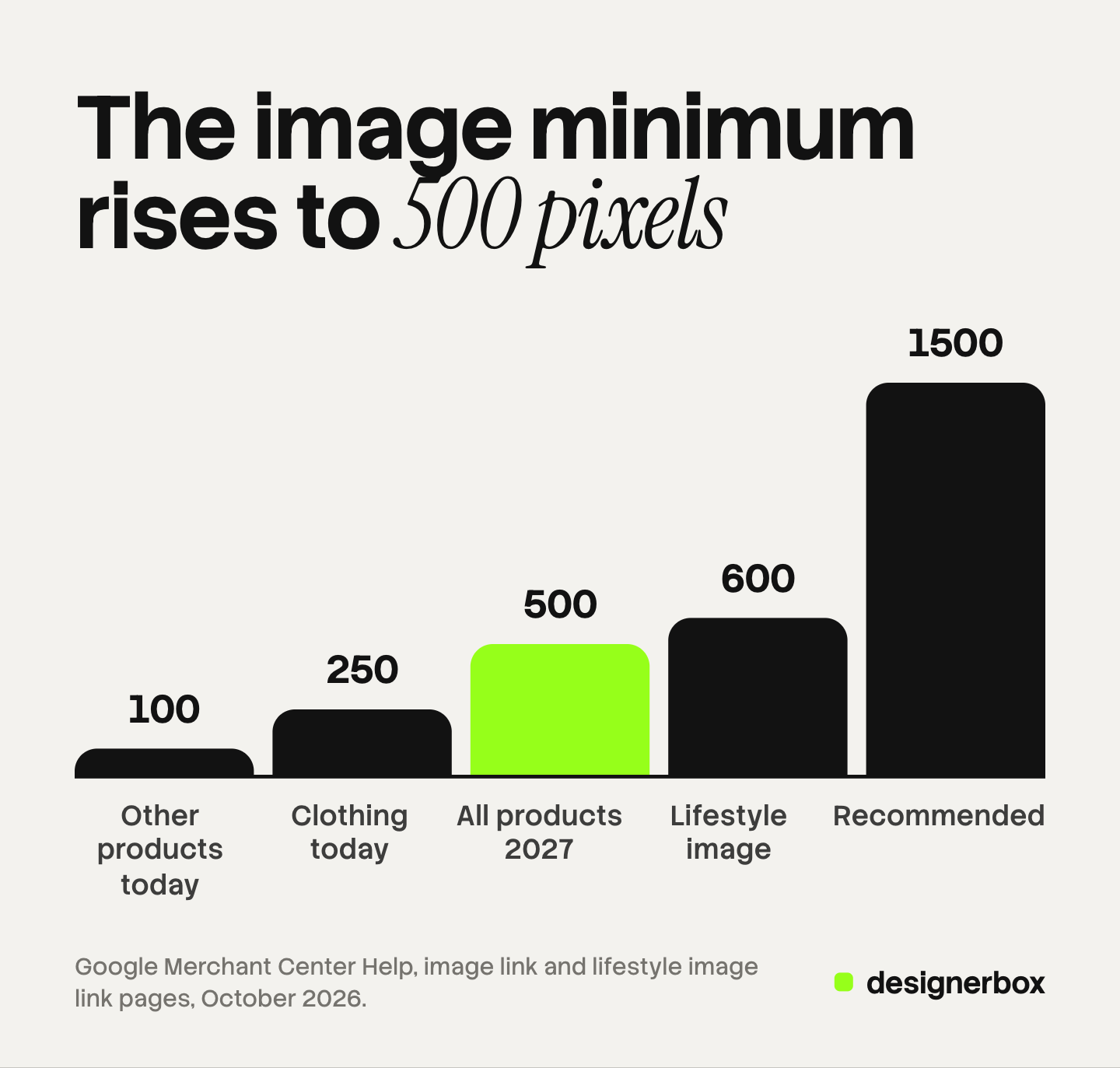
Google announced the new minimum in its product data specification update of 14 April 2026. It raises the minimum to 500 x 500 pixels “across all product categories and marketing methods”, for the main image and for additional images (support.google.com, October 2026). Enforcement starts on 31 January 2027.
Until that date, the older minimums still pass. Google’s troubleshooting page states them: “at least 100 x 100 pixels for non-clothing and 250 x 250 pixels for clothing products” (support.google.com, October 2026).
Three details on those pages are easy to miss:
- Warnings already appear. Merchant Center marks images that pass today and are smaller than 500 x 500. The warning reads “Image too small for upcoming enforcement”.
- Google may enlarge some images itself. It says it optimizes some images under 500 x 500, and that these optimized images meet the new requirement. It marks them with the warning “Image resolution optimizations applied”.
- TV has the new minimum now. For YouTube Shopping ads, images must be at least 500 x 500 pixels to serve on TV.
Google does not say which small images it will optimize. So treat 500 x 500 as the minimum today, and 1500 x 1500 as the target.
What gets a product disapproved
A fault in the main image removes the product. Google states that such an image “won’t appear on Google surfaces”, and that you get a notification in the Diagnostics section of your account.
Promotional elements and overlays. Google lists eight kinds of added content:
- Calls to action, such as “Shop now”.
- Price and shipping details, such as “Free shipping”.
- Service information, such as a warranty claim.
- Promotional adjectives, such as “Best”.
- Condition or compatibility text, such as “New”.
- Barcodes and QR codes placed over the photo.
- Watermarks, copyright symbols and graphic stamps.
- Brand or retailer names and logos added after the photo was taken.
A logo that is a physical part of the product is allowed.
Placeholders and generic images. Google names “Coming soon” and “No image available” graphics, a store logo used in place of a photo, and one general photo reused across different products. Line art, mockups and illustrations that do not show the physical product also fail.
Three more faults. An image that is only a square of color fails. An image with a border fails. An image that includes a product not sold with the main product fails.
Google allows a few exceptions by product category. A generic image or an illustration is allowed for Hardware, for Vehicles & Parts and for Computer Software. A single-color image is allowed for three paint categories.
Size and format are the last causes. Google says a file extension that does not match the real format leads to an “Unsupported image type” error.
Each marketplace draws these lines in a different place. The guide to Amazon image requirements covers the stricter main image rule there. Specs for Amazon, Walmart, Etsy, TikTok Shop and Shopify sit side by side in our guide to ecommerce product photography.
What limits performance without a disapproval
Some rules sit under “Best practices” on Google’s page. Breaking one does not remove the product. It makes the listing weaker.
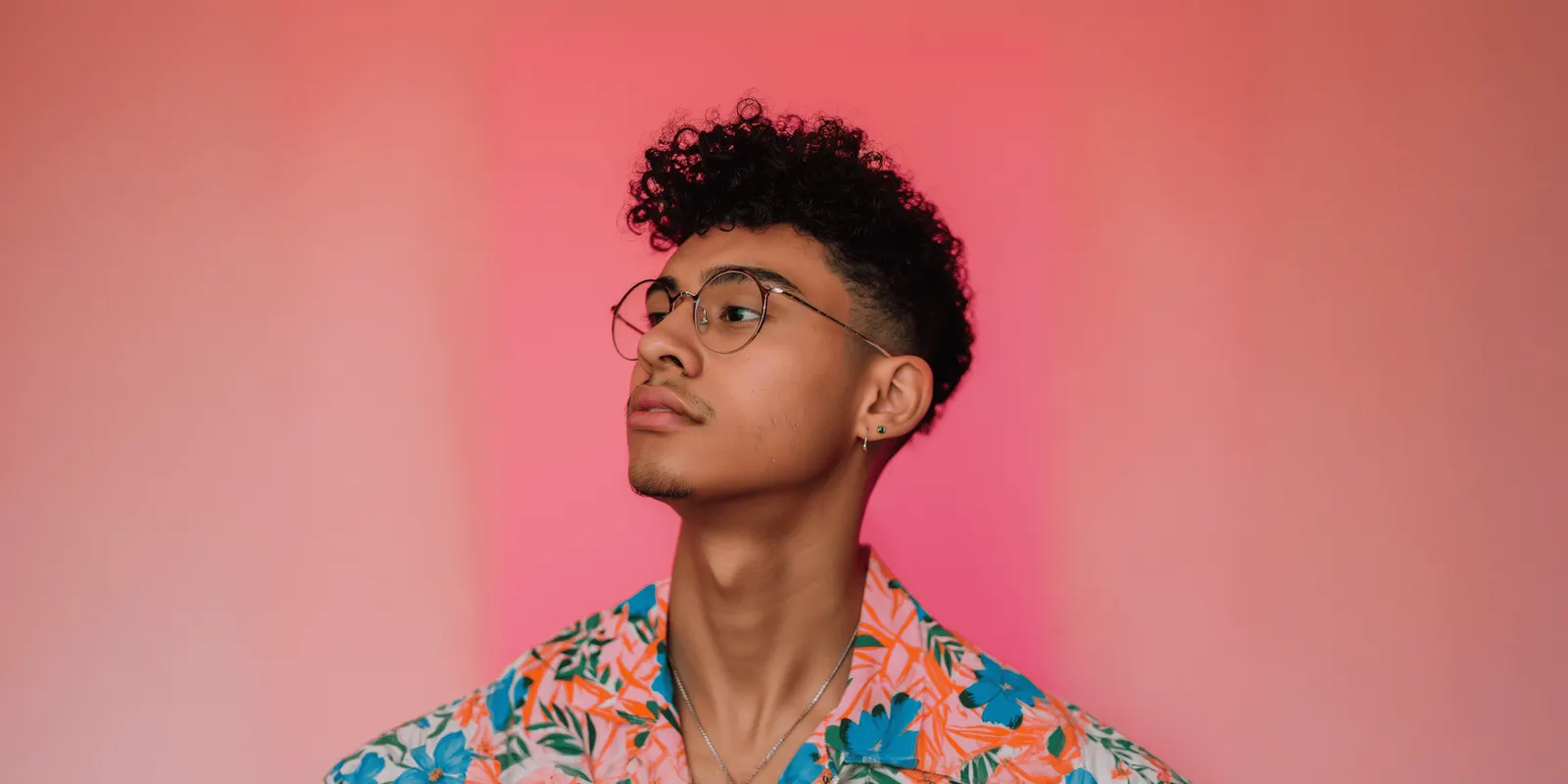
Framing. Google asks that the product take “no less than 75%, but not more than 90%, of the full image”.
Automatic cropping. Google says it “may test subtle cropping” on your image to frame the item. A product that touches the edge of the frame leaves no room for that.
Variants. Google asks for “a unique image for each variant”, and for only one variant in each image. The photo should match the exact color, pattern, finish and material of the option on sale. A group photo of all colors breaks this practice. How feeds for AI shopping tools read the same rule is covered in the guide to product images for AI shopping agents.
Stable URLs. Google asks for image URLs without timestamps or session IDs, because a changed URL is crawled again.
Crawl access. This is a format rule, and a fault here can block every image at once. The robots.txt file must allow both Googlebot and Googlebot-image. Google notes that a robots.txt change can take 24 to 48 hours to take effect. The same crawl rules shape organic image results, which the guide to image SEO for product pages explains.
Additional images and lifestyle images
The additional image link attribute takes up to 10 more images for each product (support.google.com, October 2026). These images must meet the main image rules, with four allowances. An additional image can include staging or show the product in use. It can highlight one part of the product, show parts of a bundle, or display an entire multipack.

One sentence on that page matters for a feed audit. If an additional image is under the minimum size, “your product won’t be disapproved, but your images won’t be shown”.
The lifestyle image link attribute is a separate slot, with up to 5 images. Google describes a lifestyle image as a product in a real context: clothing on a model, furniture in a room, or several products shown as a set (support.google.com, October 2026). Google says these images can appear in free listings.
The lifestyle slot has its own rules:
- A minimum resolution of 600 x 600 pixels.
- No promotional elements or other text.
- No border, and no padding added to reach an aspect ratio.
- The same AI metadata rule as the main image.
Google’s page prints the allowed aspect ratio as “between 2:0 and 2:3”. The first figure is unusual, so test one image in Merchant Center before you prepare a full set. A lifestyle image that fails is not shown, and Google tells you in your account.
Planning and shooting these scenes is covered in the guide to lifestyle product photography.
AI-generated images and metadata
Google allows generated product images, and it attaches one rule to them. The image link page states: “All images created using generative AI must contain meta data indicating that the image was AI-generated”. The example it gives is the IPTC DigitalSourceType value TrainedAlgorithmicMedia.
Google lists two more values that should stay in the file: CompositeSynthetic, for a composite with synthetic elements, and AlgorithmicMedia.
The rule appears on all three attribute pages. Export and compression steps can remove metadata, so check the final file.
Labels are a separate topic. Merchant Center has an AI label setting for each image. Google says ads with labeled assets show a visible label when a campaign targets the European Union, India or New York (support.google.com, October 2026). Google says a label you add yourself does not break its rule against text overlays. It adds that the setting “doesn’t guarantee your compliance with certain regulations”. This is general information, not legal advice.
Automatic image improvements
Merchant Center can repair some overlay faults for you. The setting is called automatic image improvements, and it is off by default (support.google.com, October 2026). You turn it on in the Automations tab, under Products.
When it is on, Merchant Center tries to remove text, watermarks, overlays or logos that it detects. If the repair works, Google replaces the image and the product may be approved. Google names three cases where the original image may remain: multi-panel collages, heavy text over the product, and dense watermarks.
Two limits follow. The setting changes the image that Google shows, and your store keeps the old file. Google also says the repair does not run on an image that carries a detected AI label. A clean source file is the lasting fix.
A pre-upload check for a whole feed
A team can run this check on a feed export. Steps 1 to 4 can run as a script. Steps 5 to 7 need a person.
- List every image URL. Take the image link, additional image link and lifestyle image link columns from the feed.
- Check each URL. It starts with http or https, uses ASCII characters only, and has at most 2,000 characters. Symbols and spaces are URL-encoded. No part of it changes on each export.
- Fetch each file and measure it. Flag a side under 500 pixels, a file over 16 MB, and an image over 64 megapixels. Flag a lifestyle image under 600 x 600. Compare the real format with the file extension.
- Read robots.txt. Confirm that it allows Googlebot and Googlebot-image on the image host.
- Look at every main image. Reject added text, logos, watermarks, borders, placeholders and other products. Sort by file to find one photo reused across several products.
- Check framing and variants. The product takes 75% to 90% of the image. Each color has its own image, with one variant in the frame.
- Check metadata on generated images. Open the final file in a metadata reader and confirm the IPTC DigitalSourceType value.
After the upload, open Products in Merchant Center and select the Needs attention tab. Google says View history lists the images that the new size rule affects. Fixes can take 24 to 72 hours to appear on that page.
Feed images in a DesignerBox batch
The rules above are simple for one product. Holding them across 300 products, each with several colors, is the real work. Anyone can make an AI picture. Making hundreds that still look like your brand is the hard part.
DesignerBox makes images, ads and video for brands and agencies. Its AI product photography starts from photos of your real product. It makes packshots, new angles and styled scenes, and your brand rules apply to each one.
Batch runs one workflow over a sheet of up to 200 products, one product per row. Row one and row two hundred get the same look. You keep, discard or re-run each result on its own, and the cost is shown before the run. An agency keeps one brand record for each client.
DesignerBox does not send finished work to Merchant Center or to a store. You download the results, or send them with a webhook or an S3 step, and then add the image URLs to your feed. A model can change a label or a color, so compare each result with the real product. Check that the final files still carry the AI metadata that Google asks for.
The same product photo also feeds the ad and the video: the full workflow from the first product photo to the finished ad, in one subscription.
Uploading your own photos and the commercial license start on the Pro plan. AI video, virtual try-on, upscaling, the image editor and the video editor start on the Premium plan. Plans and credits are on the pricing page.
There is a free plan, and it runs on sample products. Get started free.
FAQ
What size should Google Shopping images be?
Google asks for at least 500 x 500 pixels and recommends around 1500 x 1500 pixels or above. Enforcement of the 500 x 500 minimum starts on 31 January 2027. No image may be larger than 64 megapixels, and no file larger than 16 MB. Google publishes no fixed aspect ratio for the main image.
What is the minimum image size for apparel on Google Shopping?
Until 31 January 2027, Google accepts 250 x 250 pixels for clothing and 100 x 100 pixels for other products. From that date, the minimum is 500 x 500 pixels for every product category.
Can a Google Shopping image have text or a logo on it?
No, with one exception. Google disapproves a main image with added promotional text, prices, watermarks or logos. A logo is allowed only when it is a physical part of the product.
Does Google Shopping require a white background?
Google’s image link page, as read in October 2026, states no background color rule for the main image. Its examples describe the product alone on a white background. Scenes belong in the additional and lifestyle image slots.
Can I use AI-generated images on Google Shopping?
Yes. Google requires that an image made with generative AI keeps metadata that says so, such as the IPTC DigitalSourceType value TrainedAlgorithmicMedia. The image must also meet every other rule.
Sources
- Google Merchant Center Help, Image link: sizes, formats, URL rules, disapproval causes, category exceptions, AI metadata and best practices, read 7 October 2026.
- Google Merchant Center Help, Additional image link: the limit of 10, the four allowances and the small-image rule, read 7 October 2026.
- Google Merchant Center Help, Lifestyle image link: the limit of 5, the 600 x 600 minimum and the image rules, read 7 October 2026.
- Google Merchant Center Help, Merchant Center product data specification update 2026: the 500 x 500 minimum, its dates and optimized images, read 7 October 2026.
- Google Merchant Center Help, How to fix: Image too small: the minimums valid until 31 January 2027, the TV rule and the Needs attention steps, read 7 October 2026.
- Google Merchant Center Help, Allow Merchant Center to improve your product images: the automatic image improvements setting, read 7 October 2026.
- Google Merchant Center Help, Use AI content label settings and disclosures in Merchant Center: AI labels and the regions with a visible label, read 7 October 2026.
- DesignerBox AI product photography page and DesignerBox batch page, October 2026.
- DesignerBox pricing, October 2026.
Google Merchant Center rules verified from Google’s own help pages on 7 October 2026. Google changes these rules, so check the linked page before you act on a number.