
Shopify connects to Google Merchant Center through one sales channel, called Google & YouTube. You install it from the Shopify App Store, sign in with a Google account, and select or create a Merchant Center account. The channel then sends your products to Google and keeps them updated. Free listings and Shopping ads both read from that synced product data.
The connection is the short part. The part that decides whether Google approves a product is the images. Your store and Google use the same image set, so one fault in it appears in four places.
Every rule below comes from Shopify’s and Google’s own help pages, read in October 2026.
Key Takeaways
Shopify is the source. Google states that Shopify data always overwrites the product data in Merchant Center, so you correct products in Shopify.
Google’s image floor is 500 x 500 pixels. Enforcement starts on 31 January 2027, and Google recommends 1500 x 1500 or above.
Text on a product image causes a disapproval. That covers prices, calls to action, watermarks, borders and added logos.
One image set feeds four surfaces. They are your product page, Google’s organic and image results, free listings, and Shopping and Performance Max ads.
How Shopify connects to Google Merchant Center
Shopify describes the channel in one sentence: it “automatically syncs your products and relevant information about your Shopify store with the Google Merchant Center” (help.shopify.com, October 2026). The same page says that Google manages the channel.

The store has to meet five requirements first (help.shopify.com, October 2026):
- An online store that is open to the public, with no password page.
- A valid payment provider.
- A refund policy and terms of service, linked in the footer menu.
- One contact method that customers can see, such as an email address or a contact form.
- Shipping to a country that Google supports, in the matching currency.
You also need a Google account and a Merchant Center account. A multi-client Merchant Center account cannot sync through the channel.
The connection itself takes six steps (help.shopify.com, October 2026):
- Install Google & YouTube from the Shopify App Store.
- In the Shopify admin, open Sales channels, then Google & YouTube.
- Select Connect Google Account and allow Shopify to access it.
- Review the store requirements checklist and complete any open item.
- Select a Merchant Center account from the list, or create a new one.
- Verify that you own the account with a 6-digit code sent to your phone.
One Merchant Center account connects to one Shopify store. If the account already has a product feed, Shopify says the new sync overwrites it.
The first sync can take up to 24 hours. Later product changes typically sync within a few hours. Google then reviews new products within 3 to 5 business days.
What the Shopify product feed sends to Google
The Shopify product feed is the product data that the channel sends to Merchant Center. People also call it the Google Shopping feed for Shopify. You do not build a file. All products that are available to your online store sync on first setup. Google needs a few fields that a Shopify product does not always have, and you add those in the channel (support.google.com, October 2026).
| Data | Where it comes from | What to check |
|---|---|---|
| Title and description | The product, or its search engine listing | You choose which pair to send, in the channel settings |
| Price and availability | The product and its variants | Product options must be in English |
| Images | The product’s media | At least one image, or the product cannot sync |
| Product identifier | The barcode field on the variant | A GTIN, or a brand and an MPN added in the channel |
| Google product category | Added in the channel | Without one, Google assigns a category itself |
| Age group, gender, color, size | Added in the channel | Needed for apparel and accessories |
| Shipping and taxes | Store settings | Only the general shipping profile imports |
Two rules save time later. First, correct products in Shopify. Google states: “The information from your Shopify account will always overwrite the information in your Merchant Center account” (support.google.com, October 2026). An edit made in Merchant Center is lost at the next sync.
Second, check the channel after you edit a product. It shows one of four statuses for each product: Approved, Under review, Limited or Not approved. Google warns that its errors differ from Shopify’s.
One detail is not documented. Neither help center says which media item the channel sends as the main image, or how many more it sends. After the first sync, open a product in Merchant Center and look at the images it holds. The nine product fields on the Shopify side are covered in the guide to Shopify product page optimization.
Where free listings and Shopping ads read from
Both read from the synced product data in Merchant Center. This is what people mean by Shopify Google Shopping: one feed, used for unpaid and paid results.
Free listings. Google says that channel users are “automatically opted in to show products from your Shopify store for free on surfaces across Google, such as on the Shopping tab, YouTube, Google Search (.com), Google Images, and Google Lens” (support.google.com, October 2026). Google adds that products “aren’t guaranteed to show”.
Shopping ads. Google’s page for Shopify users says: “Shopping ads use your existing product data to decide how and where to show your ads.” You do not upload a separate ad image.
Performance Max. These campaigns run across YouTube, Display, Search, Discover, Gmail and Maps. Google lists the product feed as one of the inputs. You can connect Merchant Center with no Google Ads account if you only want free listings.
So one status controls both. A product marked Not approved is absent from free listings and from Shopping ads.
One image set, four surfaces
A shopper can meet the same product image in four places. Each place has its own owner and its own rule.
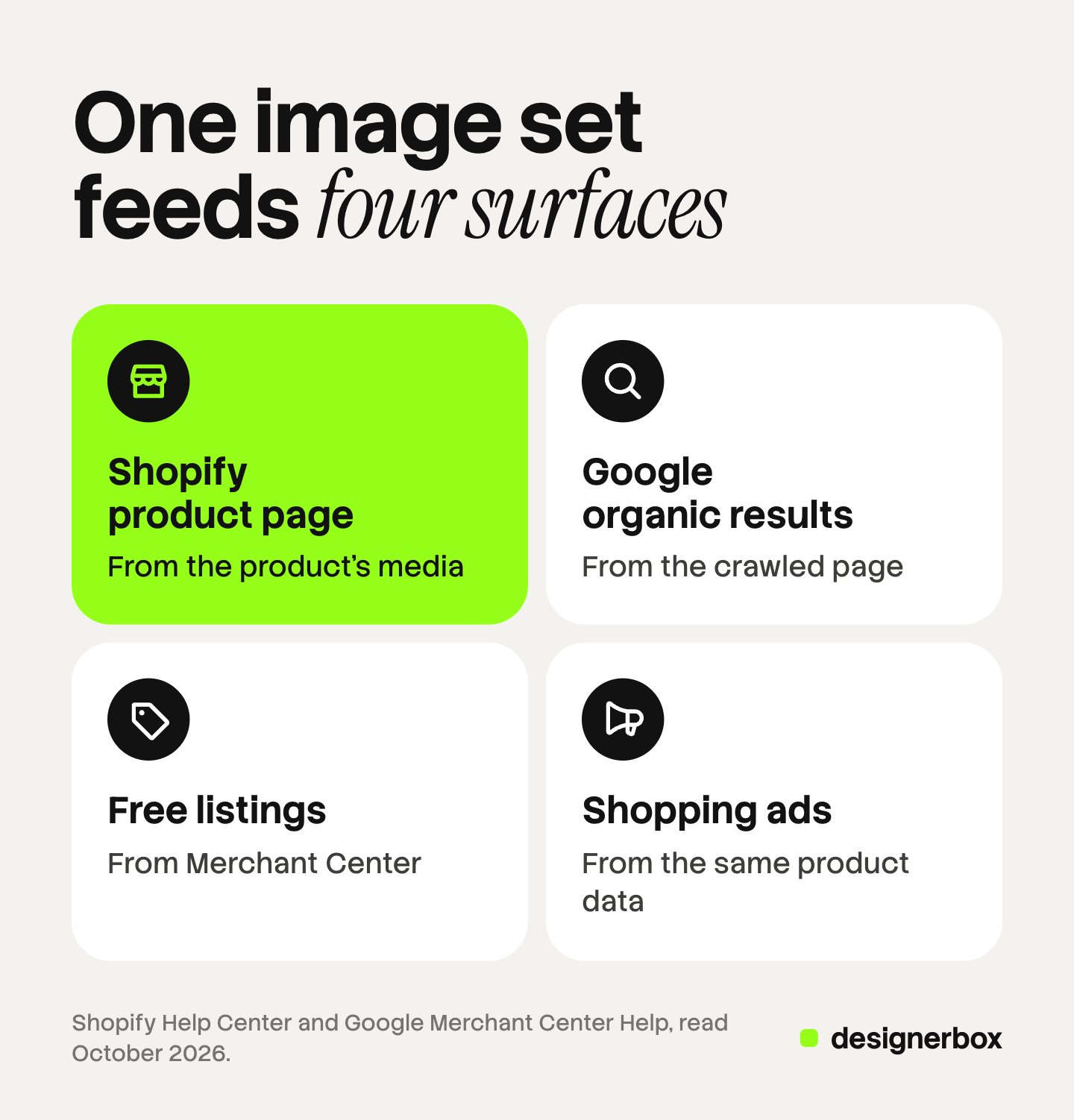
| Surface | Where the image comes from | Who sets the rule |
|---|---|---|
| The Shopify product page | The product’s media | Shopify and your theme |
| Google organic and image results | The crawled page and its product structured data | Google Search |
| Free listings | The image link in Merchant Center | Google Merchant Center |
| Shopping and Performance Max ads | The same product data in Merchant Center | Google Merchant Center and Google Ads |
Rows three and four use the feed. Row two does not need it: Google can show product details that it has crawled on your store, even with free listings off (support.google.com, October 2026). For those results, Google’s structured data rules ask for a product image that is crawlable. They prefer “pictures clearly showing the product (for example, against a white background)” (developers.google.com, October 2026).
So you have one image set for the store and for Google. An image rule that you break once is broken four times.
Take a main image with a “Free shipping” badge in the corner. It appears on the product page, and Google may crawl it for image results. Merchant Center reads it as a promotional overlay, so the product loses its free listing and its Shopping ad.
Meta’s catalog reads product images in a similar way, and the guide to catalog ads covers that side.
Google Merchant Center image requirements
Google changed these numbers in 2026. The table follows the help page as it reads today (support.google.com, October 2026). The full list of disapproval causes is in the guide to Google Shopping image requirements.
| Rule | What Google states |
|---|---|
| Minimum size | At least 500 x 500 pixels |
| Recommended size | Around 1500 x 1500 pixels or above |
| Maximum size | 64 megapixels, and a file of 16 MB |
| Formats | JPEG and WebP recommended. PNG, GIF, BMP and TIFF also work |
| Main image | One for each product, and it is required |
| Additional images | Up to 10 for each product |
| Framing | The product takes 75% to 90% of the image |
| Generated images | Must keep metadata that says AI made them |
The size rule needs one note. Google announced the 500 x 500 minimum on 14 April 2026, with enforcement from 31 January 2027 (support.google.com, October 2026). Until that date, Google’s troubleshooting page still accepts 250 x 250 pixels for clothing and 100 x 100 for other products (support.google.com, October 2026). Merchant Center already warns about smaller images, so plan for the new number.
Shopify’s own upload limits are a separate spec, covered in the guide to Shopify product image size. Where each image appears on the store is in the guide to Shopify product images, and the grid view is in the guide to the Shopify collection page. The audit for framing, sharpness and color is in the guide to Shopify image optimization.
These faults cause an image disapproval on the main image:
- Promotional text. Calls to action, prices, discounts, “Free shipping”, warranty claims and words such as “Best”.
- Overlays. Watermarks, barcodes, copyright symbols, and logos added after the photo was taken.
- Placeholders. “Coming soon” graphics, a store logo, or one general photo reused across different products.
- A border around the image, or a plain square of color.
- Another product that is not sold with the main one.
Additional images can show the product in use, a detail, or the product in a scene (support.google.com, October 2026). An additional image under the minimum size does not disapprove the product. Google does not show that image.
Variant images and automatic fixes
Google asks for “a unique image for each variant”, and for only one variant in each image. Shopify’s side of this rule is narrow: “you can only add one image to each product variant” (help.shopify.com, October 2026). So assign each color its own image in Shopify before the sync. The guide to AI product images for Shopify covers the count for a product with many options.

Merchant Center can repair some overlay faults for you. The setting is called automatic image improvements, and it is off by default. When it is on, Google tries to remove text, watermarks, overlays or logos from an image (support.google.com, October 2026). Google says it may fail on collages, on heavy text over the product, and on dense watermarks.
That setting changes only the image Google shows. Fix the source file in Shopify, and all four surfaces get the clean version.
Generated images have one more rule. Google requires that an image made with generative AI keeps metadata that says so, such as the IPTC DigitalSourceType value TrainedAlgorithmicMedia. Check that the files you upload still carry it, whichever tool made them. Merchant Center also has an AI label setting. Google says labeled assets show a visible label on ads that target the European Union, India and New York (support.google.com, October 2026). This is general information, not legal advice. The guide to AI photos on Shopify covers the disclosure rules.
One image set for every product
The rules above are easy to meet on one product and hard to hold across 300. Anyone can make an AI picture. Making hundreds that still look like your brand is the hard part.
DesignerBox makes images, ads and video for your brand. You build the image set once as a workflow: the plain main image, the angles, the scene, and one image for each color. Your brand rules sit in a brand profile, and the workflow reads them on every run.
Batch runs that workflow over a sheet of up to 200 products. Row one and row two hundred get the same framing and the same background. You keep or discard each row, and the cost is shown before the run. You still compare each result with the real product, because a model can change a label or a color.
DesignerBox does not send finished work to Shopify or to Merchant Center. You download the results, or send them with a webhook or an S3 step, and then upload them to Shopify. The same product photo also feeds the ad and the video: the full workflow from the first product photo to the finished ad, in one subscription.
Uploading your own photos and the commercial license start on the Pro plan. AI video, virtual try-on, upscaling, the image editor and the video editor start on the Premium plan. Plans and credits are on the pricing page.
There is a free plan, and it runs on sample products. Get started free.
FAQ
How do I connect Shopify to Google Merchant Center?
Install the Google & YouTube channel from the Shopify App Store. Open it in the Shopify admin, connect a Google account, complete the store requirements checklist, and select or create a Merchant Center account. Then verify the account with the 6-digit code sent to your phone.
How long does Shopify take to sync products to Google?
Shopify says the first sync can take up to 24 hours, and later changes typically sync within a few hours. Google then reviews new products within 3 to 5 business days. A product can be synced and still wait for approval, so read its status in the channel.
Do I need Google Ads to show Shopify products on Google?
No. Shopify says you can connect Merchant Center alone, sync your products and list them for free on Google. Google Ads is needed only for paid Shopping ads and Performance Max campaigns. Both the free listing and the ad read the same synced product data.
What are the Google Merchant Center image requirements?
Each product needs one main image of at least 500 x 500 pixels, with enforcement of that size from 31 January 2027. Google recommends 1500 x 1500 or above, and allows files up to 16 MB and 64 megapixels. The image cannot carry promotional text, a watermark, a border or a placeholder graphic. You can add up to 10 additional images.
Which image does Google Shopping use from Shopify?
Google shows the image that Merchant Center holds as the main image for the product, plus any additional images. Neither Shopify nor Google documents which media item the channel sends first. Open a synced product in Merchant Center and check.
Sources
- Shopify Help Center, Google & YouTube: what the channel syncs and who manages it, read October 2026.
- Shopify Help Center, Google & YouTube channel requirements: store, account and product requirements, read October 2026.
- Shopify Help Center, Set up the Google & YouTube channel and Syncing your products: the connection steps, sync times and sync errors, read October 2026.
- Shopify Help Center, Adding images to product variants: one image for each variant, read October 2026.
- Google Merchant Center Help, Syncing your products, Show your products for free on Google and Advertise your products using Shopping ads (for Shopify users): product statuses, free listing surfaces, Shopping ads and Performance Max, read October 2026.
- Google Merchant Center Help, Image link and Additional image link: sizes, formats, disapproval causes, variants and AI metadata, read October 2026.
- Google Merchant Center Help, Merchant Center product data specification update 2026 and How to fix: Image too small: the 500 x 500 minimum and its dates, read October 2026.
- Google Merchant Center Help, Allow Merchant Center to improve your product images and Use AI content label settings and disclosures in Merchant Center, read October 2026.
- Google Merchant Center Help, Free listings for products: where free listings appear and what Google can show from a crawled store, read October 2026.
- Google Search Central, Merchant listing structured data: the image property for organic product results, read October 2026.
- DesignerBox pricing, October 2026.
Shopify and Google Merchant Center rules verified from their own help pages as of October 2026. Platform rules change often, so check the linked page before you act on a number.