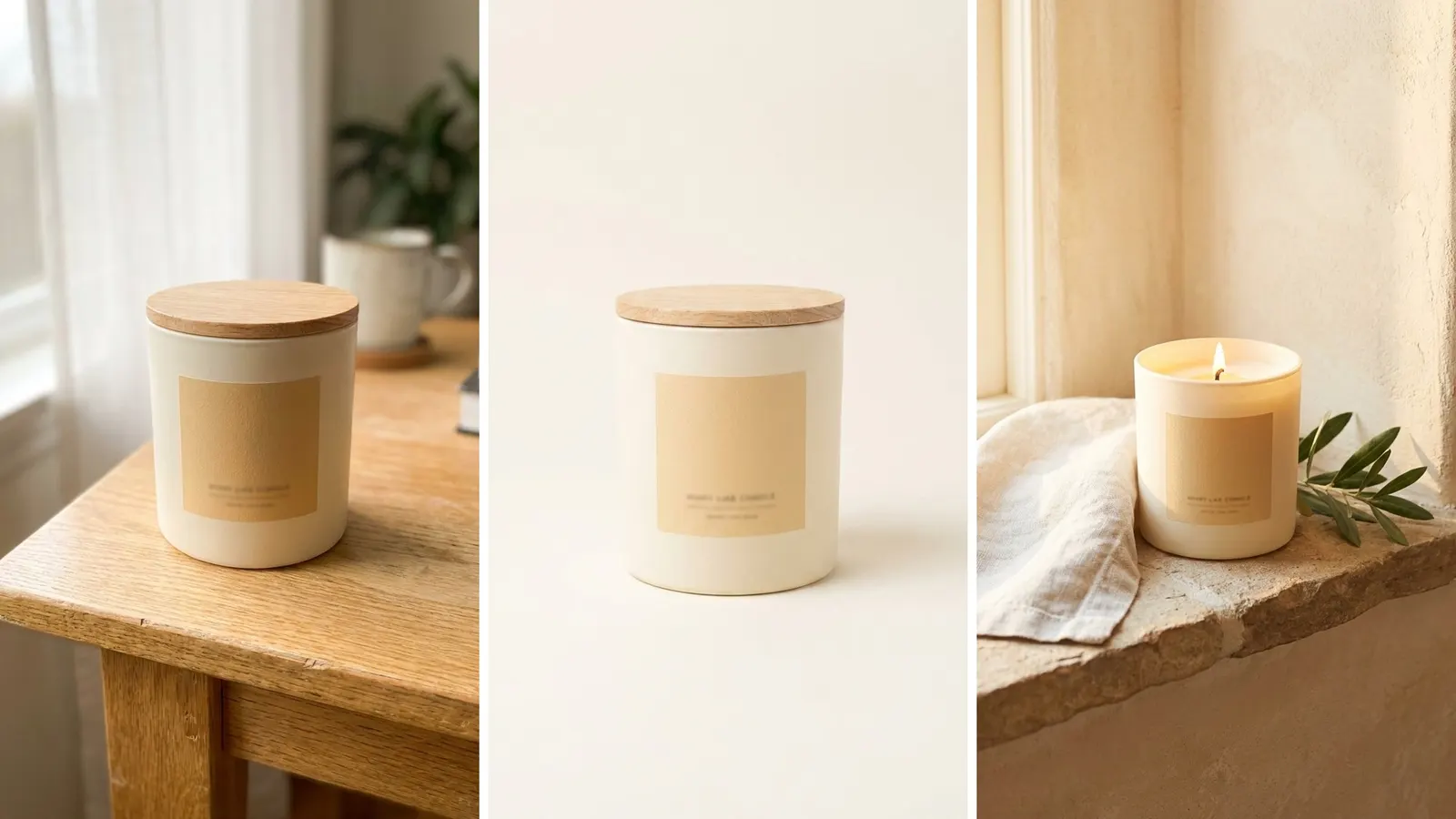
Product images are the set of pictures on a product page that show a shopper what the item is. A good set works as a team. Each image has one job: the main image identifies the product, and the others show its size, its detail, its label, its variants and its use. An image that repeats a job already done adds nothing to the page.
This guide is platform-neutral. It covers the seven roles in a product gallery, the fault to avoid in each, and where the first image gets reused.
Key Takeaways
- A product gallery is a set of roles. Seven cover most products: main, scale, detail, label and contents, variants, in use, and infographic.
- Each role answers one question. If two images answer the same question, remove one.
- Most first actions go to the images. In Baymard Institute’s testing, 56% of first actions on a new product page went to the product images.
- The first image is reused. Shopify, Amazon and Google each show it in places outside the gallery.
- Text on an image has limits. Google disapproves a main image with added text, callouts or graphics.
- Plan the roles once for the catalog. Then every product gets the same set, in the same order.
What are product images?
Product images are every picture a store shows for one product. They sit together in a product gallery, also called a product image gallery. The gallery is the block on a product page with one large image and a row of smaller ones.
The term covers more than photos. A product image can be a photo on a plain background, a photo in a room, a close crop, or a graphic with a few words on it. Ecommerce product images also travel. The same files appear in search results, in ads and in marketplace feeds.
A single strong photo does not make a set. The set is judged by what it covers. Each image stands in for one thing a shopper would do in a store: look at the front, hold it, read the label, open the box.
Why shoppers look at product images first
Shoppers often go to the images first. Baymard Institute tested product pages with users and recorded what each person did first. In that study, 56% of first actions on a new product page were exploring the product images (Baymard Institute, published May 2017, read October 2026).
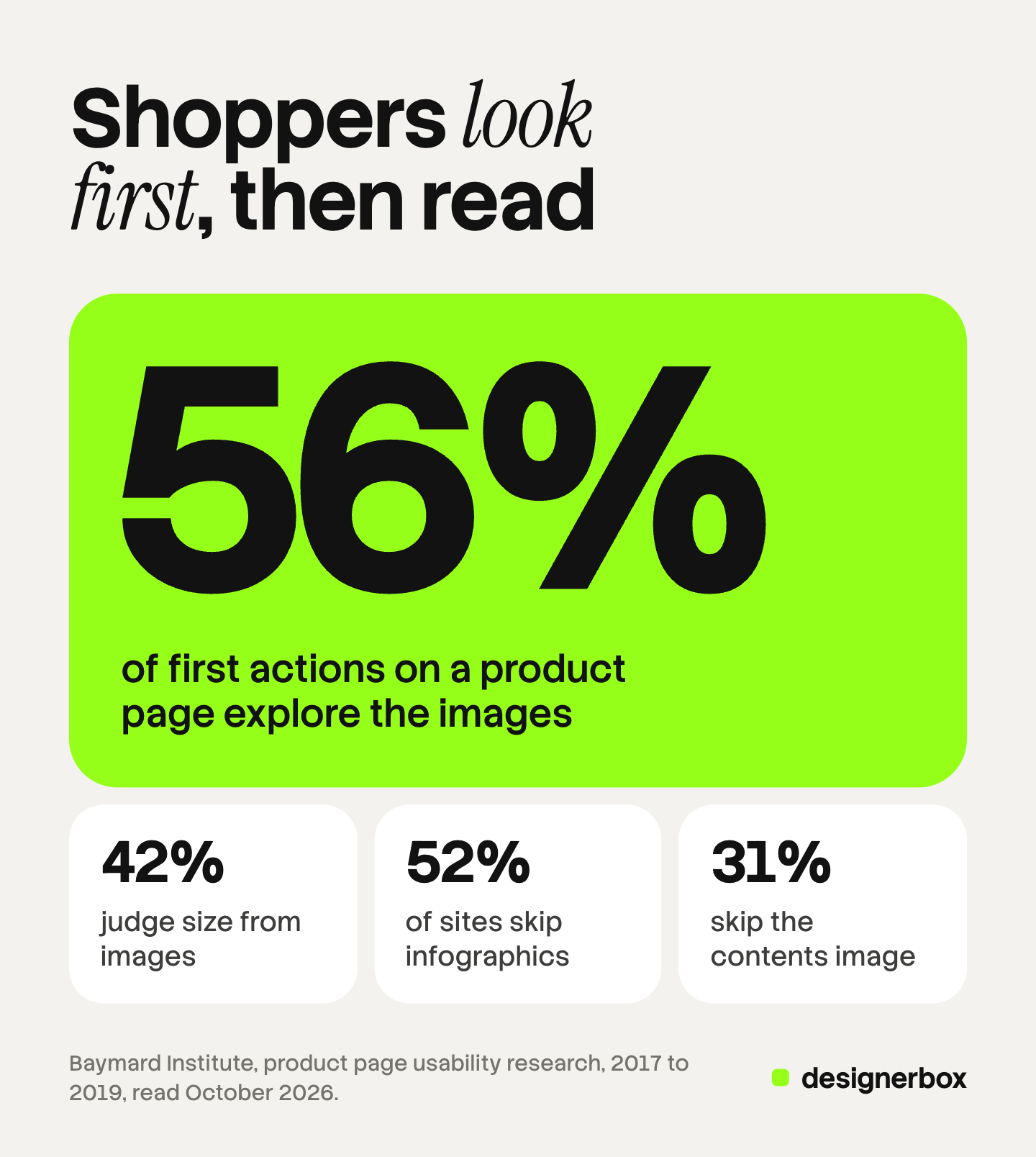
The same research measured what shoppers try to learn from the gallery. It found that 42% of users try to judge the size of a product from its images. When no image shows scale, Baymard observed users drawing wrong conclusions about size and discarding products that fit their needs.
These figures come from Baymard’s usability testing, published between 2017 and 2019. They describe what test users did, and this guide makes no claim about conversion rates.
The seven roles in a product gallery
Seven roles cover most products, and some products need fewer. The table gives each role, the question it answers and its most common fault.
| Image role | Question it answers | Common fault |
|---|---|---|
| Main image | What is this product? | A tight crop, a busy scene, or a product too small to read as a thumbnail |
| Scale | How big is it? | No familiar object in the frame, so the shopper has to guess |
| Detail or texture | What is it made of, and is it well made? | A second wide shot in place of a close one |
| Label and contents | What does the label say, and what is in the box? | Label text too small to read, or accessories in the frame that are not included |
| Variant lineup | Which options exist? | Colors that differ from the real items, or a lineup used as the first image |
| In use | How does it fit my life? | A scene so styled that the product is hard to find |
| Infographic | What is the one fact I must know? | Too many callouts, or text that is unreadable on a phone |
Main image
The main image identifies the product. It shows the whole item, alone, on a plain background. It has to work at thumbnail size, because most of its views are small ones. The guide to the hero shot covers the campaign version of this image and how each placement crops it.

Scale
The scale image puts the product next to something with a known size. A hand, a person, a table or a doorway all work.
Detail or texture
The detail image is a close crop of one part. It shows the weave, the stitch, the finish or the closure. Pick the part that the product description makes a claim about. If the description says “full-grain leather”, the detail image shows the grain.
Label and contents
This role has two halves, and some products need both. The label half shows the back of the pack at a size a shopper can read. Food, skincare, supplements and cleaning products need it most. The contents half shows every item that arrives, placed beside the product.
Baymard tested the contents half. In its testing, 63% of users had trouble telling whether a mixer came with accessories when no image showed them. Its benchmark found that 31% of sites had no “included accessories” image for relevant top-selling products (Baymard Institute, published February 2019, read October 2026).
Variant lineup
The lineup shows the options side by side: the colors, the sizes or the flavors. Each variant then needs its own image as well, so the gallery matches the option a shopper selects.
In use
The in-use image shows the product doing its job. A lamp is switched on beside a chair. A bag is on a shoulder.
Infographic
A product infographic is a product image with a few words or simple graphics added. It names a feature that a photo cannot show alone, such as a material, a dimension or a capacity. The next section covers what makes one work and where the rules allow it.
What a product infographic can and cannot do
A product infographic puts one fact where the shopper is already looking. Baymard calls these images with descriptive text or graphics. Its benchmark found that 52% of sites did not use them for their top-selling products (Baymard Institute, published November 2018, read October 2026).
Three rules keep an infographic useful.
- One idea per image. One dimension drawing, or one material callout, or one “what is included” layout.
- Text that reads on a phone. View the image at phone width before you approve it. If you have to zoom, the text is too small.
- Facts only. Write a measurement or a material. Leave prices, offers and review scores out of the image.
The third rule is also a platform rule. Amazon bans images of customer reviews, five-star imagery and claims such as free shipping on every product image (Amazon product image guide, October 2026).
Google is stricter for the image it shows first. Its image link page says that post-production text, marketing callouts or graphics “will cause an image disapproval” (Google Merchant Center Help, October 2026). So an infographic is a later image on your own product page. It is never the first image in a feed.
How Shopify, Amazon and Google reuse the first image
The first image leaves the gallery. Each platform shows it in other places, and each one says so on its own page. All three were read in October 2026.
| Platform | What its own page says | Where the first image appears |
|---|---|---|
| Shopify | ”The main media item is displayed on collection pages, the cart page, the checkout page, and your home page.” | Four store pages besides the product page |
| Amazon | The main image “is shown in search results and is the first image displayed on the page.” | Search, browse and the top of the detail page |
| ”Your main image is the first thing potential customers see across Google channels.” | Shopping ads and free listings |
Sources: Shopify Help Center, adding product media, Amazon product image guide and Google Merchant Center Help, image link.
Two details follow from these pages.
Amazon also uses the main image as a thumbnail. Its guide says that when a product has no swatch image, the main image becomes the thumbnail. The guide also says the first image uploaded “defines the product identity”, so a placeholder is not allowed.
Google sorts images into three fields. The main image goes in the image link field. Other angles and detail shots go in the additional image link field, which holds up to 10 images. A lifestyle image has its own field (Google Merchant Center Help, October 2026).
The lesson is the same on all three. Give the first slot to the image that identifies the product at a small size. On Shopify, the guide to Shopify product images follows the first image through each store surface and its crop. The guide to the product listing page covers how first images sit side by side in a grid.
The order of a product gallery
Order the gallery by the questions a shopper asks, from the most basic to the most specific. A working order for most products is below.
- Main image
- Scale
- Detail or texture
- In use
- Label and contents
- Variant lineup
- Infographic
Two rules matter more than the exact order. The main image is always first. The scale image sits early, because size is the question a plain background cannot answer.

Move a role forward when it answers the main doubt for your category. For a supplement, the label moves to position two or three. For a gift set, the contents image does. For jewelry, the in-use image carries scale as well, so it can take the second slot. The guide to the six-slot order for PDP images covers how shoppers move through a gallery and why late images get missed.
How many product images a product needs
Count roles first, then images. A simple product may need four roles. A product with a label, a kit and several colors may need all seven, plus an image for each variant.
The platforms give a range to work inside.
- Amazon requires one compliant main image. It recommends at least six additional images and one video.
- Google takes one main image and up to 10 additional images per product.
- Shopify allows a maximum of 250 images, 3D models or videos on one product.
These numbers are limits and recommendations. For the pixel and frame spec of five channels, see ecommerce product photography. A gallery of seven images that fill seven roles is stronger than a gallery of twelve that fill four.
One check finds the waste. Write the question each image answers next to its file name. If two images have the same question, keep the better one. If a question from the table has no image and applies to your product, that is the next image to make.
One consistent set of product images across a catalog
A catalog is judged as a whole. A shopper who opens three products expects the same kind of image in the same position each time.
Write the set down once, as a short spec.
- The roles. Which of the seven your category needs, and which it skips.
- The order. One order for every product, with any category exceptions named.
- The frame. One aspect ratio, one background value and one product size in the frame for the main image.
- The scale reference. One reference object or one model for the whole range, so sizes compare across products.
- The infographic layout. One layout, one font and one position for the text.
Then the spec becomes a shot list. Our shot list template turns the roles into rows that a photographer or an editor can follow. The guide to consistent product images covers the layers that drift across a set, such as light, color and crop.
File names and alt text belong in the same spec. Name each file by product and role, and write alt text that says what the image shows. The guide to image SEO for product pages lists what Google documents for both.
Product image sets in a DesignerBox workflow
DesignerBox is AI creative production for brands and agencies. It makes images, ads and video from your product photos and your brand rules. Anyone can make an AI picture. Making hundreds that still look like your brand is the hard part.
For a brand with 20 to 500 products, the gallery spec above maps to a workflow. You start from a template, which is a workflow somebody already built. You make a copy, and it becomes your own workflow. The AI product photography page lists the product jobs: packshots, new angles and styled scenes, each made from your photos of the real product.
Your brand record holds the logo, colors, fonts, voice and rules. It also holds each product with its photo and its colors. Every workflow reads the record before each run, and critic steps score the results.
A batch runs one workflow over a sheet, with one product per row and up to 200 rows in a sheet. Row one and row two hundred run the same steps with the same brand rules. The cost is shown before the run. You keep, discard or re-run each result on its own.
The gallery is one use of a product photo. The same photo also becomes an ad and a short video. DesignerBox keeps those steps together: the full workflow from the first product photo to the finished ad, in one subscription.
The limits are worth stating. You still check each result against the real item, with the label and the color first. The gallery order and the upload stay with you, because DesignerBox does not send finished work to a store. You download the results, or send them with a webhook or an S3 step. Every plan below Ultra is one seat. The free plan runs on sample products.
Uploading your own photos and the commercial license start on the Pro plan. AI video, virtual try-on, upscaling, the image editor and the video editor start on the Premium plan. Plans and credits are on the pricing page.
Run a template on a sample product and compare the results with the seven roles. Get started free
FAQ
What are product images?
Product images are the pictures a store shows for one product. They include the main image, close crops, scale and in-use photos, and graphics with short text. Together they form the product gallery on a product page.
What is a product gallery?
A product gallery is the block of images on a product page. It usually has one large image and a row of smaller ones. A shopper swipes or clicks through it to see the product from each side and in use.
How many product images should a product page have?
Plan one image for each role the product needs, which is four to seven for most products. Amazon recommends a main image, at least six additional images and one video. Google accepts one main image and up to 10 additional images.
What should the first product image be?
The first image shows the whole product, alone, on a plain background. It has to identify the product at thumbnail size. Shopify, Amazon and Google each reuse the first image outside the product page.
What is a product infographic?
A product infographic is a product image with a few words or simple graphics on it. It names one fact, such as a dimension or a material. Google disapproves a main image with added text, so an infographic is a later image.
Can a variant lineup be the main image?
On your own store, you can choose. In a Google feed, no. Google asks for one variant per image and says to avoid group photos that show several colors together. Amazon asks you to show the product once in the main image.
Sources
- First actions on a product page (56%), size judged from images (42%): Baymard Institute, in-scale product images, published May 2017, accessed October 2026
- Included accessories image (63% of users, 31% of sites): Baymard Institute, included accessories image, published February 2019, accessed October 2026
- Descriptive text or graphics on product images (52% of sites): Baymard Institute, descriptive text or graphics for product images, published November 2018, accessed October 2026
- Shopify main media item, the pages that show it, and the 250 media maximum: Shopify Help Center, adding product media, accessed October 2026
- Amazon main image in search results, six additional images and one video, swatch thumbnail, product identity, product shown once, banned image content: Amazon Seller Central, product image guide, accessed October 2026
- Google main image, text and graphics disapproval, one variant per image: Google Merchant Center Help, image link, accessed October 2026
- Google additional images, up to 10: Google Merchant Center Help, additional image link, accessed October 2026
- DesignerBox batch: one product per row, up to 200 rows, the cost shown before the run, keep, discard or re-run per result: DesignerBox batch page (designerbox.ai/product/batch), October 2026
- DesignerBox templates and brand record: DesignerBox templates page (designerbox.ai/product/templates) and brand page (designerbox.ai/product/brand), October 2026
- DesignerBox plan gates: DesignerBox pricing page (designerbox.ai/pricing), October 2026
Shopify, Amazon and Google rules verified on each platform’s own page, October 2026. Baymard Institute figures come from usability testing published between 2017 and 2019. DesignerBox features verified on designerbox.ai, October 2026. The seven roles and the gallery order are a working convention. Platform rules change, so check each page before a bulk upload.