Consistent product images share six things: the same background, light, framing, color, styling and export size. No single tool holds all six. Presets hold light and color. A retouching spec holds framing. A delivery service holds the export size. AI tools hold the background and the styling. List the six first, then pick tools for the gaps.
Forty products arrive this month. Twelve were shot in the studio in March. Twenty came from the supplier, and eight were shot on a phone in the warehouse. On the collection page you now see three different whites. One bottle sits high in its frame, and one shadow falls left while every other shadow falls right. The shopper sees the grid before any single product.
This guide splits consistency into six layers and maps nine tools to the layers each one holds. It gives you a one-page spec and a test you can run on your own grid today. It covers product photos. Logos, fonts and colors on ads are a separate job, and DesignerBox applies those brand rules on every run. Every tool feature below was read on the vendor’s own page on 24 September 2026. We sell DesignerBox, so treat what we say about it as our own view.
Key Takeaways
- Consistency is six layers. Background, light, framing, color, styling and export size. A catalog drifts one layer at a time.
- Write the spec before you choose a tool. One background, one fill, one angle list, one light direction, one white balance and one export size.
- Marketplaces set some numbers for you. Amazon’s main image needs a pure white background and the product at 85% of the image.
- Each tool holds one or two layers. Presets hold light and color. Specs and delivery rules hold framing and size. AI tools hold background and styling.
- The layer that failed decides fix or remake. Color and crop are easy to fix after the shoot. A wrong model or prop set needs new images, and a wrong background or light often does too.
- Judge 12 thumbnails side by side. Use the size a shopper sees them at, because drift shows in the grid first.
What makes product images consistent?
Product images are consistent when a shopper scans a grid and sees one brand in every image. Six things stay the same on every product: the background, the light, how the product sits in the frame, the color treatment, the props or model, and the file size and ratio. When one of the six changes, the grid shows it at once, even at thumbnail size.
Framing also affects how shoppers judge size. Baymard Institute’s testing found that 42% of users try to judge a product’s size from the product page images (baymard.com, updated March 2026, read September 2026). If one mug fills its frame and the next one is small in its frame, shoppers see two different sizes.
Consistency and accuracy are two different checks. A set can match perfectly and still show the wrong color on every product. How to test AI product photos for accuracy covers that second check. This guide covers the first one: does every image look like it came from the same place?
The six layers of consistent product images
Each layer drifts at a different point in production. Background and styling drift when the source changes: a new studio, a new supplier, a new prompt. Light drifts on set. Color drifts in editing. Framing and export size drift at the end, when someone crops and uploads by hand.
| Layer | What drifts | What to lock | Where it is usually fixed |
|---|---|---|---|
| Background | Two whites, a gray seam, a new room each time | One background, written as a value or a named scene | Retouching spec, AI background tools |
| Light | Shadow direction, hard or soft shadow, glare | One light direction and one shadow type | On set, or with a relight step |
| Framing | Product size in the frame, margins, angle, crop | One fill, one margin, one angle list | Retouching spec, crop rules |
| Color | White balance, saturation, the true product color | One white balance, checked against the real product | Presets, color matching |
| Styling | Props, surfaces, models, poses | One prop set, one model, one pose list | Templates, a saved model or workflow |
| Export | Size, ratio, format | One size and one ratio for each channel | Delivery rules, bulk resizing |
The table explains why one tool rarely fixes a messy catalog. A preset cannot move a shadow. A crop rule cannot change a background. A background generator does not know your white balance. Name the layer that fails before you pay for a tool.
Two layers have their own guides. Fixing product photo lighting without a reshoot covers the light layer. The seven angles every listing needs covers the angle list inside framing.
The consistency spec, on one page
A spec is a short page that gives each layer a value someone can check. Write it once. Give it to the photographer, the retoucher, the supplier and every tool you use. Where you sell on a marketplace, some values are already set for you. How to write a product photography style guide turns this spec into a full document with a template.
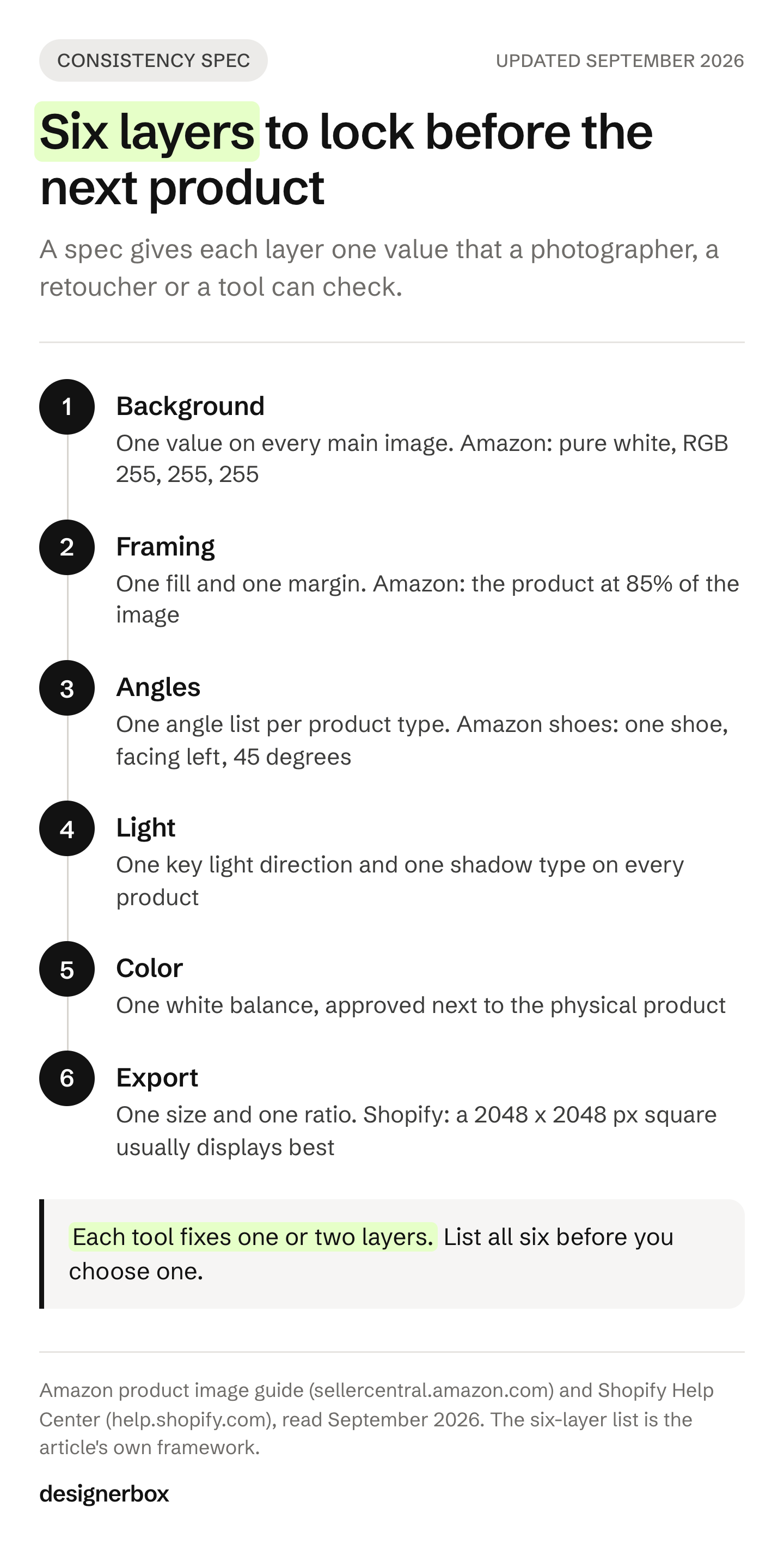
Background. Amazon’s main image needs a pure white background, RGB 255, 255, 255 (Amazon product image guide, read September 2026). On your own store you can choose any background. Choose one, record its value, and use it for every main image. The white background page for AI product photos shows the marketplace version.
Framing. Amazon asks that the product fill 85% of the main image. Write your own fill and margin as numbers, even when you do not sell on Amazon. A retoucher can then check them. Google Merchant Center asks for a main image that shows the whole product with little or no staging (Google Merchant Center image requirements, read September 2026).
Angles. List the angles and their order for each product type. For footwear, Amazon’s main image shows a single shoe, facing left, at a 45-degree angle. For adult clothing, it shows the item on a standing model (Amazon product image guide, September 2026).
Light. Write the direction of the key light and the kind of shadow. “Soft light from the left, short shadow under the product” is a spec. “Good lighting” is a wish.
Color. Set one white balance for every shoot. Keep the physical product next to the screen when you approve color.
Export. Shopify says a 2048 x 2048 px square usually displays best. It also says that to make images display at the same size, your main images need a consistent aspect ratio (Shopify Help Center, read September 2026). Amazon turns on zoom for images with 1,000 px or more on the longest side. Google Merchant Center will require at least 500 x 500 px from 31 January 2027 (Google Merchant Center image size change, read September 2026).
A free image resizer makes a folder of mixed exports square in one pass. What Shopify serves from your upload covers the delivery side of the export layer.
Tools for consistent product images, sorted by layer
The nine tools work at four points: after the shoot, at delivery, on graphics around the photo, or by making the image. The table shows the layers each vendor’s own pages describe. It does not score image quality, which changes with each model update and each source photo.
| Tool | Starts from | Layers it helps hold | Free plan |
|---|---|---|---|
| Adobe Lightroom | Photos you shot | Light (exposure), color | Free trial |
| Pixelz | Photos you shot, sent to retouchers | Background, framing, export | Not listed |
| Cloudinary | Any uploaded image, by URL or API | Framing, export, background removal | Yes |
| Canva | A design template | Brand fonts, colors and logos on graphics, export sizes | Yes |
| Photoroom | Your product photos, in batches | Background, light fixes, framing, export | Start free |
| Pebblely | A product photo | Background | Not listed |
| Flair.ai | A product photo and a template | Background, styling | Yes |
| WearView | A garment photo | Styling (one saved model), background | No |
| DesignerBox | A product photo and a saved workflow | Background, light, framing, styling | Yes |
We read each vendor’s own pages on 24 September 2026. “Not listed” means the page did not state a free plan that day. No price appears in this guide: each vendor lists its plans on its own pricing page. For a ranked list of AI product photo tools, see the DesignerBox shortlist of AI product photography tools. Our comparison of AI product photography tools tests them on repeatability.
Adobe Lightroom
Lightroom is Adobe’s photo editor for matching photos you shot yourself. You edit one photo, then paste its settings onto many others. Adobe’s help page says you can “batch-apply edit settings to multiple photos”. You can also select many photos and apply one preset to all of them (helpx.adobe.com, September 2026).
That holds exposure, white balance and color grade across a whole session. A preset repeats the same settings. It does not move a shadow that fell the wrong way on set. Adobe offers a free trial of Lightroom Classic.
Best for: brands with an in-house photographer and one controlled set.
Pixelz
Pixelz is a retouching service. You do not run the software yourself. You upload photos from your own shoots, and retouchers edit each one against your written spec, helped by automated AI steps. Pixelz calls these style guides “Specifications”. They cover image size, crop, margins, file format and the level of retouching for the background, the model and the garment (pixelz.com, September 2026).
This is a common fix for a catalog shot by different photographers over time. The spec is the same for every image, so the edited images match. Pixelz edits what you shot, so you still run the photoshoot.
Best for: brands with their own photography that need one post-production standard.
Cloudinary
Cloudinary treats consistency as a delivery rule. A named transformation is a saved set of parameters, such as crop, size and format. You apply it to any image by its name in the URL (cloudinary.com/documentation, September 2026). Its pad mode fits an image to fixed dimensions and keeps the whole product visible, with a background color you choose. A background removal add-on is also available.
Every image then ships at the same size and ratio, whatever shape the upload had. The content of the photo stays the same, so light and styling stay as they were shot. Cloudinary has a free plan.
Best for: teams with a developer and a large catalog of supplier images.
Canva
Canva holds the graphics around your product photos. Its Brand Kit stores logos, fonts, colors and templates. Bulk Create links rows from a CSV or XLSX file to one design, so many matching graphics come from one template. Its resize feature, Magic Switch, makes many sizes from one design (canva.com, September 2026).
Brand Kit and Bulk Create are on paid plans, and Bulk Create works on desktop only. Canva keeps the banner and the listing graphic on brand. The light and styling of the product photo are outside its scope. Canva has a free plan, and Canva alternatives covers the tools near it.
Best for: lean teams that make listing graphics, banners and social posts.
Photoroom
Photoroom works on your product photos in batches. Its batch page says it applies edits “on one image or up to 250 images at once”. It applies backgrounds, lighting fixes, retouching and framing across a batch, and it can apply a single background to all your photos. It also aligns and resizes photos in bulk (photoroom.com, September 2026).
You can apply a template to a batch, keep logos and colors in a Brand Kit, and use its API. That covers four of the six layers in one pass. You can start free. Photoroom alternatives compares the tools around it.
Best for: catalogs that mix supplier photos and studio shots and need one background across all of them.
Pebblely
Pebblely places a product into AI-generated backgrounds. Its site says you can “easily generate product photos with similar or varied backgrounds” in bulk. It also offers templates to start from (pebblely.com, September 2026). Choose one background style for a collection, and the whole set shares one visual world.
Bulk generation is listed on its Basic and Pro plans. It works with the product alone, so on-model shots are outside its scope. Pebblely and its alternatives goes deeper.
Best for: small sellers who need matched lifestyle backgrounds for packaged goods.
Flair.ai
Flair.ai builds consistency with templates. Its site says you can “build reusable templates at scale” and mix products with them. It also fits clothing and jewelry onto AI-generated models “with patterns and logos preserved”, and it lists bulk content generation (flair.ai, September 2026).
A template holds the background and the styling for every new product. Check each result against the real product, as with any generated scene. Flair.ai has a free plan. Flair.ai alternatives compares the tools near it.
Best for: brands that sell across categories and want one staged look.
WearView
WearView is a fashion tool built around one saved model. Its consistent models page says you store model profiles in a library. You then reuse them “across unlimited campaigns and photoshoots”, with new products, poses and settings (wearview.co, September 2026).
That holds the hardest layer in apparel: the same person on every product. It is built for garments and accessories, so bottles or chairs are outside its scope. WearView offers no free trial. Consistent on-model product images covers the on-model version of this problem.
Best for: apparel brands that want one model across the whole catalog.
DesignerBox
DesignerBox saves the whole setup as a workflow: the background, the light, the framing, the model and your brand rules. A saved workflow runs the same way on the next product. Batch runs one workflow over a whole sheet of products, and you review the results in one pass. Its limits are listed below, under “One setup for every product”.
Best for: brands and agencies that need the same shots on every new product.
Fix the photos you have, or make the set again?
The layer that failed decides it. Some layers are cheap to repair after the shoot. Others are part of the pixels.
| Layer that failed | Fix the photos | Make the images again |
|---|---|---|
| Color | Yes, with presets or color matching | Only if the color was wrong on set |
| Export size or ratio | Yes, with resize or crop rules | No |
| Framing | Often, if the product has room around it | When the product touches the edge |
| Background | Sometimes, with a cutout and a new background | When shadows and reflections come from the old background |
| Light | Sometimes, with a relight step | When the shadow direction is wrong across the set |
| Styling (props, model) | No | Yes |
Count the failures by layer before you choose. If most failures are color and size, an editing pass is the smaller job. If most are background, light and styling, you pay to repair pixels that a new image would get right. A catalog of a few hundred products often needs both. Fix the old images that are close, and make the rest again.

Making a whole set again is a volume job. Where a bulk catalog run breaks covers the cost and the review at that scale.
The grid test for catalog drift
You can run this test in an hour, without buying anything. It shows which layer fails most, and that tells you which kind of tool to test first.
- Pick 12 products from at least three sources: an old shoot, a new shoot and a supplier.
- Export the thumbnails at the size your collection page shows them.
- Place them in a grid, four across and three down.
- Check one layer at a time. Do the backgrounds read as one color? Do the product tops sit on one line? Do the shadows fall the same way? Do the colors match the real products?
- Mark each failure by layer. Give one mark to each product that breaks a layer.
- Start with the layer that has the most marks. That layer tells you which kind of tool to test first.
Then test that tool on your hardest products. White products on white, glass, chrome and busy prints fail first. A tool that holds the grid on those will hold it on the rest.

One setup for every product
DesignerBox is AI creative production for brands and agencies. Scale your images, ads and video with AI and keep your brand on every piece: build the workflow once with your brand rules, run it on every product, see the cost before each run, and keep everything from the first product photo to the finished ad in one place.
Anyone can make an AI picture. Making hundreds that still look like your brand is the hard part. So the unit here is the workflow. One image is only its first result. You set the brand once, in a brand profile with your logo, fonts, palette and rules. The workflow reads it on every run. You set the background, light, framing and model once, in its steps.
Batch runs that workflow over a whole sheet of products. You review the results in one pass, keep or discard per row, and re-run one row alone. Critic steps score the results of a run, and best-of-N keeps the best one. The image editor makes one edit after another, and the picture keeps its detail and resolution. The cost is shown before you press Run.
An agency builds the same setup for each client brand, and the guide to client brand consistency covers that job. The full workflow from the first product photo to the finished ad, in one subscription. Templates, workflows, apps, batch, the image editor, the video editor, brand profiles and Assets sit in one place.
The limits, stated plainly (DesignerBox pricing, September 2026):
- It starts from a photo of the real product. You still need one clean, accurate source image.
- Color is still your check. Compare results with the physical product before they reach your store.
- Delivery is a download. You can also send results with a webhook or an S3 step. You add the results to your store yourself.
- Plan gates apply. The commercial license starts on the Pro plan. AI video and virtual try-on start on the Premium plan. Team features, shared brand kits, white label and the API are on the Ultra plan, and every plan below Ultra is one seat.
- The free plan cannot make video.
Plans and credits are on the pricing page.
A free plan for your first run
Start from a template, add your brand and your products, and see the cost before you run it.
FAQ
What makes product images consistent?
Six layers stay the same on every product: the background, the light, the framing, the color, the styling and the export size. When all six match, a grid of thumbnails reads as one brand. When one layer changes, shoppers see the difference even at thumbnail size.
What is the best tool for consistent product images?
The best tool depends on the layer that fails. Lightroom presets help hold light and color on photos you shot. Pixelz and Cloudinary help hold framing and export size. Photoroom covers background, light fixes, framing and export in batches. Pebblely and Flair.ai help hold backgrounds, and WearView holds one model for fashion. DesignerBox saves the whole setup as a workflow for the next product.
How do I keep AI product photos consistent?
Save the setup instead of writing a new prompt for each product. Keep the same background, light and framing in one saved template or workflow, and start every product from a clean source photo. Test the setup on your hardest product first, and compare each result at full size with the real product.
Should I fix my old product photos or reshoot them?
Fix the photos when color, crop or export size failed. Make them again when styling failed, or when the background or light is wrong across the set. Those are part of the pixels. Many catalogs need both: fix the images that are close, and remake the rest.
What background should product photos use?
For an Amazon main image, use pure white, RGB 255, 255, 255, with the product at 85% of the image. On your own store, any background works if every main image uses the same one. Write its value into your spec, so every photographer and every tool uses it.
What size should product images be?
Use one size and one ratio for each channel. For Shopify, use a 2048 x 2048 px square, which Shopify says usually displays best. Keep one aspect ratio across main images, so they display at the same size. Amazon turns on zoom at 1,000 px or more on the longest side. Google Merchant Center will require at least 500 x 500 px from 31 January 2027.
Do consistent product images increase sales?
We found no public study that isolates consistency as the cause of a sales change. Treat any claim that it raises sales with care. Research does show how shoppers use images. Baymard Institute found that 42% of users try to judge a product’s size from the product page images. Consistent framing keeps that judgment fair from one product to the next.
Sources
- Baymard Institute, The Current State of E-Commerce Product Page UX: 42% of users try to judge product size from product page images (baymard.com, updated 18 March 2026, read 24 September 2026)
- Amazon product image guide: pure white background, 85% fill, the footwear angle, adult clothing on a standing model, and zoom at 1,000 px (sellercentral.amazon.com, read September 2026)
- Google Merchant Center image requirements: the whole product with little or no staging (support.google.com, read September 2026)
- Google Merchant Center image size change: 500 x 500 px minimum from 31 January 2027 (support.google.com, read September 2026)
- Shopify Help Center, product media types: the 2048 x 2048 px square and a consistent aspect ratio (help.shopify.com, read 24 September 2026)
- Adobe Lightroom help pages on copying settings and applying presets (helpx.adobe.com, September 2026)
- Pixelz platform and homepage: Specifications and the AI-assisted retouching workflow (pixelz.com, September 2026)
- Cloudinary documentation: named transformations, padding modes and the background removal add-on (cloudinary.com, September 2026)
- Canva help pages: Brand Kit, Bulk Create and Magic Switch (canva.com, September 2026)
- Photoroom batch page and help center (photoroom.com, September 2026)
- Pebblely homepage and pricing page (pebblely.com, September 2026)
- Flair.ai homepage and pricing page (flair.ai, September 2026)
- WearView consistent models and pricing pages (wearview.co, September 2026)
- DesignerBox brand, batch, image editor and pricing pages (DesignerBox, September 2026)
Tool features verified from each vendor’s own pages on 24 September 2026. No competitor price appears in this guide. Plans and features change often, so check each page before you buy. Individual results vary.