
To remove a background in Figma, select the image and click Remove background in the toolbar that appears. That is Figma’s own AI tool, and it needs the right plan and seat. You have two other routes: a background remover plugin from the Figma Community, or a hand-drawn mask made with the pen tool. All three leave you an editable layer with a transparent background.
You build the campaign layout in Figma. The product photo arrives on a gray sweep or a kitchen counter. Before the layout works, the product has to stand alone on your brand color.
This guide shows the three routes with the menu names Figma’s help center uses in October 2026, then how to check and export the cutout.
Key Takeaways
- Figma has a built-in tool. Select one or more images and click Remove background in the secondary toolbar. It uses Figma AI credits.
- Figma’s pages differ on plans. One help article lists paid plans and the Starter plan in Figma Design. Another says standalone AI tools need a paid plan and a Full seat.
- A plugin is the second route. You add it from the Figma Community and run it by hand.
- The pen tool is the third route. Draw a path, then choose Use as mask. Masks work on every plan.
- The picture decides the route. Hair and glass suit an AI tool. A hard-edged product or a logo suits a path you draw.
- A catalog needs a saved job. A DesignerBox workflow or batch runs the same cutout on every product.
How do you remove a background in Figma?
Figma gives you three routes to a cutout: its own AI tool, a plugin from the Figma Community, and a vector path that you draw and use as a mask.
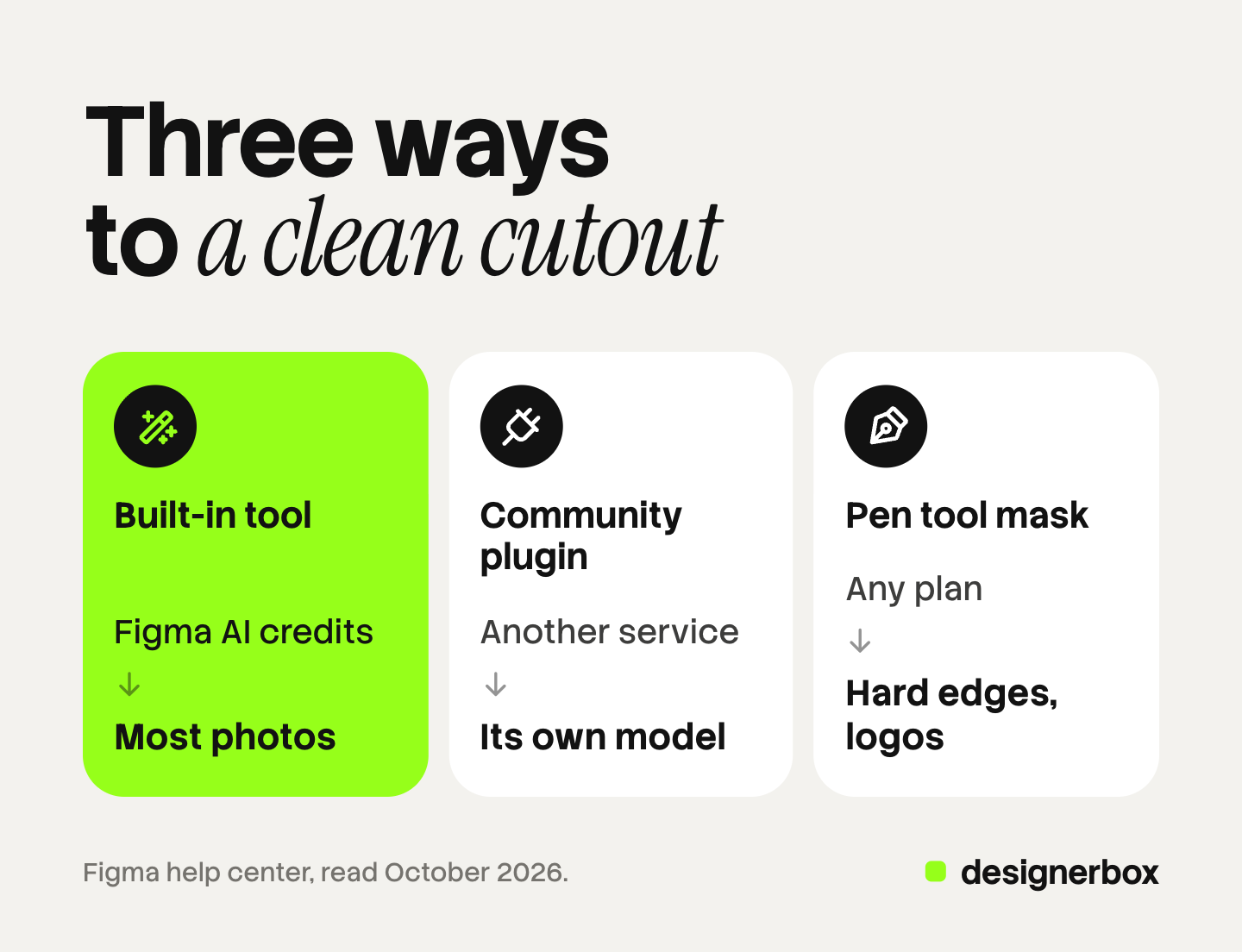
| Route | What you need | Fits |
|---|---|---|
| Figma’s Remove background tool | A plan and seat with Figma AI, and Figma AI credits | Most photos, several at once |
| A Community plugin | The plugin, and often an account for the service behind it | Teams that already use that service |
| Pen tool and Use as mask | Any plan, and a few minutes | Hard edges, logos, pictures the AI gets wrong |
If the picture is already in the file, try Figma’s own tool first. The rest of Figma’s AI tools, sorted by job have their own guide.
Way 1: Figma’s built-in Remove background tool
Figma’s tool handles most pictures well. It runs on the canvas, so you export nothing and import nothing. You can select several images and remove every background in one pass, and you can keep designing in another frame while the image tasks run (help.figma.com, October 2026).
The steps in Figma Design:
- Select the image. Click one image, or select several.
- Click Remove background. The button is in the secondary toolbar, the small bar that appears when an image is selected.
- Wait for the result. Figma replaces the picture with a cutout of the main subject.
- Check the edge. Zoom in before you build the layout around it.
You can also open Actions in the Figma Design toolbar and search for the tool by name (help.figma.com, October 2026). Or ask the Figma agent, in the left navigation bar, to remove the background. Figma’s product page says “complex edges like hair or fur may need refinement” (figma.com/solutions/ai-background-remover, October 2026).
Which plans and seats have it?
Figma’s two help articles answer this differently, so check your own file. The article on image tools says they are “available on paid plans and on the Starter plan in Figma Design”, with edit access to the file. The overview of AI tools says standalone AI tools “are available on paid plans” and “require a Full seat”. Both were updated on 6 October 2026 (help.figma.com, October 2026).
Remove background uses Figma AI credits. Every seat includes a monthly amount, the rate for an image tool is fixed, and Figma lists the rates on its credits page (help.figma.com, October 2026). Three facts from that page matter in daily work:
- Undo does not return credits. The edit goes away, and the credits stay spent.
- The agent’s credit use varies. It left open beta on 6 October 2026 and now uses credits.
- An admin can turn Figma AI off. If the button is missing or gray, your team’s settings or your credit balance is the usual reason. Open the main menu and choose AI balance.
Way 2: A background remover plugin from the Figma Community
A plugin is a third-party app that runs inside your file. Figma’s help center says a Starter plan or a Full seat can run plugins in Figma Design. In a design file you find them under the Tools tab in the left navigation bar, with the filter set to Plugin (help.figma.com, October 2026).
Figma also names the limits of every plugin. You run a plugin by hand. You can run one plugin at a time. A plugin cannot work in the background.
Two well-known plugins show how different they are:
- Remove BG. It removes a background “with just a single click” through the remove.bg API. You need a remove.bg account, and you paste your API key once from the plugin menu (remove.bg, October 2026).
- Remove Background (Privacy-First), by div RIOTS. Its listing says the image “is analyzed locally on your device and never uploaded”. It takes one image or a group of images (figma.com/community, October 2026).
One date matters for the first one. remove.bg says its self-service API “will stop accepting requests from 1 December 2026”. It says its other integrations and plugins “will be discontinued” on that day (remove.bg/faq, October 2026). If your cutouts depend on that key, plan the replacement now. The nine background removers sorted by job list the options.
The DesignerBox plugin, step by step
The DesignerBox plugin has six apps in one panel, and Remove background is one of them. Pick it when the cutout is the first step of a longer job on the same product.
- Add the plugin. Add DesignerBox from the Figma Community once. It works in design files and in FigJam.
- Open it. Open DesignerBox from the Plugins menu in your file.
- Sign in. Use your DesignerBox account. The plugin runs on that account’s credits.
- Pick the app. Open the Apps tab and choose Remove background.
- Select a layer. Click the image layer you want to cut out.
- Press Run. The cutout lands on your canvas with a transparent background.
The result is a standard Figma layer that you can move, mask and restyle (DesignerBox Figma plugin page, October 2026). The DesignerBox plugin page has the Add to Figma button, and the guide to the Figma AI plugin explains each of the six apps.
Way 3: A manual mask with the pen tool
The manual route uses no AI and no credits. Figma’s help center says masks are for “anyone on any team or plan” (help.figma.com, October 2026). It suits a product with hard or smoothly curved edges: a box, a bottle, a phone.
- Select the pen tool. Click it in the toolbar or press P.
- Draw the outline. Click to add a point. Click and drag to make a curve. Place the points a little inside the edge, so no old background shows.
- Close the path. Move the pointer over the first point. A small circle appears next to the cursor. Click.
- Give the path a fill. Any solid color works.
- Put the path below the image. In the layers list, a mask sits under the layers it masks.
- Select both layers and choose Use as mask. In the right sidebar, open More options, then Use as mask. The shortcut is Control, Command and M on a Mac, or Ctrl, Alt and M on Windows.
Nothing in the photo is deleted. Figma calls a mask “a non-destructive action”, so you can open the path later and move one point. To soften a hard edge, add a layer blur to the mask. This route costs time, and no path can follow hair.
Which route fits which picture?
The edge decides. An AI tool is sure about the middle of a product and unsure at its border.
| The picture | Start with | Why |
|---|---|---|
| A person, hair, fur or knit | An AI tool, then a second pass | No path can follow single strands |
| Glass, clear plastic or tinted lenses | An AI tool, then check on a new color | The old background shows through the product |
| A white product on a white backdrop | The pen tool | Low contrast gives an AI tool little signal. Your eye still finds the edge |
| A box or a bottle | Either one | A path follows a straight line exactly |
| A logo or a flat graphic | Figma’s Vectorize tool, or the pen tool | A logo should be a vector. A cutout is still pixels |
Vectorize is one of Figma’s AI tools. It converts raster images into editable vector layers (help.figma.com, October 2026).

You can mix routes. Run the AI tool first, then draw a small mask over the one corner it got wrong. The four kinds of image that break AI background removal explain why hair, glass, low contrast and blur fail in every tool.
How to check a cutout before it ships
A cutout that looks clean on the original background can look dirty on a new one. Check it the same way every time.

- Zoom to 100% or more. Follow the whole edge once. Look for steps, soft patches and missing corners.
- Use a dark frame and a light frame. A light halo shows on a near-black frame. A dark or gray halo shows on a white frame.
- Look inside the product. The gap in a bag handle and the space between chair legs must be transparent too.
- Compare with the source. Check that no part of the product went with the background: a thin strap, a cable, a label edge.
How to export a PNG with a transparent background
Export the cutout as a PNG. Figma’s help center says PNG supports transparency and JPG does not (help.figma.com, October 2026).
- Select the cutout layer, or the frame that holds it.
- Find the Export section. With edit access, it is toward the bottom of the right sidebar.
- Click the plus. Choose PNG and the scale you need.
- Hide the frame fill. If you export a frame with a fill, deselect Show in exports in the Fill section. If you skip this, the fill becomes the background.
- Click Export.
What comes after the cutout
Anyone can make an AI picture. Making hundreds that still look like your brand is the hard part.
A cutout is the first step toward a banner, an ad or a product page. DesignerBox is AI creative production for brands and agencies. Its Figma plugin keeps the next steps in the same panel, with five more apps (DesignerBox Figma plugin page, October 2026):
| App | What you give it | What lands on the canvas |
|---|---|---|
| Expand | A square picture | A wider canvas, made to match what is already there |
| Product ad | Product photos | A set of ad pictures, ready to place in the layout |
| Photo angles | One product photo | The same product from a new viewpoint |
| Generate image | A prompt and a ratio | A new picture on the frame you selected |
| Generate video | A prompt, or a layer you already have | A poster on the canvas, and the MP4 in a browser tab |
For image and video you can pick the model and the ratio before you press Run. For the shots that start from your real product, see how AI product photography works in Figma.
The same cutout across a catalog
If one cutout in a plugin takes a minute, two hundred take more than three hours, because every plugin runs by hand, one layer at a time. Setting the steps once and running them on every product is creative automation. In DesignerBox the cutout can be one step in a saved job:
- A workflow. A workflow holds your steps in order: remove the background, place the product on your brand color, expand to each ratio. It reads your brand record before every run, and the cost is shown before the run.
- A batch. Batch runs one workflow over a sheet of up to 200 rows, one product for each row. Row one and row two hundred get the same steps. How DesignerBox batch works walks through a sheet.
- An AI chat. DesignerBox has 74 tools over MCP, and remove_background is one of them. An AI chat such as Claude, ChatGPT or Cursor can call it on a product photo. The MCP page has the server URL.
The full workflow from the first product photo to the finished ad, in one subscription. The results land in Assets, and you place the ones you need in the Figma file.
Limits to know
- A plugin run is manual. One plugin runs at a time, on the layer you select. Use batch for a catalog.
- Results stay in your file and your workspace. Nothing goes to a store or a channel on its own.
- No route fixes a soft source. If the edge is out of focus in the photo, the cutout edge is soft too.
Installing the plugin is free, and a run uses the credits of your DesignerBox plan. Uploading your own photos and the commercial license start on the Pro plan. AI video, virtual try-on, upscaling, the image editor and the video editor start on the Premium plan. Team features, shared brand kits and white label are on the Ultra plan, and every plan below Ultra is one seat. Plans and credits are on the pricing page.
There is a free plan, and it runs on sample products. Add the plugin, open the Apps tab and see where each result lands on your canvas. Get started free.
FAQ
How do I remove a background in Figma?
Select the image and click Remove background in the secondary toolbar. That is Figma’s built-in AI tool. If your plan or seat does not have it, run a background remover plugin from the Figma Community. Or draw a path with the pen tool and choose Use as mask.
Is Remove background free in Figma?
It uses Figma AI credits, and every seat includes some each month. One Figma help article lists the image tools on paid plans and on the Starter plan in Figma Design. Another says standalone AI tools need a paid plan and a Full seat.
How do I remove a background in Figma without a plugin?
Use Figma’s built-in tool, or draw a closed path with the pen tool, place it below the image, select both and choose Use as mask. Masks work on every plan.
Why is Remove background missing or gray in Figma?
There are three common reasons. An admin turned Figma AI off for the team. You used all of your AI credits. Or your seat does not include the standalone AI tools. Open the main menu and choose AI balance to see your credits.
How do I export a transparent PNG from Figma?
Select the cutout, click the plus in the Export section of the right sidebar, choose PNG and click Export. If you export a frame that has a fill, deselect Show in exports in the Fill section first.
Does the DesignerBox Figma plugin cost anything?
Installing it is free. A run uses the credits of your DesignerBox plan, the same credits as the web app. In a workflow, the cost is shown before the run.
Sources
- Figma Learn, Generate and edit images with Figma AI: the Remove background steps, plans, several images at once (help.figma.com/hc/en-us/articles/24004542669463, updated 6 October 2026, read 7 October 2026)
- Figma Learn, Use AI tools in Figma Design: paid plans, Full seat, Actions, the agent, Vectorize (help.figma.com/hc/en-us/articles/23870272542231, updated 6 October 2026, read 7 October 2026)
- Figma Learn, How Figma AI credits work: fixed rates for image tools, undo, AI balance, admin settings (help.figma.com/hc/en-us/articles/33459875669015, read 7 October 2026)
- Figma Learn, AI credit updates FAQ: the agent became generally available on 6 October 2026 (help.figma.com/hc/en-us/articles/42614902212887, read 7 October 2026)
- Figma Learn, Use plugins in files: who can run plugins, the Tools tab, the plugin limits (help.figma.com/hc/en-us/articles/360042532714, read 7 October 2026)
- Figma Learn, Masks: Use as mask, shortcuts, layer blur (help.figma.com/hc/en-us/articles/360040450253, read 7 October 2026)
- Figma Learn, Vector networks: the pen tool steps (help.figma.com/hc/en-us/articles/360040450213, read 7 October 2026)
- Figma Learn, Export static designs from Figma, and Export formats and settings: the Export section, PNG transparency, Show in exports (help.figma.com/hc/en-us/articles/360040028114 and 13402894554519, read 7 October 2026)
- Figma, AI background remover page: the agent route and the note on hair and fur (figma.com/solutions/ai-background-remover, read 7 October 2026)
- remove.bg, Figma plugin page (remove.bg/a/figma-remove-background-plugin) and FAQ on 1 December 2026 (remove.bg/faq), read 7 October 2026
- Figma Community listings for Remove BG and Remove Background (Privacy-First) by div RIOTS (figma.com/community, read 7 October 2026)
- DesignerBox, Figma plugin page and DesignerBox MCP page, October 2026. Plan gates: DesignerBox pricing, October 2026
Figma menu names, plans, seats and credit rules verified against Figma’s help center on 7 October 2026. Figma changes its AI tools often, so check your own file. Plugin facts verified against each plugin’s own page on the same day. DesignerBox plugin facts verified against the DesignerBox Figma plugin page as of October 2026.