
Figma AI tools are the AI features built into Figma, plus the plugins that add more. Built in, you get the Figma agent, Figma Make, FigJam AI and 12 tools in Figma Design. They draft screens, rewrite text, rename layers and edit images on the canvas. Plugins add what the file does not hold yet: code, new product pictures and video.
You have a campaign file open. Thirty frames need product pictures, the copy needs a German version, and half the layers are still called Rectangle. Some of that work is now one command in Figma. The rest needs a tool that starts outside the file.
This guide maps each Figma AI tool to the job it does, as of September 2026. It covers how to open the tools, which plans and seats get them, and the plugins worth adding. It ends with the question that decides most choices: does this picture need to exist once, or for every product? The DesignerBox Figma plugin is one of those plugins. We make it, so that section is not neutral.
Key Takeaways
- Two ways in. Open Actions in the toolbar, or press Cmd K on a Mac or Ctrl K on Windows. The Figma agent opens with Cmd or Ctrl plus Enter.
- Twelve tools in Figma Design. They find assets, replace content, add interactions, rename layers, change text, and make and edit images. The agent is now the entry point for First Draft.
- Seats decide access. The standalone tools need a paid plan and a Full seat. The agent is on all plans, and it is generally available from 6 October 2026. One shared credit system meters Figma AI.
- Check one setting first. Content training is on by default for Starter and Professional plans, and off for Organization and Enterprise. An admin controls it.
- Plugins fill four gaps. Screens from a prompt, design to code, screenshots to layers, and work from an outside service.
- The DesignerBox plugin makes product pictures and video on the canvas. Its apps put results on the canvas as editable Figma layers. It uses the same account and credits as the web app.
- One file or every product. A plugin run fills one frame. A job that repeats for each new product belongs in a saved workflow.
What are Figma AI tools?
Figma AI tools are features inside Figma that use AI to do design work from a prompt or a selection. They sit in four places. The Figma agent chats with you and edits the file. Figma Make turns a prompt into an interactive app. Figma Design has 12 standalone tools. FigJam AI builds boards and sorts sticky notes. Plugins from the Figma Community add more.
Figma lists its AI products on one page: the agent, Figma Make, Weave tools, shaders, generative plugins and the MCP server. Several of them are in beta (figma.com/ai, September 2026). The agent launched in beta on 20 May 2026 (Figma blog, May 2026). Figma calls it the new entry point for First Draft, the older tool that turned a prompt into an editable design (help.figma.com, September 2026).
Figma’s own survey shows how designers rate these tools. In its State of the Designer 2026 report, 91% of designers said new AI tools improve their designs, and 89% said they work faster. Figma surveyed 906 digital designers with NewtonX and published the results on 12 February 2026 (figma.com/blog, February 2026). This is vendor research about its own category. It measures what designers report. It does not measure the quality of their work.
How do you use AI in Figma?
Select something on the canvas, then open Actions in the toolbar. You can also press Cmd K on a Mac or Ctrl K on Windows. Type what you want, such as “rename layers” or “remove background”, and pick the tool. The Figma agent opens with Cmd or Ctrl plus Enter. The result appears in the file.

Access depends on your plan and your seat (help.figma.com, September 2026):
| Plan or seat | What it gets |
|---|---|
| Paid plan, Full seat | The standalone AI tools in Figma Design, Figma Make and the agent |
| Starter plan | The agent, code layers in Figma Sites and limited access to Figma Make |
| View, Dev and Collab seats | Chat with the agent. Only Full seats with edit access can make edits |
| Higher education and bootcamps | Figma AI. K-12 accounts do not get it |
| Figma for Government | Figma Make only |
Figma meters AI with one credit system, shared across all its AI features and products (help.figma.com, September 2026). The agent uses no credits during its beta. Figma says the agent becomes generally available on 6 October 2026 and uses AI credits from that date (help.figma.com, October 2026). Figma lists its plans and credits on its own pricing page (figma.com/pricing, September 2026).
One setting matters before you add a client file. Figma’s admin setting called Content training decides whether new content and edits are used to train Figma’s AI models. It is on by default for Starter and Professional plans. It is off by default for Organization and Enterprise plans. The setting took effect on 15 August 2024 (help.figma.com, September 2026). Figma also says admins can turn off AI tools for everyone in a team or an organization (help.figma.com, September 2026).
The AI tools built into Figma Design
Figma’s help center lists 12 standalone AI tools in Figma Design, as of September 2026. Most of them change something already in the file: its text, its layers, its links or its images. Only First Draft and Make and edit images make new content from a prompt alone.
| Tool | What it does | The job |
|---|---|---|
| Find assets and designs | Searches team, organization and Community files | Reuse work that exists |
| Replace content | Swaps placeholder text for realistic content | Fill a layout |
| Add interactions | Turns a static design into a prototype | Show a flow |
| Rename layers | Gives layers meaningful names | Clean a file for handoff |
| Rewrite, translate, and shorten text | Changes tone, language or length | Make a market version |
| Make and edit images | Makes or edits an image from a text prompt | Fill or fix a frame |
| Remove background | Isolates the subject of an image | Make a cutout |
| Boost resolution | Makes a low-resolution image sharper | Fix a small source file |
| Expand images | Extends an image past its borders | Fit a new ratio |
| Isolate and erase objects | Makes a selected area a new image layer, or erases it | Clean a photo |
| Vectorize images | Turns a raster image into editable vector layers | Edit a graphic as shapes |
| First Draft | Turns a prompt into an editable design | Start a screen |
Source for the table: Figma’s “Use AI tools in Figma Design” article (help.figma.com, September 2026).
Two more products do bigger jobs. Figma Make is “an AI-driven, prompt-to-app tool” that turns ideas and existing designs into interactive apps (help.figma.com, September 2026). FigJam AI makes templates, timelines and org charts from a prompt, and it sorts and summarizes sticky notes (figma.com/figjam/ai, September 2026). At its Config event on 24 June 2026, Figma also gave the agent custom skills and MCP connectors, and added Figma Motion for animation. All three launched in open beta on all plans. Figma Motion stays in open beta, and the agent becomes generally available on 6 October 2026 (help.figma.com, October 2026).
Weave tools for image sets
Figma announced on 30 October 2025 that it had bought Weavy (Figma blog, October 2025). It now sells the product as Figma Weave, “Figma’s AI tool for visual asset creation at scale” (figma.com, September 2026). On 24 June 2026, Figma brought more than 20 Weave tools into Figma Design. They cover style transfer, product shoots, material extraction and art direction (Figma blog, June 2026). They are in open beta and use no AI credits until 6 October 2026. From that date they are generally available, and each run uses Figma AI credits. They need a Professional plan or above and a Full seat (help.figma.com, October 2026).
For a team that already works in Figma, Weave tools are the first thing to try for styled product images. They run in the file you design in. Figma Weave, the separate product, also saves workflows that run again on new inputs (figma.com, September 2026). It is compared with four other canvas tools in Flora AI and its alternatives.
What do Figma AI plugins add?
Plugins add jobs that depend on something outside the file. A code plugin needs your front-end framework. A background remover can run on an API account you already pay for. A production plugin adds pictures made by another service, with that service’s models, settings and history. You add a plugin once from the Figma Community, then open it from the Plugins menu.
Here are six plugins for AI work, with what each listing says the plugin does:
| Plugin | What its listing says | The job |
|---|---|---|
| UX Pilot | Generates UI screens and wireframes with AI | Draft screens |
| Builder.io | Turns Figma designs into code, makes on-brand designs, converts websites to Figma | Design to code |
| Anima | AI-powered design to code, with HTML, React or Vue export | Design to code |
| Codia AI Design | Turns screenshots into editable Figma designs | Screenshot to layers |
| Remove BG | Removes backgrounds through the remove.bg API, with your own API key | Cutouts on an API account |
| DesignerBox | Makes product images and video on the canvas | Product pictures and video |
Sources: each plugin’s Figma Community listing, and remove.bg’s own page for Remove BG (figma.com/community and remove.bg, September 2026).
You can also build your own. Figma’s generative plugins let you prompt the agent to make a reusable plugin inside your file. Figma’s examples are sorting layers by a rule, applying the same padding across a selection, and finding and replacing text or colors (help.figma.com, September 2026).
Some plugins repeat tools Figma already has. Remove background and Expand images are built into Figma Design. For a picture that is already in the file, try the built-in version first.
Product pictures from the DesignerBox plugin
The DesignerBox Figma plugin makes product images and video on your Figma canvas. You add a product photo or type a prompt, then press Run. The result lands on your frame as an editable Figma layer. You can move it, mask it and restyle it. You do not export a file and import it again.
The Apps tab holds these apps:
| App | What you give it | What you get |
|---|---|---|
| Generate image | A prompt and a ratio | An image on the frame you selected |
| Generate video | A prompt, or a layer you already have | A poster frame on the canvas, and the MP4 in a browser tab |
| Remove background | A selected layer | A cutout with a transparent background |
| Expand | A selected layer | A wider picture, for example a square made into a banner |
| Product ad | One product photo | A set of ad pictures for the layout |
| Photo angles | One product photo | The same product from a new viewpoint |
Two of them, Remove background and Expand, match tools Figma already has. The others are the reason to add the plugin. They make new pictures, including views of your product that nobody has shot yet, and video.
Generate image and Generate video let you pick the model and the ratio before you press Run. The models page lists them. The plugin works in Figma design files and in FigJam, in the browser and in the desktop app. It talks only to DesignerBox, for sign-in, generation and the files it serves, and it carries no third-party analytics or trackers (DesignerBox Figma plugin page, September 2026).
The plugin runs on your DesignerBox account. It shares one credit balance and one Assets library with the web app, the Chrome extension and the MCP server. Installing it costs nothing. Each run uses the credits of your DesignerBox plan.
Uploading your own photos and the commercial license start on the Pro plan. AI video, virtual try-on, upscaling, the image editor and the video editor start on the Premium plan. Plans and credits are on the pricing page. The full walkthrough of each app is in the Figma AI plugin guide, and the product photography route in Figma is in AI product photography in Figma.
Where does the Figma MCP server fit?
The Figma MCP server connects AI coding tools and AI chats to your Figma files. It reads design context and code from Figma, FigJam and Make files. It can also create and change native Figma content on the canvas. It is free during its beta, and Figma says it will become a usage-based paid feature (help.figma.com, September 2026).
Figma opened the canvas to agents on 24 March 2026, with a tool called use_figma that writes to the file (Figma blog, March 2026). Its help page names VS Code, Cursor, Windsurf, Claude Code and Codex as clients, and it points to a catalog for the full list (help.figma.com, September 2026). The remote server works on all seats and plans. The desktop server needs a Dev or Full seat on a paid plan.
MCP runs in both directions. DesignerBox has 68 tools over MCP. So an AI chat such as Claude, ChatGPT or Cursor can run a DesignerBox workflow through the DesignerBox MCP server, and Figma’s own server can write to the canvas. Skills versus MCP explains how the two kinds of connection split the work, and how to make your AI agent creative covers the setup.
How to choose a Figma AI tool for the job
Start with the job, then pick the smallest tool that does it. If what you need is already in the file, use Figma’s built-in tools. If it comes from outside the file, such as code, a new product picture or a video, add a plugin. If the same job repeats for every new product, save it as a workflow instead of running a plugin again.
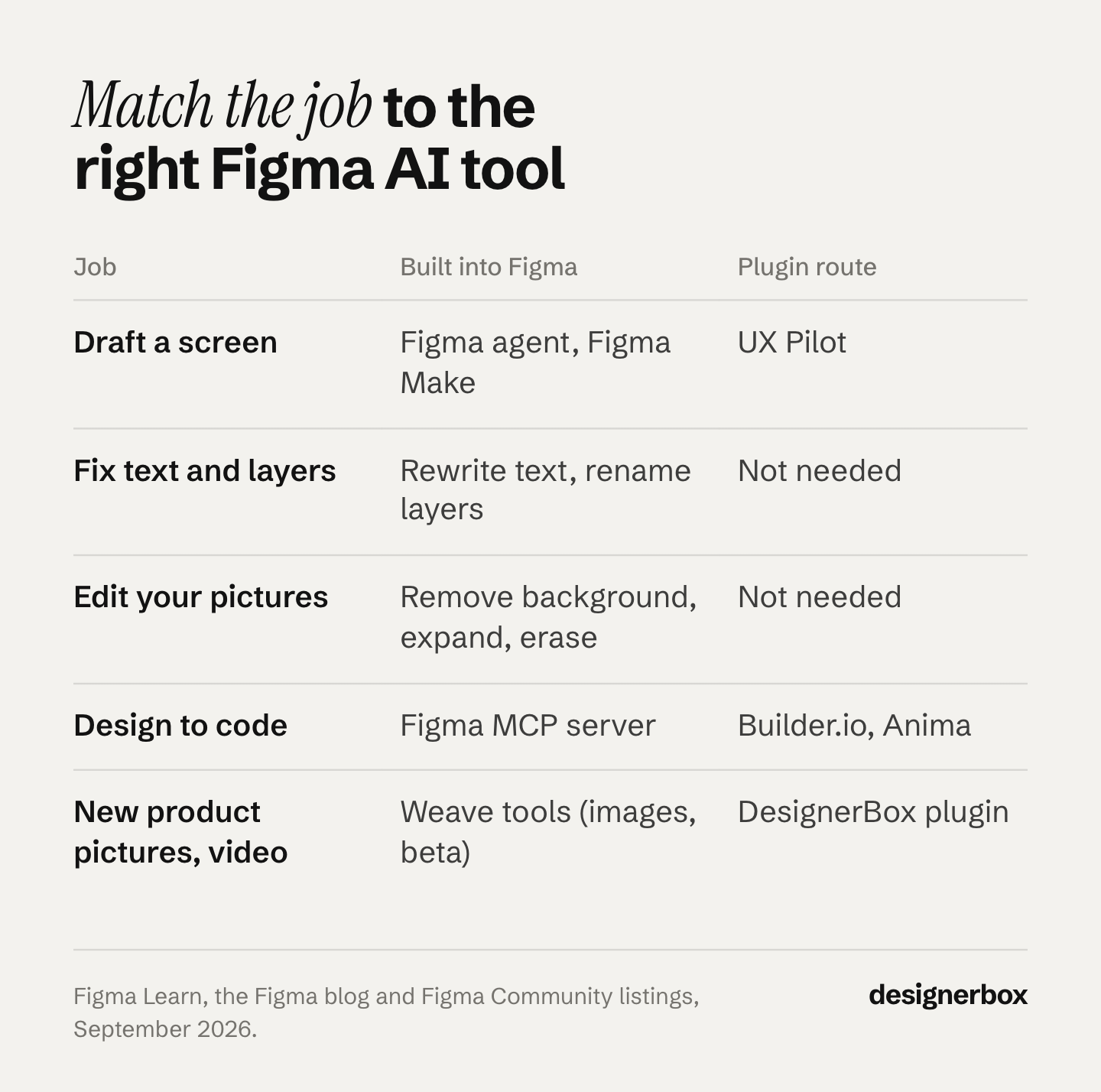
| If you need to | Start with |
|---|---|
| Draft a screen or a flow | The Figma agent or Figma Make |
| Make a market version of the copy | Rewrite, translate, and shorten text |
| Clean a file before handoff | Rename layers |
| Cut out or extend a picture you have | Remove background or Expand images |
| Make styled product images inside Figma | Weave tools, on a Professional plan or above |
| Turn a design into front-end code | The Figma MCP server, Builder.io or Anima |
| Make new product pictures or video from your DesignerBox account | The DesignerBox plugin |
| Run the same shot for every new product | A saved DesignerBox workflow |
One caution. Each plugin adds an account, a bill and a set of terms to read. A team that makes two or three pictures a week may never need one. Figma’s own tools cover most edits to pictures you already have.
Repeat work across a catalog
Anyone can make an AI picture. Making hundreds that still look like your brand is the hard part.

A Figma file is the right place to decide what a shot should be. You see the crop, the space for the copy and the frame next to it. Making the same decisions again by hand for the next 40 products is the expensive part.
In DesignerBox, the brand is a record. You set your logo, fonts, colors, product photos and written rules once on the brand page. The workflow reads them on every run. So the light, the framing and the model stay the same on the first product and the fortieth.
One workflow, four ways to run it:
- Template. Start from a finished result and add your own product photo.
- Workflow. Save your steps with your brand rules inside them. A saved workflow runs the same way on the next product.
- App. Publish the workflow as a form. A colleague adds a photo and presses Run.
- Batch. Batch runs one workflow over a whole sheet of products. You keep or discard per row, and you re-run one row on its own.
Three critic steps score the results of a run, and best-of-N keeps the best one. You still review the results before you use them. Every run shows its cost before you start it.
The full workflow from the first product photo to the finished ad, in one subscription. The same account holds the Figma plugin, the image editor, the video editor, your brand rules and your assets. Start in Figma with the plugin while the layout tells you what the shot needs. Move the job into a workflow once the answer has to hold for every product.
There are two limits. You download the results, or send them with a webhook or an S3 step, and you add them to your store or ad account yourself. And every plan below Ultra is one seat. Team features, shared brand kits and white label are on the Ultra plan. Why AI pictures drift from the brand in the first place is covered in AI brand consistency.
A free plan for your first run
The free plan runs on sample products. Start from a template and see the cost before you run it. Get started free.
FAQ
Is Figma AI free?
Figma meters its AI features with one shared credit system. The standalone AI tools in Figma Design need a paid plan and a Full seat. The Figma agent and the Weave tools use no credits during their beta. Figma says both become generally available on 6 October 2026 and use AI credits from that date. Figma lists its plans and credits on its own pricing page.
How do I turn on AI in Figma?
On a paid plan with a Full seat, the tools are already there. Open Actions in the toolbar, or press Cmd K on a Mac or Ctrl K on Windows. If you do not see them, your team or organization may be opted out of AI features, or your seat may not include them.
Does Figma train its AI on my designs?
Figma has an admin setting called Content training. It decides whether new content and edits are used to train Figma’s AI models. It is on by default for Starter and Professional plans, and off by default for Organization and Enterprise plans. Check it before you put client work in a file.
Can Figma generate images?
Yes. The Make and edit images tool makes or edits an image from a text prompt. Weave tools in Figma Design add styled product images on Professional plans and above. Other built-in tools remove backgrounds, boost resolution, expand images, erase objects and turn images into vectors.
What are the best Figma AI plugins?
Pick by job. UX Pilot drafts screens and wireframes. Builder.io and Anima turn designs into code. Codia turns screenshots into editable layers. Remove BG makes cutouts on a remove.bg API account. The DesignerBox plugin makes product pictures and video on the canvas. For edits to pictures you already have, try Figma’s built-in tools first.
Does the DesignerBox plugin work in FigJam?
Yes. You add the plugin once, and it runs in Figma design files and in FigJam, in the browser and in the desktop app. You sign in with your DesignerBox account, and each run uses the credits of your DesignerBox plan.
Can I use pictures from a Figma AI plugin in paid ads?
Read each tool’s own terms first. For DesignerBox, the commercial license starts on the Pro plan. It covers the images and video you make in the plugin and in the web app. For Figma’s built-in tools, read Figma’s own terms for your plan.
Sources
- Figma Learn, Use AI tools in Figma Design (help.figma.com/hc/en-us/articles/23870272542231, read September 2026)
- Figma Learn, Figma AI FAQ (help.figma.com/hc/en-us/articles/24919293730327, read September 2026)
- Figma Learn, Use the actions menu in Figma Design (help.figma.com/hc/en-us/articles/23570416033943, read September 2026)
- Figma Learn, Work with the Figma agent in design files (help.figma.com/hc/en-us/articles/37998629035799, read September 2026)
- Figma Learn, Manage AI settings and content training for your team or organization (help.figma.com/hc/en-us/articles/17725942479127, read September 2026)
- Figma Learn, Explore Figma Make (help.figma.com/hc/en-us/articles/31304412302231, read September 2026)
- Figma Learn, What’s new from Config 2026 (help.figma.com/hc/en-us/articles/39582753756695, read September 2026)
- Figma Learn, Guide to the Figma MCP server (help.figma.com/hc/en-us/articles/32132100833559, read September 2026)
- Figma Learn, AI credit updates FAQ: the agent and Weave tools become generally available on 6 October 2026 (help.figma.com/hc/en-us/articles/42614902212887, read 2 October 2026)
- Figma, Figma AI overview page (figma.com/ai, read September 2026)
- Figma, FigJam AI page (figma.com/figjam/ai, read September 2026)
- Figma, Figma Weave page (figma.com/solutions/figma-ai-tool-weave, read September 2026)
- Figma blog, The Figma design agent is here, 20 May 2026 (figma.com/blog/the-figma-agent-is-here, read September 2026)
- Figma blog, Introducing Figma Weave, 30 October 2025 (figma.com/blog/welcome-weavy-to-figma, read September 2026)
- Figma blog, Connecting Figma and Weave, 24 June 2026 (figma.com/blog/connecting-figma-and-weave, read September 2026)
- Figma blog, Agents, meet the Figma canvas, 24 March 2026 (figma.com/blog/the-figma-canvas-is-now-open-to-agents, read September 2026)
- Figma blog, State of the Designer 2026, vendor-run survey of 906 designers with NewtonX, 12 February 2026 (figma.com/blog/state-of-the-designer-2026, read September 2026)
- Figma Community listings for UX Pilot, Builder.io, Anima and Codia AI Design (figma.com/community, read September 2026)
- Codia, Codia AI Design page (codia.ai, read September 2026)
- remove.bg, Figma remove background plugin page (remove.bg/a/figma-remove-background-plugin, read September 2026)
- DesignerBox, Figma plugin page (read September 2026)
- DesignerBox, pricing page (read September 2026)
Figma features, plans, seats and plugin listings verified on Figma’s own pages and on each plugin’s listing as of September 2026. The AI tools list, the plan and seat rules, the Weave tools beta and the 6 October 2026 general availability date were re-checked on Figma’s help center on 2 October 2026. Figma changes its AI tools often, so check its help center in the month you plan around it.