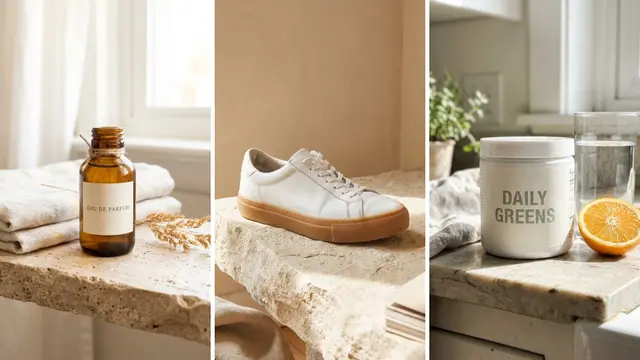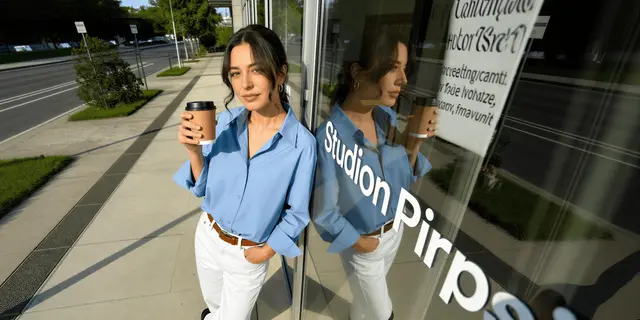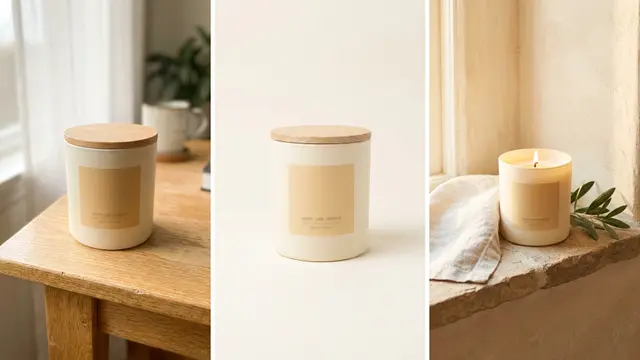
To learn how to use AI to create images for a business, start with the input, then the prompt. A text prompt alone suits concepts, backgrounds and mood. A picture of a real product has to start from a photo of that product. Then write a five-part prompt, change one thing per retry, and check the result before you use it.
“Type a description and press the button” is enough for a birthday card. A shop, an ad account or a client needs more: the picture has to show the real product, and you need the right to use it.
Key Takeaways
- Pick the input before the prompt. Text-to-image invents every pixel. A text prompt cannot know what your product looks like, so a product picture starts from a product photo.
- Write five parts. Subject, setting, light, camera and framing, then format and aspect ratio.
- Change one thing per retry. Google’s own guide says “Don’t expect a perfect image on the first try” (Google AI for Developers, October 2026).
- Run seven checks before use. Hands and faces, text, logos, product shape, color, light and edges, size.
How does an AI image generator work?
An AI image generator is a model trained on a large set of pictures and their descriptions. You give it words, a picture, or both. It returns a new picture that matches the pattern of what you gave it.
The model fills every gap you leave with the most common answer it has seen. A prompt that says “a candle on a table” gets an average candle on an average table.
The model has also never seen your product. It knows candles in general. It does not know your jar, your label or your shade of amber.
You can test both input types in a consumer app first. Google’s Gemini app creates an image from a prompt, and it lets you “upload an image and ask Gemini to make edits” (Gemini Apps Help, October 2026).
How to use AI to create images in four steps
The order matters.
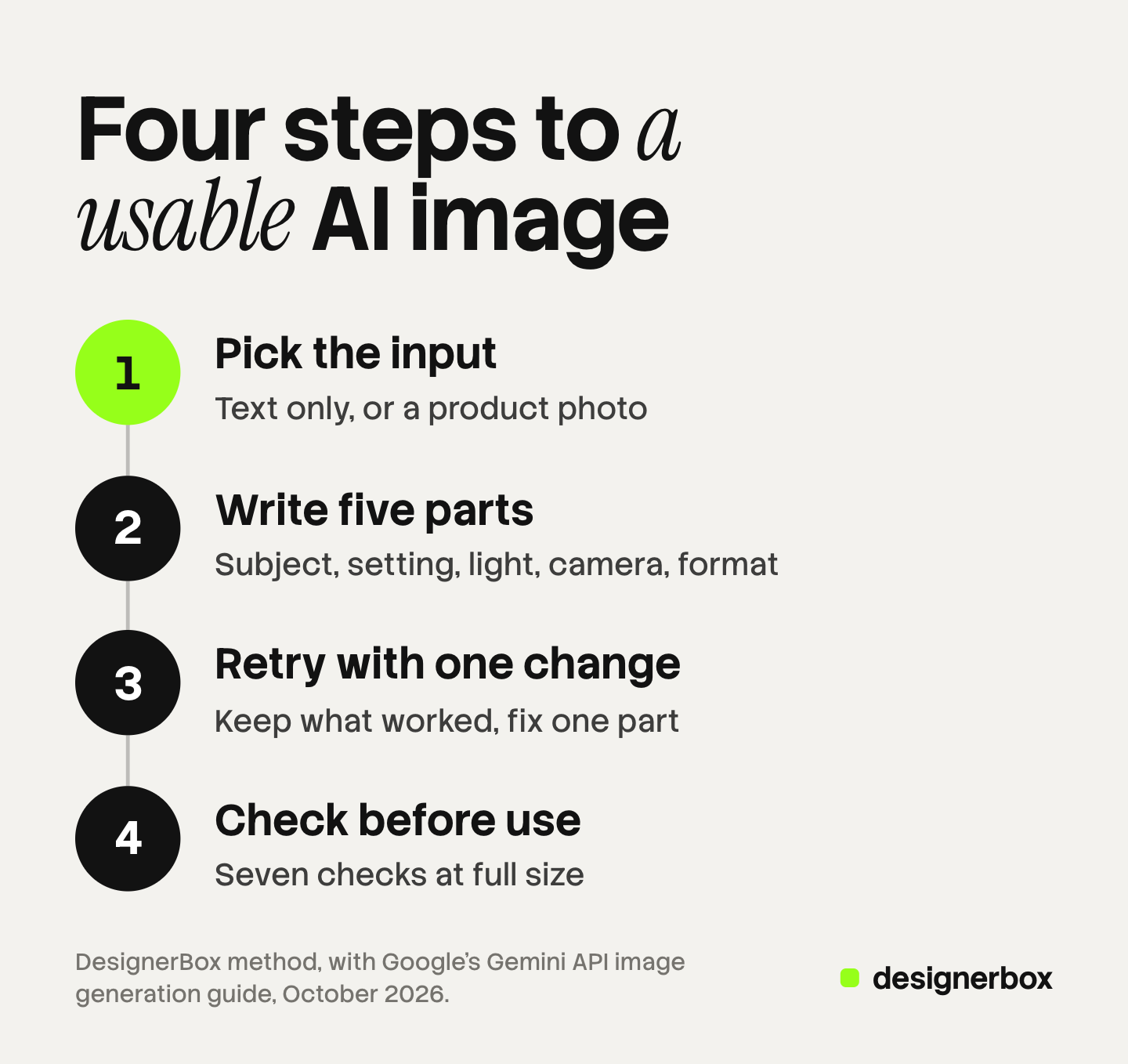
- Pick the input. Decide between text only, or text plus a reference image.
- Write the prompt in five parts. Each part closes a gap the model would fill with an average.
- Retry with one change. Keep what worked and name the one thing to fix.
- Check before use. Compare the result with the real item, then check rights and labels.
Text only or a reference image: the first decision
Text-to-image means the prompt is the only input, so the model invents everything. Image-to-image, also called editing, means you attach a picture and the prompt says what to change around it.
| What you want | Start from | Why |
|---|---|---|
| A concept, a mood image or a moodboard | Text only | Nothing in the frame has to match a real object |
| A background or an empty scene | Text only | You place the real product on it later |
| Your product in a new scene | A photo of the product, plus text | The model keeps the item and builds the scene around it |
| Your product from a new angle | Several photos of the product, plus text | More views give the model the shape it cannot guess |
| The same person or character again | Reference images of that person, plus text | A text description returns a different face each time |
| One small fix on a good image | The image itself, plus a short edit prompt | A full new run would change parts you already approved |
The model makers build for the reference route. Google documents up to 14 reference images for its Nano Banana models. On Nano Banana Pro that includes up to 6 object images kept at high fidelity (ai.google.dev, October 2026). Black Forest Labs lists up to 10 reference images for FLUX.2 (Black Forest Labs, October 2026). Through its API the limit is 8 (docs.bfl.ai, October 2026).
The rule for a business is short. If a buyer will compare the picture with the item they receive, start from a photo of the item. The beginner’s guide to AI for product photography names eight jobs that start from a photo of your product.
The five-part prompt
A prompt is a brief for a photographer who has never met you. Five parts cover what that photographer would ask for.
- Subject. What is in the frame, with material, color and size. With a reference photo, say which parts must stay unchanged.
- Setting. The surface, the room or the backdrop, and any props.
- Light. The source, its direction and how soft it is.
- Camera and framing. The angle, the distance and where the subject sits in the frame.
- Format and aspect ratio. Square, vertical or wide, and any empty space you need for a headline.
Google’s guide gives the same advice in its own words: “Be hyper-specific”, explain the purpose of the image, and use photographic language to control the composition (ai.google.dev, October 2026). Model-specific wording is in our guide to Nano Banana Pro prompts for product images.
Describe what you want to see. Google’s example is “an empty, deserted street” in place of “no cars”. Only some models take a separate field for exclusions, and which models use a negative prompt lists them.
A worked prompt, built part by part
Here is one prompt for a candle brand, built one part at a time. Version A uses text only. Version B attaches a product photo.
| Part | Words added |
|---|---|
| Subject | A soy candle in an amber glass jar with a plain cream label |
| Setting | on a pale oak shelf, beside a folded linen cloth |
| Light | soft morning window light from the left, with a gentle shadow to the right |
| Camera and framing | eye-level product photo, the jar in the center, sharp focus on the label |
| Format | square 1:1, with empty wall above the jar for a headline |
Version A joins the five lines into one prompt. It returns a candle, and it is a good mood image for a pitch. It is the wrong picture for a product page, because the jar is one the model invented.
Version B changes only the subject line:
Use the candle from the attached photo. Keep the jar shape, the label and the glass color unchanged. Place it on a pale oak shelf beside a folded linen cloth.
The other four parts stay the same, and the model builds the scene around your real jar.
One change per retry, and how many tries to expect
The first result is a draft. Read it against the five parts and find the one part that failed. Then change that part only.
A new prompt resets everything, including the parts that worked. A follow-up keeps them. Google’s example of a good follow-up is “Keep everything the same, but change the character’s expression to be more serious” (ai.google.dev, October 2026).
Say what must stay: the product, the angle, the light. Then fix one thing, such as warmer light or a lower camera. If only a corner is wrong, change that part of the image. Our guide to generative fill covers that route.
The vendor guides cited here give no number of tries. Our working rule is three tries per image, with a stop at five. It is a rule of thumb, and it is not a measured rate. If five tries fail, add a reference photo or use a sharper one. For product pictures, the AI image retry rate explains what rejected results do to the cost of each usable image.
What to check before you use an AI image
Open the result at full size and run seven checks.
| Check | What to look for | If it fails |
|---|---|---|
| Hands and faces | Finger count, teeth, eyes, small faces in the background | Retry with a closer frame, or crop the person out |
| Text | Spelling, letter shapes, text you did not ask for | Add the text later in a design tool |
| Logos | Your logo redrawn wrong, or another brand’s mark | Place the real logo file on top |
| Product shape | Proportions, cap, handle, seams, number of buttons | Start again from a reference photo |
| Color | The product color next to the real item or its swatch | Name the color in the prompt, or correct it in an editor |
| Light and edges | Shadow direction, halos, a product that floats | Retry the light part only |
| Size | Aspect ratio and pixel size for the placement | Rerun at the right ratio, then upscale |
Text deserves a second look. Google lists “legible, stylized text” as a capability of its image models. OpenAI states in its own guide that the model “can still struggle with precise text placement and clarity” (OpenAI image generation guide, October 2026).
The signs that make a picture read as machine-made are covered in AI images that do not look AI-generated.
Rights and AI labels: the basics
This section is general information, not legal advice. Two questions come before an image goes into an ad or a listing.
May you use it commercially? The answer sits in the terms of the tool you used, and those terms differ by vendor and by plan. Copyright is a separate question. The US Copyright Office concluded that AI results can be protected “only where a human author has determined sufficient expressive elements”. It said the “mere provision of prompts” does not meet that test (US Copyright Office, January 2025, read October 2026). Our guide to using AI generated images commercially compares the terms.
Does the platform label it? Three rules cover most business use:
- Meta ads. Meta says it applies an AI info label when it detects that an ad was made or edited with third-party generative AI tools. The label sits in the “About this ad” menu (Meta Business Help Center, October 2026).
- TikTok ads. TikTok asks advertisers to label ads that contain fully AI-generated images, or to add a clear disclaimer. An undisclosed ad can be “rejected or restricted” (TikTok advertising policies, last updated April 2026, read October 2026).
- Google Shopping. Google requires AI-generated product images to keep the metadata that marks them as AI-generated (Google Merchant Center Help, October 2026). A resize script can strip that tag, so check the exported file. Google also adds a SynthID watermark to every image its models make (ai.google.dev, October 2026).
One prompt saved for every product
One good image is a start. The job changes when every product in a catalog needs the same image. A brand with 200 products cannot retype five parts 200 times and keep one look on all of them.
Anyone can make an AI picture. Making hundreds that still look like your brand is the hard part.
DesignerBox saves the method as a workflow. You build the steps once, with your brand rules, and the workflow reads those rules before every run. Prompt help sits inside the workflow, so the five parts are written once and reused. Your product photo is the input, so each result starts from your own product.
A template is a workflow somebody already built. You add a product photo and press Run, and you do not write a prompt. Make a copy and it becomes your own workflow. Batch then runs that workflow over a sheet, with one product per row. Row one and row two hundred get the same steps. The cost is shown before the run.
Everything stays in one place. The full workflow from the first product photo to the finished ad, in one subscription. The AI product photography page shows the packshots, angles and scenes that one product photo becomes.
You still check each result against the real item. DesignerBox does not send pictures to a shop for you: you download the results, or send them with a webhook or an S3 step. Every plan below Ultra is one seat.
There is a free plan, and it runs on sample products. Uploading your own photos and the commercial license start on the Pro plan. AI video, virtual try-on, upscaling, the image editor and the video editor start on the Premium plan. Plans and credits are on the pricing page.
FAQ
How do I generate an image with AI?
Open an AI image generator and describe the picture in five parts: subject, setting, light, camera and framing, and format. Attach a reference photo if a real object has to appear. Then retry with one change at a time.
Can AI create a picture of my real product from a text prompt?
No. A text prompt returns a product the model invented, because the model has never seen your item. For a picture of the real product, attach a photo of it and ask the model to keep the shape, the label and the color unchanged.
How many tries does an AI image take?
Plan for more than one. Google’s guide says not to expect a perfect image on the first try (ai.google.dev, October 2026). Our working rule is three tries per image and a stop at five.
Can I use AI-generated images for my business?
It depends on the terms of the tool and the plan you are on, so read them before you publish. In the United States, the Copyright Office says prompts alone do not make a result protectable by copyright (copyright.gov, read October 2026). This is general information, not legal advice.
Do I need to label AI images in ads?
It depends on the platform. TikTok asks for a label or a clear disclaimer on ads with fully AI-generated images. Meta adds an AI info label when it detects a third-party AI tool. Google Shopping requires the AI metadata to stay in the file.
Sources
- Gemini API image generation guide: reference image limits, text rendering, prompt best practices, the first-try advice and the SynthID watermark (ai.google.dev, accessed October 2026)
- Generate and edit images with Gemini Apps (support.google.com, accessed October 2026)
- OpenAI image generation guide, limitations section (developers.openai.com, accessed October 2026)
- FLUX.2 reference images, resolution and aspect ratio (bfl.ai, accessed October 2026)
- FLUX.2 overview, reference images through the API (docs.bfl.ai, accessed October 2026)
- US Copyright Office, NewsNet 1060, Part 2 of the report on copyright and artificial intelligence, 29 January 2025 (copyright.gov, accessed October 2026)
- Meta Business Help Center, AI info labels on ads (facebook.com, accessed October 2026)
- TikTok advertising policies, misleading and false content, last updated April 2026 (ads.tiktok.com, accessed October 2026)
- Google Merchant Center Help, image link attribute and AI image metadata (support.google.com, accessed October 2026)
- DesignerBox templates, workflows and AI product photography pages (designerbox.ai), October 2026
- DesignerBox plans and license gating (DesignerBox pricing, designerbox.ai/pricing), October 2026
Model capabilities and platform rules were read on each vendor’s own page on October 7, 2026. The three-try rule is our working rule, not a measured rate. Policies and model limits change often, so check each page before you plan around it. This article is general information, not legal advice. Individual results vary.