Good Nano Banana Pro prompts are short briefs written in full sentences. Google’s formula has five parts: subject, action, location, composition and style. For a product image, add two things: your product photo as a reference, and one line that says what must stay the same. Then change one detail at a time, and keep the rest of the image.
Most prompt lists for this model are built for one striking picture. A brand has a different job. It needs the same five shots for every product: the white background image, the angles, the scene, the detail and the ad. A prompt that works once is a start. A prompt that works on the fortieth product is the goal.
This guide reads Google’s own prompting pages on 4 October 2026 and turns them into prompts for product images. It covers the formula, three habits Google’s guides replace, the reference image limits, 15 prompts to copy and the limits Google lists. DesignerBox publishes this article and runs this model, so read that section with the bias in mind.
Key Takeaways
- Write sentences, not keyword lists. Google’s guide for the model calls keyword lists “tag soups” and tells you to brief it like a human artist.
- The formula has five parts: subject, action, location or context, composition and style.
- Say what you want, in positive words. Google’s example is “empty street” in place of “no cars”.
- Edit the image you have. If a picture is 80% correct, Google says to ask for the one change and not to start again.
- One prompt mixes up to 14 reference images. Google’s table for Nano Banana Pro lists up to 6 object images, 5 character images and 3 style references.
- Put the words for the image in quotes, and describe the font.
- Check every result. Google says the model can struggle with small faces, accurate spelling and fine details.
What makes a good Nano Banana Pro prompt?
A good Nano Banana Pro prompt reads like a brief to a photographer. It names the product, the surface, the light, the camera angle and the frame shape, in full sentences. It states the purpose of the image. It attaches the product photo and says which details must not change. Google’s pages give this advice in three places, and all three agree.
Nano Banana Pro is Google’s name for Gemini 3 Pro Image. Google’s API guide says it is “designed for professional asset production and complex instructions” (Gemini API image generation guide, October 2026). It thinks before it draws. The same guide says this thinking is on by default and “cannot be disabled in the API”, and that the model makes up to two test images first.
That changes how you write. A model that reasons can use context. Google’s developer guide gives this example: “Create an image of a sandwich for a Brazilian high-end gourmet cookbook” (Google AI, Nano-Banana Pro prompting guide, October 2026). The guide says the model then infers the plating, the depth of field and the light. So tell it who the image is for.
Google’s guide also names Nano Banana 2 as the default pick for most work. If you have not chosen a model yet, read Nano Banana 2 vs Nano Banana Pro for product photos first. The prompt rules below work for both.
Google’s five-part formula for Nano Banana Pro prompts
Google Cloud’s guide gives one formula for an image made from text alone: subject, action, location or context, composition and style (Google Cloud, the ultimate Nano Banana prompting guide, 5 March 2026). The same guide says to start the prompt with a strong verb that names the main task.
| Part | What it states | Product example |
|---|---|---|
| Subject | The product, with material and color | A matte black ceramic mug with a cork base |
| Action | What happens in the frame | Steam rises from the coffee |
| Location or context | The surface and the setting | On a pale oak counter, in morning light |
| Composition | Angle, framing and frame shape | Eye-level, product in the left third, 4:5 |
| Style | The look, the light and the camera | Product photograph, soft light, 85mm look |
Google then adds four controls it calls prompting like a creative director. They are the part most prompts leave out.
- Light. Name the setup. Google’s example is “three-point softbox setup” to light a product evenly.
- Camera and lens. Google’s examples are “low-angle shot with a shallow depth of field (f/1.8)”, “wide-angle lens” and “macro lens”.
- Color and film. State the grade, such as warm and neutral, or a named film look.
- Material. Google’s example is “navy blue tweed” in place of “a suit jacket”. For a product, name the finish: matte, brushed steel, soft velvet.
Google’s API guide also gives a product template you can fill in: “A high-resolution, studio-lit product photograph of a [product description] on a [background surface/description]. The lighting is a [lighting setup] to [lighting purpose]. The camera angle is a [angle type] to showcase [specific feature].”
Three prompt habits Google’s guides replace
Three habits came from older image models. People still use them with Nano Banana Pro, and Google’s own pages say to do something else.
| Old habit | What Google’s guide says | Write this |
|---|---|---|
| A list of keywords: “mug, studio, 4k, realistic” | Use full sentences, as if you brief a human artist | ”A product photograph of a matte black mug on a pale oak counter.” |
| A list of things to leave out: “no props, no text, no people” | Describe the scene you want, in positive words | ”The mug stands alone on a plain, empty counter.” |
| A new image for every small fix | Ask for the one change, and keep the rest | ”Keep everything the same, and make the light warmer.” |
Sentences. Google’s developer guide puts it plainly. Its bad example is “Cool car, neon, city, night, 8k.” Its good example is one full sentence that describes the car, the street and the reflections.
Positive words. The API guide calls this “semantic negative prompts”. Its example: write “an empty, deserted street with no signs of traffic” and do not write “no cars”. The guide does not list a negative prompt field or a seed setting, so the words of the prompt carry the whole instruction. What a negative prompt is and which models use one compares this with models that keep a separate field.
Edits. Google’s first rule for this model is “Edit, Don’t Re-roll”. The guide’s example is a follow-up message: “That’s great, but change the lighting to sunset and make the text neon blue.” For a product, that means one product stays in the frame while you fix the shadow, the crop or the background.
Reference images in a Nano Banana Pro prompt
One prompt can mix up to 14 reference images. For a product image, the reference is your own product photo, and the prompt says how to use it. Google’s formula for this case is: reference images, then the relationship, then the new scene.
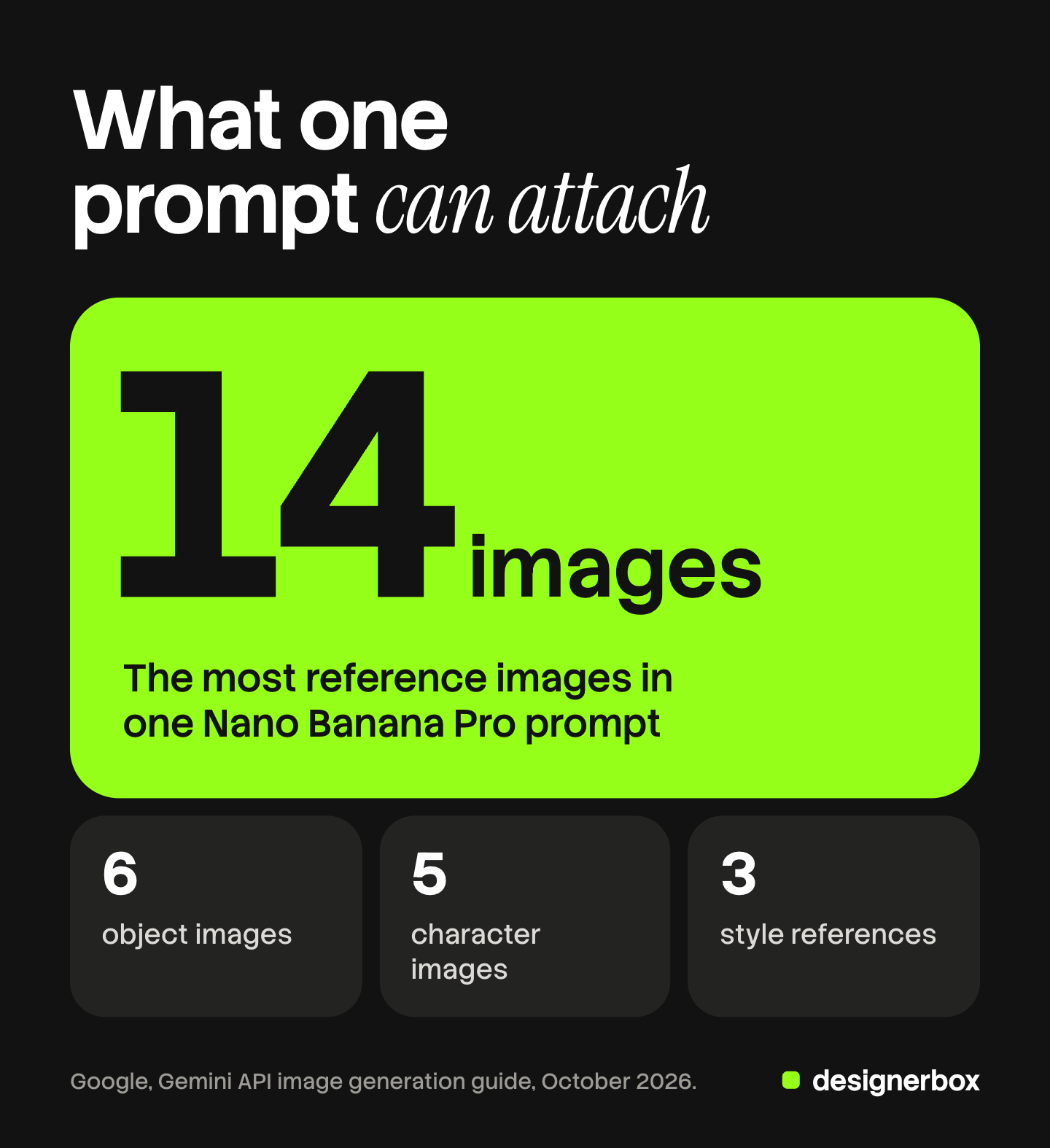
Google’s API guide gives a table of what the 14 images can include for Nano Banana Pro:
| Reference type | Limit for Nano Banana Pro | Use it for |
|---|---|---|
| Object images, with high fidelity | Up to 6 | Your product, from several angles |
| Character images | Up to 5 | A model or a brand character |
| Style references | Up to 3 | The look of an approved image |
One note on the numbers. The limitations list on the same page says the model “supports 5 images with high fidelity, and up to 14 images in total”. The table says 6 object images. Plan for five or six product photos and test with your own product.
Three rules make references work:
- Name each image. Write “the bottle in image 1” and “the scene in image 2”. The model then knows which is which.
- Describe what must stay. Google’s guide says that to keep a critical detail such as a logo, you describe it in detail along with the edit. Its template ends: “Ensure that the features of [element from image 1] remain completely unchanged.”
- Say how the new part fits. State the light direction and the surface, so the product sits in the scene and does not float.
For a product with a person in the frame, the same rules hold with a character image. Our guide to consistent AI fashion images covers that case.
15 Nano Banana Pro prompts for product images
Each prompt below is complete. Replace the product facts with your own, and attach your product photo where the prompt says so. The products named here are examples. Every prompt ends with a keep line where a reference is used.
White background and angles
- Main packshot. Create a product photograph for an online store, 1:1. Use the attached photo of the product: a 50 ml amber glass bottle with a white pump and a label that reads “DAILY SERUM”. The bottle stands on a pure white background with a soft shadow under it. Even light from a three-point softbox setup, eye-level, sharp focus on the label. The bottle fills most of the frame. Keep the bottle shape, the pump and the label text exactly as in the photo.
- Three-quarter angle. Using the attached product photo, show the same bottle turned 45 degrees to the right, on the same white background. Keep the light, the shadow and the frame the same as in the first image. Keep the label text and the bottle color exactly as in the photo.
- Top view. Create a top-down product photograph, 1:1. Use the attached photo: a round tin of lip balm, brushed steel, with the lid beside it. Plain white background, soft even light, no shadow longer than the tin. Keep the engraved logo on the lid exactly as in the photo.
A packshot is the shot where the product must stay exact, so the keep line matters most here.
Product in a scene
- Kitchen counter. Create a lifestyle product photograph for a product page, 4:5. Use the attached photo: a matte black ceramic mug with a cork base. The mug stands on a pale oak counter beside a small plate with one croissant. Morning light from a window on the left, eye-level, shallow depth of field. The top quarter of the frame is plain wall. Keep the mug shape and the cork base exactly as in the photo.
- Bathroom shelf. Place the bottle from image 1 on the stone shelf in image 2. Match the light in image 2, which comes from the left. Add a soft shadow to the right of the bottle. Keep the bottle, the pump and the label exactly as in image 1.
- Outdoor table. Create a product photograph for a summer campaign, 16:9. Use the attached photo: a pale yellow 330 ml can with the word “CITRA” in white capitals. The can stands on a wooden table with two lemon halves. Late afternoon sun from behind, low angle, drops of water on the can. The right half of the frame is plain, blurred garden. Keep the can color and the word “CITRA” exactly as in the photo.
Detail and material
- Macro detail. Create a close product photograph with a macro lens, 4:5. Use the attached photo: a brown leather wallet with cream stitching. The frame shows one corner of the wallet and the stitch line. Soft light from the side, so the grain of the leather is visible. Keep the stitch color and the leather grain as in the photo.
- Material swatch. Using the attached photo of the navy wool scarf, show a flat close view of the fabric that fills the whole frame, 1:1. Soft daylight from the top left. Keep the weave and the color exactly as in the photo.
Edits to an image you have
- Change one thing. Using the provided image, change only the background to a plain warm beige wall. Keep everything else in the image exactly the same, with the same light and the same shadow under the product.
- Remove an object. Remove the price tag from the handle of the bag. Fill the space with the same leather, and keep the stitching as it is.
- Warmer light. Keep everything the same, and make the light a little warmer, as in late afternoon.
- New frame shape. Extend this image to 9:16 for a story. Add more of the same counter below the product and more plain wall above it. Keep the product, its size and its place in the frame.
Text and ads
- Offer ad. Create a square ad for a skincare brand, 1:1. Use the attached photo of the bottle on a warm beige background, on the right half of the frame. On the left, render two lines of text. The top line reads “GLOW” in a thin, clean sans-serif font. The second line reads “New daily serum” in the same font, smaller. Keep the bottle and its label exactly as in the photo.
- Label mockup. Create a product mockup of a 250 g kraft paper coffee bag with a black label. The label reads “MORNING BLEND” in bold white capitals, and below it “Medium roast” in a thin white font. The bag stands on a gray surface, soft light from the front left, 4:5.
- Localized ad. Translate all the English text in this ad into German, and keep everything else the same. Keep the font style, the bottle and the layout as they are.
For ad formats and safe areas, see our AI image prompts for advertising. For garments, see the AI prompts for clothing product photos.
How do you put text in a Nano Banana Pro image?
Put the exact words in quotes, describe the font, and write the words before you ask for the image. Google’s API guide says the model can make “legible, stylized text for infographics, menus, diagrams, and marketing assets”. Google Cloud’s guide gives four rules for it.
- Use quotes. Enclose the words you want, such as “10% OFF”.
- Choose a font. Describe it, such as “bold, white, sans-serif font”, or name it.
- Translate. Write the prompt in one language and name the language for the text in the image.
- Words first. The guide says the model works best if you first agree the words in the conversation, and then ask for the image with those words.
Keep the text short. A headline and one line under it are a fair request. A long ingredients list gives spelling more places to go wrong, so add that text later in an editor. Google’s guide lists the languages that perform best, and English, German, French, Spanish, Italian, Japanese and Korean are among them.
What limits does Google list for Nano Banana Pro?
Google’s model page says “it can still struggle with small faces, accurate spelling, and fine details in images” (Google DeepMind, Nano Banana Pro, October 2026). The same page tells you to check every image you make, including the text in it. For a product image, four of Google’s stated limits matter.
- Small text and fine detail. A label, a logo or a stitch line can change. Read every label at full size.
- Translation. The page says the model “may struggle with grammar, spelling, cultural nuances, or idiomatic phrases”. A native speaker reads the localized ad before it ships.
- Big edits and blends. Large light changes and blends of several images “may sometimes produce unnatural results”. Change one thing at a time.
- Consistency. On keeping a character the same, the page says “it may not always get it right”.
Two more facts for planning. The API guide says the model “won’t always follow the exact number of image outputs” you ask for, so ask for one image per prompt. All images carry a SynthID watermark, and Google Cloud’s guide says they also include C2PA Content Credentials.

Output sizes are 1K, 2K and 4K. Google Cloud’s guide lists ten frame shapes for the model: 1:1, 3:2, 2:3, 3:4, 4:3, 4:5, 5:4, 9:16, 16:9 and 21:9. State the shape in the prompt, or set it in the tool you use.
No prompt removes these limits. A good prompt lowers the number of results you discard. A review step catches the rest. Our guide to AI product photo accuracy lists what to look at.
Prompts as a saved workflow
Anyone can make an AI picture. Making hundreds that still look like your brand is the hard part.
A prompt in a chat window is typed again for each product. One word changes, and the fortieth product looks different from the first. That is the real problem for a brand, and a better prompt does not solve it.
DesignerBox is AI creative production for brands and agencies. You build the job once as a workflow: the steps, the prompt for each step and the model for each step. Nano Banana Pro is among the image models a workflow can use. Your brand rules are read on every run, so the light, the framing and the keep line stay the same on row one and row two hundred.
Prompt help sits inside the workflow. You write a rough brief, and the workflow turns it into an art-directed prompt. Three critic steps score the results of a run, and best-of-N keeps the best one. A person still reads the label. For one fix on one picture, the image editor makes one edit after another, and the picture keeps its detail and resolution. You see the cost before each run.
The full workflow from the first product photo to the finished ad, in one subscription. That covers the product photos, the ads and the video made from them.
Know the limits before you choose this route:
- Results still need a check. The limits Google lists apply inside DesignerBox too.
- DesignerBox does not have a public API. It has 68 tools over MCP, so an AI chat such as Claude, ChatGPT or Cursor can run your workflows.
- Plan gates apply. There is a free plan, and it runs on sample products. Uploading your own photos and the commercial license start on the Pro plan. AI video, virtual try-on, upscaling, the image editor and the video editor start on the Premium plan. Plans and credits are on the pricing page.
Scale content without limits.
Generate content for your products or services with AI, starting today, and keep your brand on every piece.
FAQ
What is the best prompt structure for Nano Banana Pro?
Google’s formula is subject, action, location or context, composition and style, written as full sentences. For a product image, attach the product photo and add a line that says what must stay the same. Start with a verb that names the task, such as “Create” or “Change”.
Does Nano Banana Pro support negative prompts?
Google’s API guide does not list a negative prompt field. It tells you to describe the scene in positive words. Its example is “an empty, deserted street with no signs of traffic” in place of “no cars”. For a product, write “the bottle stands alone on a plain surface”.
How many reference images can one Nano Banana Pro prompt take?
Up to 14 in total. Google’s table for Nano Banana Pro lists up to 6 object images with high fidelity, up to 5 character images and up to 3 style references. Another line on the same page says 5 images with high fidelity, so test with your own product.
How do I keep my product the same in every image?
Attach the product photo, describe the details that matter, and end the prompt with a keep line. Google’s template says: “Ensure that the features of [element from image 1] remain completely unchanged.” Then edit the result with small follow-up requests. Check the label and the color on every image.
Can Nano Banana Pro write text on a product image?
Yes. Put the exact words in quotes and describe the font. Google says the model can make legible text for marketing assets, and it also says the model can struggle with accurate spelling. Keep the text short and read it at full size.
Do the same prompts work in Nano Banana 2?
Yes. Google Cloud’s prompting guide covers Nano Banana 2 and Nano Banana Pro together, with the same formula and the same text rules. The reference limits differ: Google’s table lists up to 10 object images and 4 character images for Nano Banana 2, and no style references.
Is there a free way to try these prompts in DesignerBox?
There is a free plan, and it runs on sample products. Uploading your own photos starts on the Pro plan. The cost of a run is shown before you run it.
Sources
- The model description, the thinking process, the reference image table, the product photograph template, the inpainting and detail templates, the best practices list and the limitations list: Gemini API image generation guide (read 4 October 2026)
- The five-part formula, the reference formula, the four text rules, the creative director controls, aspect ratios and C2PA: Google Cloud, the ultimate Nano Banana prompting guide (5 March 2026, read 4 October 2026)
- “Edit, Don’t Re-roll”, “tag soups”, full sentences and the context example: Google AI on DEV, Nano-Banana Pro prompting guide and strategies (read 4 October 2026)
- The localization prompt and the launch tips: Google blog, 7 tips to get the most out of Nano Banana Pro (20 November 2025)
- Limits on small faces, spelling, fine details, translation, complex edits and consistency: Google DeepMind, Nano Banana Pro (read 4 October 2026)
- DesignerBox plan gates, MCP tools and the cost shown before each run: DesignerBox pricing page and MCP page (designerbox.ai/pricing, designerbox.ai/mcp), October 2026
Google’s prompting advice and model limits verified from Google’s own pages on 4 October 2026. Model behavior changes often, so test each prompt on your own product before you plan a catalog on it.