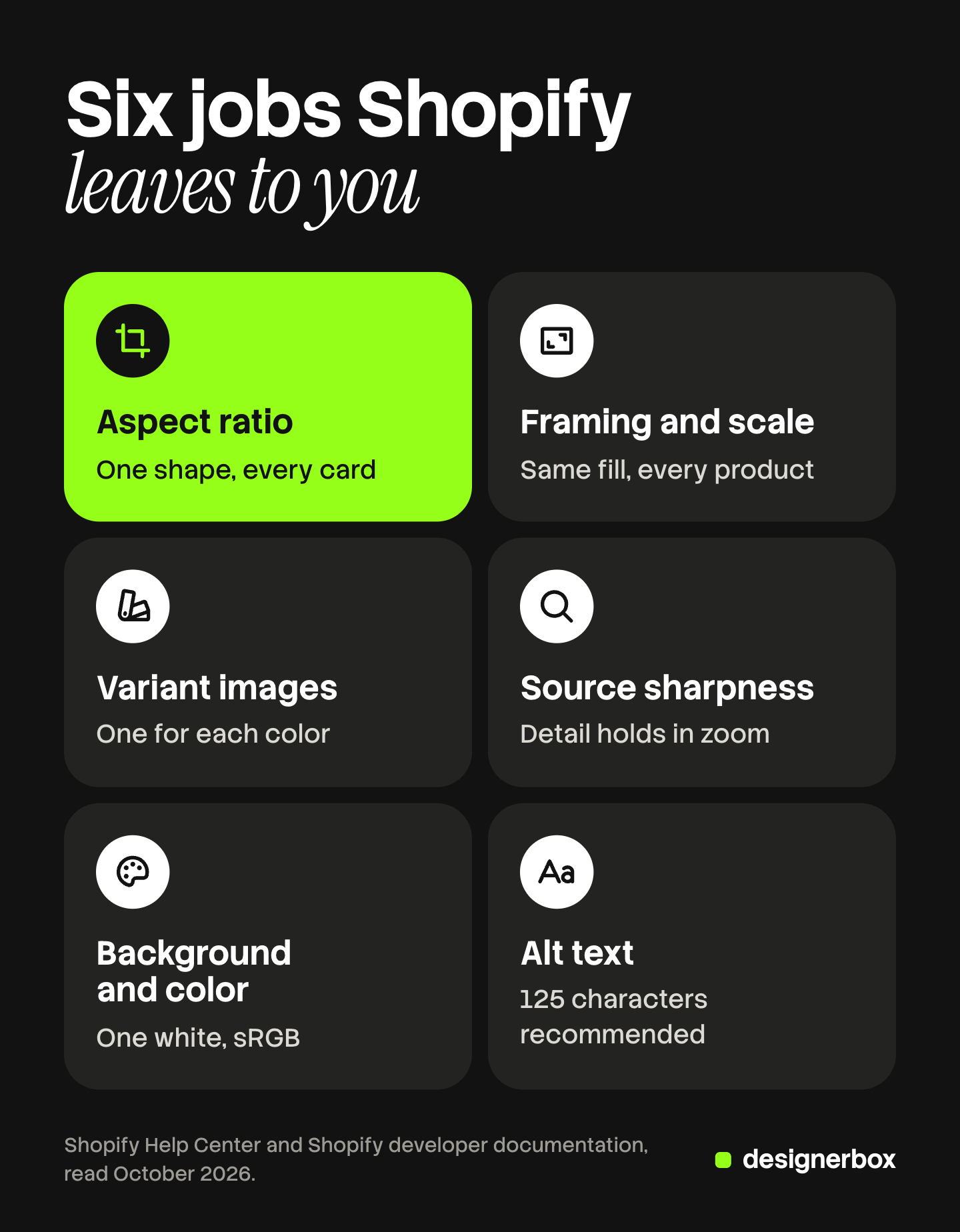
Shopify image optimization is mostly source work, because Shopify already handles delivery. Its CDN compresses images, chooses WebP or AVIF for browsers that support them, and resizes the file for each screen. Six things stay with you: one aspect ratio, even framing, variant images, sharp source files, a steady background and color, and alt text. A 20-minute audit of four pages finds all six.
This guide splits the work in two. First, what Shopify does to every image, from its own documentation, read in October 2026. Then the six jobs it leaves to you, and a short audit you can run on a phone.
Key Takeaways
Shopify compresses and converts for you. Its CDN picks the format and the size for each shopper’s browser and screen.
Compression before upload changes little. Shopify says to upload the best quality image you have, up to 5000 x 5000 px and 20 MB.
Six jobs stay with the merchant. They are aspect ratio, framing, variant images, source sharpness, background and color, and alt text.
The audit takes 20 minutes. You check one collection page and three product pages on a phone.
What is Shopify image optimization?
Shopify image optimization is the work of making product images load fast and read clearly on every page of a store. It has two halves. Delivery covers file format, file weight and the size sent to each screen. Source quality covers what is inside the picture. On Shopify, the platform owns nearly all of the first half.
Speed still matters. Google’s web.dev guide sets a target for Largest Contentful Paint (LCP). LCP is the moment the largest image or text block appears. The target is 2.5 seconds or less for at least 75% of page visits (web.dev, October 2026). On a product page, that largest element is usually the first product image. Where speed sits in a full store audit is covered in the guide to Shopify store optimization.
What Shopify already does to every image
Shopify does four things to an image between your upload and the shopper’s screen.
| Job | What Shopify does | Where Shopify says so |
|---|---|---|
| Storage | Keeps the uploaded file uncompressed | Help Center, theme images |
| Compression | Can compress the image when the theme serves it | Help Center, theme images |
| Format | Sends WebP or AVIF to browsers that support them | Help Center and developer docs |
| Size | Renders the width the theme requests, up to 5760 px | Developer docs, image_url filter |
Storage and compression. Shopify states that “images aren’t compressed when you upload them to the Shopify admin, which helps maintain their original quality” (help.shopify.com, October 2026). Your upload is the master copy. Compression can happen later, when the theme serves the image.
Format. The same page says that when a browser supports WebP and AVIF, “your images are delivered in those formats”. The developer documentation adds that Shopify “selects a file format for optimal quality and file size” (shopify.dev, October 2026).
Size. A theme asks the CDN for an image at a set width. In Shopify’s free Dawn theme, the product card lists six widths, from 165 px to 1,066 px, plus the original file (github.com/Shopify/dawn, October 2026). The browser picks one for the screen.
The full upload and delivery spec is in our guide to Shopify product image size. Two numbers matter here. Shopify accepts images up to 5000 x 5000 px and under 20 MB, and it says a 2048 x 2048 px square usually displays best (help.shopify.com, October 2026).
Does Shopify image compression need your help?
In most cases, no. Shopify’s help page says it directly: “Images don’t need to be manually compressed prior to uploading. Always upload the best quality images that you can provide.”
The reason is the order of the steps. Shopify can compress the image when it serves the file. A JPEG that you compressed hard may then be compressed a second time, and the second pass cannot restore what the first removed. Resize very large camera files to your working size, and export at high quality. Our guide to resizing images without quality loss covers each step.
The Shopify App Store has a category of image optimizer apps. They compress files in bulk, convert formats, and complete alt text or file names from a pattern. They do not change the shape, the framing or the sharpness of a photo. Shopify lists installed apps among the main factors in store speed, so review what each app loads (help.shopify.com, October 2026).
The remaining speed rules belong to the theme. Web.dev gives two. Never lazy-load the image that is the LCP element. Always give images a width and a height, so the page does not shift while they load (web.dev, October 2026). Shopify says its image filters add those attributes automatically (shopify.dev, October 2026). Ask your developer to check any custom section.
Six things Shopify cannot fix
The delivery half is automatic. The source half is yours. Here are the six jobs, what a shopper sees, and where you fix each one.
| Job | What the shopper sees | Where you fix it |
|---|---|---|
| Aspect ratio | Cards of different heights, or cropped products | The source files, then the theme setting |
| Framing and scale | One product looks larger than the next | The source files |
| Variant images | The color changes and the photo does not | The product admin |
| Source sharpness | A soft or blocky zoom | A larger, cleaner source file |
| Background and color | A grid that looks collected from many shoots | The source files |
| Alt text | Nothing, unless the image fails or a screen reader is on | The product admin |
Four of the six are fixed in the image file. Two are fixed in the Shopify admin.
Shopify image aspect ratio and framing
Aspect ratio is the shape of the image: its width divided by its height. When product images with different shapes sit side by side on a collection page, they display at different sizes. To make them display at the same size, Shopify says “you need to use a consistent aspect ratio” for every featured image.
Your theme decides what happens when the ratios differ. Dawn’s product grid has an Image ratio setting with three options: Adapt to image, Portrait and Square (github.com/Shopify/dawn, October 2026).
| Dawn setting | What it does | The cost with mixed ratios |
|---|---|---|
| Adapt to image | Each card takes the shape of its own image | Cards of different heights in one row |
| Portrait | Every card is cropped to 4:5 | A square product loses its sides |
| Square | Every card is cropped to 1:1 | A tall product loses its top or bottom |
No option repairs a mixed catalog. A focal point helps one image at a time: Shopify says it always stays in frame when a theme crops the image.
So fix the ratio in the files. Pick one shape for every featured image. Square is the common choice. The five rules for the grid are in the guide to the Shopify collection page. Our guide to Shopify product images lists where the featured image appears.
Framing is the second half of the same problem. Two images can share a ratio and still look uneven. One product fills most of the frame, and the next fills half of it, so it reads as smaller. Set one rule for how much of the frame the product fills, and apply it to every product of the same type. The guide to consistent product images lists the settings to hold steady.
Variant images and assignment
A shopper selects “Green” and expects to see green. You make that happen when you assign an image to the variant in the product admin.
Shopify states that “you can only add one image to each product variant”. When a shopper selects the variant, the assigned image appears as the preview, and the shopper can scroll the gallery for the rest (help.shopify.com, October 2026).
Two faults are common. A color has no image assigned, so the gallery stays on the first photo. Or the variant image has a different light or crop from the others.
Only options that change how the product looks need their own image. Color and pattern do. Size usually does not. The guide to AI product images for Shopify works through the numbers for products with many options.
Why do Shopify images look blurry?
There are two different causes, and only one is a fault.
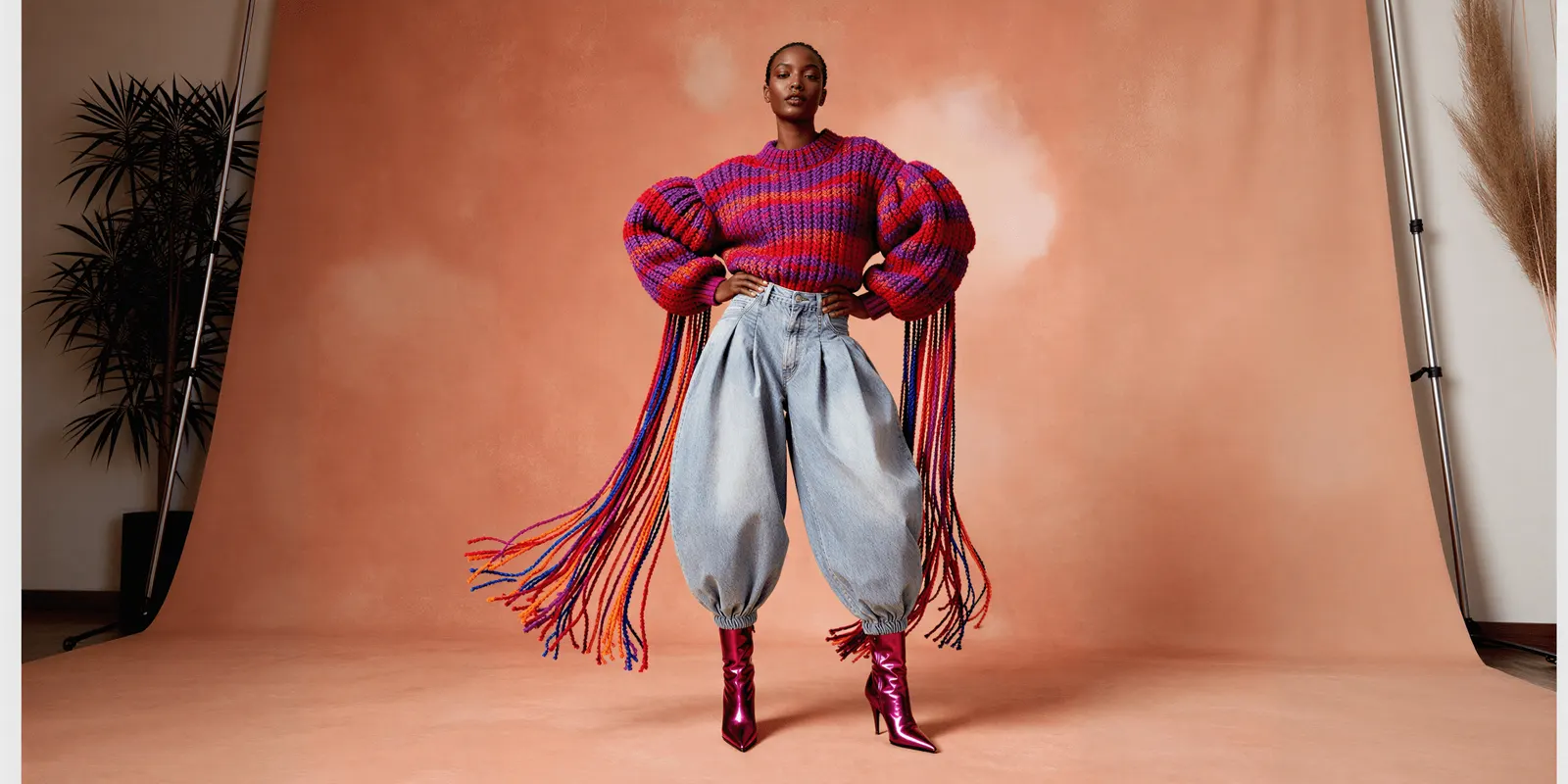
The first is normal. Shopify explains that images may “appear slightly blurry at first and then become sharp after a moment”, and calls this expected behavior. Themes load a smaller version first, and Shopify says the process usually takes less than a second.
The second cause is the source file. An image that stays soft, or shows blocks around edges when you zoom, was undersized or over-compressed before upload. Shopify can serve an image up to 5760 px wide. It cannot serve detail that the file does not contain.
Check the pixel size against the 2048 px square that Shopify recommends. Then check the export quality. A JPEG saved at low quality shows blocks in flat areas and halos around edges. Material shows it first: knit, leather grain, brushed metal and printed text all need real detail.
Go back to the original camera file when you can. An upscaler adds pixels, and it cannot add detail the camera never recorded. The guide to low-resolution product images explains when upscaling helps.
Background, color and alt text
Background. A white background from one shoot is rarely the same white as the next. Each image looks fine alone. On a collection page, the differences sit next to each other. Set one background value, one shadow direction and one light temperature, and write them down.
Color. When images display on your store, “their color profiles are removed”, and the browser then assumes sRGB. Export every image in sRGB, and check the product color on the live page. Google reads the same files, and its own image rules are in the guide to Shopify Google Merchant Center.
Alt text. Shopify does not write alt text on its own. Its media editor may suggest it for an image with none, and you choose to accept it. The limit is 512 characters, and Shopify recommends 125 or fewer (help.shopify.com, October 2026). Describe what the image shows. Alt text is one of the nine fields in the guide to Shopify product page optimization.
A 20-minute Shopify image audit
Use a phone, and open the live store.
| Step | Time | Page |
|---|---|---|
| 1. Scroll your largest collection | 5 minutes | Collection page |
| 2. Check three top products | 12 minutes, 4 for each | Product pages |
| 3. Write the fix list | 3 minutes | Notes |
Step 1: the collection page. Scroll at normal speed, then scroll again slowly. Answer four questions:
- Are all the cards the same height?
- Is any product cropped at the top, the bottom or the sides?
- Do products of the same type fill the same amount of the frame?
- Does any background look warmer, cooler or darker than the others?
Step 2: three product pages. Choose your three best sellers. On each one, do these four things:
- Select every color. Confirm the photo changes to the right one.
- Zoom into the material. Wait one second, then look for softness or blocks.
- Swipe through the gallery. Look for an image with a different shape from the others.
- Open the product admin and read the alt text of each image.
Step 3: the fix list. Sort each finding under one of the six jobs, then count. Fix the job with the most findings across the whole catalog before you touch single images.

One image standard for the whole catalog
For a brand with 20 to 500 products, the work is fixing each job the same way on every product. Anyone can make an AI picture. Making hundreds that still look like your brand is the hard part.
DesignerBox makes images, ads and video for your brand from your product photos. For this job, you build one workflow. You set the aspect ratio, the background, the light and the framing once. Your colors and rules sit in a brand profile, and the workflow reads them on every run.
Batch then runs that workflow over a sheet of products, up to 200 rows a sheet. Row one and row two hundred get the same standard. You review the results and keep or discard each row. The cost is shown before the run.
Two limits apply. A result can only be as detailed as the photo you give it, so a soft source still needs a new photo. DesignerBox also does not publish to a store. You download the results, or send them with a webhook or an S3 step, and then upload them to your store.
The same product photos also feed your ads: the full workflow from the first product photo to the finished ad, in one subscription.
Uploading your own photos and the commercial license start on the Pro plan. AI video, virtual try-on, upscaling, the image editor and the video editor start on the Premium plan. Plans and credits are on the pricing page.
There is a free plan, and it runs on sample products. Get started free.
FAQ
Does Shopify compress images automatically?
Yes. Shopify keeps your uploaded file uncompressed, and can compress the image when the theme serves it. Shopify’s help page says you do not need to compress images manually before upload.
How do I optimize images for Shopify?
Upload a sharp, high-quality file in one aspect ratio, close to 2048 x 2048 px for a square. Keep the framing, the background and the color the same across products. Then assign an image to each color variant and write alt text. Shopify handles compression, format and screen size.
Why are my Shopify images blurry?
An image that is blurry for a moment and then sharp is normal. Shopify themes load a small version first. An image that stays soft comes from the source file. Replace it with a larger, cleaner file.
What is the best aspect ratio for Shopify product images?
Shopify does not require one ratio. It says images need a consistent ratio to display at the same size on a collection page. Square is the common choice. Pick one ratio and use it for every featured image.
Do I need an image optimizer app on Shopify?
Not for compression of product images, because Shopify does that step. An app can help with bulk alt text, file names, or images outside the product media. It cannot fix aspect ratio, framing or sharpness.
Sources
- Shopify Help Center, Theme images: automatic compression and format selection, color profiles, focal points and image loading behavior, read October 2026.
- Shopify Help Center, Product media types: upload limits, the 2048 x 2048 px square and consistent aspect ratio, read October 2026.
- Shopify Help Center, Editing media: aspect ratio and the Square crop, read October 2026.
- Shopify Help Center, Adding images to product variants: one image for each variant, read October 2026.
- Shopify Help Center, Adding alt text to media: the 512-character limit and suggested alt text, read October 2026.
- Shopify Help Center, Improving your online store speed: apps and themes as speed factors, read October 2026.
- Shopify developer documentation, image_url filter and Performance best practices for Shopify themes: format selection, the 5760 px limit and image loading, read October 2026.
- Shopify, Dawn theme source code: the Image ratio setting and the product card image widths, read October 2026.
- web.dev, Optimize Largest Contentful Paint and Optimize Cumulative Layout Shift, read October 2026.
- DesignerBox pricing, October 2026.
Shopify and web.dev guidance verified from their own documentation as of October 2026. Theme settings differ by theme and version. Individual results vary.