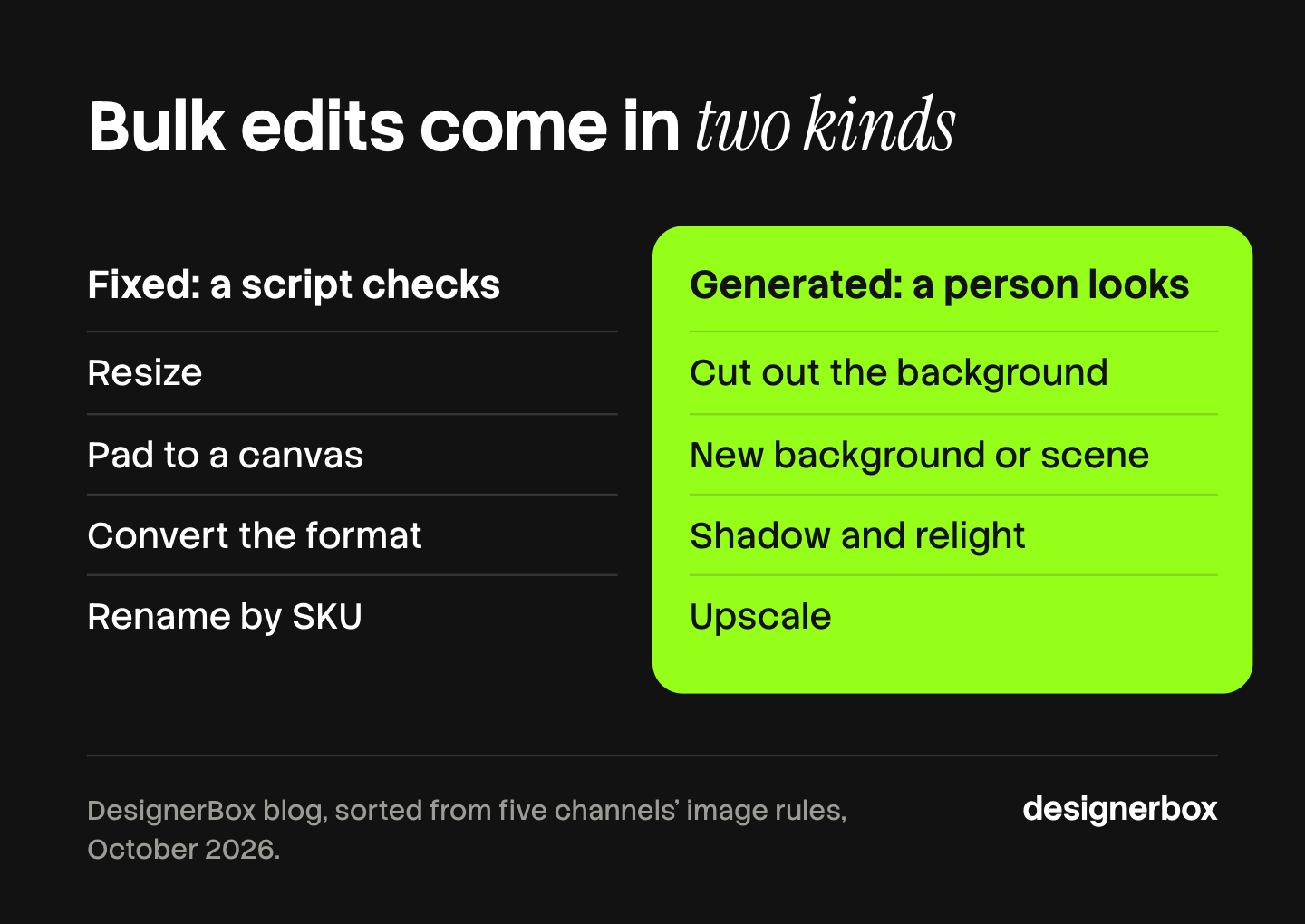
Bulk image editing applies the same edit to many images in one run. It works in two ways. A fixed edit, such as a resize or a format change, does the same math on every file, so a script can check the result. A generated edit, such as a new background, redraws pixels, so a person has to see each result before it ships.
Suppose 200 new products need images for five sales channels. That is 1,000 files. Each channel asks for its own size, its own background and its own file limit. Opening 1,000 files one at a time is not a plan.
This guide sorts the 12 common bulk edits into the two kinds. It lists the image rules of five channels, the order to run the edits in, and how to check a batch before upload. It ends with how a batch in DesignerBox runs one saved workflow over a whole sheet of products.
Key Takeaways
- Two kinds of bulk edit. Seven edits are fixed: the same math on every file. Five are generated: a model redraws part of the picture.
- A script checks fixed edits. Pixel size, file size, format and color profile are numbers. A short script reads them for 1,000 files in seconds.
- A person checks generated edits. A cutout, a new background or an upscale can change the product. Only a look finds that.
- One frame passes two channels. Amazon asks for the product at 85% of the image. Google asks for 75% to 90%. A product framed at 85% passes both.
- Stripping metadata can break a rule. Google requires AI-made images to keep their AI metadata tag. A bulk compressor that removes all metadata removes that tag.
- Keep the originals. Write every batch to a new folder. Some tools overwrite the source file unless you tell them not to.
What is bulk image editing?
Bulk image editing means you set an edit once and apply it to a whole folder, a spreadsheet or a catalog of images in one run. You do not open each file. The same job is also called batch editing, and the tools use both words.
A wedding photographer and a store owner both edit in bulk. This guide is for the store: product photos that must meet a channel’s written rules. For the methods themselves, from copied Lightroom settings to a Photoshop action, read our guide on how to batch edit photos.
Bulk editing is not the same job as generating new product images from a list. That job is covered in our guide to the bulk image generator. Here the photo already exists, and the batch changes it.
Fixed edits and generated edits
Ask one question about each edit: does the tool do the same math on every file, or does a model decide what the new pixels look like?
| Edit | Kind | What can go wrong | How to check |
|---|---|---|---|
| Resize | Fixed | A small image is enlarged and turns soft | Script: read pixel size of source and result |
| Pad to a square canvas | Fixed | The pad color is off-white | Script: read the corner pixels |
| Crop to a ratio | Fixed | The crop cuts part of the product | Look at each tall or wide product |
| Convert the format | Fixed | A transparent PNG turns black | Script: read the format, flatten on white first |
| Convert the color profile | Fixed | Colors shift on screen | Script: read the profile |
| Compress | Fixed | Detail is lost, metadata is removed | Script: read file size and the metadata tags |
| Rename | Fixed | A file maps to the wrong product | Script: match each name to a SKU |
| Cut out the background | Generated | A halo, a missing strap, a lost glass edge | Look at every image |
| New background or scene | Generated | The product changes shape, color or print | Look at every image, beside the source |
| Shadow and relight | Generated | The light direction differs between products | Look at the set side by side |
| Retouch or remove an object | Generated | A logo, a label or a seam is redrawn | Look at every image at full size |
| Upscale | Generated | Texture and small text are invented | Look at text and fabric at full size |

Fixed edits fail in a way a number shows. A file is 480 pixels wide or it is not. Generated edits fail in a way only an eye sees: a warped print, a garbled logo, a collar with no ribbing.
That split decides where your time goes. Say a look takes 30 seconds. A batch of 1,000 generated results then needs more than eight hours of review. That number is an example, not a measurement, but the shape holds. The edit takes seconds. The check takes a day.
So keep generated edits to the images that need them. A white-background main image needs a cutout. The other four sizes of the same picture need only fixed edits, made from the cutout you already approved.
The size rules a batch has to hit
A batch has a target. For product photos, the target is each channel’s written image rule. These five were read on each platform’s own help page in October 2026.
| Channel | Size | Framing and background | File |
|---|---|---|---|
| Amazon | 500 to 10,000 px on the longest side. Zoom needs 1,000 px or more | Main image: pure white, RGB 255, 255, 255. Product at 85% of the image | JPEG recommended. RGB color mode preferred |
| Google Merchant Center | 100 x 100 px, or 250 x 250 px for apparel. 500 x 500 px from January 31, 2027 | Product at 75% to 90% of the image. No border, watermark or promotional overlay | Under 64 megapixels and 16 MB |
| Shopify | Up to 5,000 x 5,000 px, or 25 megapixels. 2,048 x 2,048 px displays best for a square | One aspect ratio for all main images | Under 20 MB. PNG first, then JPEG |
| Etsy | 2,000 px or more on each side recommended. First photo at least 635 px | First photo horizontal or square | JPG, GIF or PNG. Files over 1 MB may not finish uploading |
| eBay | 500 x 500 px minimum. About 1,600 x 1,600 px recommended | White is generally best. No badges, logos or watermarks | Up to 12 MB |
Sources: the Amazon product image guide, Google Merchant Center’s image requirements and size notice, Shopify’s product media page, Etsy’s listing photo requirements and eBay’s picture help, all read in October 2026.
Three things follow from the table.
One master file covers the five sizes. A square of 2,048 x 2,048 px is the size Shopify says displays best. It is above Amazon’s zoom line, Etsy’s 2,000 px, eBay’s 1,600 px and Google’s 2027 minimum. Make the master once, then resize down for each channel. Never resize up: Amazon says not to artificially enlarge small images, and Google’s size notice says to avoid submitting thumbnails or scaling images.
One frame passes Amazon and Google. Set the product to 85% of the canvas. That is Amazon’s number, and it sits inside Google’s 75% to 90%.
Etsy needs a flat file. Etsy does not support transparent PNG files, and the transparent parts appear black. Flatten each cutout onto white before the export. Etsy also converts images to the sRGB color profile, so convert first and check the color yourself.
For the full list of edits each channel asks for, read our guide to ecommerce image editing. For the upload itself, the four Shopify bulk upload routes list the file limit on each route.
How do you bulk edit images, step by step?
The order matters. Generated edits go first, on the largest file. Fixed edits go last, because they only reduce.
- Copy the originals. Work on the copy, and write every result to a new folder.
- Sort the folder by job. Main images, angle shots and lifestyle shots need different edits. Do not put them in one batch.
- Test on five images. Pick the hard ones: glass, fur, a thin strap, a white product. Change the settings until all five pass.
- Run the generated edits. Cut out the background, clean the product, add the shadow. Review every result here, before the next step multiplies it.
- Frame the product. Pad to a square canvas with the product at 85%.
- Export the master. Save one 2,048 px square per image, flattened on white, in sRGB.
- Make the channel sizes. Resize down and compress for each channel. This step is all fixed edits.
- Rename by SKU. Amazon’s bulk upload reads the product identifier, a variant code and the extension, separated by periods, such as B000123456.MAIN.jpg.
- Check the batch, then upload.

Step 1 is not caution for its own sake. The ImageMagick documentation says its mogrify command overwrites the original image file, unless you change the file suffix with the format option (imagemagick.org, October 2026). One wrong resize on the only copy of 1,000 photos cannot be undone.
Which tool fits which batch?
Four kinds of tool do bulk edits. Pick by the kind of edit and by who runs it.
| Tool kind | Good at | You bring | Example |
|---|---|---|---|
| Desktop editor | Fixed edits on local files, with a recorded action for the rest | The software and a recorded action | Photoshop Image Processor |
| Command line | Fixed edits on any number of files, inside a script | Someone who writes the command | ImageMagick |
| AI batch editor | Generated edits on a folder of uploads | A review step | Photoroom batch |
| Workflow over a sheet | The same saved steps on every product, reviewed per row | One workflow built first | A DesignerBox batch |
Desktop editor. Photoshop’s Image Processor converts and resizes a folder without a recorded action. It can resize to fit a width and height, convert the profile to sRGB, set JPEG quality from 0 to 12, and run an action on each image. Each processed file is saved with a unique name and is not overwritten (helpx.adobe.com, October 2026).
Command line. ImageMagick resizes, crops and converts a whole folder with one line. It is free, it runs on a server, and it suits a developer more than a merchandiser.
AI batch editor. Photoroom’s batch editor applies backgrounds, lighting fixes, retouching and framing across images. Its AI tools, such as Ghost Mannequin, Recolor and Product Staging, run on one image or up to 250 images at once (photoroom.com/batch, October 2026). Photoroom also has an API for teams that want the edits inside their own system (photoroom.com/blog, October 2026). For cutouts alone, see our list of the best AI background removers.
Workflow over a sheet. The edits are saved as steps, and each row is one product. This fits a catalog that gets the same set of edits at every product drop.
If the volume is low and the edits are hard, a person may be the right tool. Our guide to product photo editing services covers that route.
How do you check a batch before upload?
Check fixed edits with a script and generated edits with your eyes. Do both before the upload, because a channel can reject or remove an image after it.
The script check. For every file, read five things: pixel width and height, file size, format, color profile, and the color of the four corner pixels. Compare them with the channel table above. A main image for Amazon with a corner pixel of 250, 250, 250 is not pure white.
The eye check. Put each generated result beside its source photo. Look for the failures a model makes: a halo around the edge, a strap that vanished, a print that warped, a logo with wrong letters. Zoom in on text and fabric after an upscale.
The metadata check. This one is easy to miss. Google’s image requirements say all images created with generative AI must contain metadata that says so, such as the IPTC DigitalSourceType value TrainedAlgorithmicMedia. They also say not to remove those embedded tags. Many bulk compressors remove all metadata to save bytes. If your batch includes a fully generated image, turn that option off.
Amazon has a related rule. If an image shows a photorealistic person made entirely by AI, Amazon’s image guide says to add the keyword contains-synthetic-performer to the image’s subject metadata before upload. The same guide says the tag is not for real people altered with AI tools.
This is general information about platform rules, not legal advice. Read each platform’s page before a large upload. The product photography checklist puts these checks in order, from the source photo to the live listing. For what happens after the check, our guide to where a bulk product image run breaks covers approval and delivery.
One workflow for every product
Anyone can make an AI picture. Making hundreds that still look like your brand is the hard part.
A bulk edit is the same problem. One good cutout is easy. Two hundred products with the same frame, the same white and the same shadow is the real job, and it returns with every product drop.
In DesignerBox you save the edits once as a workflow: the cutout, the scene, the light, the crop. A batch then runs that workflow over a sheet, one product per row, up to 200 rows in one sheet. Every row reads the same brand rules, so row one and row two hundred have the same look (DesignerBox batch page, October 2026).
Review happens in the sheet. Each row shows its state: draft, queued, generating, done or failed. You keep or discard each result, and you re-run one failed row without touching the rest. You see the cost of the whole sheet before you press Run.
For one picture that needs several changes, the image editor makes one edit after another. The picture keeps its detail and resolution (DesignerBox image editor page, October 2026).
The full workflow from the first product photo to the finished ad, in one subscription.
Batch, templates, apps and brand rules are on every plan. Uploading your own product photos and the commercial license start on the Pro plan. Upscaling and both editors start on the Premium plan. Plans and credits are on the pricing page.
When another tool fits better
- You only need fixed edits. To resize and convert 5,000 files, a desktop editor or one ImageMagick line is faster. No model is needed.
- You need results sent to a store automatically. DesignerBox does not publish to a store or a channel. You download the results, or send them with a webhook or an S3 step.
- Your team needs several seats. Every plan below Ultra is one seat. Team features are on the Ultra plan.
- You want edits inside your own app. An image API from a vendor such as Photoroom is built for that.
A free plan for your first run
Start from a template and run it on one product before you run a whole sheet. The free plan runs on sample products.
FAQ
What is bulk image editing?
Bulk image editing applies one edit to many images in a single run. You set the edit once, such as a resize, a white background or a format change, and the tool repeats it on every file. It is also called batch editing.
How do I bulk edit product images for an online store?
Copy the originals first. Run the generated edits, such as the background cutout, and review each result. Then frame the product, export one 2,048 px square master per image, and resize down for each channel. Rename the files by SKU and check sizes with a script before upload.
What is the best size for product images across channels?
A 2,048 x 2,048 px square works as a master. Shopify says that size displays best for square images. It is above Amazon’s 1,000 px zoom line, Etsy’s recommended 2,000 px, eBay’s recommended 1,600 px and the 500 x 500 px minimum Google enforces from January 31, 2027.
Can I bulk edit images free?
Yes, for fixed edits. ImageMagick is free software and resizes, crops and converts whole folders from the command line. DesignerBox has a free plan, and it runs on sample products. In DesignerBox the cost is shown before the run.
Does bulk editing lower image quality?
It can. Enlarging a small image makes it soft, and heavy compression removes detail. Resize down from a large master, never up. Compress once, as the last step, and keep the original files in a separate folder.
Do I need to label AI-edited product images?
It depends on the channel and the edit. Google Merchant Center requires images created with generative AI to keep metadata that says so. Amazon asks for a metadata tag when an image shows a photorealistic person made entirely by AI. This is general information, not legal advice.
Can I run a bulk edit from an AI chat?
Yes. DesignerBox has 68 tools over MCP. From an AI chat such as Claude, ChatGPT or Cursor, you run your saved workflows and apps. For a whole sheet of products, a batch inside DesignerBox runs one workflow over every row.
Sources
- Amazon product image guide: 500 to 10,000 px, zoom from 1,000 px, pure white main image, 85%, JPEG recommended, RGB preferred, file naming, no artificial enlargement, the contains-synthetic-performer tag (sellercentral.amazon.com, read October 2026)
- Google Merchant Center image requirements: 75% to 90% framing, no borders, overlays or watermarks, AI metadata must stay (support.google.com, read October 2026)
- Google Merchant Center image size notice: current minimums, 500 x 500 px from January 31, 2027, and no thumbnails or scaled images (support.google.com, read 2 October 2026)
- Google Merchant Center, image too big: 64 megapixels and 16 MB (support.google.com, read October 2026)
- Shopify Help Center, product media types: 5,000 x 5,000 px or 25 megapixels, 20 MB, 2,048 x 2,048 px, file types, one aspect ratio (help.shopify.com, read October 2026)
- Etsy Help, requirements for listing photos: 2,000 px, 635 px, file types, transparent PNG, 1 MB, sRGB (help.etsy.com, read October 2026 in a 2026 web.archive.org copy)
- eBay, adding pictures to your listings: 500 x 500 px, 1,600 x 1,600 px, 12 MB, no watermarks (ebay.com, read October 2026)
- ImageMagick, mogrify: the original file is overwritten unless the format option changes the suffix (imagemagick.org, read October 2026)
- Adobe Photoshop help, convert files with the Image Processor: resize to fit, sRGB, JPEG quality, run action, files not overwritten (helpx.adobe.com, last updated February 23, 2026, read October 2026 in a web.archive.org copy)
- Photoroom batch editor and blog: edits across images, AI tools on up to 250 images at once, API (photoroom.com/batch and photoroom.com/blog, October 2026)
- DesignerBox batch: one product per row, up to 200 rows, row states, re-running one row, cost of the sheet, plan coverage: DesignerBox batch page (designerbox.ai/product/batch), October 2026
- DesignerBox image editor: one edit after another, detail and resolution kept: DesignerBox image editor page (designerbox.ai/product/image-editor), October 2026
- DesignerBox MCP: 68 tools: DesignerBox MCP page (designerbox.ai/mcp), October 2026
Channel image rules verified on each platform’s own help pages in October 2026. The 1,000-file and eight-hour figures are example arithmetic, not measurements. Platform rules change often, so check each page before a large upload. Individual results vary.